

What this is
The Iterable: Campaign Trigger destination sends audience data out of Zeotap CDP to Iterable, where a pre-defined campaign is fired or a subscriber list is updated for each qualifying customer. Nothing flows back from Iterable into Zeotap CDP. In this model Zeotap CDP owns the segmentation and the decision about when a campaign should be sent; Iterable owns the creation, management and execution of the campaign itself. When a customer qualifies, Zeotap CDP activates the designated campaign in Iterable for that customer. Zeotap CDP performs that step as part of the delivery once the destination is configured and linked — you never call the Iterable API yourself. This page covers the batch lane, in which you link an audience to the destination — it is filed under Batch Integrations in this documentation. For the real-time lane, in which the same destination is attached to a journey, see Iterable: Campaign Trigger real-time integration.Supported identifiers and actions
This integration accepts any identifiers and attributes of your choice from the Catalogue. Your Iterable project’s primary user identifier must be email.
You map Catalogue fields to Iterable destination fields per action:
- For Update Subscriber List, Iterable’s
Emaildestination field is required, so map the Catalogue field that carries the email address — for example Email Raw — to it. - For either action, map any further field you need with + Add Mapping.
Prerequisites
In Iterable
- Administrative or otherwise sufficient permissions in your Iterable project to create and manage API keys.
- Everything Iterable itself requires before a campaign can be sent.
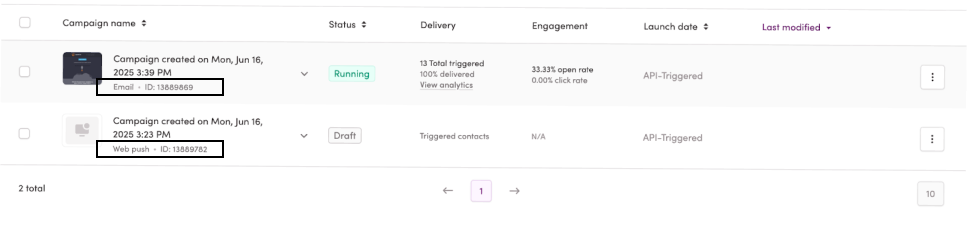
- The campaigns you want to fire already exist in Iterable and are configured as API-Triggered campaigns. Each one carries its own campaign ID, shown beneath the campaign name in the campaigns list, which the integration needs to identify the campaign.
- Those API-triggered campaigns are activated and set to Running.
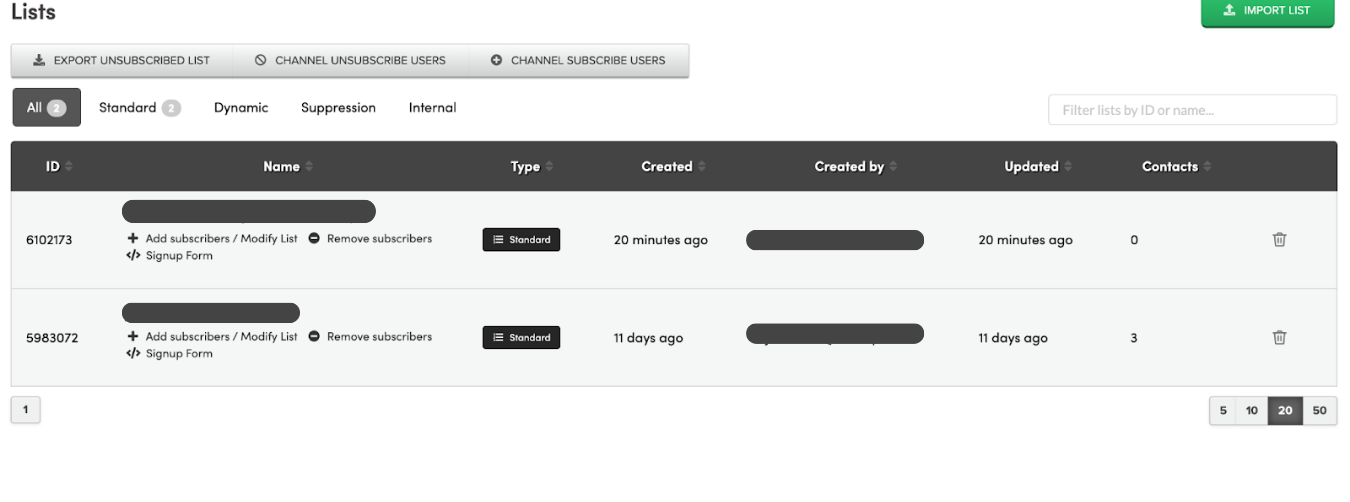
- For Update Subscriber List, the subscriber list already exists and you have its list ID.
Note:The list is appended to every time a new user is added. Where an identifier already exists on the list, the other fields on that record are updated instead.
- The Iterable project’s primary user identifier is email.
In Zeotap CDP
- Your role grants destination edit rights on the organisation that owns the destination. For the role-to-permission matrix, see User Roles and Access.
- An audience is defined with the criteria for the cohort you want to activate.
- A consistent user identifier is available in Zeotap CDP at the time of the trigger and corresponds to the user profiles in Iterable.
Create an API key in Iterable
Interaction with Iterable requires an API key, which you create in Iterable and then paste into the Zeotap CDP destination.1
Sign in to an Iterable project as an org admin or as a member that has the Manage Integrations project permission.
2
Navigate to Integrations › API Keys. This screen lists information about each of the API keys that have been created for the project, but it does not display the full API keys.
3
Click New API Key.
4
In the Create API Key window, enter a name for the key and select the type of API key you want to generate.Give the key a descriptive name so you know what it is used for later — useful if you need to find and update it, or have a security reason to disable or delete it.
5
(Client-side keys only) If you selected a client-side key type, you will see additional settings:a. Event creation — block creation of new event definitions, or allow them for up to 14 days in the future. See Event creation in Iterable’s API Keys documentation.b. JWT Authentication — selected by default and highly recommended. See JWT authentication in Iterable’s API Keys documentation.
6
When you have finished, click Create.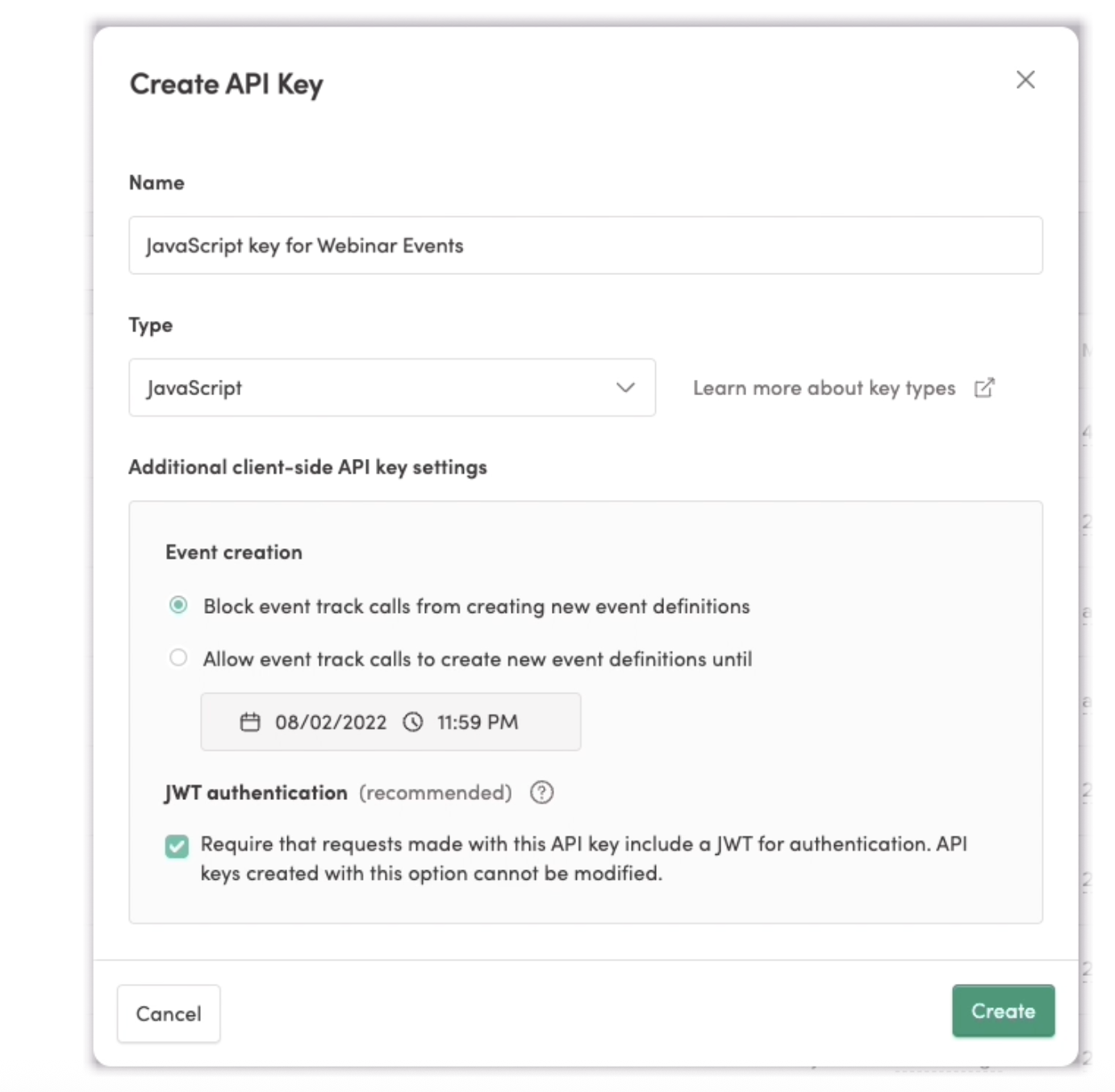
7
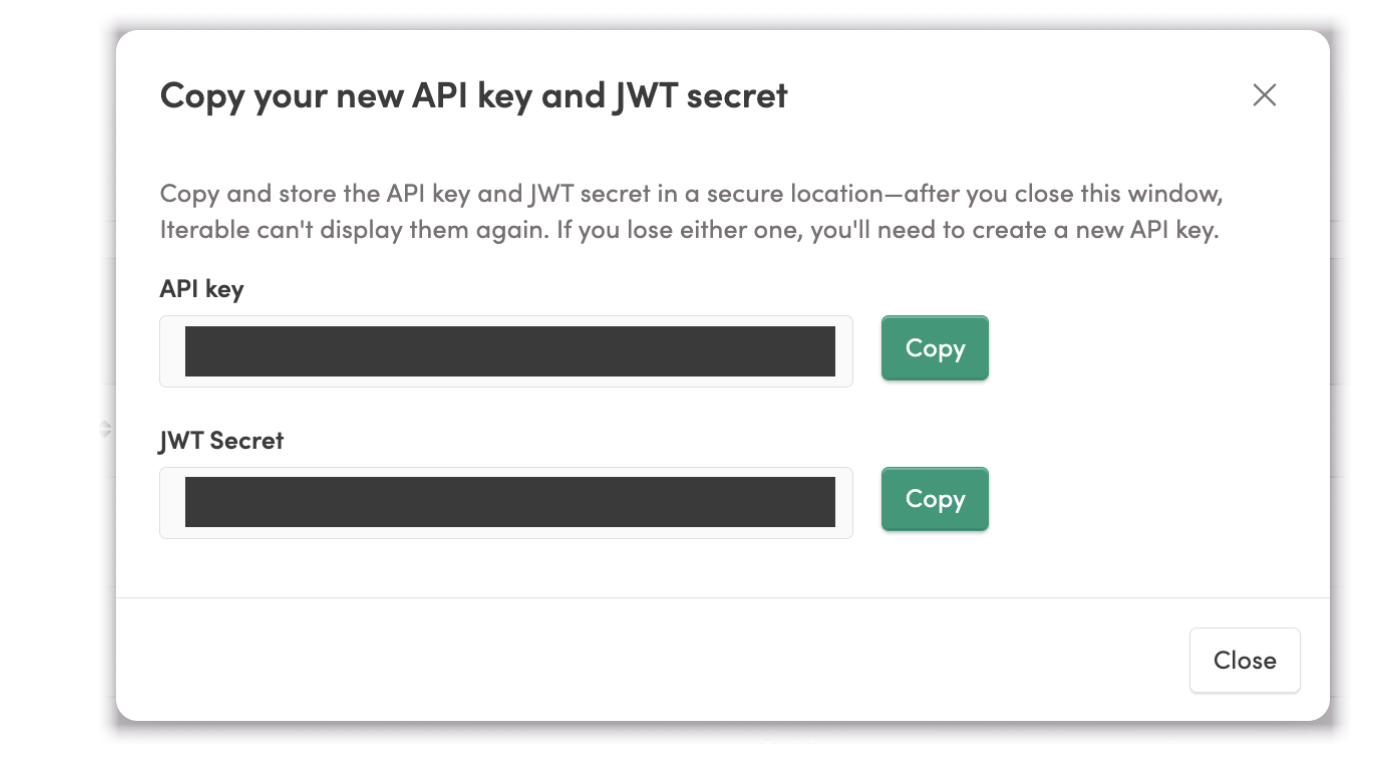
In the Copy your new API key window, copy the API key.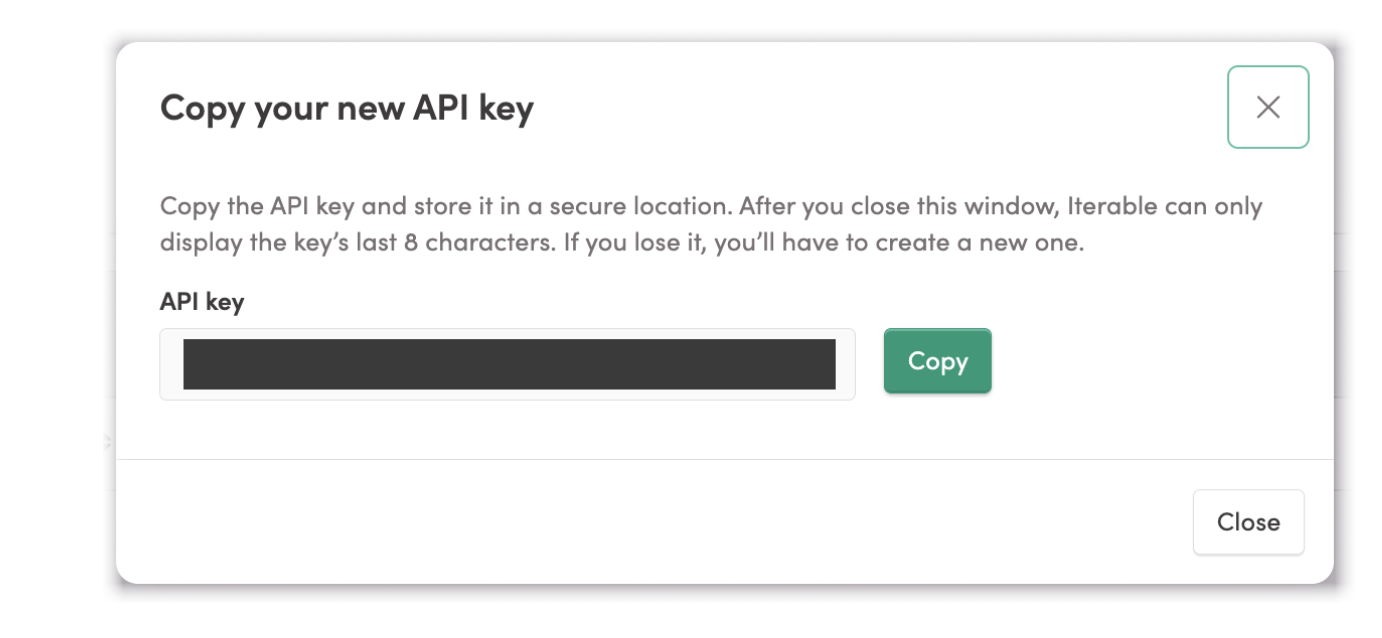
Create the Iterable: Campaign Trigger destination
1
Log in to the Zeotap CDP app and go to the Destinations application.
2
Click + Create Destination.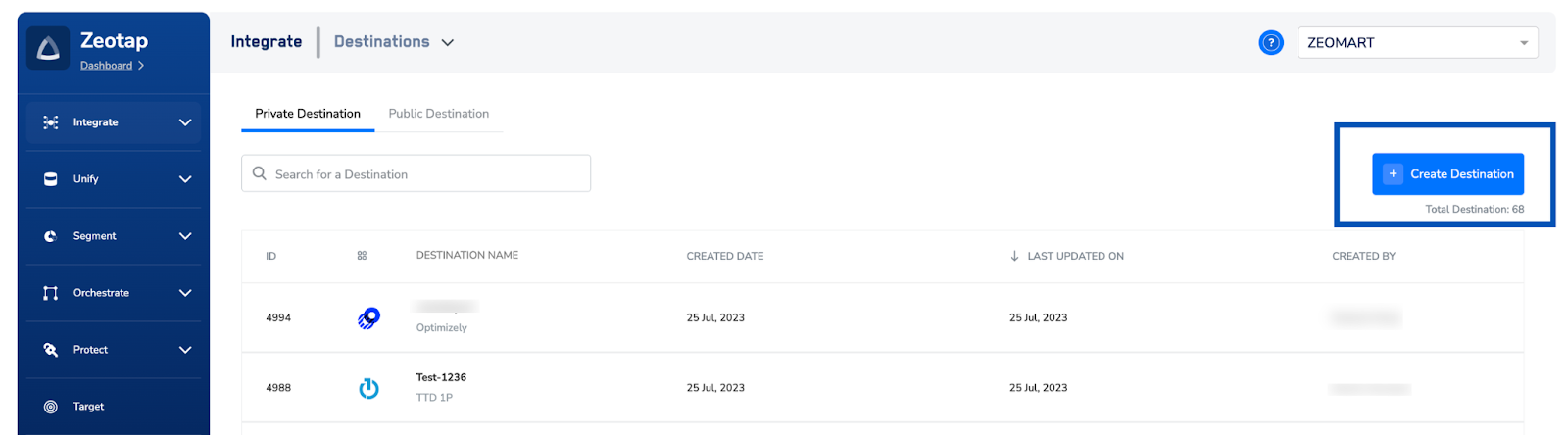
3
Under All Destinations, search for 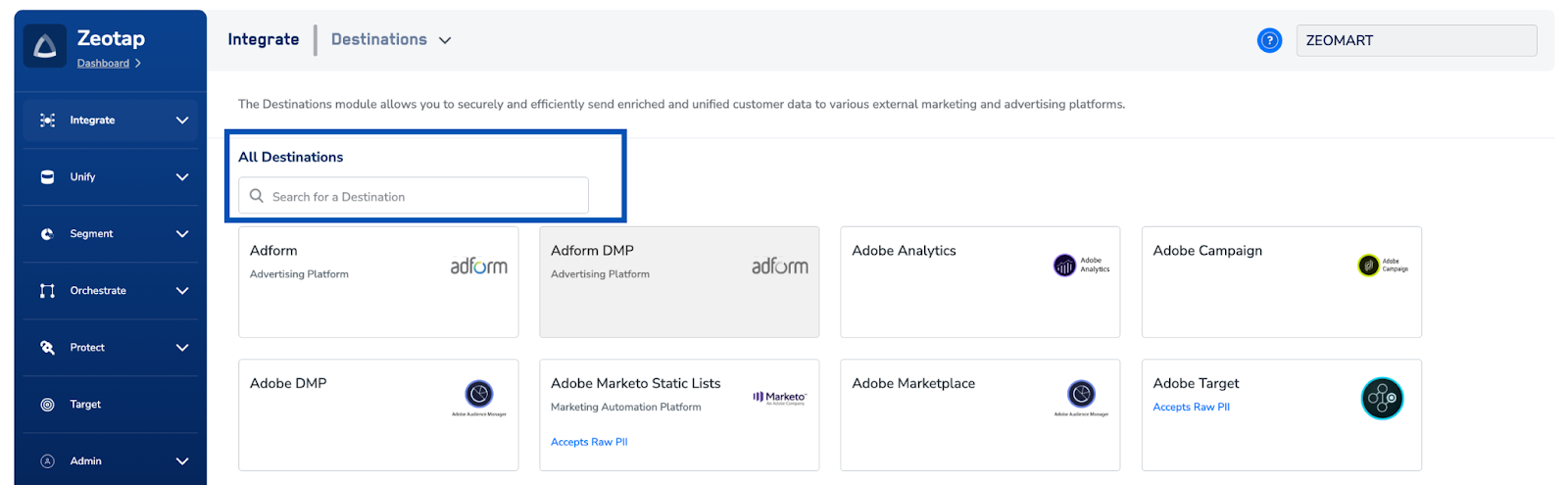
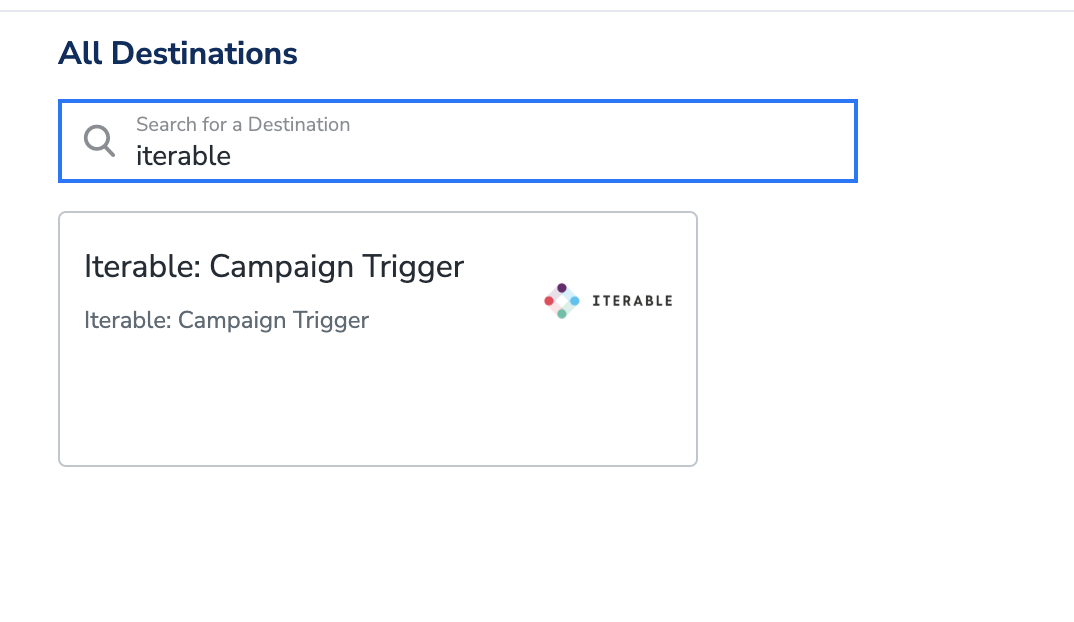
iterable. The Iterable: Campaign Trigger tile is returned.4
Click the Iterable: Campaign Trigger tile. Details about the destination appear on the left of the screen; on the right are the fields required to establish the integration. On the Destination Details tab, enter:a. Destination Name — a name that identifies this destination easily.b. API Key — the key you copied in Create an API key in Iterable.c. Data Center — the data centre of your Iterable instance: 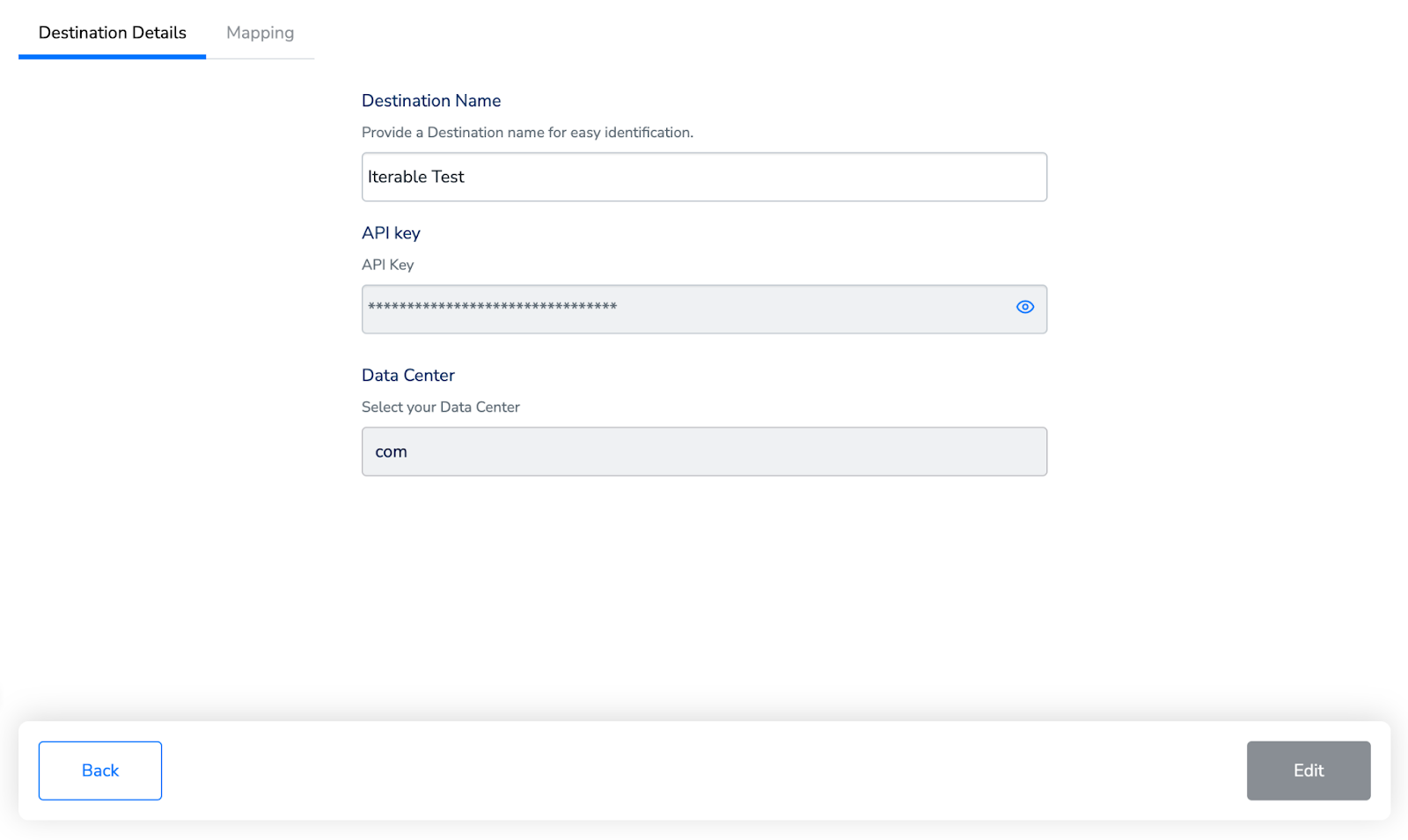
com for the US, eu for Europe.5
On the screen that appears, choose the action and its mapping.Under Choose your Action, choose Trigger Campaign or Update Subscriber List.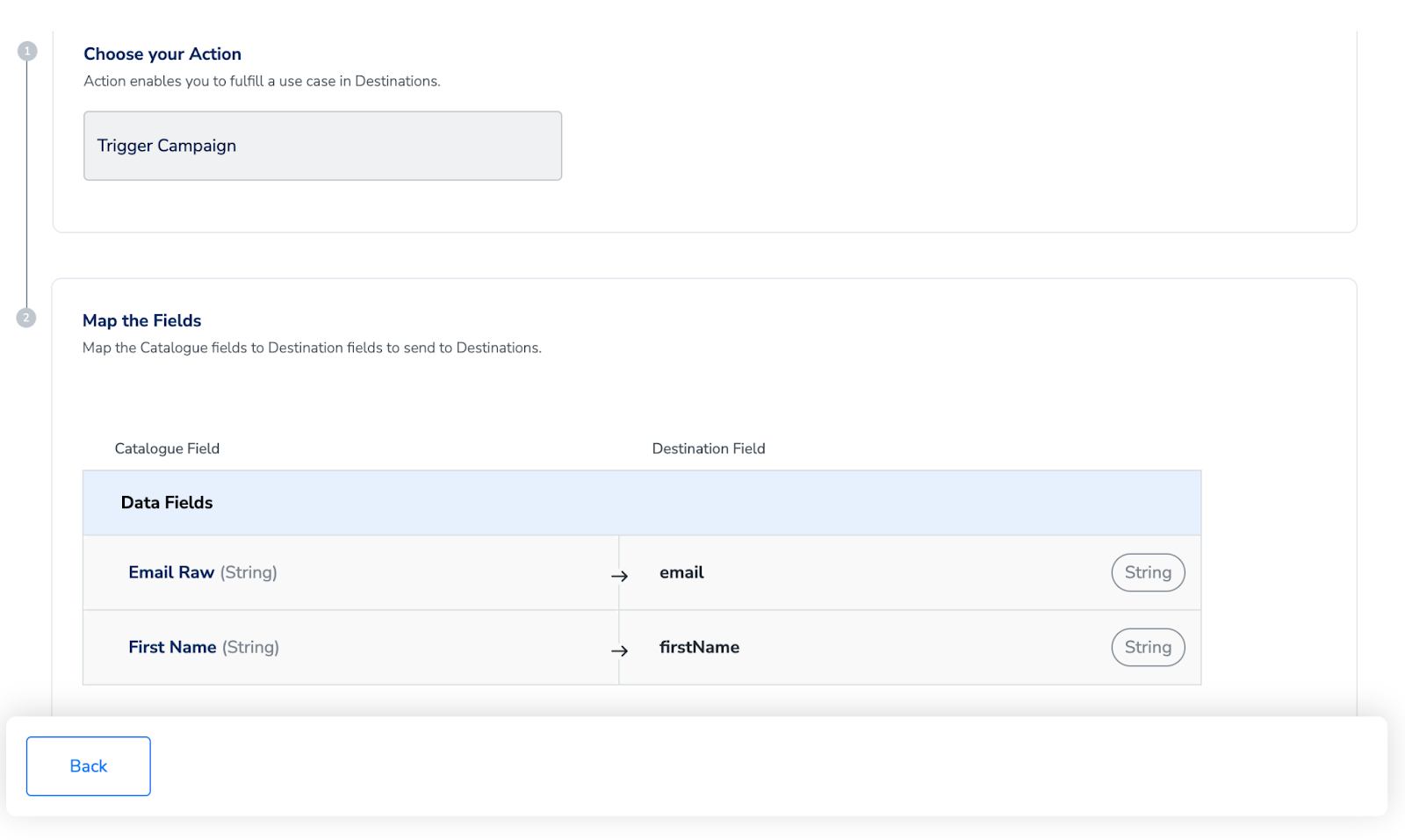
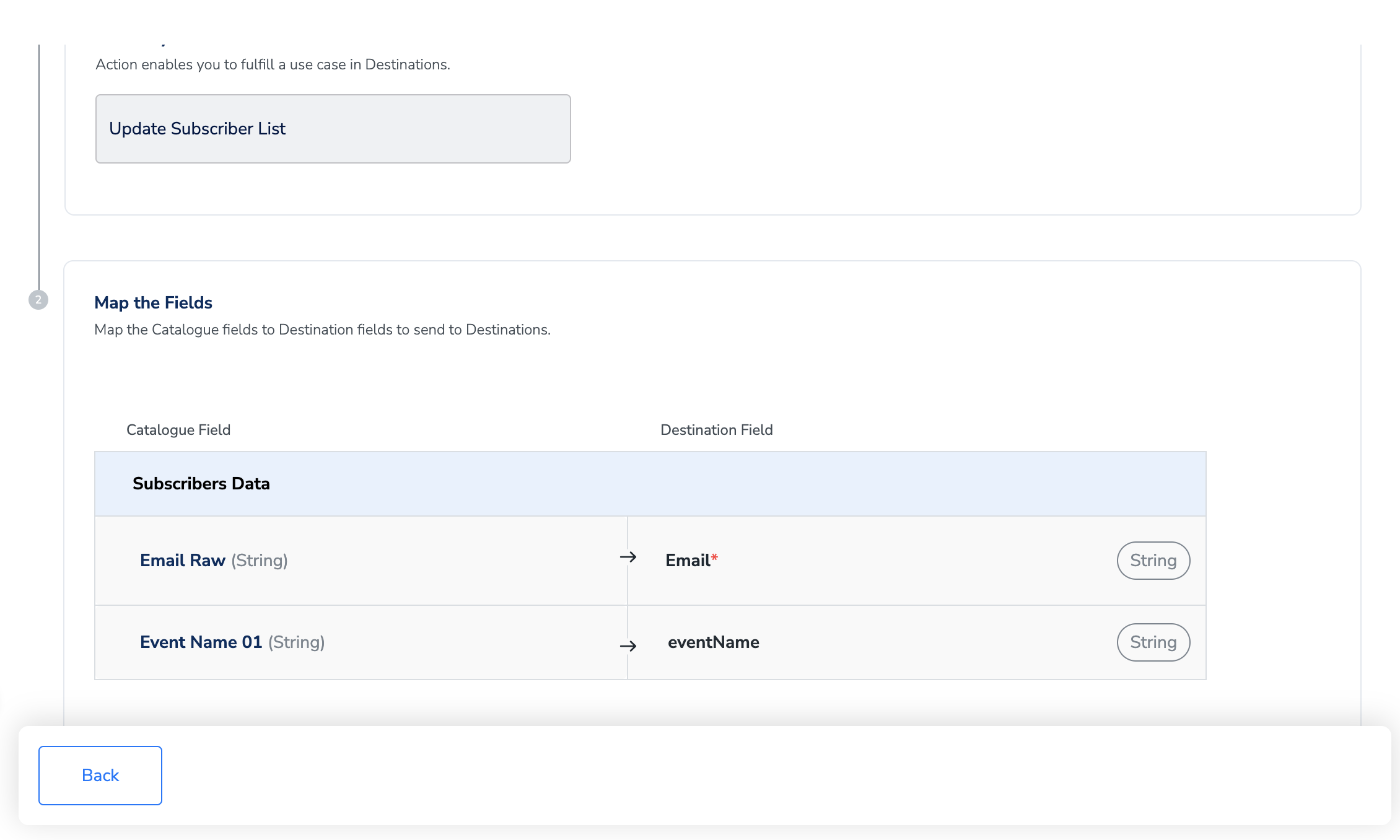
Email destination field is required, so map the Catalogue field that carries the email address — for example Email Raw — to it; add any other field with + Add Mapping.6
Click Create Destination. The destination is created and is then available to link to an audience, as described below.
Link an audience to the destination
After creating the destination, link it to the audience you want to activate.1
In the Audiences application, find the audience, click the Audience Activation icon at the right-hand end of its row and then click Link to Destination.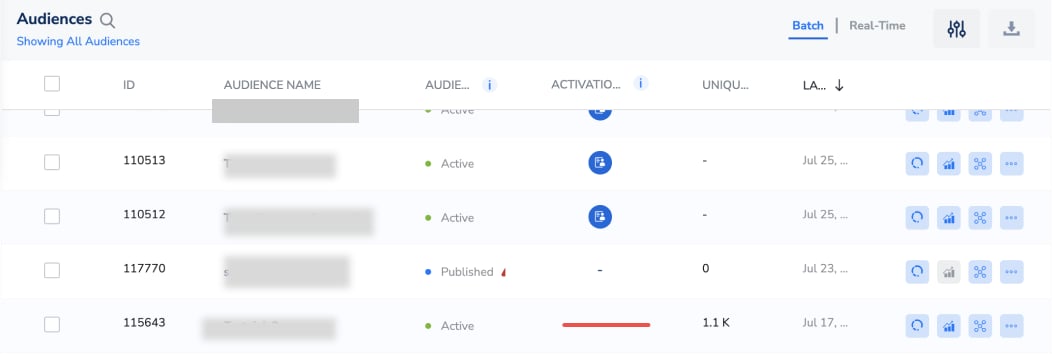
2
In the screen that appears, find the destination with the search box and drag and drop it into the canvas.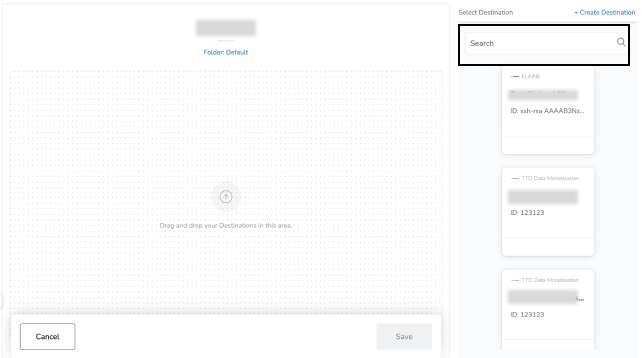
3
Under the Destination Details tab, the API key and Data Center fields are populated automatically from the values you entered when you created the destination.
4
Click Save. The destination is attached to the audience.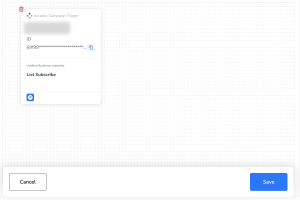
Verify the delivery
Confirm the delivery from both sides, as for any destination:- In Zeotap CDP — open the destination and review its activity. A successful delivery records a run with a non-zero qualified count and a completed status. A failed run records an error message you can use to diagnose the cause.
- In Iterable, for Trigger Campaign — open the campaigns list and check the campaign’s Delivery column, which reports how many sends were triggered and what share was delivered.
- In Iterable, for Update Subscriber List — open Lists and check the Contacts count against the list you targeted.
Troubleshoot the delivery
- The campaign never fires. Confirm the campaign is configured as an API-Triggered campaign and that its status is Running — a campaign left in Draft does not fire.
- The subscriber list does not grow. Update Subscriber List writes to a list that must already exist, and you must have its list ID. Where an identifier on the audience already exists on the list, the record is updated rather than added, so the contact count can stay flat even on a successful run.
- Customers are not matched in Iterable. The Iterable project’s primary user identifier is email, so the email you map must be the same address held on the Iterable profile.
- Campaign and list setup. Both actions depend on objects you create in Iterable, not in Zeotap CDP: the API-triggered campaign for Trigger Campaign, and the subscriber list for Update Subscriber List. Check both exist before investigating the delivery itself.
Invalid permissions! Access denied.Your account does not hold the required role on the organisation that owns the destination. Check your role assignments in User Roles and Access.No customers qualifiedThe audience definition returned zero qualifying records at the moment the refresh ran, even if the audience estimator showed a non-zero count.