

NoteFor information about the various roles available in the system with their descriptions, refer here.
Integrate - User Roles and Access
The following table summarises the roles and access levels available for various features on Integrations:Unify - User Roles and Access
The following table summarises the roles and access levels available for various features on Unify:Segment - User Roles and Access
The following table summarises the roles and access levels available for various features on Segment:Orchestrate - User Roles and Access
The following table summarises the roles and access levels available for various features on Orchestrate:Protect - User Roles and Access
The following table summarises the roles and access levels available for various features on Protect:Admin - User Roles and Access
The following table summarises the roles and access levels available for various features on Admin:Download Users
The Download Users feature enables administrators to export a CSV file containing all users and their detailed permission assignments, scoped by organization. This is useful for auditing, compliance reviews, and access management reporting.Exporting User Permissions
1
Navigate to Admin > My Users.
2
Click the Download Users button in the top-right area of the page.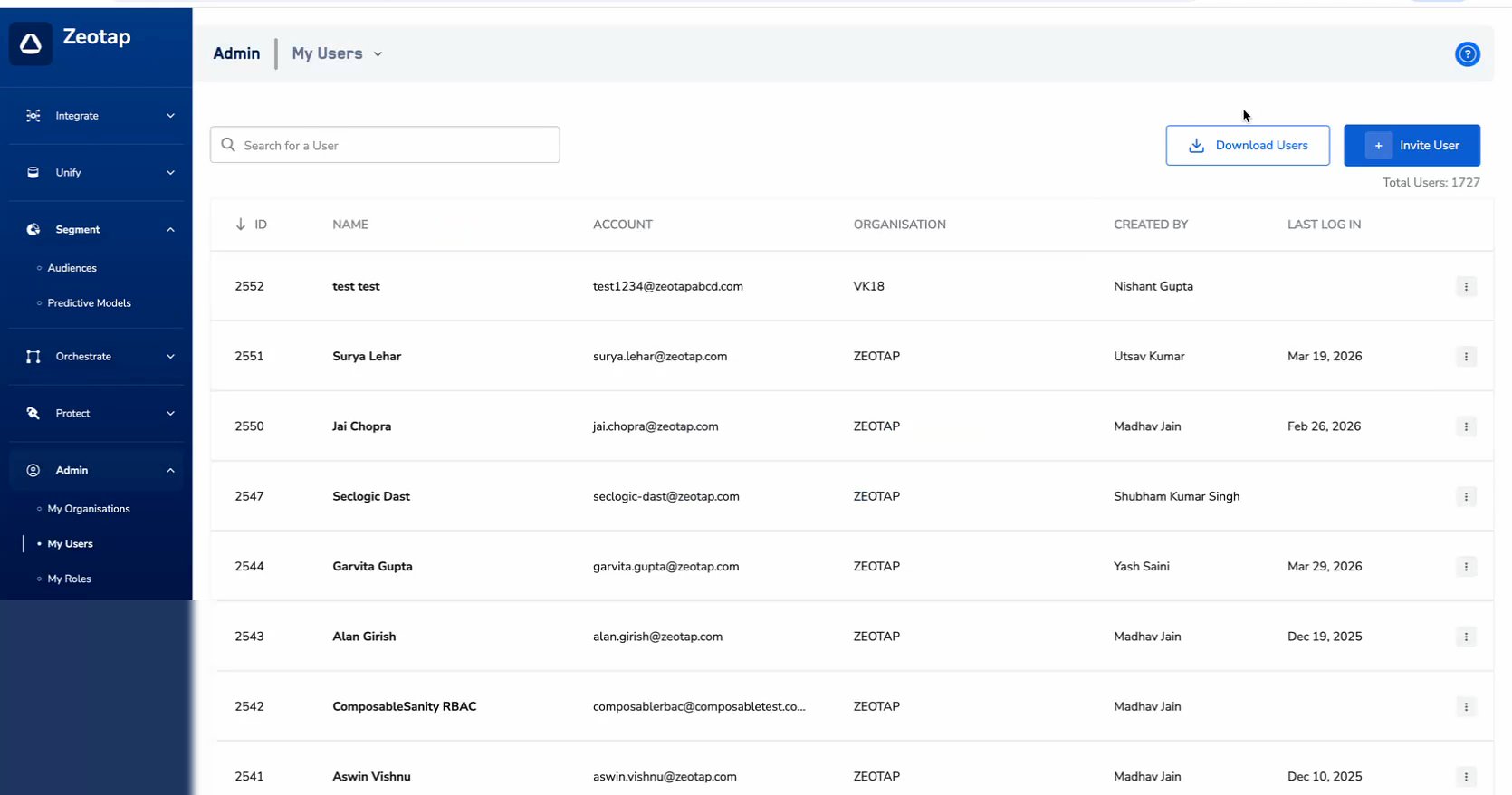
3
In the modal that appears, choose the export scope: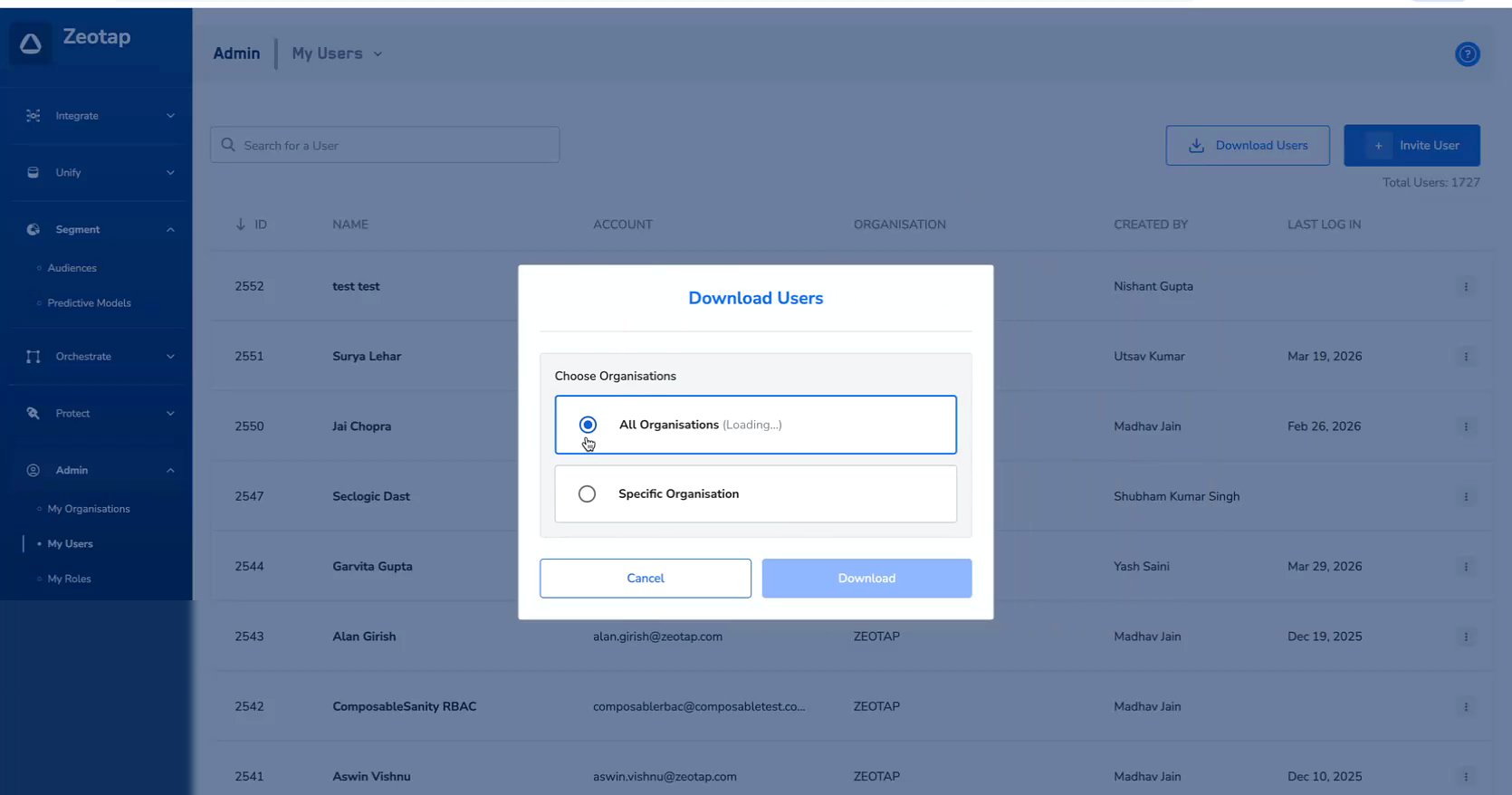
- All Organizations — Exports users from all organizations. Useful for global audits.
- Specific Organization — Exports users from a selected organization only. A searchable dropdown lets you pick the organization.
4
Click Download to generate and download the CSV file.
Exported File
The exported file follows the naming conventionzeotap_users_export_YYYY-MM-DD (N).csv.
Data Structure
Each row in the CSV represents a user. The columns cover identity fields and permission states:
Permission values are displayed as TRUE or FALSE for each user.
Use conditional formatting in your spreadsheet tool to highlight TRUE values in green and FALSE values in red for a quick visual audit of permission coverage across users.
Best Practices
- Schedule regular exports — Download the user permissions CSV at a regular cadence (e.g., monthly) for compliance and audit purposes.
- Compare over time — Keep historical exports to track how permissions change over time and identify any unintended permission escalations.
- Use Specific Organization scoping — For multi-org deployments, export per organization to keep audit files focused and manageable.
- Automate reviews — Use spreadsheet formulas or scripts to flag users with unusual permission combinations (e.g., users with Delete permissions but not Create permissions).