

Important — EU consent enforcementTo comply with the EU user consent policy and continue accessing Customer Match within the European Economic Area (EEA), Google requires partners to use
Google Ads API v15 and transmit consent signals for EEA users:ad_user_data— consent to send user data to Google for advertising purposes.ad_personalization— consent for ad personalisation.
GRANTED consent status for both signals. To ensure only consented users meet the audience criteria, you must:- Provide Zeotap CDP with consent parameters covering
ad_user_dataandad_personalization. - Configure Consent Orchestration rules so only users who consented to ad personalisation on Google products are ingested.
What this is
Google Customer Match lets you target your own first-party customer data in Google Ads and Display & Video 360 (DV360) campaigns across Search, the Shopping tab, Gmail, YouTube, and the Google Display Network. This integration sends mobile advertising IDs (MAIDs) — the IDFA on iOS and the AAID on Android — from a Zeotap CDP audience into Google Customer Match, where each audience becomes a Customer List you can attach to campaigns. Use this integration when your source data is app-level MAIDs; for email- or phone-based matching, use Google Customer Match (Customer Contact Information) instead. Because MAIDs are device-level identifiers, Zeotap does not extend MAID-based segments — MAID uploads are accepted only when they are first-party data that you onboarded.Prerequisites
Gather the following before you create the destination. Each item is required — the destination will not save without them.You need:
- A Google Customer Match–eligible advertiser account. Google’s eligibility criteria: a good policy-compliance history, a good payment history, at least 90 days of history in Google Ads, and more than 50,000 USD in total lifetime spend (converted at the monthly average rate for non-USD accounts). See the Google Help documentation for the full policy.
- Your Seat ID — the numeric ID next to your account name in Google Ads or DV360.
- Your App ID — the identifier of the mobile app the MAIDs were collected from. Formats:
- iOS: the 9-digit ID at the end of the App Store URL. For
http://itunes.apple.com/us/app/flood-it!-2/id476943146, the App ID is476943146. - Android: the app package name. For
https://play.google.com/store/apps/details?id=com.labpixies.colordrips, the App ID iscom.labpixies.colordrips.
- iOS: the 9-digit ID at the end of the App Store URL. For
- Your Product Type, matching where the Seat ID lives:
ADWORDS— for Google Ads (Search, Shopping, Gmail, YouTube, Display).INVITE_PARTNER— for a DV360 Bid Manager Partner (an agency or organisation managing several advertisers).INVITE_ADVERTISER— for a DV360 Bid Manager Advertiser (a single brand running its own campaigns).
- Zeotap whitelisted on your Google Ads or DV360 account (one-time — steps below).
- Consent parameters for
ad_user_dataandad_personalizationingested into Zeotap CDP for EEA users, with matching Consent Orchestration rules.
Supported identifiers and actions
This destination accepts MAIDs only (IDFA and AAID). Zeotap does not add identifier extensions to MAID-based segments — uploads must be first-party data that you onboarded.
For Delete behaviour, see Delta Upload and Delete functions.
Whitelist Zeotap on Google Ads
Zeotap must be an authorised data source on your Google Ads account before any audience push succeeds. Without this step, audience creation on the Google side fails.1
Sign in to your Google Ads account.
2
In the left panel, open Tools > Data Manager.
3
Under Data Manager, open the Connected products tab and click + Connect Product.
4
Search for Zeotap, select it, and click Authorise.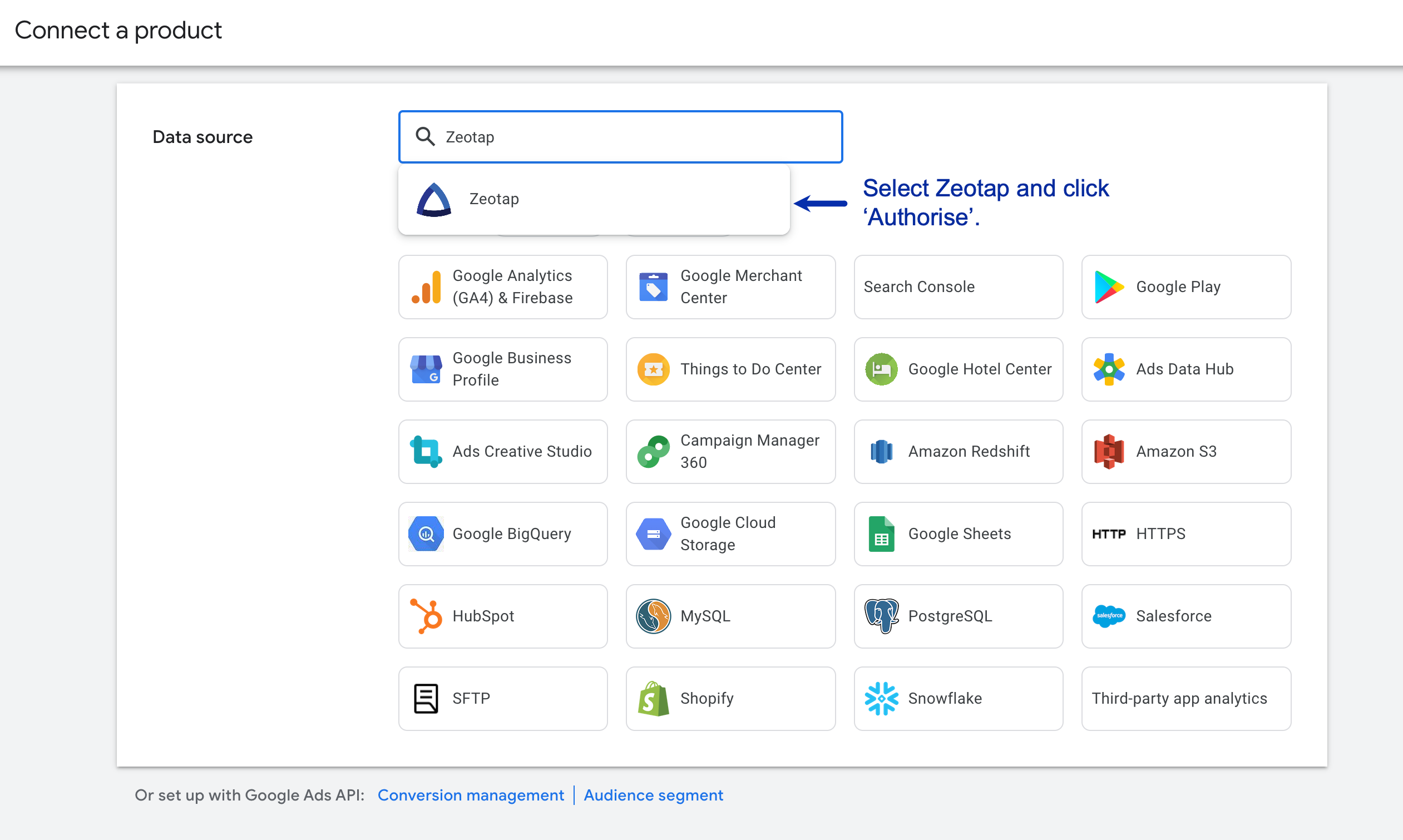
5
Confirm the connection. Zeotap appears under Connected products, and you can send audiences from Zeotap CDP as Customer Lists.
Whitelist Zeotap on Google DV360
For DV360, perform a one-time mapping of your Advertiser or Partner ID to Zeotap. This mapping tells Google whether to route data to theINVITE_PARTNER or INVITE_ADVERTISER product in the API service.
1
Sign in to DV360.
2
Open Partner Settings and select Linked Accounts.
3
Under Linked Accounts, click LINK NEW ACCOUNT and select External Data partner.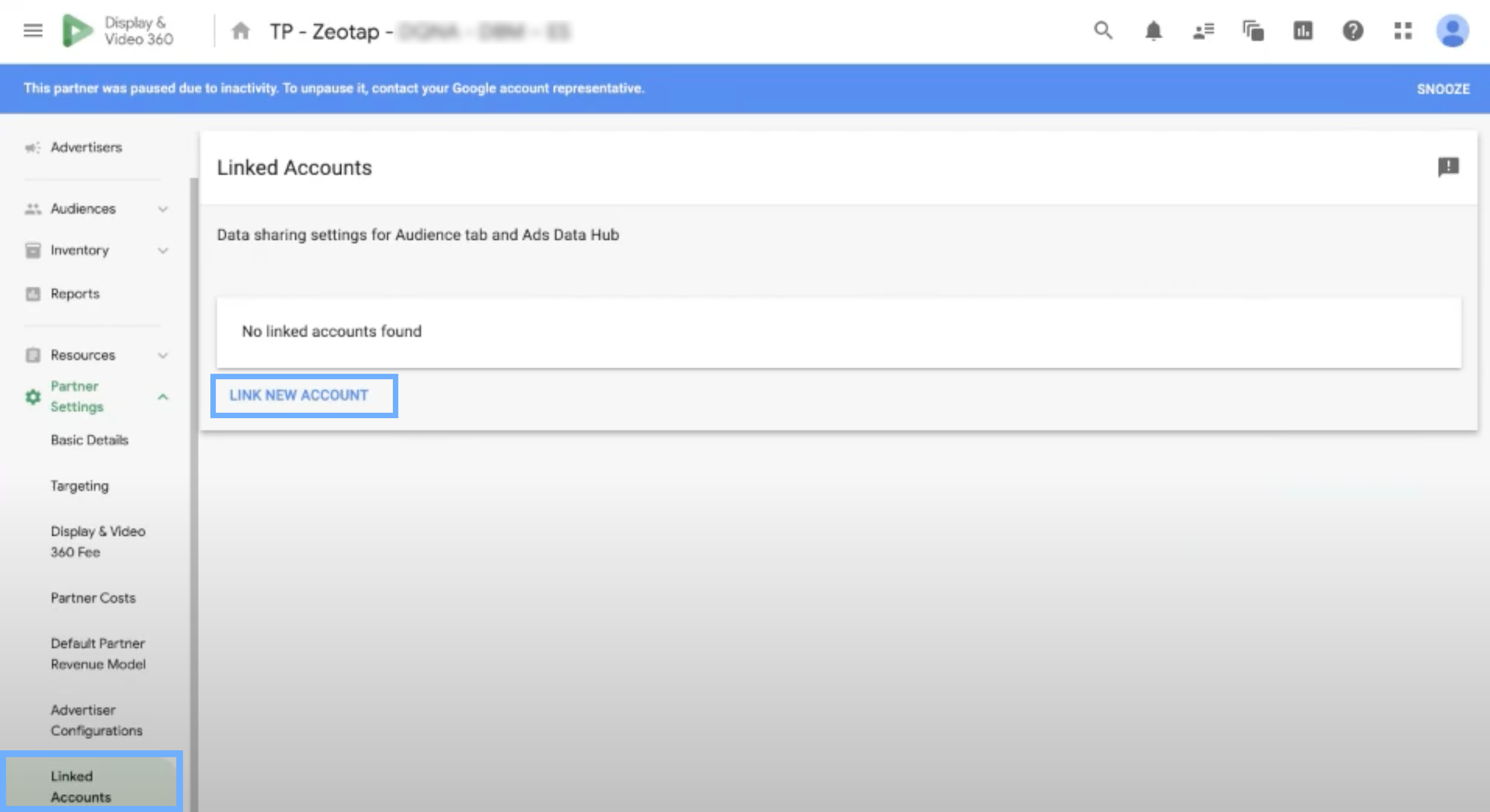
4
Under Account, search for Zeotap.
5
Select CMU: Zeotap (Customer Match Upload: Zeotap) and click Link.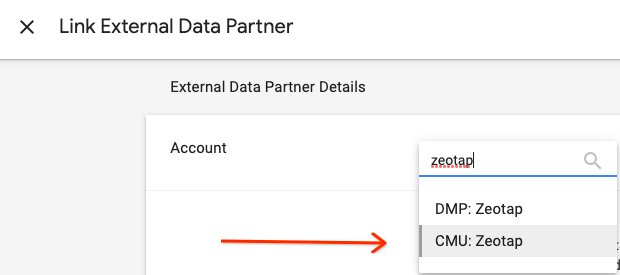
6
Confirm the link. Zeotap appears under your linked accounts and can push audiences into DV360.
Create the destination in Zeotap CDP
1
Sign in to the Zeotap CDP app and open the DESTINATIONS application.
2
Click + Create Destination.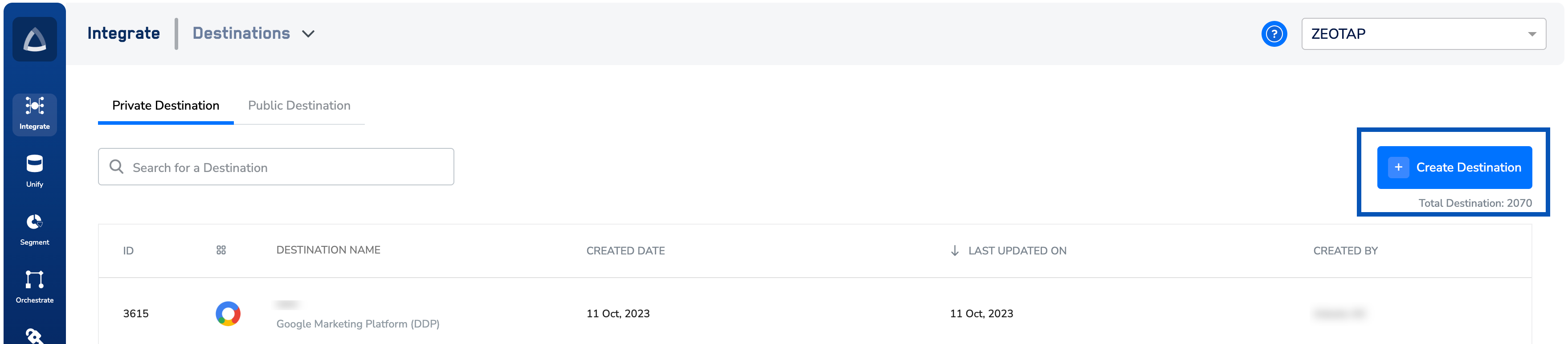
3
Under All Destinations, search for Google Customer Match (Mobile Device IDs) and open it.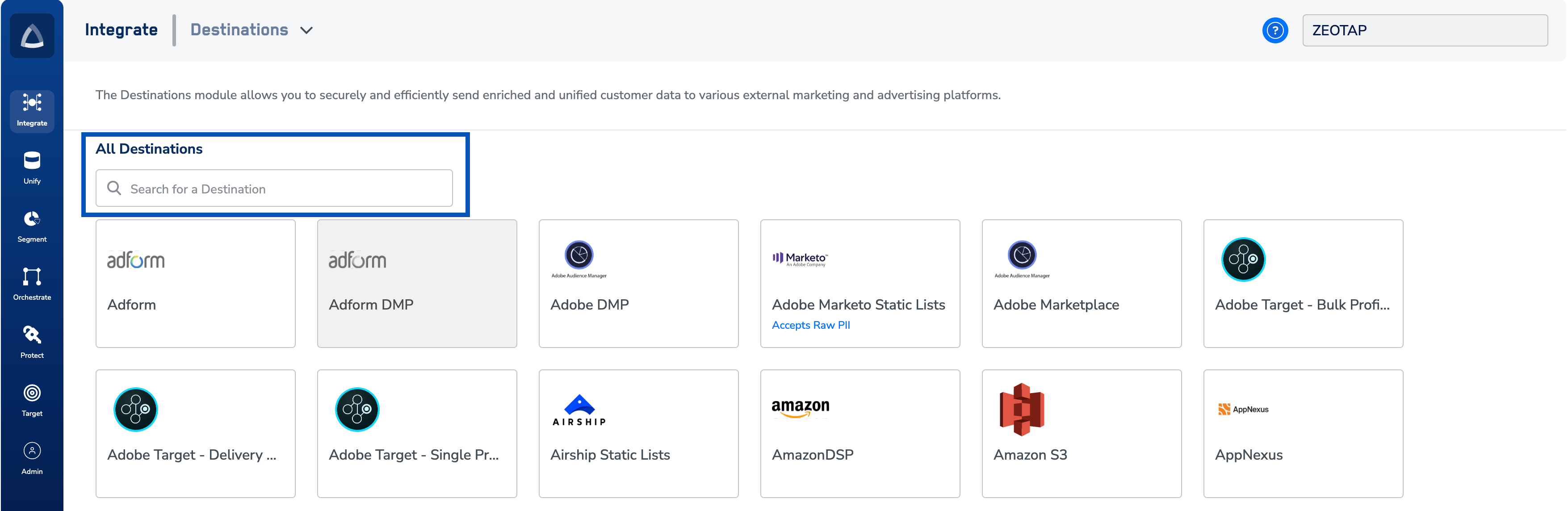
4
Fill in the configuration panel on the right:a. Enter a Name for the destination.b. Enter the Seat ID on which the segment should be created.c. Enter the App ID in the format shown in Prerequisites.d. Select the Product Type — 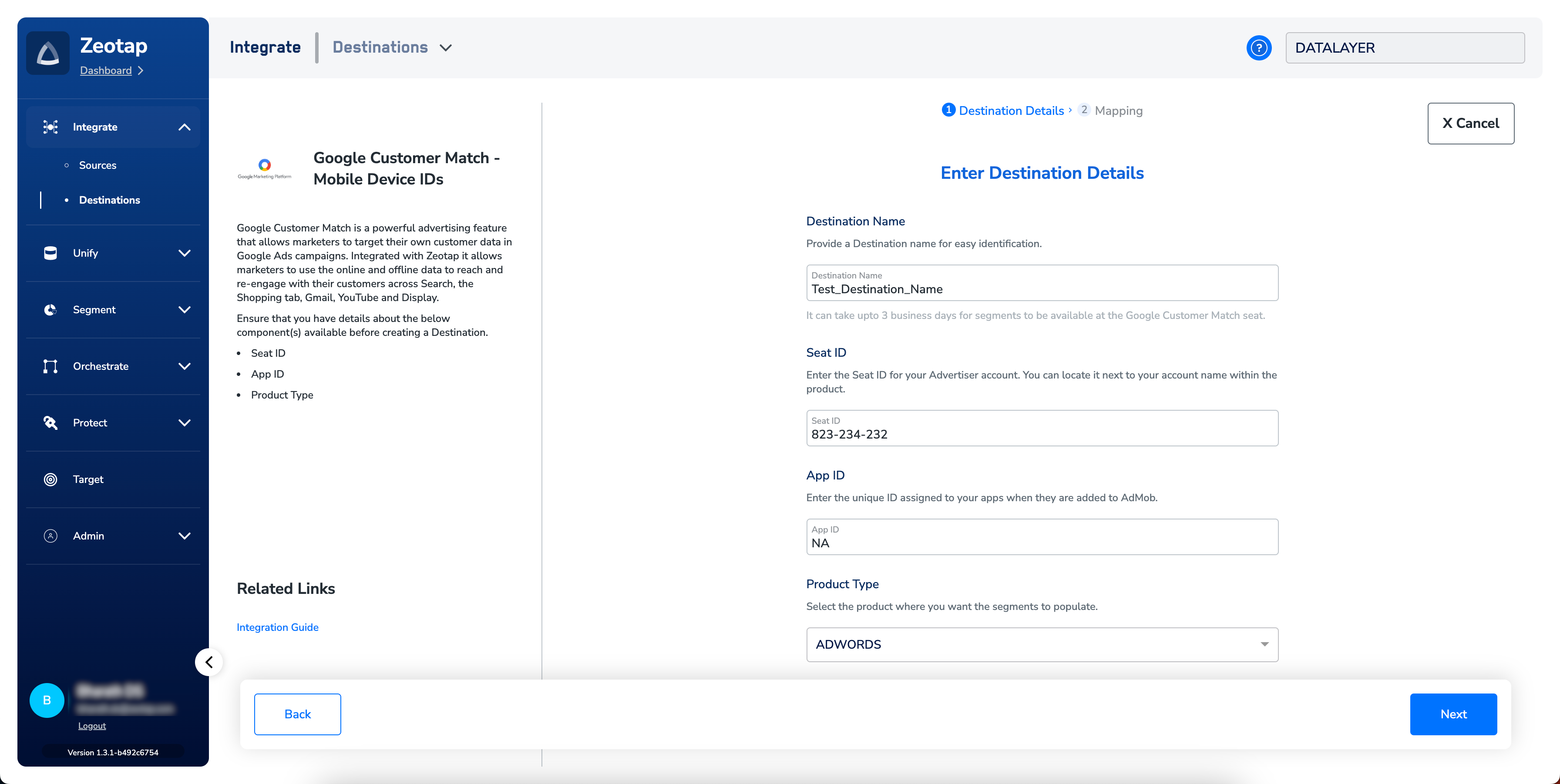
ADWORDS, INVITE_PARTNER, or INVITE_ADVERTISER — matching the Seat ID.e. Review the values and click Next.5
On the Action and mapping screen, under Choose your Action, select Send identifiers to Google Customer Match - Mobile Device IDs. Map the Catalogue field that holds the MAID to the destination MAID field.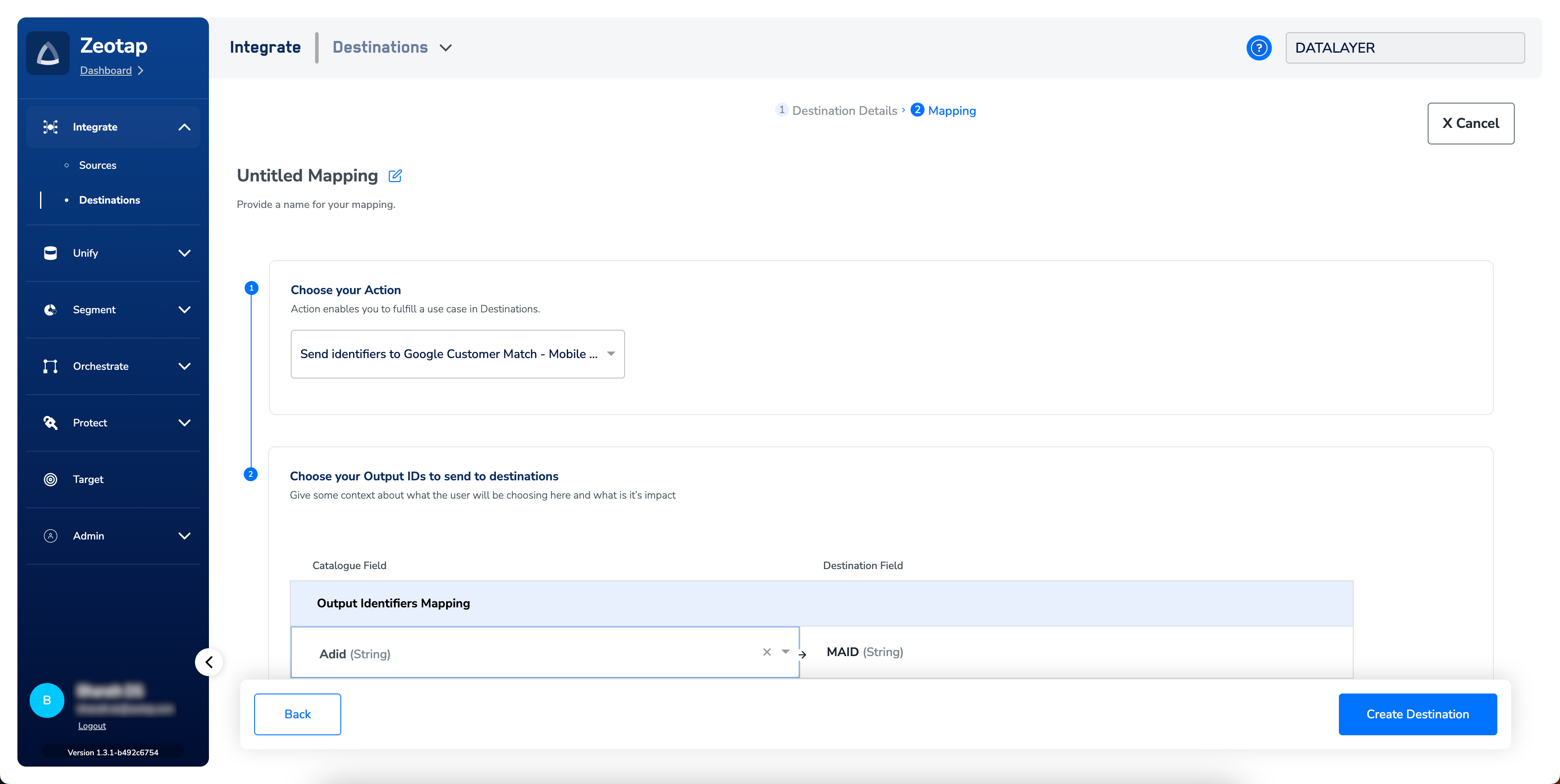
6
Click Create Destination. The destination is now available in the Audiences application.
The App ID is required when creating a
CrmBasedUserList for uploading mobile advertising IDs; without it, Google rejects the audience.Link an audience to the destination
Once the destination exists, link an audience to it from the Audiences application — see Link an audience to the destination for the walkthrough. Segments created by this integration appear at the Google seat named in the format:The terms Audience and Segment are used interchangeably to mean a customer cohort defined by shared criteria — for example, customers over 18 who performed an
addToCart event in the last 30 days.Verify the destination is working
Confirm the audience arrived on the Google side through Audience manager in Google Ads.1
Sign in to the Google Ads account tied to the Seat ID you configured.
2
In the left panel, open Tools.
3
Under Shared Library, open Audience manager.
4
Under Your data segments, find the segment named 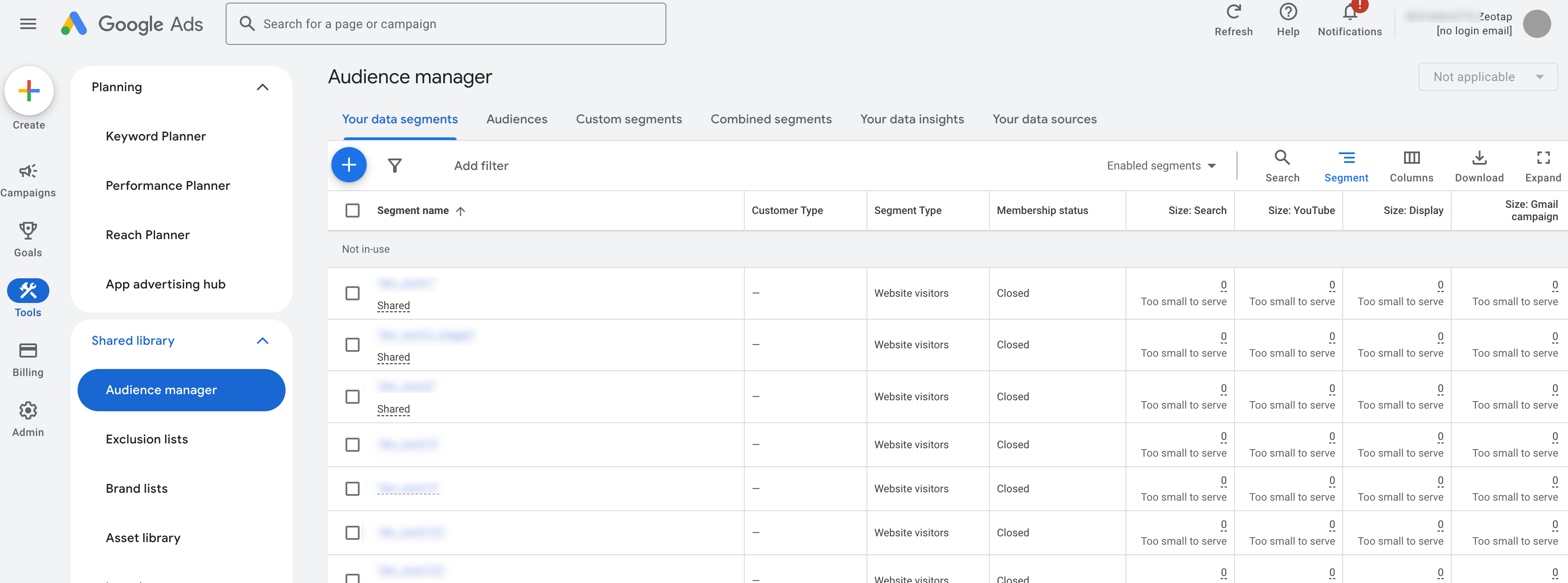
{Audience Name}_{Audience Id}. In the Customer Type column, it is listed as Customer list (Mobile Device IDs).- The segment appears in Audience manager with Customer Type = Customer list (Mobile Device IDs).
- The segment name matches
{Audience Name}_{Audience Id}from your Zeotap audience. - The list size populates on the Google side within three business days of the first refresh.
User disqualification and deletes
When a user no longer meets an audience’s criteria — for example, because a consent parameter changed or the user no longer matches the segment definition — Zeotap CDP issues a delete request to Google for that user in the next refresh cycle. This runs automatically at the refresh frequency configured on the audience; you do not trigger it manually. For the full delete and delta-upload behaviour, see Delta Upload and Delete functions.Troubleshoot common issues
If none of the above matches your symptom, contact your Zeotap customer success representative.
Include in your request: the destination name, the Seat ID, the Product Type, the App ID, the audience name and ID, the timestamp of the last refresh attempt, and any error string shown in the Zeotap CDP destination activity view.
FAQ
Can I send emails or phone numbers through this destination?
Can I send emails or phone numbers through this destination?
No. This destination accepts MAIDs only. To send hashed emails or phone numbers, use Google Customer Match (Customer Contact Information).
Why can't I extend a MAID-based audience?
Why can't I extend a MAID-based audience?
Identifier extension is not permitted on MAID-based segments — MAID uploads must be first-party data that you onboarded. This is a policy constraint on the integration.
How long does it take for an audience to appear in Google Ads or DV360?
How long does it take for an audience to appear in Google Ads or DV360?
Up to three business days from the first refresh. Before the segment appears, it is queued at the Google Customer Match seat.
What happens to EEA users if I haven't set up consent orchestration?
What happens to EEA users if I haven't set up consent orchestration?
Zeotap sends
GRANTED for ad_user_data and ad_personalization for every user in the audience. If you have not filtered the audience by consent, non-consented EEA users are sent to Google, which violates the EU user consent policy. Configure Consent Orchestration rules so only consented users qualify — see the Google consent update FAQs.What Product Type do I choose if I use both Google Ads and DV360?
What Product Type do I choose if I use both Google Ads and DV360?
Create one destination per product. A single destination binds to one Seat ID and one Product Type; to push to both Google Ads and DV360, create two destinations with the appropriate Product Type (
ADWORDS for Google Ads, INVITE_PARTNER or INVITE_ADVERTISER for DV360).Next steps
- Explore Google Customer Match (Customer Contact Information) →
- Explore the Google consent update FAQs →
- Explore how to link an audience to a destination →
- Explore Delta Upload and Delete functions →
- Explore Google Ad Manager for PPID-based targeting →