

What this is
The TikTok destination connects your Zeotap audiences to a TikTok Ad Account through the TikTok Marketing API, letting you push custom audiences for targeting and personalisation on TikTok. The integration is offered as a Private Destination, supports batch delivery of email addresses, hashed cellphone numbers, and MAIDs, and refreshes your TikTok audience on each scheduled sync cycle.Prerequisites
Before you configure the destination, confirm the following:- A TikTok Ad Account exists for your brand.
- A TikTok business centre account is set up and the Ad Account is added to it. See TikTok’s guide on adding an Ad Account to the business centre.
- You have your Advertiser ID — this is your TikTok Ad Account ID, visible in TikTok Ads Manager.
- You have a contact at Zeotap (your CSM/TAM) who will exchange the
auth_codeyou generate for an Access Token that the destination setup needs.
Supported identifiers and actions
The TikTok integration supportsEmail addresses, Hashed cellphone numbers, and MAIDs. TikTok requires hashed cellphone numbers in .
The table below shows the action exposed for TikTok and which delivery features it supports.
Generate the access token
You authorise the Zeotap CDP App to push audiences to your TikTok Ad Account on your behalf. The authorisation produces a short-livedauth_code that your Zeotap CSM/TAM exchanges for the Access Token used in the destination configuration.
1
Open the TikTok Business API authorisation URL in your browser:You are redirected to the TikTok login page.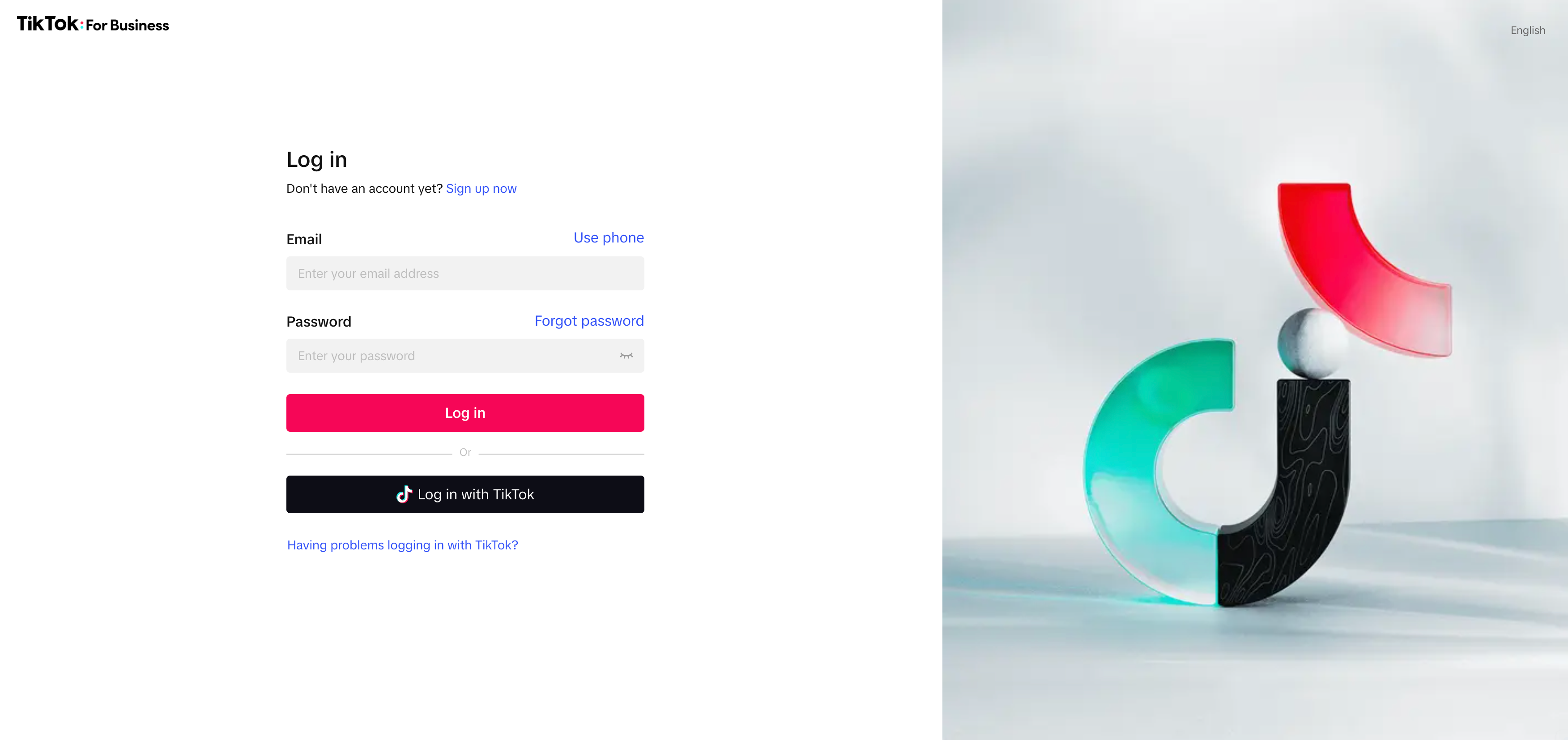
2
Sign in with your TikTok credentials. A permissions dialog appears — grant the requested permissions to the Zeotap CDP App.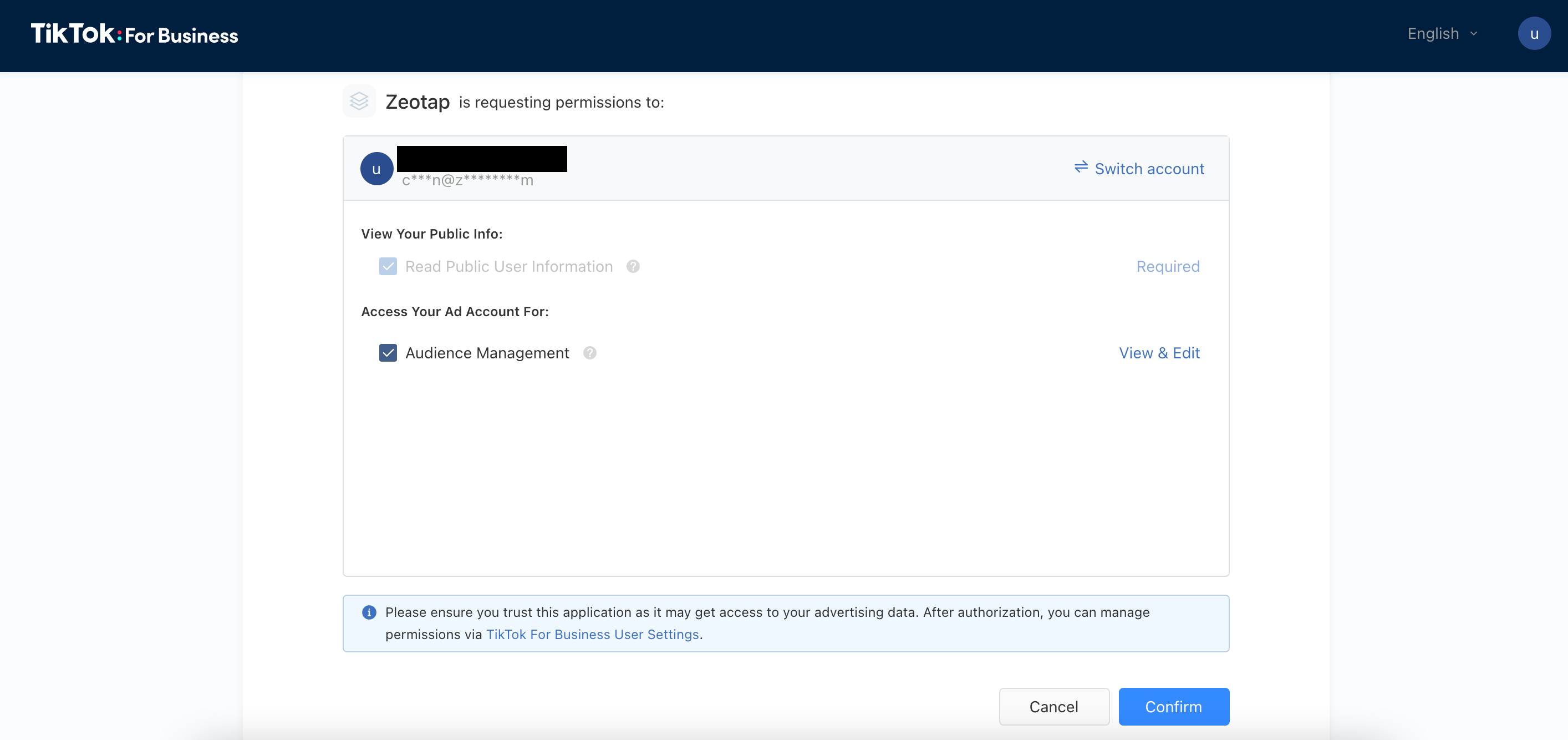
3
Click Confirm. TikTok redirects you to a new page.
4
In the browser address bar, copy the value of the 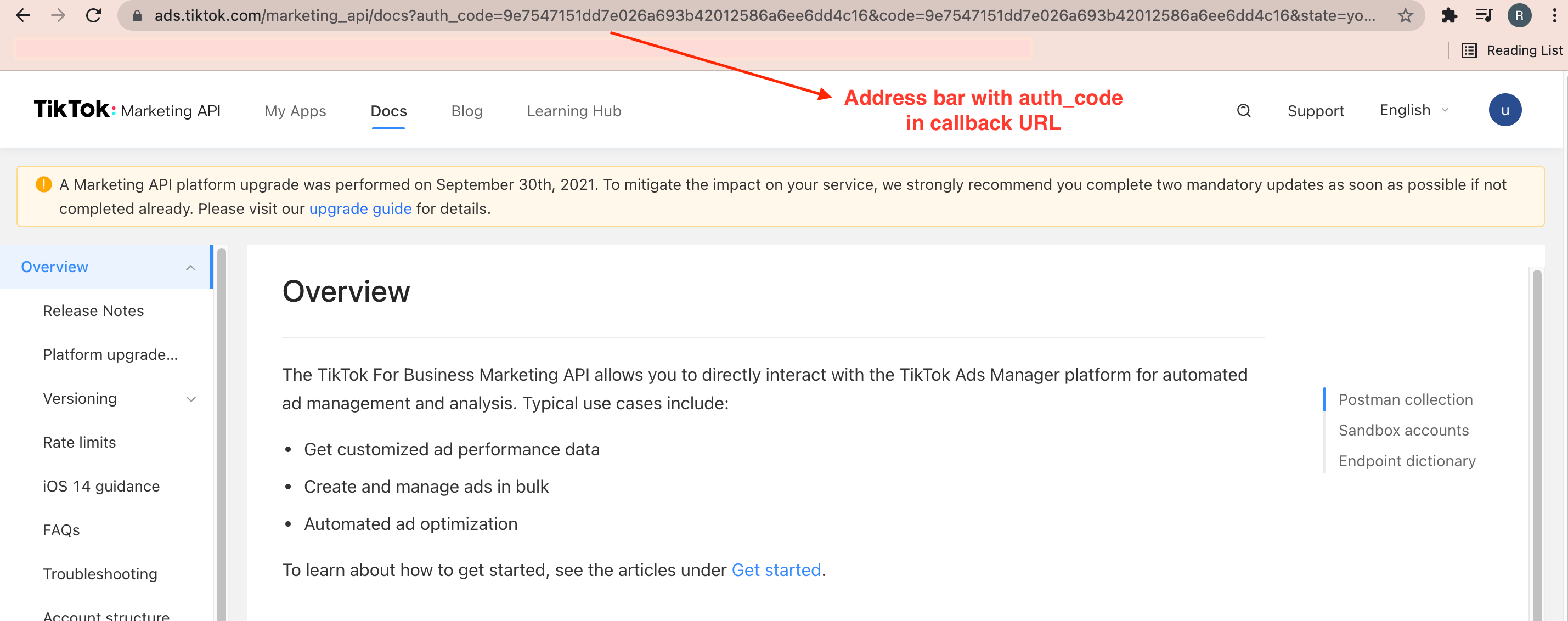
auth_code parameter from the callback URL.5
Send the
auth_code and your Advertiser ID to your Zeotap CSM/TAM through a secure channel. Your Zeotap CSM/TAM generates the Access Token from the auth_code and returns it to you for the destination setup.You can find your Advertiser ID (your TikTok Ad Account ID) in TikTok Ads Manager, in either of the two places highlighted below.
Create the TikTok destination in Zeotap
TikTok is offered as a Private Destination only. Sign in to the Zeotap CDP App, then follow these steps.1
Open the DESTINATIONS application and click + Create Destination.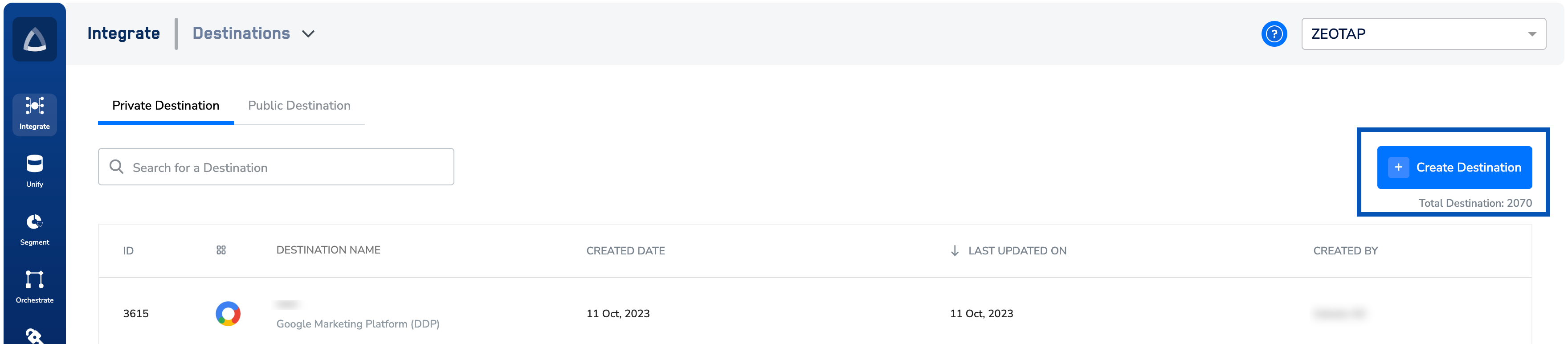
2
Under All Destinations, search for TikTok and select it.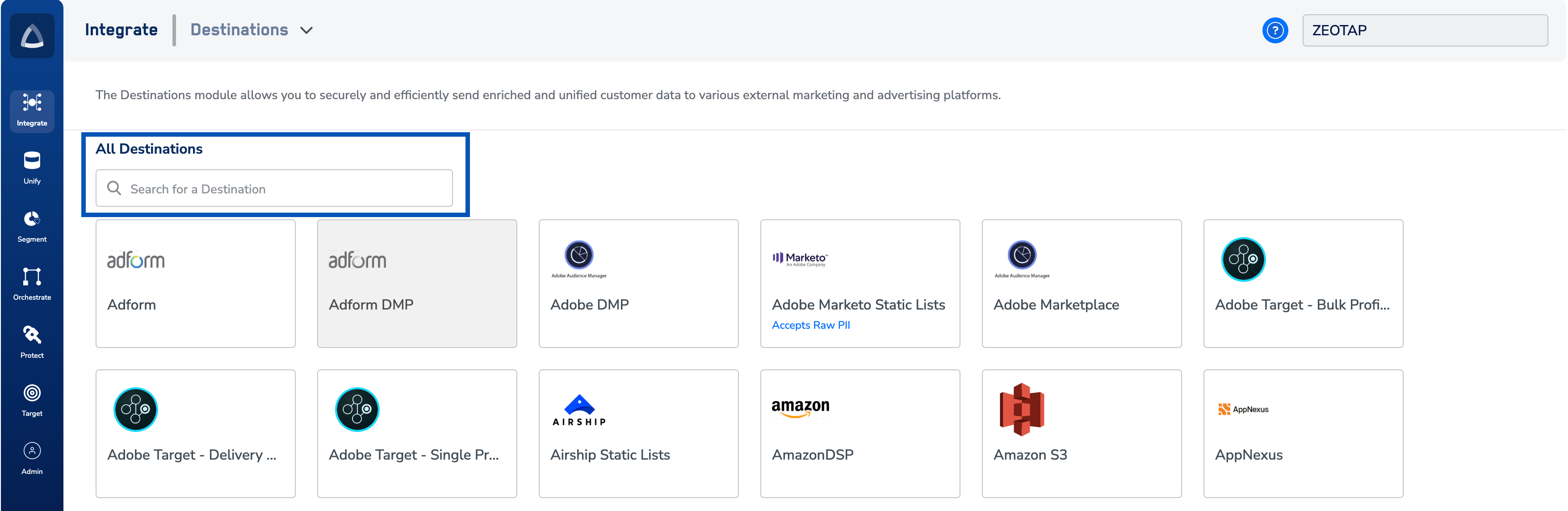
3
On the destination configuration screen, enter:
- A name for the destination.
- The Advertiser ID of your TikTok Ad Account.
- The Access Token provided by your Zeotap CSM/TAM.
4
Choose an action under Choose your Action and map the corresponding identifiers under Map the Fields. The default Output Identifiers accepted by TikTok are pre-populated. You can edit, add, or remove identifiers as described in destination mappings.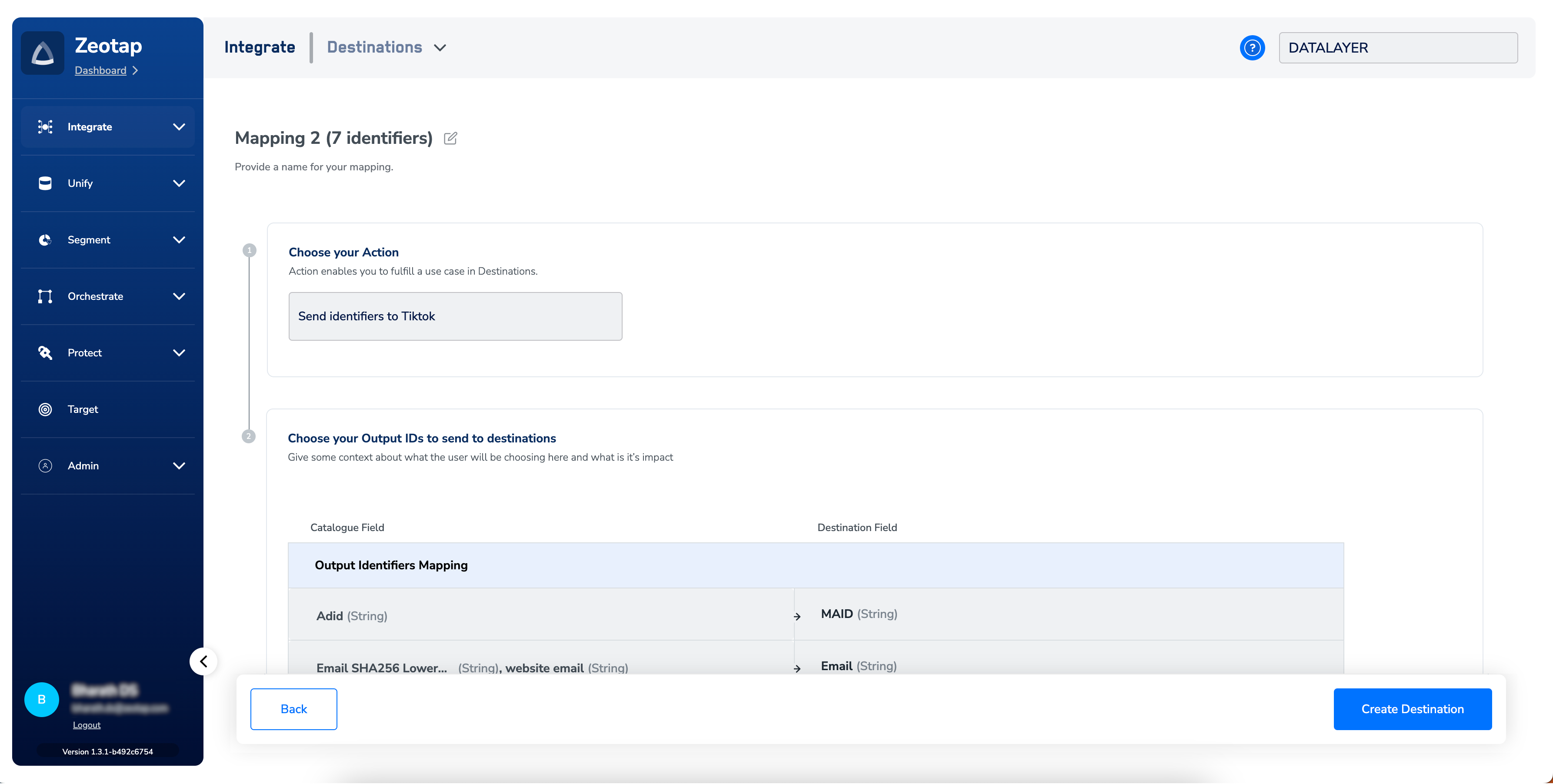
5
Click Create Destination. The created destination is listed in the Target and Audiences applications and is ready to be linked to an audience. See Link an Audience to the Destination.
Verify the destination is active
The destination is configured correctly when all of the following hold:- The new TikTok destination appears in the Target and Audiences applications with no error badge on the card.
- After you link an audience and the first refresh completes, the destination card in Audience Insights shows a Last Refresh timestamp and a populated Next Fire Time under the Schedule tab.
- The audience appears in TikTok Ads Manager under Tools → Audience manager. Allow up to three business days for an audience to be available at the TikTok seat after the first successful push.
The audience size shown in TikTok Ads Manager will be lower than the audience size in Zeotap — only the records that match a known TikTok user are kept after TikTok’s identity match runs. Depending on the audience composition, the matched count can be substantially lower than the input count.
How disqualified users are removed
The TikTok destination supports user disqualification. When a profile no longer meets the audience criteria (for example, consent is withdrawn, or the profile falls out of the audience rules), Zeotap CDP issues a delete on the next refresh cycle and the profile is excluded from the linked TikTok audience at the next scheduled run. This is automatic — no configuration is required to enable it. See Delta Upload and Delete Functions for the file-level mechanics.Troubleshooting
Use the table to identify the symptom, then follow the matching numbered resolution path below.1. auth_code expired before it reached your Zeotap CSM/TAM
The auth_code is valid for 10 minutes from issue.
- Repeat the steps in Generate the access token to produce a fresh
auth_code. - Hand the new
auth_codeand your Advertiser ID to your Zeotap CSM/TAM through a secure channel immediately — do not send it by email. - Once you receive the new Access Token, continue with Create the TikTok destination in Zeotap.
2. Expired badge on the destination card
The destination needs to be re-authorised against TikTok.- Generate a new
auth_codeby repeating Generate the access token. - Send the
auth_codeand Advertiser ID to your Zeotap CSM/TAM so a new Access Token can be issued. - Open the destination’s settings in the Zeotap CDP App and paste the new Access Token into the Access Token field, then save.
- Confirm the Expired badge clears on the destination card in Audience Insights and that the next scheduled refresh runs to completion.
3. Audience not visible in TikTok Ads Manager after a refresh
- In Zeotap, open the destination card in Audience Insights and check the Last Refresh column. If no successful refresh has run, trigger one with Push now + follow schedule from the audience’s destination settings (see Audience Scheduling) or wait for the next scheduled cycle.
- If the last refresh succeeded but the audience is still not visible in TikTok Ads Manager, allow up to three business days for the audience to propagate to the TikTok seat after the first successful push.
- If three business days have passed and the audience is still missing, follow the escalation steps below.
4. Audience size on TikTok much lower than the Zeotap audience size
- Confirm the identifier format. TikTok requires hashed cellphone numbers in e164 format (for example,
+16171339687). Numbers in another format are dropped during TikTok’s match. - Enable ID Extension on the destination link to derive additional online identifiers from your first-party email or phone records, raising the pool of records that TikTok can match.
- A match rate below your expectation that persists after the above is a property of TikTok’s identity match, not a Zeotap-side issue. Compare the matched count in TikTok Ads Manager with the input count on the destination card to size the gap before escalating.
When to escalate
Contact your Zeotap CSM/TAM if:- The destination still shows Expired after a fresh Access Token has been applied and saved.
- An audience has not appeared in TikTok Ads Manager three business days after the first successful refresh.
- You see an error or badge on the destination card that is not listed in the table above.