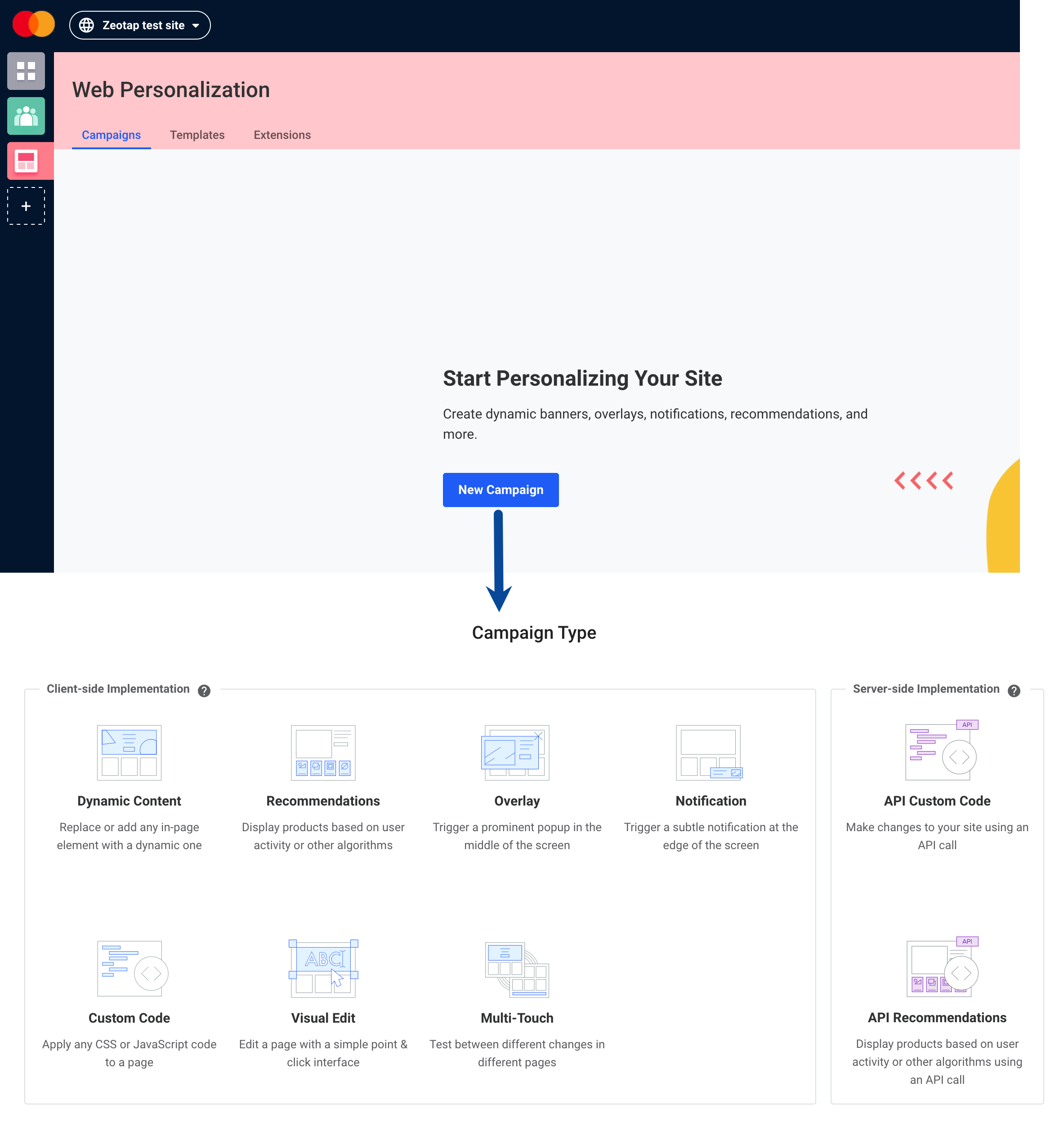
Overview
Dynamic Yield is a personalisation platform that builds actionable customer segments in real-time, enabling marketers to increase revenue through personalisation, recommendations, automatic optimisation and one-to-one messaging. The platform offers User Data API to update the User Data feed with information for creating Audiences based on specified targeting conditions. The API has a reduced load and works well for updating small numbers of users. Integrated with Zeotap, it helps marketers optimise the digital customer experience.Supported Identifiers
This integration supports SHA256 Hashed email, MAIDs, and Membership ID **.**You can also send any custom identifier and attributes. However, ensure that you create them under Data Feed in Dynamic Yield as explained in the Prerequisites section.Available Actions and Supported Features
The following table lists the available action types for the integration and the supported features for each action type:Prerequisites
Before pushing the segments to Dynamic Yield, ensure that you have set up the feed as mentioned below.- Create a User Feed and obtain the Feed ID.
- Choose an Unique User Identifier or create one.
- Decide which attributes (columns) to pass in the API and set up the schema that determines where and how the information is stored in Dynamic Yield.
- Create an API Key.
Note:For more information, refer to the Dynamic Yield documentation.
Step 1 - Create a New User Feed and Obtain the Feed ID
In Dynamic Yield, a User Feed ID refers to a unique identifier for a set of user data feeds that are used to drive personalised experiences across channels. A user feed can contain a variety of user data points, such as browsing history, purchase history and demographic information. To create a new User Feed and obtain the Feed ID in Dynamic Yield, perform the following steps:1
Log into your Dynamic Yield account.
2
In the left navigation panel, click Audience Hu b.
3
Under Audience Hub, navigate to the Extensions tab.
4
Under Profile, click Add Source as shown below.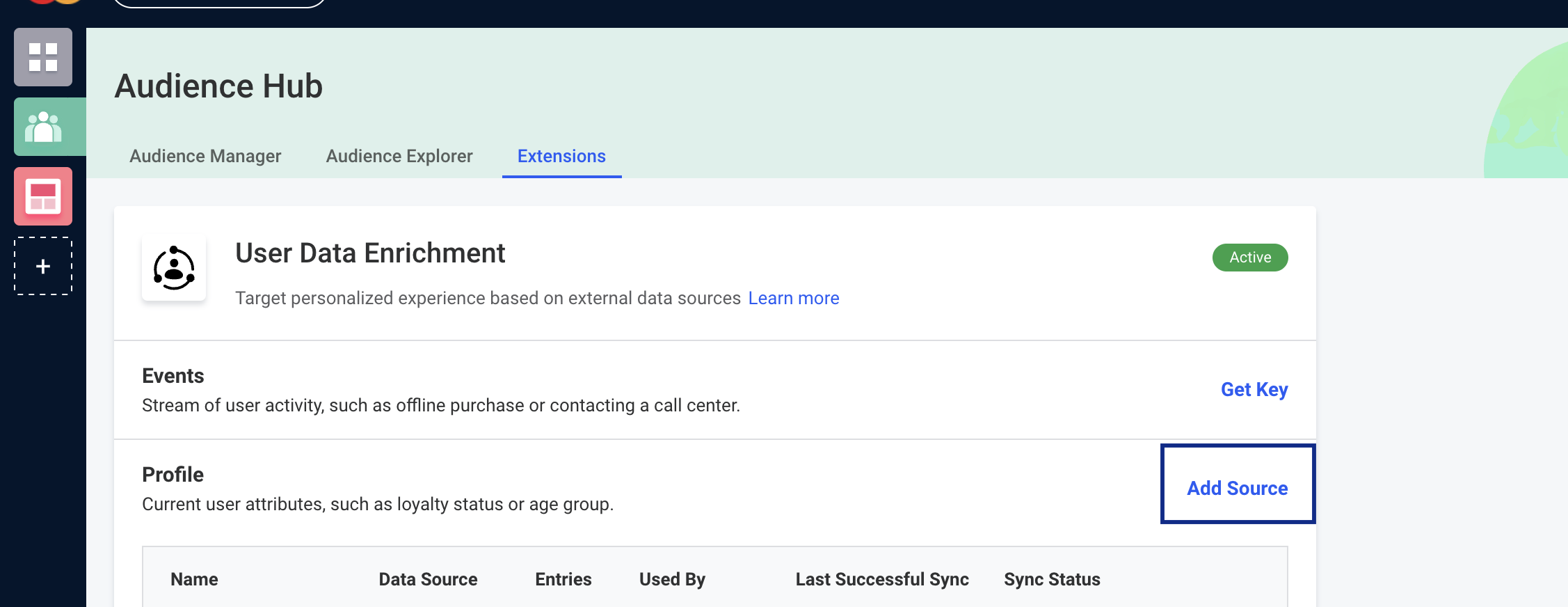
5
In the new screen that appears, under Feed Source, select Sync via API and copy the feedKey mentioned below it, which is your User Feed ID. You can use this while creating a Destination in Zeotap CDP.
Step 2 - Choose Unique User Identifier or Create one
Under Unique User Identifier, by default, you can choose Email Address (CUID) or DYID. In case you want to add a custom identifier, you can do so by performing the following steps:1
On the top bar, click Settings > General Settings.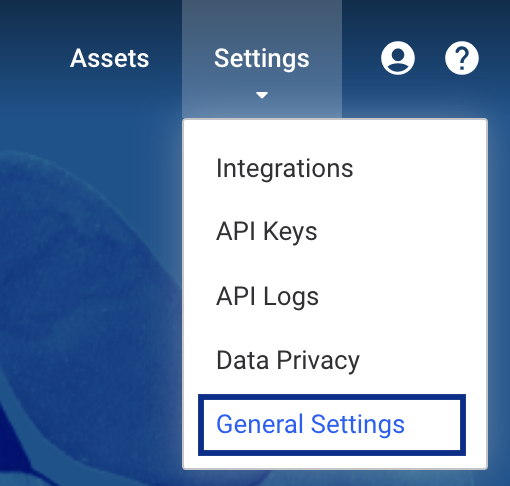
2
Under User Identifier Types, click Add Identifier Type and choose either Phone number or Others. If you choose Others, then you can add a custom identifier in Dynamic Yield as shown below.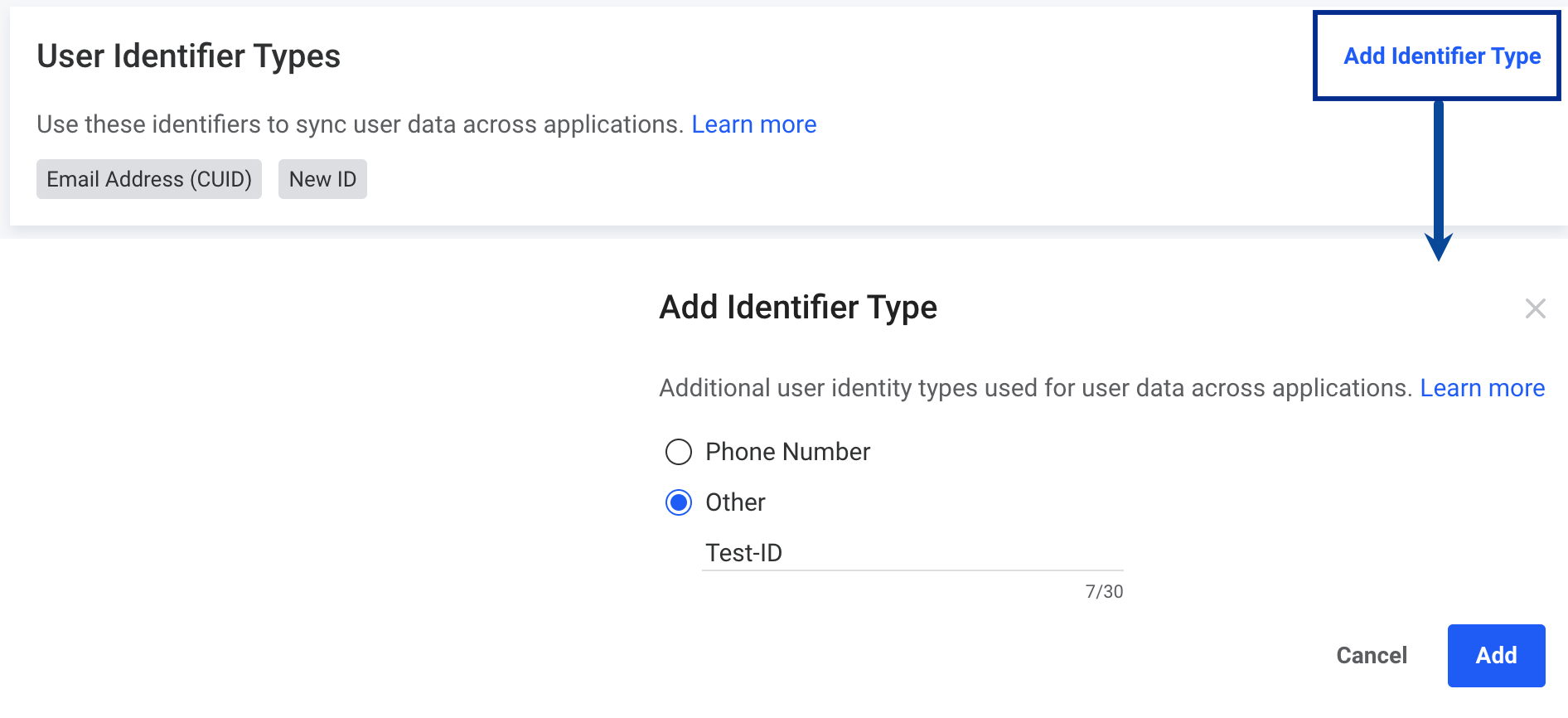
3
The newly created identifier gets listed under User Unique Identifier, on the User Feed Creation screen, ready to use.
Step 3 - Decide the Attributes to Send and Set up the Schema
Under Data Schema, you must define the identifiers and attributes that you want to send to Dynamic Yield. To do so, you can use the Schema Creator as shown in the image below.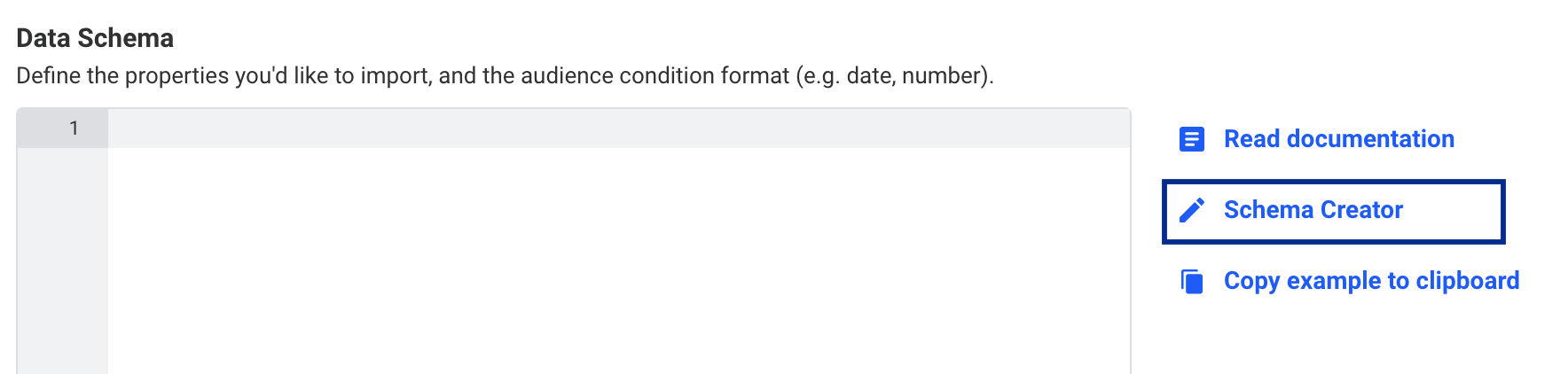
1
Once you have clicked Schema Creator. You can either create a schema from scratch or modify an existing schema using the appropriate options.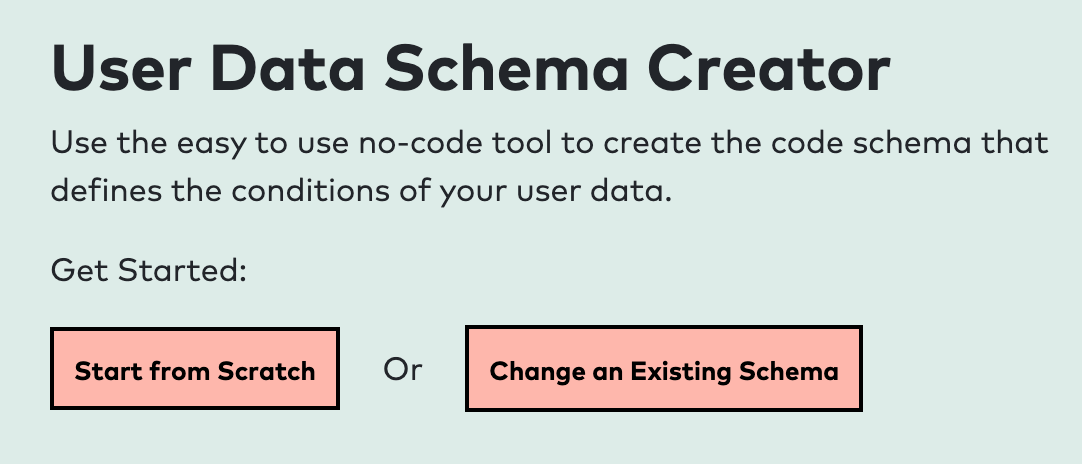
2
If you choose Start from Scratch, then in the new screen that appears, provide the following details:a. Under Column name in your user data source, enter the identifier name as provided in your data source. Ensure that you use the same identifier name in the Destination field (right-hand side) on the mapping screen when creating a destination in Zeotap CDP. For example if you are using first_name as the destination field in Zeotap, make sure to enter the exact name(case sensitive) in the “Column name in your user data source” column while creating the User data schema. b. Under Condition name in your audiences, enter the identifier name as you wish to see in the audiences.c. Choose the Condition type as per your requirement. At this stage, the configuration depends on the actionthat you select.i. Send attributes and identifiers to Dynamic Yield
 e. Once done, use the Copy to Clipboard option to copy the schema.
- If you select the above action, ensure that you include the segment_id, and segment_name in the schema using the format shown in the image below. You can also map the Membership ID field. Note that you can include any number of attributes and identifiers in the schema depending on your requirement/use case.
- If you select the above action, ensure that you include the Membership IDin the schema using the format shown in the image below. Please note that this action allows you to send only the identifier (Email, Phone, or Custom ID). Sending any additional attributes is not supported.
3
Paste the copied schema into the space provided under Data Schema as shown below.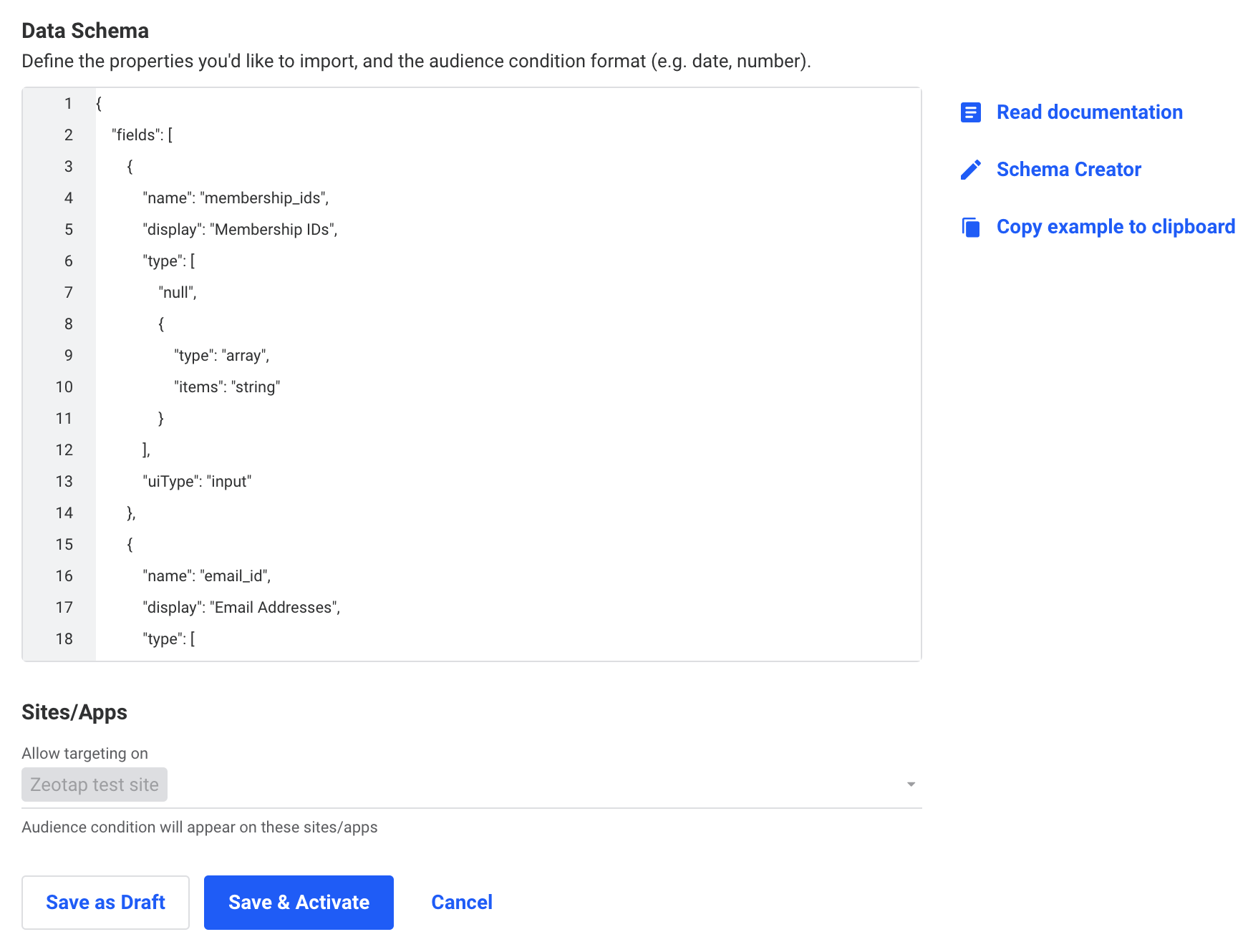
Note:At this stage, you may encounter errors such as “Illegal Character in:
{Your Data Feed}.” If this occurs, remove any special characters, such as hyphens or underscores, from the data feed name.If you are editing a data feed and adding a field, make sure to include the “default : null” after the “uiType : input” in the data schema before saving it.4
Click Save & Activate. The User Feed gets listed on the Data Feeds page.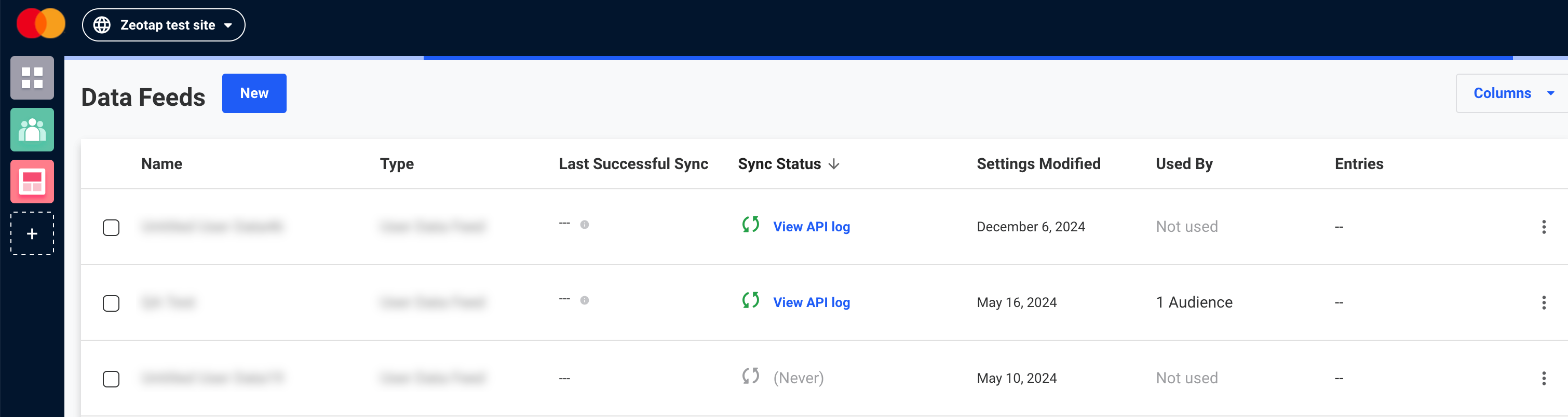
Step 4: Create the API Access Token/API Key
You must create an API Key which needs to be entered while creating a destination in Zeotap CDP. To do so, perform the following steps:1
In the Dynamic Yield console, click Settings > API Keysand clickNew Key.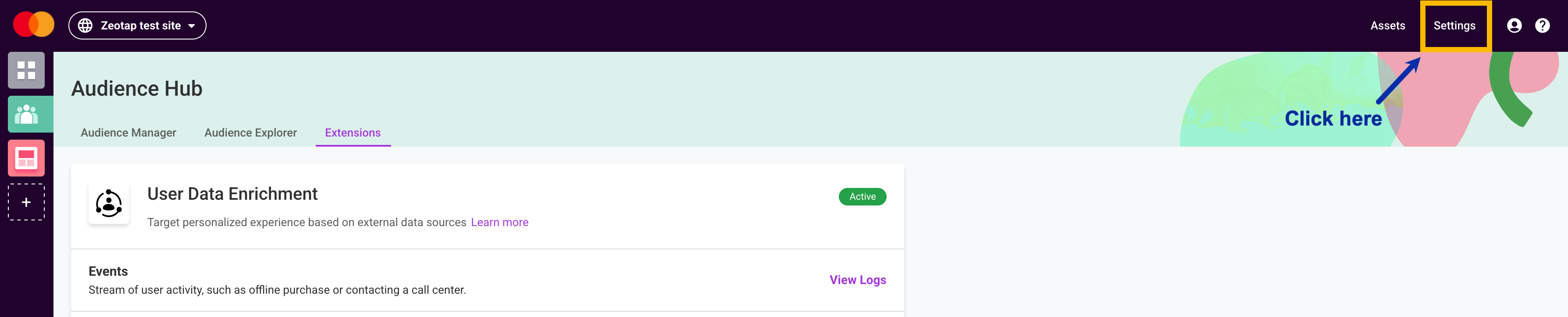
2
In the window that appears, provide the following details:a. Enter a name, and internal notes (optional).b. For the source, select either Server-side or Client-side. Each type can be used only with its designated endpoint.c. In the ACL section, use the checkbox to select the User Data profile permission for the API Key.d. Click Save.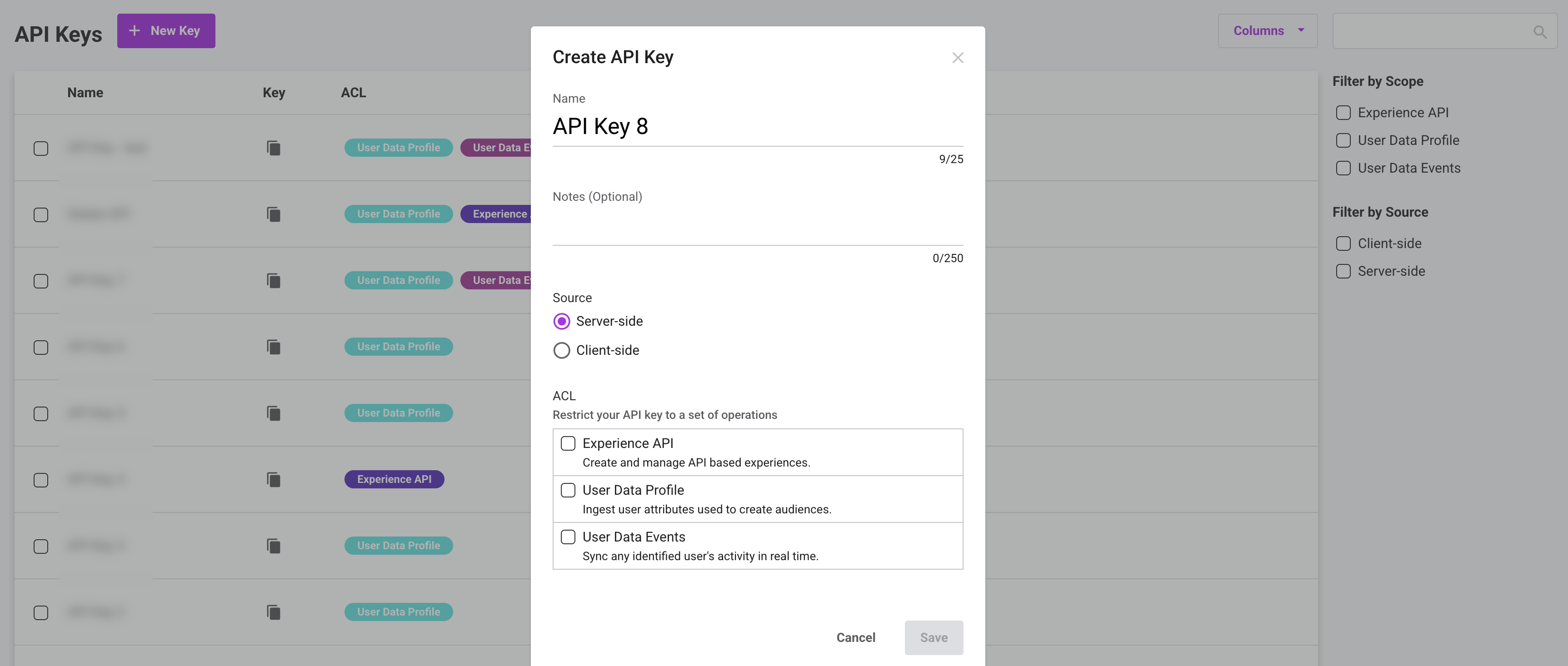
3
The created API Key gets listed as shown below, from where you can copy it and use while creating a destination in Zeotap CDP, as explained in the next section.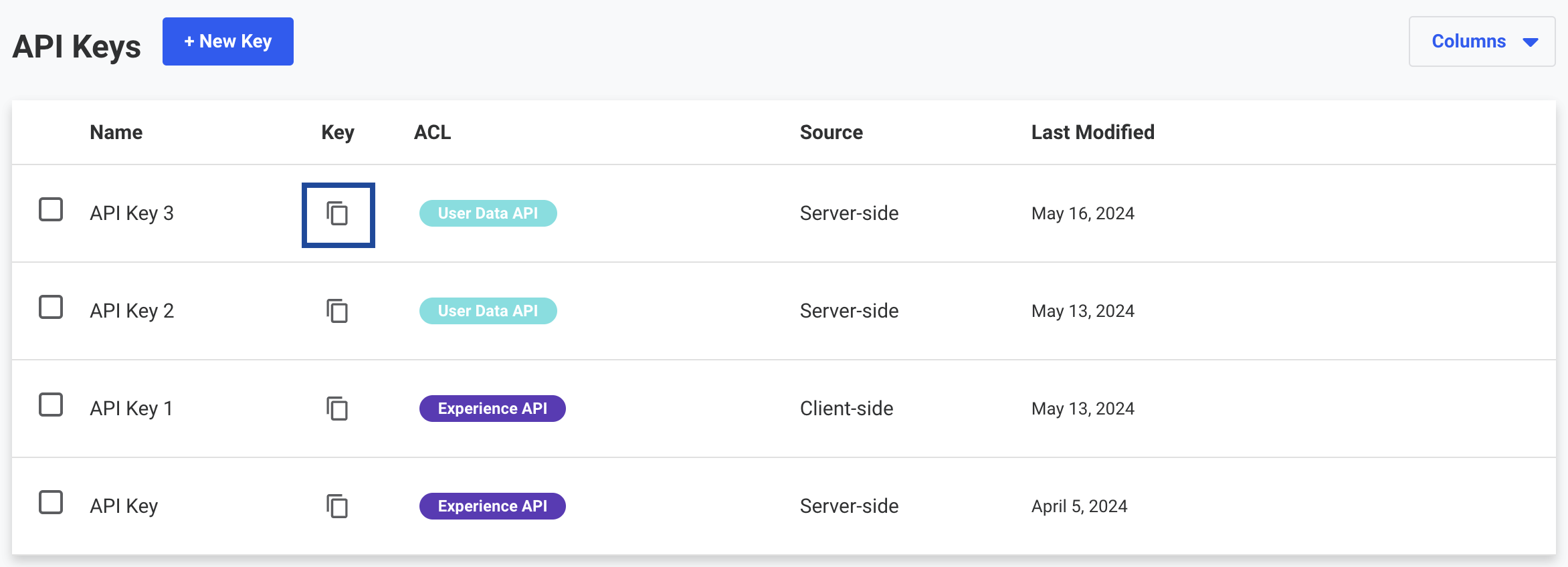
Create a Destination for Dynamic Yield
Once you have obtained the prerequisites mentioned in the above section, perform the following steps to create a Destination for Dynamic Yield:1
Log into the Zeotap CDP App and go to the DESTINATIONS application.
2
Click + Create Destination.
3
Under All Destinations, search for Dynamic Yield.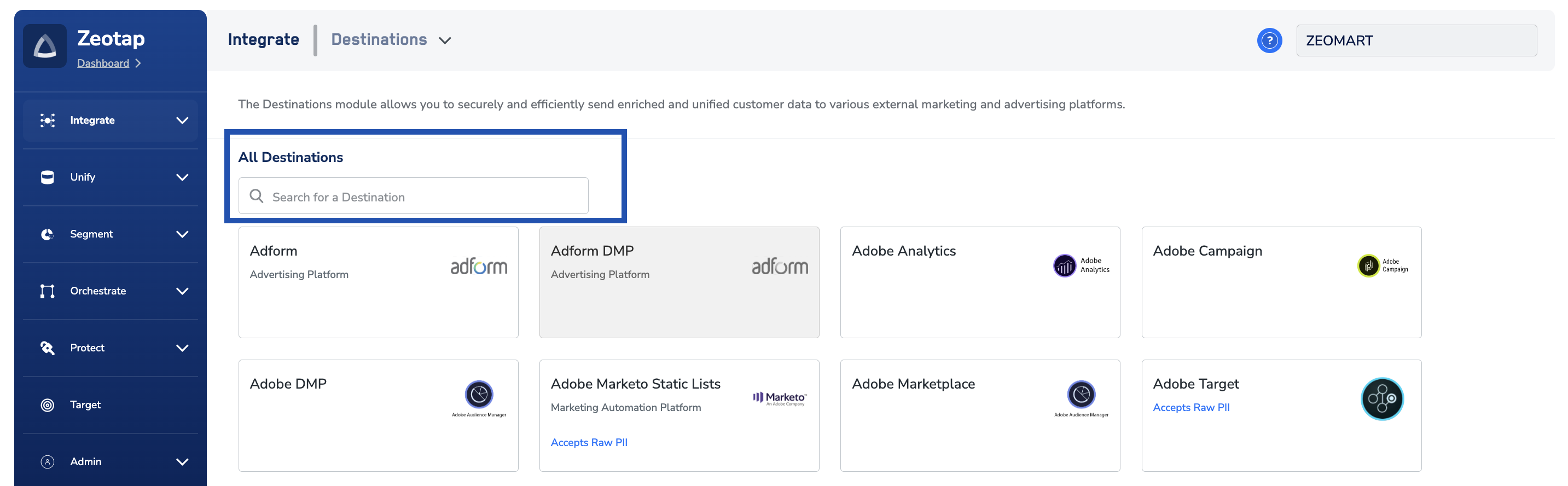
4
Click Dynamic Yield. A screen appears displaying details about the particular destination towards the left. On the right-hand side of the screen find a list of fields that are required for the integration to be established. Enter the required details as mentioned in the following steps:a. Enter a name for the Destination.b. Enter the User Feed ID and API Access Tokenobtained from the Dynamic Yield. Learn morec. Under User Unique Identifier in Dynamic Yield, choose the unique Identifier, that is, the identifier type chosen while creating a User Data Feed in Dynamic Yield. You can either choose Hashed Email Address or Custom Identifier.i. If you choose Hashed Email Address, then a field called Unique Identifier for Email will be enabled with an auto populated value: iheii. If you choose Custom Identifier, then you need to enter the customer identifier added in Dynamic Yield. For more information about selecting Unique Identifier, refer here.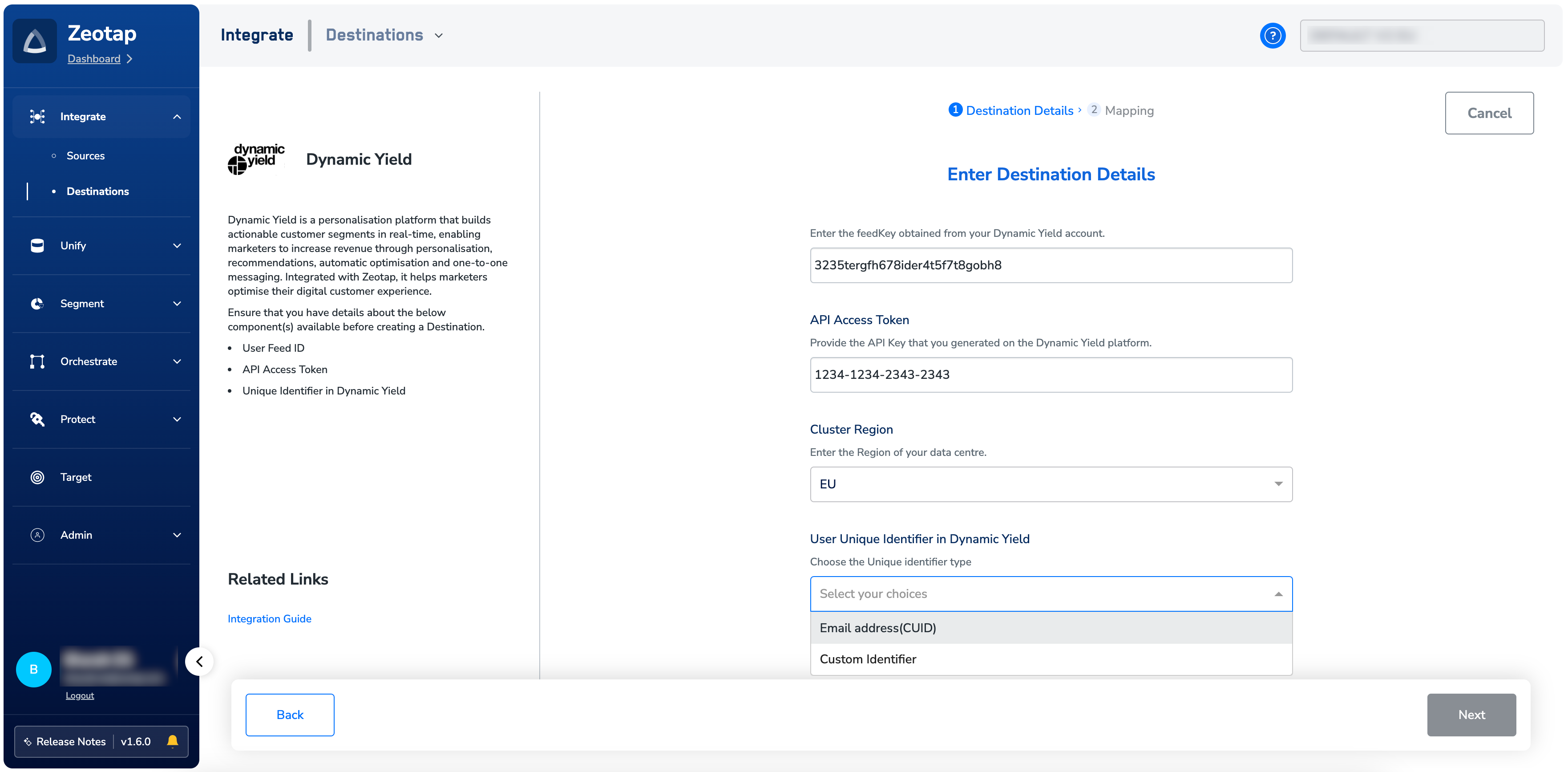
5
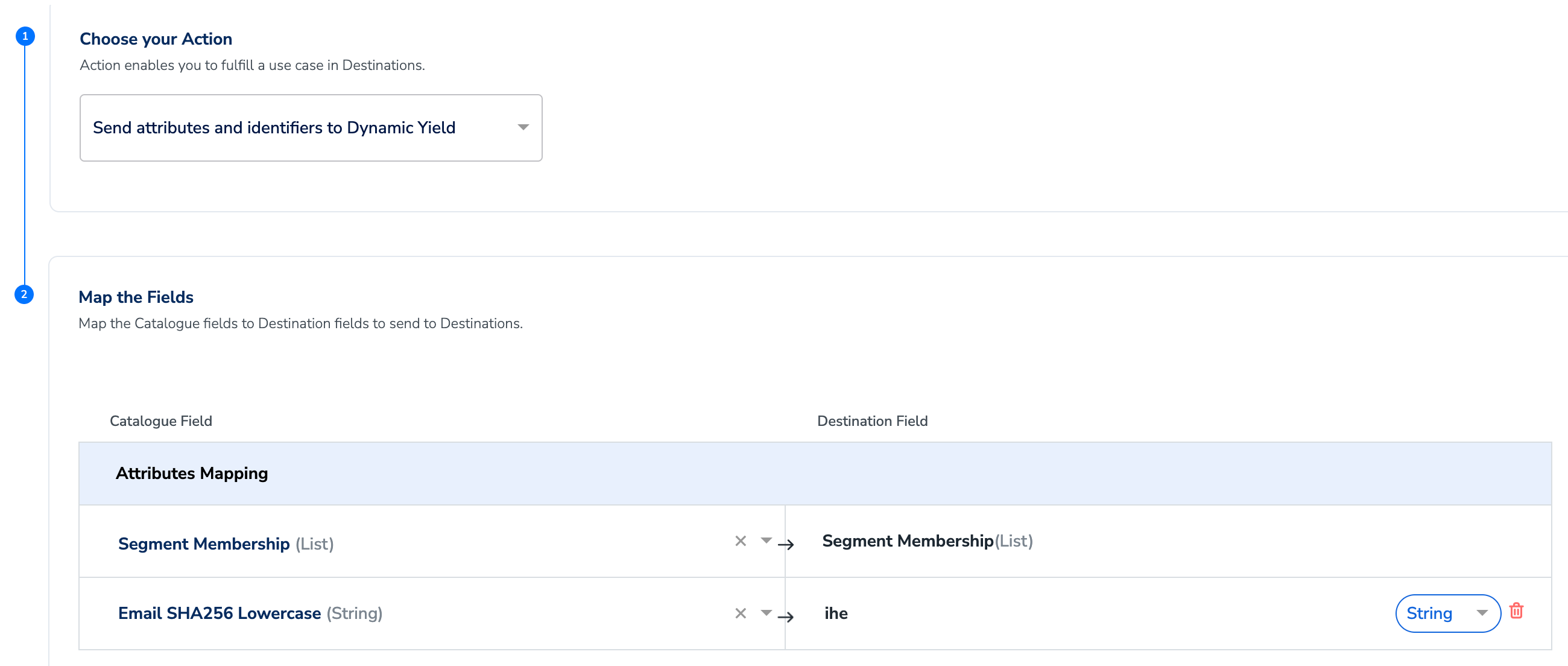
On the Action and Mapping screen, select either Send attributes and identifiers to Dynamic Yield or Send identifiers to Dynamic Yield as the action, based on the identifiers and attributes you want to send. Then, map the Catalogue and Destinationfields accordingly.a. If you choose Send identifiers to Dynamic Yield, then you can send only the email addresses to Dynamic Yield.b. If you choose Send attributes and identifiers to Dynamic Yield or Send attributes to Dynamic Yield (Array Operations), then you can send any number of identifiers or attributes. However, note the following points:i. You can map the Membership ID field.
- For Send attributes and identifiers to Dynamic Yield action : a. Zeotap sends a full refresh of the entire Membership IDlist during every upload . b. Zeotap also sends the Segment ID and Segment Name that a user belongs to , if you have mentioned these fields while creating the User data schema within Dynamic yield. You do not need to map these fields in the mapping screen in Zeotap.
- For Send attributes to Dynamic Yield (Array Operations) action : a. Zeotap sends only the updated values for membership_id field. Please note that a full data refresh will be sent each month to ensure no data loss
- For example, if customer_id is the name of the identifier definer in Dynamic yield, ensure that “customer_id” is entered in the Destination Field in Zeotap.
6
Once the mapping is complete, click Create Destination. The created Destination gets listed in the Audiences application, which can be linked to an audience (segment).
Link an Audience to the Dynamic Yield Destination
For information about how to link an audience to the created Destination in the Audiences application, refer here. Note that it can take up to two business days for the audiences (segments) to be available at the Dynamic Yield seat, depending on the volume of data sent and your sequence in the data pipeline.Note:The terms Audiences and Segments are used interchangeably to refer to customer cohorts belonging to a specific category. For example, an Audience or a segment can be a specific group of customers who are over 18 years of age and have performed an
addToCart event within the last 30 days.Create Audiences and Campaigns in Dynamic Yield
Perform the steps below to create audiences in Dynamic Yield:1
Log into the Dynamic Yield UI with appropriate credentials.
2
Under the Audience tab, go to Audience Manager and click Create Audience.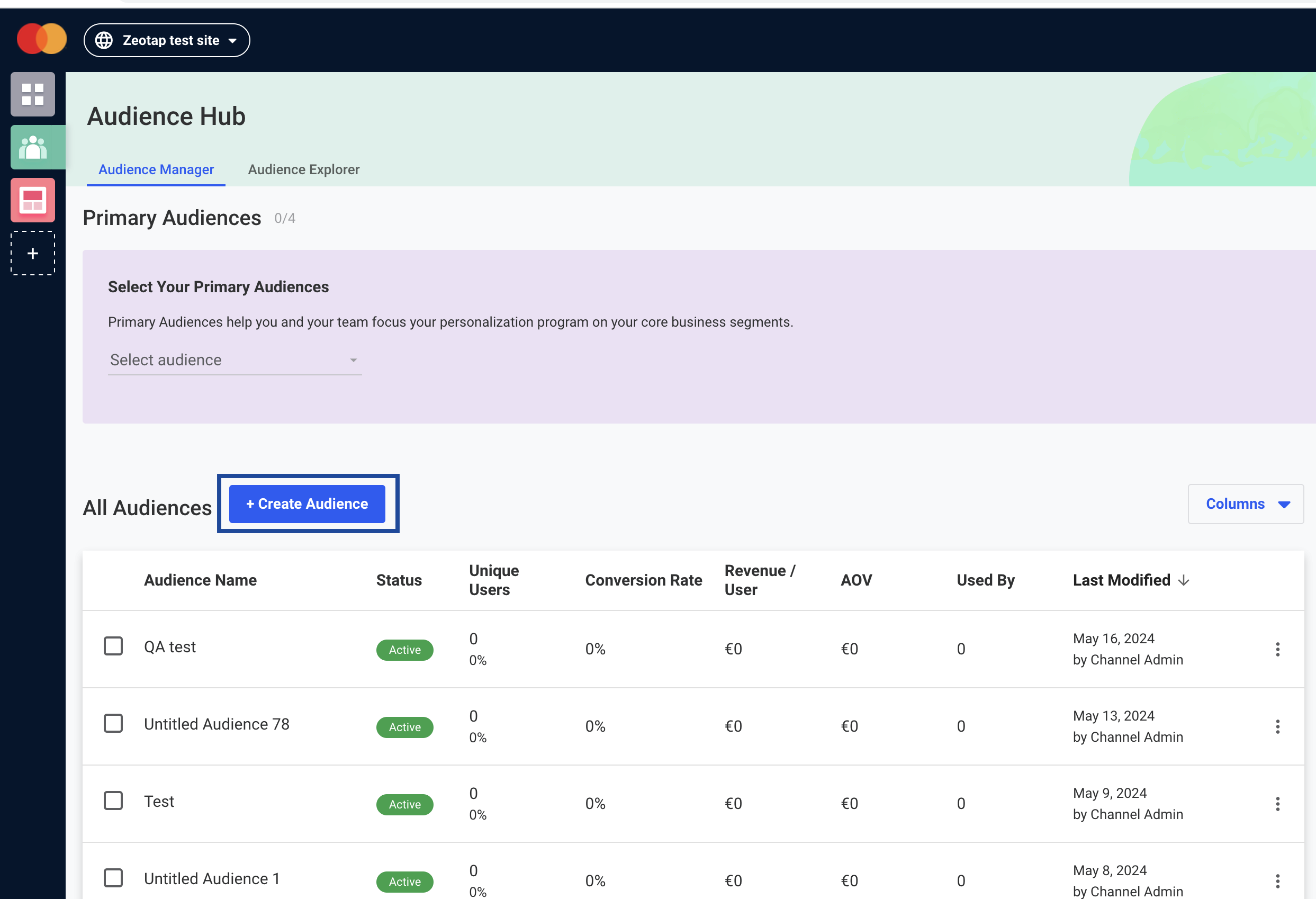
3
From the options, select User Attributes.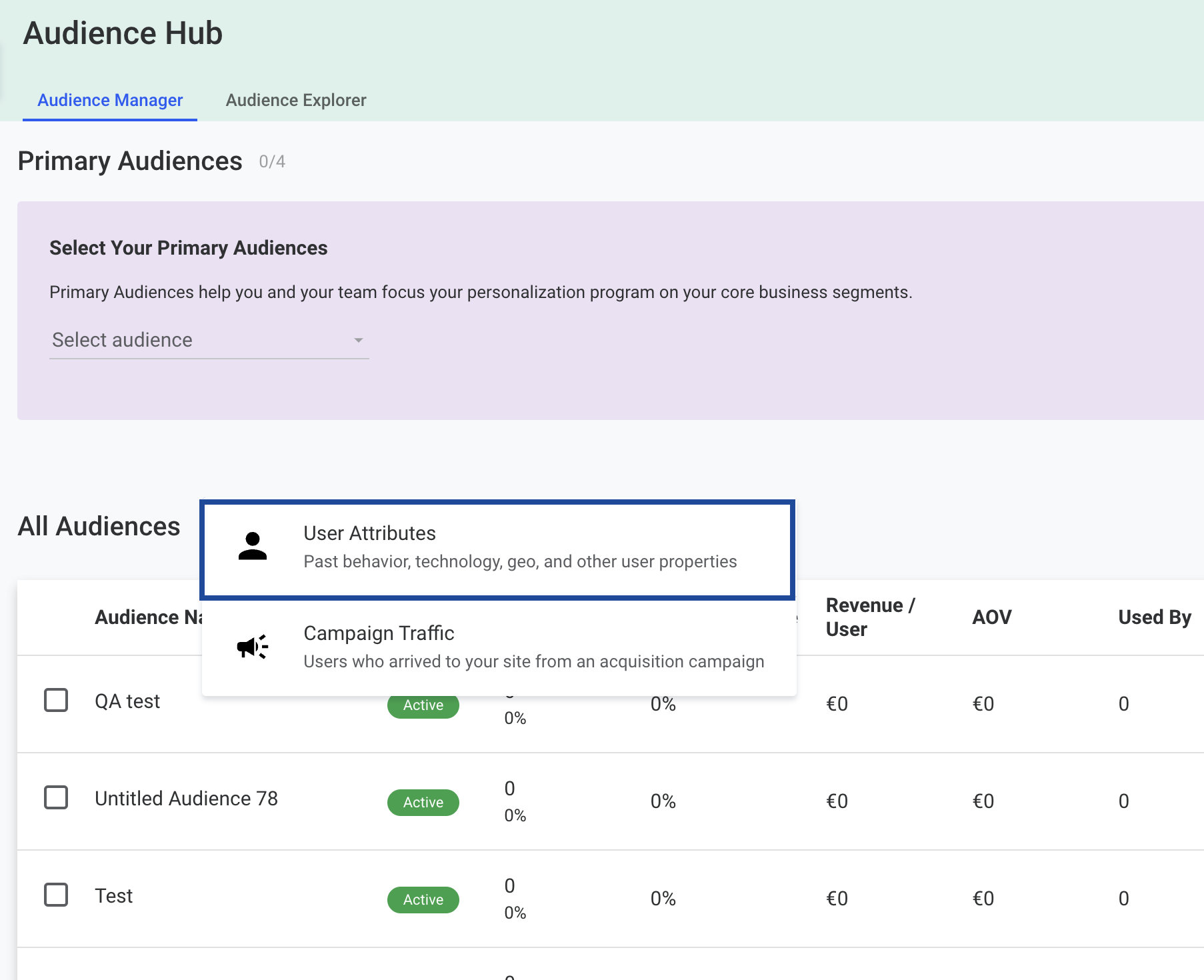
4
Enter a name for the Audience.
5
Under Conditions, provide the following details:a. In the first field, choose the User Data Feed that you wish to include for this Audience.b. In the second field, you can select the Segment ID, Segment Name, and any other identifiers and attributes that you have sent from Zeotap. Note that you can add any number of attributes that you wish to include for this Audience by adding new conditions.c. In the third field, choose the operator for the condition you are creating. It can be 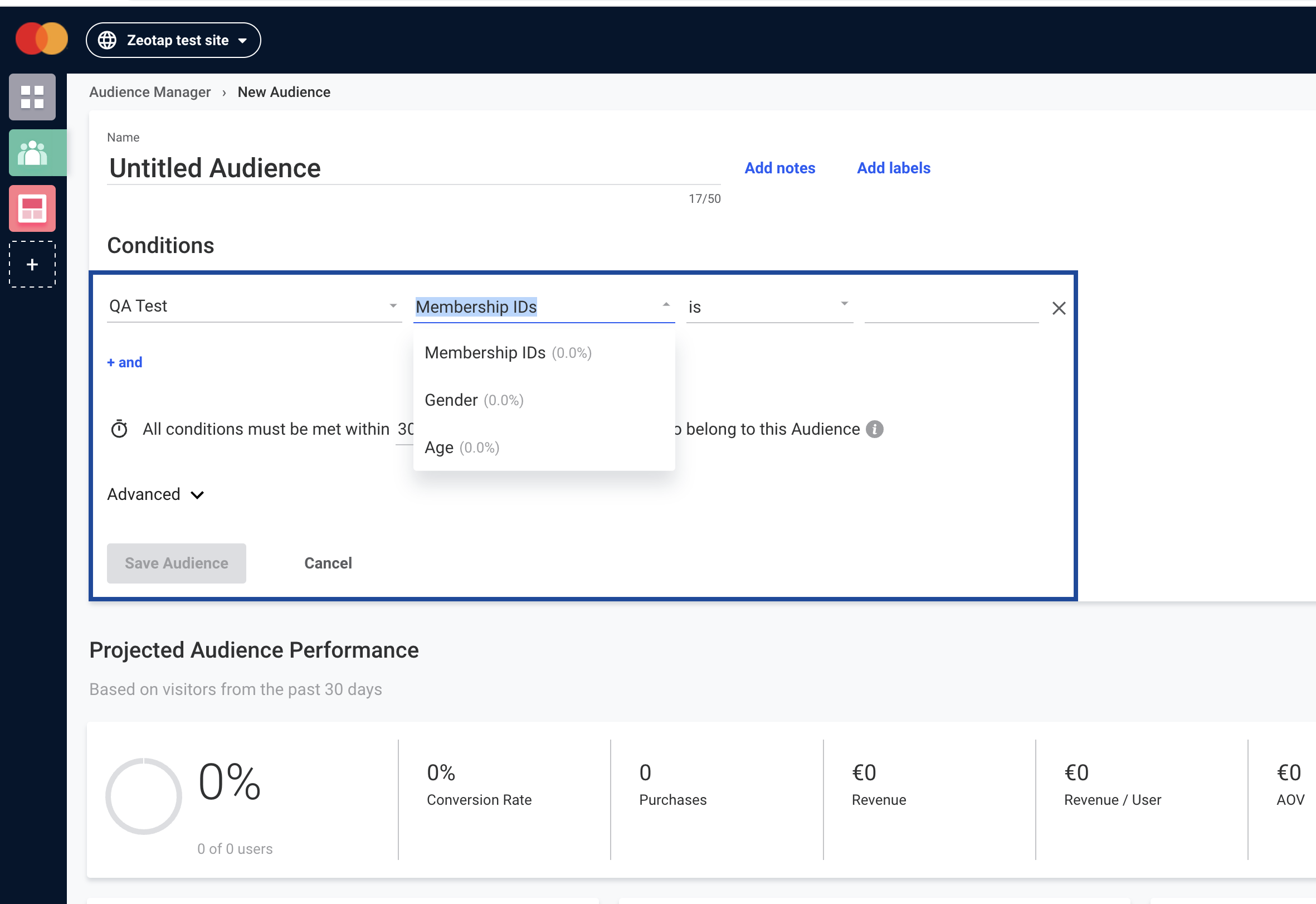
Is, contains, equals and more.d. In the fourth field, depending on the User Data Feed chosen, the values will populate. You can choose the desired value from the drop-down list.e. In addition, you can set the timeframe of the condition up to 30 days. Although options are available for 3 months or 1 year, you cannot select them as an error message saying “Projected performance is not supported for audience time frame over 30 days” appears.f. Once all the conditions are set for the audience, Click Save Audience.6
Under the Projected Audience Performance tab, you can view the projected audience size for the timeframe selected.
7
The audiences created here are used for creating Campaigns under Web Personalisation in the Dynamic Yield interface.