

Overview
Facebook is a social media platform that offers a range of advertising solutions to help marketers reach their target audience through Facebook Business Manager. Integrated with Zeotap it allows marketers to target audience and drive conversions.Supported Identifiers
This integration supports MAID for both Targeting and Audiences. Ensure to accept the terms of Custom Audience as mandated by Facebook from Sept 2021 by visiting the link mentioned here. This is a mandatory step. To accept the terms, go to the following link and click Accept in the left corner: https://business.facebook.com/ads/manage/customaudiences/tos/?act=Available Actions and Supported Features
The following table lists the available action types for the integration and the supported features for each action type:Components of Facebook
Ensure that you have details about the below component of Facebook available before creating a Destination.Ad Account ID
This is the 16 digit Facebook Ad Account ID. Ensure that this Ad Account is linked to your Facebook Business Manager. You can find your Ad Account ID by navigating to Ads Manager > Account drop-down menu.Create a Destination for Facebook
Perform the following steps to create a Destination for Facebook:1
Log into the Zeotap CDP App and go to the DESTINATIONS application.
2
Click + Create Destination.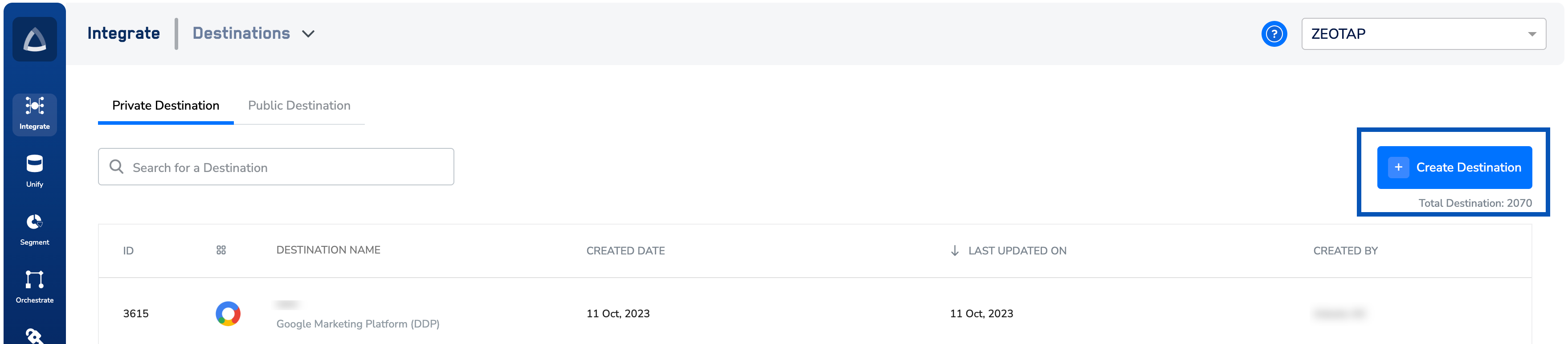
3
Under All Destinations, search for Facebook.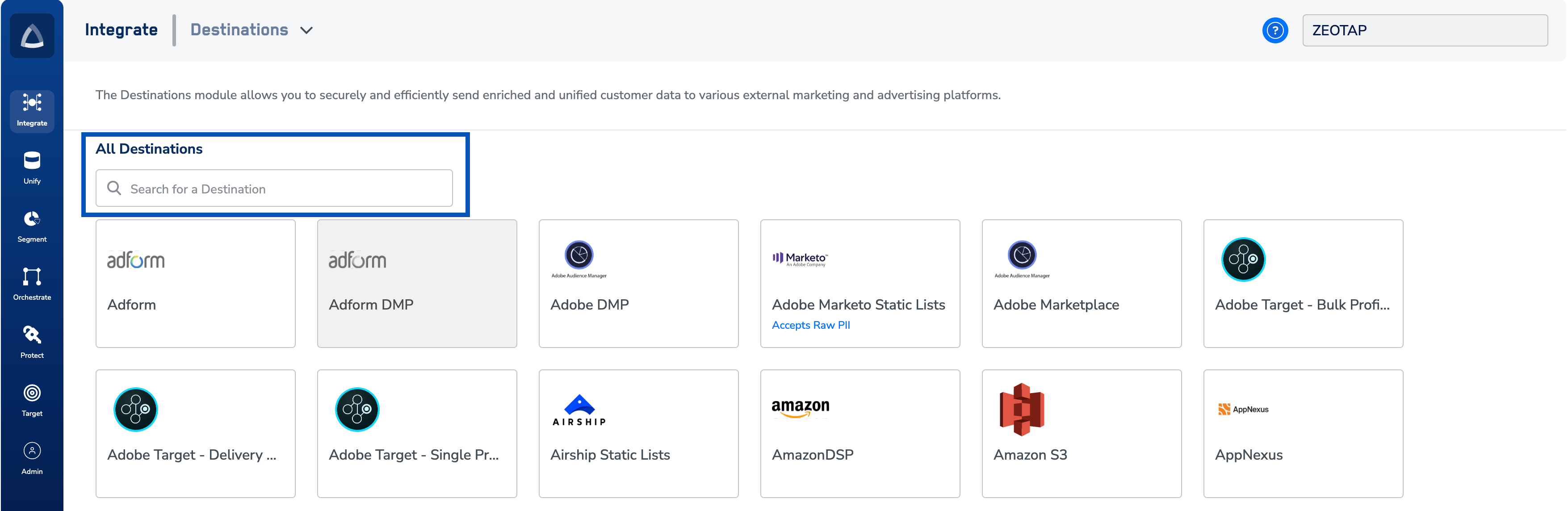
4
Click Facebook. A screen appears displaying details about the particular destination towards the left. On the right-hand side of the screen find a list of fields that are required for the integration to be established. Enter the required details as mentioned in the following steps:a. Enter a name for the Destination.b. Enter the 16 digit Ad Account ID number.c. Review all the values entered above and then click Next to proceed.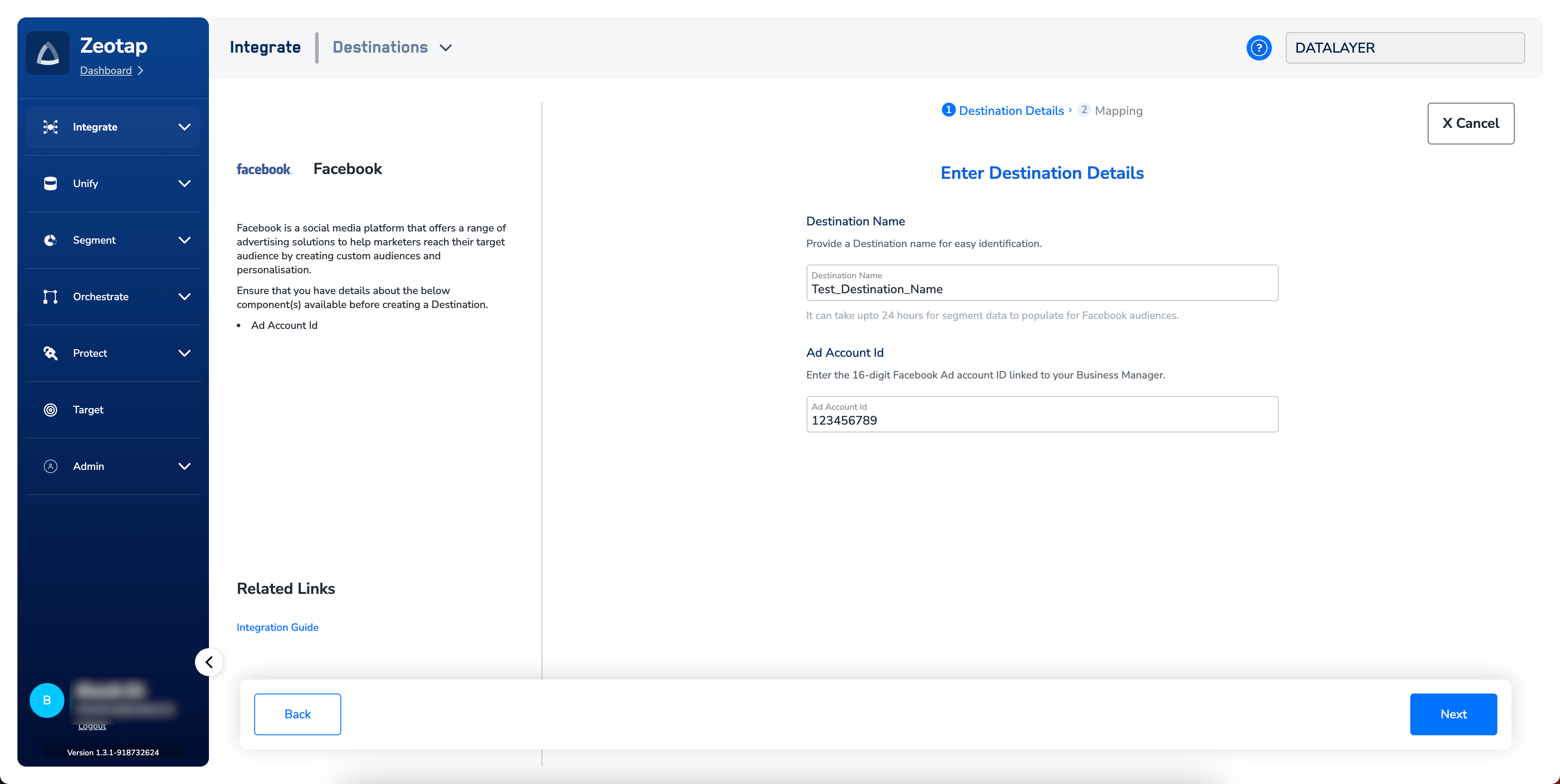
5
In the new screen that appears, choose the appropriate Action and mapping as explained below.a. Choose the desired action under Choose your Action and then choose the corresponding identifiers under Map the Fields. By default, the Output Identifiers that are accepted by the platform such as, MAIDs, Cookies, email Ids and more are displayed. However, you can edit, add or remove an identifier from the list. To do so, refer here.b. Click Create Destination. The created Destination gets listed in the Target andAudiencesapplications, which can be linked to an Audience/segment.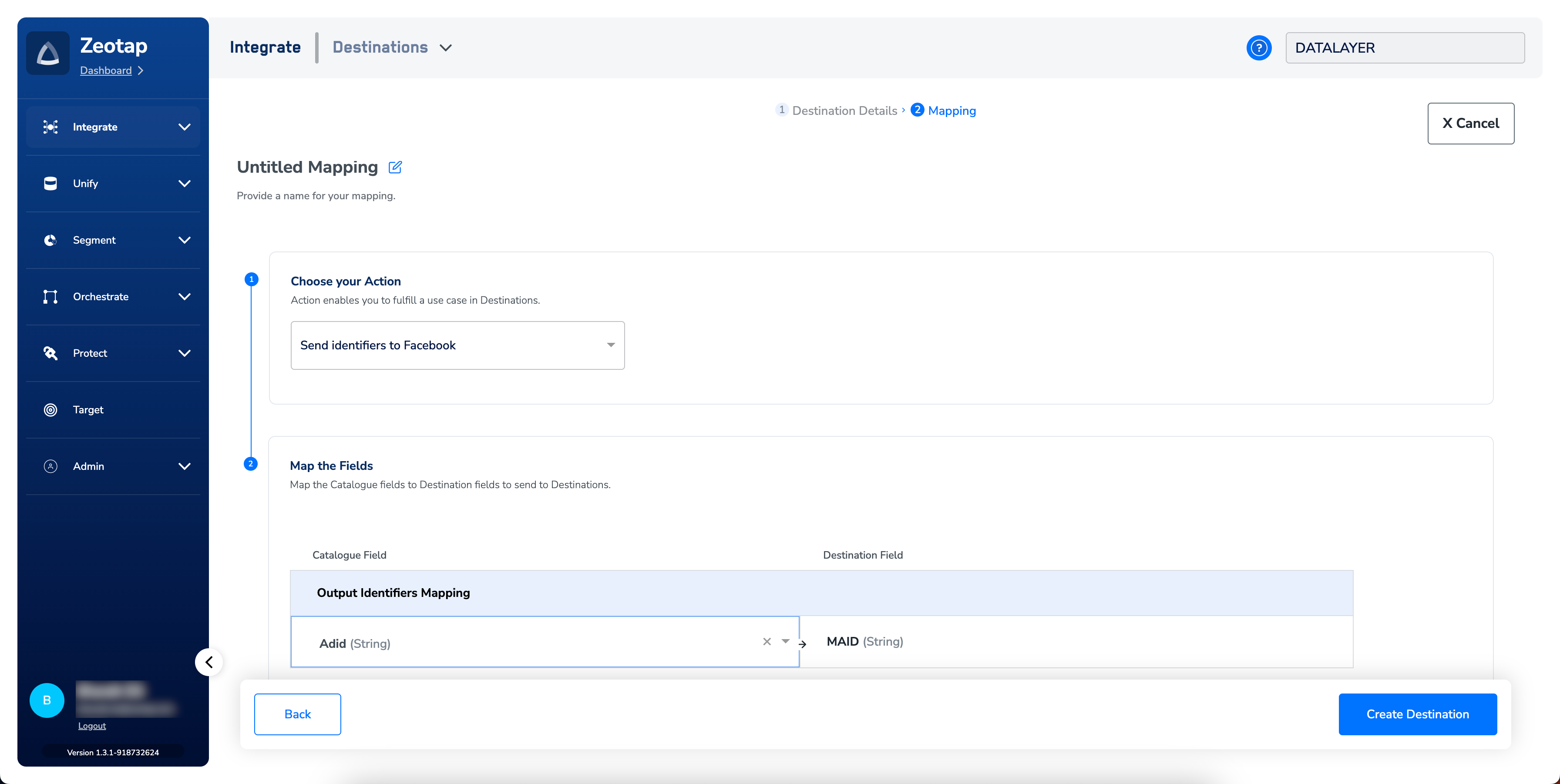
Link an Audience to the Facebook Destination
For information about how to link an Audience or segment to the created Destination in Target and Audiences applications, refer here. Note that it can take up to one business day for the Audience to be available at the Facebook seat.Note:The terms Audiences and Segments are used interchangeably to refer to customer cohorts belonging to a specific category.For example, an Audience or a segment can be a specific group of customers who are over 18 years of age and haveperformed an
addToCart event within the last 30 days.View Audiences on Facebook
1
Log into Facebook console with appropriate credentials.
2
Navigate to All tools and select Audiences.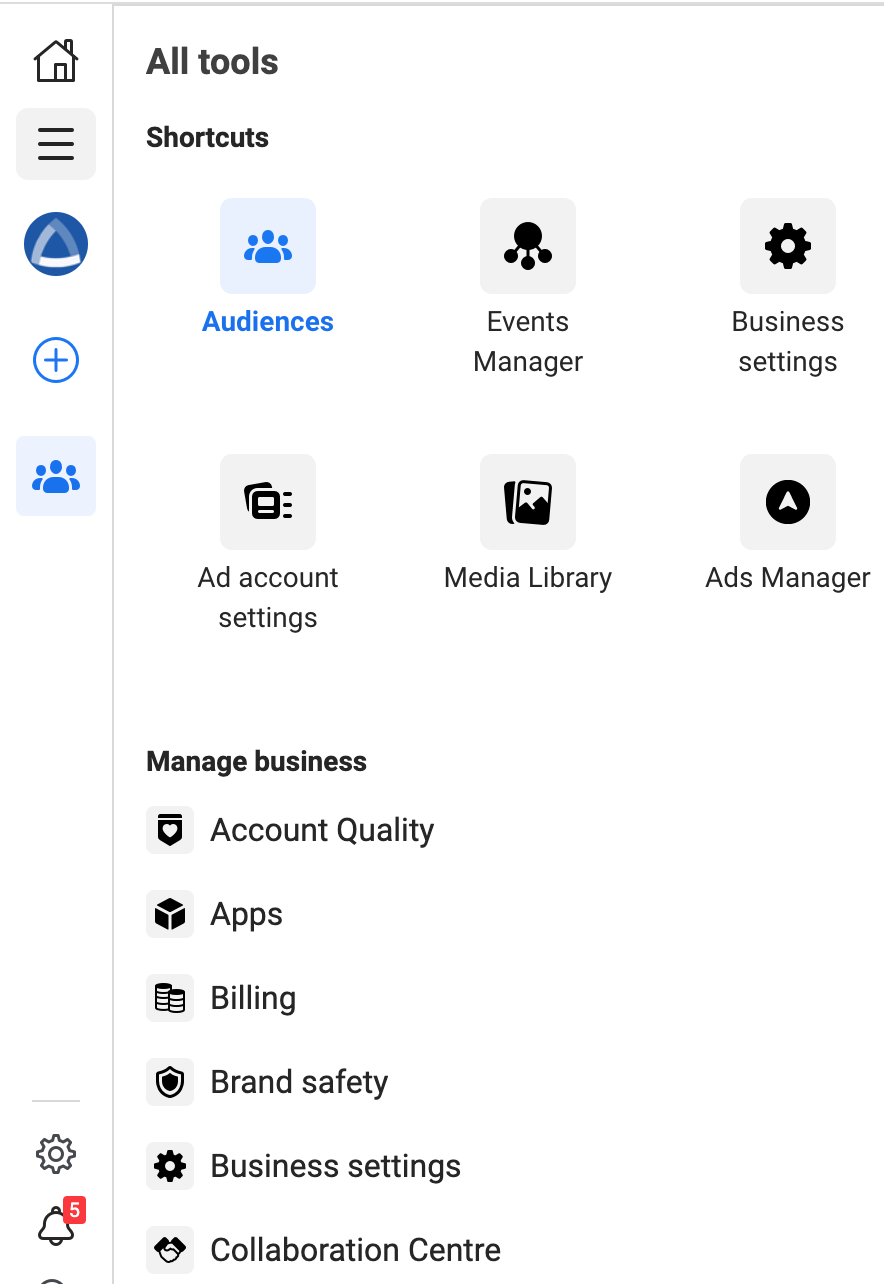
3
The list of segments pushed appear.