Overview
Adobe Campaign is a marketing automation platform that helps businesses manage and deliver targeted email, mobile and social media campaigns. Integrated with Zeotap CDP, you can use segments created in Zeotap CDP to create, test and personalise campaigns across various channels and track your performance and impact.Supported Identifiers
This integration supports raw email addresses and Custom IDs.Prerequisites
To enable this integration, ensure that you create an external account in Adobe Campaign and then, connect the created external account to your cloud storage. Following are the Upload/Connection types that the integration supports:- Amazon (AWS) S3
- Azure
Create a Destination for Adobe Campaign
Perform the following steps to create a Destination for Adobe Campaign:1
Log into the Zeotap CDP App and go to the DESTINATIONS application.
2
Click + Create Destination.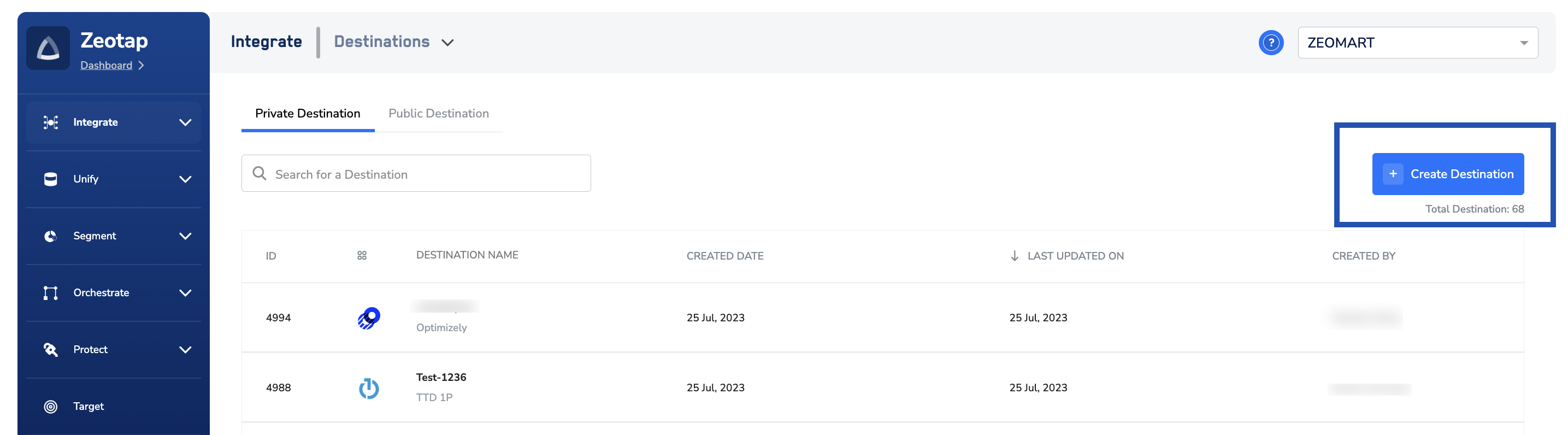
3
Under the All Destinations section, search for Adobe Campaign.
4
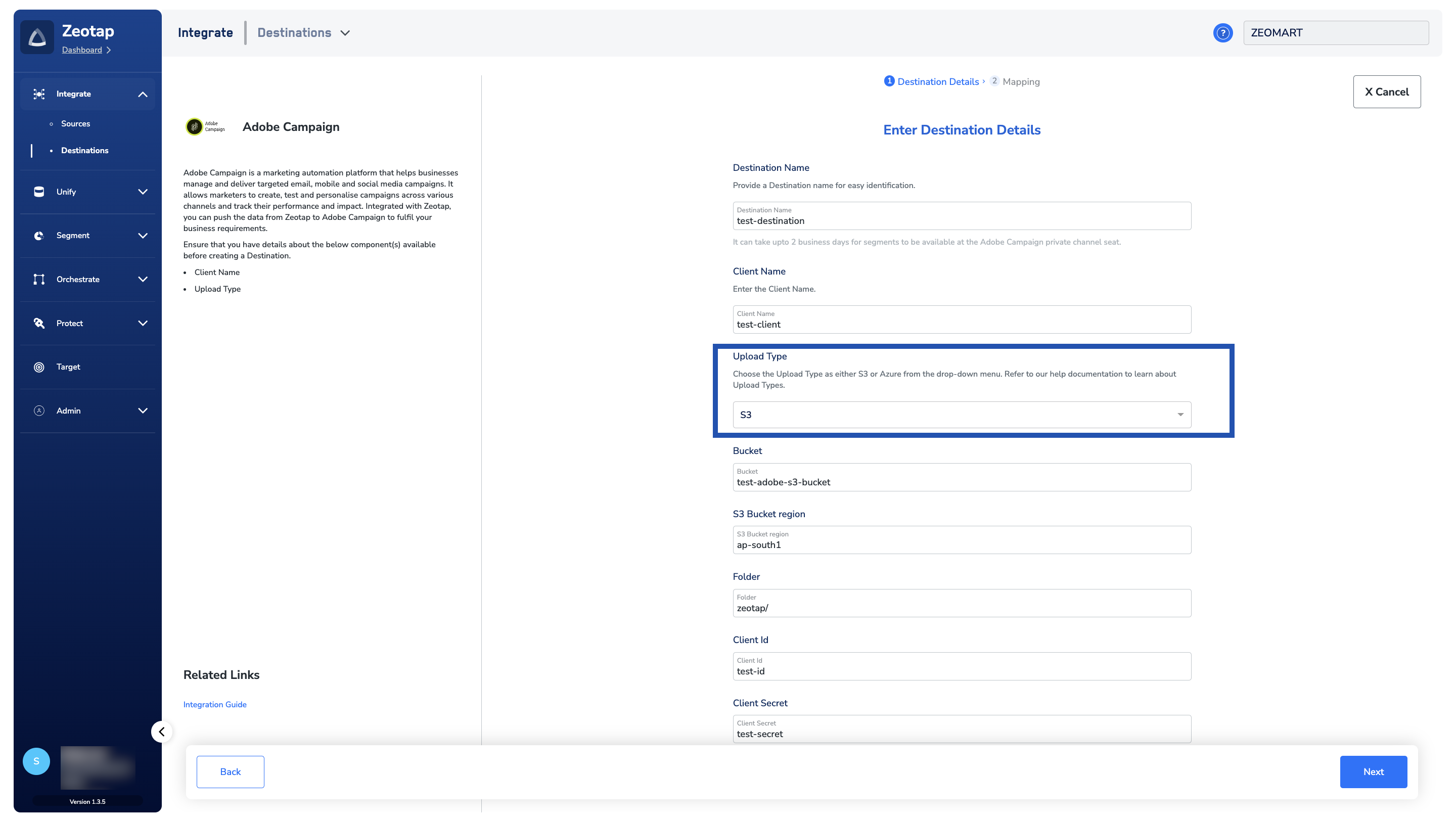
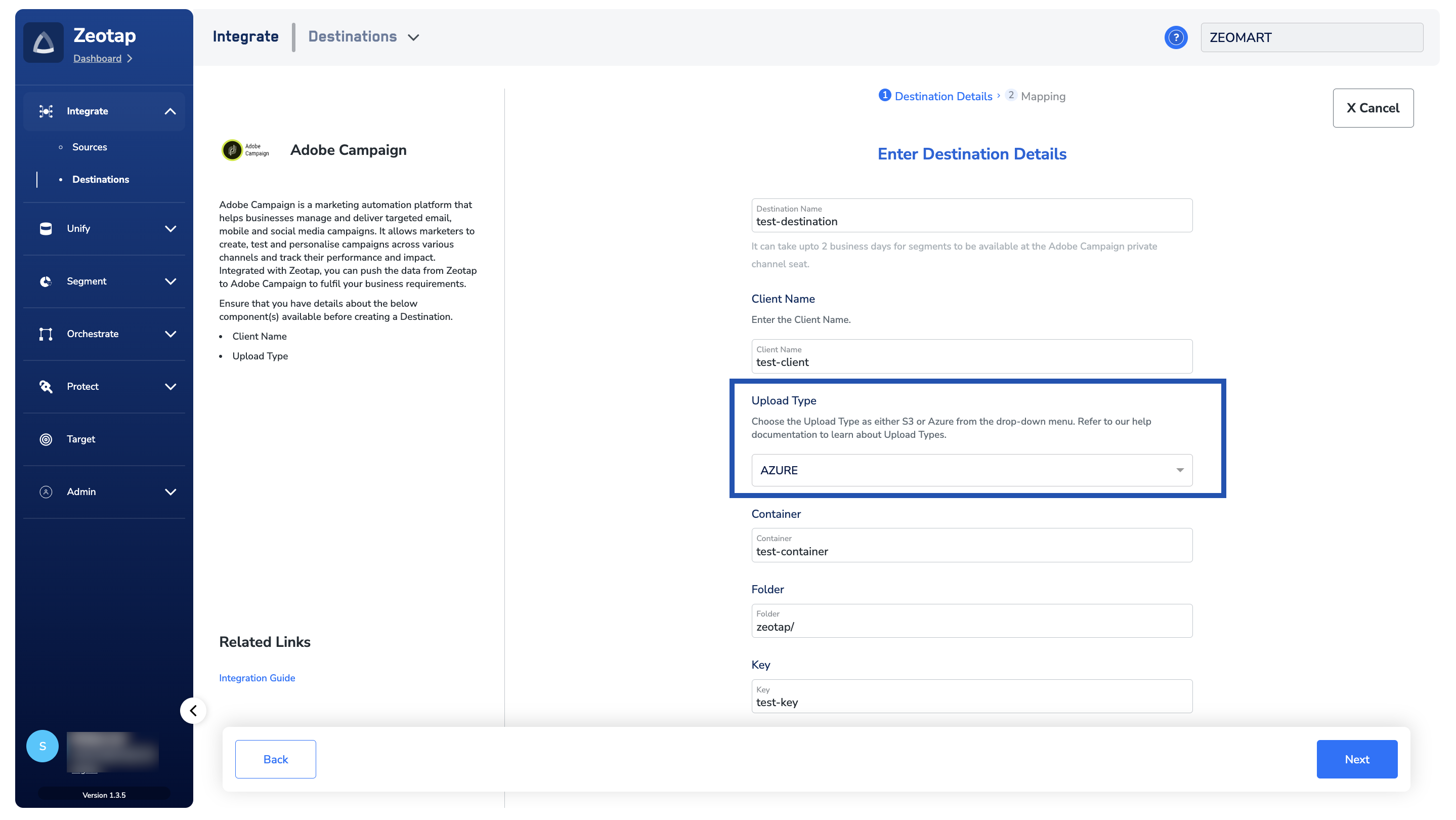
Click Adobe Campaign. A screen appears displaying details about the particular destination towards the left. On the right-hand side of the screen find a list of fields that are required for the integration to be established. Enter the required details as mentioned in the following steps: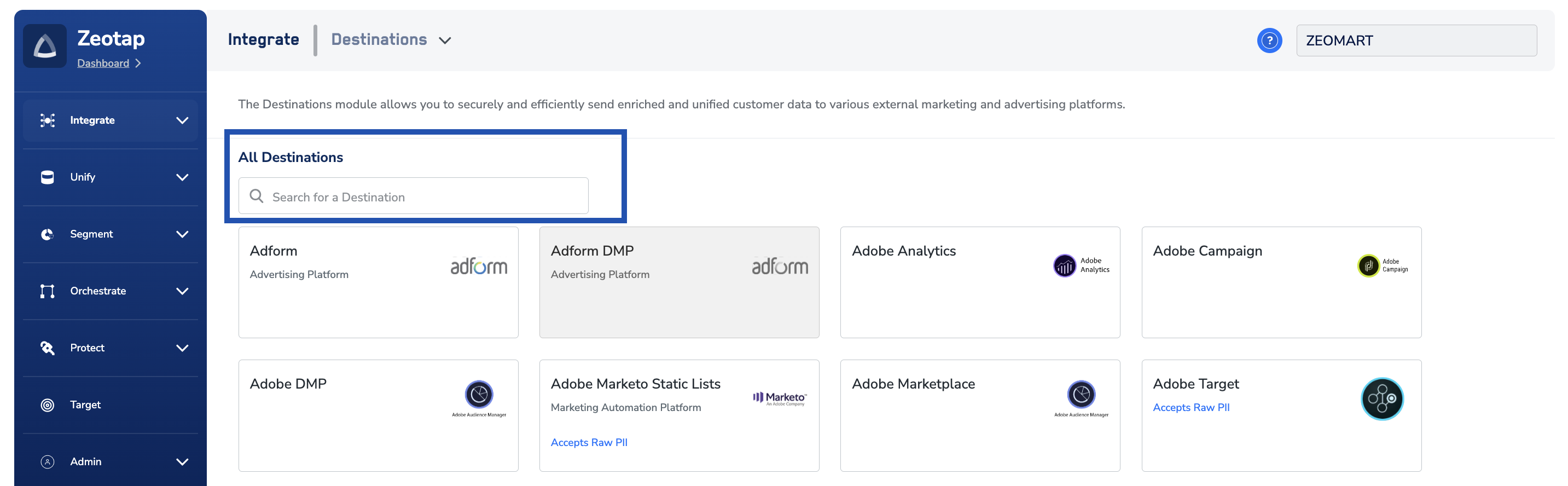
-
If you choose S3 as your Upload Type, then you need to provide the following additional details of your Amazon S3 storage:
- In the Bucket field, provide the name of the Amazon S3 Bucket.
- In the S3 Bucket Region field, provide the geographical region where your Amazon S3 bucket is available.
- In the Folder field, provide the folder path in your storage location where Zeotap CDP can store your exported data.
- Enter the Client Id and Client Secret obtained from your Amazon S3 account. This is the Access Key ID and Secret Access Key of your S3 storage respectively.
- Under Filename Prefix, enter a text value without special characters, such as underscores (_), spaces, or symbols (
#, @, $, %, &, \*). Note that the file name follows the format:{filenamePrefix}{fileNumber}_${channelId}_${timestamp}.csv, where the timestamp is in epoch format and channelId is the ID associated with your audience (segment) in Zeotap CDP, which is generated by the Zeotap CDP after the audience (segment) is linked to a Destination.
-
If you choose Azure as your Upload Type, then you need to provide the following additional details of your Azure storage:
- In the Container field, provide the container details that holds your folder path.
- In the Folder field, provide the path in your storage location where Zeotap CDP can store your export data as CSV files.
- In the Key field, provide the RSA-formatted public key to add encryption with PGP/GPG to your exported files. Ensure that your public key must be written as a Base64 encoded string.
- Under **Filename Prefix,**enter a text value without special characters, such as underscores (_), spaces, or symbols (
#, @, $, %, &, \*). Note that the file name follows the format:{filenamePrefix}{fileNumber}_${channelId}_${timestamp}.csv, where the timestamp is in epoch format.
5
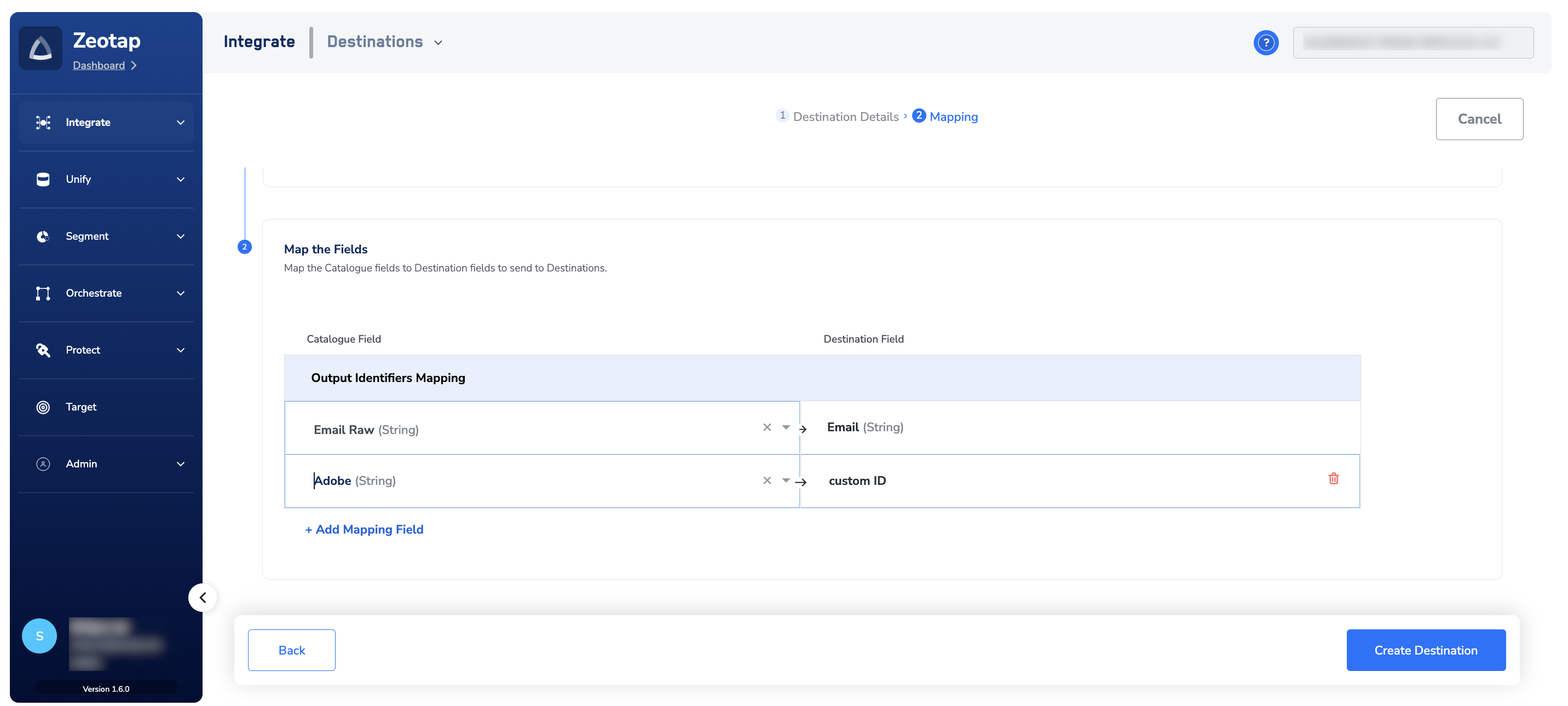
In the new screen that appears, choose the appropriate action and mapping as explained below. Under Choose your Action, you can either choose Send identifiers to Adobe Campaign or Send multiple identifiers to Adobe Campaign as the action for activating your audience (segment) in Audiences.a. If you choose Send identifiers to Adobe Campaign as your action, then you can send raw email addresses to Adobe Campaign.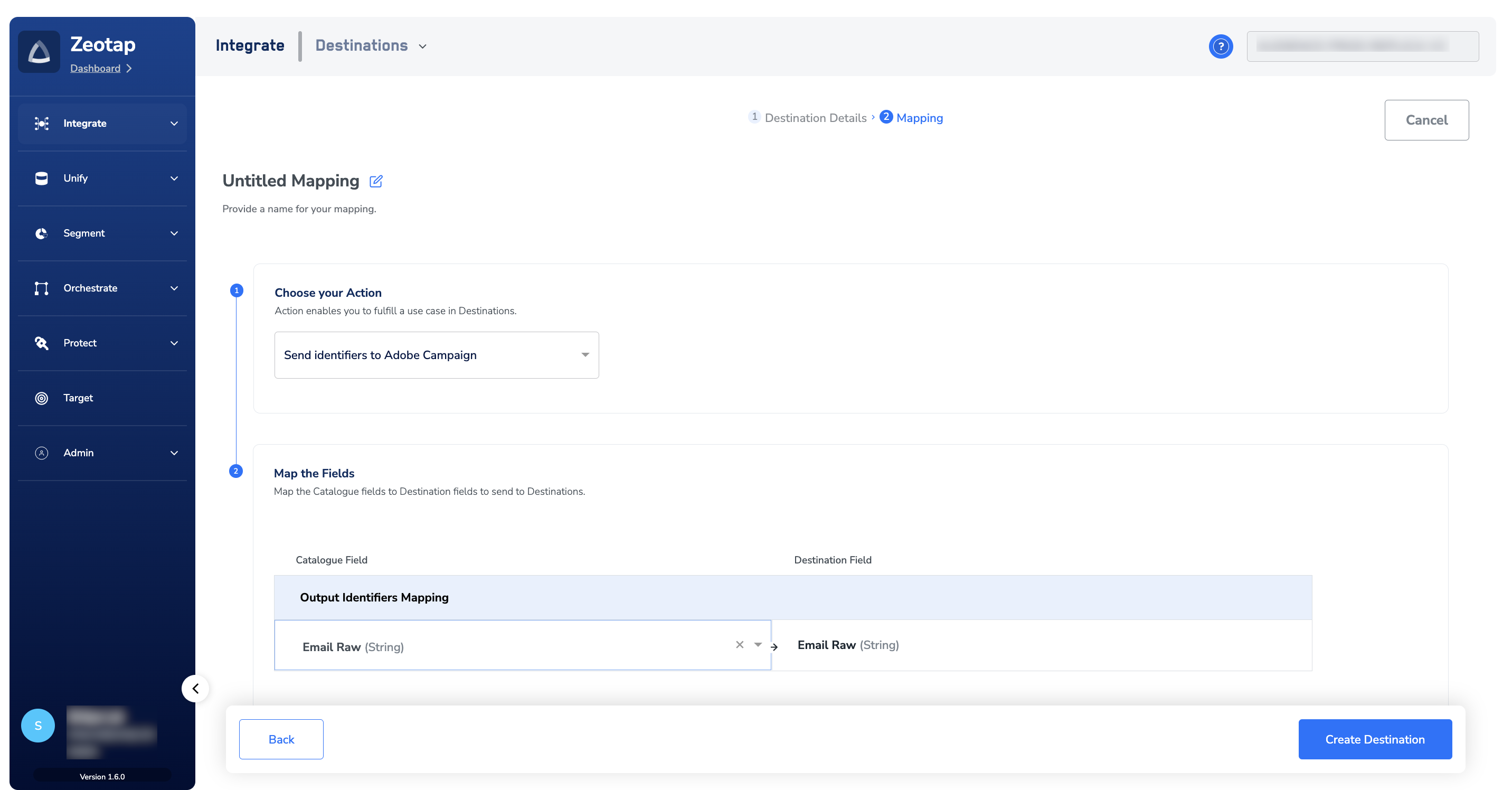
6
Click Create Destination. The created Destination gets listed in the Audiences application, which can be linked to an audience/segment.
Link an Audience/Segment to the Adobe Campaign Destination
For information about how to link an Audience or segment to the created Destination in Audiences application, refer here.Note:Ensure that you take care of the following points while linking an Audience (segment) in Adobe Campaign:
- The terms Audiences and Segments are used interchangeably to refer to customer cohorts belonging to a specific category.
- When working with Adobe Campaign, ensure each file contains a maximum of one million email IDs and custom IDs together. If your list surpasses this limit, divide it into smaller files. For example, if your CSV file contains 3 million email IDs and custom IDs, partition it into three parts, generating three separate files, each accommodating a maximum of 1 million records.
- After an Audience is linked to a Destination, Zeotap CDP generates segment files in CSV format with the following naming convention:
Segment Name_PartNumber_Timestamp.csvFor example,Adobe-Campaign-Test_Part1_20231117092450237.csv
Download Files from the Cloud Storage to Adobe Campaign
Once you push the Audiences/segments from Zeotap CDP, they are stored in the cloud storage (S3/Azure) that you have specified in the Destination. You can then download the data from the storage to Adobe Campaign by following the outlined steps:Step 1 – Add a Folder
1
Log into Adobe Campaign Classic.
2
Under Explorer, navigate to Profiles and Targets > Add new folder > Database > Recipients.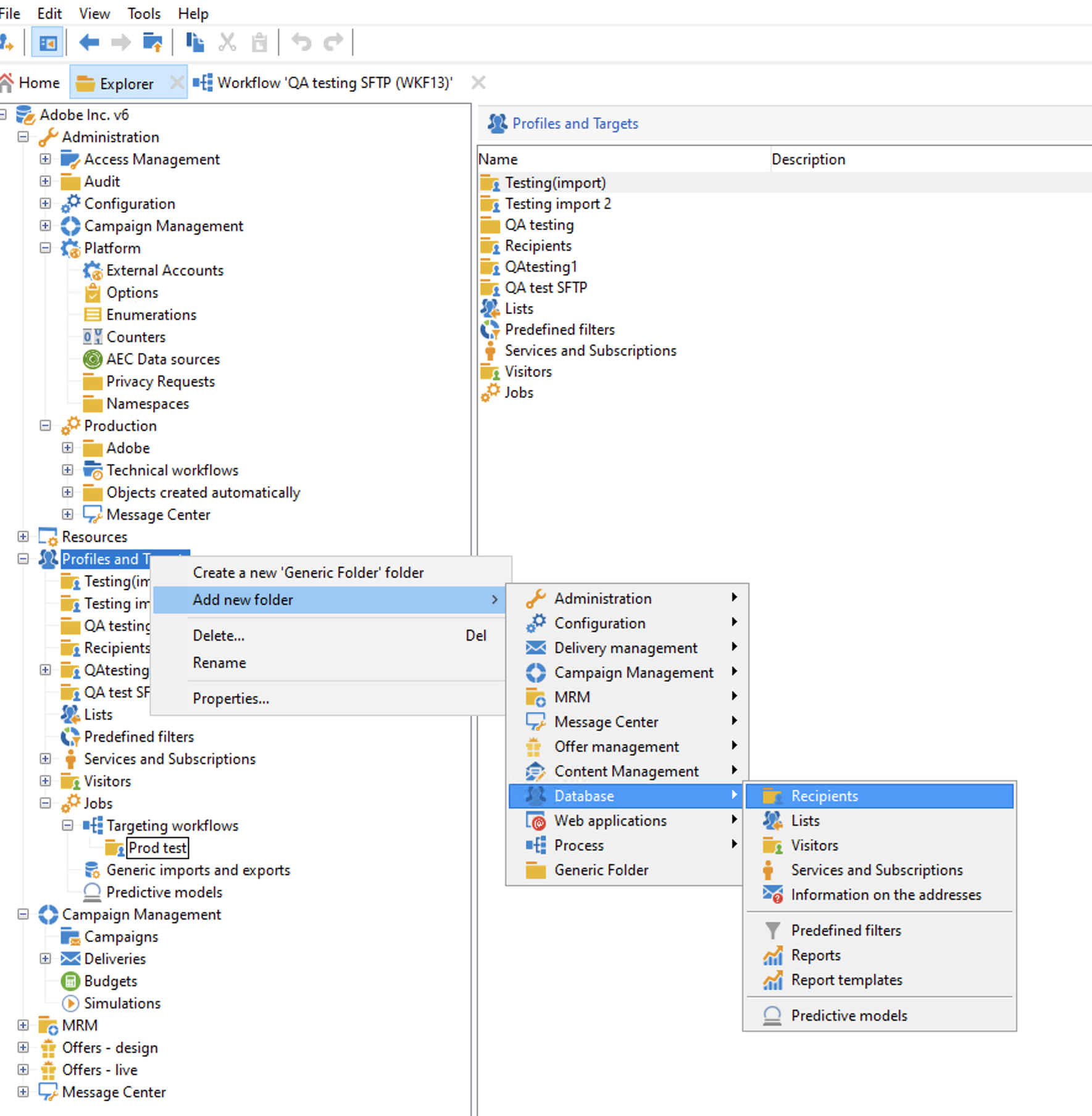
Note:For easy identification, provide a name for the folder with the Audience/Segment name.
3
The new folder is created as shown below.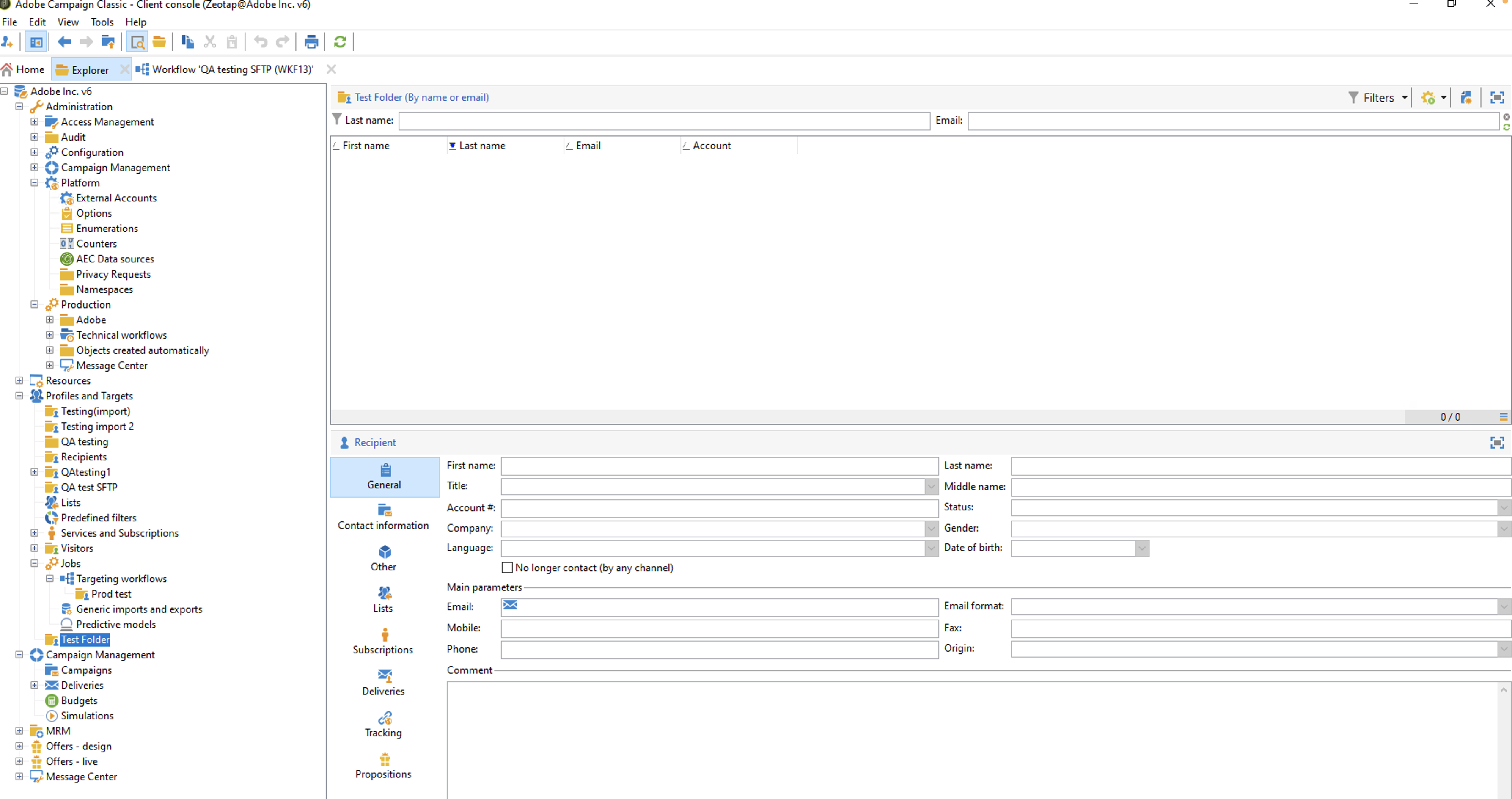
Step 2 - Create a Workflow in Adobe Campaign
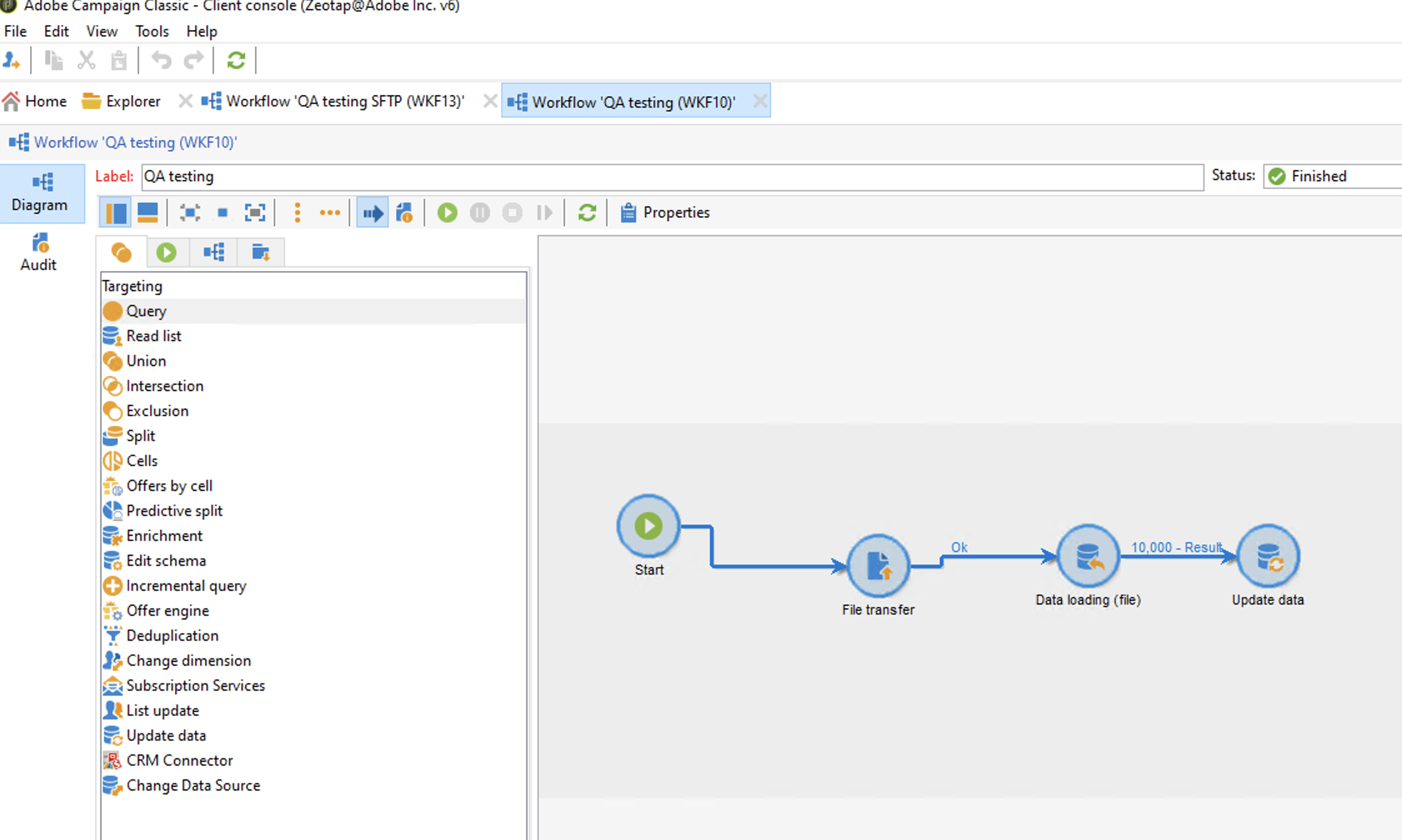
Note that you have to configure each activity individually by clicking on them. To do so, refer to the individual topics as detailed below.
File Transfer
Click File transfer on the workflow diagram shown above and perform the following configurations in the File Transfer tab:1
Choose Action as File download using the drop-down menu.
2
Under Remote server, ensure that the Use an external account checkbox is selected.a. Choose the desired External account using the drop-down menu.
b. Update the Server folder path as shown in the image below and click Ok.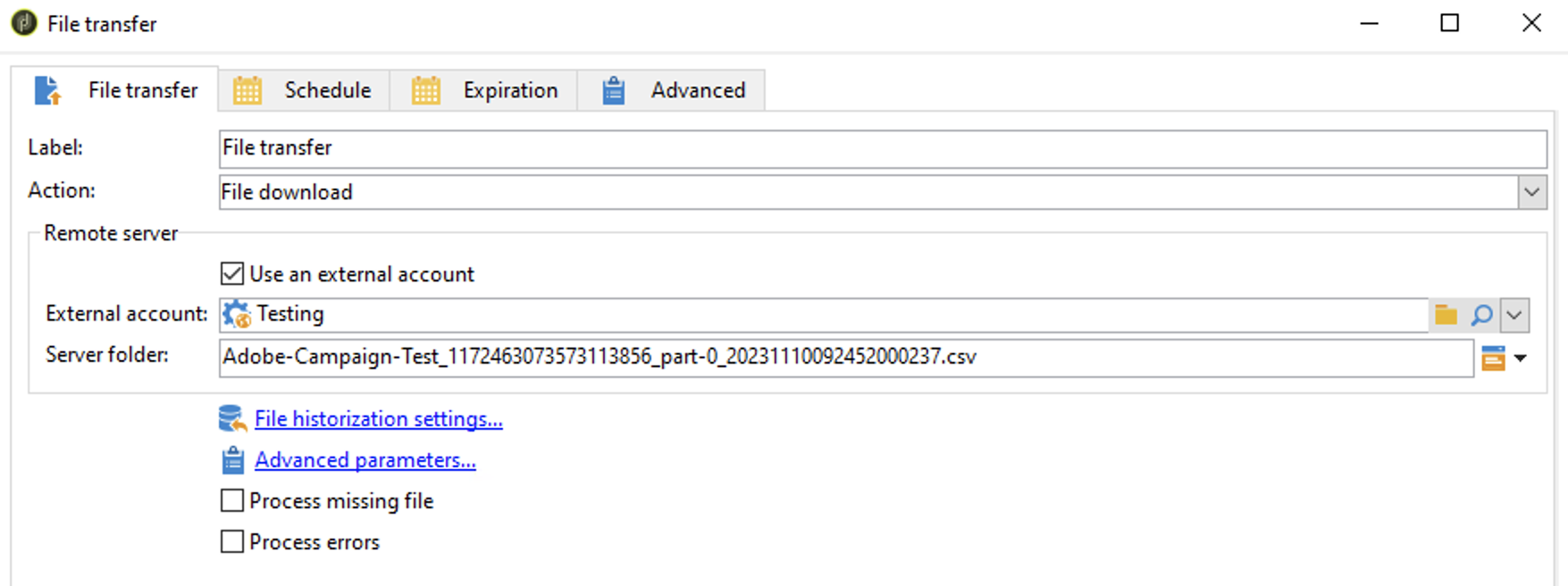
b. Update the Server folder path as shown in the image below and click Ok.
Data Loading (file)
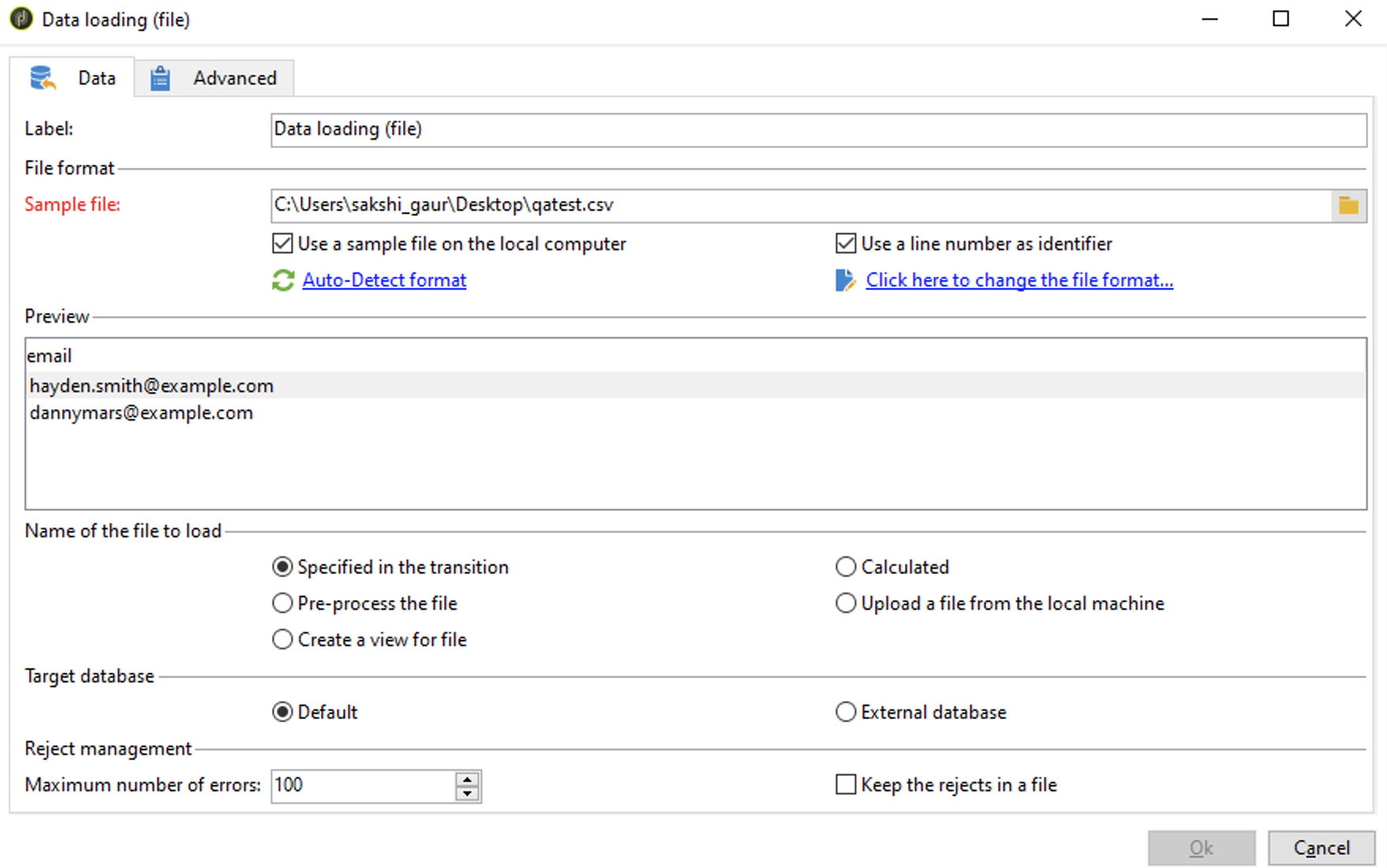
Use case 1- Loading data containing only email addresses Click Data loading (file) on the workflow diagram and perform the following configurations in the Data tab:1
Provide the path of the sample CSV file, which contains sample email addresses from your local drive.
2
Select the Use as sample file on the local computer and Use a line number as identifier checkboxes.
3
Under Name of the file to load, select Specified in the transition checkbox.
4
Under Target database, select Default checkbox.
5
Click Ok.
NoteYou can preview the data in the sample file under the Preview section.
1
Provide the path of the sample CSV file, which contains sample email addresses and custom IDs from your local drive.
2
Select the Use as sample file on the local computer and Use a line number as identifier checkboxes.
3
Click Auto-Detect Format to preview the uploaded sample file.
4
Under Name of the file to load, select Specified in the transition checkbox.
5
Under Target database, select Default checkbox.
6
Click Ok.
Note:You can preview the data in the sample file under the Preview section.
.png?fit=max&auto=format&n=YNdtFkydSZ-00_Bc&q=85&s=7a7ea9a90a024fc365a7c2d6b9e7b8c0)
Update Data
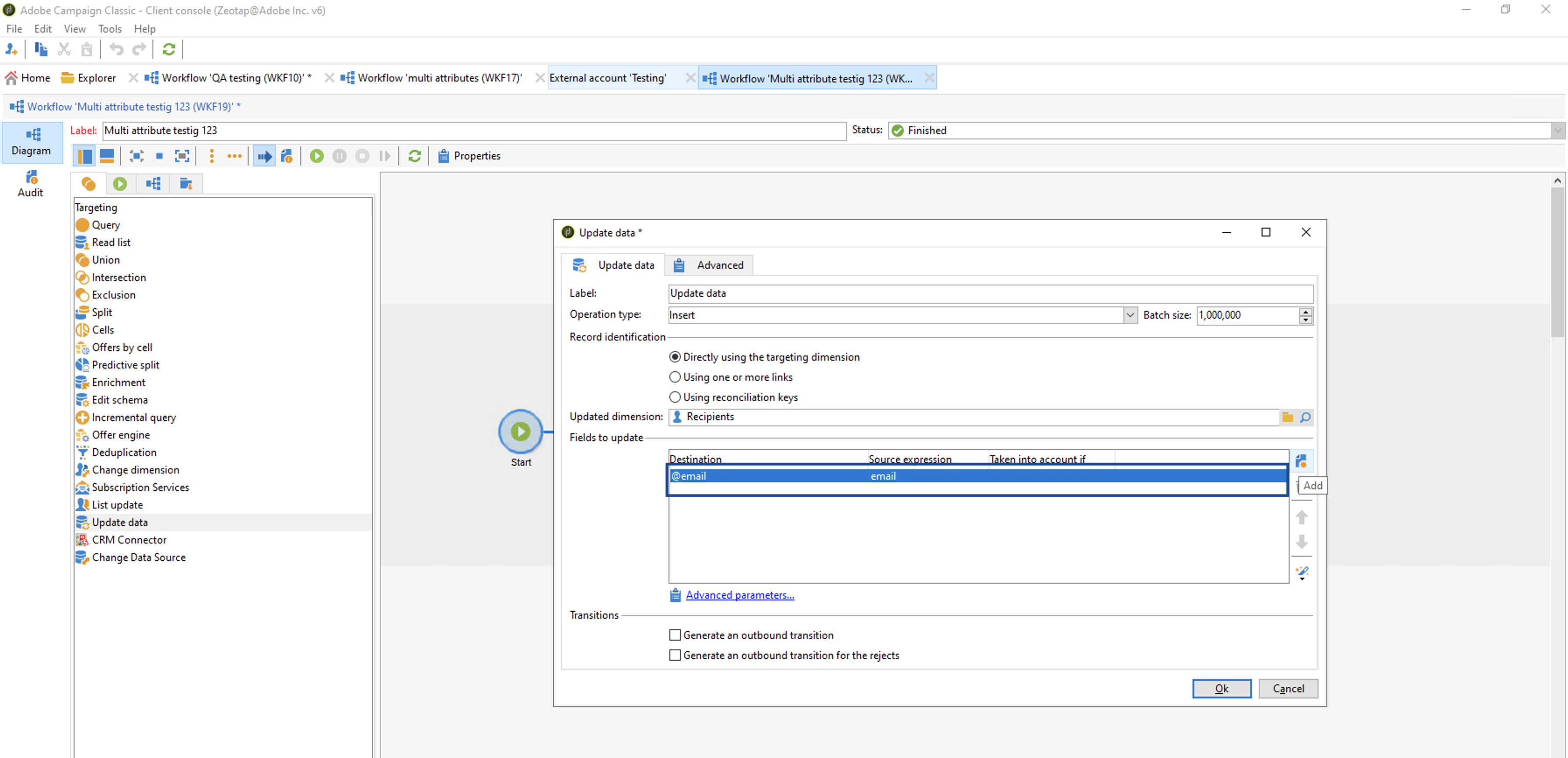
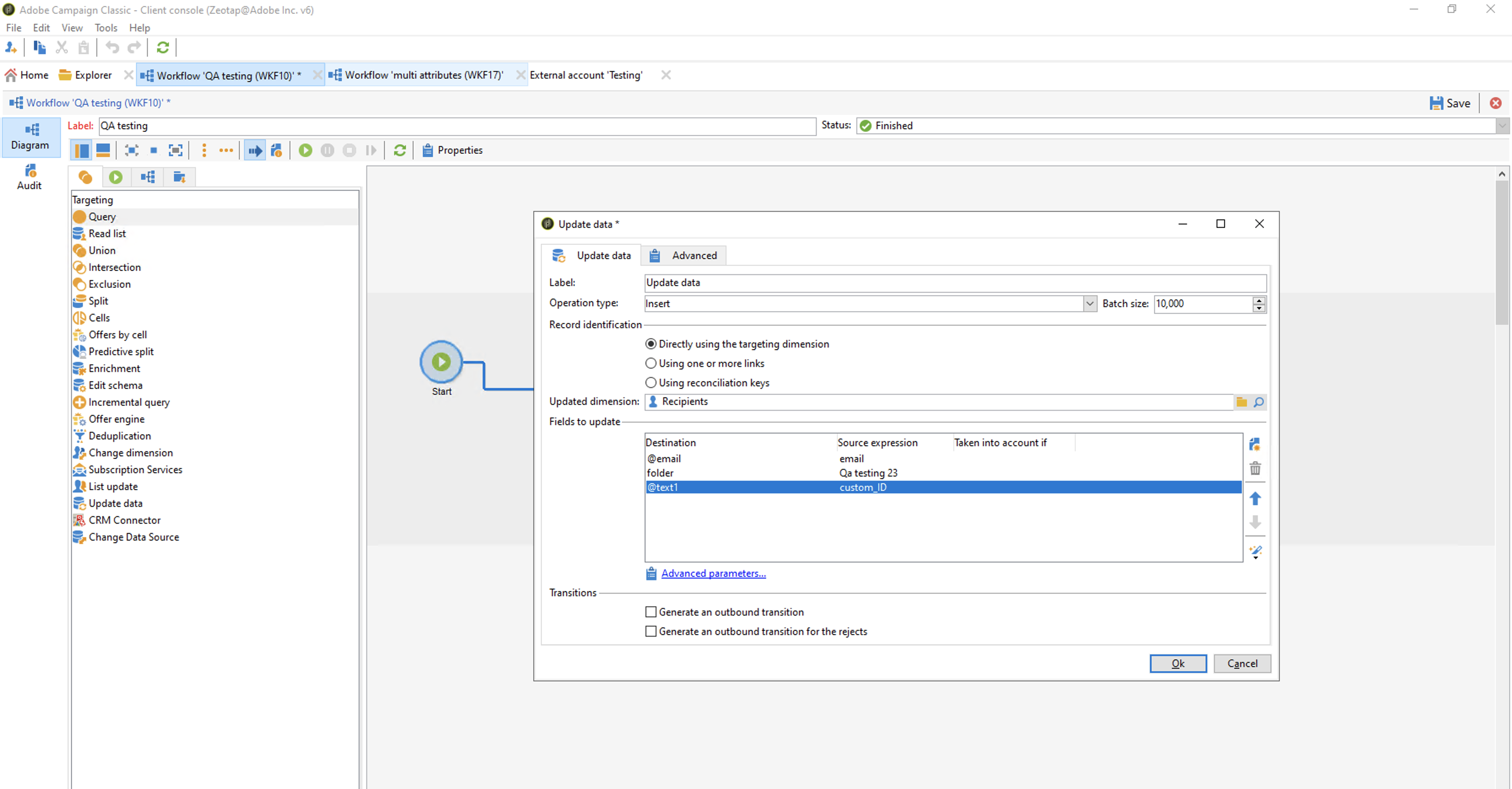
Use case 1 - Updating data containing only email addresses. Click Update Dataon the workflow diagram and perform the following configurations in the Update data tab:1
Choose the appropriate Operation type using the drop-down menu.
2
Choose the Batch size as 1000,000 (1 million).
3
Under Fields to update, add the email addresses and folders. To do so, use the New icon shown in the image below.
4
Once you are done with your configurations, click Ok.
.png?fit=max&auto=format&n=5uegGRTZnAzLL6tY&q=85&s=17c1b15129b18b47ab6156446fb19bb2)
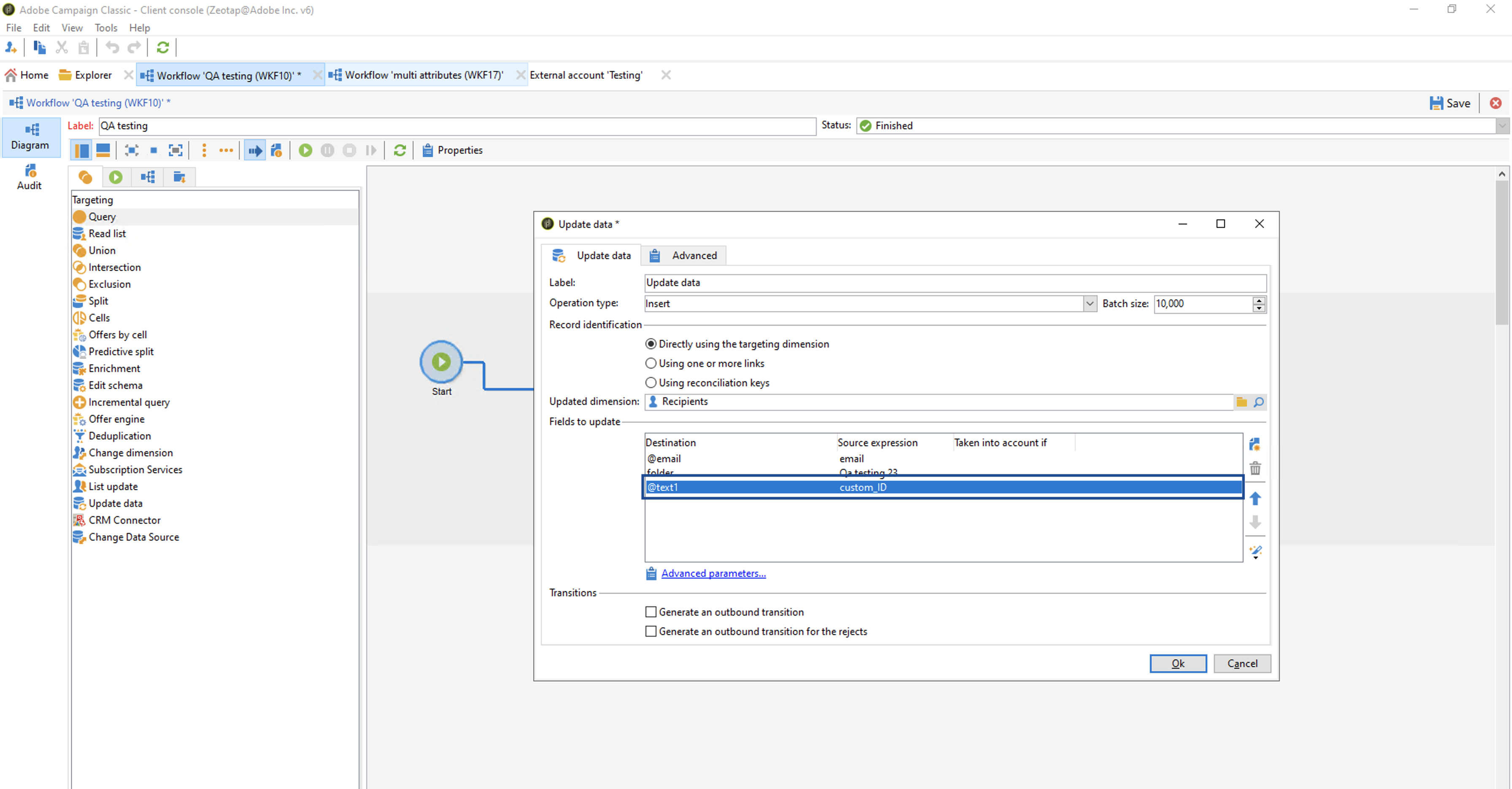
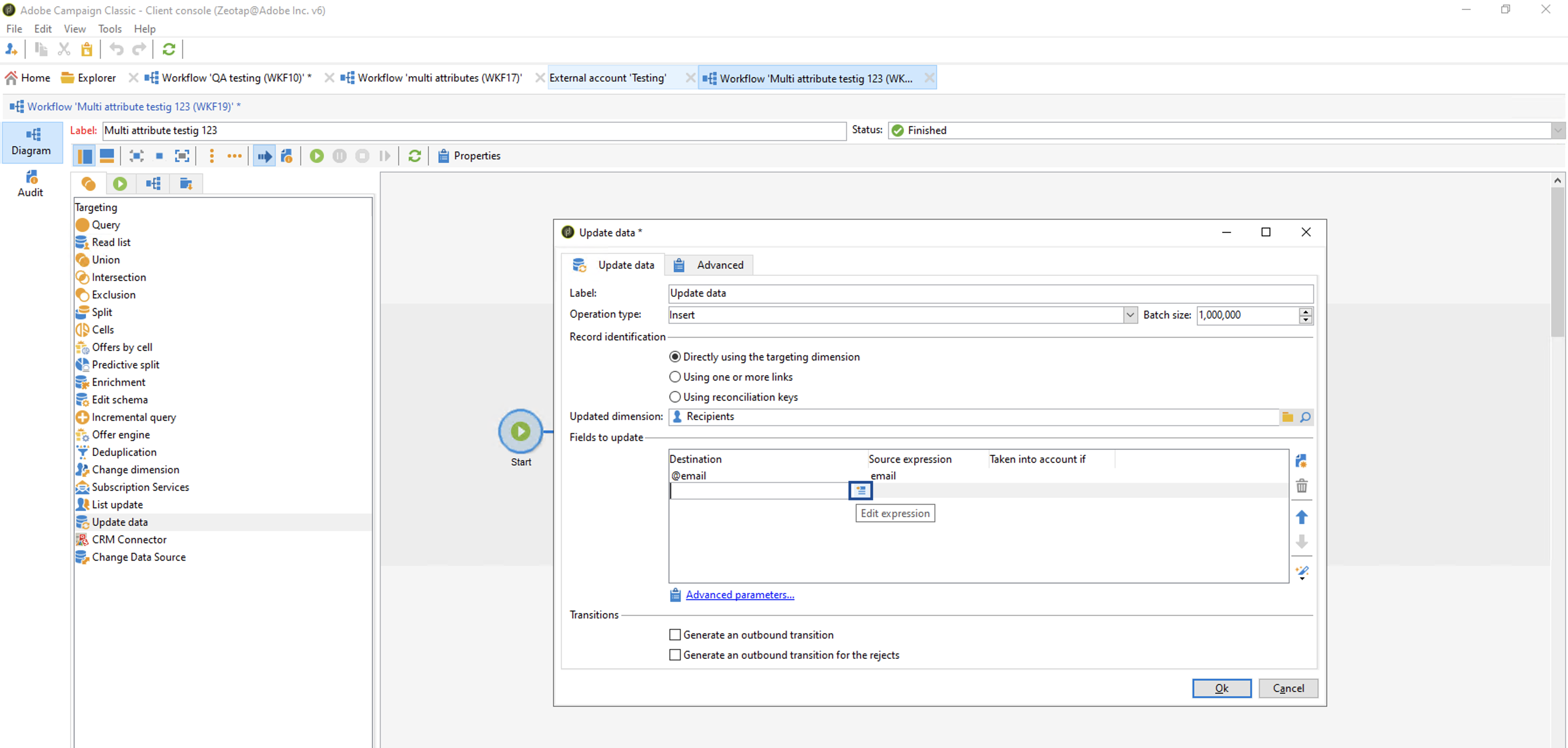
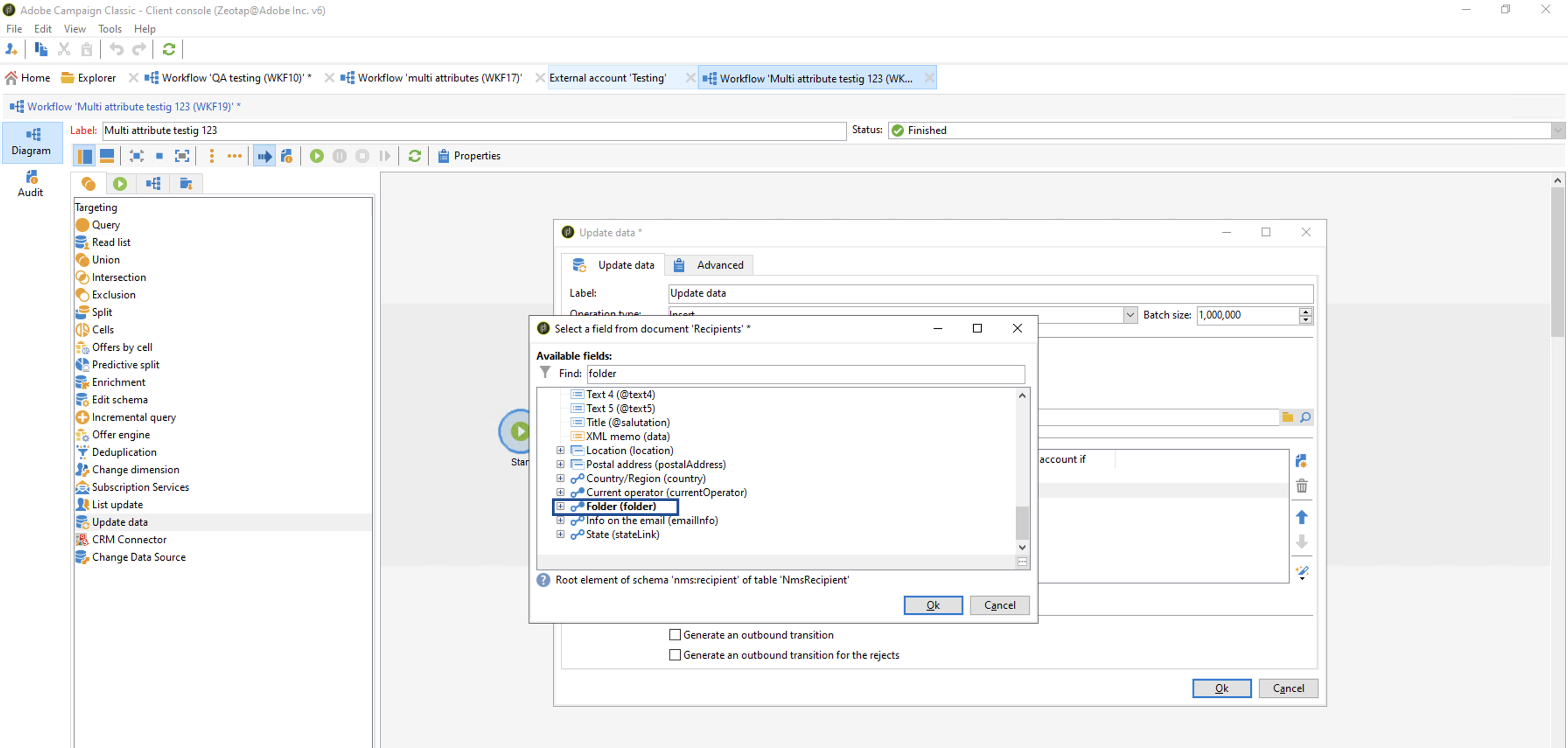
1
Choose the appropriate Operation type using the drop-down menu.
2
Choose the Batch size as 1000,000 (1 million).
3
Under Fields to update, click Add to add a new row._nw_(1).png?fit=max&auto=format&n=5uegGRTZnAzLL6tY&q=85&s=d26f36798d1885cc813882f3904fd2d7)
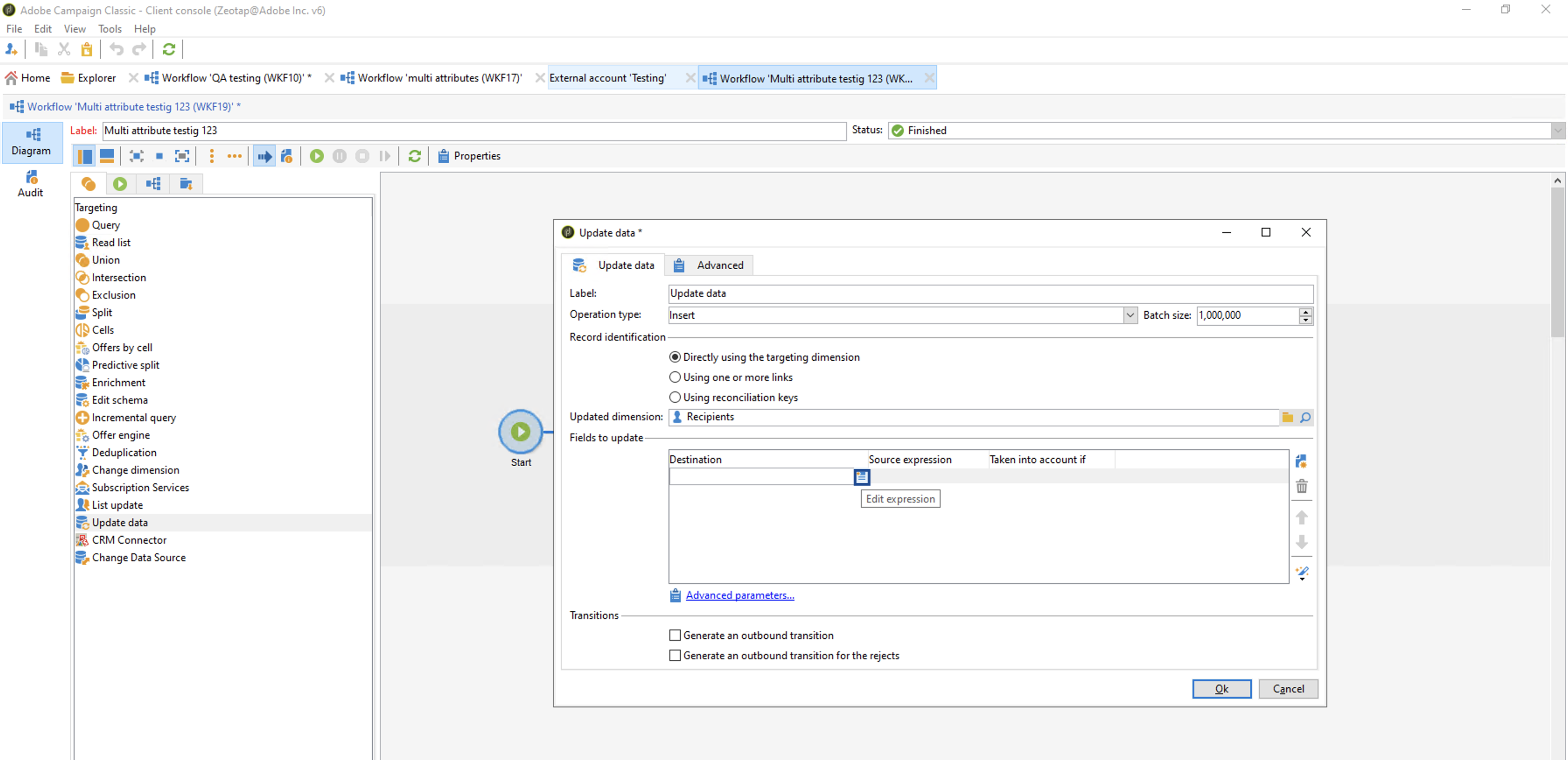
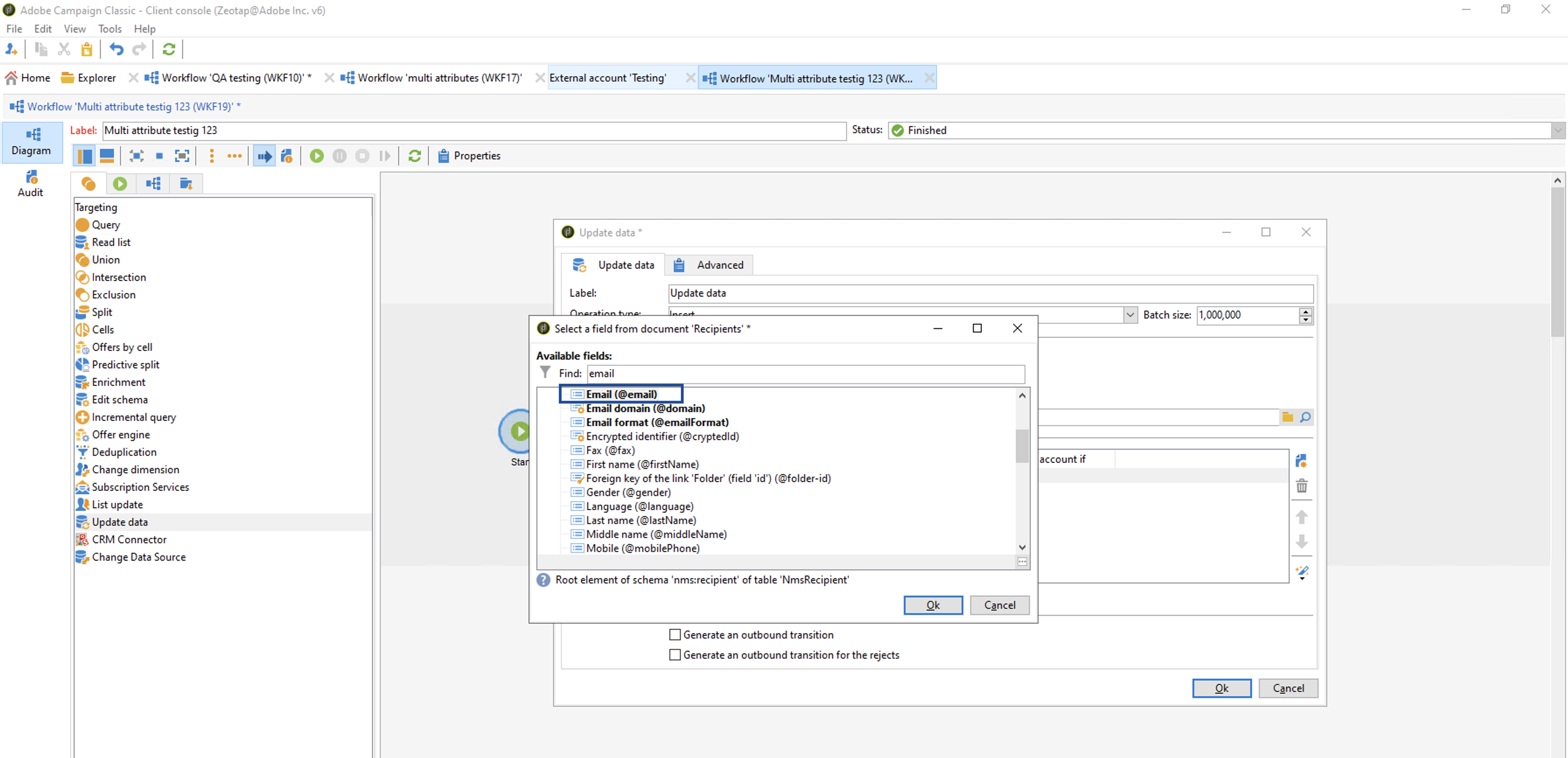
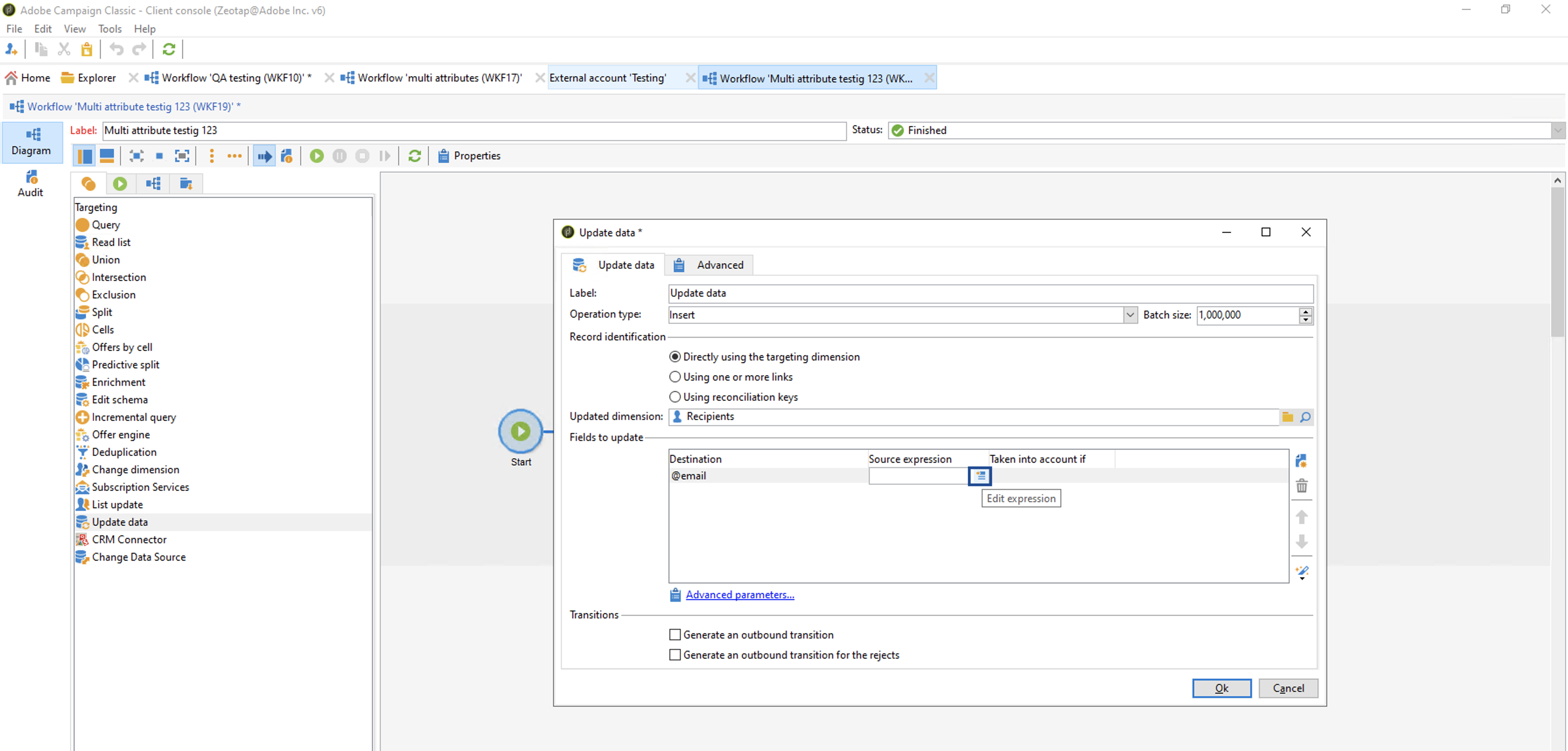
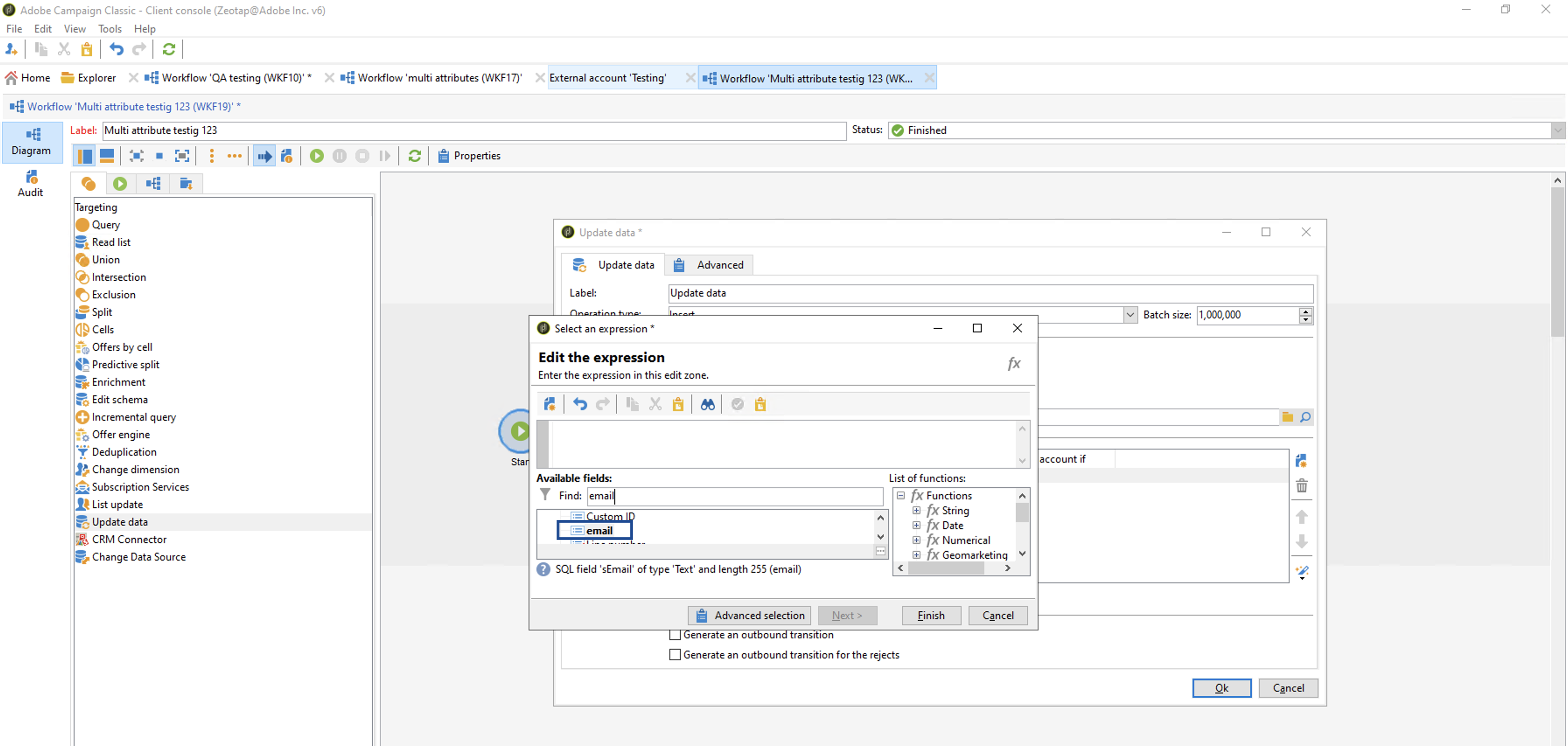
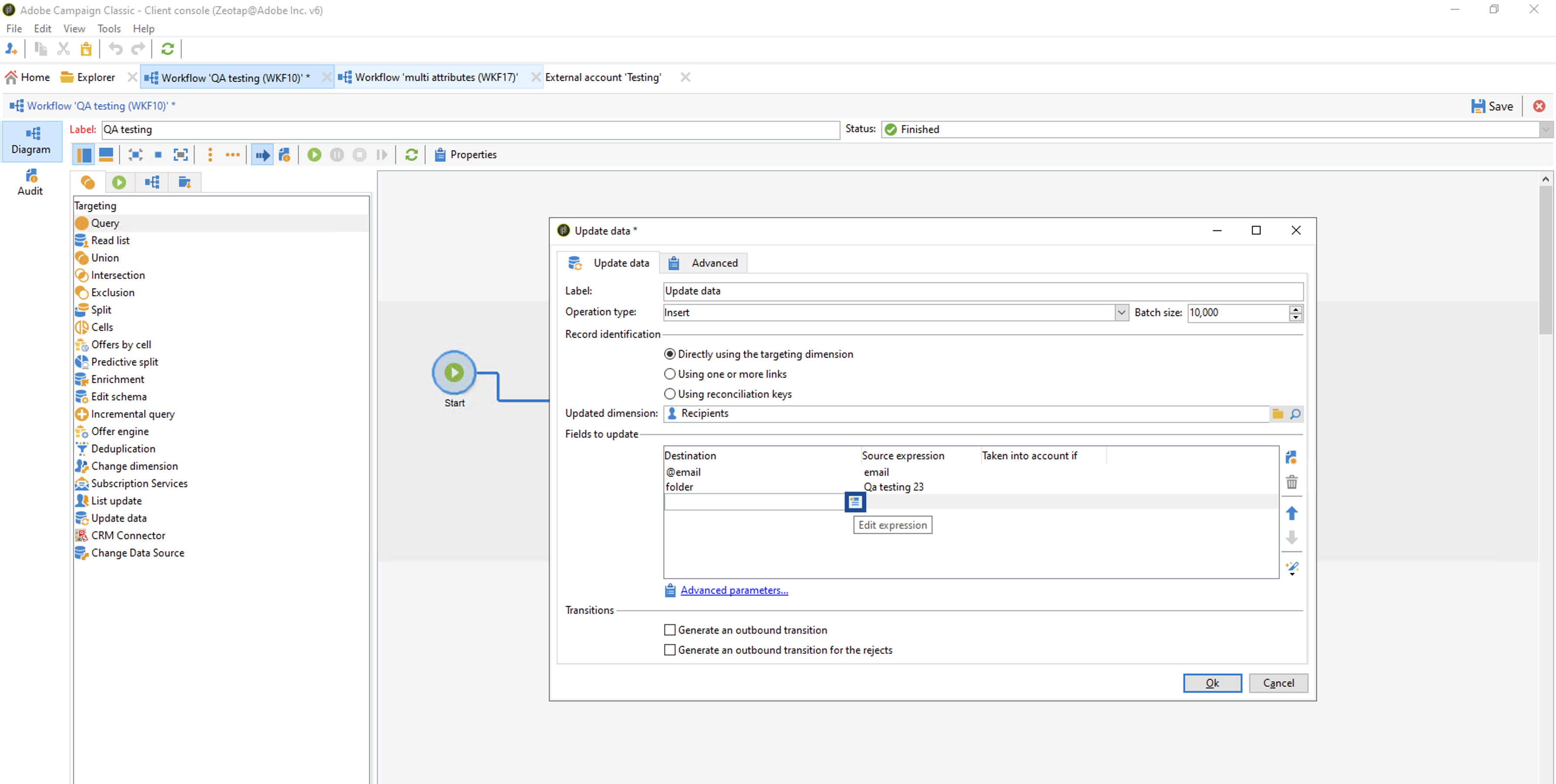
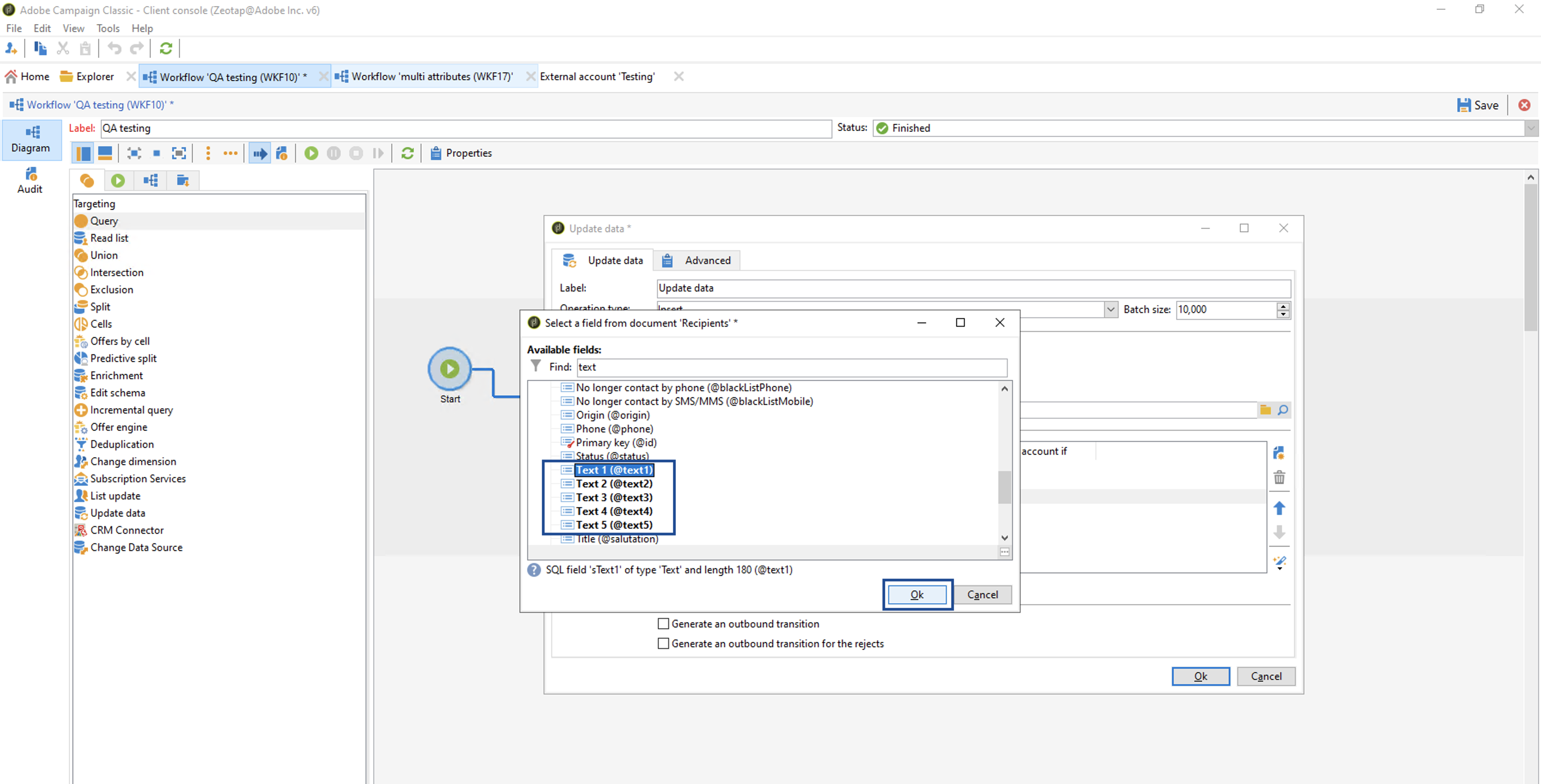
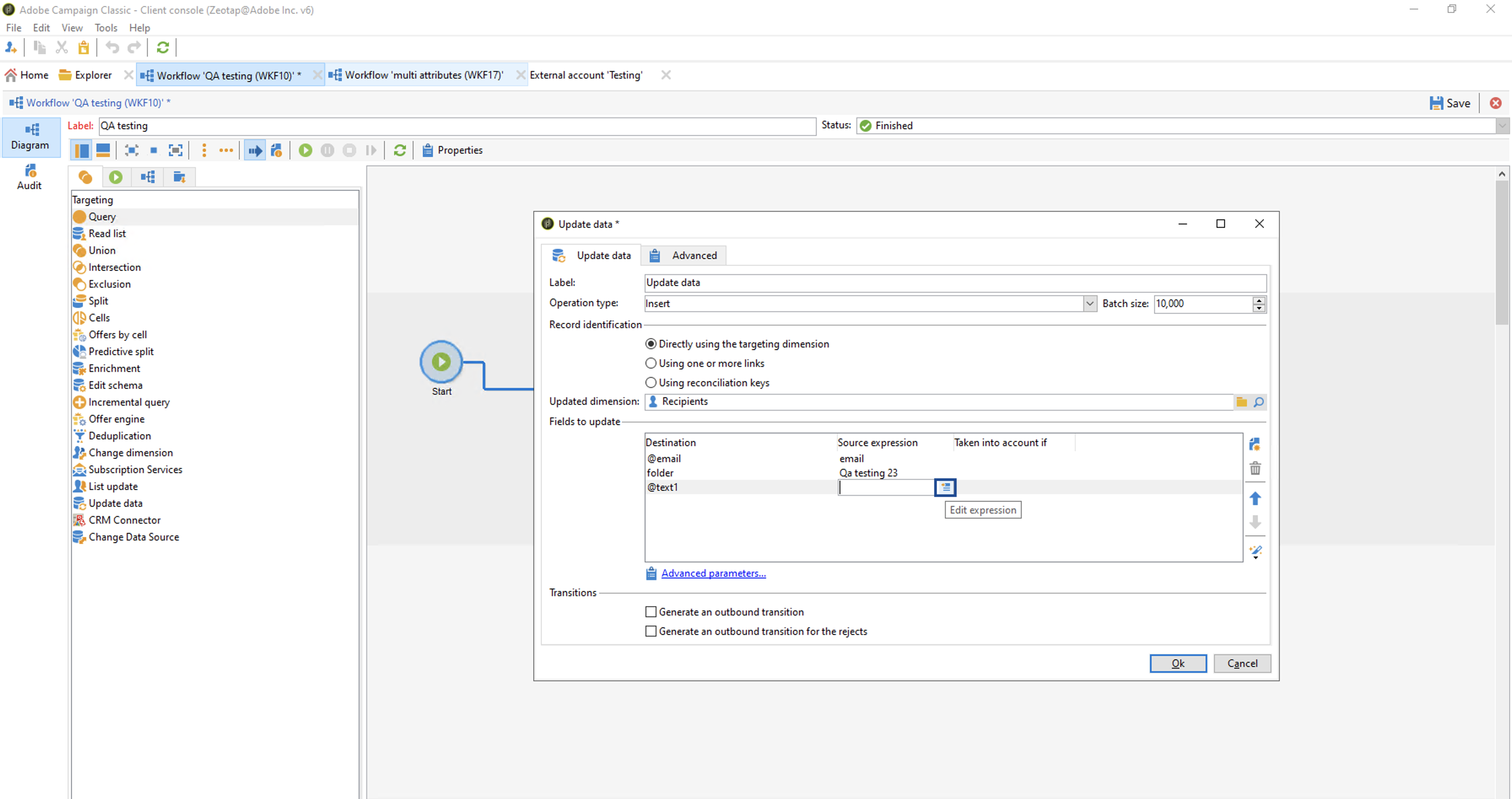
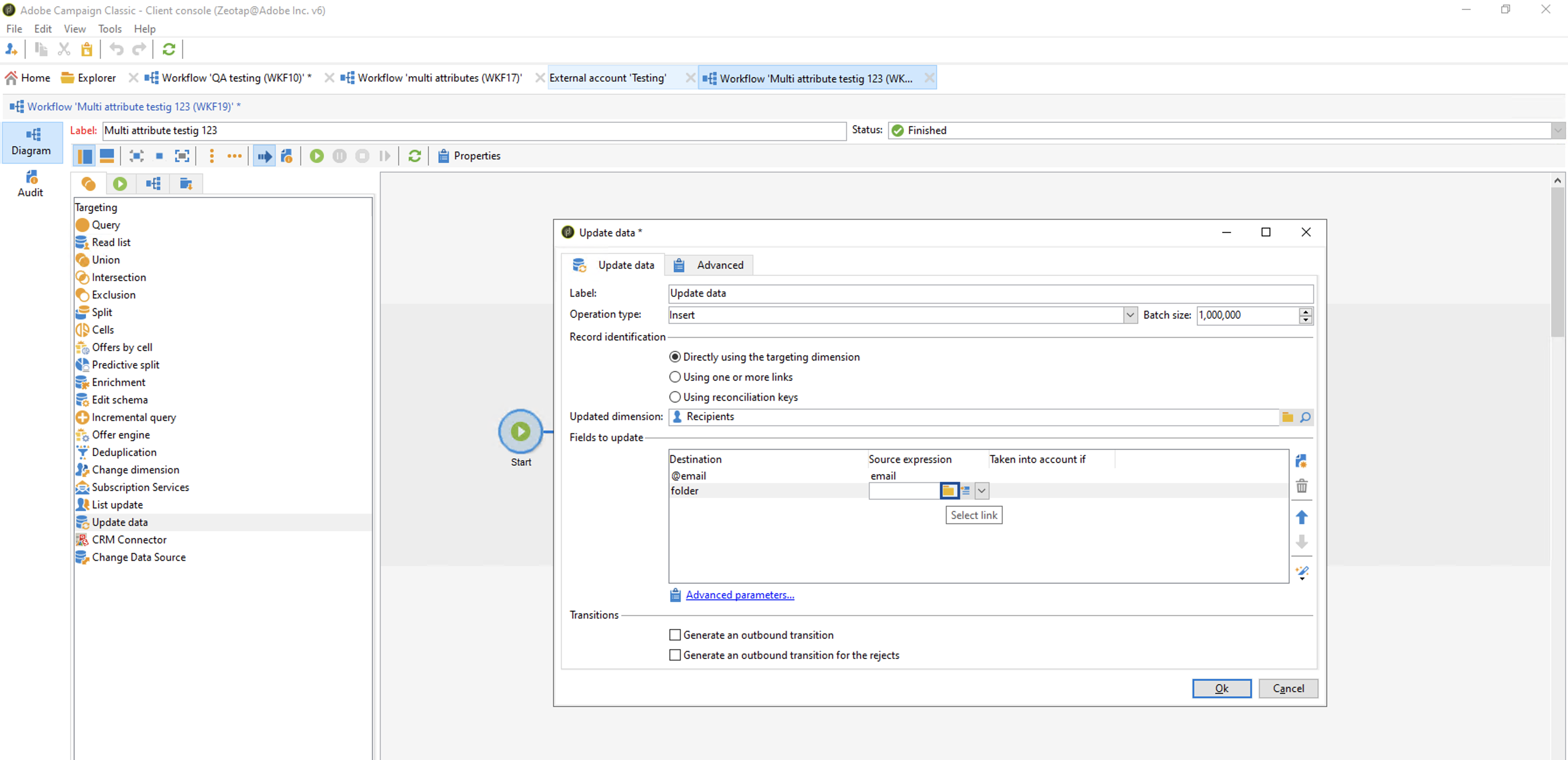
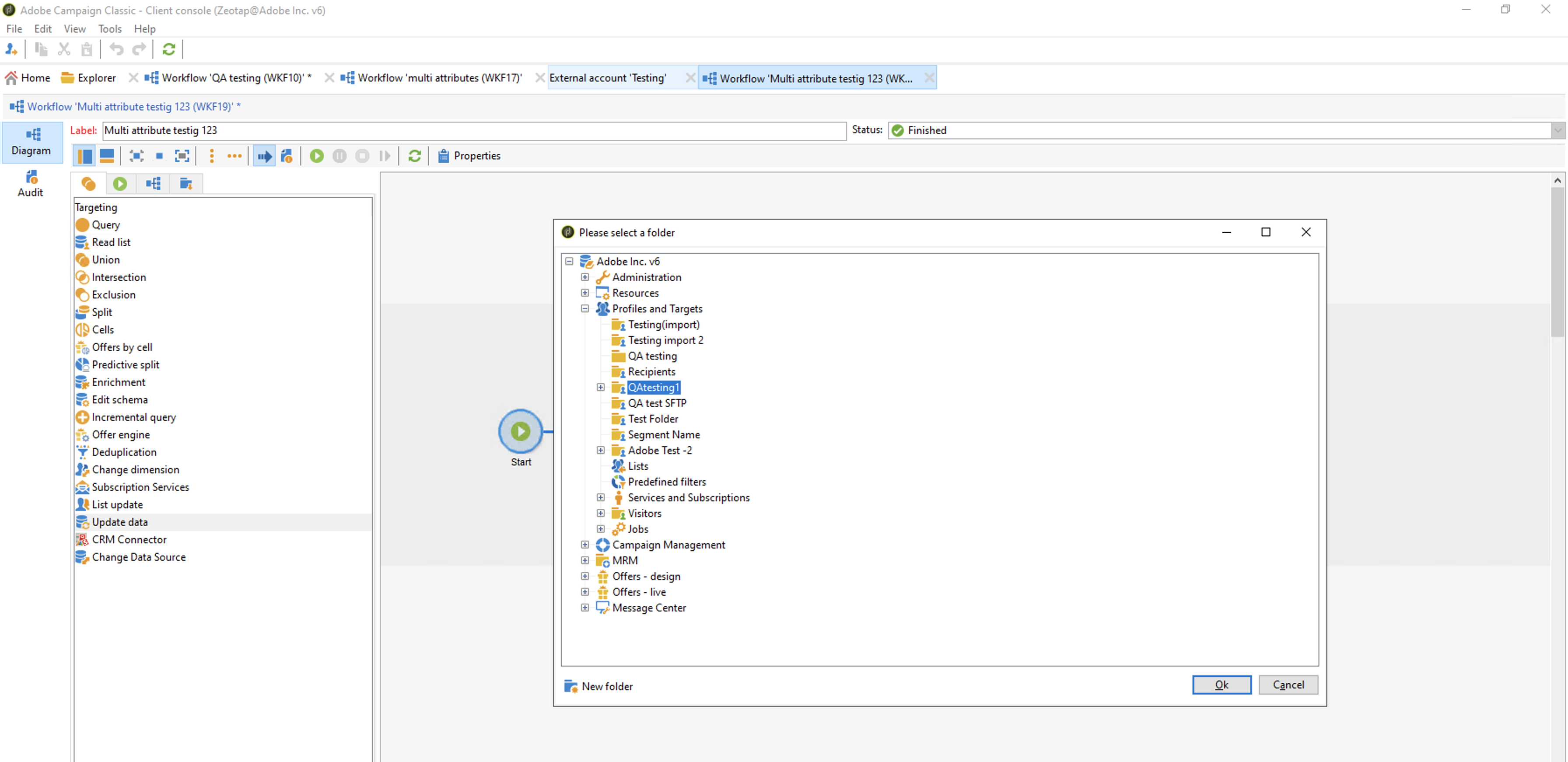
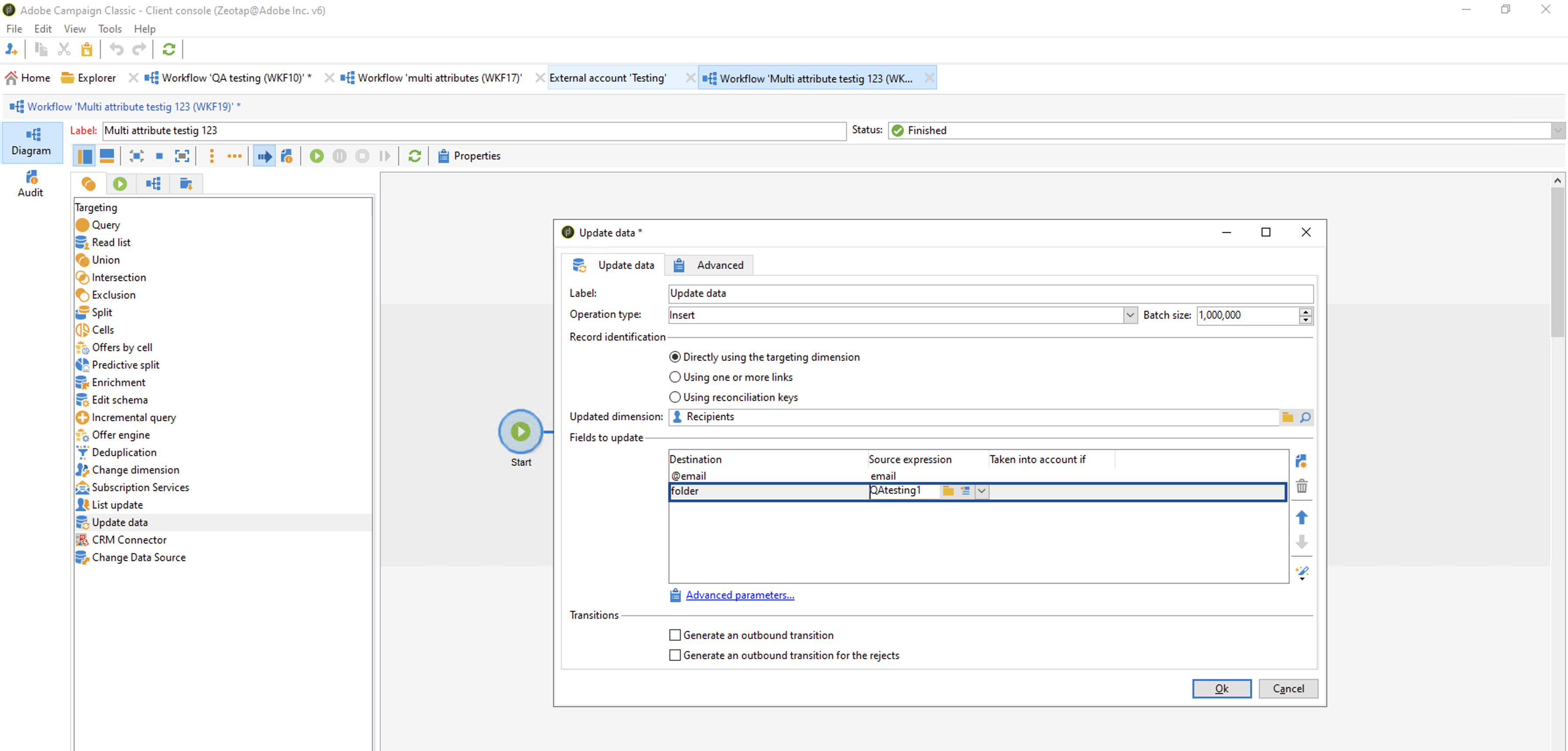
4
After all the desired fields are mapped, click Run to run the workflow.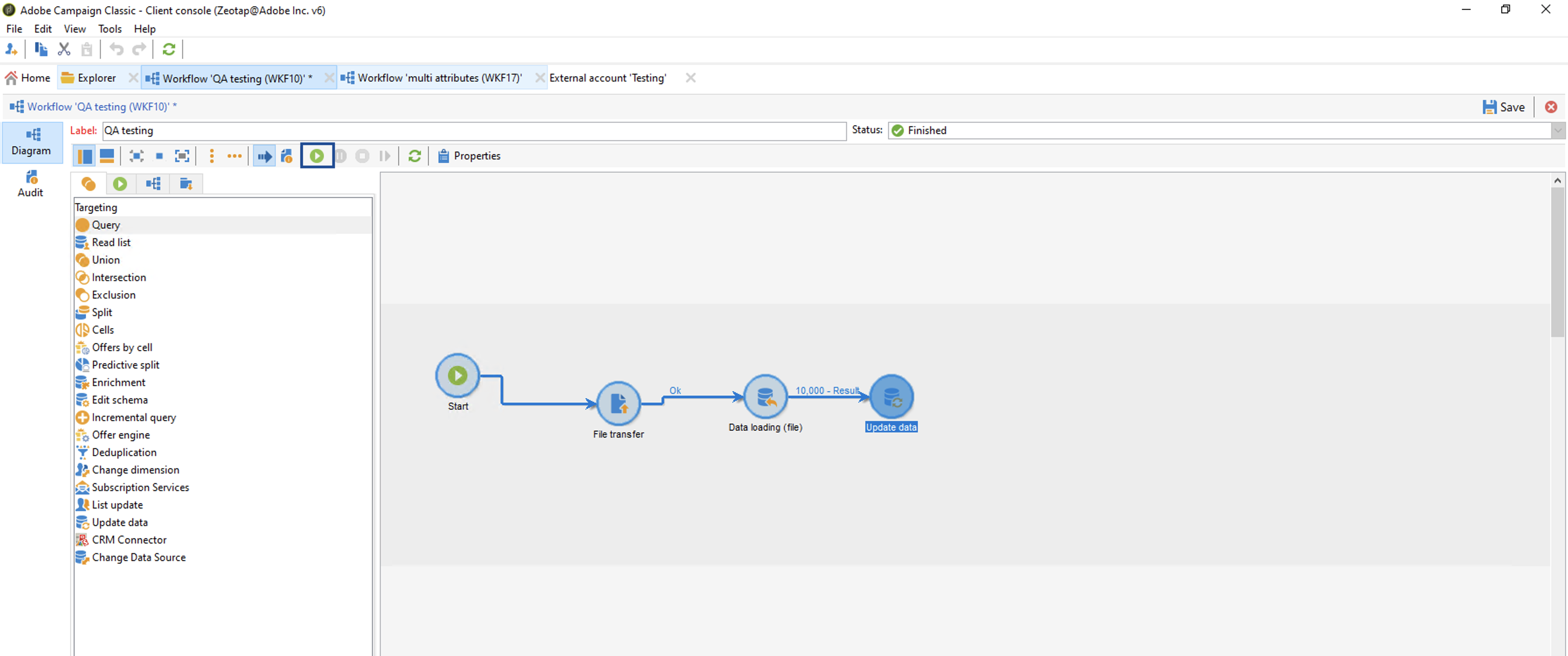
View Segments on Adobe Campaign
Perform the following steps to view the pushed Audiences (segments) on the Adobe Campaign platform:1
Log into Adobe Campaign Classic.
2
Under Explorer, select the segment folder you have created in Step - 1.
3
In the following screen that appear, click Other.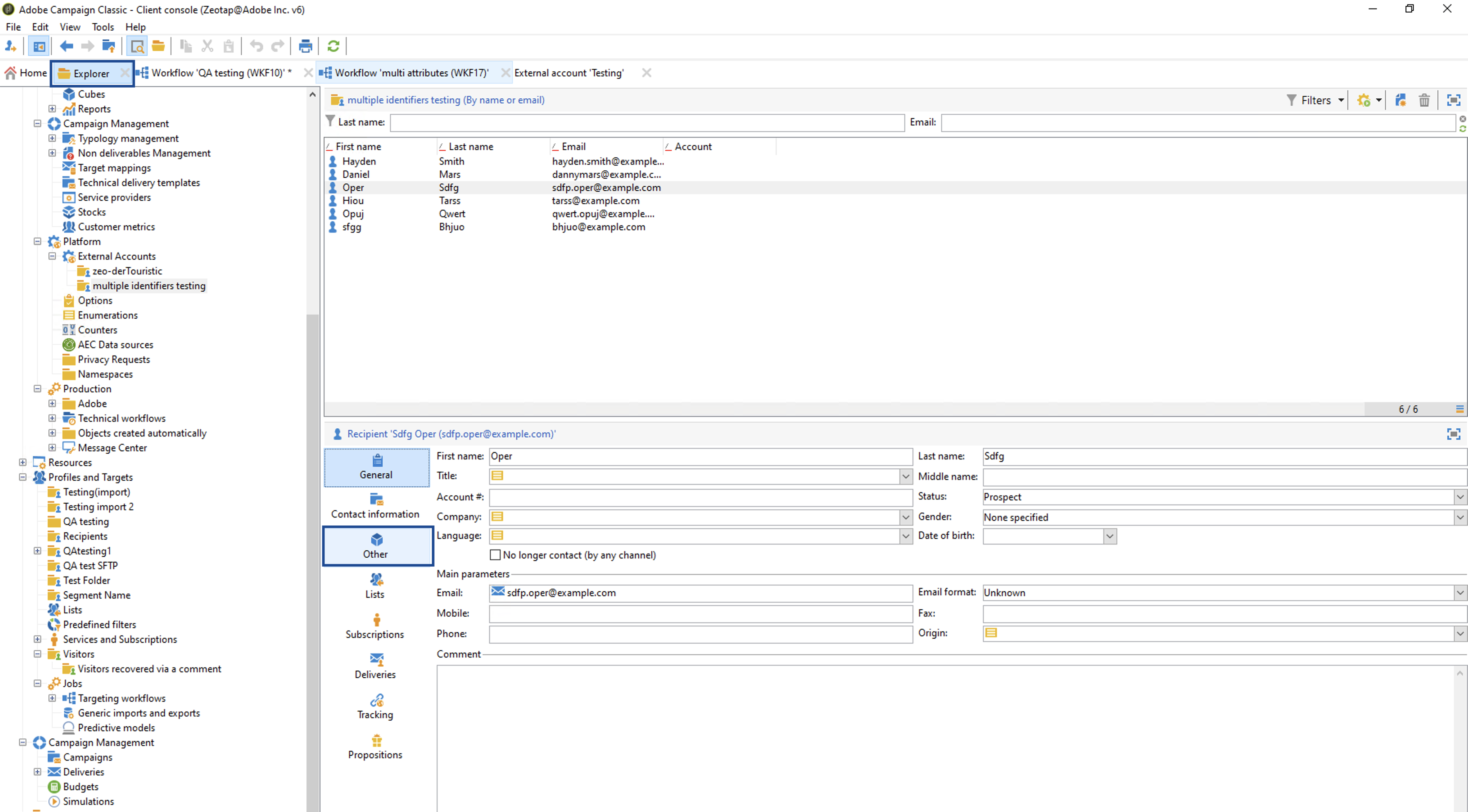
4
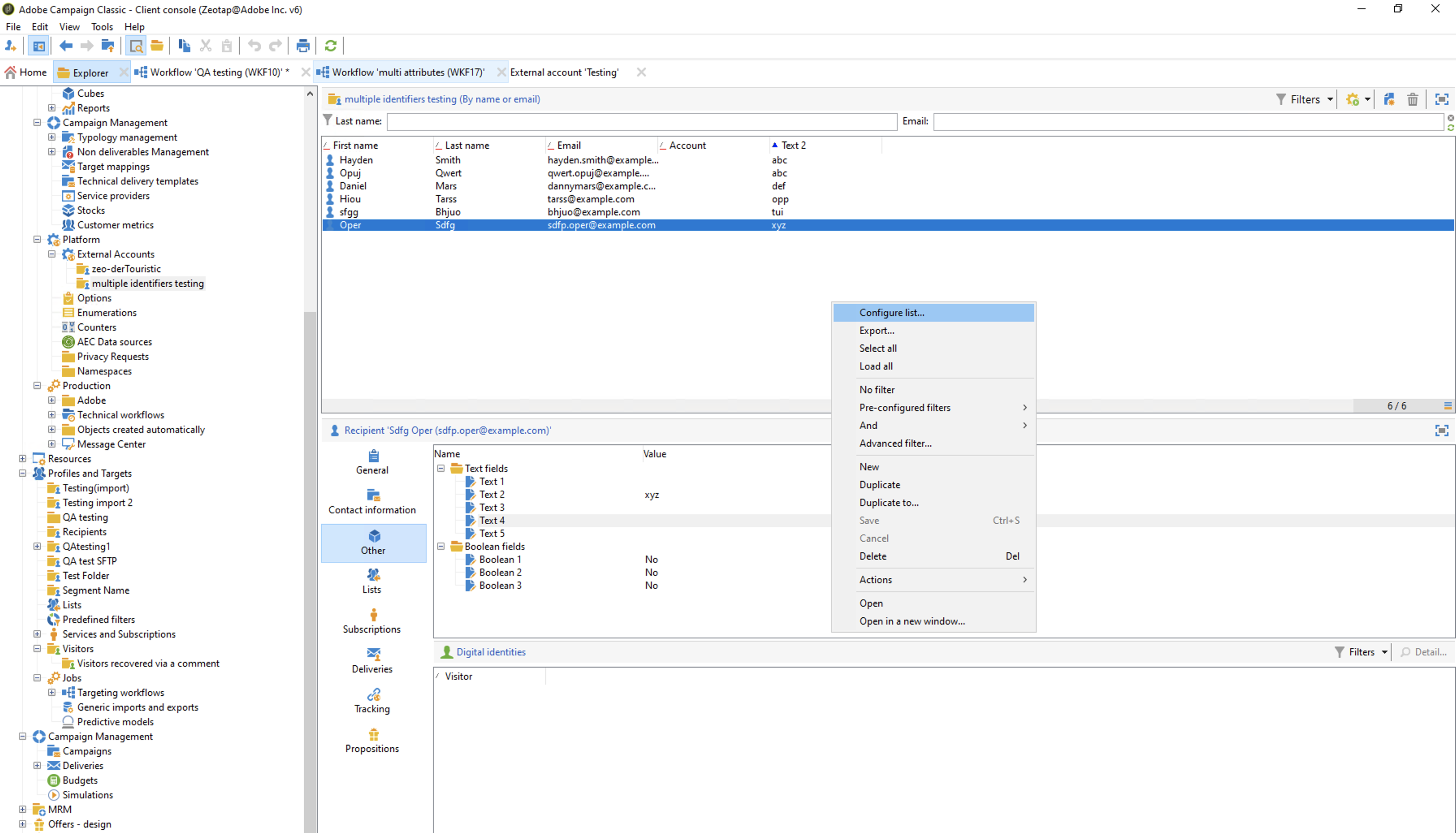
Right-click on the screen. In the menu that appears, click Configure list.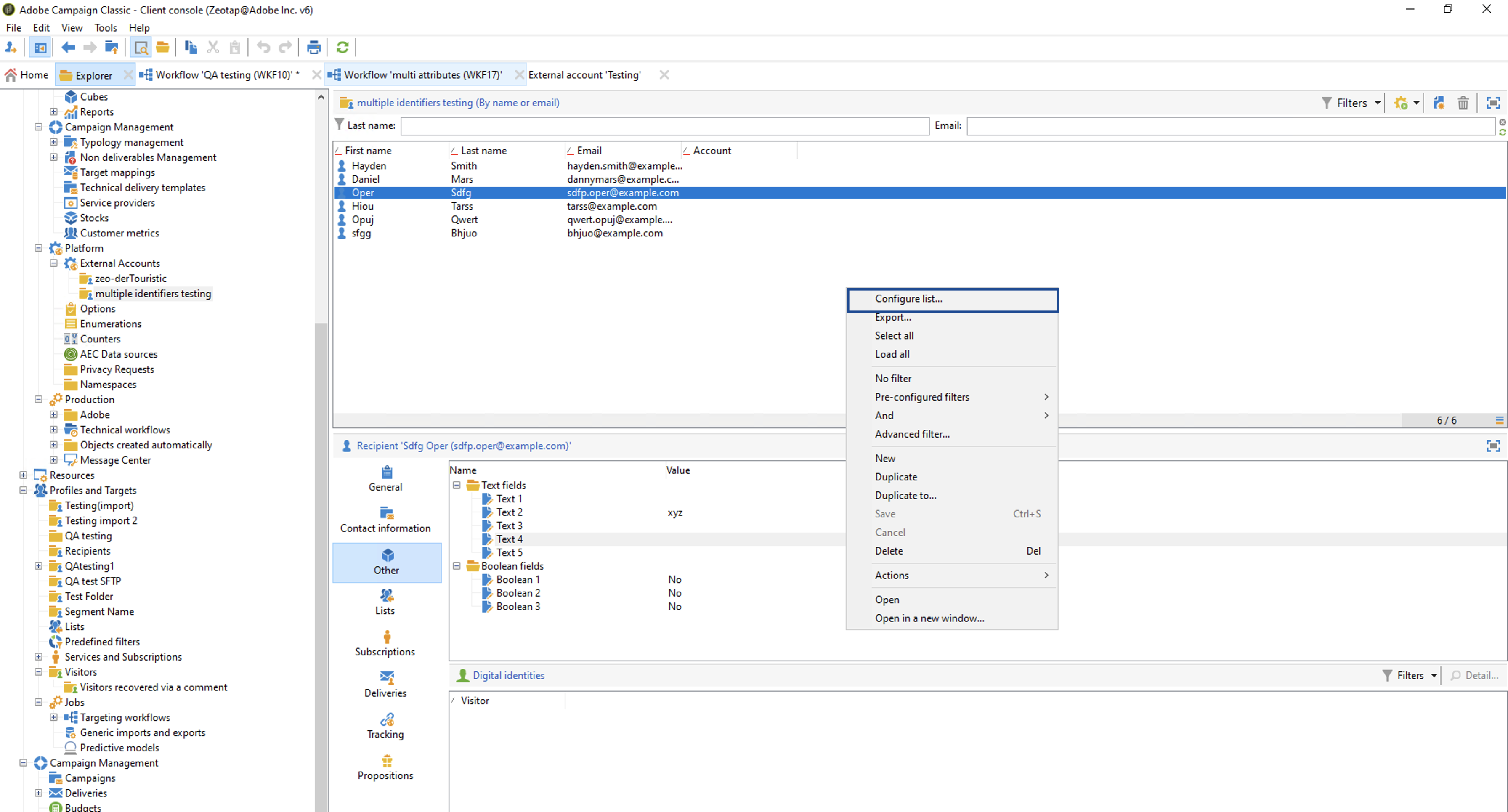
5
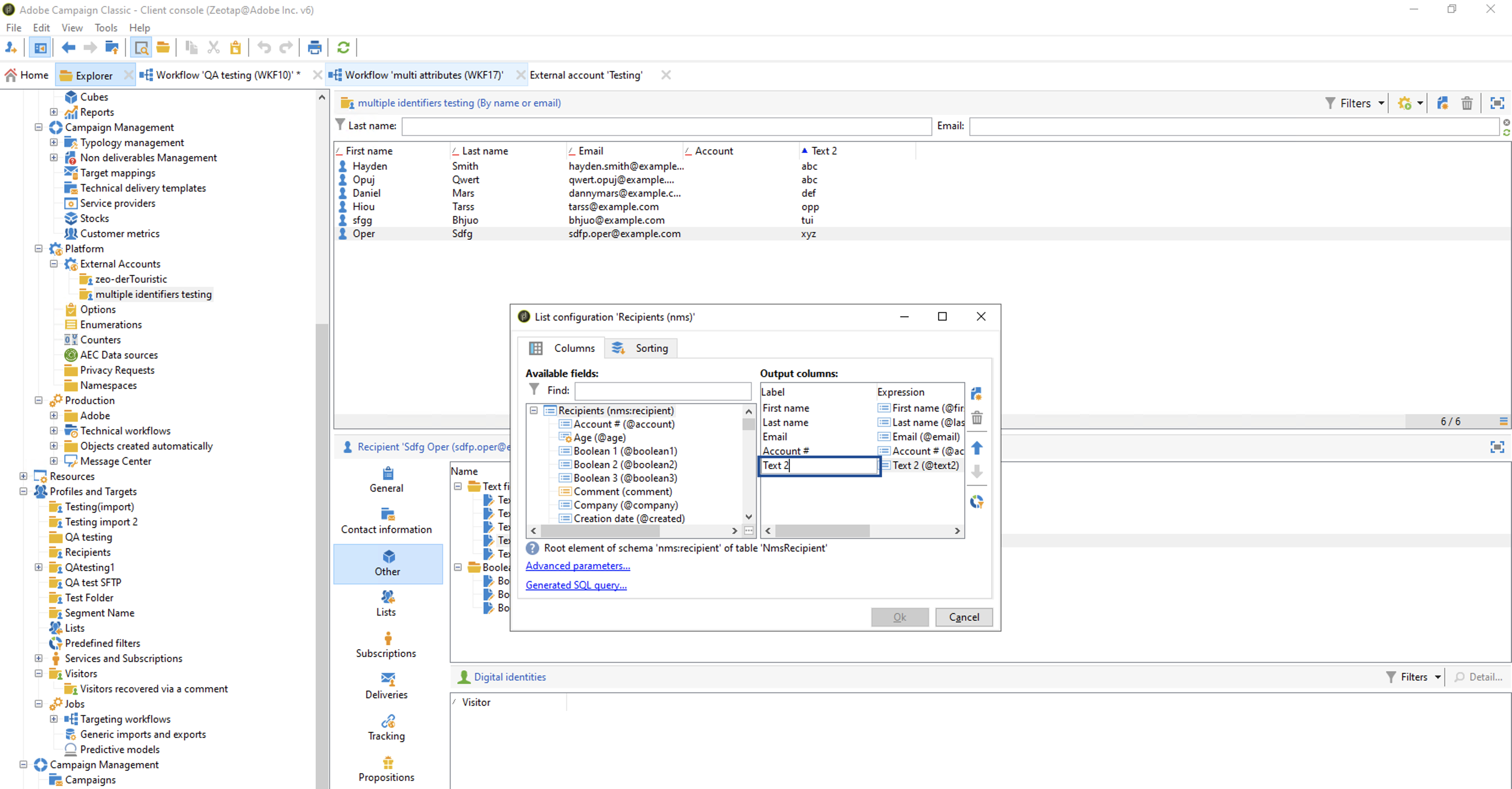
In the following List Configuration window that appears, choose the mapped text field to be displayed in the UI and click OK.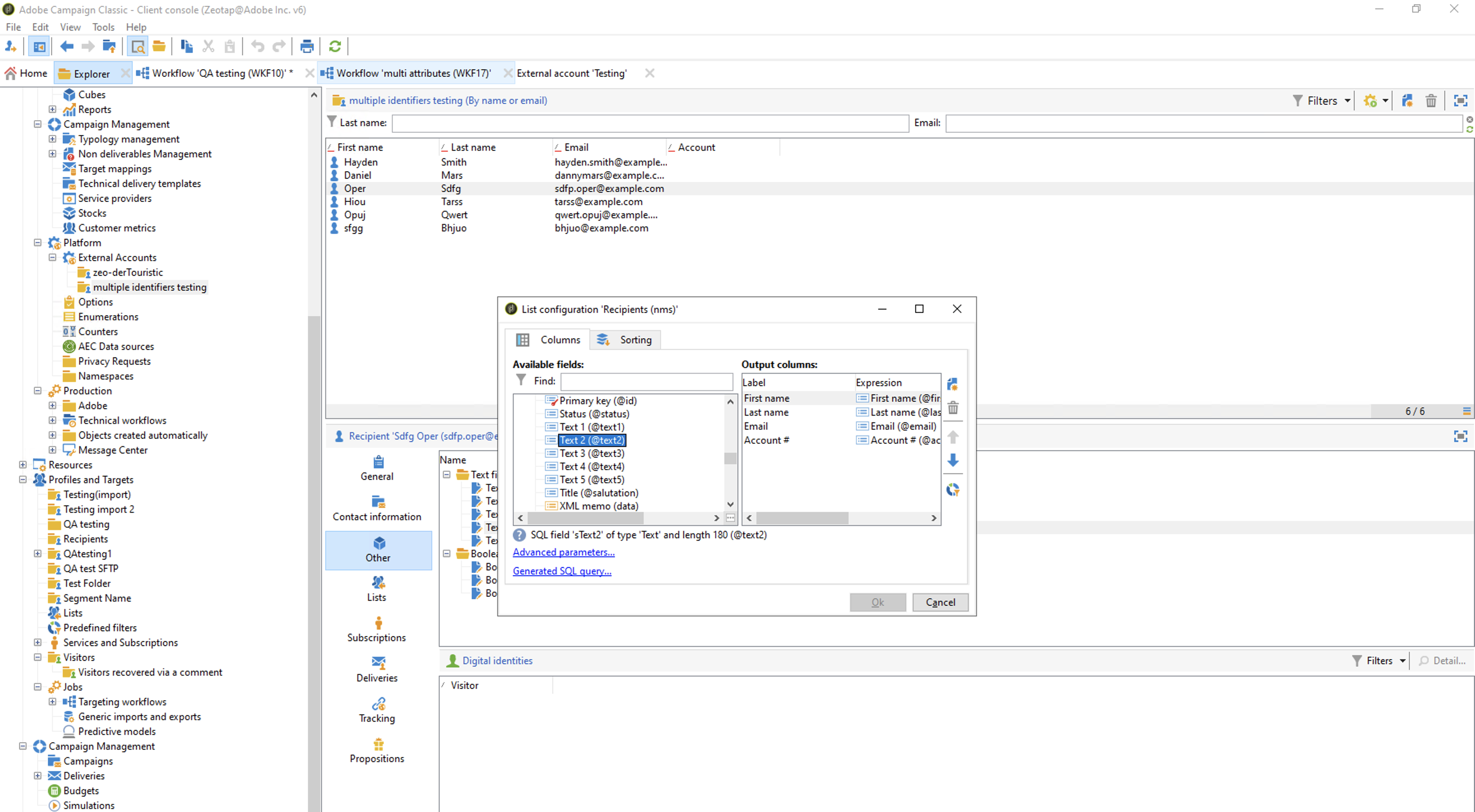
6
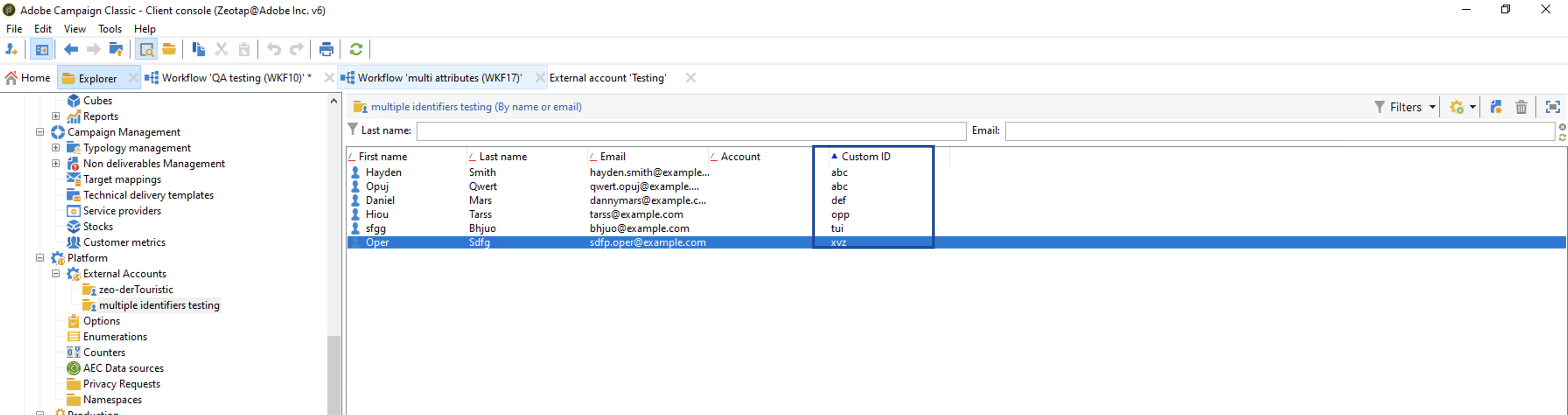
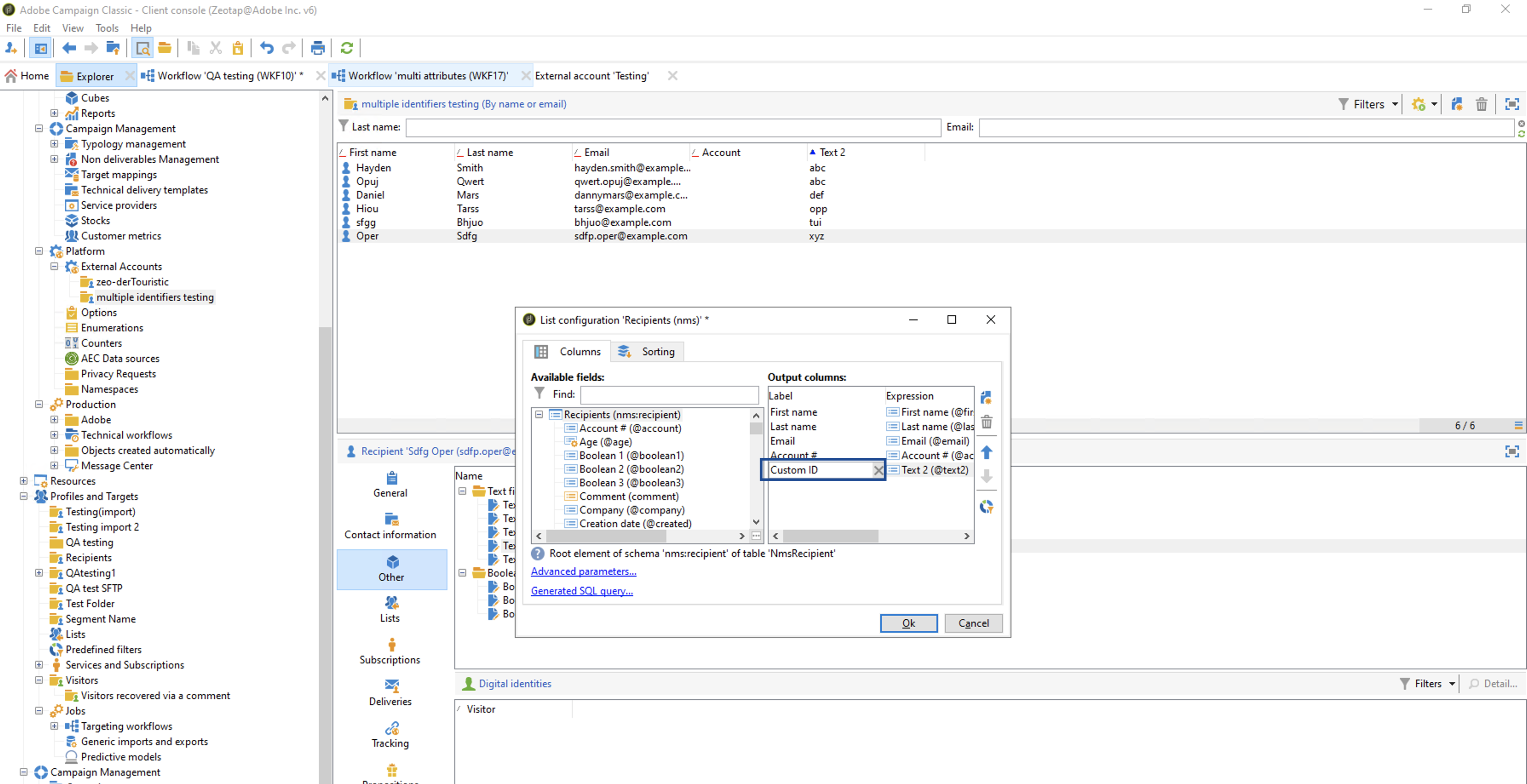
The custom IDs appears under the mapped text column. Ensure to rename the column to custom ID. Note this custom ID should be same as the custom ID provided while creating Destination in Zeotap CDP. Perform the following steps to rename the column to custom ID: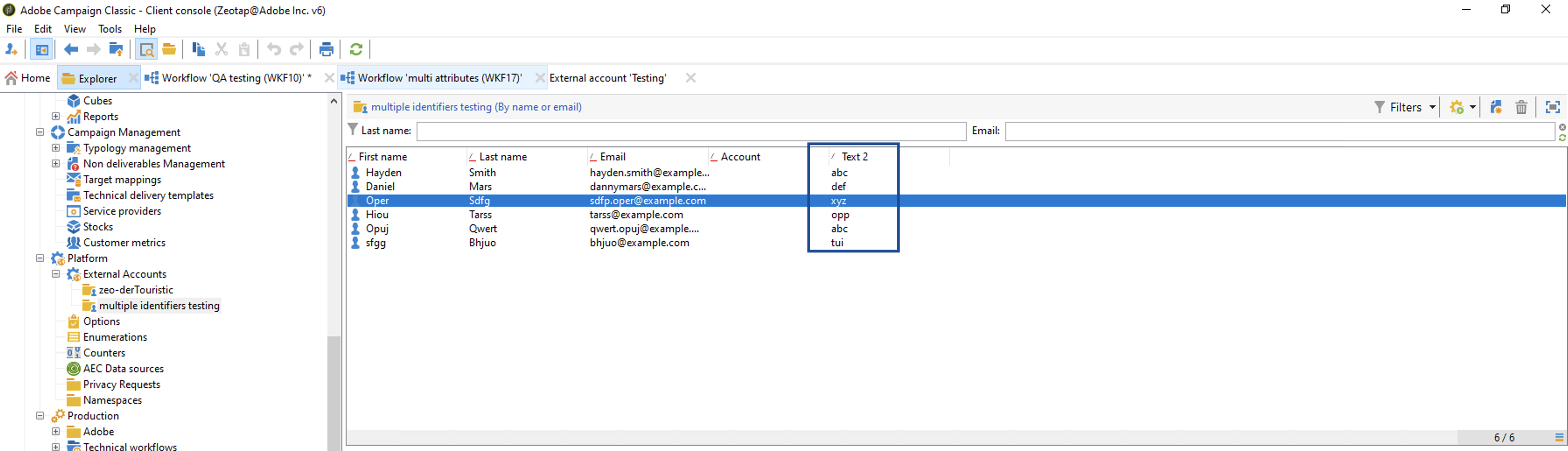
7
The audience/segments gets displayed as shown on the image below.