

Overview
InfoSum is a data collaboration platform that allows companies to gain insights from their combined customer data without ever sharing or moving it. Each company uploads its data to a private, secure “data bunker” where it remains under their control. The platform then uses privacy-enhancing techniques to match identifiers between these bunkers. This provides aggregated statistical insights, like audience overlap, while ensuring that the underlying raw customer data is never exposed to other parties. This integration with Zeotap enables you to send user identifiers to InfoSum.Prerequisites
Before you create a Infosum Destination in Zeotap CDP, note that you must have the following- A Google Cloud Storage Account
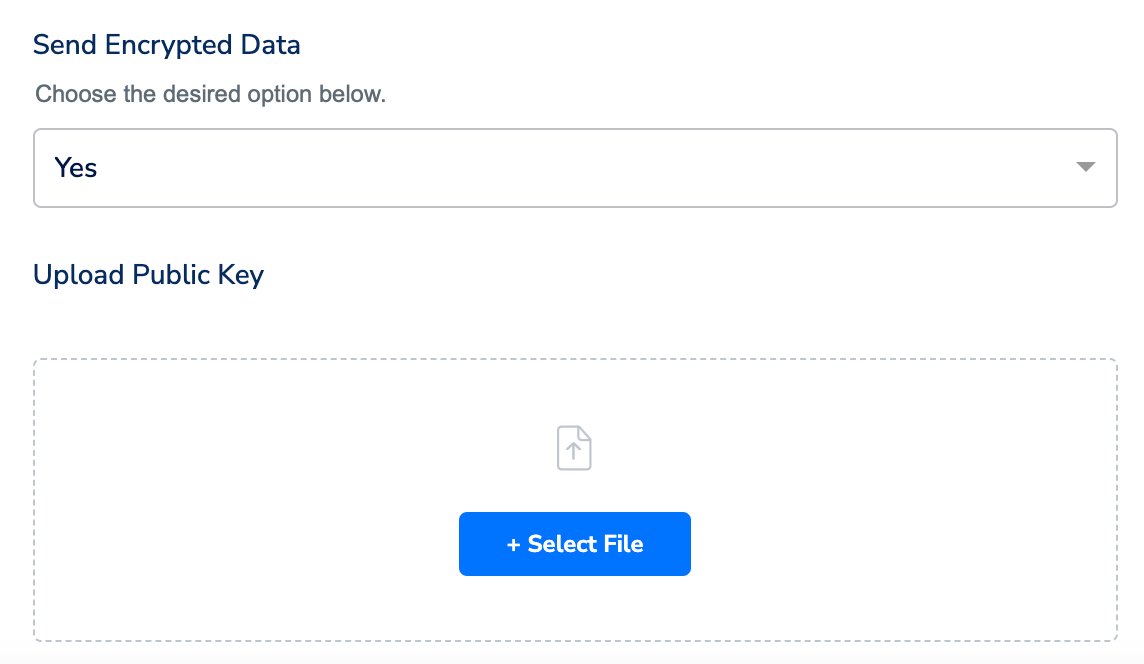
- PGP Encryption Public Key from Infosum to encrypt your files. For more information, refer to PGP Encryption in Infosum.
Note:You must configure the Google Cloud Storage in Infosum with following details
- Bucket Name
- File Name
- Service Account Key
Supported Identifiers
This integration supports email addresses (raw and SHA-256), phone numbers (raw E.164 format), mobile IDs (AAID/IDFA), postal codes (Zip5/Zip9), cookie IDs, and IP addresses (IPv4/IPv6).Components of Google Cloud Storage
Ensure that you have the details about the below components of the Google Cloud Storage account before creating a Destination.Bucket
Folder
Account
Bucket
This is the name of your Google Cloud Storage Bucket. You can obtain this information from your Google Cloud Storage account as shown in the image below.
Folder
In Google Cloud Storage, a folder serves as a logical container for organising stored objects within a bucket. In reality, there are no actual folders in Google Cloud Storage. Instead, the folder concept is emulated by employing object key names containing slashes (”/”) to replicate a hierarchical arrangement. You can obtain this information from your Google Cloud Storage account as shown in the image below.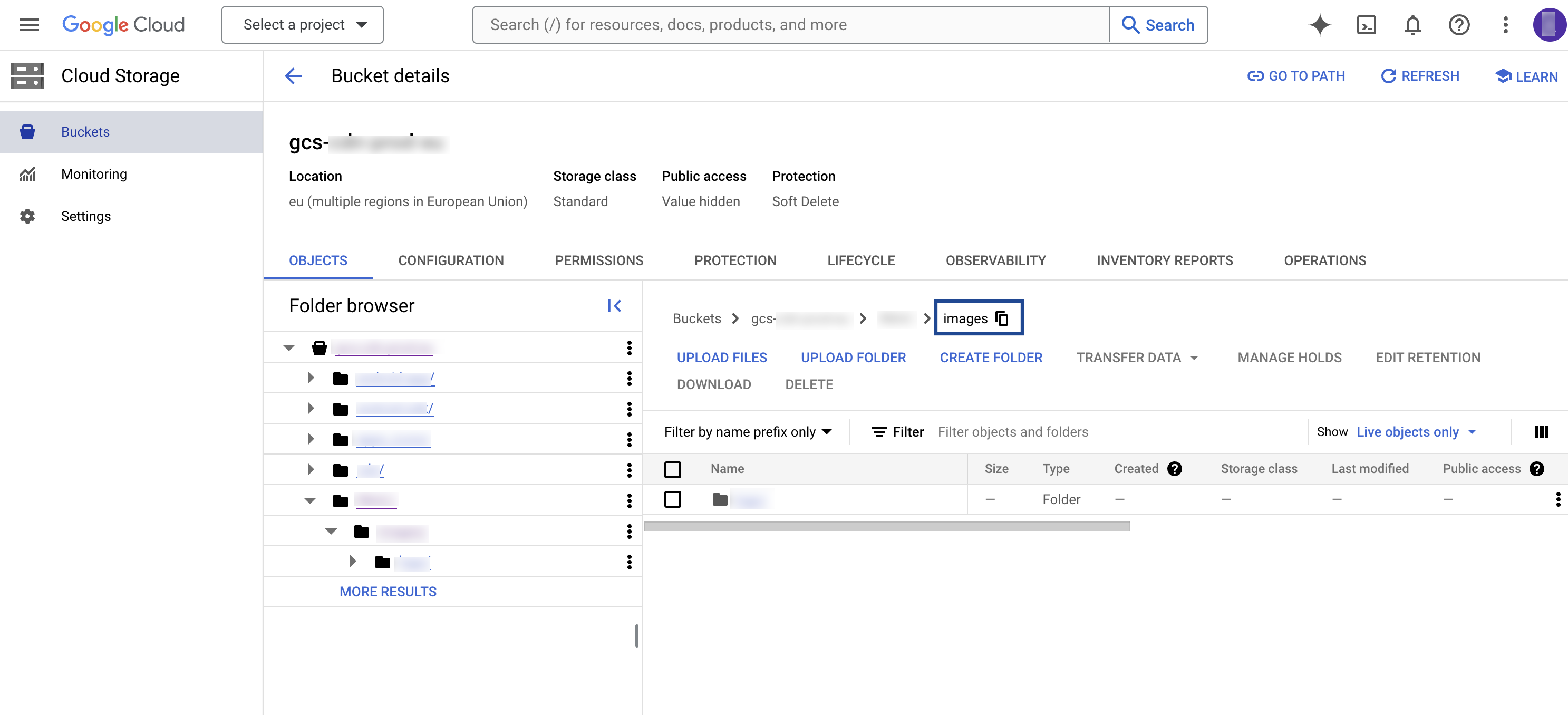
Account
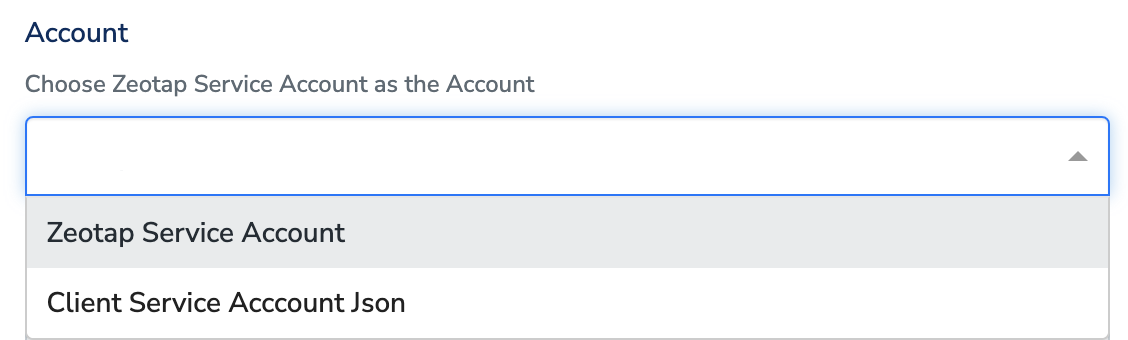
This is the Zeotap Service Account that is used to access the Google Cloud Storage account. Ensure that you whitelist the Zeotap Service Account to successfully push audiences (segments) from Zeotap CDP to Google Cloud Storage.Create a Destination for Infosum - Audience
Perform the following steps to create a Destination for Infosum Audience:1
Log into the Zeotap CDP App and go to the DESTINATIONS application.
2
Click + Create Destination..png?fit=max&auto=format&n=49y1_9uVgJhUhPeD&q=85&s=7a08c3d3cab9fc5f562cb4545ddf95e6)
3
Under the All Destinations section, search for Infosum - Audience..png?fit=max&auto=format&n=49y1_9uVgJhUhPeD&q=85&s=efef5daa5b3097a7b5bcfbb078fda4b2)
4
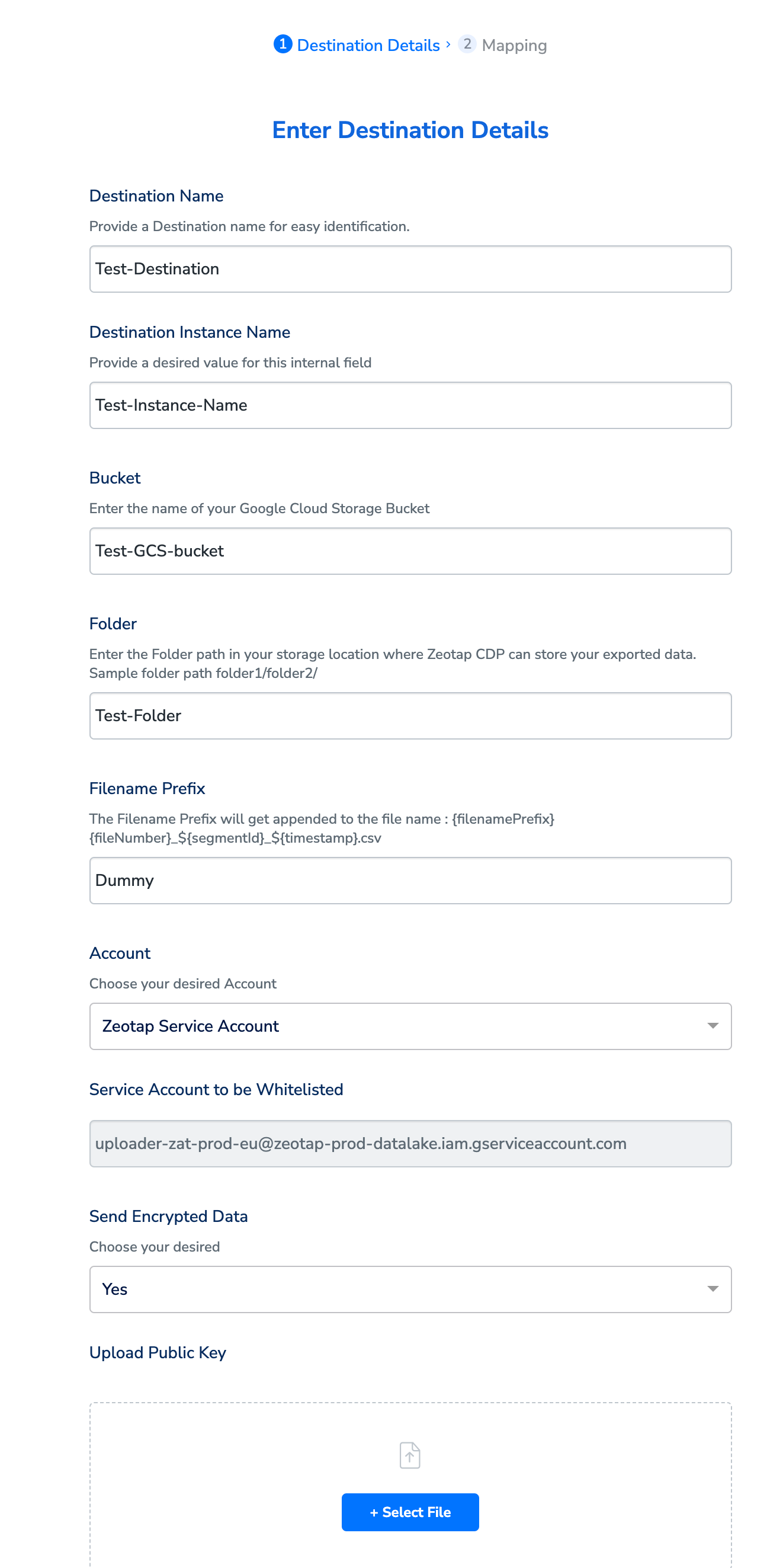
Click Infosum - Audience. A screen appears displaying details about the particular destination towards the left. On the right-hand side of the screen find a list of fields that are required for the integration to be established. Provide the required details as mentioned in the following steps:a. Enter a name for the Destination.b. In the Destination Instance Name field, provide a desired value for this internal field.c. In the Bucket field, provide the name of the Google Cloud Storage Bucket.d. In the Folder field, provide the folder path in your storage location where Zeotap CDP can store your exported data.e. Under **Filename Prefix,**enter a text value without special characters, such as underscores (_), spaces, or symbols (

Note:Ensure to follow the below points while providing the folder path:
- The folder path should follow the below structure:
- folder_name/sub_folder_name/
- The folder name should not start with a /
- The folder name and sub-folder name should end with a /
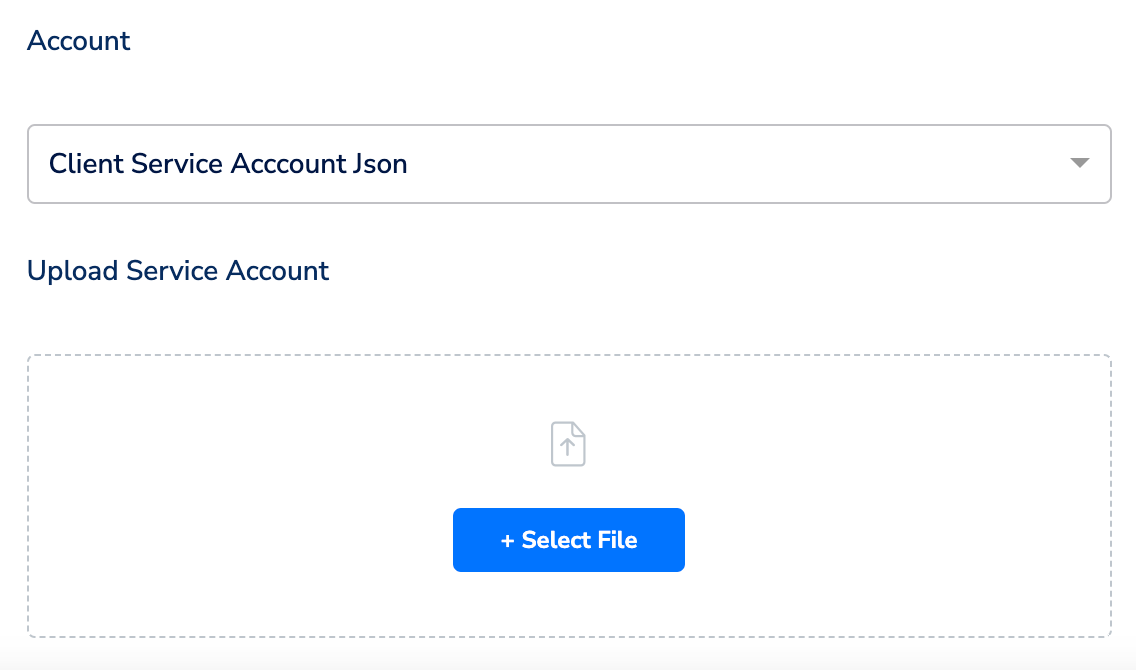
#, @, $, %, &, \*). Note that the file name follows the format: ${filenamePrefix}part-${sequence}_${destinationAudienceId}_${timestamp}.csv, where the timestamp is in yyyy-MM-dd format and destinationAudienceId is the ID associated with your audience (segment) in Zeotap CDP, which is generated by the Zeotap CDP after the audience (segment) is linked to a Destination.f. Under Account, choose either Zeotap Service Account or Client Service Account Json using the drop-down menu based on the type of authentication you need. If you wish to use Zeotap Service Account, then ensure that you whitelist this it to push audiences (segments) from Zeotap CDP to Google Cloud Storage Platform.
5
In the new screen that appears, choose the appropriate action and mapping as explained below. Under Choose your Action, Send CSV File to Infosum as the action for activating your audience in Audiences.
6
Click +Add Mapping Fields to select identifiers for InfoSum and map attributes from the Catalogue.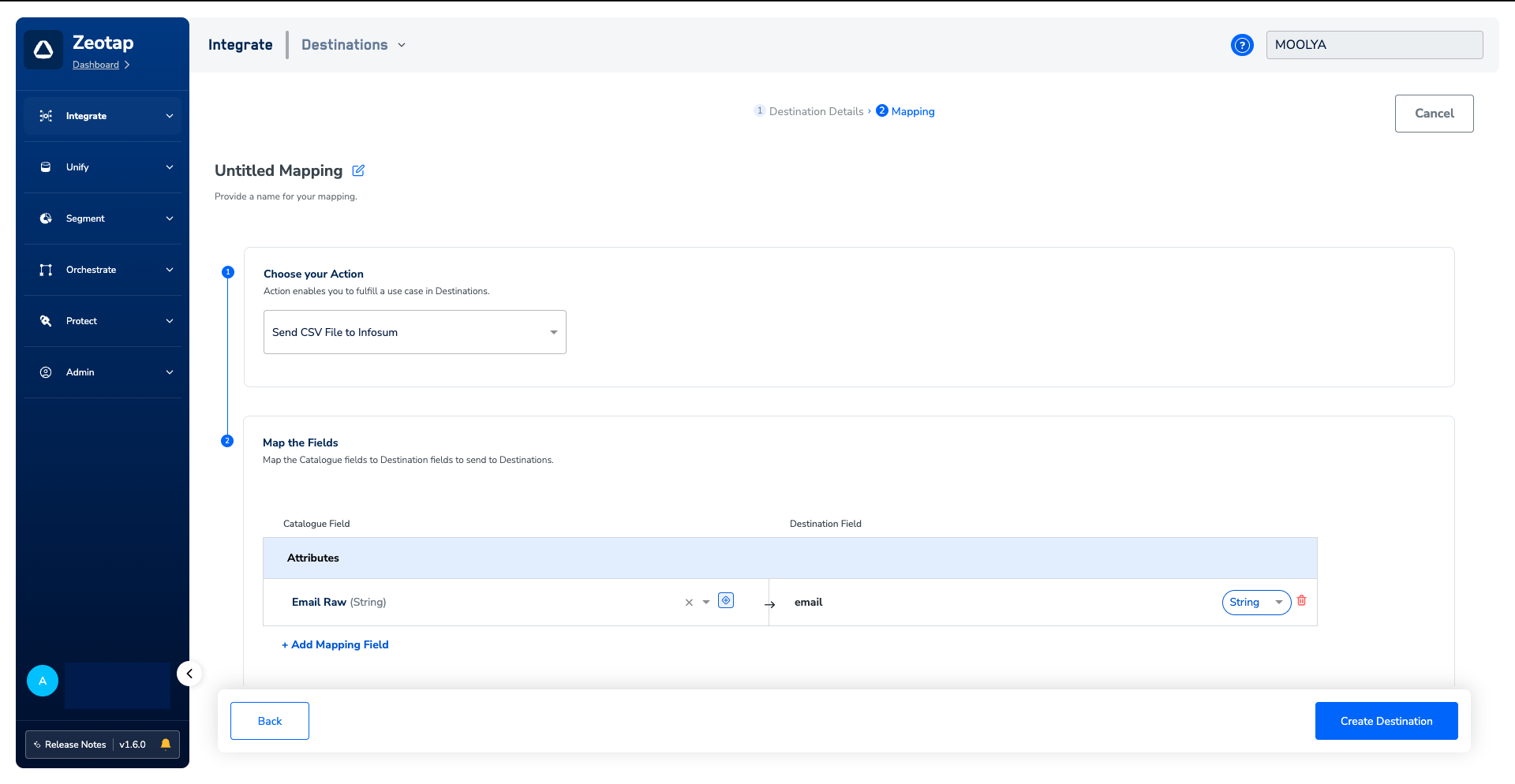
7
After finalising the attributes and identifiers to send, click Create Destination. The created Destination gets listed in the Audiences application, which can be linked to an audience.
Identify Segment Files in the Google Cloud Storage Bucket
After an Audience is linked to a Destination, Zeotap CDP generates segment files in CSV format with the following naming convention:{filenamePrefix}{fileNumber}_${channelId}_${timestamp}.csv, where the timestamp is in epoch format.
In case of multipart upload, the format is {partNumber}_{filenamePrefix}{fileNumber}_${channelId}_${timestamp}.csv
where,
- partNumber refers to the parts or segments of a multipart upload in Google Cloud Storage. Multipart uploads allows you to upload large files in multiple parts or chunks rather than uploading the entire file in one go. In the above naming convention, Part 0 refers to the first part of the multipart upload.
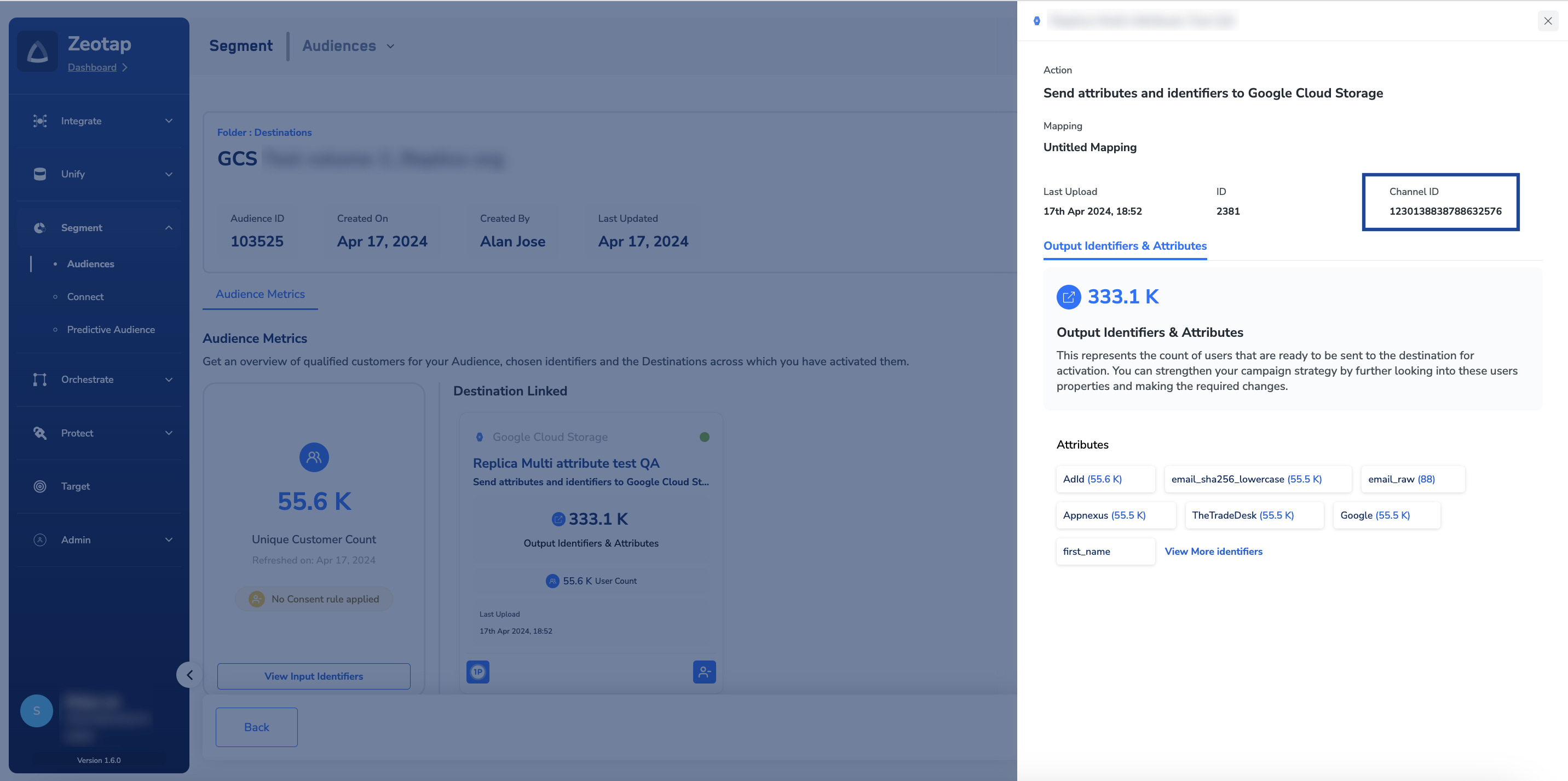
- channelId is the ID associated with your audience (segment) in Zeotap CDP. This is generated by the Zeotap CDP after the audience (segment) is linked to a Destination. You can obtain this information as shown in the image below.
- epochmilliTimestamp is the timestamp in epoch format.
12345678, a filename prefix testprefix, and a file number 98765. The timestamp information in epoch milliseconds is 1625138600. When this file is uploaded to GCS as the first part of the multipart upload, the file is named as follows:
Part0_testprefix98765_12345678_1625138600.csv
Link an Audience to the Infosum - Audience Destination
For information about how to link an audience or segment to the created Destination in Audiences application, refer here.Note:The terms Audiences and Segments are used interchangeably to refer to customer cohorts belongingto a specific category. For example, an Audience or a segment could be a specific group of customerswho are over 18 years of age and who have performed an addToCart event within the last 30 days. |