

What this is
Talon.One Audience is a batch destination: data flows out of Zeotap CDP into Talon.One. Zeotap sends a batch of customer profile IDs along with the Talon.One audiences they should be added to or removed from, so your promotion, loyalty and incentive campaigns stay targeted at the right people. Because it is a batch destination, you activate it by linking it to an audience rather than from a journey. If a customer profile ID sent from Zeotap does not yet exist in Talon.One, it is created automatically when the audience is sent — there is no need to pre-create profiles in Talon.One before using this integration. Talon.One also offers a real-time destination that sends custom events from a journey instead of audience membership from an audience. See Talon.One: Trigger Custom Events.Supported identifiers and actions
Map a Catalogue attribute to the Customer Profile Id destination field. The Customer Profile Id can be any identifier you want to send to Talon.One — for example, email, MAID, or any other customer profile ID. There is no restriction on the identifier type. Talon.One accepts the value as a string.
Prerequisites
In Talon.One:- An active Talon.One account and an Application.
- A Talon.One API Key generated for that Application — see Generate the Talon.One API key below.
- Your Talon.One Destination Hostname — the hostname of your Talon.One deployment, for example
mycompany.europe-west1.talon.one. Enter the hostname on its own, withouthttps://.
- The upstream setup every destination shares — a connected source, fields mapped to the Catalogue, and the destination rights on your organisation. See Destinations.
- An audience built with the criteria for the cohort you want to send. See Create an Audience.
Generate the Talon.One API key
1
In your Talon.One instance, select the Application you want to use and open Settings. Scroll down the left menu and click Integration API Keys.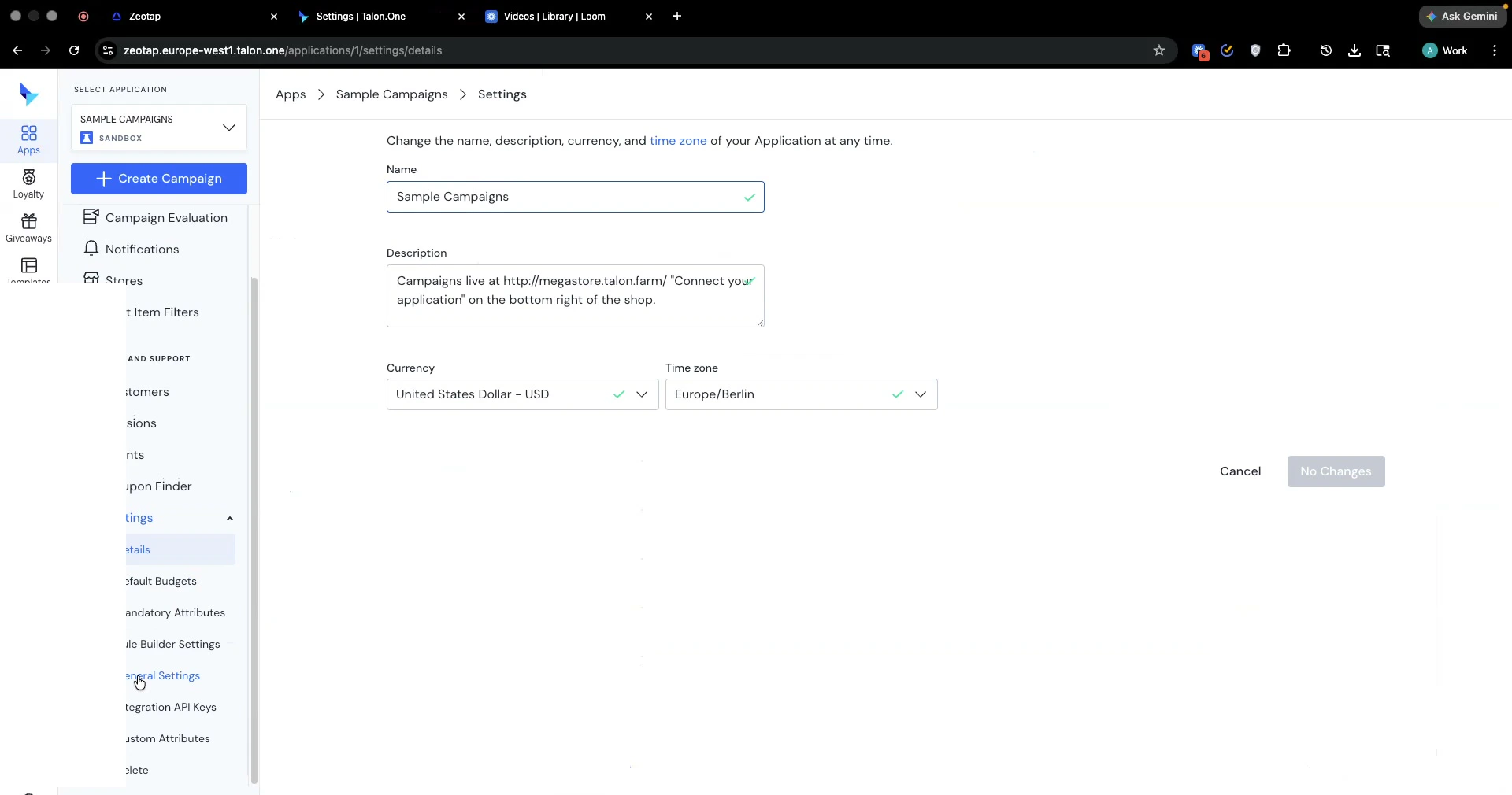
2
Click + Create API Key. In the Create Production API Key drawer, enter a Key name and a Key expiration date — both are required. Under Third-party integration, choose whether the key will be used with a third-party integration, then click Create API Key.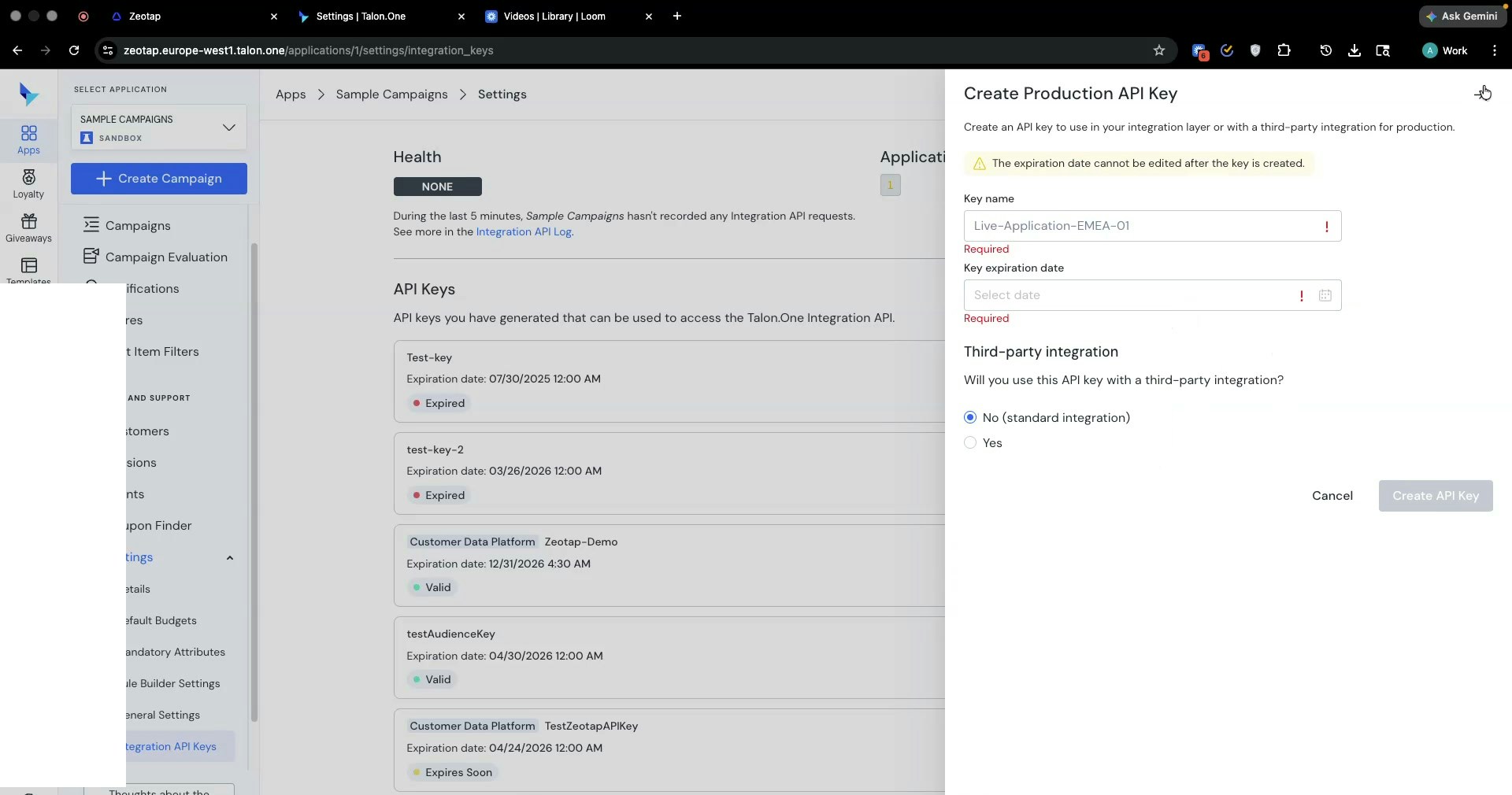
Talon.One warns that the expiration date cannot be edited after the key is created. Pick a date that covers how long you expect to run the integration; when the key expires you generate a new one and update the destination in Zeotap.
Generate the key as a third-party key for a Customer Data Platform. A standard Integration API key that is not scoped to a Customer Data Platform is refused when Zeotap connects, and the destination fails to authenticate.
3
Copy the generated API key straight away and paste it into the Talon.One API Key field in Zeotap.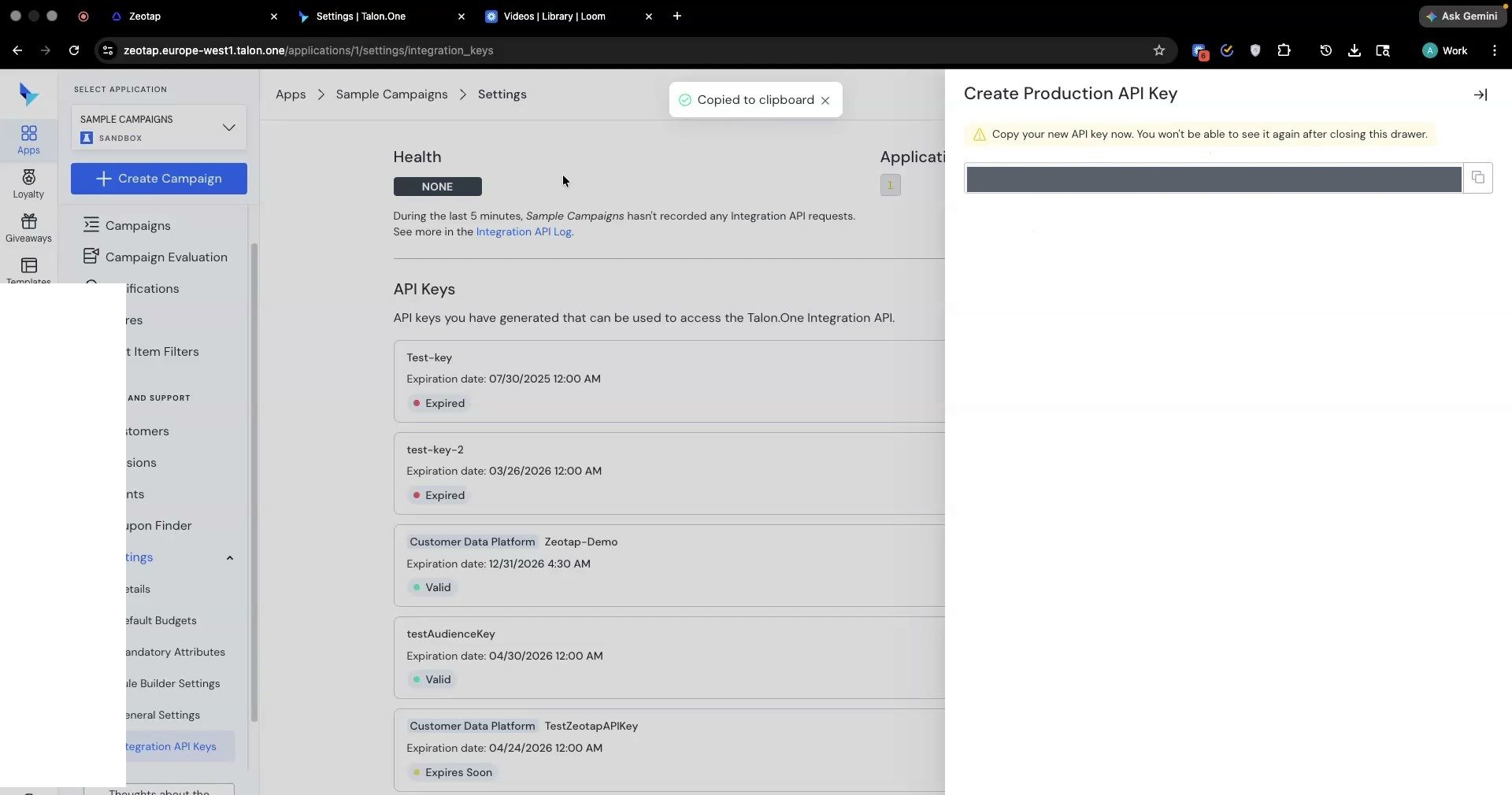
Create the Talon One Audience destination
1
Log in to the Zeotap CDP app and go to the Integrate > Destinations module. Click + Create Destination and search for Talon One Audience.
2
Select Talon One Audience. On the Enter Destination Details screen, the left panel describes the integration; enter your details on the right.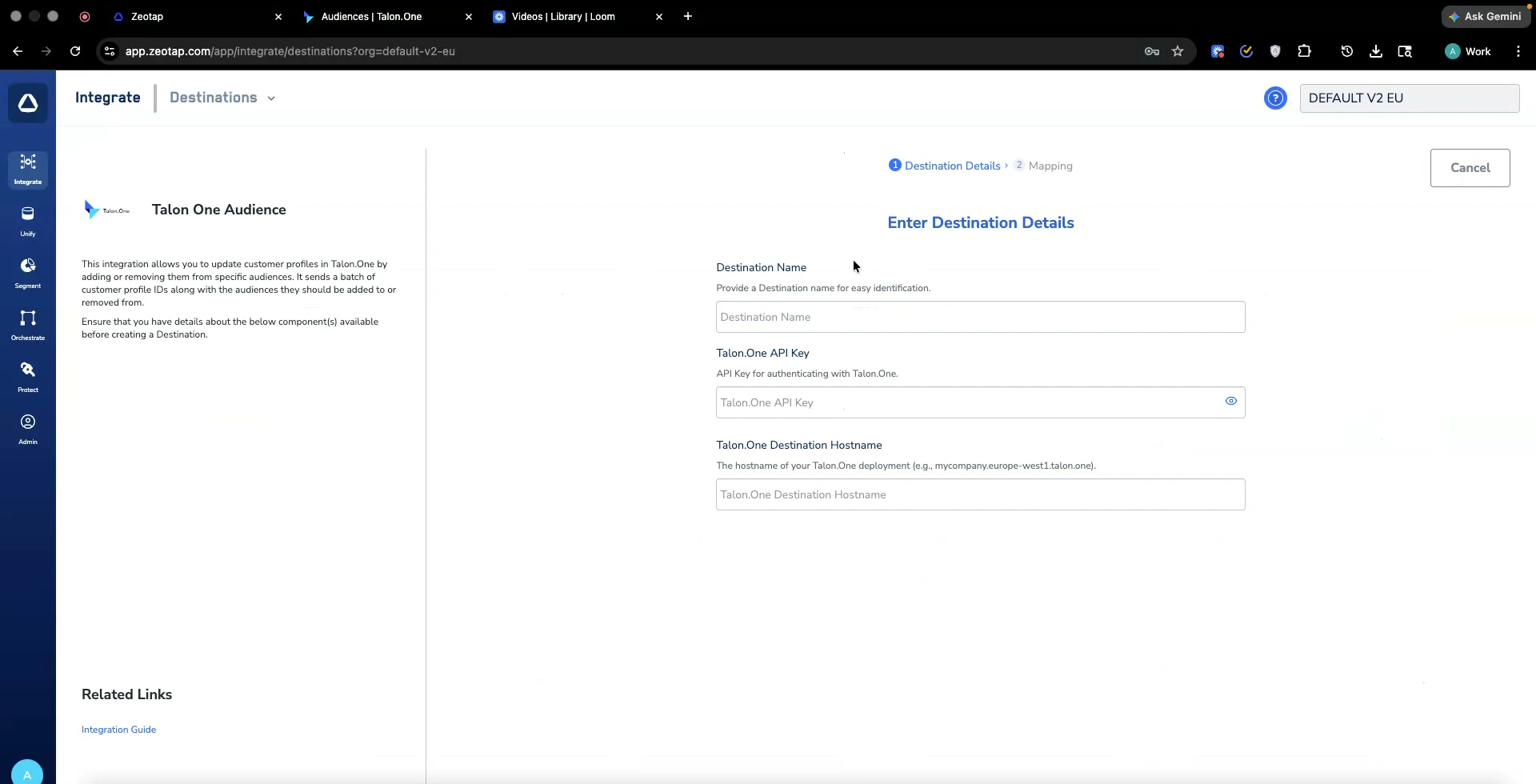
3
Provide the following details:a. Destination Name — a name to identify this destination in Zeotap.
b. Talon.One API Key — the key you generated in Talon.One.
c. Talon.One Destination Hostname — the hostname of your Talon.One deployment, entered without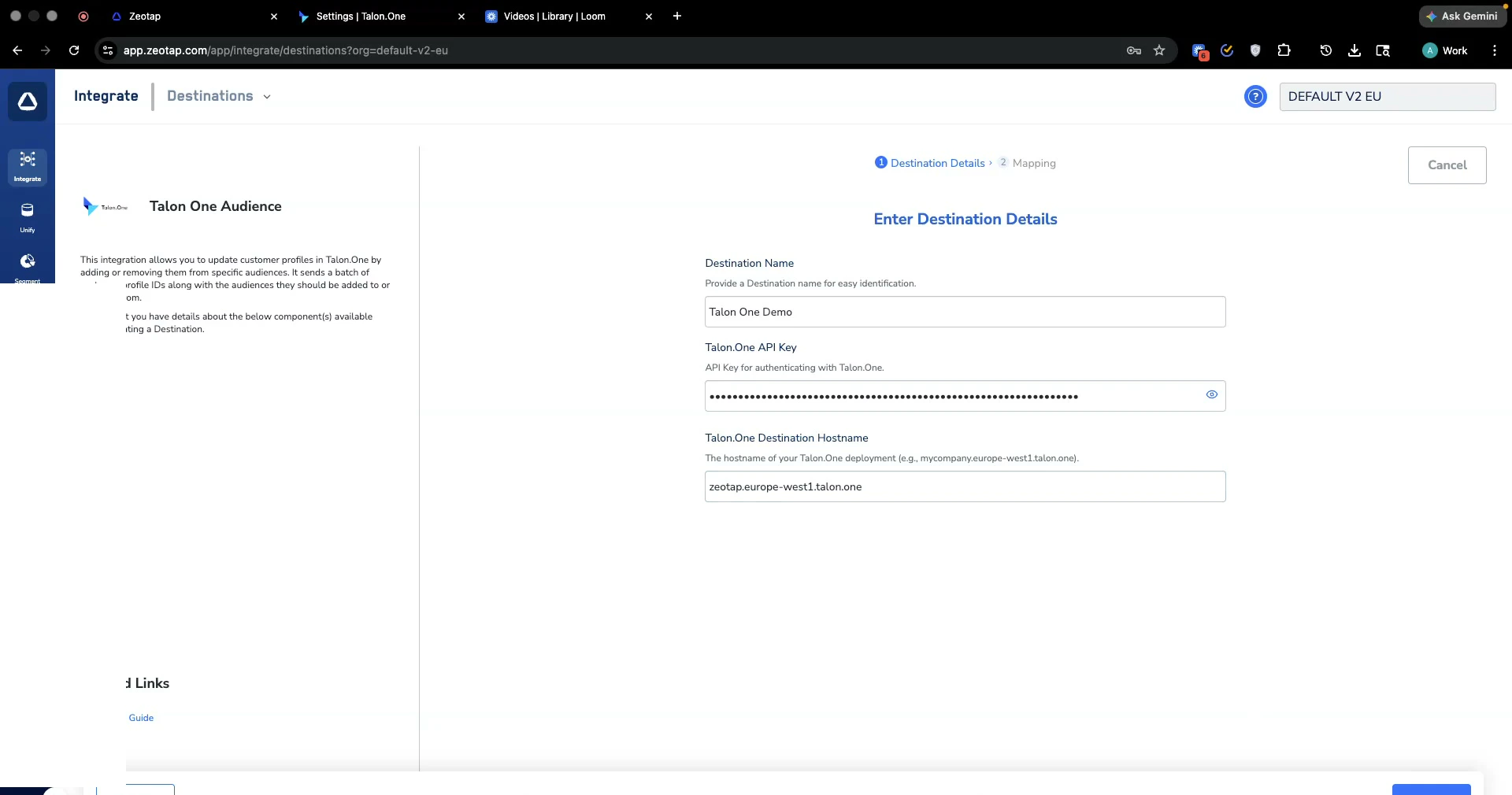
b. Talon.One API Key — the key you generated in Talon.One.
c. Talon.One Destination Hostname — the hostname of your Talon.One deployment, entered without
https://.4
Click Next to proceed to the Mapping step, and provide a name for your mapping.
5
Under Choose your Action, select Send Audience to Talon One.
6
Under Map the Fields, map a Catalogue Attribute to the Customer Profile Id destination field.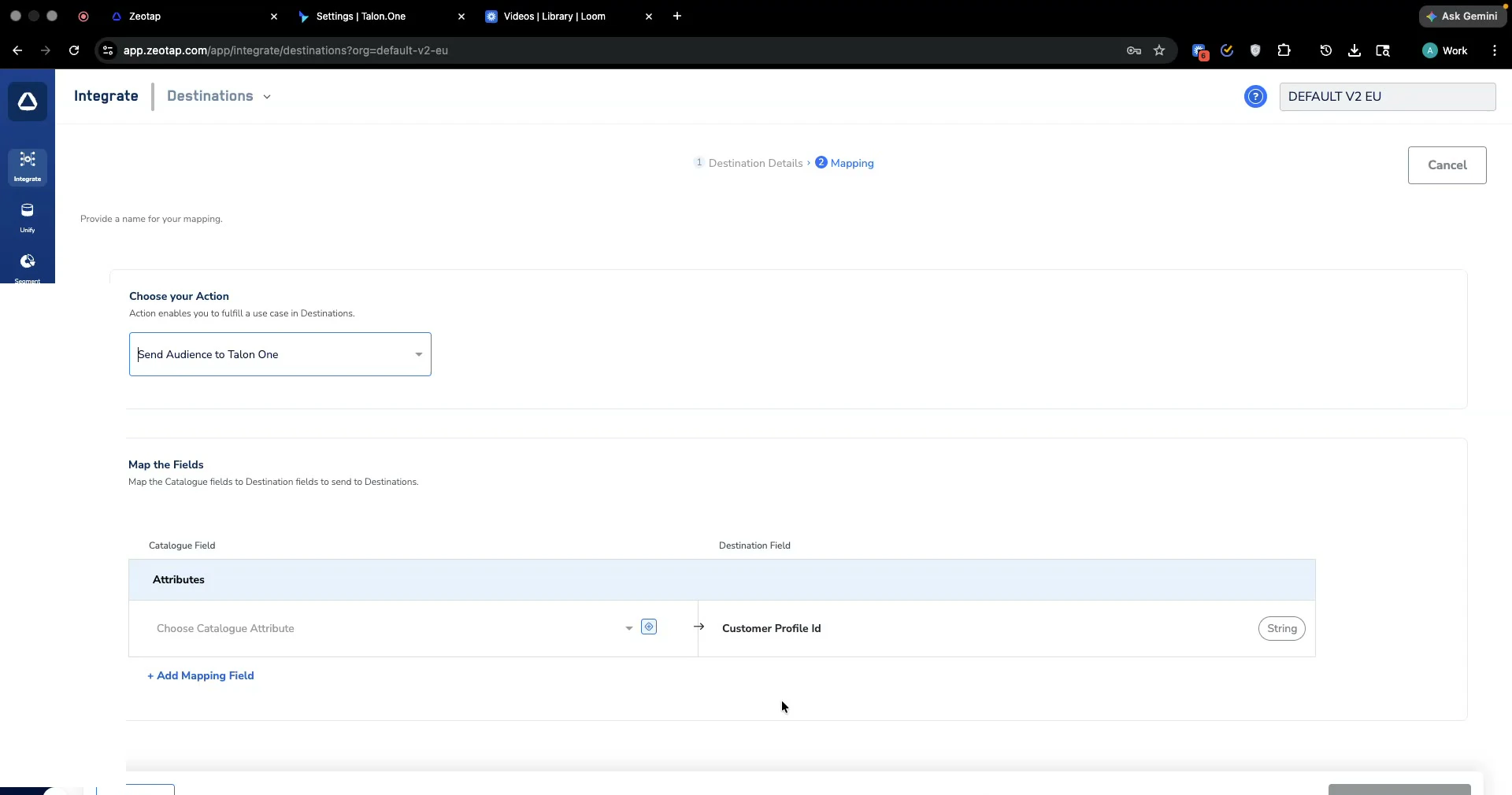
7
Click Create Destination to save the destination.
If a profile sent from Zeotap does not already exist in Talon.One, it is created automatically when the audience is sent. You do not need to pre-create profiles in Talon.One.
Link an audience to the destination
Once saved, the Talon.One Audience destination is available in the Audiences module and can be linked to any audience. Linking is where you choose the mapping, confirm the identifiers that leave Zeotap, and set the refresh frequency at which the audience is re-sent to Talon.One. Follow the shared activation steps in Activate Your Batch Audiences.Verify the audience reached Talon.One
Check both sides of the delivery:- In Zeotap — open the audience–destination pair and confirm the run completed with a non-zero qualified count. See Verify the activation worked.
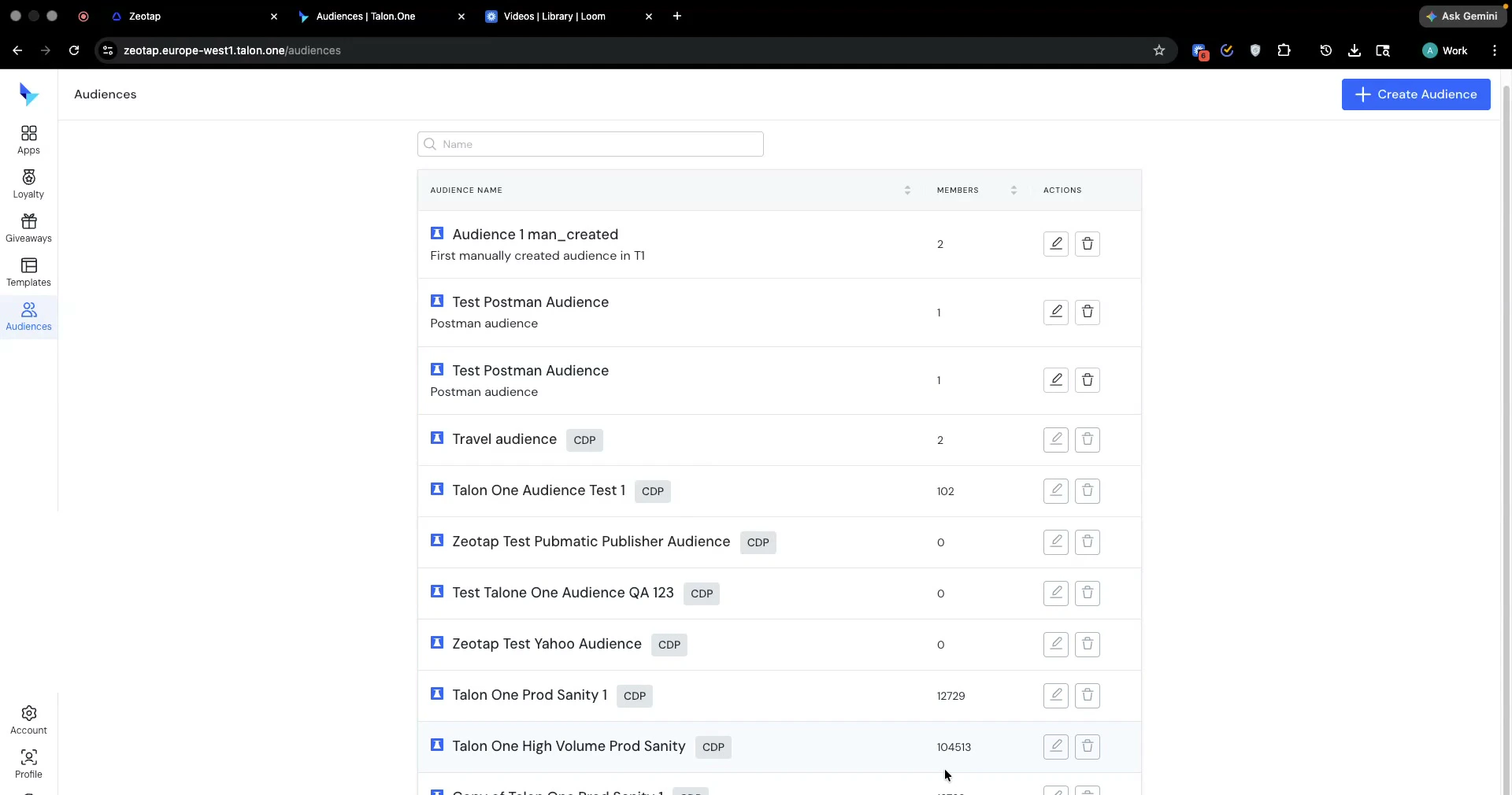
- In Talon.One — click Audiences in the left navigation. The audience appears in the AUDIENCE NAME column with its member count under MEMBERS, tagged CDP to show it arrived from a customer data platform rather than being created by hand.
Troubleshoot the Talon.One Audience destination
For failures that are not specific to Talon.One — a run that returns no qualifying customers, a refresh terminated after inactivity, or a pair stuck in progress — see Why deliveries fail and When to contact support.