

What this is
The Pinterest Customer Lists destination sends Zeotap audiences to your Pinterest Business Manager so you can target them in Pinterest ad campaigns. Pinterest accepts SHA-256 hashed emails and mobile advertising IDs (MAIDs); Zeotap delivers matched users as a Customer List that appears under Ads → Audiences in the Pinterest console. Pinterest is a private channel in Zeotap, so an audience can be linked to only one Pinterest destination at a time. For server-side event forwarding (conversions, page visits, sign-ups) rather than audience activation, use the Pinterest CAPI destination instead.Supported actions and features
Each audience refresh sends the full qualifying set to Pinterest; Zeotap does not send incremental deltas for this destination. Deletions of disqualified users are supported and run on the audience’s next refresh cycle.
Prerequisites
Before you start, confirm you have:
- Access to your Pinterest Business Manager account and the Advertiser ID for the ad account you want to activate.
- A Pinterest user with permission to authorise third-party apps on that ad account (needed for the OAuth Give access step).
- A Zeotap CDP user with access to the Destinations and Audiences applications.
- An audience whose output identifiers include SHA-256 hashed emails or MAIDs.
Find your Pinterest Advertiser ID
Open your Pinterest Business Manager account and copy the Advertiser ID for the ad account you want to activate. You will paste this into the Zeotap destination configuration in the next section.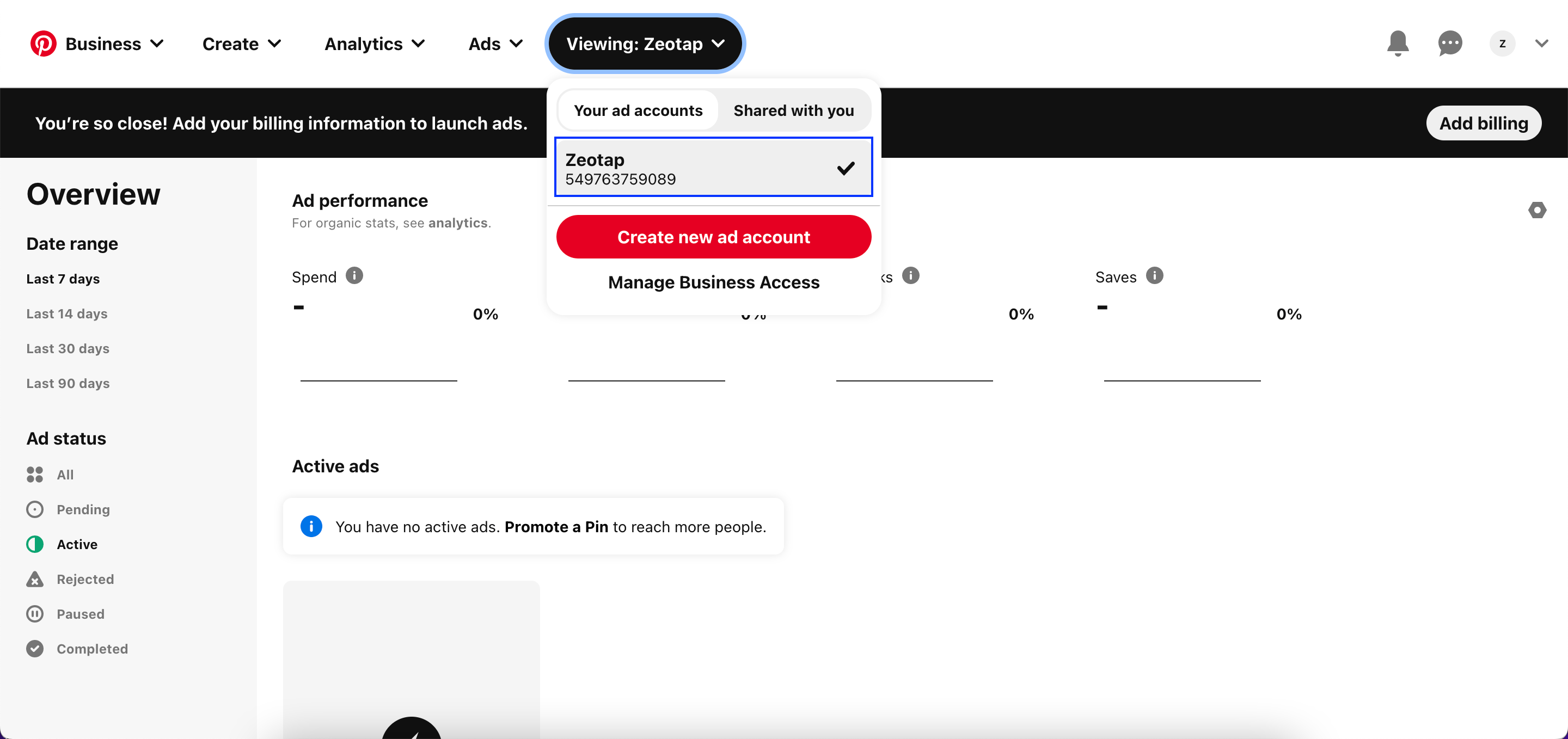
Create the Pinterest Customer Lists destination
1
Open the Destinations application
Log into the Zeotap CDP App and go to the DESTINATIONS application.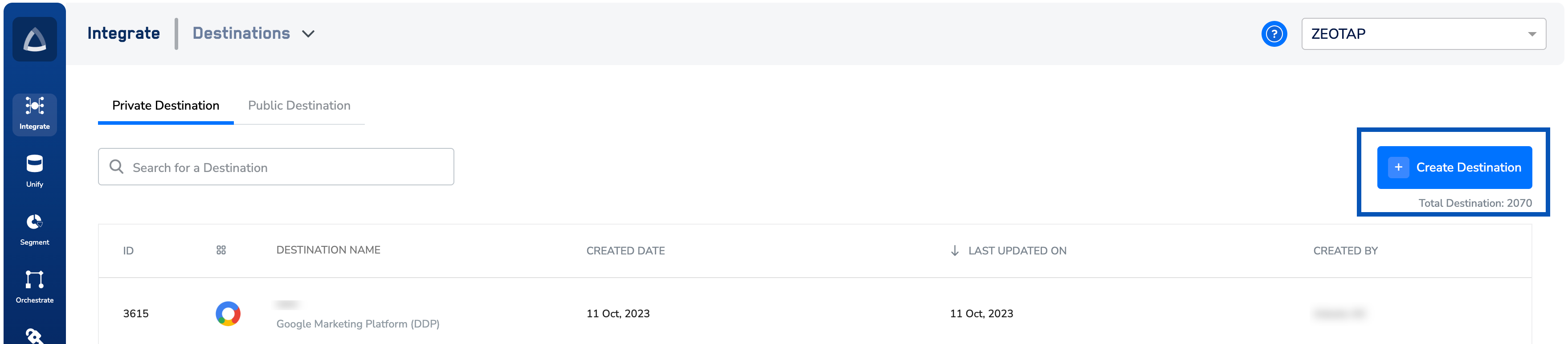
2
Start a new destination
Click + Create Destination, then under All Destinations search for Pinterest Customer Lists.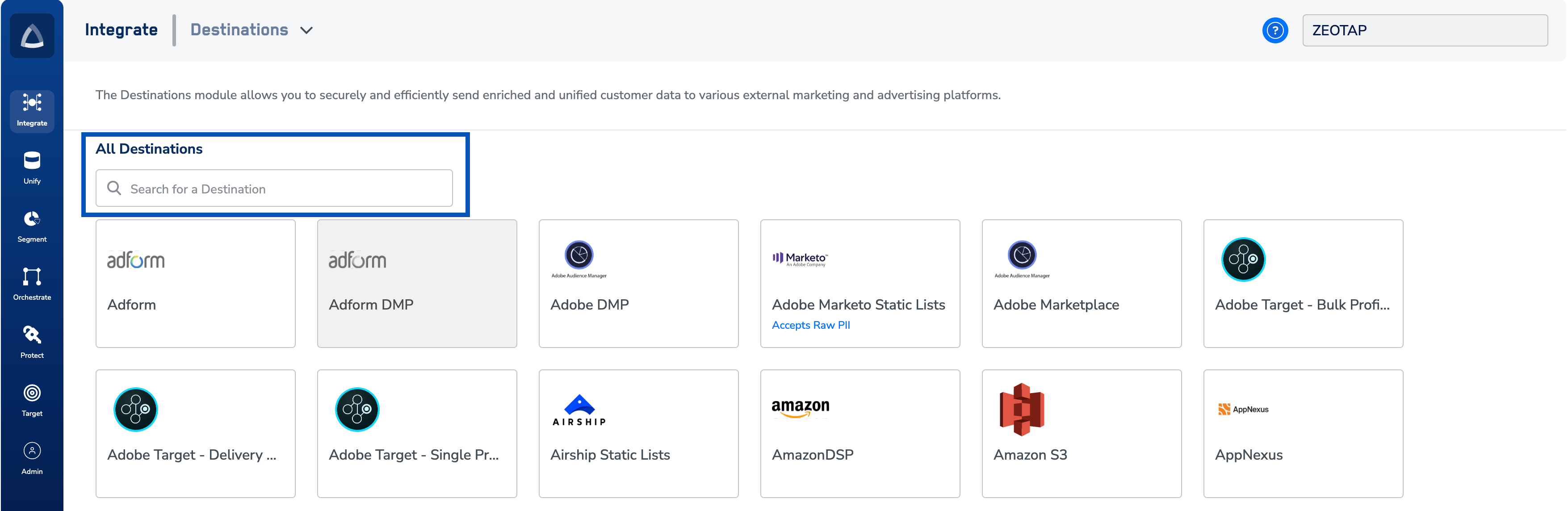
3
Enter the destination details
Select Pinterest Customer Lists. On the configuration screen, enter: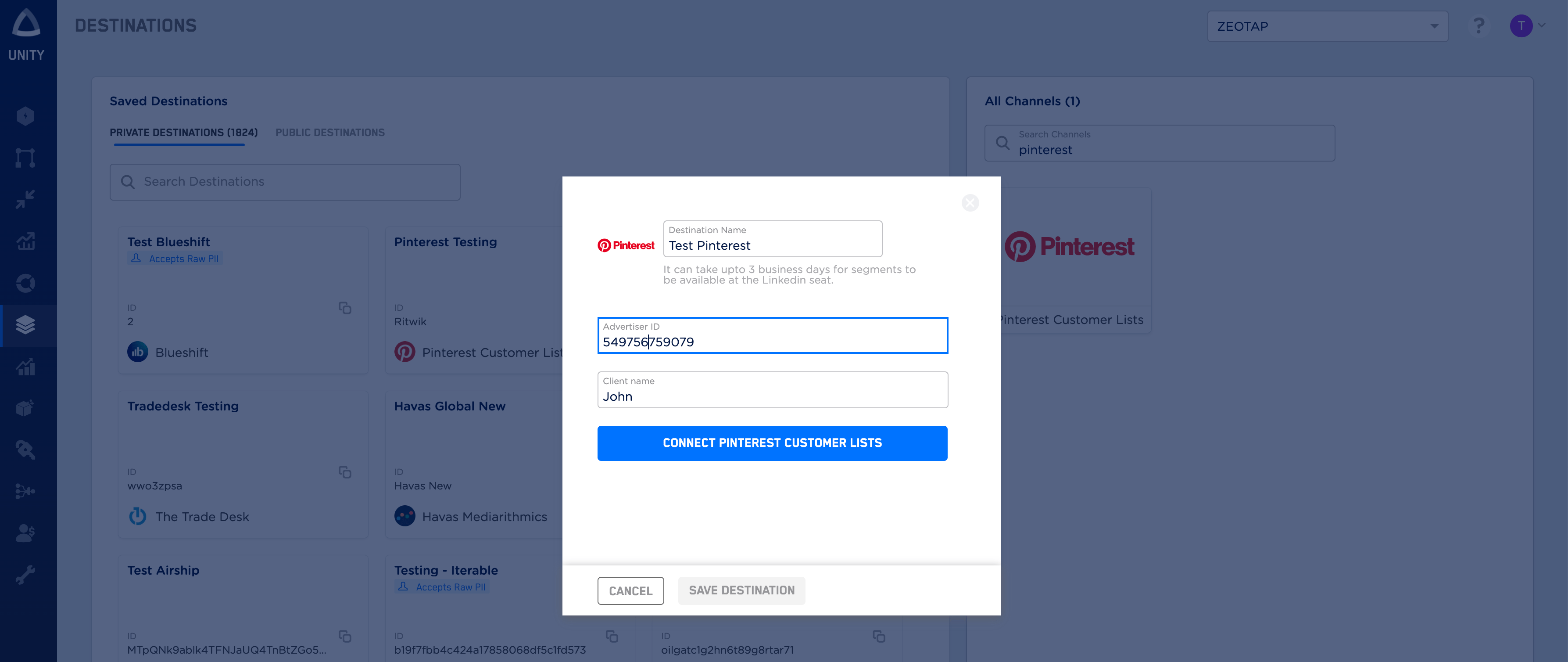
- A Name for the destination.
- The Advertiser ID you copied from Pinterest Business Manager.
- The Client name.
4
Authorise Zeotap on Pinterest
Click CONNECT PINTEREST CUSTOMER LISTS. A Pinterest OAuth screen opens; sign in with a Pinterest user who has access to your Business Manager, then click Give access to authorise the app.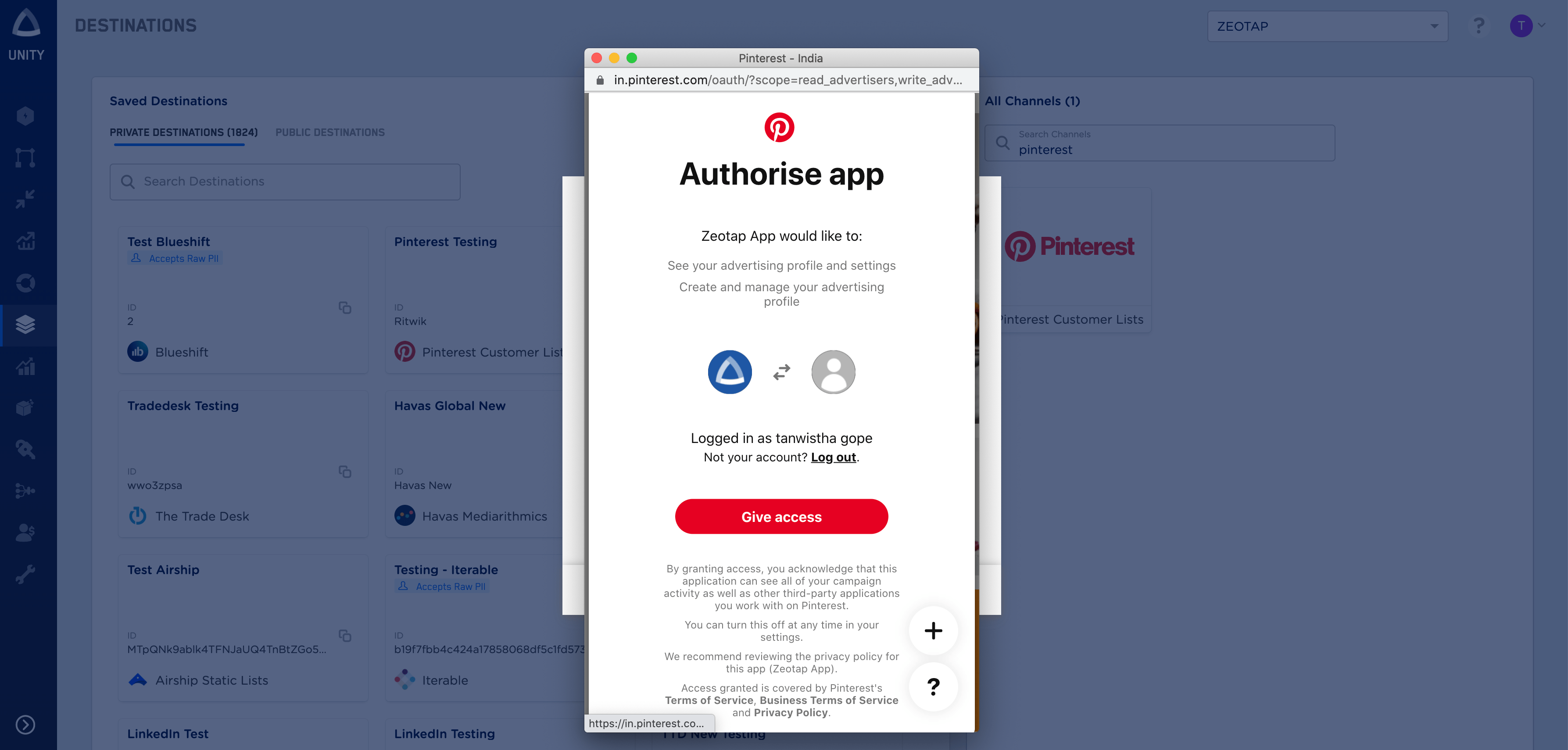
5
Map your identifiers
Under Choose your Action, select Send identifiers to Pinterest Customer Lists. Under Map the Fields, map your source fields to the output identifiers that Pinterest accepts — SHA-256 hashed emails and MAIDs. Edit, add, or remove identifiers from the default list as needed; see the mapping reference.Click Save Mapping. The destination now appears in the Audiences application and can be linked to an audience.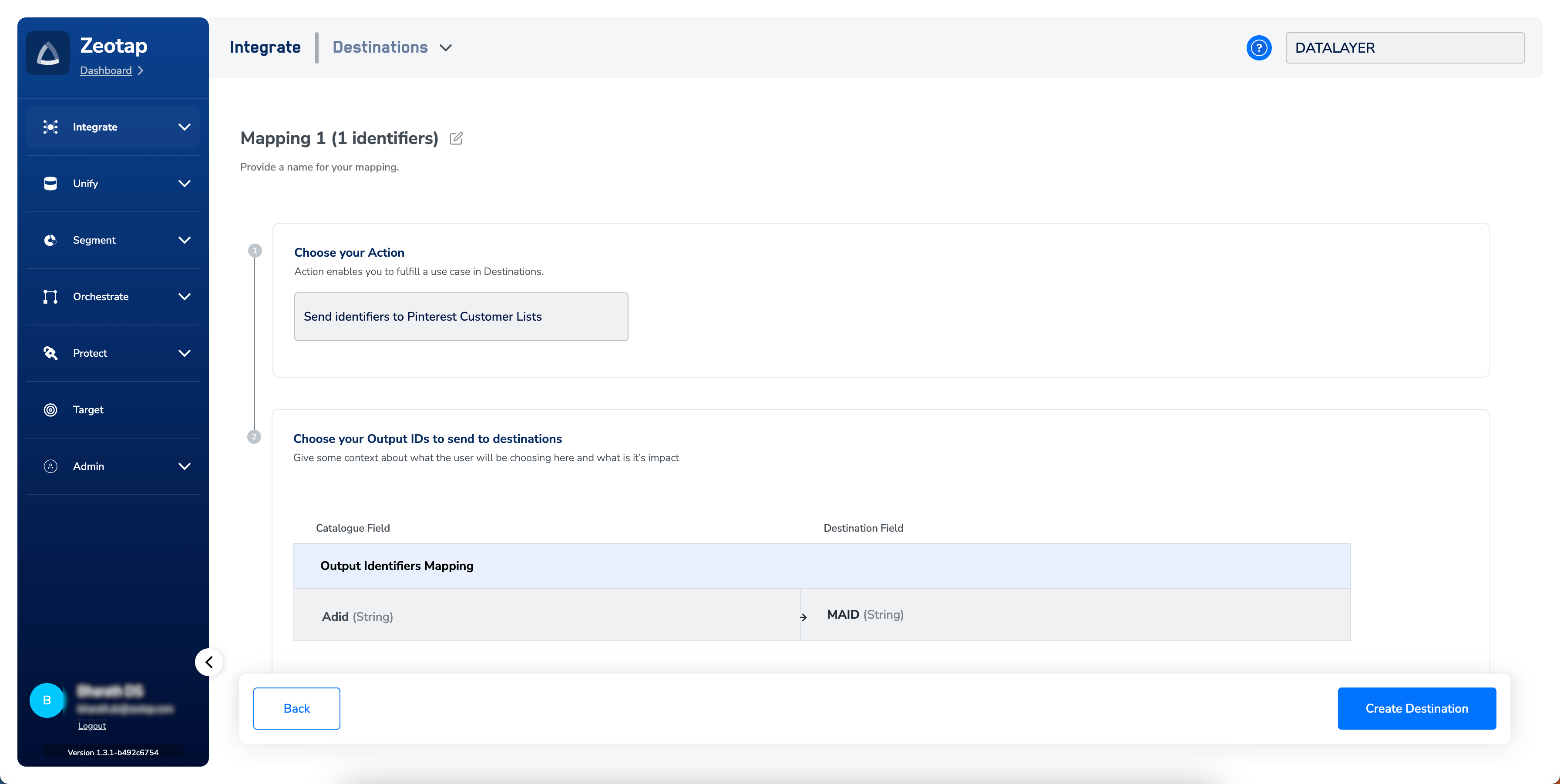
Hashing requirements for email
Pinterest rejects raw email addresses. Normalise each address before hashing — trim surrounding whitespace and convert it to lowercase — then hash it with SHA-256 and map the hexadecimal digest. If your source already stores hashed emails, confirm they were produced from normalised input, because a digest built from an untrimmed or mixed-case address will not match.Link an audience to the destination
Open the Audiences application, select the audience you want to activate, and attach the Pinterest Customer Lists destination you created. Full instructions are in Link an audience to a destination.The terms Audiences and Segments refer to the same thing — a group of users matching a defined set of criteria (for example, users over 18 who performed an
addToCart event in the last 30 days).Verify the audience reached Pinterest
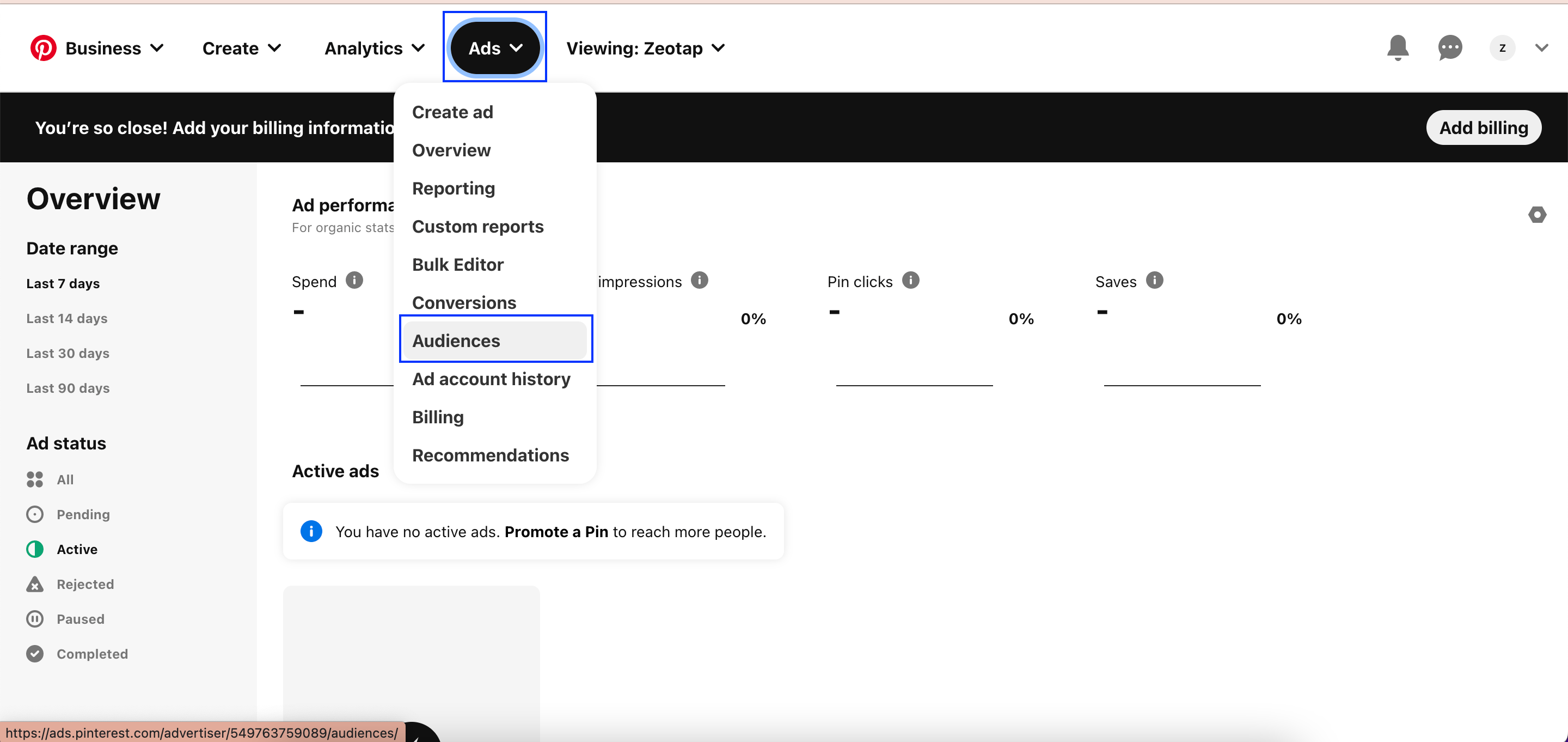
Two checks confirm the delivery worked:- In Zeotap — the Pinterest destination is listed against the audience and shows the audience as activated.
- In Pinterest — open Ads → Audiences in the Pinterest console. Your audience appears as a Customer List with status Ready.
Use the Customer List in a Pinterest campaign
Once the Customer List status is Ready, you can attach it to a Pinterest ad.1
Create an ad
In Pinterest Ads Manager, go to Create → Create ad and fill in the ad details.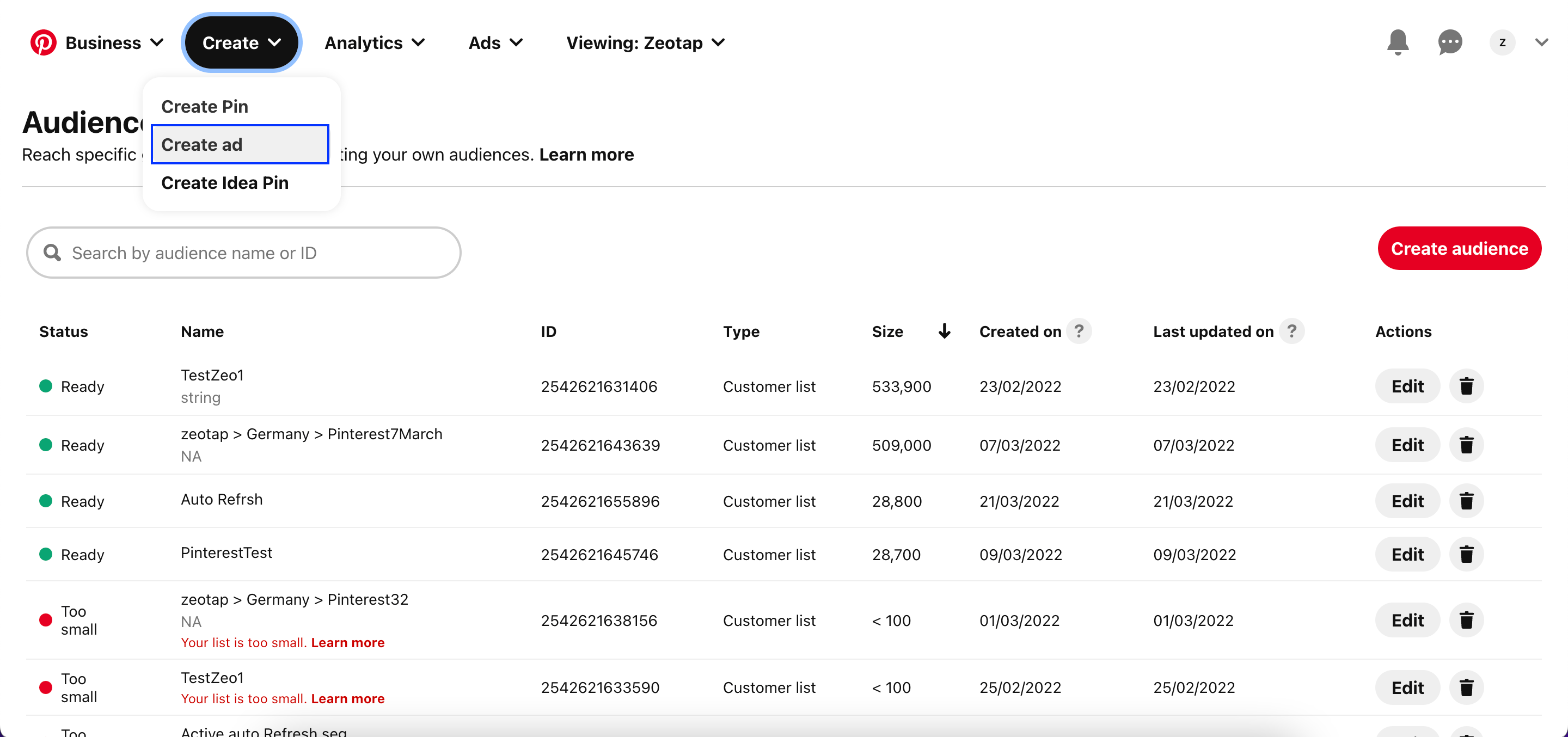
2
Attach an existing audience list
In the Audience lists section, click Use existing list.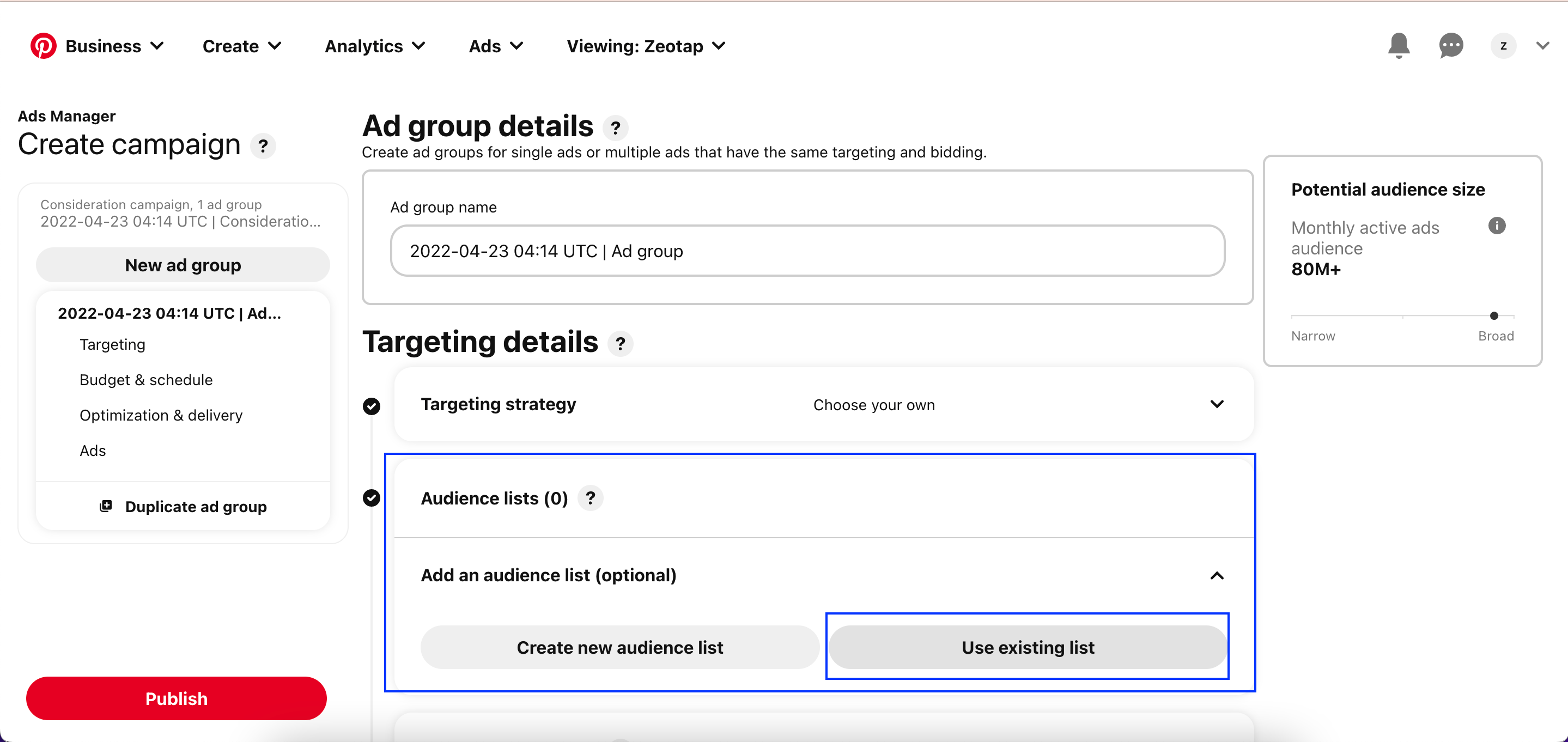
3
Select the Zeotap-delivered list
Tick the Customer lists checkbox to filter to Customer Lists, then select the list Zeotap delivered and click Select.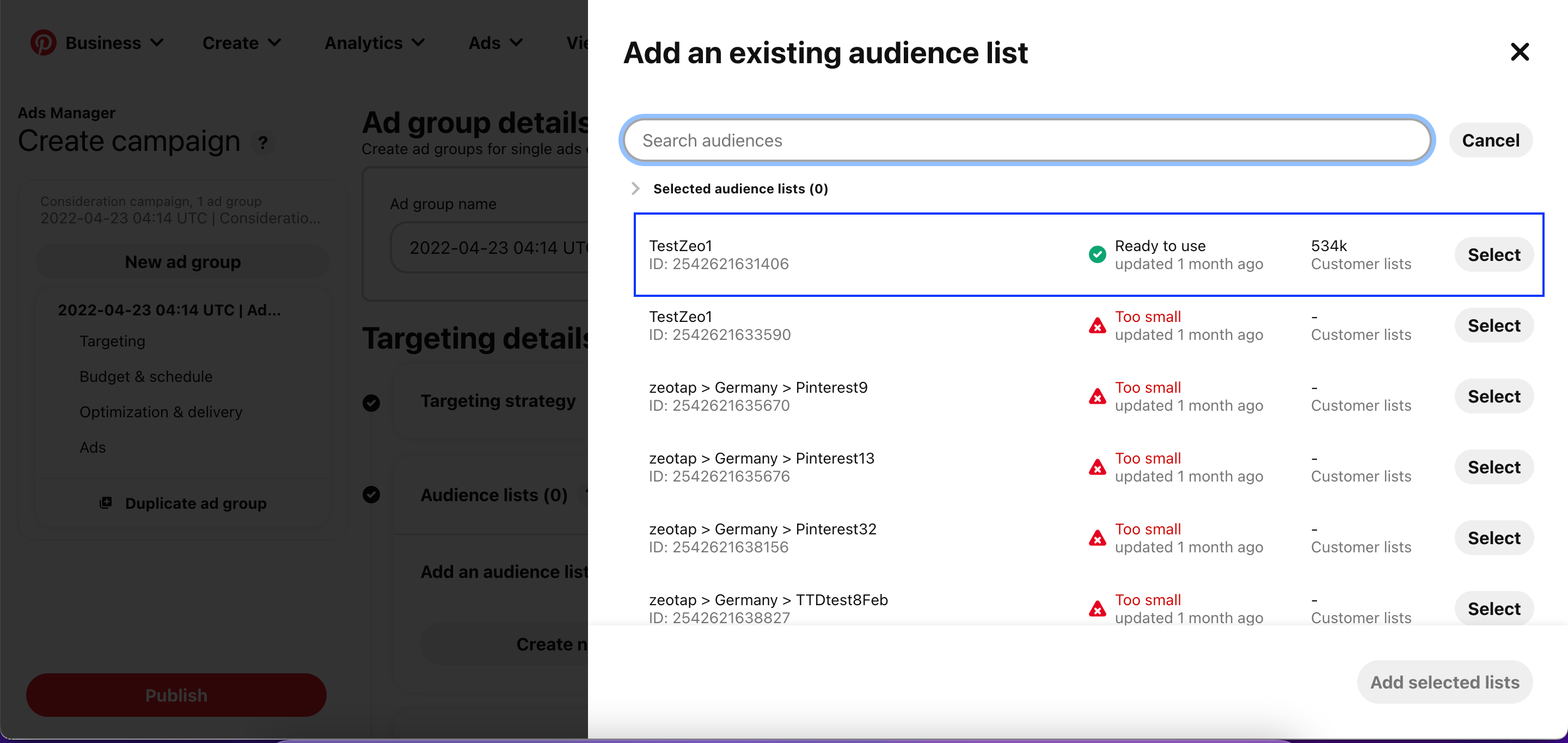
4
Add the list to the ad
Click Add selected lists to attach the Customer List to your ad campaign.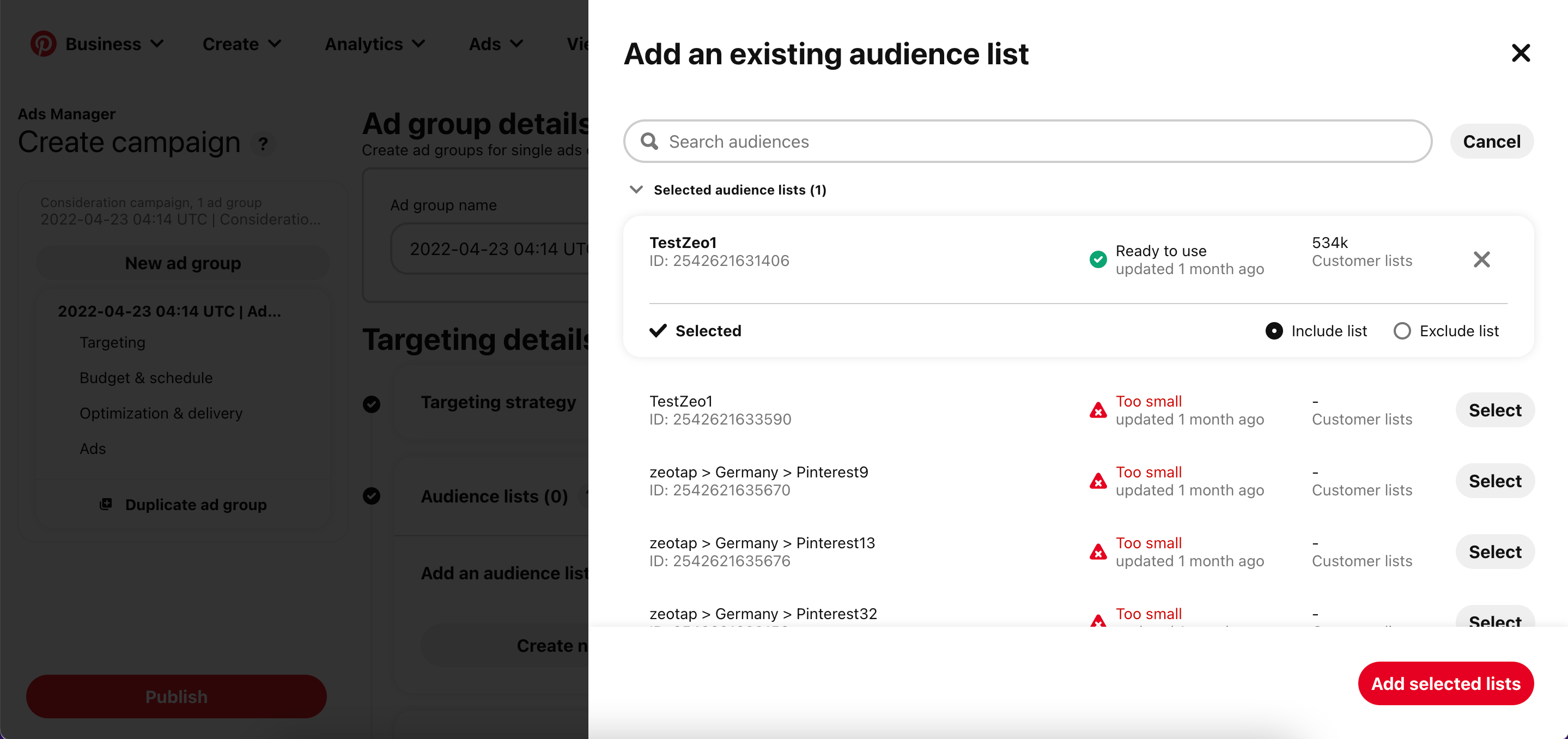
Why this happens — conditions to check
Use this table to map what you see (in Zeotap or in Pinterest) to what it means and where to investigate.How user disqualification works
When a user no longer meets an audience’s criteria — whether the criteria are behavioural, demographic, or consent-based — Zeotap CDP raises a user deletion request against Pinterest on that audience’s next refresh cycle. The exclusion runs automatically at the configured refresh frequency; you do not need to trigger it. See Delta upload and delete functions for the list of destinations that support Delete.When to contact support
Open a support ticket if:- The Access Token cannot be generated after clicking Give access and retrying the authorisation.
- The Customer List has not appeared on the Pinterest console more than three business days after you linked the audience.
- The Customer List appears but stays at size
<100even though your source audience is significantly larger and includes SHA-256 emails or MAIDs.
FAQ
Which identifiers does Pinterest Customer Lists accept?
Which identifiers does Pinterest Customer Lists accept?
SHA-256 hashed emails and mobile advertising IDs (MAIDs). Raw email addresses are not accepted — hash them (lowercase, trimmed, SHA-256) before mapping.
Can I link more than one Pinterest destination to a single audience?
Can I link more than one Pinterest destination to a single audience?
No. Pinterest is a private channel in Zeotap and allows one Pinterest destination per audience.
Why is my match rate lower on Pinterest than on other platforms?
Why is my match rate lower on Pinterest than on other platforms?
The Pinterest account universe is smaller than platforms such as Facebook and Twitter, so fewer of your source users have a matching Pinterest account. A segment with a strong match on a larger platform can show a much smaller matched size on Pinterest for the same source list.
How long before my audience is usable in a Pinterest ad?
How long before my audience is usable in a Pinterest ad?
Delivery to the Pinterest seat takes up to two business days after you link the audience. The Customer List then surfaces under Ads → Audiences two to three days later, at which point its status becomes Ready and you can attach it to an ad.
Are incremental (delta) uploads supported for Pinterest?
Are incremental (delta) uploads supported for Pinterest?
No. Each refresh sends the full qualifying set to Pinterest. Deletions of disqualified users are supported and run on the audience’s next refresh cycle.