

Overview
Adobe Analytics is a web and mobile analytics provider that enables organisations to gather data and gain actionable insights from any digital customer interaction. With in-depth analysis, versatile reporting, and predictive intelligence, organisations get the insightful foundation they need to build better experiences for their customers.Supported Identifiers
This integration supports Analytics Cookies.Components of Adobe Analytics Destination
Ensure that you obtain the following components of Adobe Analytics before proceeding with the integration:-
Report Suite ID — A report suite is a silo of data that Adobe Analytics uses to pull reports. An organisation can have many report suites, each containing different data sets. To fetch a Report Suite ID on Adobe Analytics:
1Log into the Adobe Experience Platform and navigate to Adobe Analytics. Note that Adobe Experience Platform allows you to ingest Adobe Analytics data through the Analytics source connector.2In the Adobe Analytics screen, from the top bar, click Admin > All admin.3Under Data configuration & collection, click Report suites. Here, you can find a list of report suites, including their ID and title. For more information about how to identify your analytics tracking server and report suite ID, refer here.
- Name Space — In Adobe Analytics, a namespace is a logical container that holds all the properties, segments, events, and other components related to a specific website or application. For more information about namespaces in Adobe Analytics, refer here.
-
Marketing Cloud OrgId — The Marketing Cloud Org ID is the ID associated with your provisioned Experience Cloud company. This ID is a 24-character alphanumeric string, followed by (and must include) @AdobeOrg. You can view your organization ID, along with other account information, using the keyboard shortcut Ctrl+i from any page at
https://experience.adobe.com. For more information about how to fetch the Marketing Cloud Org ID, refer here.Note:After you obtain the above details, you can proceed to create a Destination for Adobe Analytics in Zeotap as outlined below.
Create a Destination for Adobe Analytics
1
Log into the Zeotap App and go to the DESTINATIONS application.
2
Click + Create Destination.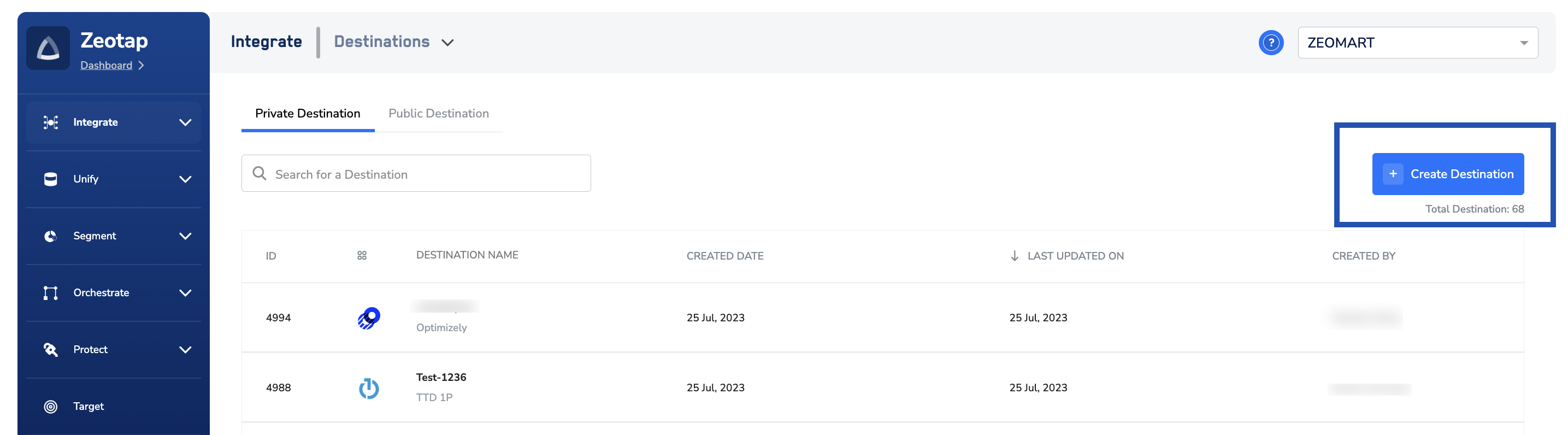
3
Under All Destinations, search for Adobe Analytics.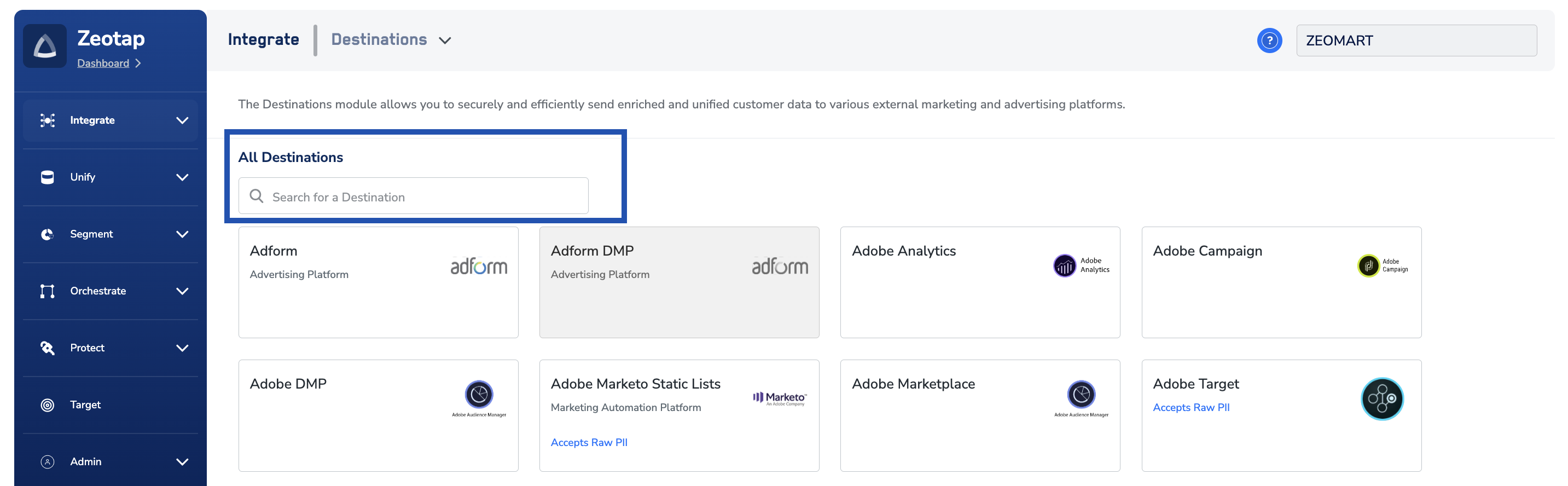
4
Click Adobe Analytics. A screen appears displaying details about the particular destination towards the left. On the right-hand side of the screen find a list of fields that are required for the integration to be established. Enter the required details as mentioned in the following steps:a. Enter a name for the Destination.b. Enter the Report Suite Id, Name Space and Marketing Cloud OrgId that you have obtained as explained in the Components of Adobe Analytics section.c. Review all the values entered above and then click Next to proceed.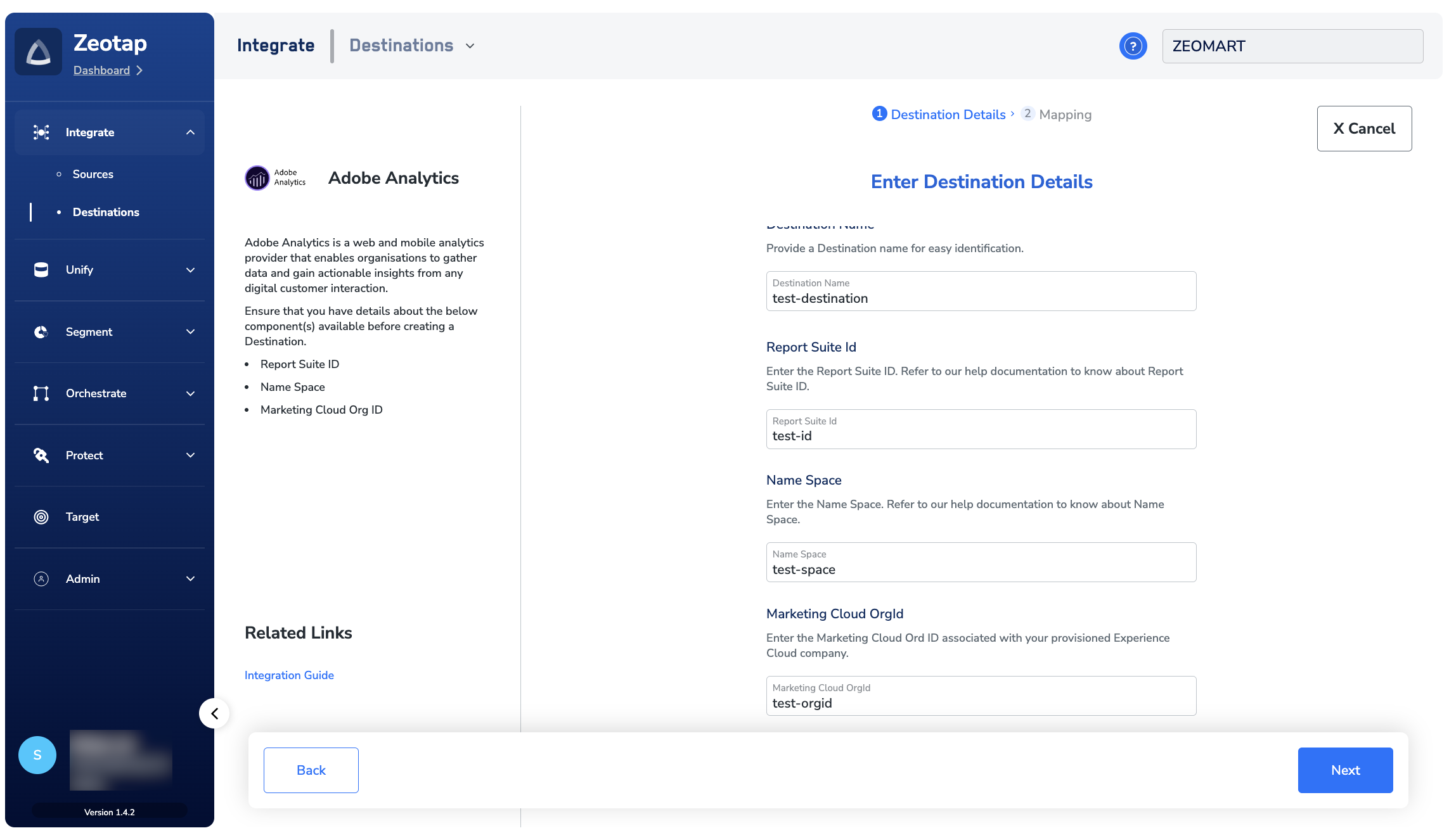
5
In the new screen that appears, choose the appropriate Action and mapping as explained below.a. Choose the desired action under Choose your Action and then choose the corresponding identifiers under Map the Fields. By default, the Output Identifiers that are accepted by the platform such as MAIDs, Cookies, email Ids and more are displayed. However, you can edit, add or remove an identifier from the list. To do so, refer here.b. Click Create Destination. The created Destination gets listed in the Audiences application, which can be linked to an Audience/segment.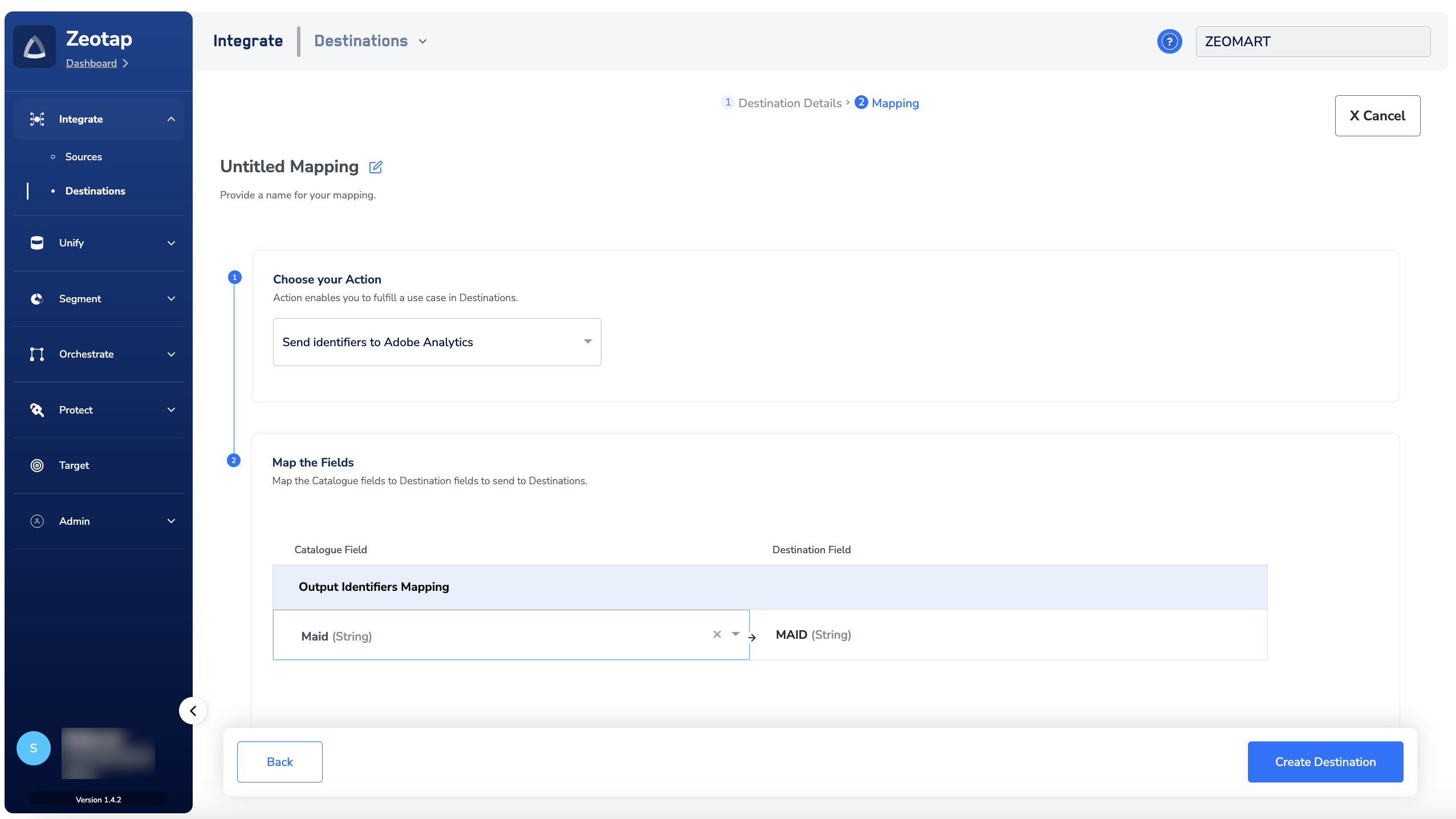
Note:This integration supports ID extension for the action Send identifiers to Adobe Analytics.
Link an Audience to the Adobe Analytics Destination
For information about how to link an Audience or segment to the created Destination in Audiences application, refer here.Note:The terms Audiences and Segments are used interchangeably to refer to customer cohorts belonging to a specific category. For example, an Audience or a segment can be a specific group of customers who are over 18 years of age and have performed an
addToCart event within the last 30 days.