Overview
Criteo Retail Media is a digital advertising platform for brands, agencies, and retailers. It enables them to display relevant ads near the digital point of sale on retailer and marketplace websites and apps. With Criteo Retail Media, brands can improve their position on the digital shelf, while retailers can add a new revenue stream. Integrated with Zeotap CDP, you can send your Audience (segment) data to Criteo Retail Media, which in turn helps you to target your customers effectively.Supported Identifiers
This integration supports email addresses (both raw and hashed) and customer identifiers (the user ID for a logged-in user on the retailer’s website).Available Actions and Supported Features
The following table lists the available action types for the integration and the supported features for each action type:Components of Criteo Retail Media
Ensure that you obtain the Advertiser ID from Criteo before proceeding with this integration.Advertiser ID
To find your Advertiser ID in Criteo, perform the following steps:1
Log in to your Criteo account (Commerce Yield/Max).
2
In the dashboard, navigate to the Account or Settings section.
3
Locate the account information section, where your Advertiser ID is typically listed.
Create a Destination for Criteo Retail Media
Perform the following steps to create a Destination for Criteo Retail Media:1
Log into the Zeotap CDP App and go to the DESTINATIONS application.
2
Click + Create Destination.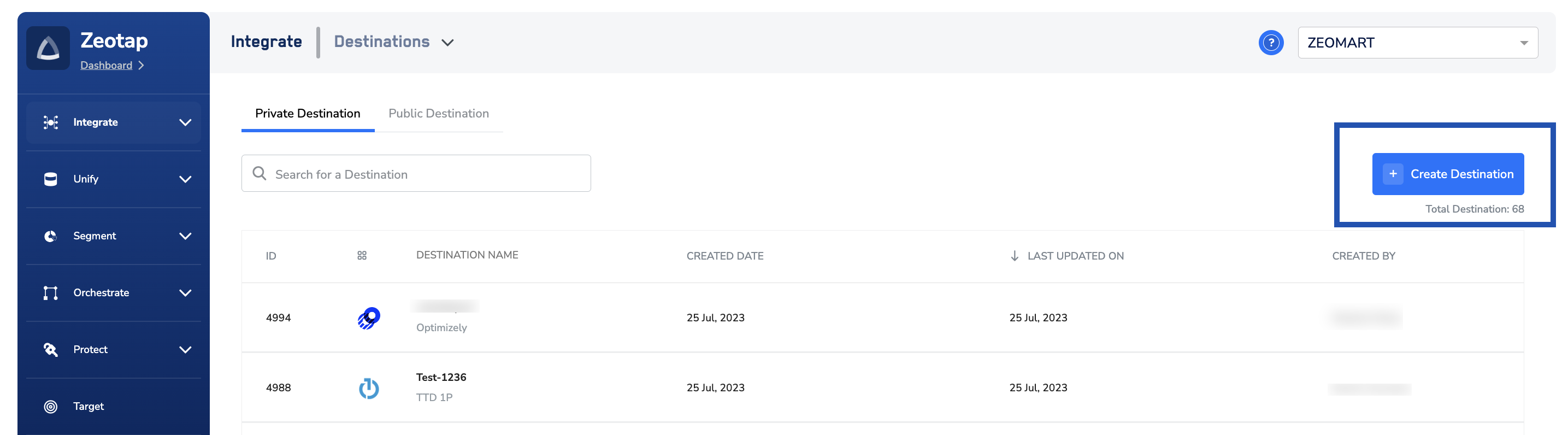
3
Under the All Destinations section, search for Criteo Retail Media.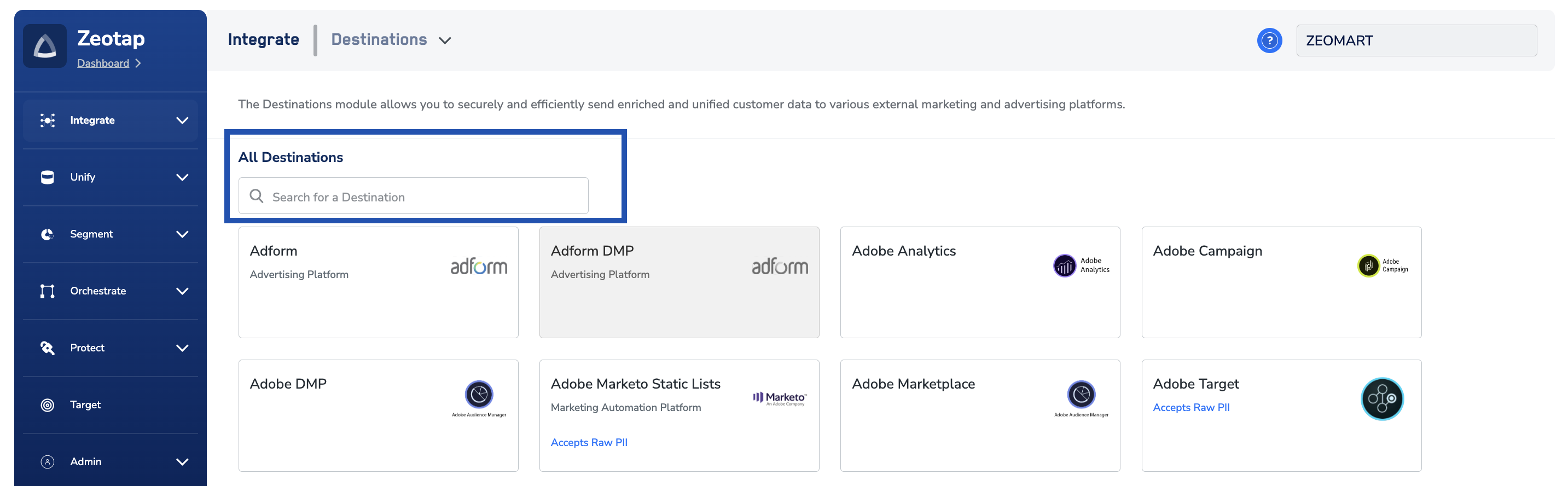
4
Click Criteo Retail Media. A screen appears displaying details about the particular destination towards the left. On the right-hand side of the screen find a list of fields that are required for the integration to be established. Enter the required details as mentioned in the following steps:a. Enter a descriptive name for the Destination.b. Enter the Advertiser ID associated with your Criteo Retail Media account.c. Click Connect Criteo Retail Media. You are redirected to the Criteo Login Page. Ensure that you have a Criteo Retail Media account handy where you can activate the audience (segment).
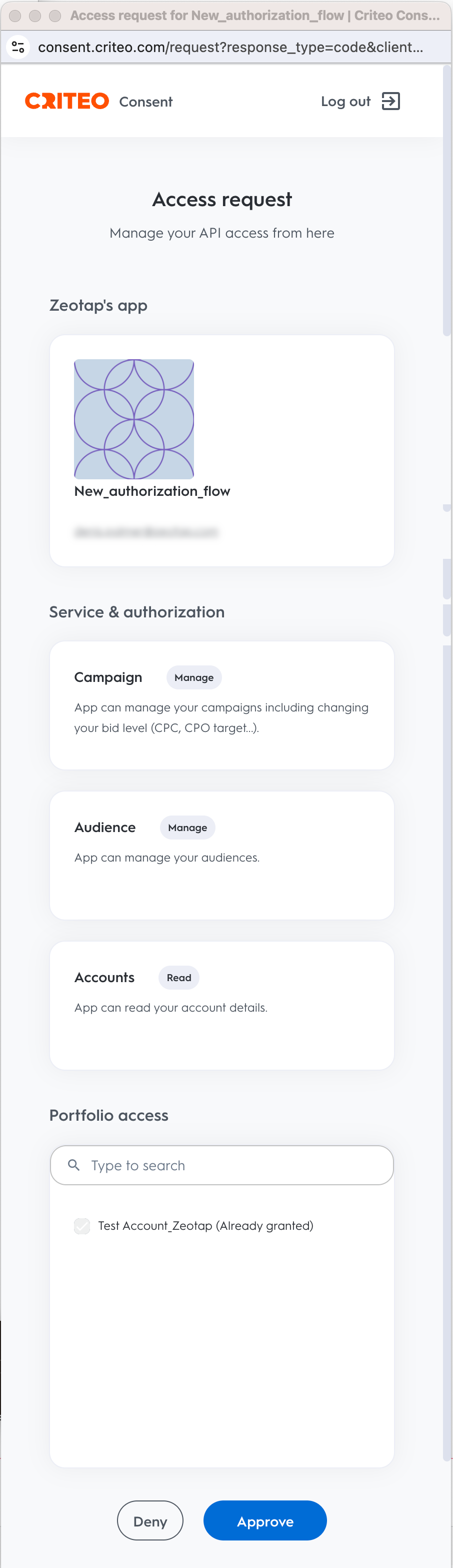

Note:Please ensure that the person connecting to Criteo has admin access to the Criteo account.
5
In the new screen that appears, under Choose your Action, you can either choose Send Customer ID to Criteo Retail Media or Send Email to Criteo Retail Media as the action for activating your audience (segment) on the Audiences module.a. Send Customer ID to Criteo Retail Media allows you to send any customer identifier to Criteo.b. Send Email to Criteo Retail Media allows to you send email addresses (both raw and hashed) to Criteo.
NoteYou will need to ensure that the retailer ID you are using has “offsite” permissions enabled in Criteo Retail Media in order to push email-based segments (or other offsite identifiers). Please reach out to your Criteo representative to request this permission if it hasn’t been granted already
6
Under Map the Fields, you can map the desired output identifiers depending on the action selected.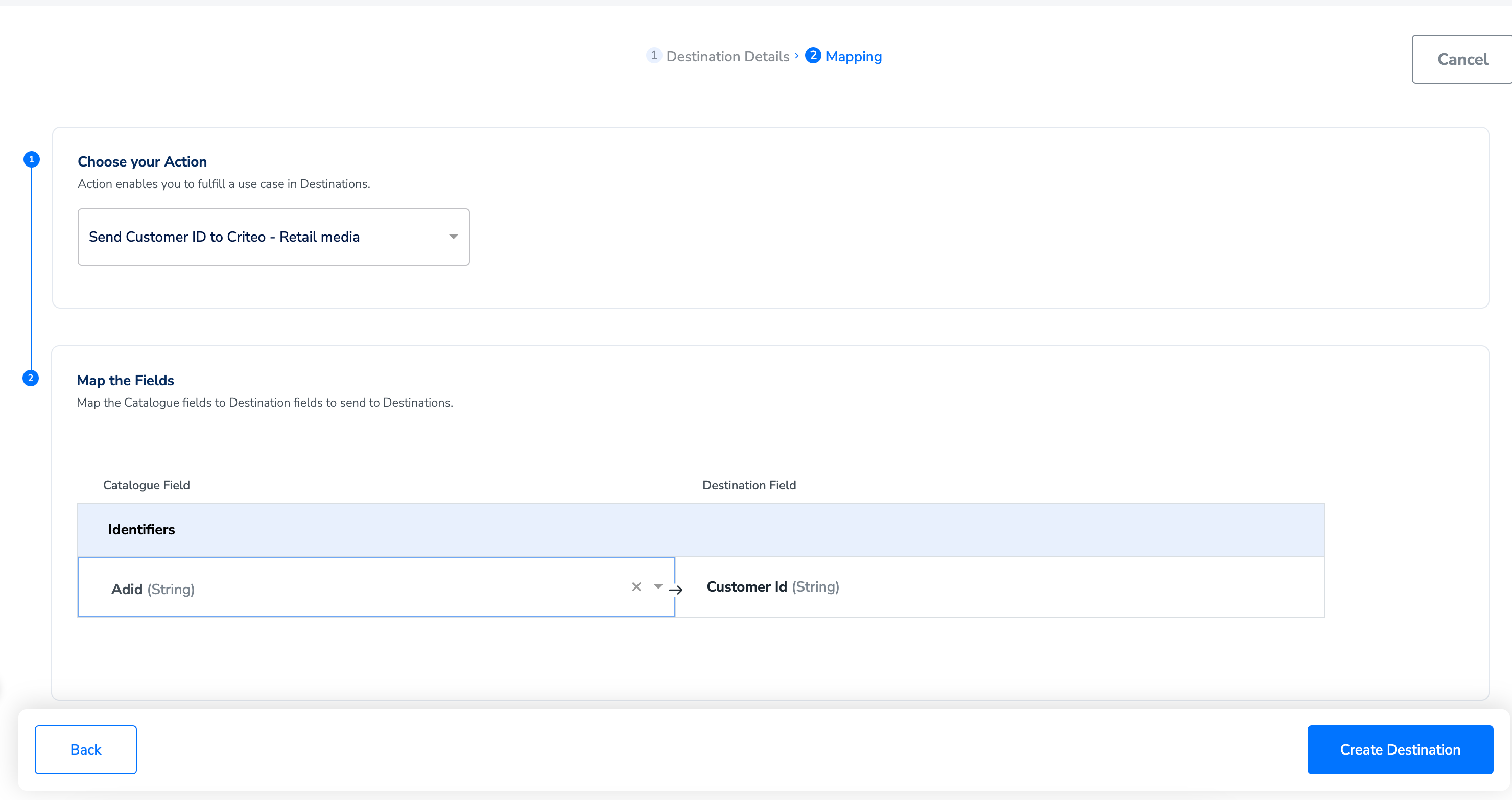
7
Click Create Destination. The created Destination gets listed in the Audiences application, which can be linked to an audience/segment.
Note:For any assistance to set up this integration, reach out to your Zeotap POC.
View the Pushed Audiences on the Destination
To view the Audiences (segments) sent from Zeotap CDP to Criteo Retail Media, perform the following steps:1
Log into your Criteo account (Commerce Yield/Max).
2
Select Demand from the dropdown menu next to CRITEO COMMERCE-YIELD.
3
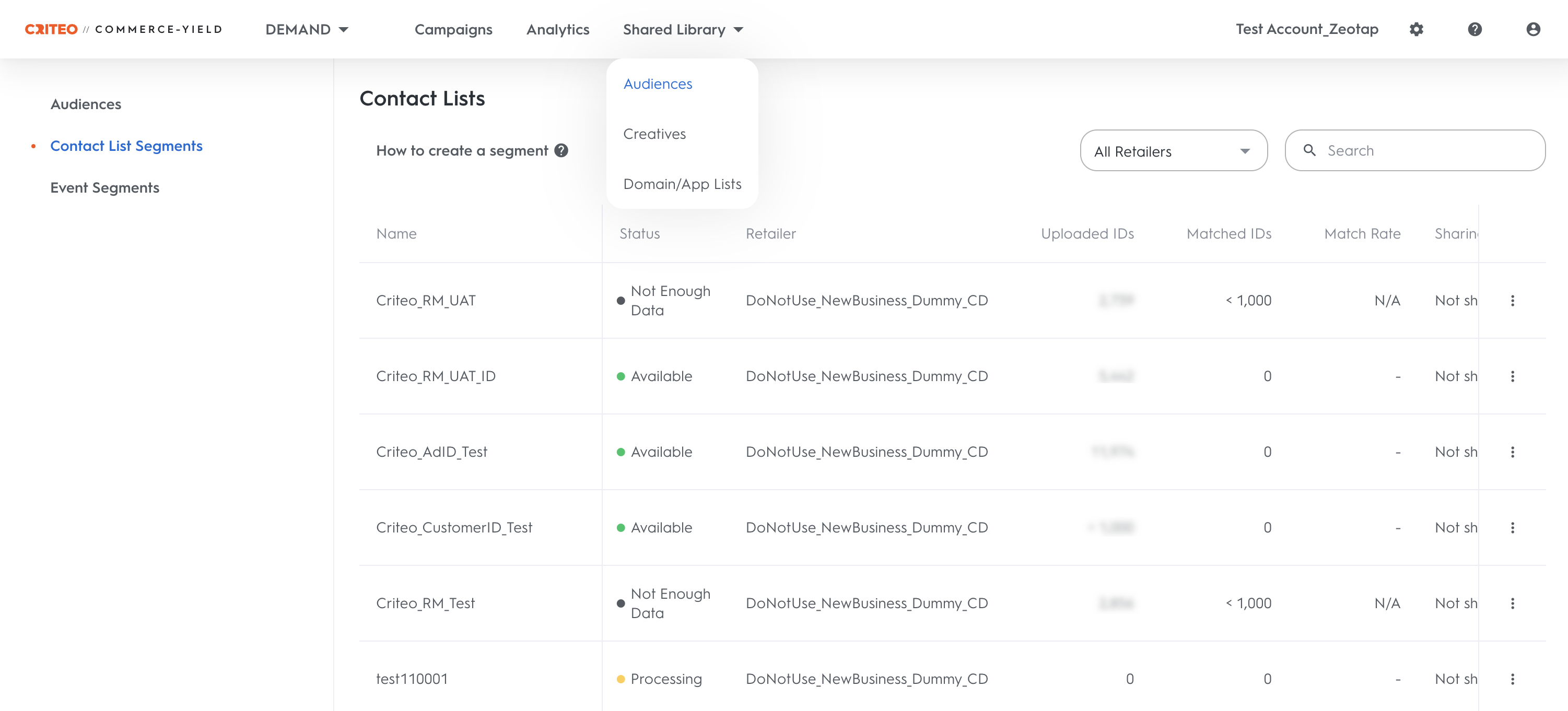
Navigate to Shared Library > Audiences.
4
In the left navigation panel, click Contact List Segments. All the audiences (segments) pushed from Zeotap CDP will appear here.