

Overview
Dotdigital is a customer engagement platform that helps digital marketers and developers deliver communications across the customer journey. They harness the power of customer data, powering engagement, conversion and loyalty for brands as they grow and scale.Supported Parameters
This integration supports raw emails only.Available Actions and Supported Features
The following table lists the available action types for the integration and the supported features for each action type:Components of Dotdigital
Ensure that you have details about the below components of Dotdigital available before creating a Destination.API User ID and Password
Before creating a Destination, you need to setup the API User and the corresponding password from the Dotdigital console. To do so, perform the following steps:1
Login to the Dotdigital console.
2
Click the three dots at the bottom-left corner of the screen and then click Access.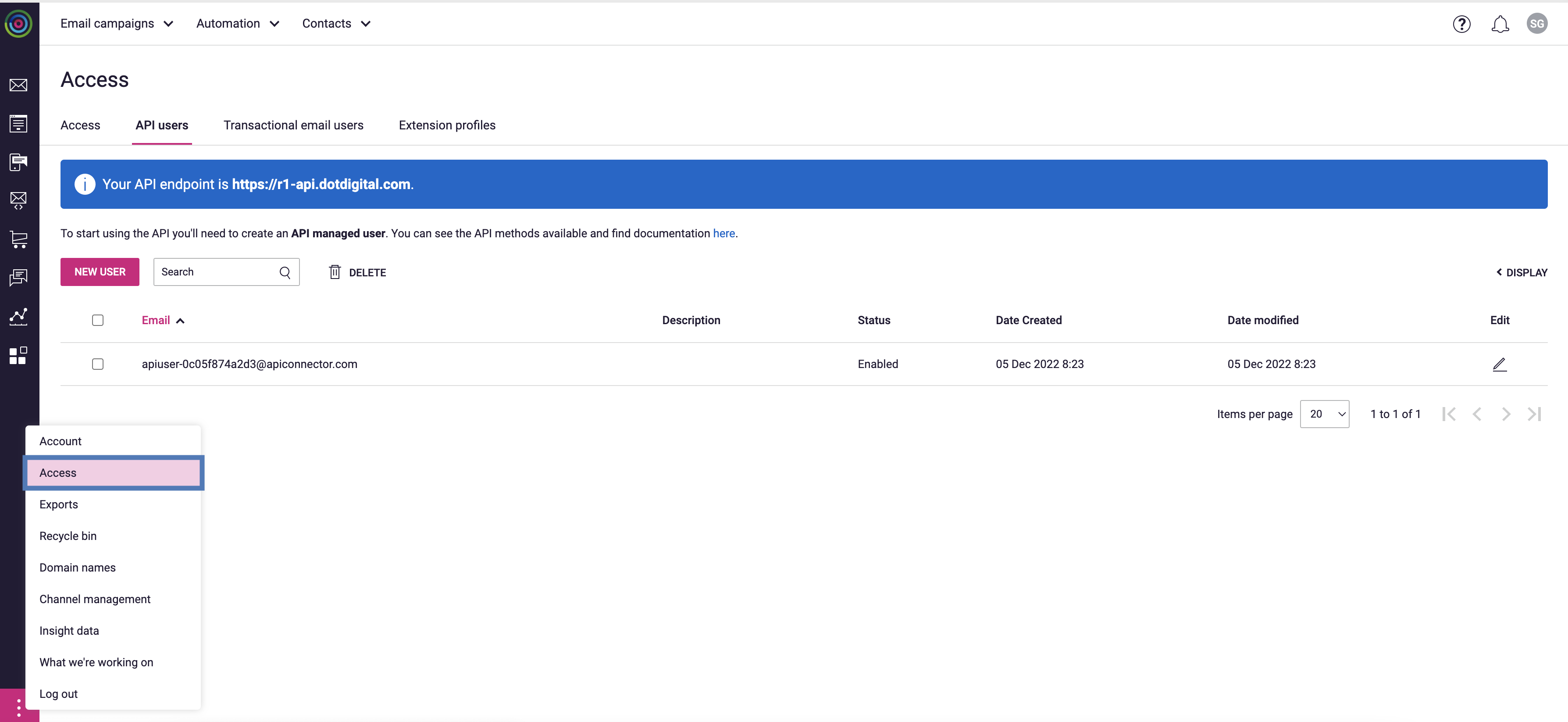
3
Navigate to the API users tab and then c
lick NEW USER.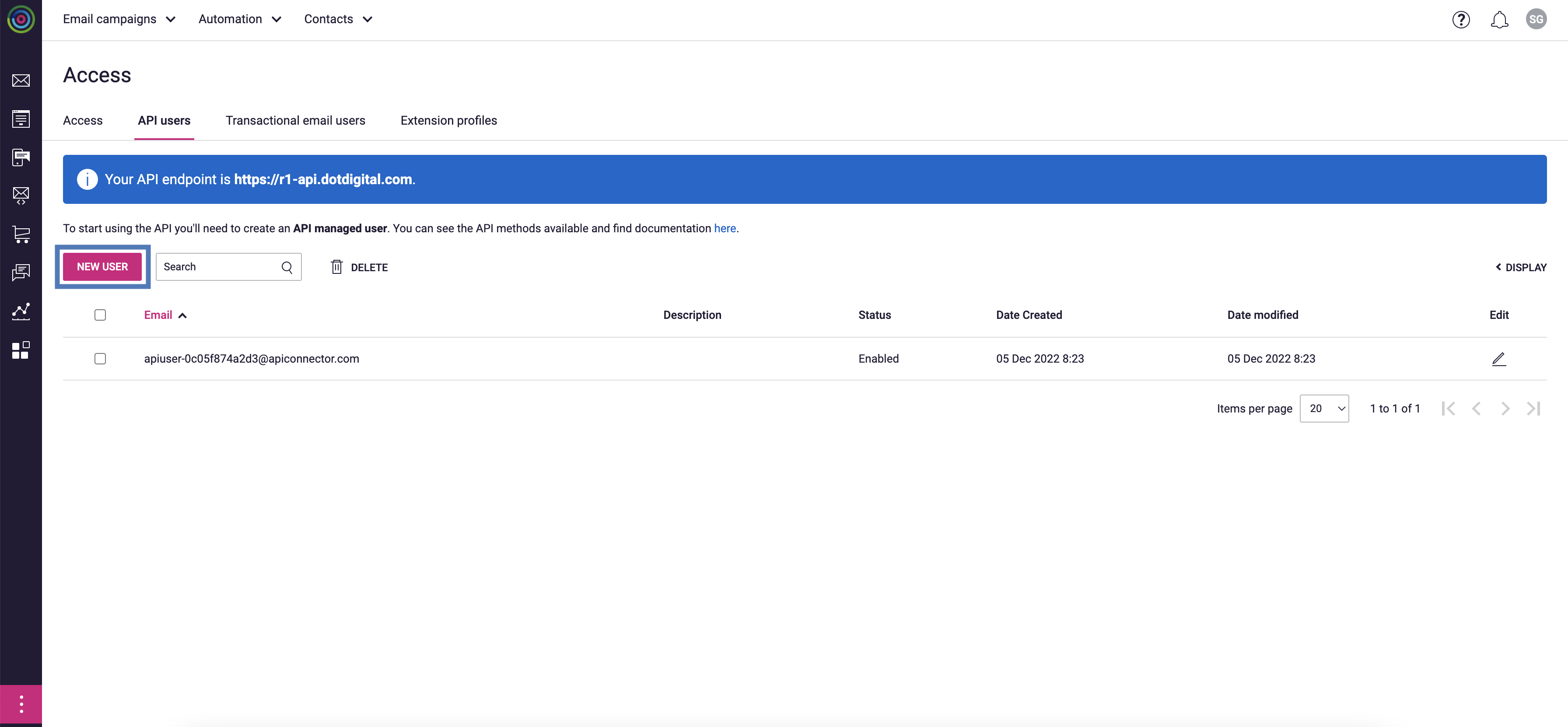
4
Enter the following details for the API User:a. Email address is auto-populated.b. Enter a Password and confirm it.c. Select the Status as Enabled.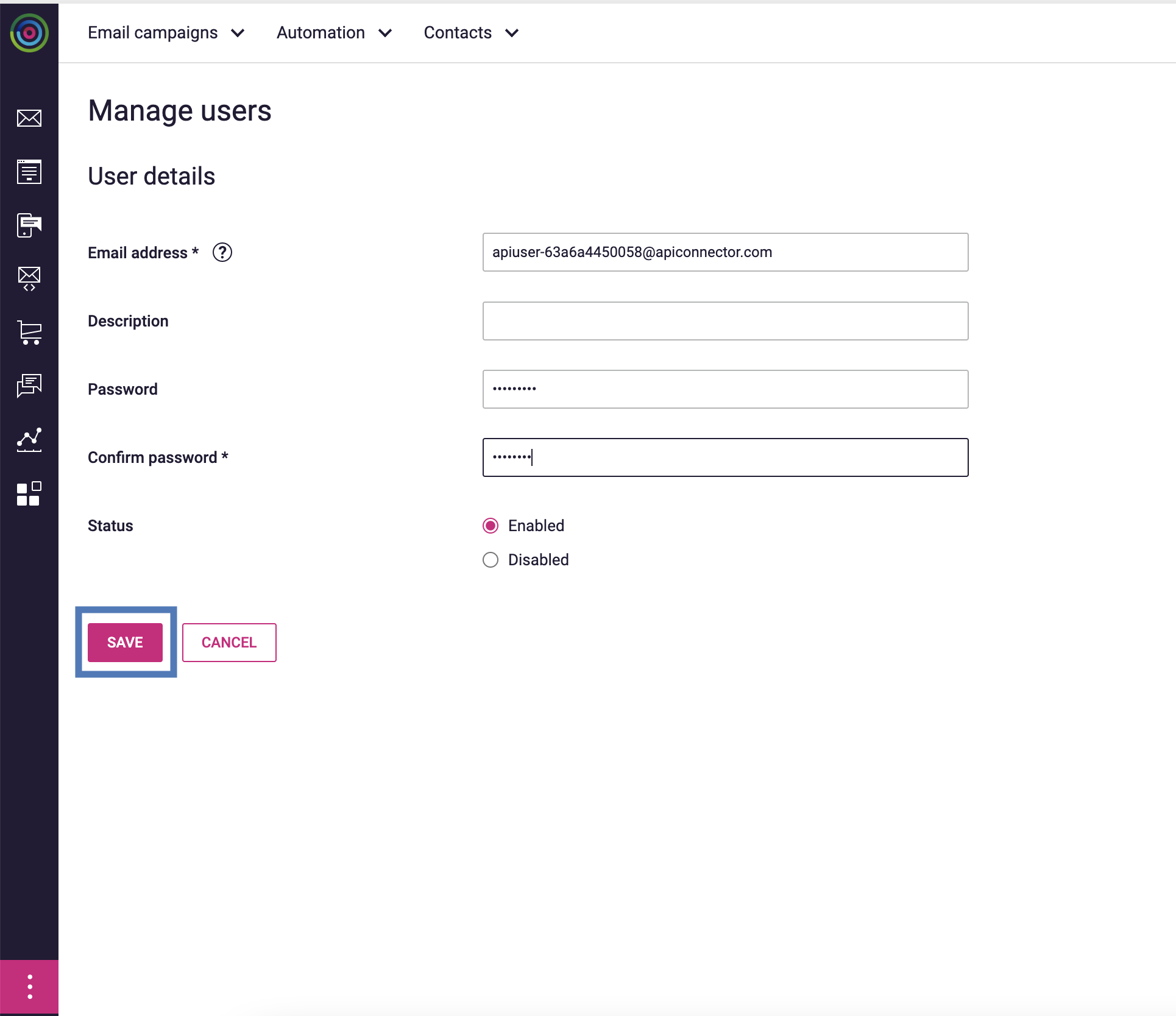
5
Click Save.
Region
Dotdigital accounts belong to different regions, depending upon where they are based in the world. Note that you are not allowed to use an API endpoint belonging to a different region.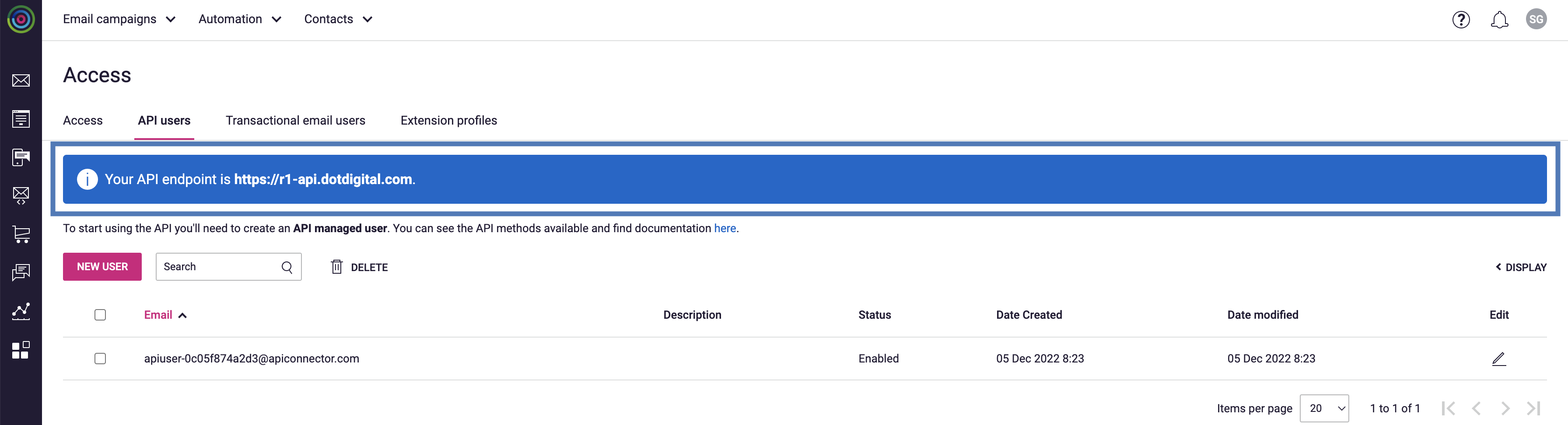
Note:To know how to identify the correct API end point on you account, click here.
Create a Destination for Dotdigital
Perform the following steps to create a Destination for Dotdigital:1
Log into the Zeotap CDP App and go to the DESTINATIONS application.
2
Click + Create Destination.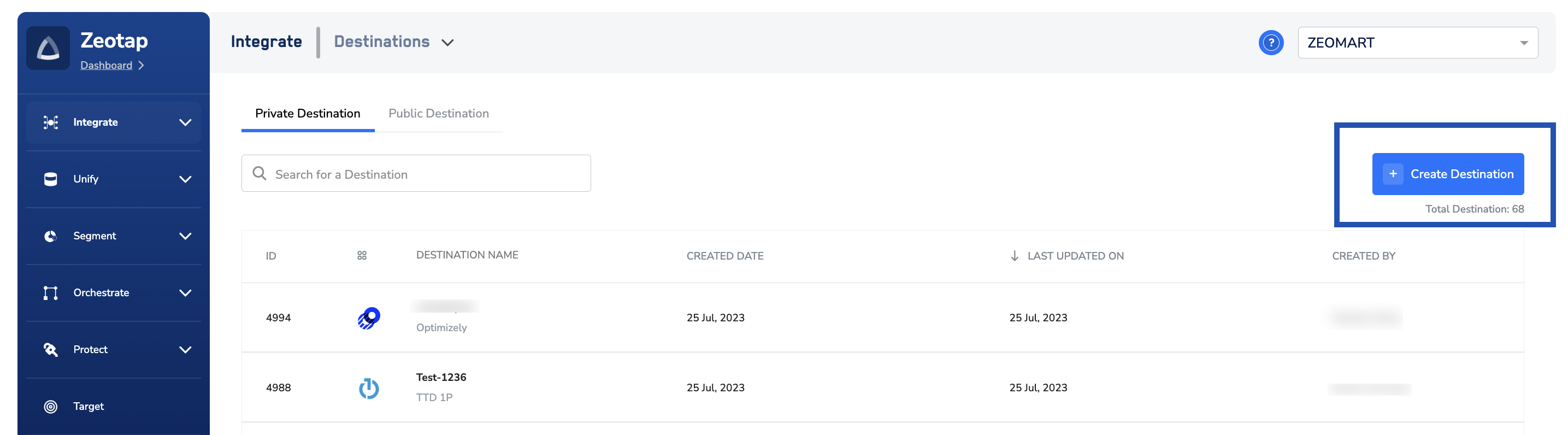
3
Under All Destinations, search for Dotdigital.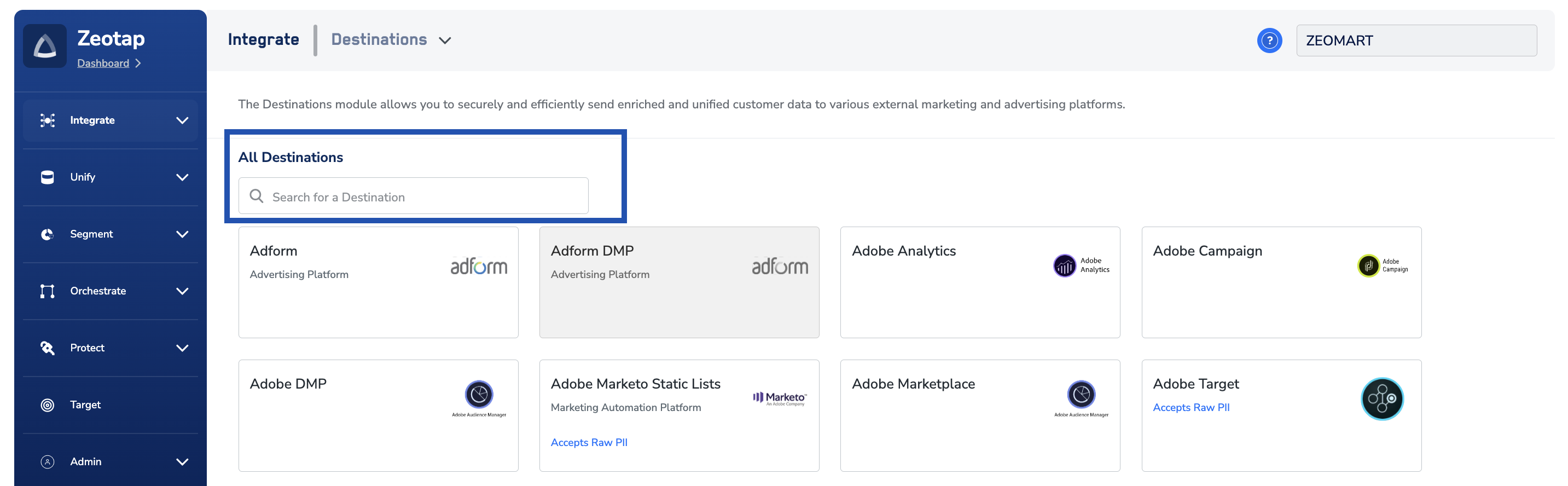
4
Click Dotdigital. A screen appears displaying details about the particular destination towards the left. On the right-hand side of the screen find a list of fields that are required for the integration to be established. Enter the required details as mentioned in the following steps:a. Enter a name for the Destination.b. Enter the API User ID.c. Enter the Password that you have created while setting up the API User.d. Select the Region of your Dotdigital account using the drop-down menu.e. Review all the values entered above and then click Next to proceed.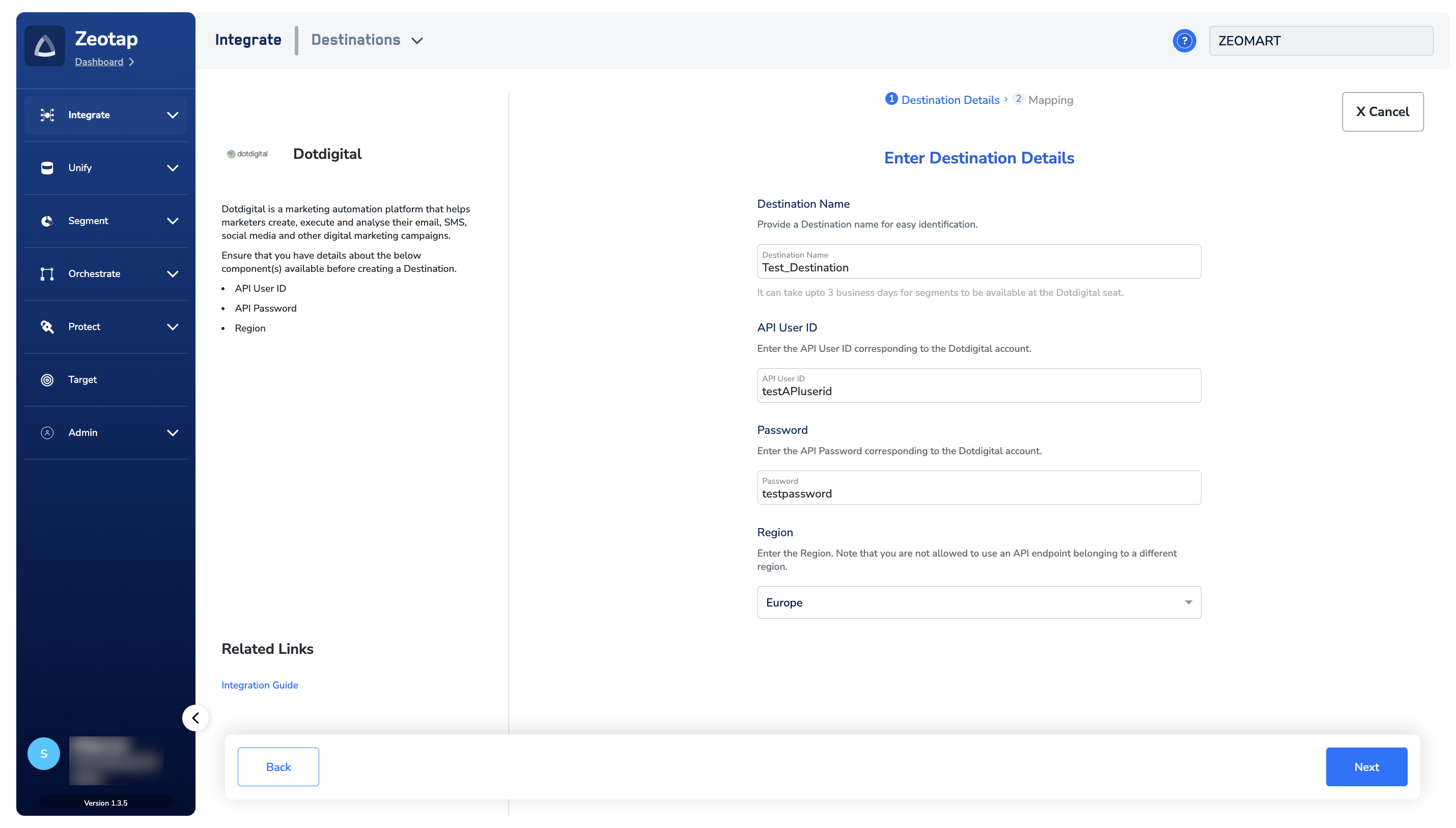
5
In the new screen that appears, choose the appropriate action and mapping as explained below.a. Choose the desired action under Choose your Action and then choose the corresponding identifiers under Map the Fields. By default, the Output Identifiers that are accepted by the platform such as, MAIDs, Cookies, email Ids and more are displayed. However, you can edit, add or remove an identifier from the list. To do so, refer here.b. Click Create Destination. The created Destination gets listed in theAudiencesapplication, which can be linked to an Audience/segment.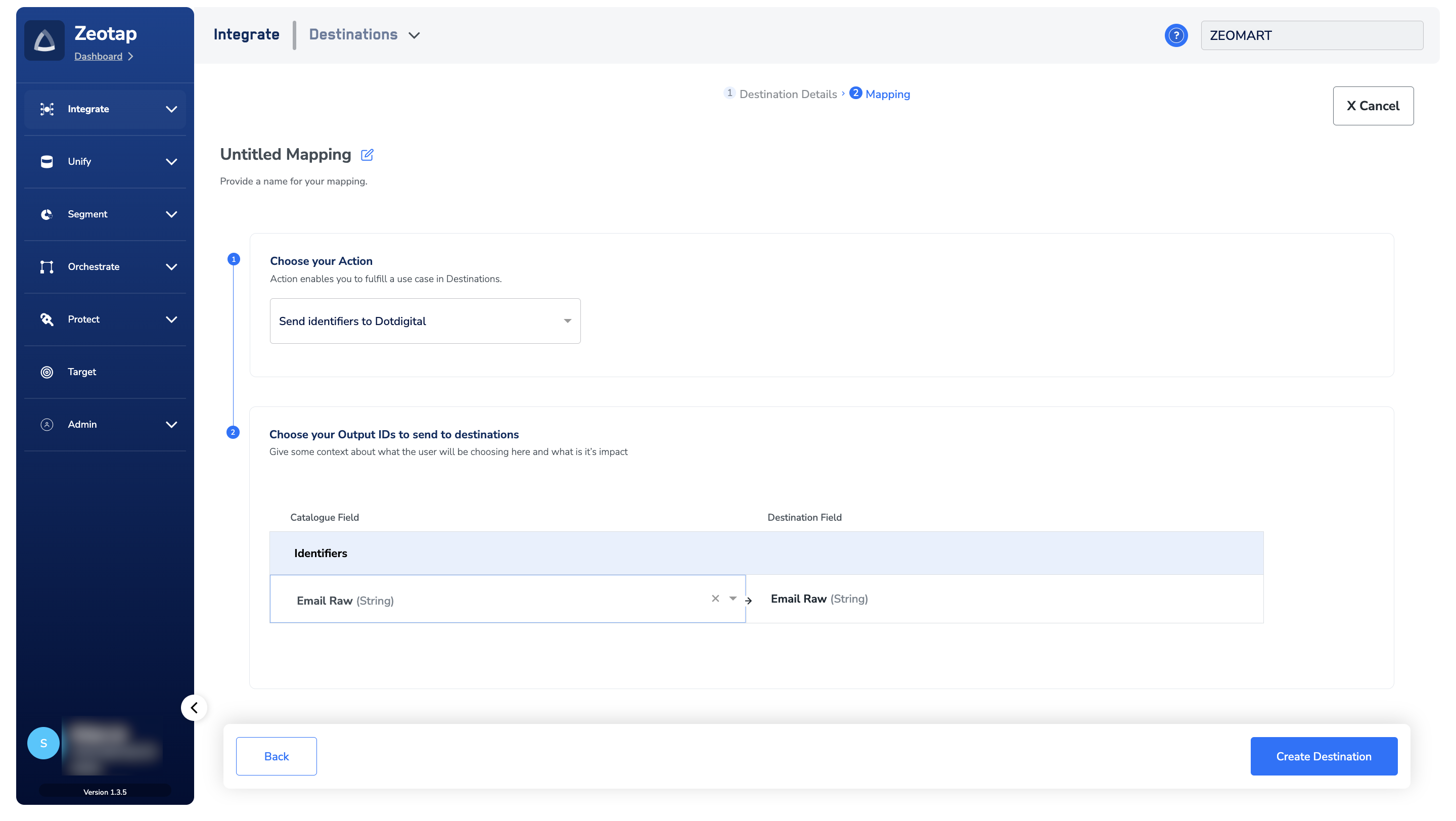
Link an Audience to the Dotdigital Destination
For information about how to link an Audience or segment to the created Destination in Audiences application, refer here. Note that If the segment size is small, then they are immediately populated at the Dotdigital seat. Otherwise, it may take about one hour for segments to be available at the Dotdigital seat.Note:The terms Audiences and Segments are used interchangeably to refer to customer cohorts belonging to a specific category.For example, an Audience or a segment can be a specific group of customers who are over 18 years of age and haveperformed an
addToCart event within the last 30 days.View Segments on Dotdigital console
In the Dotdigital console, the segments pushed by the Zeotap CDP Appear under Contacts > All Contacts > Address books.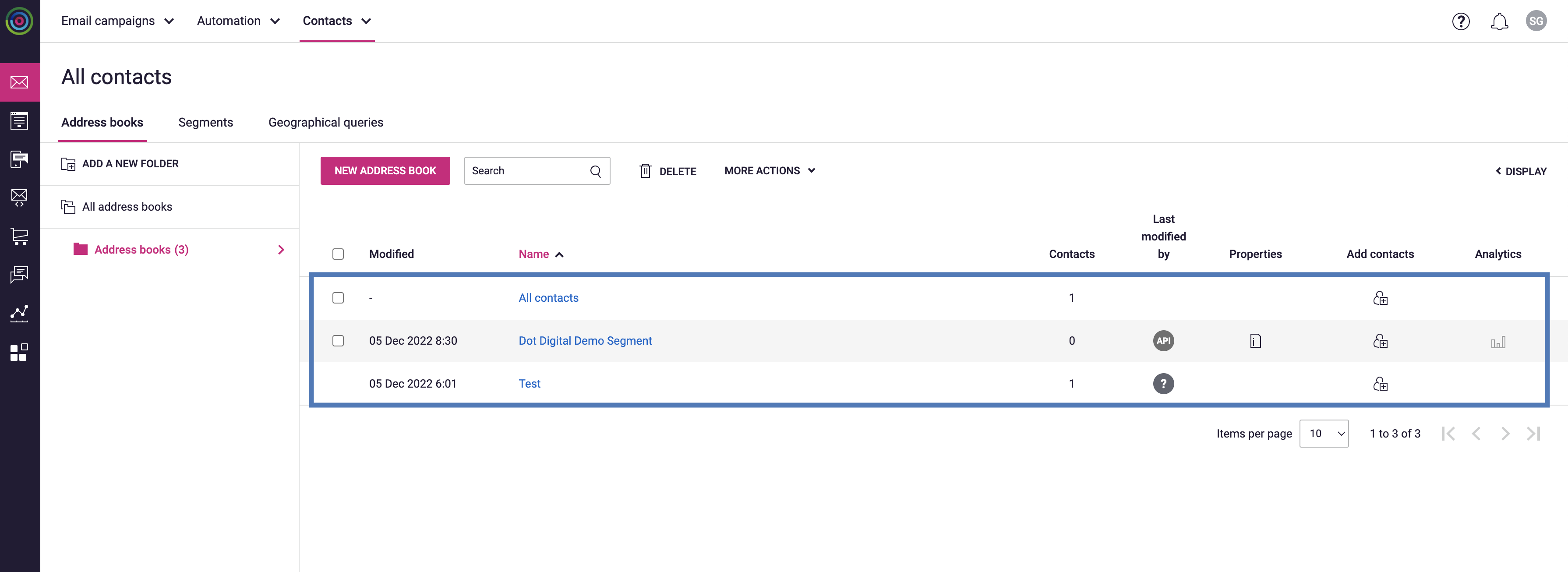
Create Campaigns
To use a segment that you have created, log into the Dotdigital console and perform the following steps:1
Under Email campaigns, click New Campaign.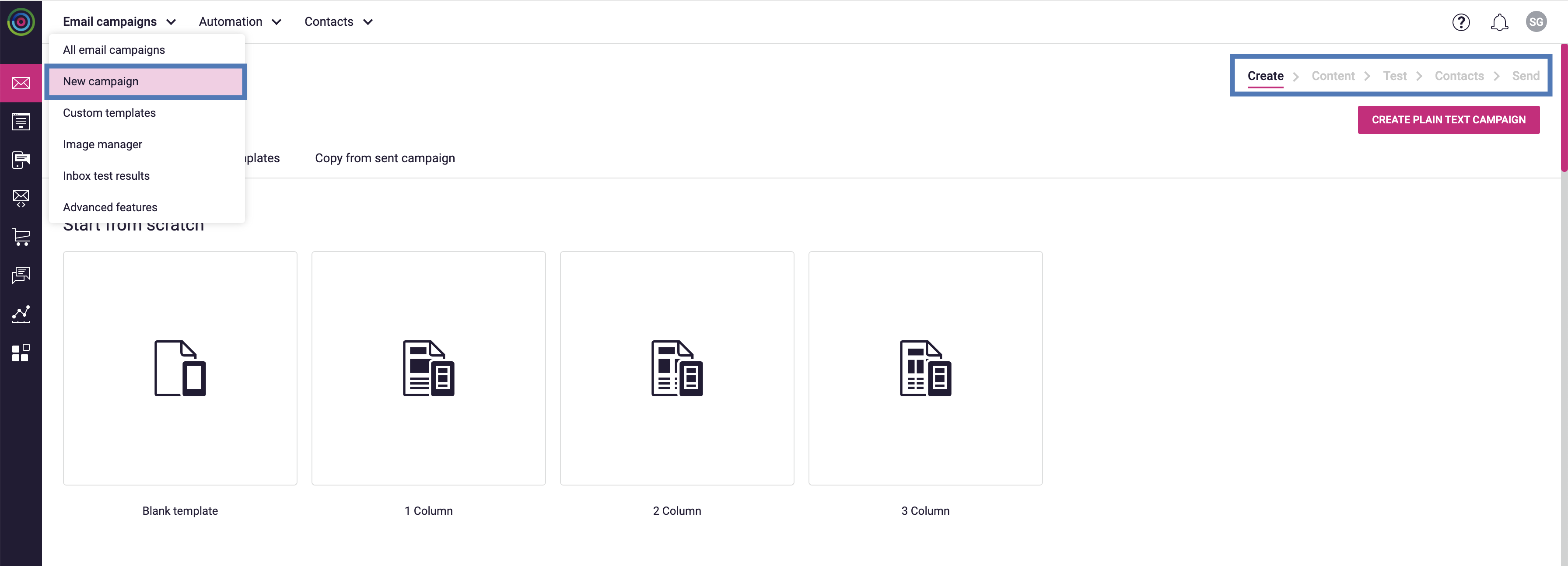
2
Based on the use case, configure the Create, Content and Test tabs.
3
In the Contacts tab, select the desired audience from the Address books displayed.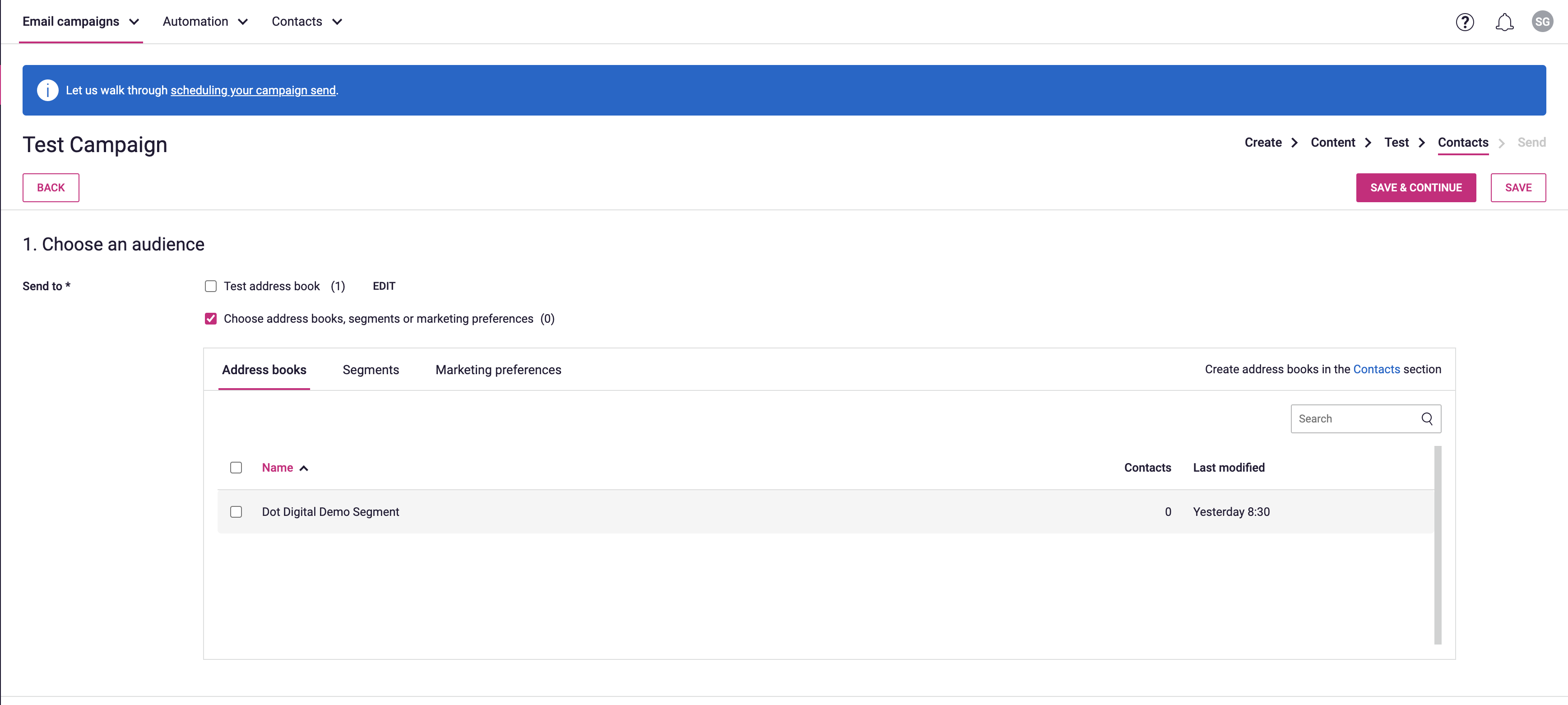
4
Click SAVE & CONTINUE.
User Disqualification from Audiences
This integration supports user disqualification from audiences. That is, a user can be disqualified from an audience (segment) for various reasons, such as not meeting audience criteria, consent requirements or other conditions set for a particular audience.- When a user disqualifies from an audience, Zeotap CDP initiates a user deletion request in the next refresh cycle. These requests are sent to the audiences linked to the specific destination.
- The disqualified users are excluded from the audiences based on the configured refresh frequency for a particular audience.
- User disqualification is a programmatic process that works automatically. You do not need to specify anything to trigger the disqualification and exclusion of users from audiences.