

What this is
The Personyze destination sends audiences and profile attributes out of Zeotap CDP and into Personyze, where they become a visitor attribute you can target a Personyze campaign on. Nothing flows back the other way: the Integrations Master List records Personyze as a Destination only, so there is no Personyze source page to read alongside this one. Personyze is a personalisation solution that uses machine learning and behavioural targeting to deliver cross-channel experiences. Once a Zeotap CDP audience has been delivered, Personyze can use it in its own Targeting and Personalisation rules. Zeotap CDP ships two separate Personyze destinations:- Personyze — this page. A batch destination, attached to an audience in the Audiences application, that sends the audience and its mapped attributes.
- Personyze Real Time Integration — a real-time destination, attached to a Send to Destinations node in a journey, that sends events and user profiles as customers flow through.
Supported identifiers and actions
This integration supports raw email addresses, Custom IDs, First Name, Last Name, Phone and Industry.Prerequisites
In Zeotap CDP:- An account with permission to create and edit destinations. For the wider destination model — platforms, actions and mappings — see Destinations.
- An audience defined with the criteria for the cohort you want to send, since the audience name has to be reproduced exactly on the Personyze side.
- An active Personyze account.
- Permission to view the Settings → Integrations screen, so you can obtain the Private API Key.
- Permission to add visitor attributes and to edit campaign targeting rules.
Get your Personyze Private API Key
The Private API Key is the encryption key that authenticates API calls in Personyze. Obtain it before you create the destination in Zeotap CDP.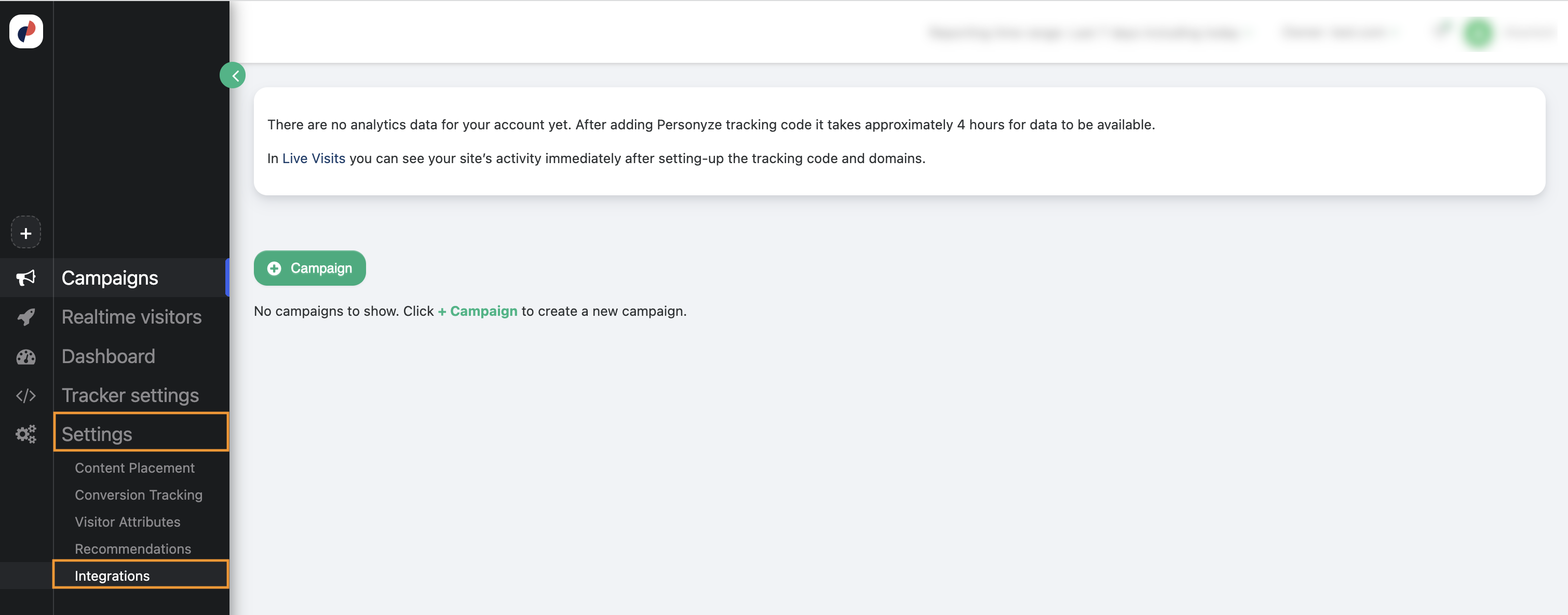
The Personyze console with Settings expanded in the left navigation and Integrations selected
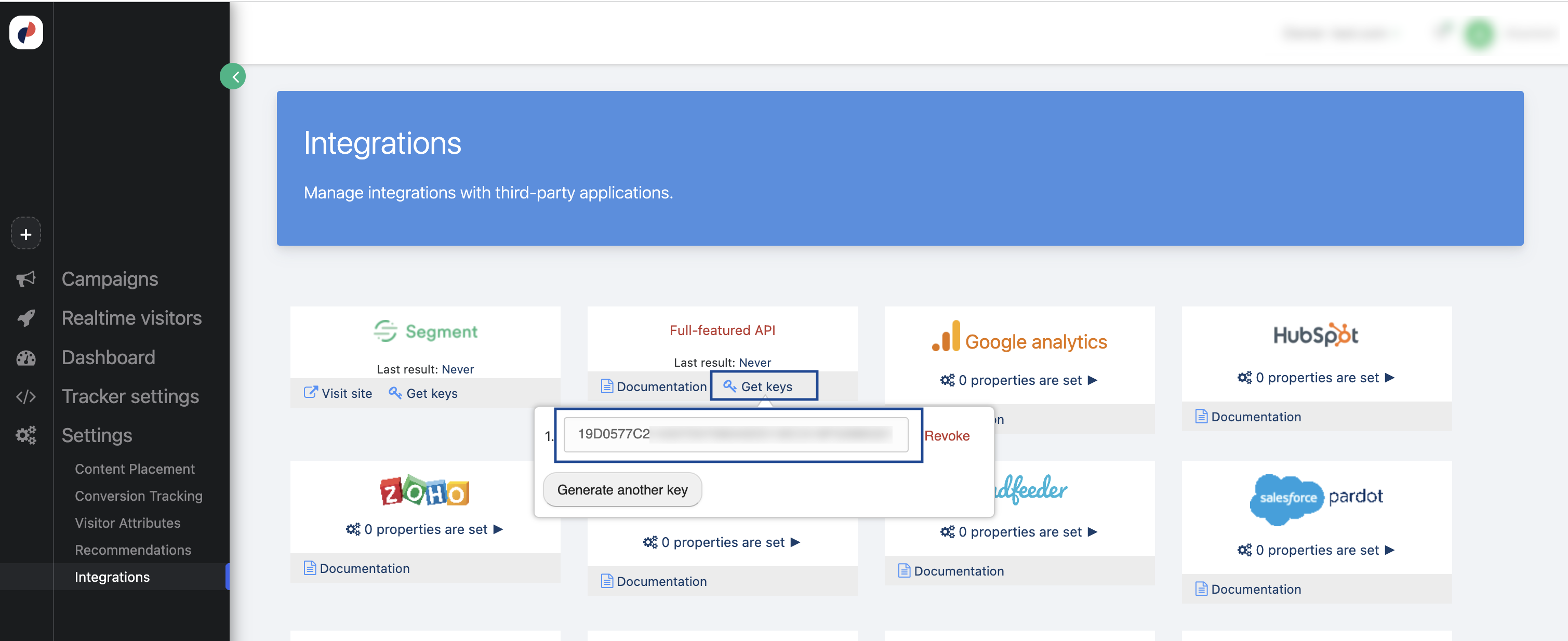
The Personyze Integrations screen, with Get keys clicked on the Full-featured API tile
Create the Personyze destination
.png?fit=max&auto=format&n=OFEzw22E9lo2DHYT&q=85&s=816d7f247d590bc7bb09fff1e0b92a3d)
The Zeotap CDP Destinations listing, with Create Destination highlighted
.png?fit=max&auto=format&n=OFEzw22E9lo2DHYT&q=85&s=9cca1024dea8e775f5b0ad6aa1d68a75)
The All Destinations catalogue, with the search box highlighted
- Destination Name — a name that identifies this destination later, when you link an audience to it.
- Private API Key — the key you obtained from your Personyze account above.
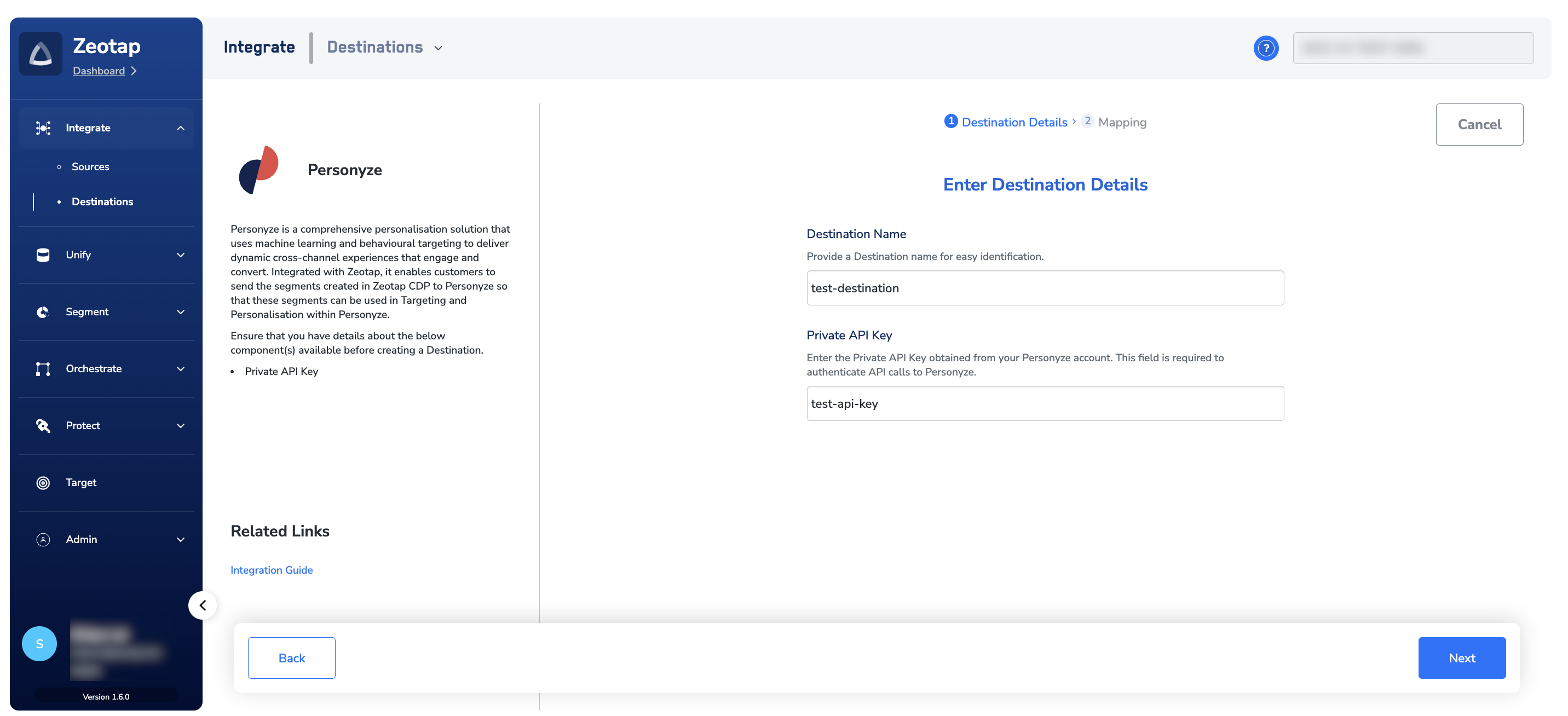
The Enter Destination Details step for Personyze, with the Destination Name and Private API Key fields
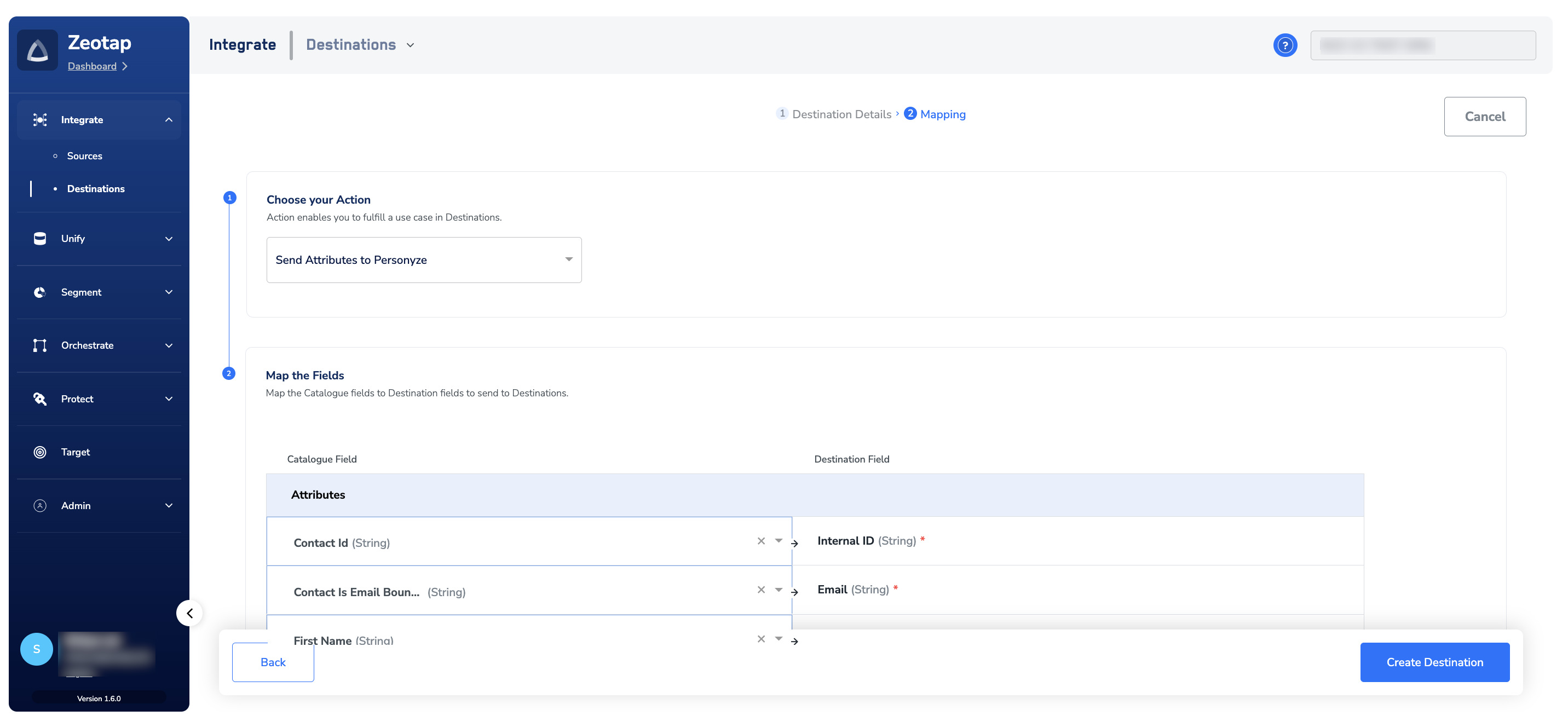
The Mapping step, with Send Attributes to Personyze chosen and Catalogue fields mapped to Personyze destination fields
Create a matching visitor attribute in Personyze
Before you link an audience to the Personyze destination, create a visitor attribute in Personyze whose name is the audience name. Personyze matches on this attribute, so the names have to agree exactly.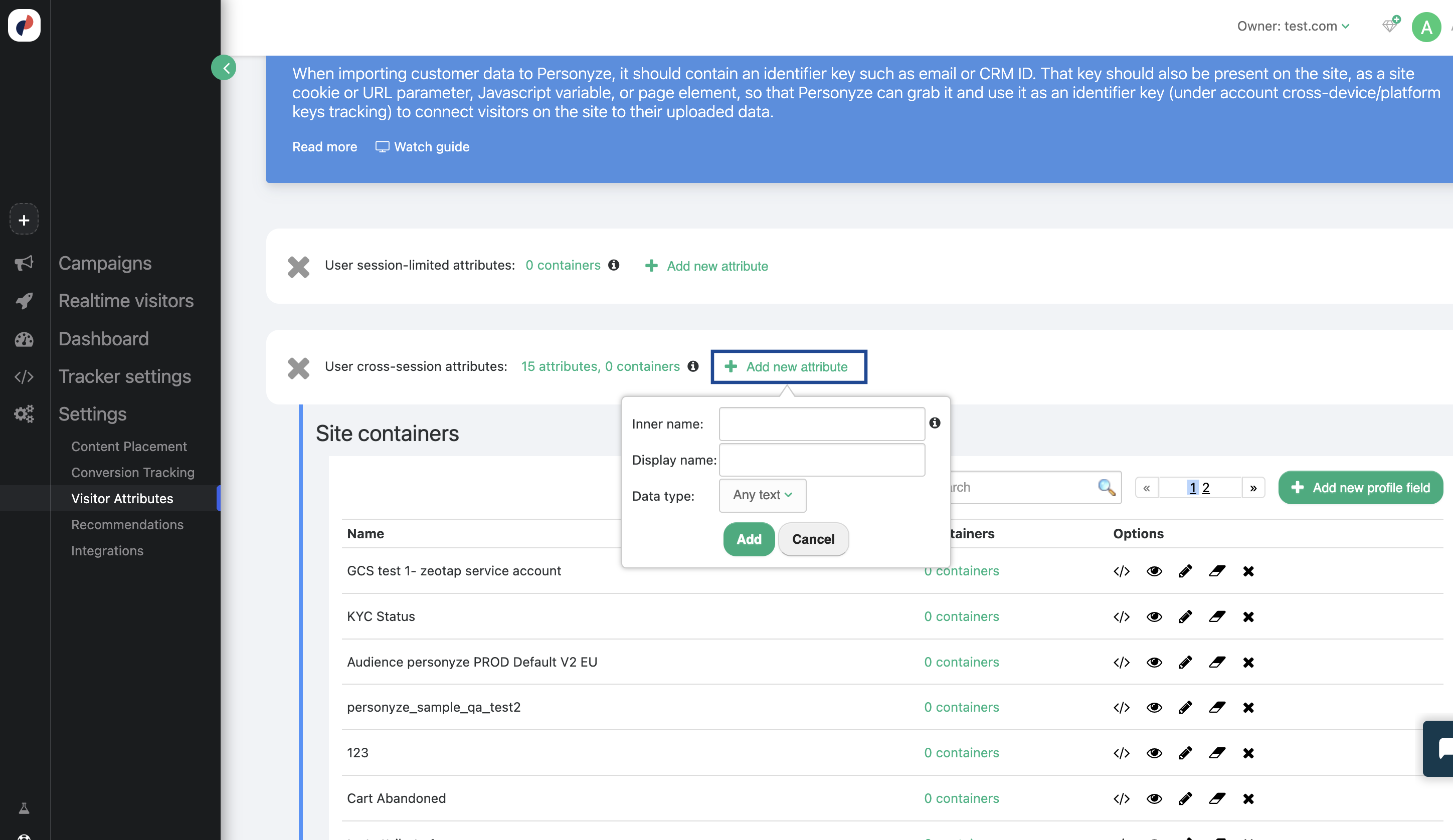
The Personyze Visitor Attributes screen, with Add new attribute opened on the User cross-session attributes row
GCS Test Audience, the Display name must also be GCS Test Audience.gcs_test_audience.Link an audience to the destination
With the destination created and the Personyze attribute in place, link the audience to the destination in the Audiences application. The steps are the same for every batch destination — see Activate in Audiences, which also covers the refresh frequency and the output identifier mapping. Saving the destination on the audience moves it to In Progress while the IDs upload, and to Success once the upload completes.addToCart event in the last 30 days.Add the targeting rule in Personyze
After you link an audience to the Personyze destination, add a targeting rule in Personyze for the user profiles that qualified for the audience to be pushed to Personyze.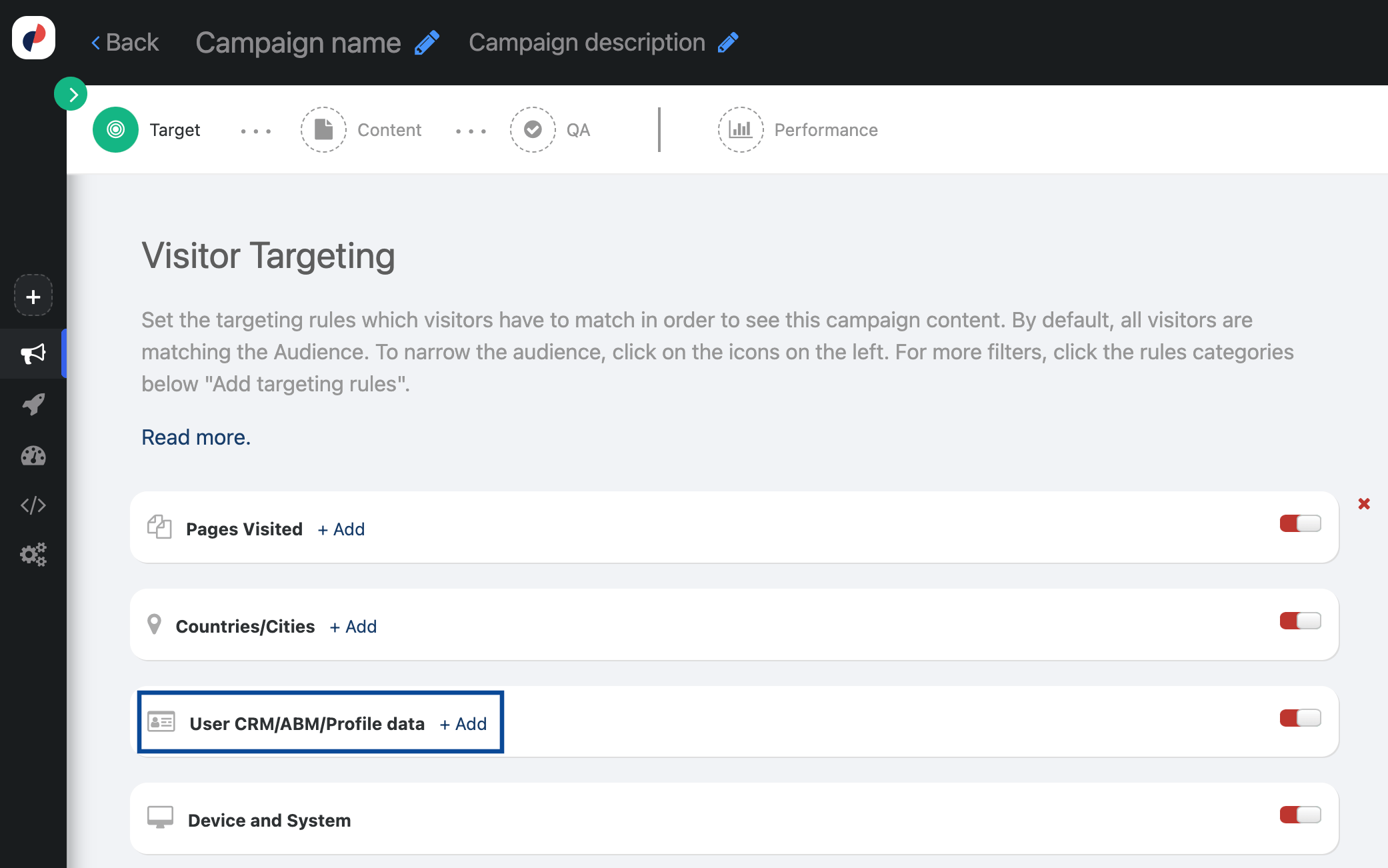
The Visitor Targeting screen, with the User CRM/ABM/Profile data rule category highlighted
Visitor matches if <Include> <Any of> <Display name of the attribute> <= equal> <true>
The completed User CRM/ABM/Profile data condition, matching the visitor attribute against true
Verify the audience reached Personyze
Check both sides after the first refresh has run.- In Zeotap CDP — open the audience–destination pair in the Audiences application and confirm the status has moved past In Progress to Success, with a non-zero qualified count. For what the statuses mean across destinations, see Verify the activation worked.
- In Personyze — go to Settings → Visitor Attributes and confirm the attribute you created for this audience is listed under User cross-session attributes. Then open the campaign and confirm the targeting rule resolves to that attribute.
Troubleshoot the Personyze destination
Work through these before raising a ticket.- The audience does not appear as an attribute in Personyze. The attribute is not created by the delivery — you create it yourself, before linking. Confirm it exists under User cross-session attributes, that its Display name matches the Zeotap CDP audience name character for character, and that its Inner name is the same string in lower case with underscores instead of spaces.
- The destination fails to authenticate. The Private API Key on the destination is the credential for every call. If the key has been revoked or regenerated in Settings → Integrations, the destination still holds the old value — edit the destination and paste the current key.
- A mandatory field is empty. The mapping marks some destination fields as required. If a Catalogue field mapped to one of them is null for part of the audience, those records are the ones to look at first.
- The pair stays In Progress, or the run reports an error. These are destination-level failures rather than Personyze-specific ones. See Why deliveries fail for the errors that surface on an audience–destination pair and what each one means.
- The campaign does not fire for visitors you expect. Personyze’s own guidance on the Visitor Attributes screen is that imported customer data has to carry an identifier key — such as email or a CRM ID — that is also present on your site, as a site cookie, URL parameter, JavaScript variable or page element. Without that, Personyze cannot connect an uploaded profile to the visitor in front of it. Confirm the identifier you mapped in the destination is one Personyze can observe on site.
FAQ
Why are there two Personyze entries in the destination catalogue?
Why are there two Personyze entries in the destination catalogue?
Why does the Personyze attribute name have to match the audience name?
Why does the Personyze attribute name have to match the audience name?
Does this destination support delta upload or delete?
Does this destination support delta upload or delete?
Can one Personyze destination serve several audiences?
Can one Personyze destination serve several audiences?