Overview
Emarsys is a marketing automation platform that enables businesses to create personalised marketing campaigns. Integrated with Zeotap, it uses email marketing as the primary medium to deliver highly targeted messages, thereby optimising customer engagement and enhancing marketing effectiveness.Supported Identifiers/Attributes
This integration accepts the following identifiers and attributes:- Email addresses (raw)
- First Name
- Last Name
- Gender
- Date of birth
- Phone
- Mobile
- City
- Company
- Company address
- City (office)
- Opt-in – Acceptable values are Yes/No or True/False. For other values, contact your Zeotap POC
- Custom Fields (Identifiers/attributes)
Available Actions and Supported Features
The following table lists the available action types for the integration and the supported features for each action type:Prerequisites
Ensure that you have the details about the below components of Emarsys account before creating a Destination.User Name and Secret
Key ID
User name (API ID) and Secret
In Emarsys, the User name (API ID) and Secret details are used to authenticate the API calls and gain access to certain features or functionalities on the Emarsys platform. Perform the following steps to obtain your User name (ID in Emarsys) and the Client Secret from the Emarsys console:1
Log into your Emarsys account and navigate to Management > Security Settings > API as shown in the image below.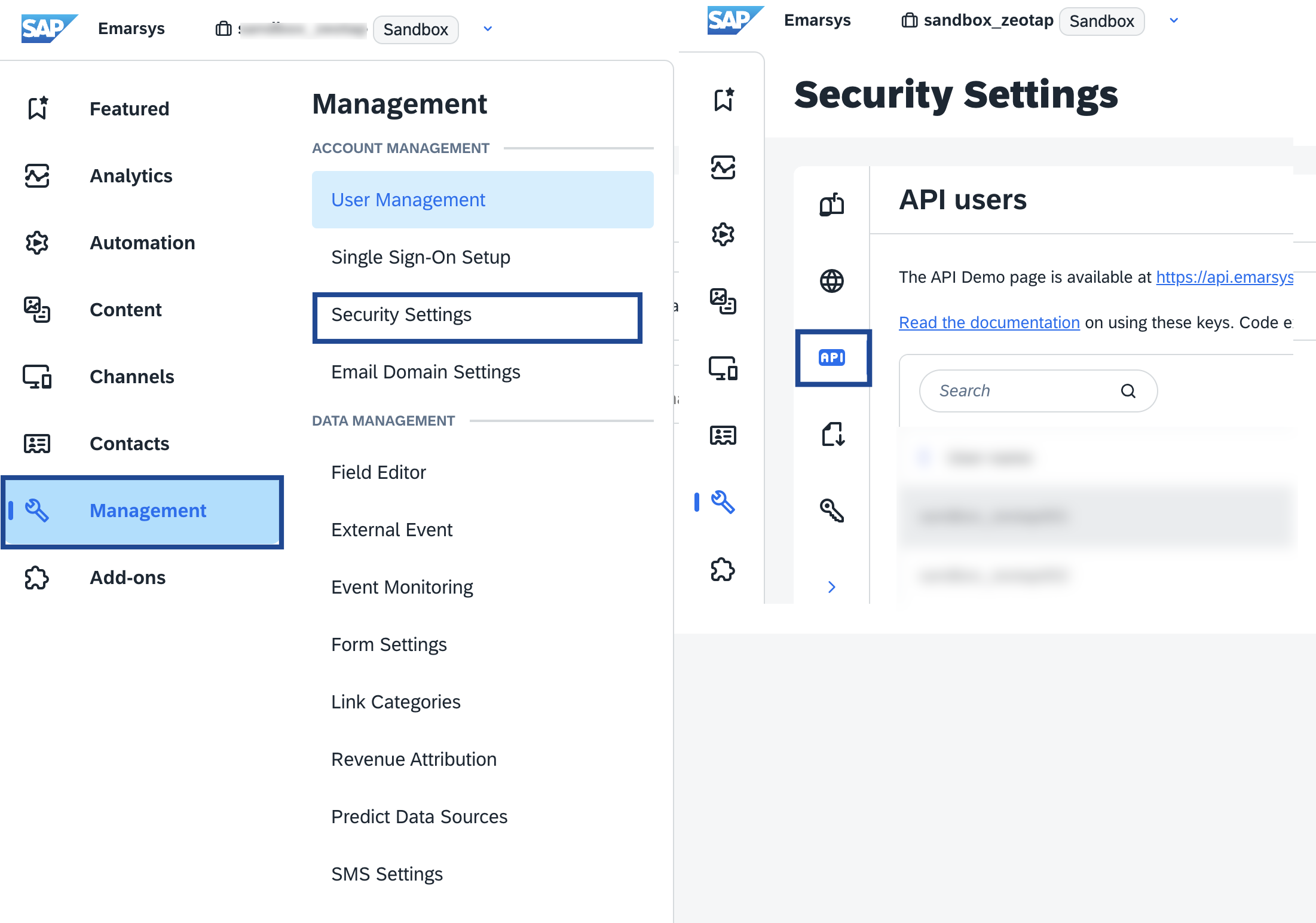
2
In the new screen that appears, under API Credentials, click Create API Credentials.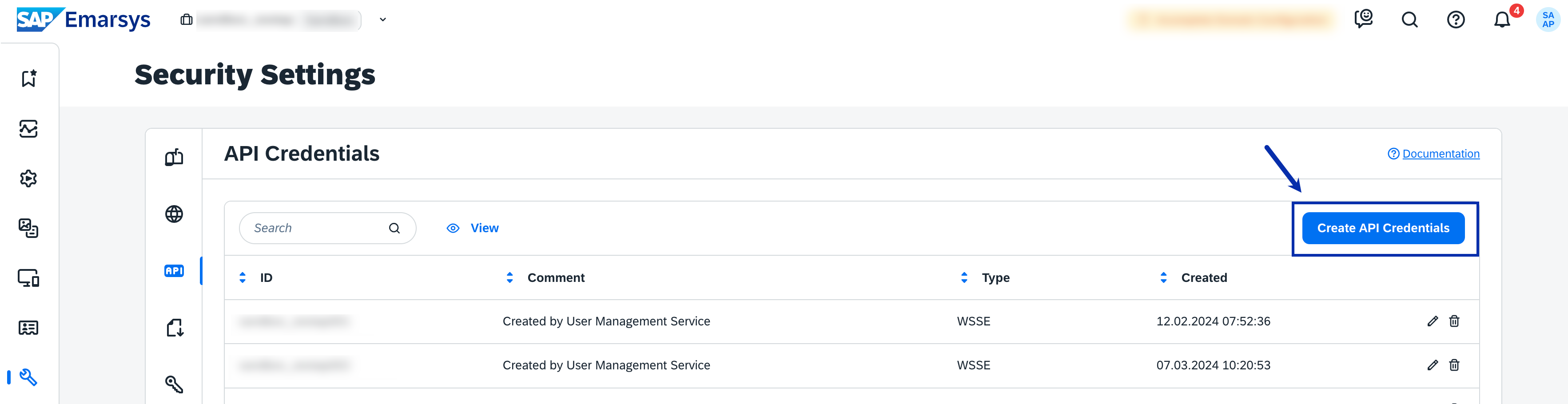
3
In the window that appears, under Create API Credentials, choose your preferred API authentication method. Currently only WSSE authentication is supported. We will be releasing an enhancement to support Open ID Connect soon..a. WSSE (Web Services Security Extensions)–By selecting the WSSE option, you create API credentials that use WSSE authentication over SSL for secure communication. This method requires adding a custom 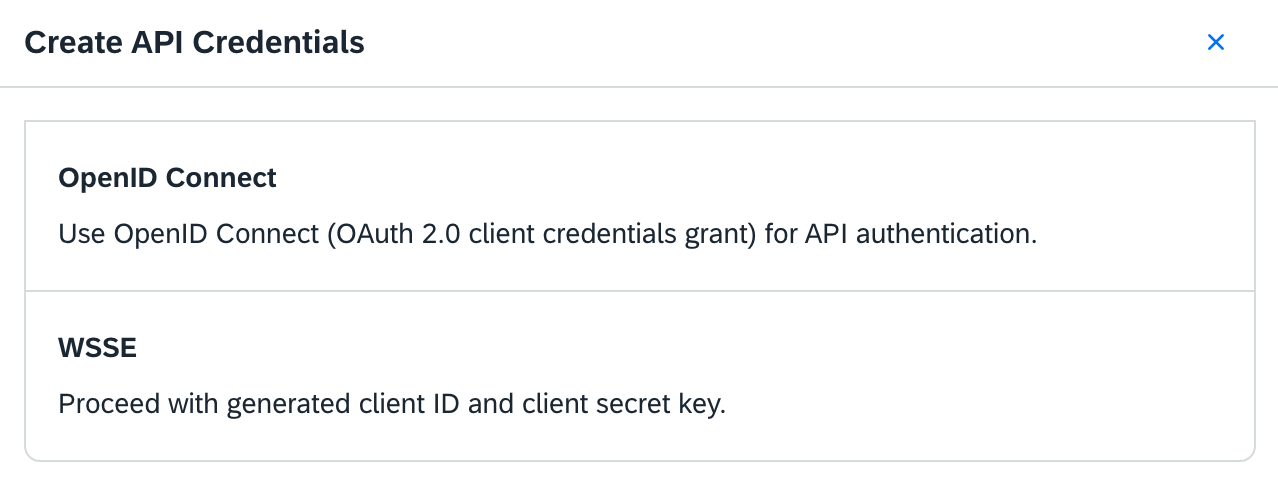
X-WSSE header to each request. Learn more4
In the new screen that appears, enter the Password associated with your Emarsys account and complete the API credentials creation process.
5
Upon successfully creating the API credentials, you can find the ID (User name in Zeotap CDP) and Client Secret details under the API Credentialssection as shown below. Note that the secret is only available until you stay on this page. You will not be able to copy it after navigating away from this page.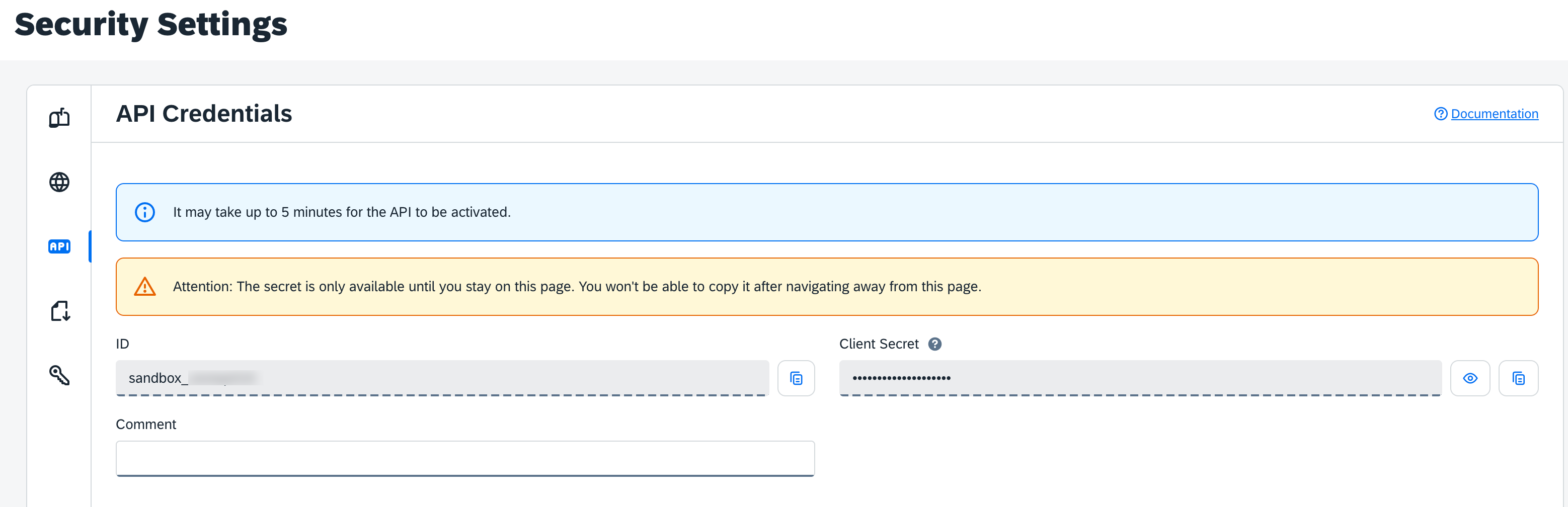
6
Copy the API credentials and scroll down to Permissions.
7
Here, you need to enable the following permissions for the user:a. Under contact, a list of permissions as shown in the image below appears, wherein, you need to enable contacts.update..png?fit=max&auto=format&n=vzDgpNKaht27Bxzv&q=85&s=a5423545ea54ae11e2d0e29b6508a6f7)
.png?fit=max&auto=format&n=vzDgpNKaht27Bxzv&q=85&s=7af10a8163c4a7005333d49764811bdc)
_(1).png?fit=max&auto=format&n=vzDgpNKaht27Bxzv&q=85&s=051956b8805f1b540b37163689a96fa6)
- contactlist.contact.add
- contactlist.contact.delete
- contactlist.create
- externalevent.create
- externalevent.trigger
Key ID (Field ID)
In Emarsys, this is the Field ID of your primary identifier, which you obtain from your Emarsys account. System fields such as raw email, first name, last name and so on, have predefined Key IDs. You can use these directly while creating the destination in Zeotap CDP. For more information about the system fields, refer to the Emarsys documentation.Note:If you want to use a Custom ID as the main identifier, then you must create a custom field in Emarsys and use the corresponding Field ID while creating the destination in Zeotap CDP. Ensure that the custom ID is activated through the Emarsys Support Team .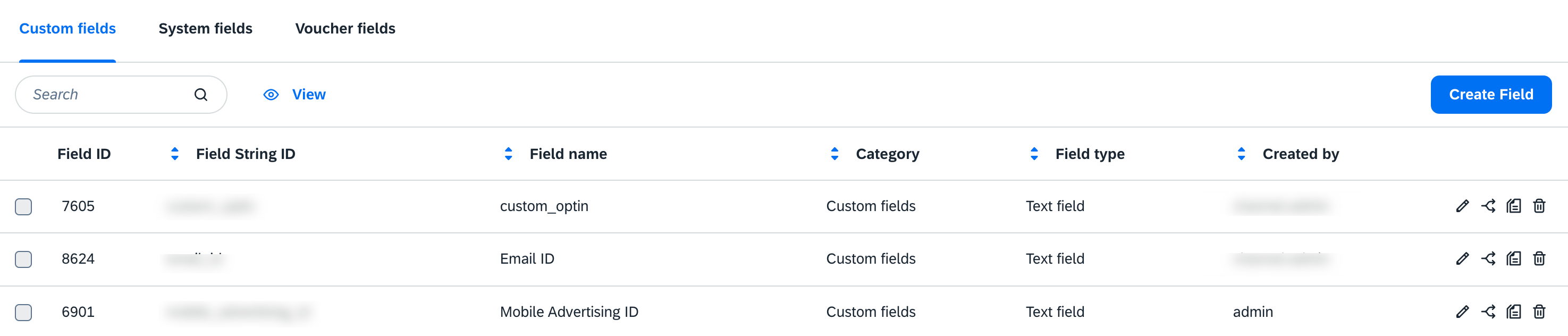
1
Log into Emarsys account and navigate to Management > Field Editor.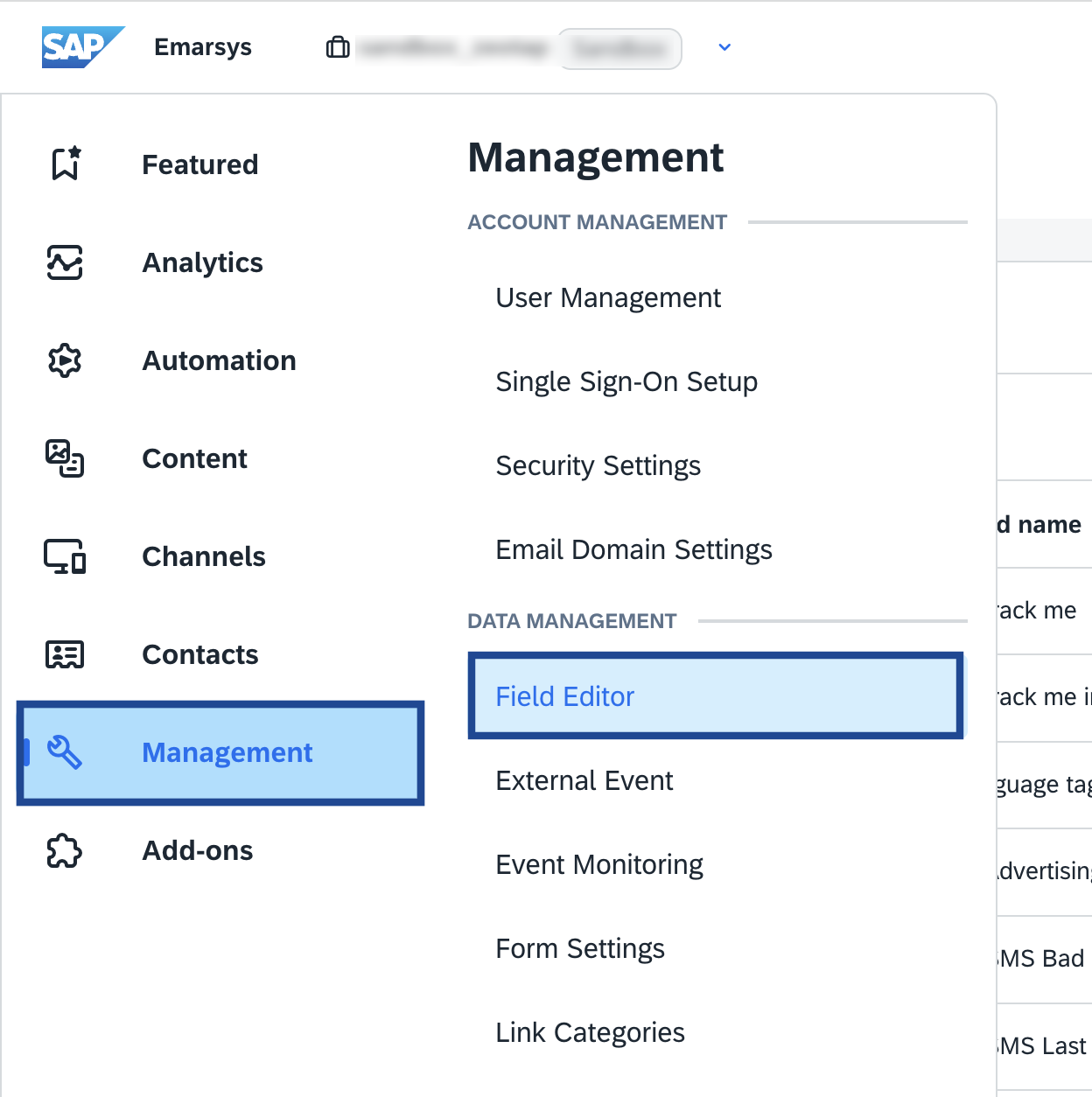
2
In the new screen that appears, click Create Field.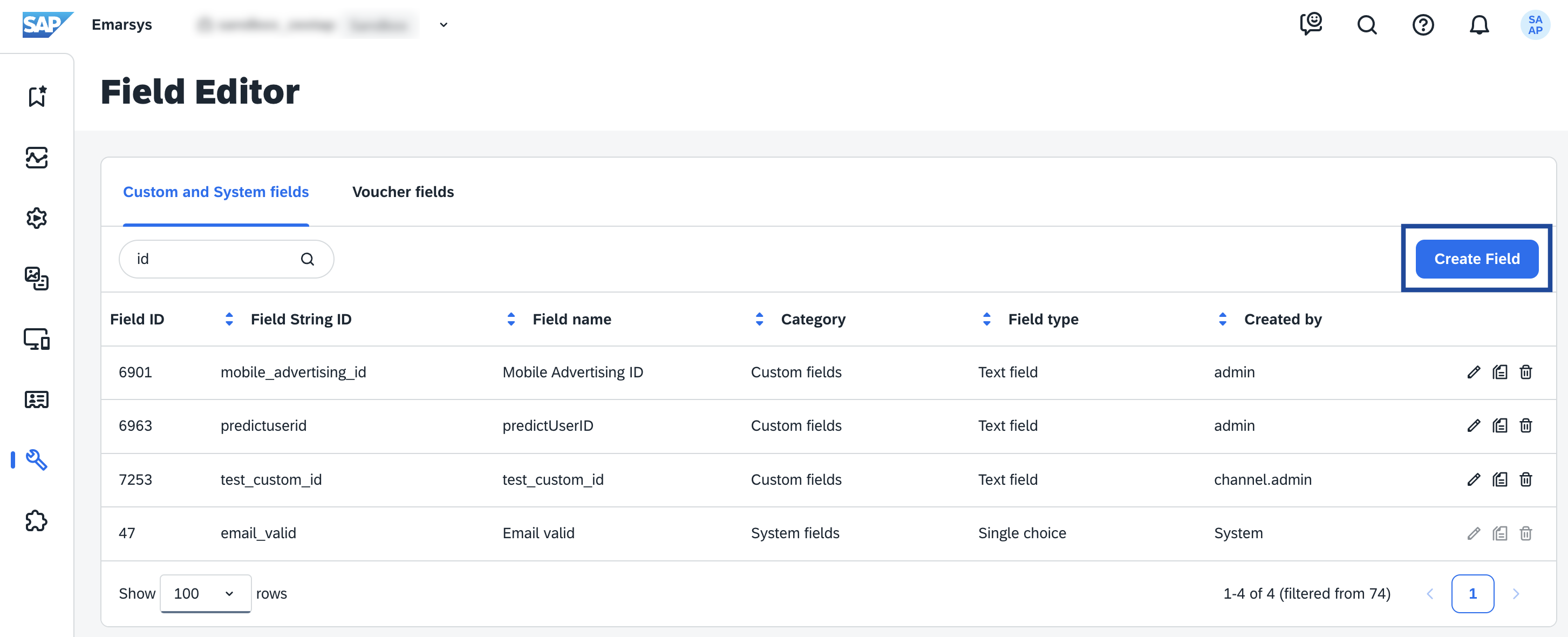
3
In the Field Generator page that appears, provide the following details:a. Enter Name for your identifier.b. Provide a String ID for your identifier.c. Choose the Type of your identifier.d. Review all the details and click Create.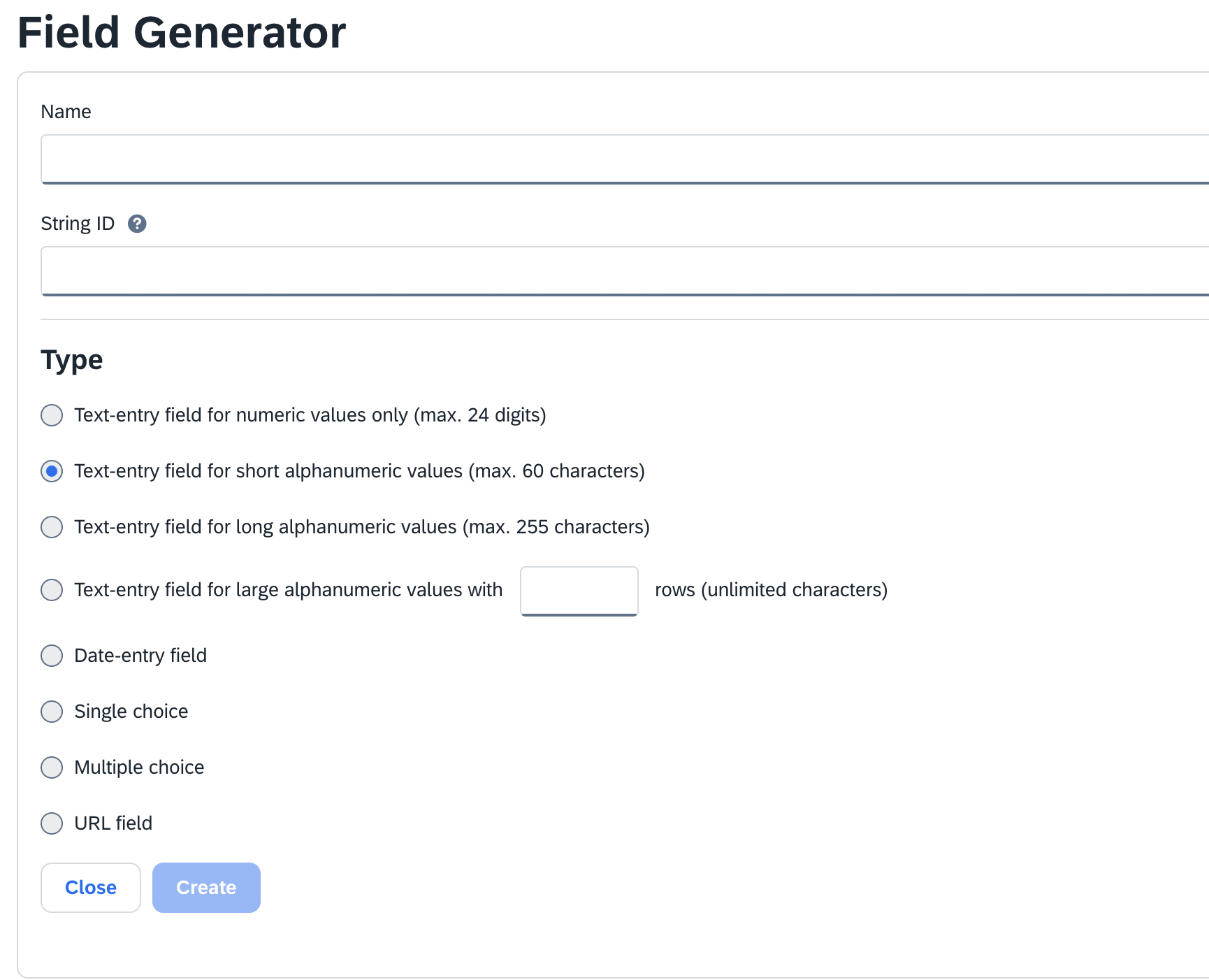
4
The created identifier gets listed in the Field Editor page. You can copy the Field ID against your identifier and provide it in the Key ID field while adding a new Destination in Zeotap CDP.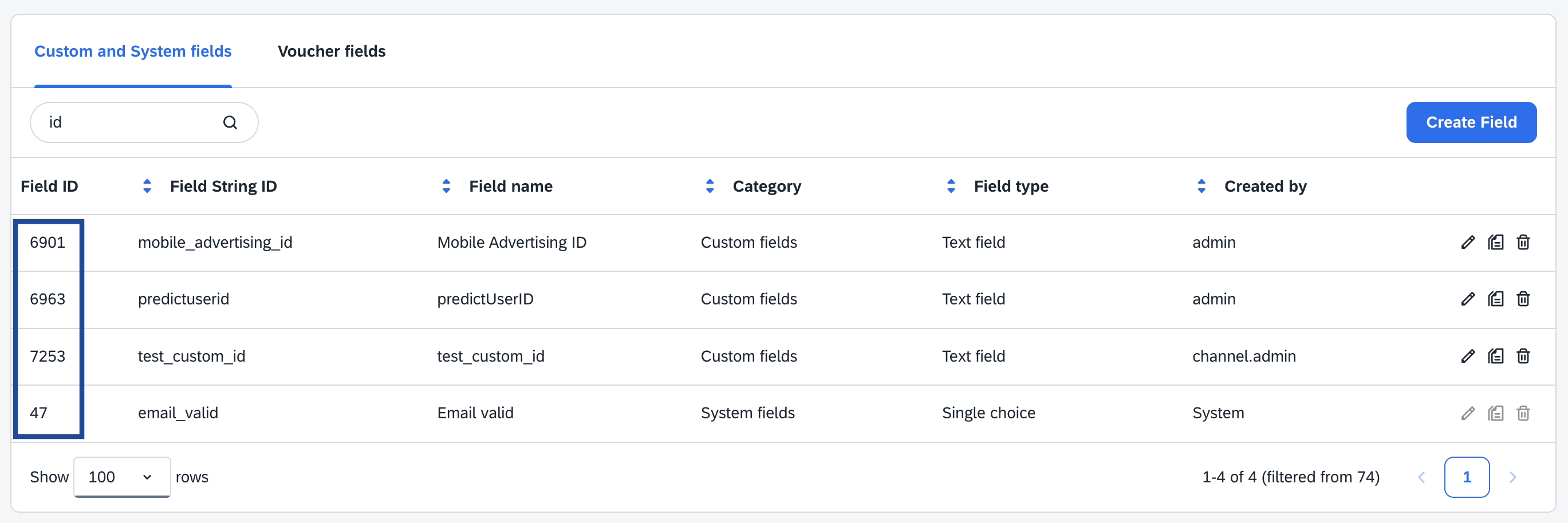
Create a Destination for Emarsys
After obtaining the prerequisites as explained in the previous section, perform the following steps to create a Destination for Emarsys:1
Log into the Zeotap CDP App and go to the DESTINATIONS application.
2
Click + Create Destination.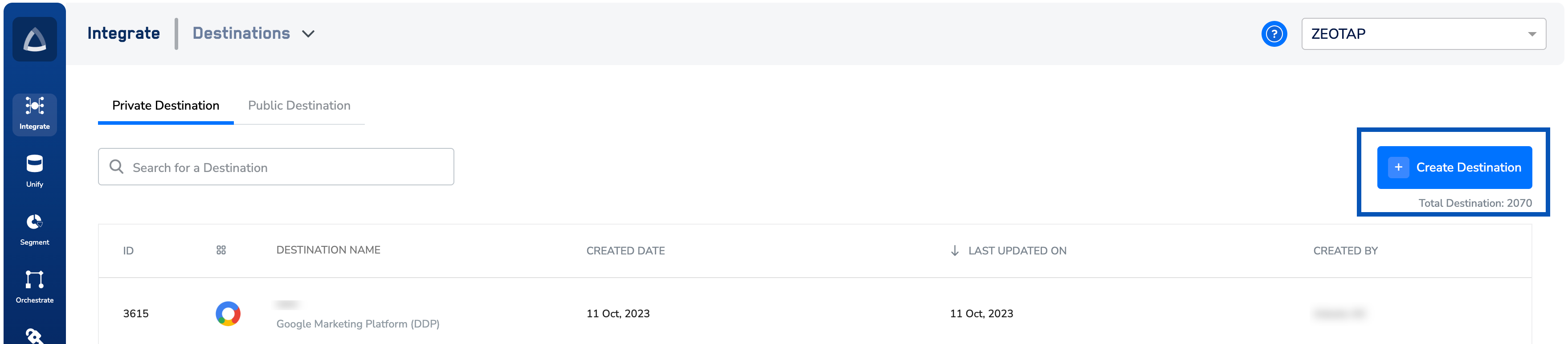
3
Under All Destinations, search for Emarsys.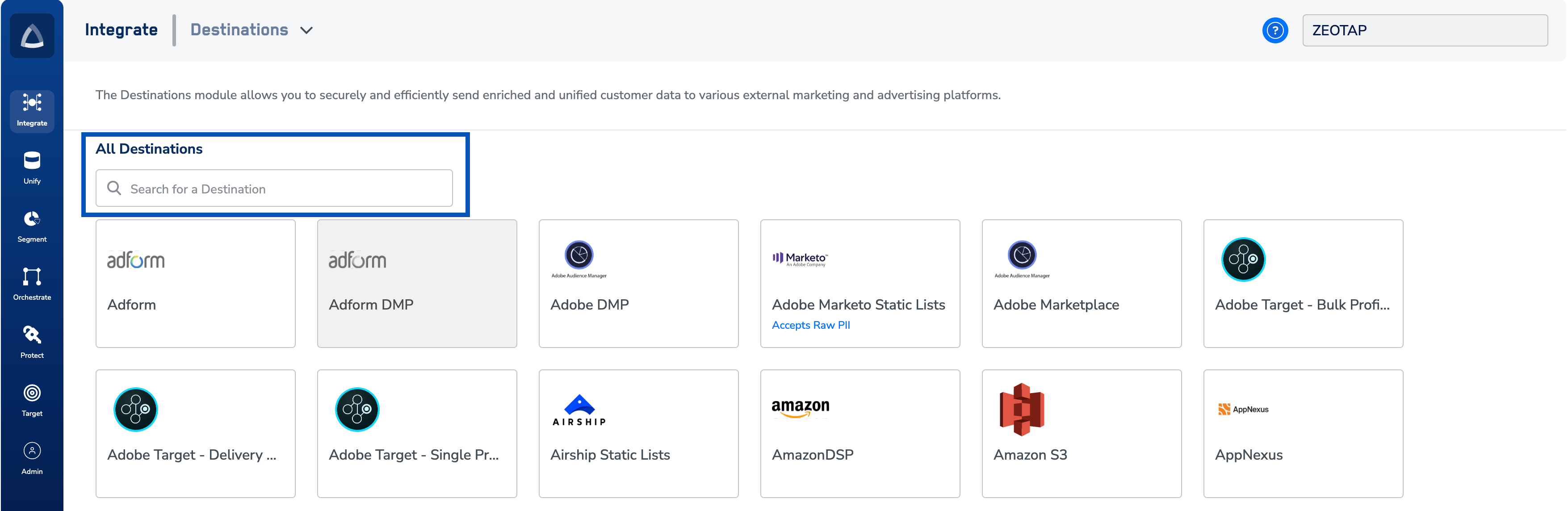
4
Click Emarsys. A screen appears displaying details about the particular destination towards the left. On the right-hand side of the screen, find a list of fields that are required for the integration to be established. Enter the required details as mentioned in the following steps:a. Enter a name for the Destination.b. Enter the User name of the account to which Zeotap sends data. For information about how to obtain this from Emarsys, refer to the Prerequisitessection.c. Enter the Secret Key obtained from your Emarsys account. For information about how to obtain this from Emarsys, refer to the Prerequisites section.d. Enter the Key ID. For information about how to obtain this from Emarsys, refer to the Prerequisites section.e. Review all the values entered above and then click Next to proceed.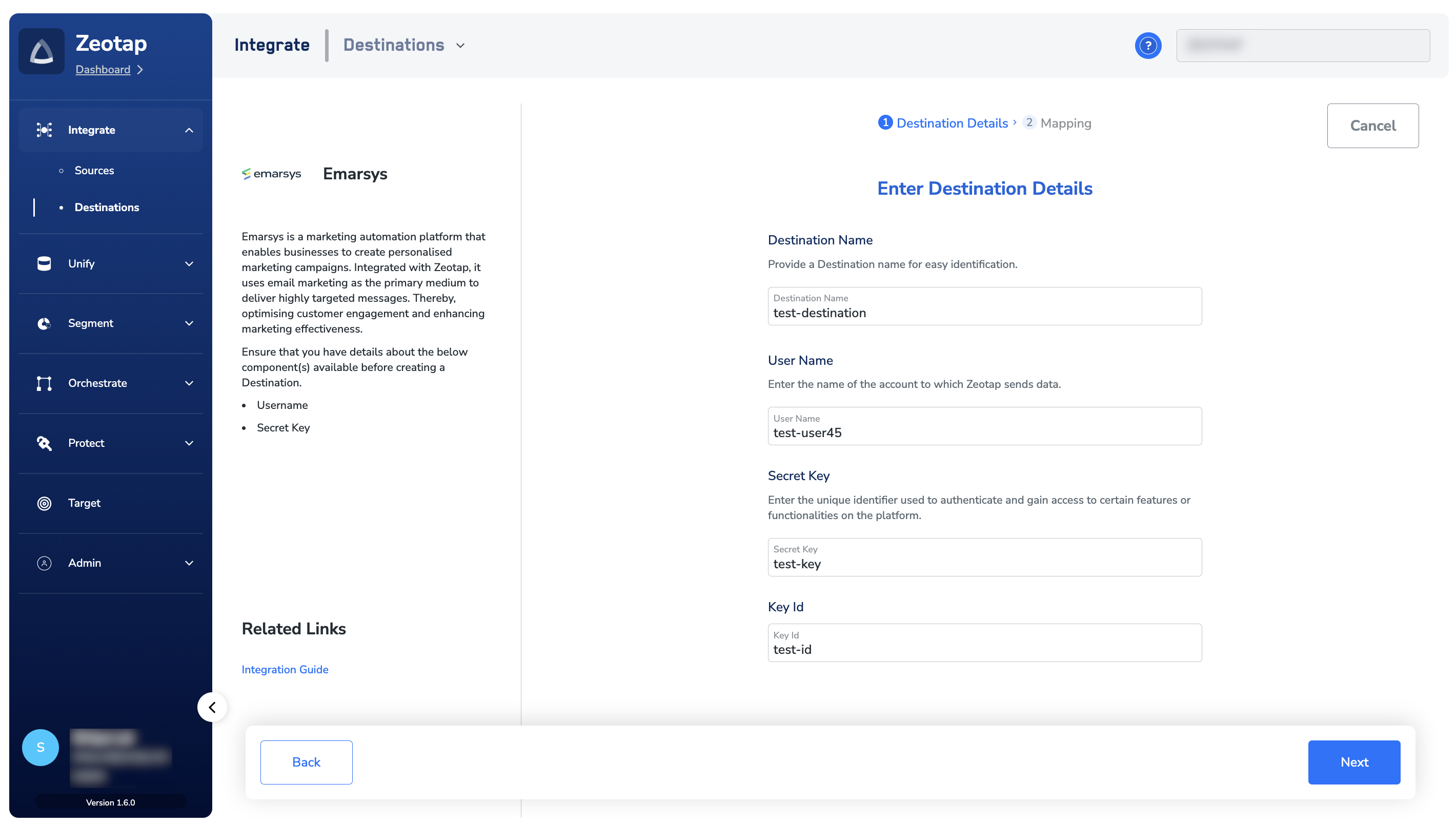
Note:To use the ‘custom_ID’ as the ‘key_ID’, contact your Emarsys support to get it activated.
5
In the new screen that appears, choose the appropriate Action and mapping as explained below. Under Choose your Action, you can either choose Send Identifiers to Emarsys or Send attributes and identifiers to Emarsys as the action based on the downstream system that you wish to use for activating your audience, that is, Audiences.a. Choose Send Identifiers to Emarsys (Deprecated) as your action to send only email addresses to Emarsys.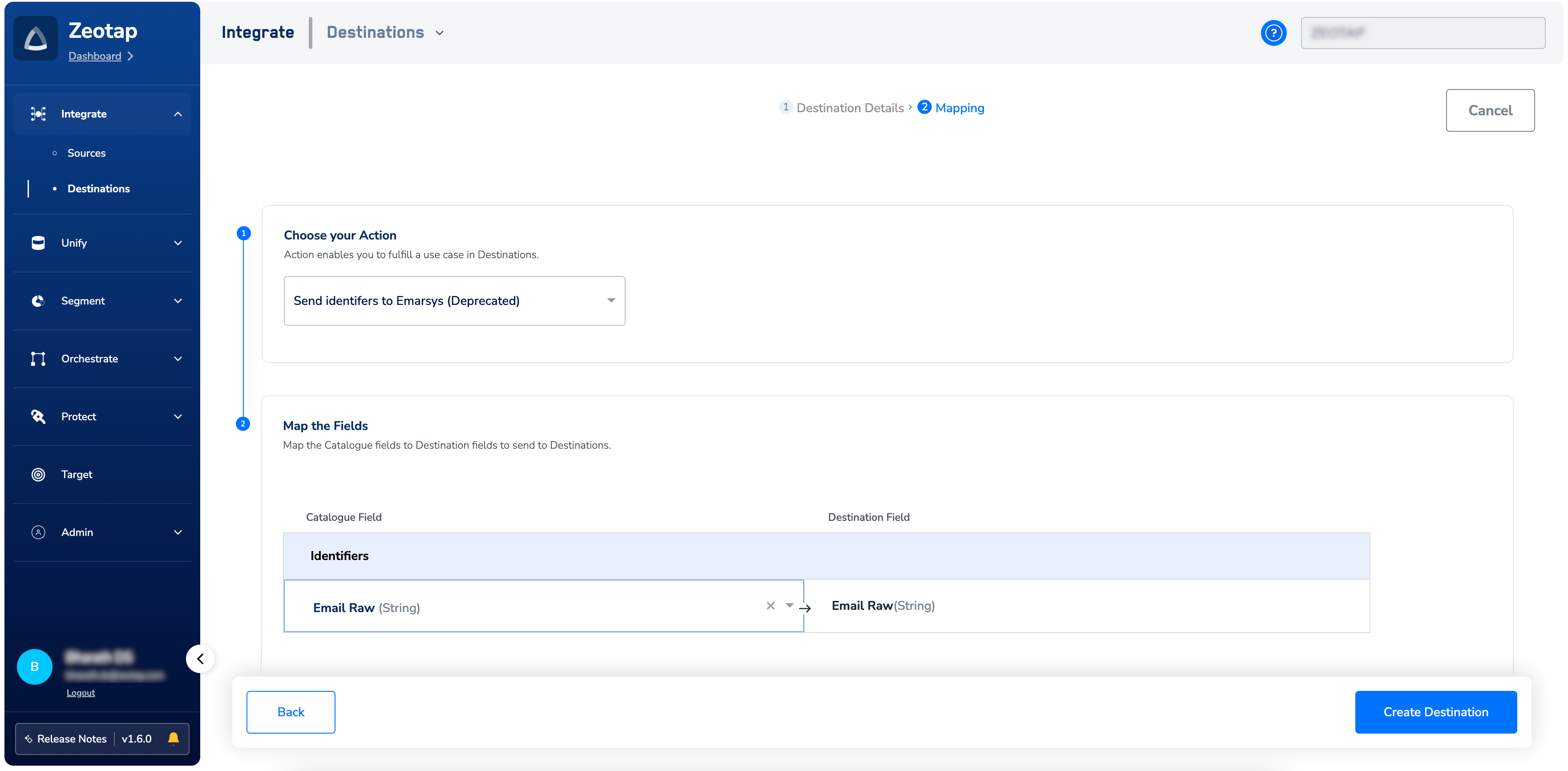
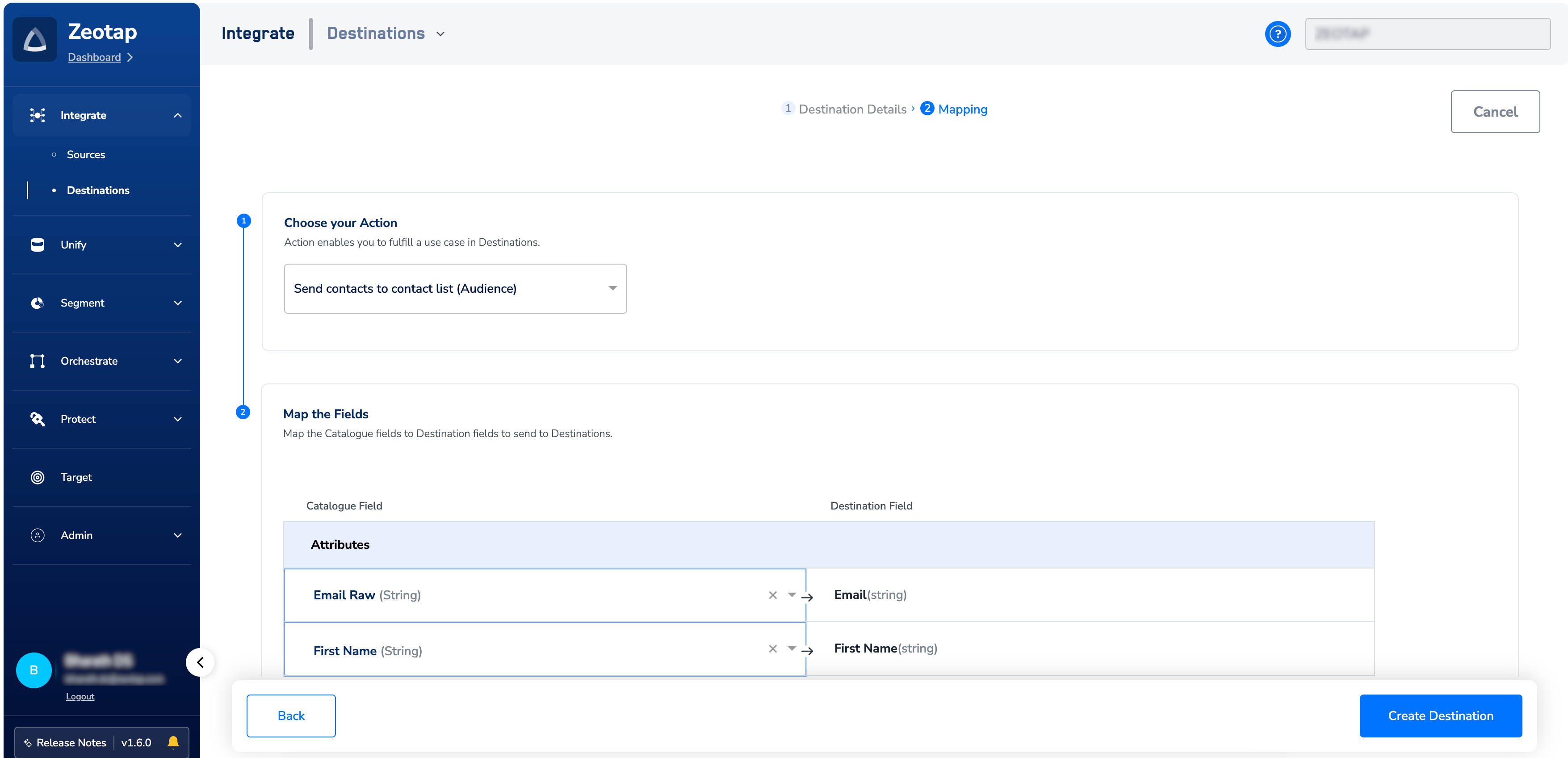
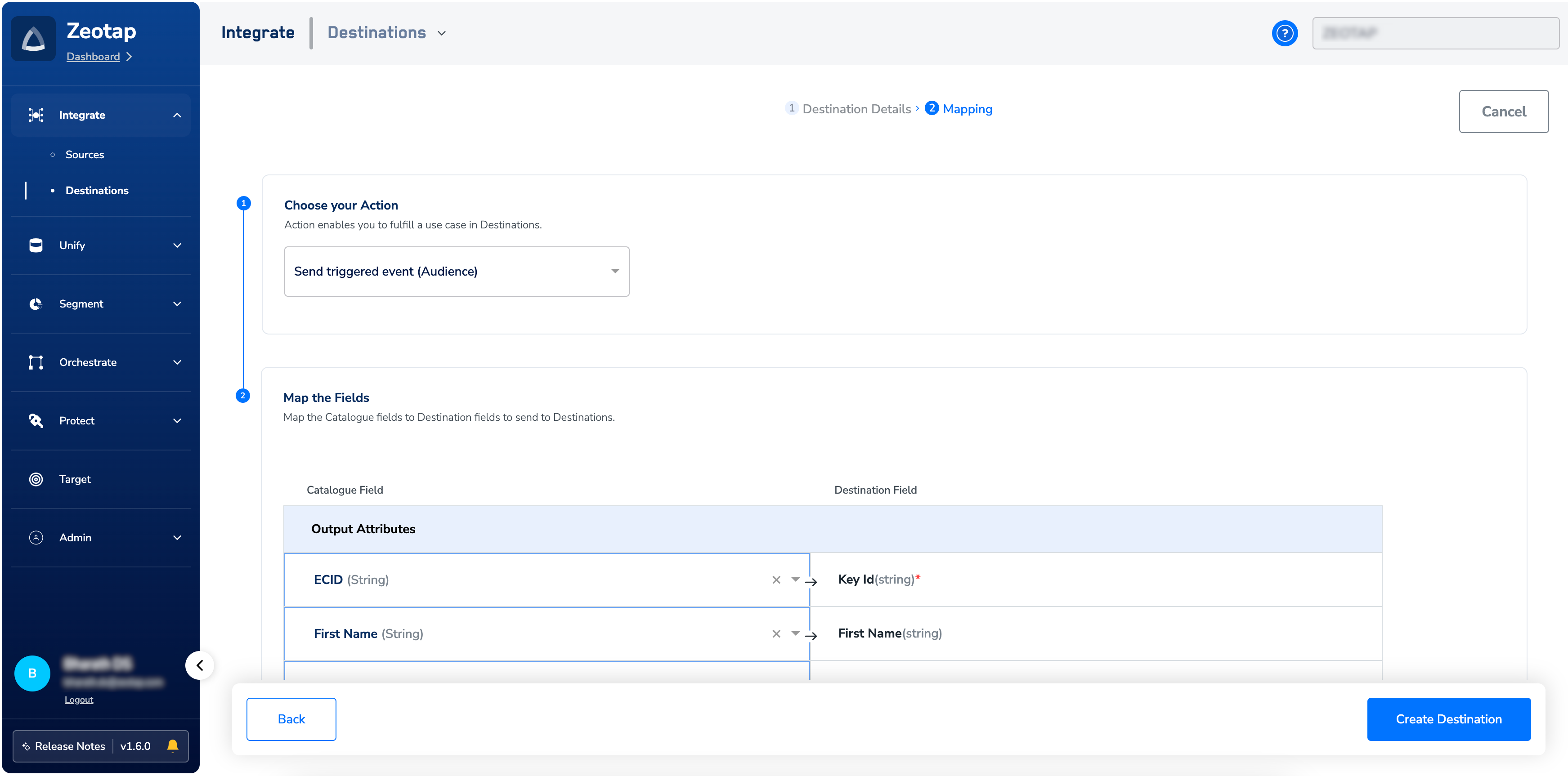
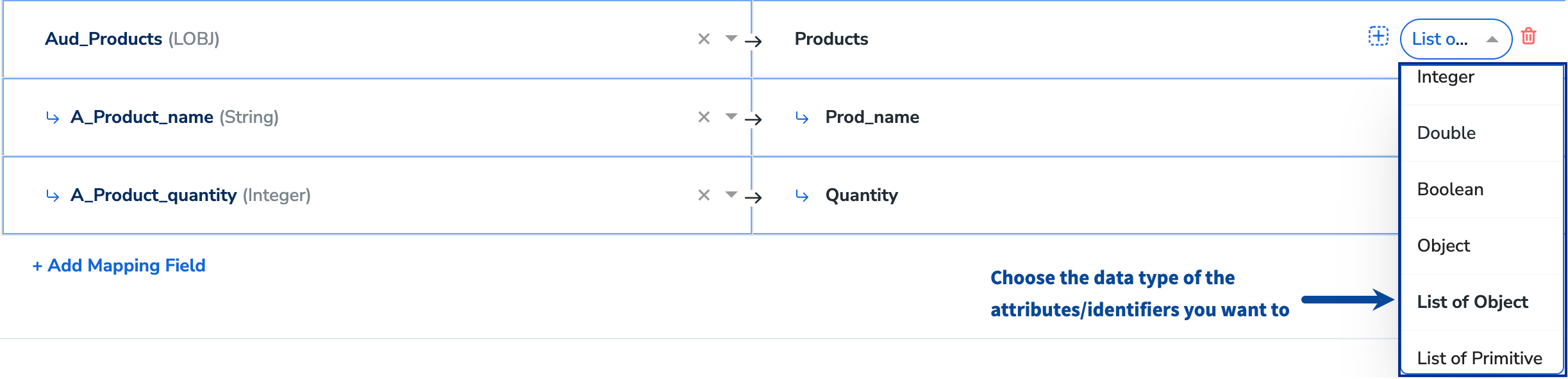
- Array/List of primitives (that is, List of String/Integer/Double/Boolean) or
- Objects or Array/List of Objects
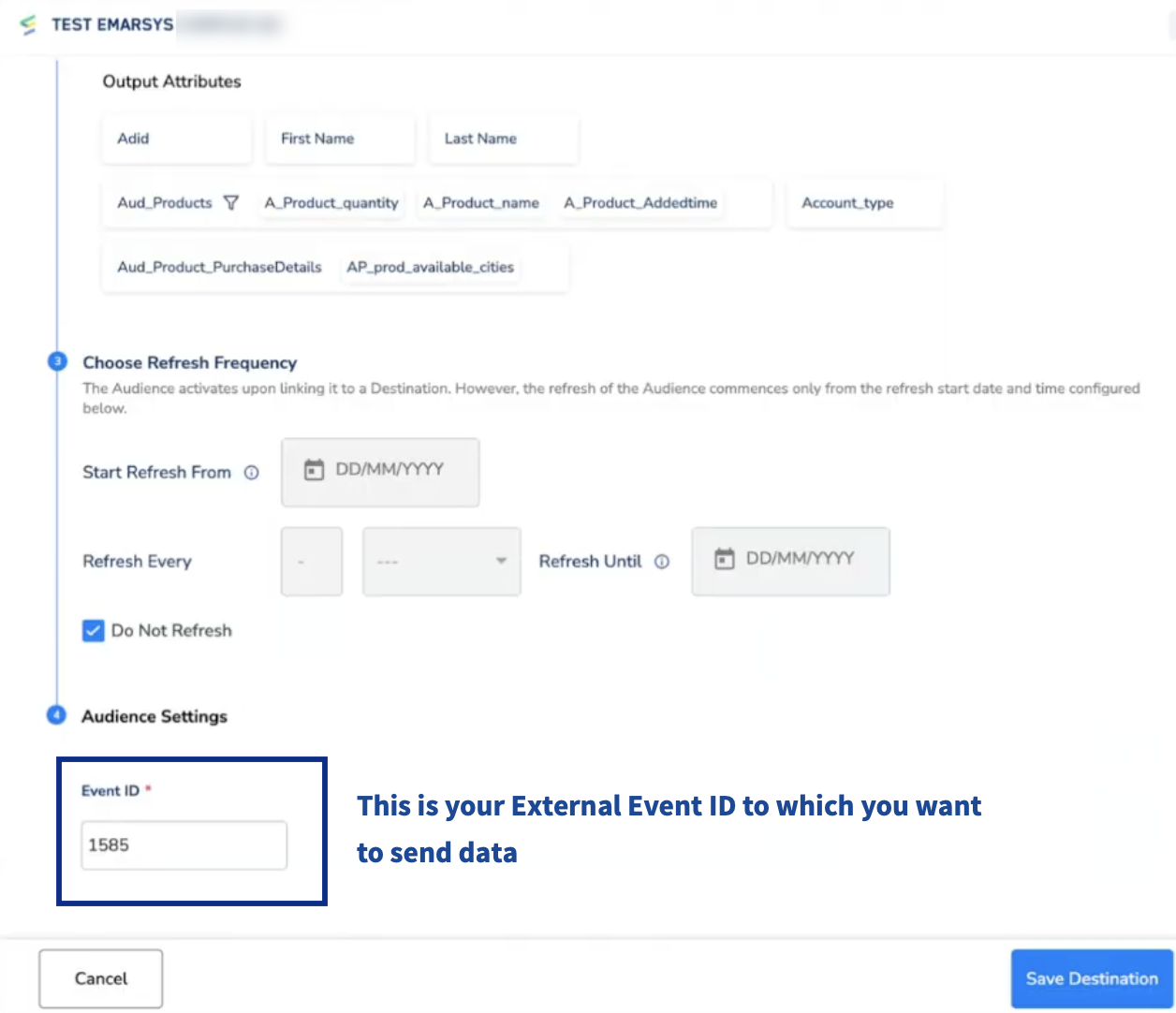
Note:Note that, in the Destinations Settings window, you must provide the Event ID of the corresponding external event to which you want to send the data. To learn more about External Event and Event ID, refer here.
6
Once the mapping is complete, click Create Destination. The created Destination gets listed in the Audiences application, which can be linked to an audience/segment.
Link an Audience to the Emarsys Destination
For information about how to link an Audience or segment to the created Destination in the Audiencesapplication, refer here.Note:The terms Audiences and Segments are used interchangeably to refer to customer cohorts belonging to a specific category.For example, an Audience or a segment can be a specific group of customers who are over 18 years of age and haveperformed an
addToCart event within the last 30 days.View Audiences on Emarsys
Perform the following steps to view the pushed Audiences (segments) on the Emarsys platform:1
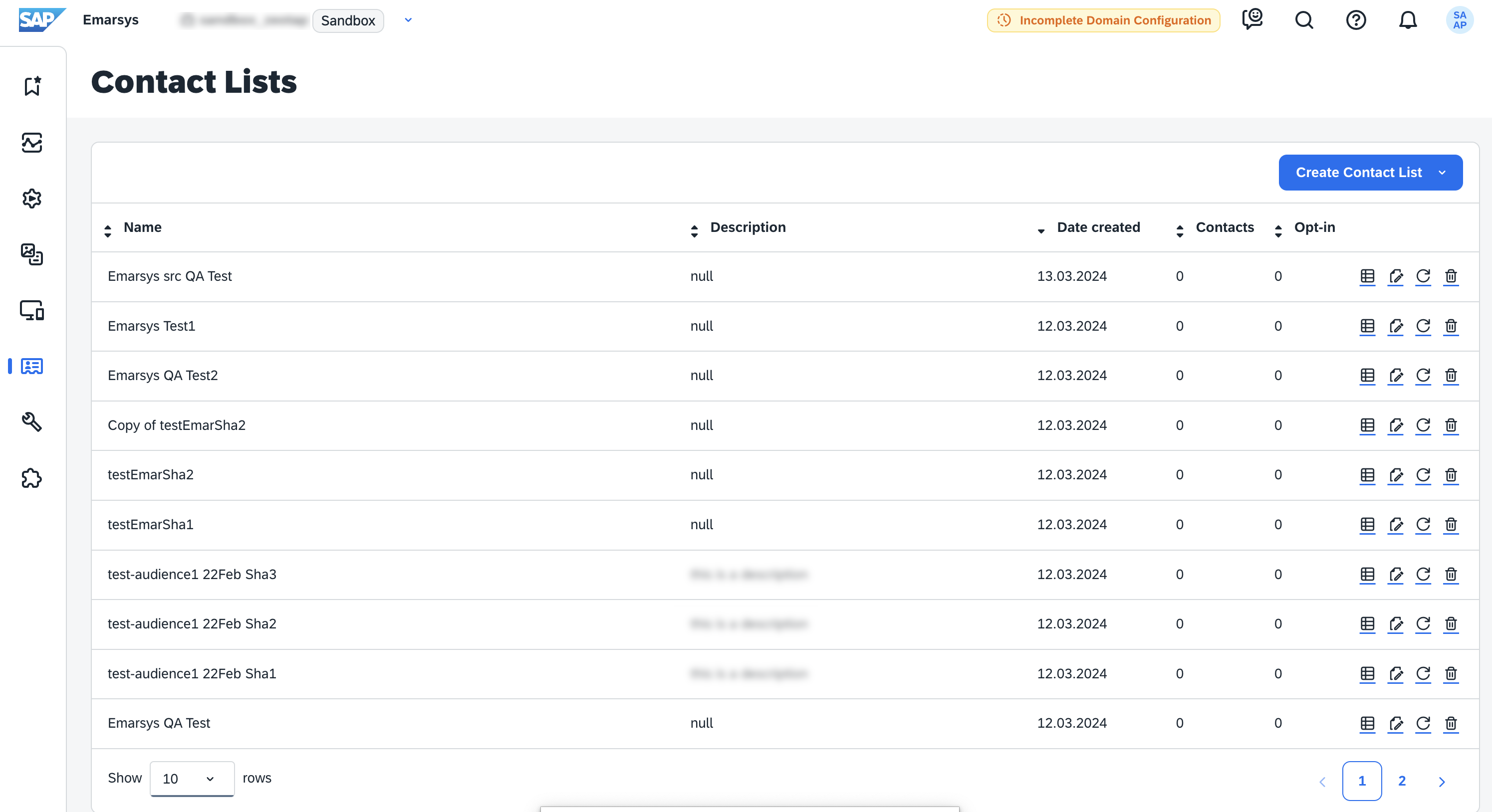
Log into Emarsys and navigate to Contacts > Contact Lists.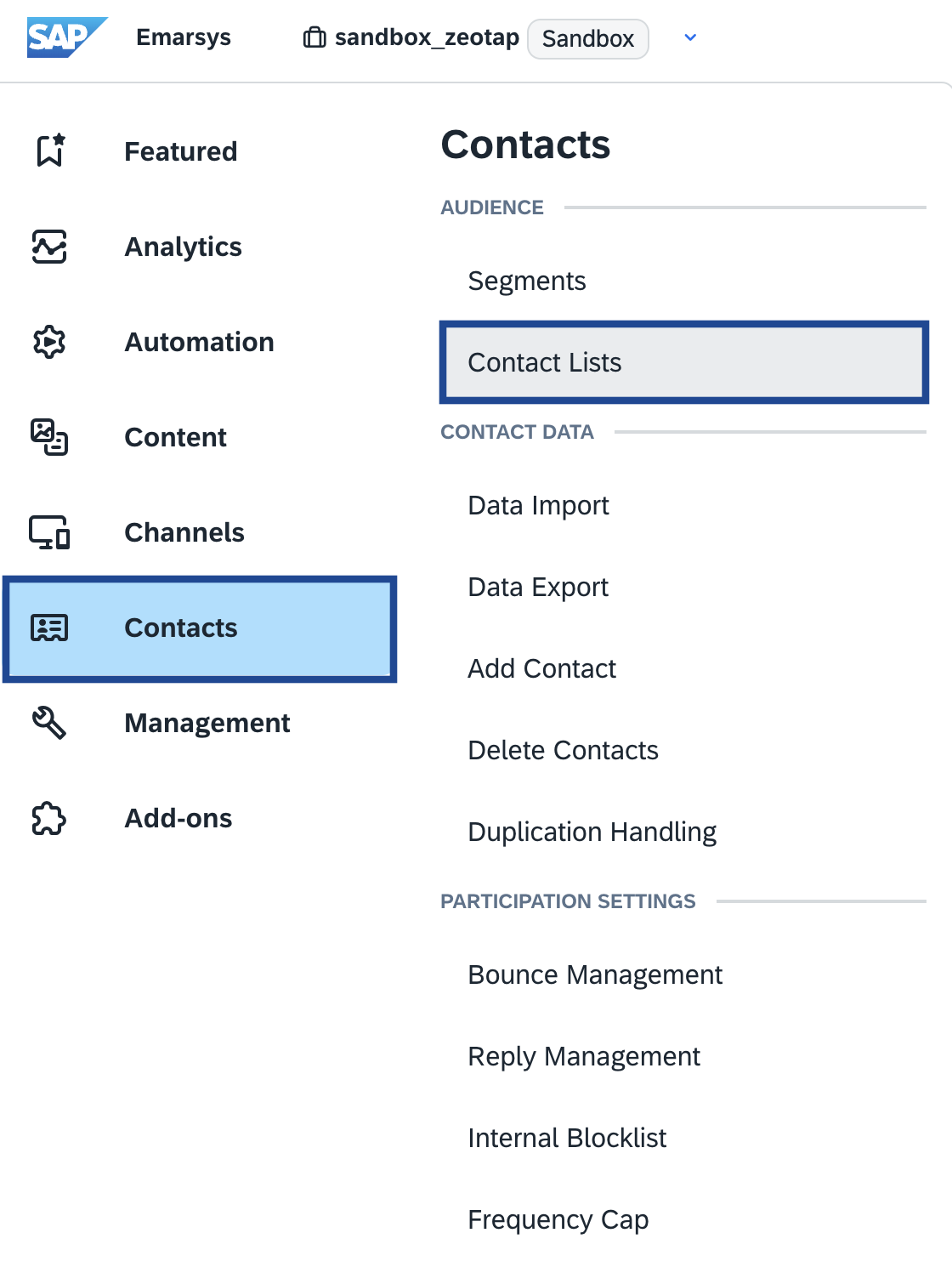
Note:Contact List is an Audience (segment) of customers that is created within Zeotap CDP’sAudiences application and then pushed to Emarsys.
2
Under Contact Lists, you can view all the audiences (segments) that are pushed from Zeotap CDP to Emarsys as shown in the image below.