

What this is
Appademic S3 is a batch destination: data flows out of Zeotap CDP to an Amazon S3 bucket that Appademic reads. You link an audience to the destination, and each delivery writes the audience out as a CSV file into the bucket and folder path you configure, where Appademic picks it up for downstream audience activation and analytics. Appademic is a mobile marketing and analytics platform that helps businesses understand and engage their users more effectively. This connector is outbound only — there is no Appademic source, so nothing flows from Appademic back into Zeotap CDP through it. To bring data from your own Amazon S3 storage into Zeotap CDP, use the Amazon S3 source instead. For a general-purpose export to an S3 bucket of your own, see the Amazon S3 destination.Supported identifiers and actions
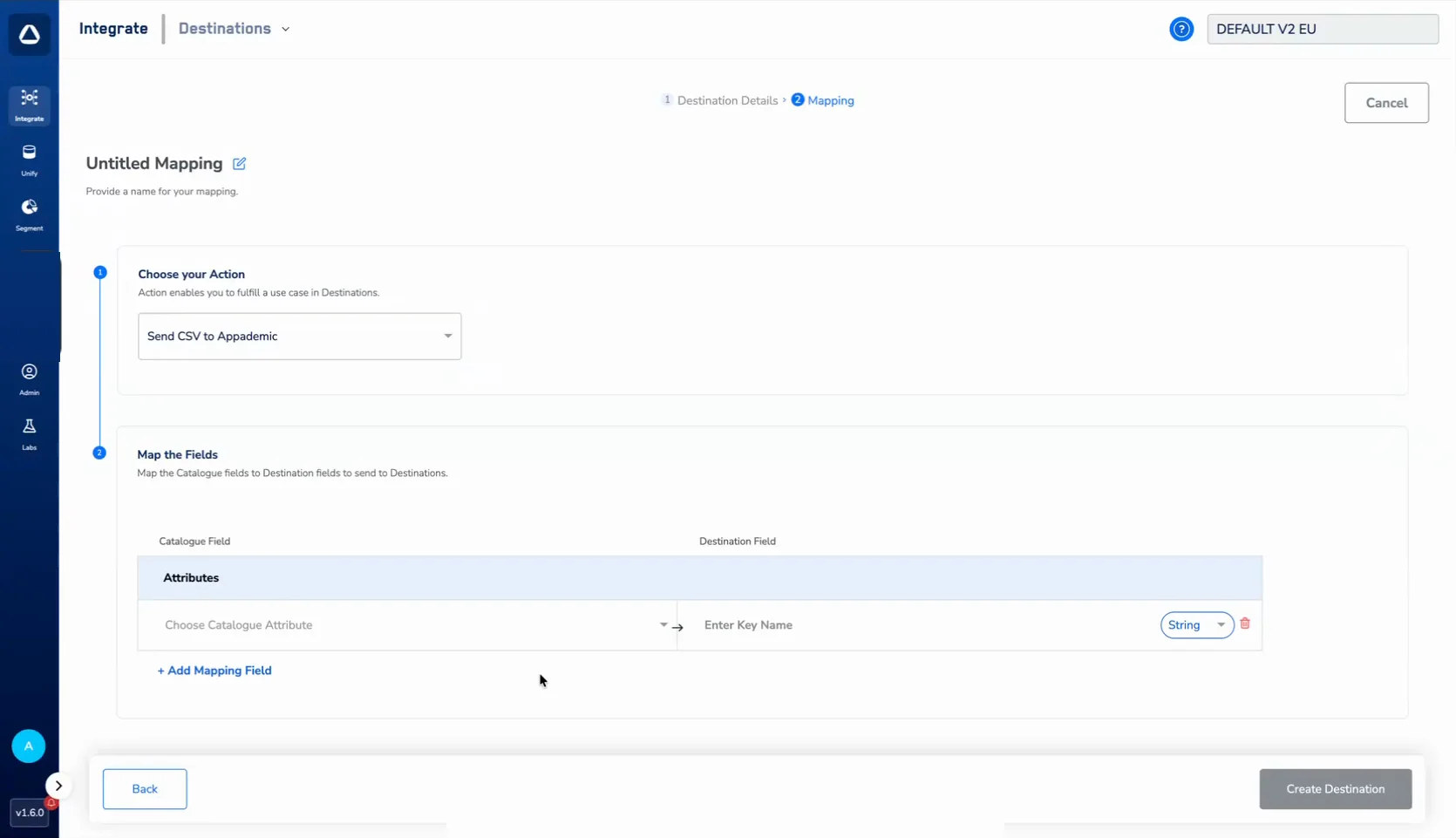
You can send any identifiers and attributes available in your catalogue to Appademic S3. The fields that are exported are exactly the ones you select in the Map the Fields step while creating the destination — nothing is sent by default. The destination exposes a single action, Send CSV to Appademic, which sends your audience data to the Appademic S3 bucket as a CSV file.Prerequisites
Before you create an Appademic S3 destination in Zeotap CDP, make sure you have the following Amazon S3 details to hand:- S3 bucket name
- S3 folder path (optional)
- AWS Access Key ID
- AWS Secret Access Key
- S3 bucket region
Gather your Amazon S3 details
Collect each value from your Amazon S3 account before you start the destination form.S3 bucket name
The name of the Amazon S3 bucket where the exported files are stored. Find it in your Amazon S3 account under Buckets.S3 bucket region
The geographical location where the Amazon S3 storage is available. Find it on the Properties tab of the bucket.S3 folder path
The optional folder path within the bucket where Zeotap CDP stores your exported data. In Amazon S3, a folder serves as a logical container for organising stored objects within a bucket — in practice it is a prefix on the object name rather than a real directory. Find the existing structure on the Objects tab of the bucket, and enter the path in this form:folder_name/sub_folder_name/
AWS Access Key ID and AWS Secret Access Key
The security credentials that provide secure access to your Amazon S3 resources. Obtain both from the AWS IAM Credentials tab under Security credentials in your Amazon S3 account.Create the Appademic S3 destination
1
Log in to the Zeotap CDP app and open Destinations under Integrate.
2
Click + Create Destination.
3
Under the All Destinations section, search for Appademic S3 and click Appademic S3.
4
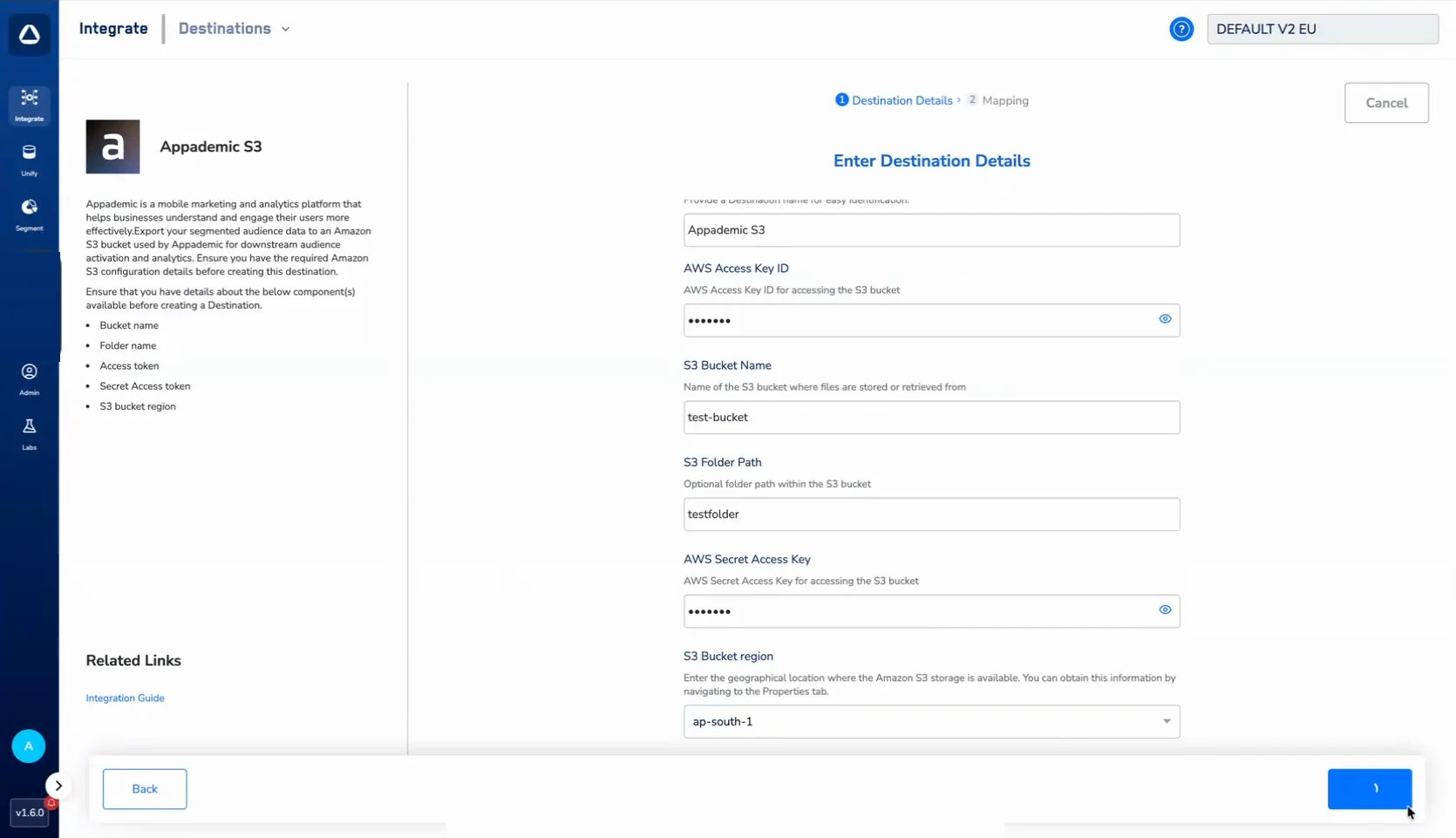
The Destination Details step appears, with details about the destination on the left and the fields required to establish the integration on the right. Provide the following:a. In the Destination Name field, enter a name for the destination.b. In the AWS Access Key ID field, enter the AWS Access Key ID for accessing the S3 bucket.c. In the S3 Bucket Name field, enter the name of the S3 bucket where files are stored or retrieved from.d. In the S3 Folder Path field, optionally enter the folder path within the S3 bucket.e. In the AWS Secret Access Key field, enter the AWS Secret Access Key for accessing the S3 bucket.f. In the S3 Bucket region field, select the geographical location where the Amazon S3 storage is available.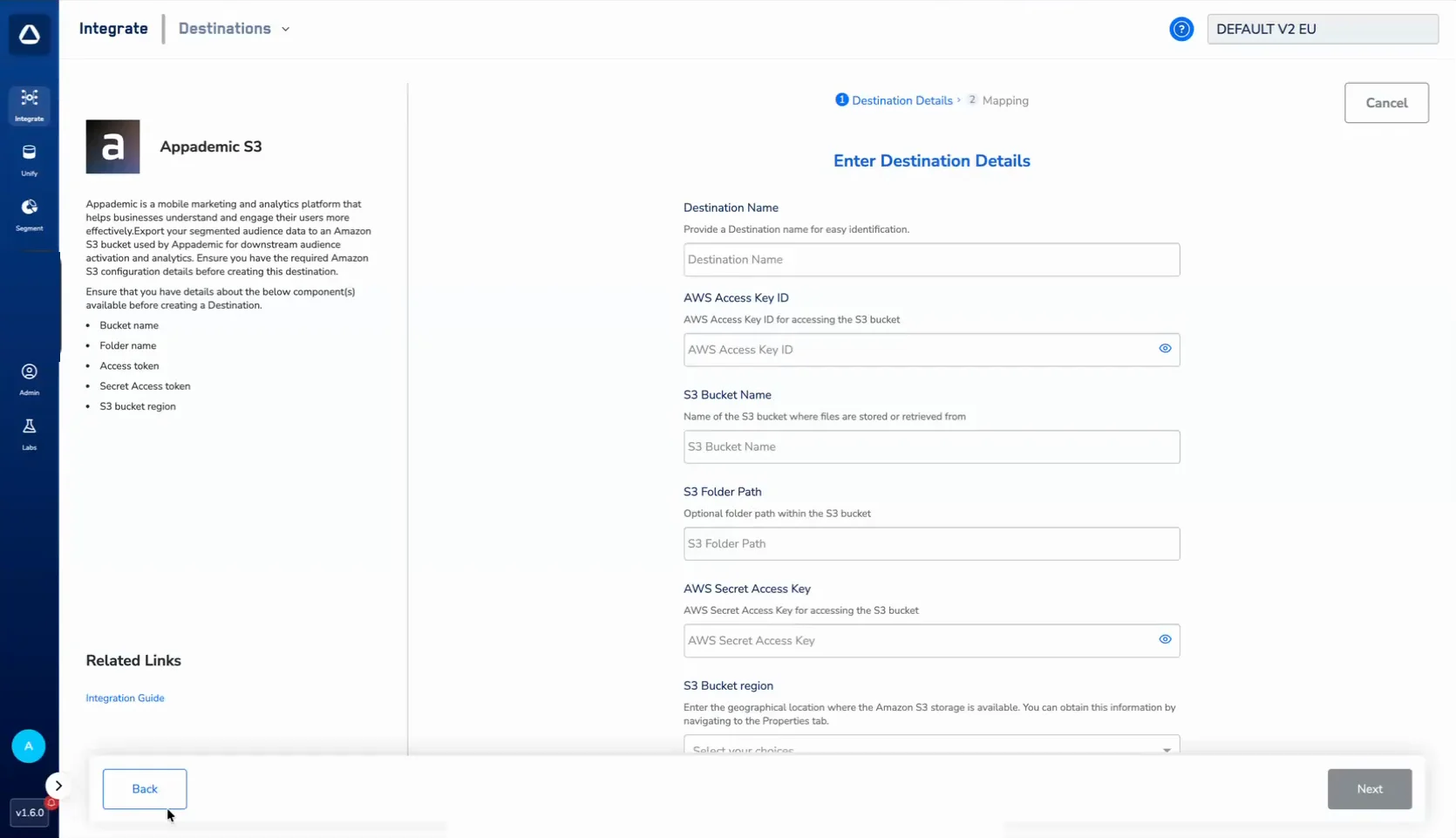
5
On the Mapping step, provide a name for your mapping, then configure the action and the field mapping:a. Under Choose your Action, select Send CSV to Appademic. This action sends your audience data to the Appademic S3 bucket.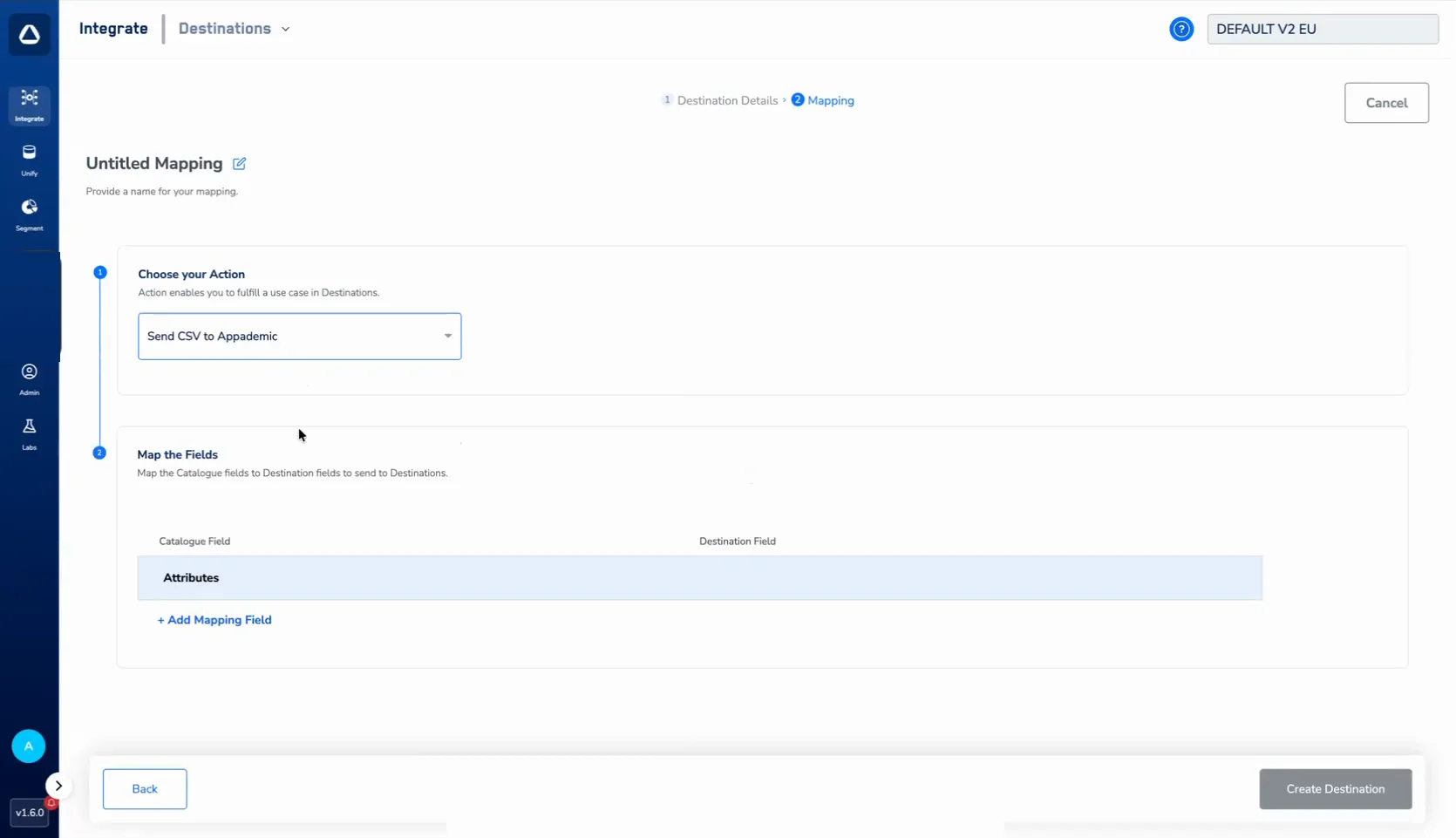
6
Click Create Destination. The destination is then listed in Audiences, where it can be linked to an audience.
Link an audience to the destination
The destination only delivers once an audience is linked to it. For how to link an audience or segment to the destination you created, see Activate your batch audiences.Note:The terms Audiences and Segments are used interchangeably to refer to customer cohorts belonging to a specific category. For example, an Audience or a segment could be a specific group of customers who are over 18 years of age and who have performed an
addToCart event within the last 30 days.How lists of objects and NCEs are exported
When you export a List of Objects or a Non-Customer Entity (NCE) to Appademic, each object is flattened into a separate row in the CSV file.- If an NCE contains 3 objects, the export generates 3 rows in the CSV.
- If multiple NCEs are attached, the export performs a cross-product across them. For example, if one NCE contains 3 objects and another contains 2 objects, the export generates 6 rows (3 × 2).
Verify the export
Confirm the delivery from both sides:- In Zeotap CDP — open the destination and review its activity for the linked audience. A successful delivery records a completed run with a non-zero count; a failed run records an error you can use to diagnose the cause. See verify the activation worked.
- In Amazon S3 — open the bucket on the Objects tab, navigate to the folder path you configured, and confirm a CSV file is present for that run.
Troubleshoot the export
Work through the destination’s own configuration first — most failures on this connector are in the five Amazon S3 values you entered.
If the run fails on the Zeotap CDP side rather than the Amazon S3 side — for example, the audience returns no qualifying customers, or the run is terminated — see why deliveries fail.