

Overview
Google BigQuery is an industry-leading, fully-managed cloud data warehouse that lets you efficiently store and analyse huge amounts of data. By integrating with Zeotap CDP, you can easily send your segmented data to BigQuery, which can then be used for delivering more personalised targeting across various touch points.Service Account Owner
In Google BigQuery, a Service Account Owner refers to a user account that has owner privileges for configuring and overseeing significant queries within the integration. This ownership entails the authority to view, modify and manage the data in Google BigQuery. The responsibilities of a Service Account Owner in Google BigQuery include performing administrative tasks, managing passwords and permissions and configuring service accounts for integration with external platforms within the Google Cloud Platform (GCP).Supported Identifiers/Attributes
You can send any identifier or attribute of your choice from Zeotap CDP to Google BigQuery using this integration.Available Actions and Supported Features
The following table lists the available action types for the integration and the supported features for each action type:Prerequisites
Before you create a BigQuery Destination in Zeotap CDP, ensure that you have an account with BigQuery. For that account, ensure that you have the following information readily available:- Project ID
- Dataset Name
- Table Name
- Bucket
- Folder
- Account
Project ID
A Project ID is a unique string that differentiates your project from all others on Google Cloud. You can use the Google Cloud console to generate a Project ID. You can find the Project ID in the Google Cloud console - Dashboard page. In the below example, the Project name is My Sample Project and the Project ID is my-sample-project-191923.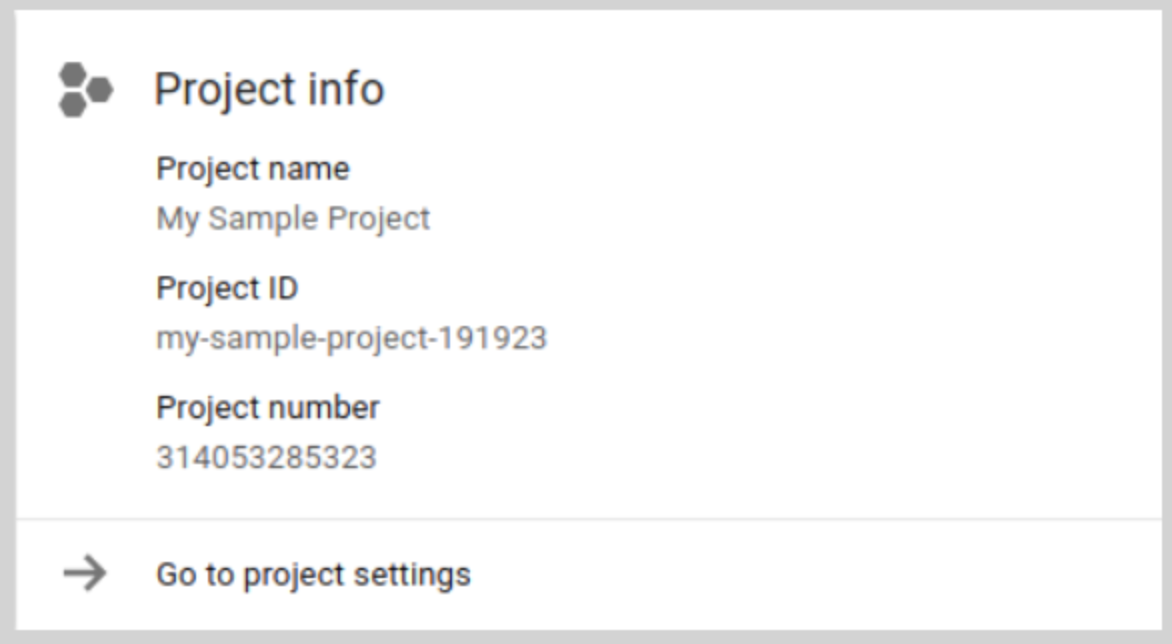
Dataset Name
Datasets are top-level containers that are used to organise and control access to your tables and views. In the below example, the Dataset Name is GBQ_dataset.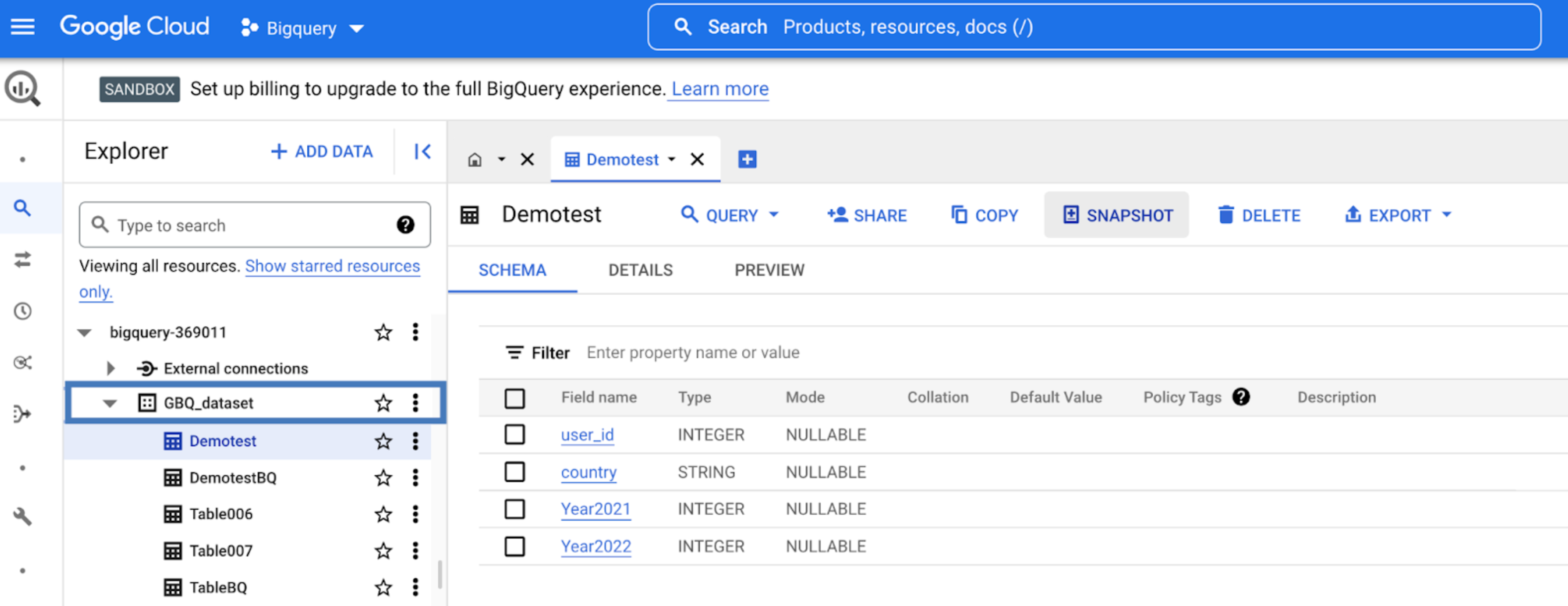
Table Name
A BigQuery table contains individual records organised in rows. Each record is composed of columns/fields. Every table is defined by a schema that describes the column names, data types and other information. In the below example, the tables are Demotest, DemotestBQ, Table006, Table007 and TableBQ. Currently, we do not support tables with JSON column types. If a table exists, Zeotap uses it to send data. Otherwise, Zeotap creates a new folder and sends the data.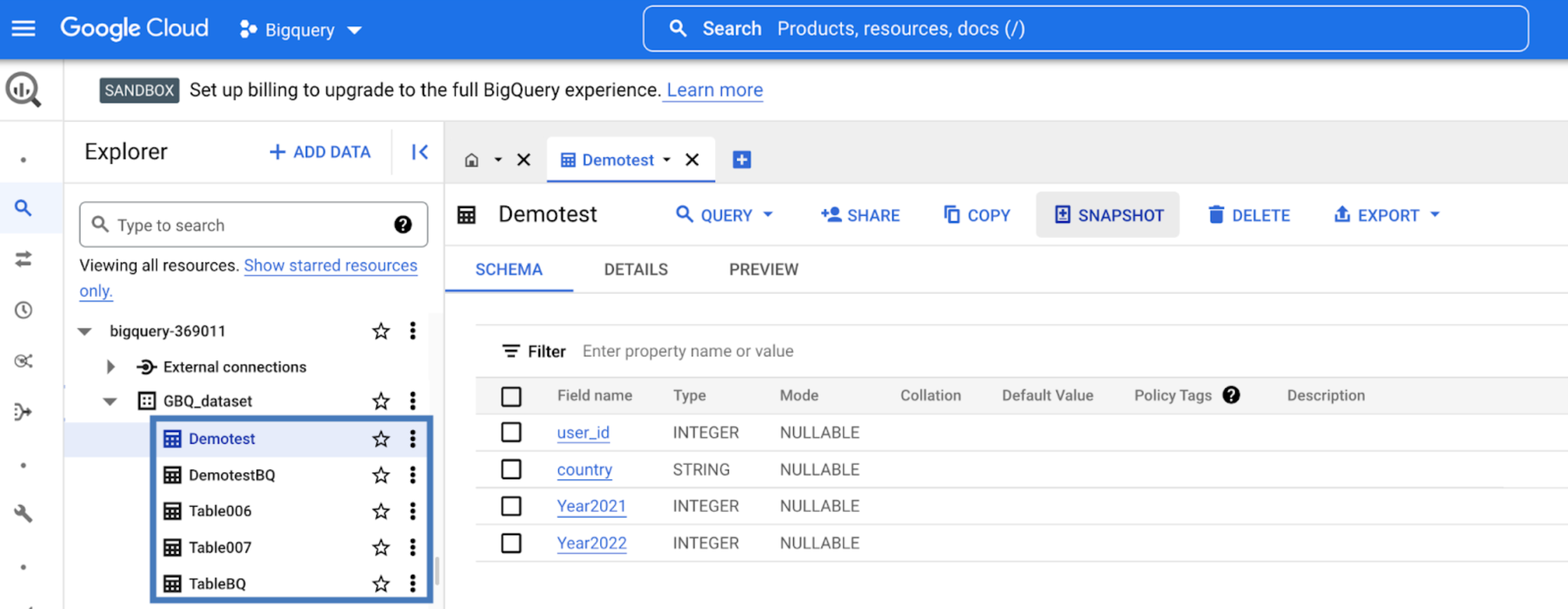
Bucket
This is the name of your Google Cloud Storage Bucket. You can obtain this information from your Google Cloud Storage account as shown in the image below.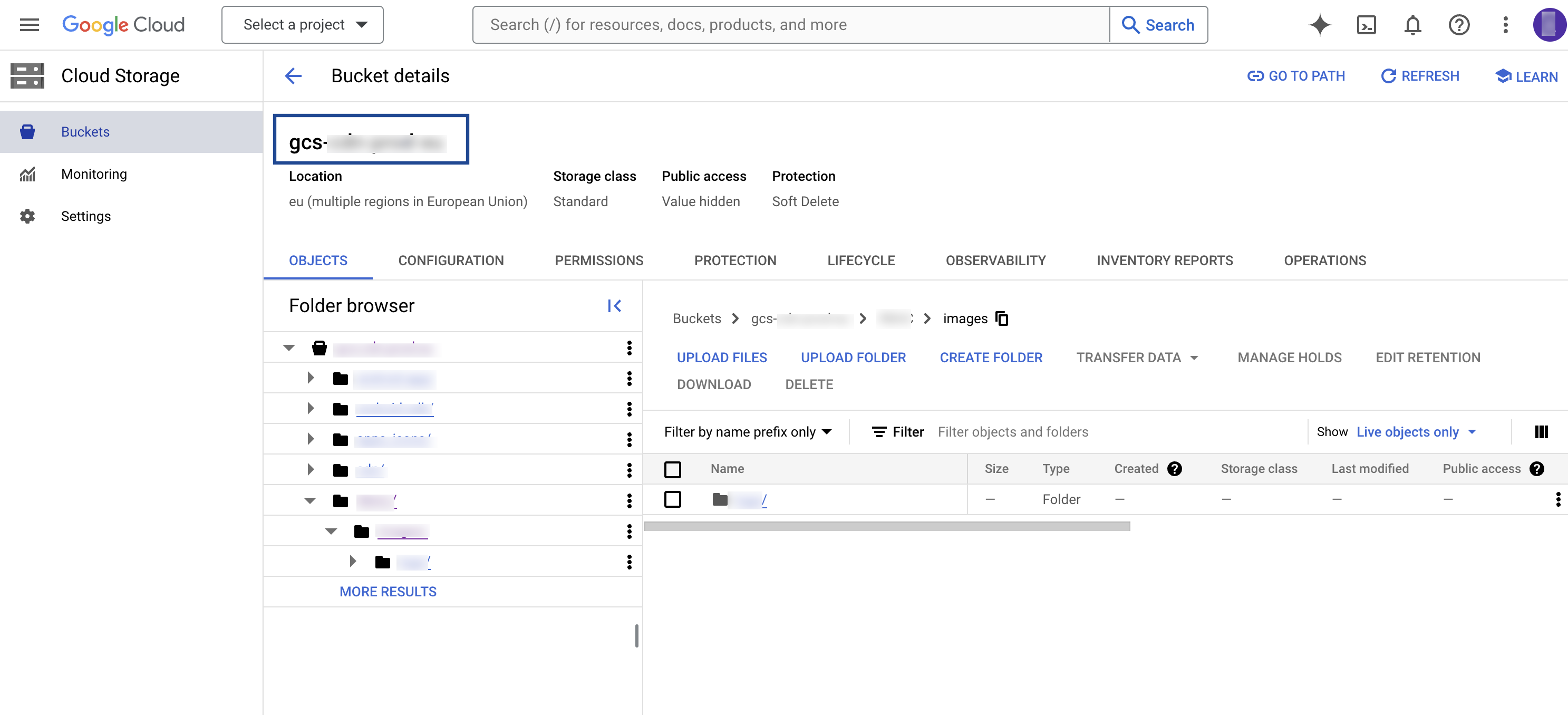
Folder
In Google Cloud Storage, a folder serves as a logical container for organising stored objects within a bucket. In reality, there are no actual folders in Google Cloud Storage. Instead, the folder concept is emulated by employing object key names containing slashes (”/”) to replicate a hierarchical arrangement. You can obtain this information from your Google Cloud Storage account as shown in the image below.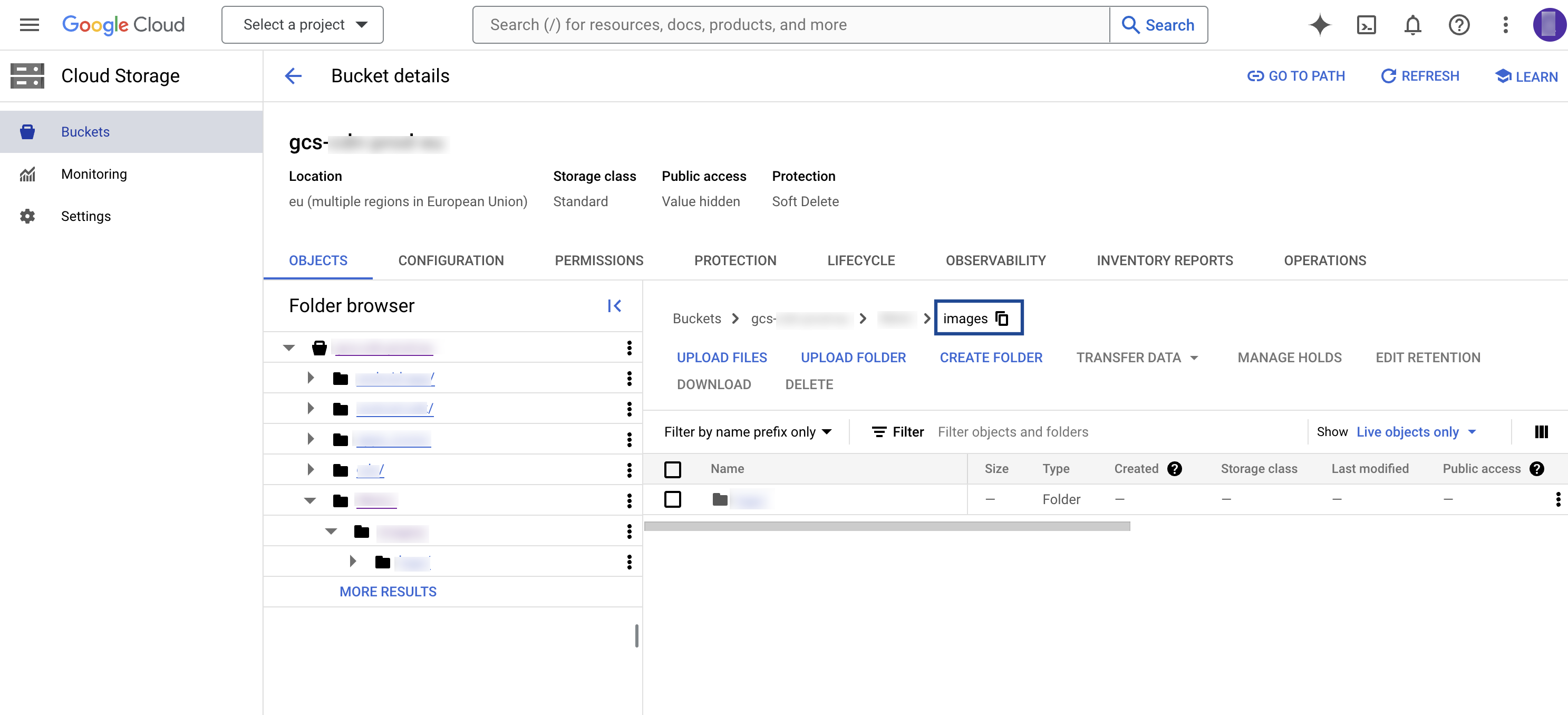
Account
This is the Service Account necessary to use Google Cloud from outside, such as on other platforms or on-premises. Ensure that you provide the following necessary permissions on Google Cloud before sending data from Zeotap CDP:- bigquery.tables.create
- bigquery.tables.get
- bigquery.tables.updateData
- bigquery.tables.update
- bigquery.jobs.create
- bigquery.tables.delete
- storage.objects.get
- storage.objects.list
- storage.objects.create
- storage.objects.update
- storage.objects.delete
Create a Destination for Google BigQuery
Perform the following steps to create a destination for Google BigQuery in Zeotap CDP:1
Log into the Zeotap CDP App and go to the DESTINATIONS application.
2
Click + Create Destination.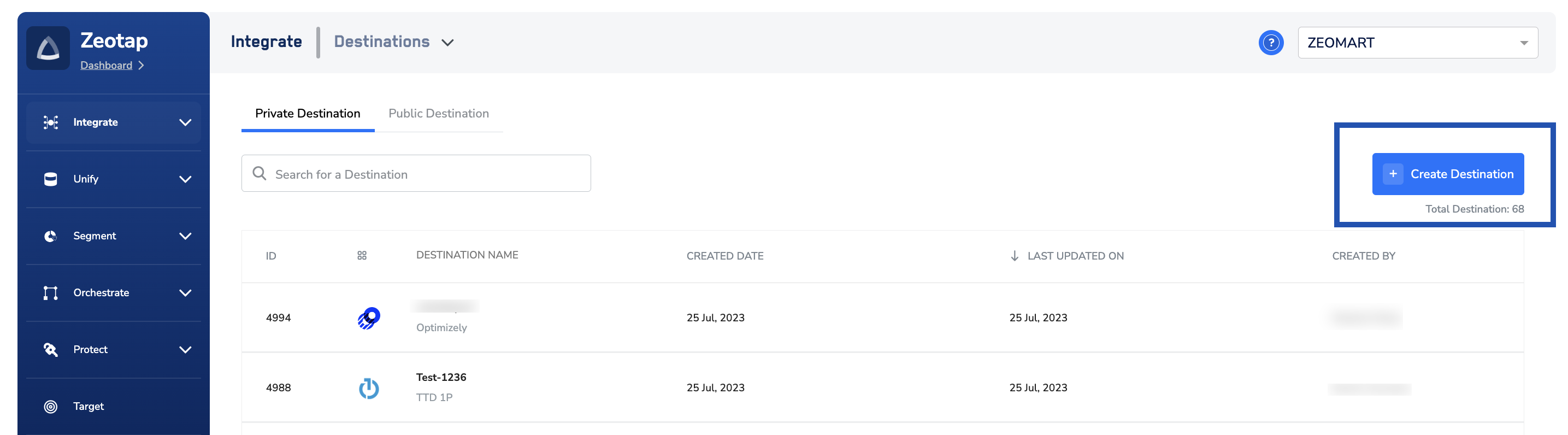
3
Under the All Destinations section, search for Google BigQuery.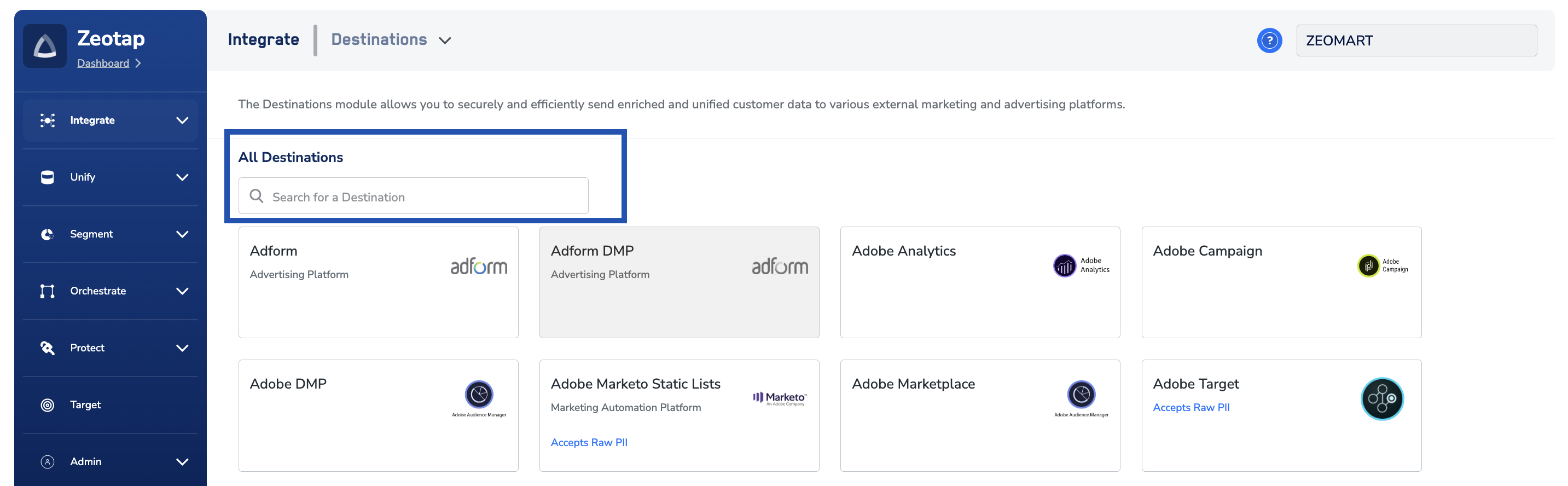
4
Click Google BigQuery. A screen appears displaying details about the particular destination towards the left. On the right-hand side of the screen find a list of fields that are required for the integration to be established. Enter the required details as mentioned in the following steps:a. Enter a descriptive name for the Destination.b. Provide the Destination Instance Name, which is an internal field for the destination.c. Enter the Project ID that differentiates your project from all others on Google Cloud. Learn mored. Under Dataset Name, provide the top-level container name used to organise and control access to your tables and views. Learn moree. Under Table Name, enter the table name that contains individual records organised in rows. Learn moref. In the Bucket field, provide the name of the Google Cloud Storage Bucket. Learn moreg. In the Folder field, provide the folder path in your storage location where Zeotap CDP can store your exported data. Learn moreh. Under Account, the Service Account associated with Google Cloud is displayed. Ensure that you provide the following necessary permissions on Google Cloud before sending data from Zeotap CDP:i. bigquery.tables.createii. bigquery.tables.getiii. bigquery.tables.updateDataiv. bigquery.tables.updatev. bigquery.jobs.createi. Review all the values entered above and then click Next to proceed to Actions and Mapping.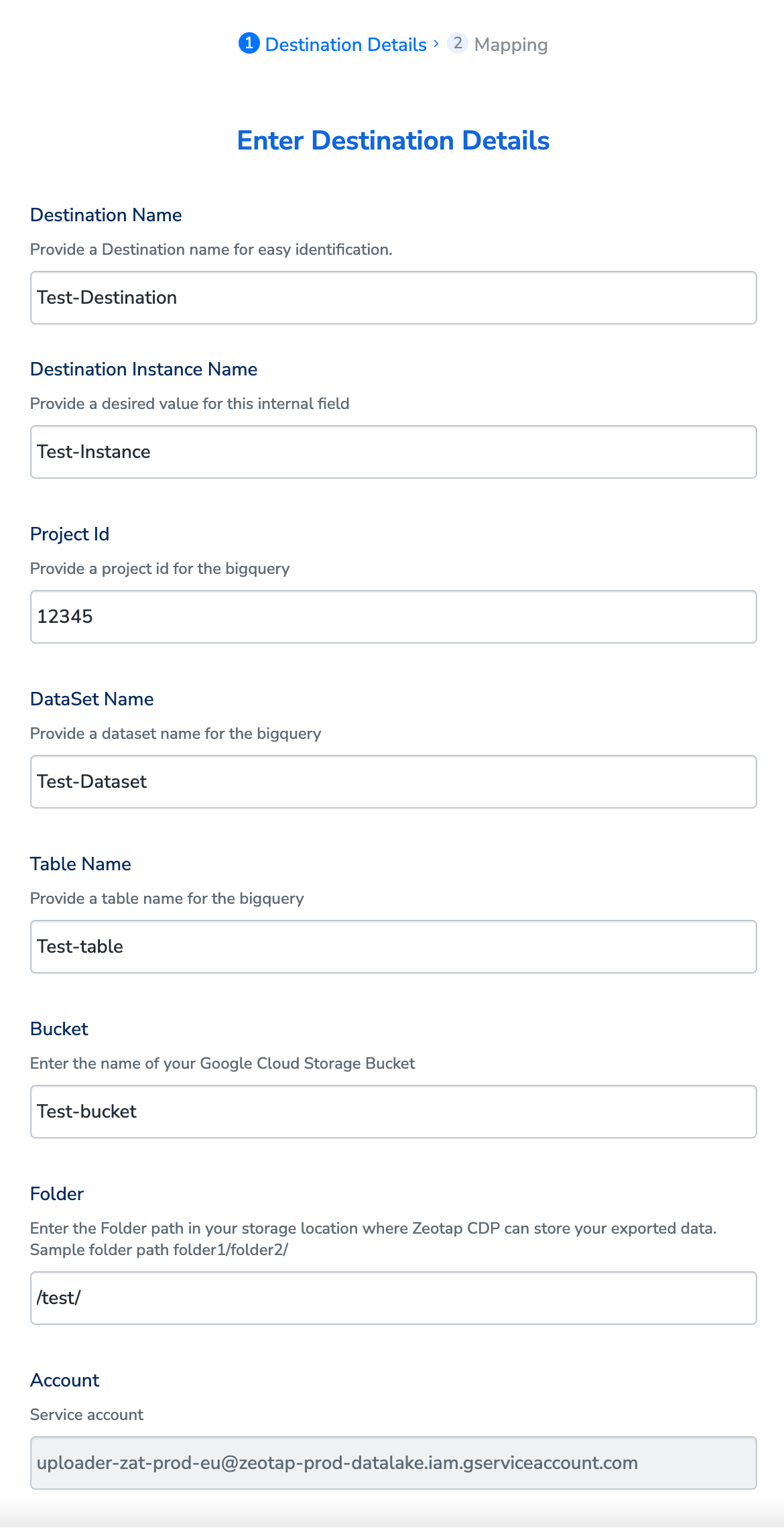
Note:Ensure to follow the below points while providing the folder path:
- The folder path should follow the below structure:
folder_name/sub_folder_name/
- The folder name should not start with a
/ - The folder name and sub-folder name should end with a
/
5
In the new screen that appears, under Choose your Action, choose Send attributes and identifiers to Google BigQuery as your action. Under Map the Fields, map the identifiers and attributes of your choice to send to Google BigQuery. You can map any identifier and attribute of your choice and send them to BigQuery by using the + Add Mapping Field option below the table.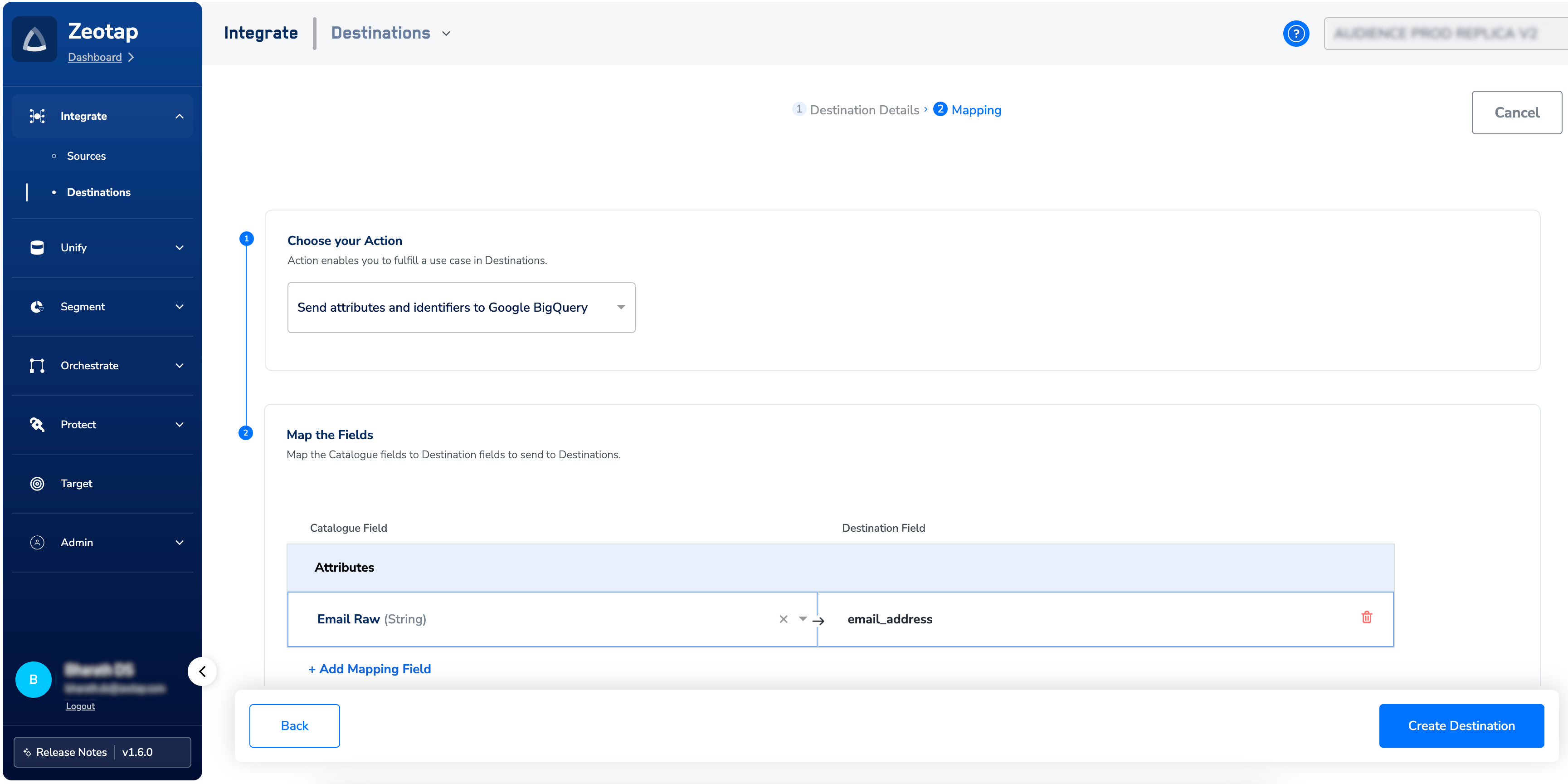
6
Click Create Destination. The created Destination gets listed in the Audiences application, which can be linked to an audience (segment).
Link an Audience to the Google BigQuery Destination
For information about how to link an Audience or segment to the created Destination in Audiences application, refer here.Note:The terms Audiences and Segments are used interchangeably to refer to customer cohorts belonging to a specific category. For example, an Audience or a segment could be a specific group of customers who are over 18 years of age and who have performed an addToCart event within the last 30 days.