

What this is
Neodata is a data intelligence platform that provides deeper insights into customer behaviour for more effective targeting and personalised marketing campaigns. It offers services around data analysis, audience segmentation, targeting and optimisation. Integrated with Zeotap CDP, it lets you take an audience you have built from unified customer data and hand it to Neodata for activation. The Neodata destination is a batch integration for audiences: you configure it once against a Neodata client name and an Azure storage SAS URL, then reuse it for every audience you link to it.Supported identifiers
The Neodata destination accepts:- Mobile advertising IDs (MAIDs)
- Neodata cookies
Available actions
The destination exposes a single action, Send identifiers to Neodata. It supports ID Extension for expanding an audience before delivery. Neodata is not listed among the integrations where Delete and Delta Upload are enabled.
Prerequisites
Before you create the destination, gather:
- A Neodata account. Both configuration values below are components of that account.
- Your Neodata client name — see Neodata details you need.
- The SAS URL of the relevant Azure storage — see Neodata details you need.
- An audience to activate, and the destination rights described in the Destinations prerequisites.
Neodata details you need
The destination asks for two details from your Neodata account. Have both to hand before you start.Client name
The client name for your Neodata account. You can find it by navigating to the Neodata Console.SAS URL
The SAS URL of the relevant Azure storage. It is used for authentication, so that Zeotap CDP can upload the audience files to that storage.Create the Neodata destination
1
Log in to the Zeotap CDP app and go to Integrate > Destinations.
2
Click + Create Destination.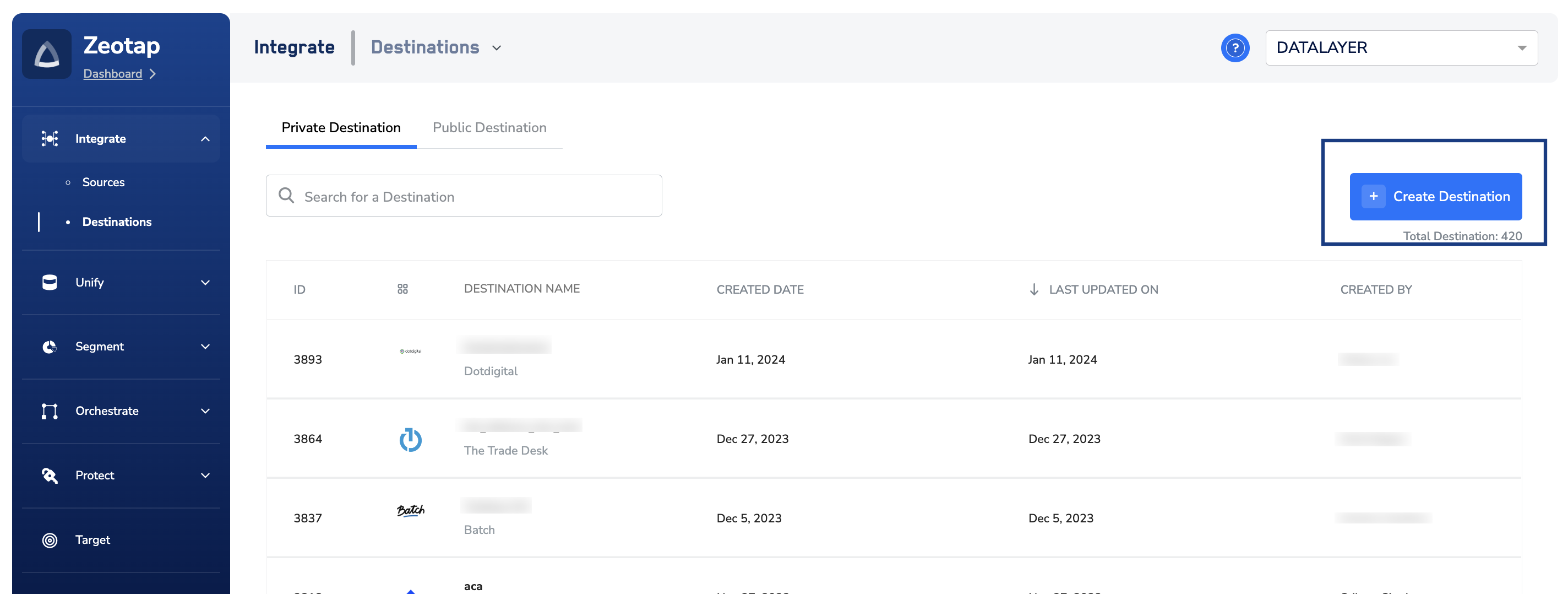
3
Under All Destinations, search for Neodata.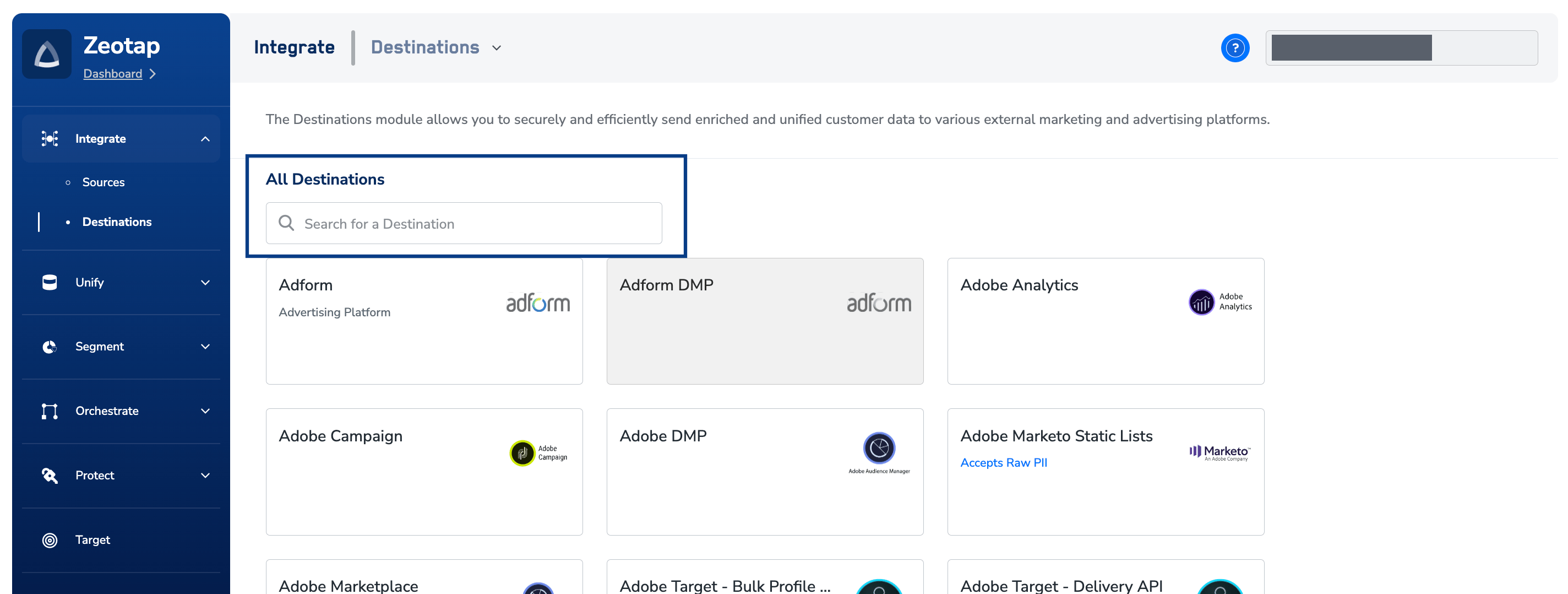
4
Click Neodata. Details about the destination appear on the left of the screen; the fields the integration needs appear on the right. Enter:a. A name for the destination. Choose a name that identifies the Neodata account it connects to, so the destination is easy to find when you link an audience.b. The Client Name of your Neodata account.c. The Sas Url — the SAS URL of the relevant Azure storage.d. Review the values you entered, then click Next.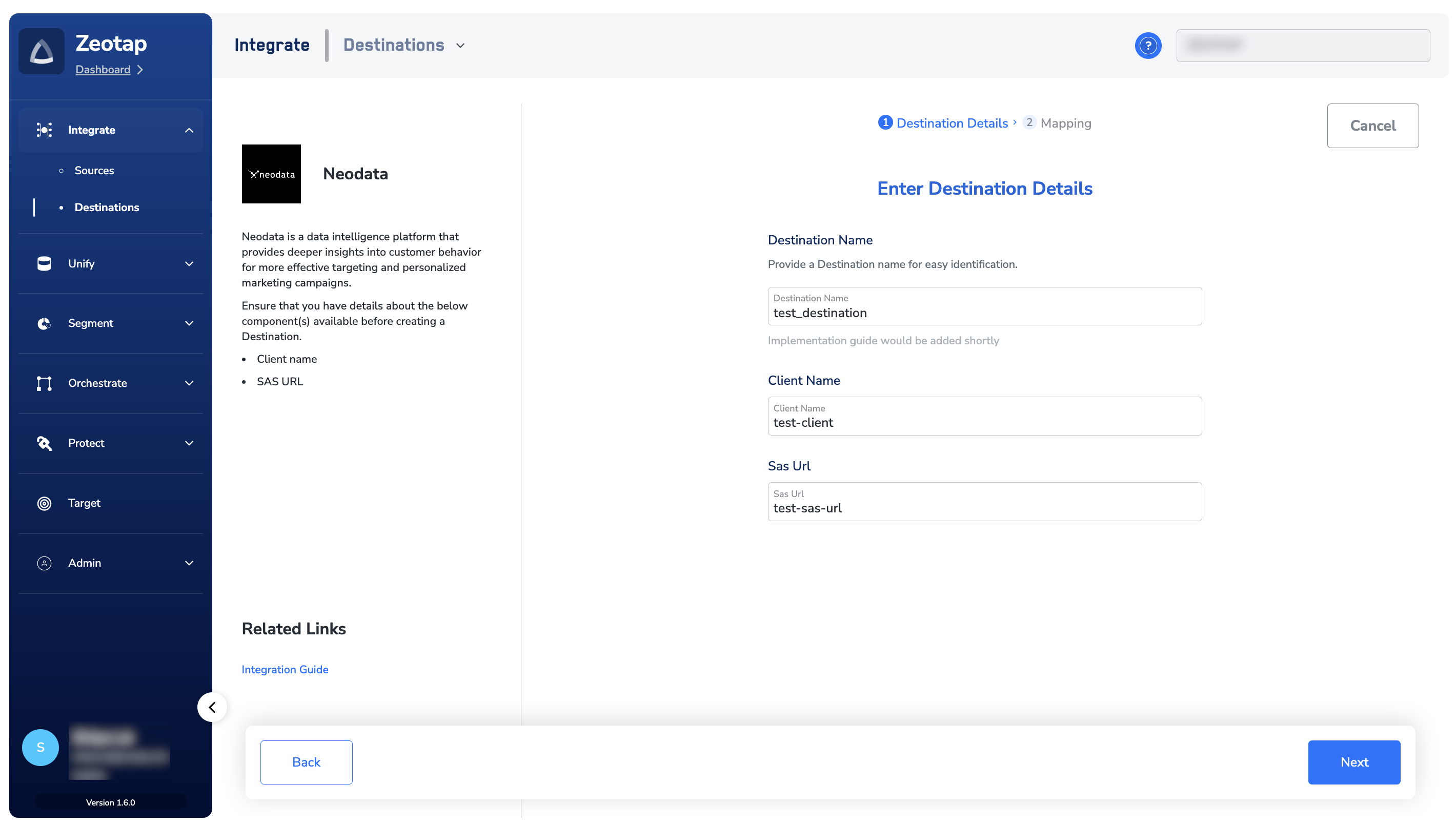
5
On the mapping screen, choose the action and the identifiers to send:a. Under Choose your Action, select Send identifiers to Neodata, then choose the corresponding identifiers under Map the Fields. The output identifiers the platform accepts — MAIDs, cookies and more — are shown by default. You can edit, add or remove an identifier from the list; see Define the mapping.b. Click Create Destination. The created destination is then listed in the Audience and Target applications, ready to be linked to an audience or segment.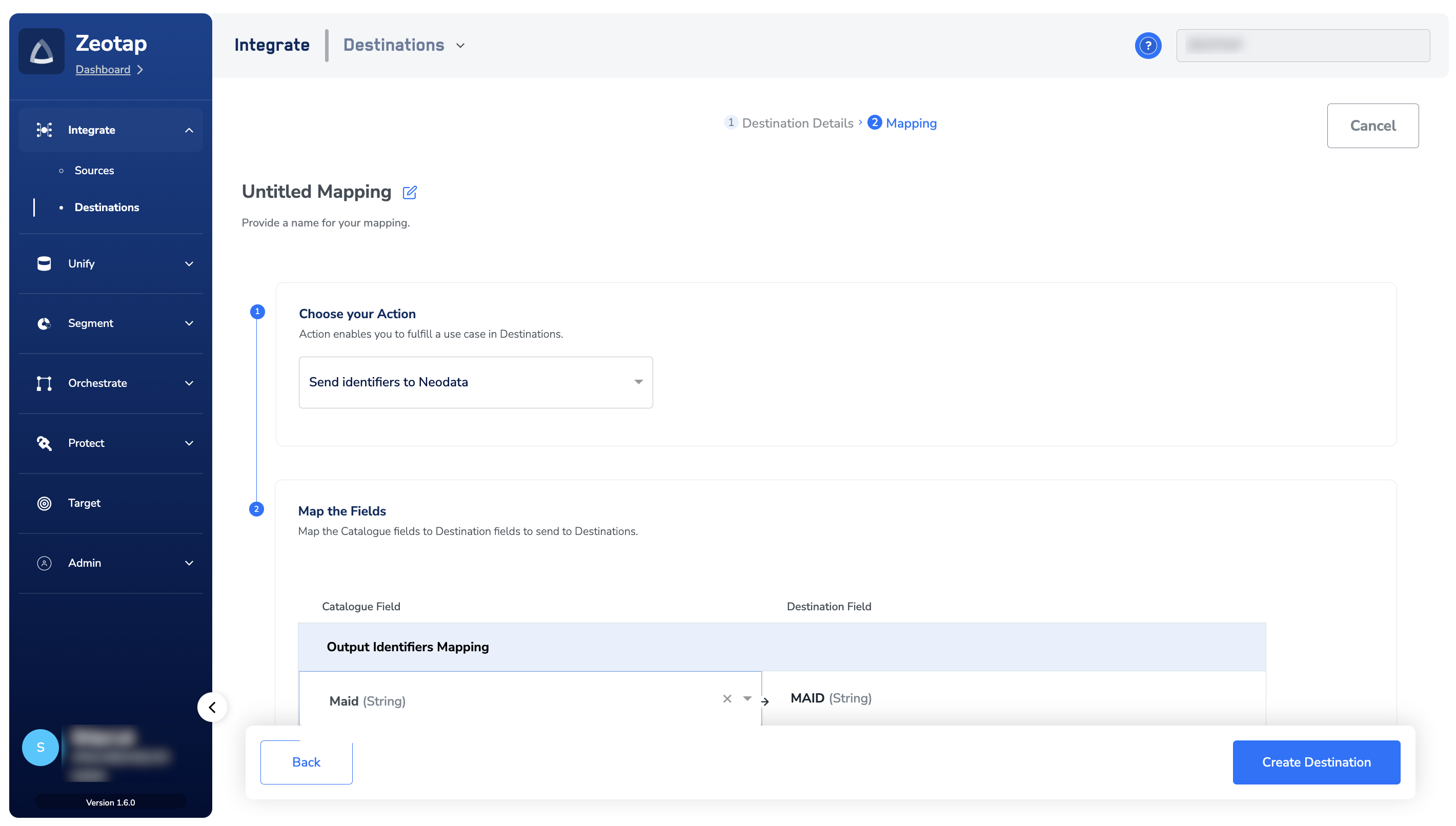
Link an audience to the destination
Once the destination is created, link it to the audience you want to activate from the Audiences or Target application — see Link an audience to the destination for the end-to-end workflow.The terms Audiences and Segments are used interchangeably to refer to customer cohorts belonging to a specific category. For example, an audience or a segment can be a specific group of customers who are over 18 years of age and have performed an
addToCart event within the last 30 days.Verify the audience reached Neodata
Confirm delivery from both sides:- In Zeotap CDP — open the destination and review its activity. A successful delivery records a run with a non-zero qualified count and a completed status; a failed run records an error message you can use to diagnose the cause. See Verify the activation worked.
- In the Azure storage — the destination uploads the audience as files to the Azure storage the SAS URL points to, so check that the expected files have arrived there for the run you are verifying.
Troubleshoot the Neodata destination
For delivery errors that are not specific to Neodata — no customers qualified, a terminated refresh, a rejected payload — see Why deliveries fail and When to contact support.