

What this is
Facebook 1P (Meta) is a Zeotap CDP destination that pushes audience segments into Meta as Custom Audiences. Once linked, your audience is available for targeting across Facebook, Instagram, Audience Network, and Messenger — you choose which apps at the placement stage of campaign setup. The integration supports two action types: send a single identifier per profile, or send multiple user identifiers per profile to raise the match rate. The terms Facebook and Meta refer to the same platform throughout this page.Supported actions, identifiers, and features
Facebook External ID
A Facebook External ID is a unique string that represents a user on an advertiser’s system — for example, a loyalty membership ID, internal user ID, or external cookie ID. For a given event, Facebook uses theexternal_id to match a record to a user on its platform. Before sending an External ID to Facebook, add the identifier in your Zeotap Catalogue, then map it when you create the destination.
For background, see Meta’s Custom Audiences External Identifiers guide. See How External IDs flow between a brand and Facebook for the end-to-end capture flow.
Prerequisites
Complete the following before you create the destination in Zeotap CDP:- Full Access to a Facebook Ad Account — the 16-digit Facebook Ad Account ID linked to your Facebook Business Manager, with People with full control access for the user who will set up the integration.
- Accepted Facebook Audiences Terms of Service — the ad account has accepted the Custom Audiences ToS at business.facebook.com/ads/manage/customaudiences/tos/. This has been mandatory since September 2021.
- An app in the Facebook Developers portal — created at developers.facebook.com and signed off through App Review and Business Verification. If a Zeotap partner has already created the app on your behalf under the name Zeotap CDP via OAuth2, skip this step.
- An Access Token — either a System User Access Token or a Page Access Token (see Generate an access token).
- Your Facebook Graph API version — for example,
17.0. Enter only the numerical part when configuring the destination; do not include thevprefix.
Grant Full Access to the Ad Account
Confirm your Facebook user has full control of the Ad Account that will receive audience data. From Facebook Business Manager at business.facebook.com, select the business portfolio in the top-right corner, open Settings → Accounts → Ad Accounts, select the ad account, and open Ad Account Access. Under People with full control, your account must appear. To grant Full Access to another user, click Manage next to their name, then Assign People, and select them from the people with access to your Meta Business portfolio.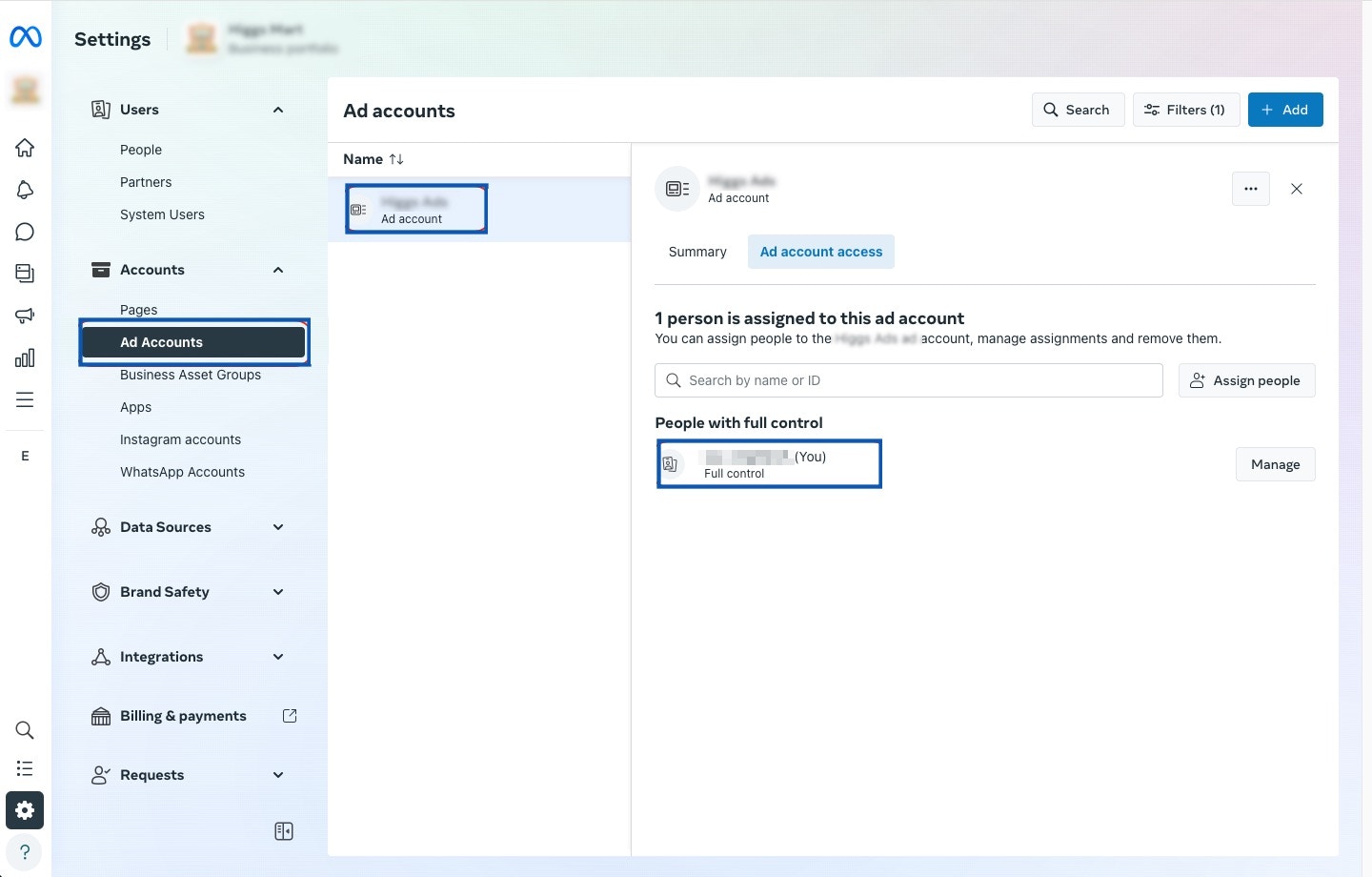
Accept the Facebook Audiences Terms of Service
Sign in to your Facebook Ad Account at adsmanager.facebook.com, confirm the correct ad account is selected in the top-right dropdown, and open Audiences from the left navigation. If the ToS has not been accepted, you are prompted to accept it. If it has already been accepted, you see options to create new audiences.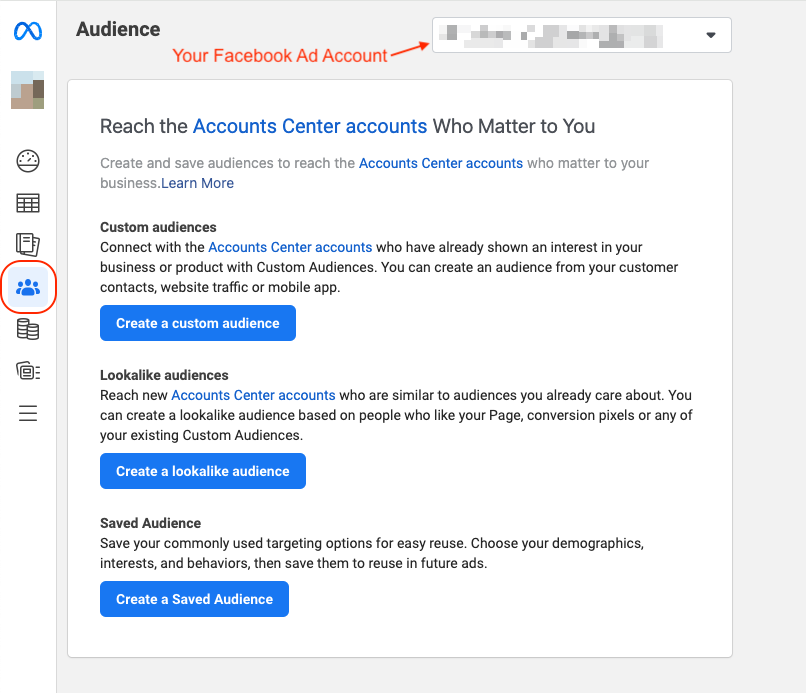
Obtain the App ID
Sign in at developers.facebook.com, open My Apps in the top navigation, and read the App ID listed under the app name on your dashboard.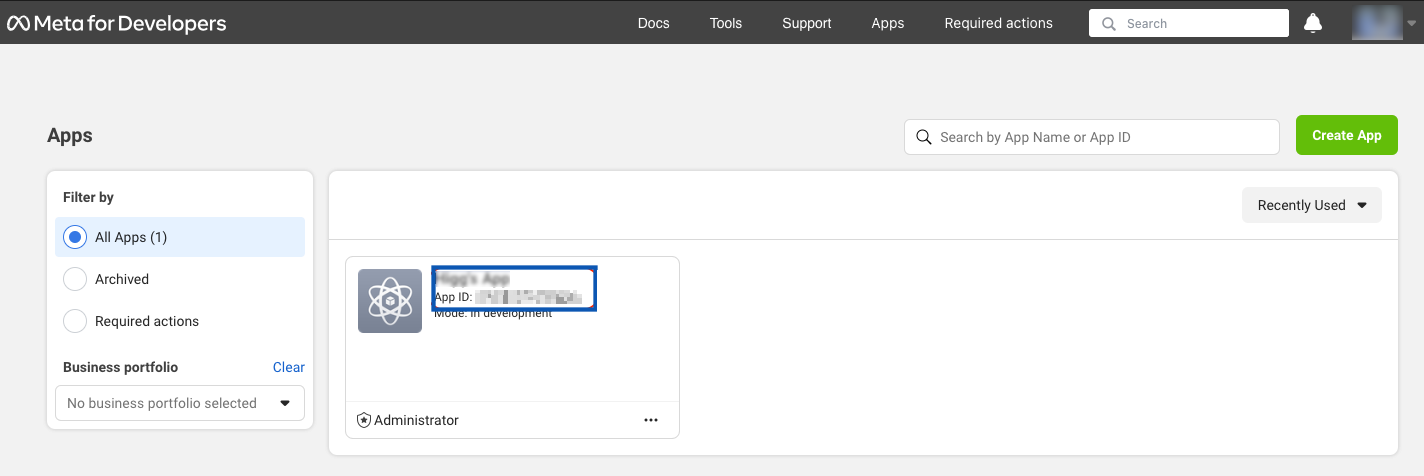
Generate an access token
The Access Token authenticates Zeotap CDP on the Facebook platform. Two types are supported:- System User Access Token — for programmatic, automated actions on business clients’ Ad objects or Pages without re-authentication. See Meta’s System User Tokens.
- Page Access Token — for reading, writing, and modifying data on a Facebook Page. Retrieved from a long-lived user access token; this token does not expire. See Meta’s Page Tokens.
Generate a System User Access Token
In Facebook Business Manager, open Settings → Users → System users and click + Add.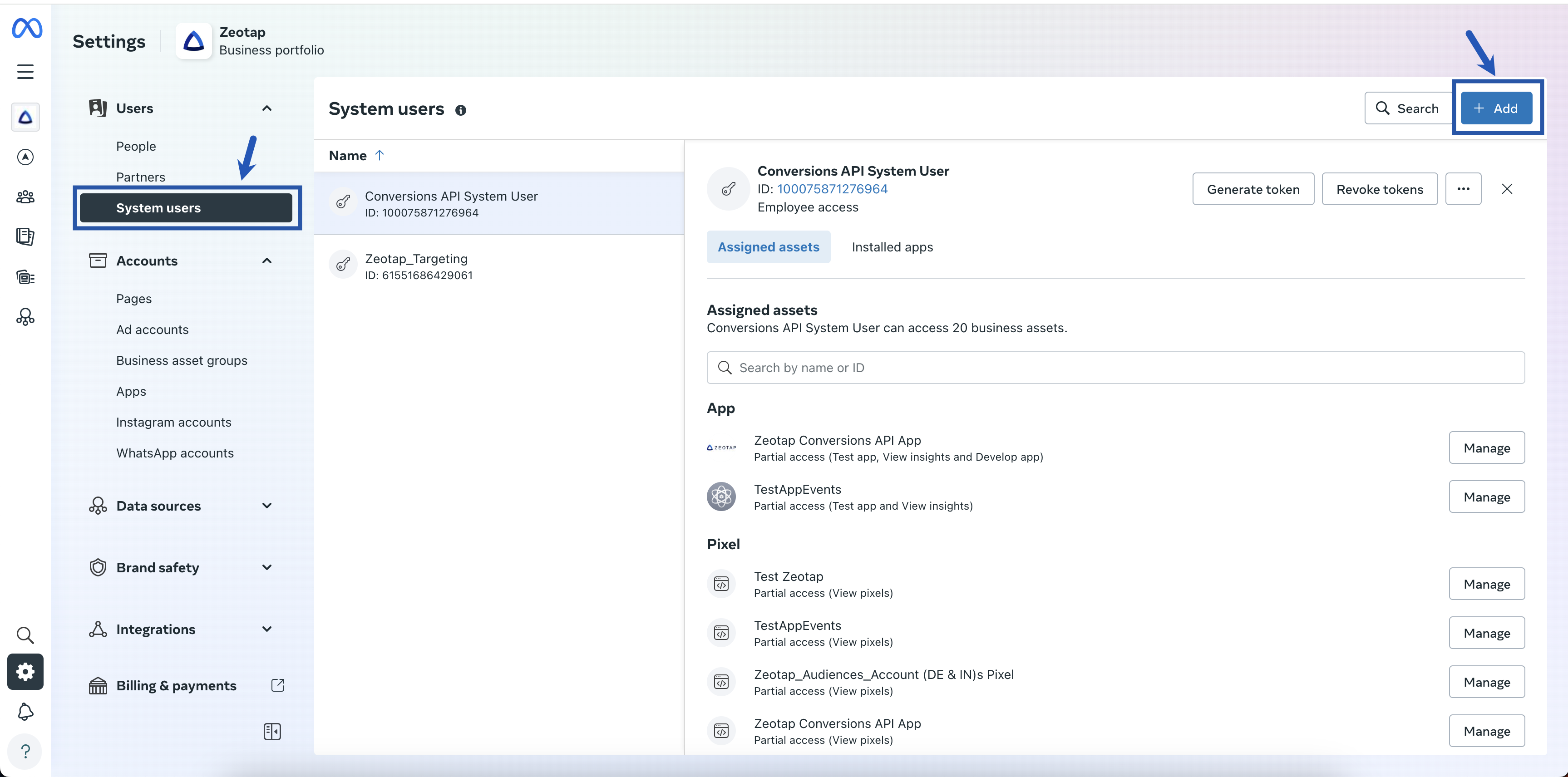
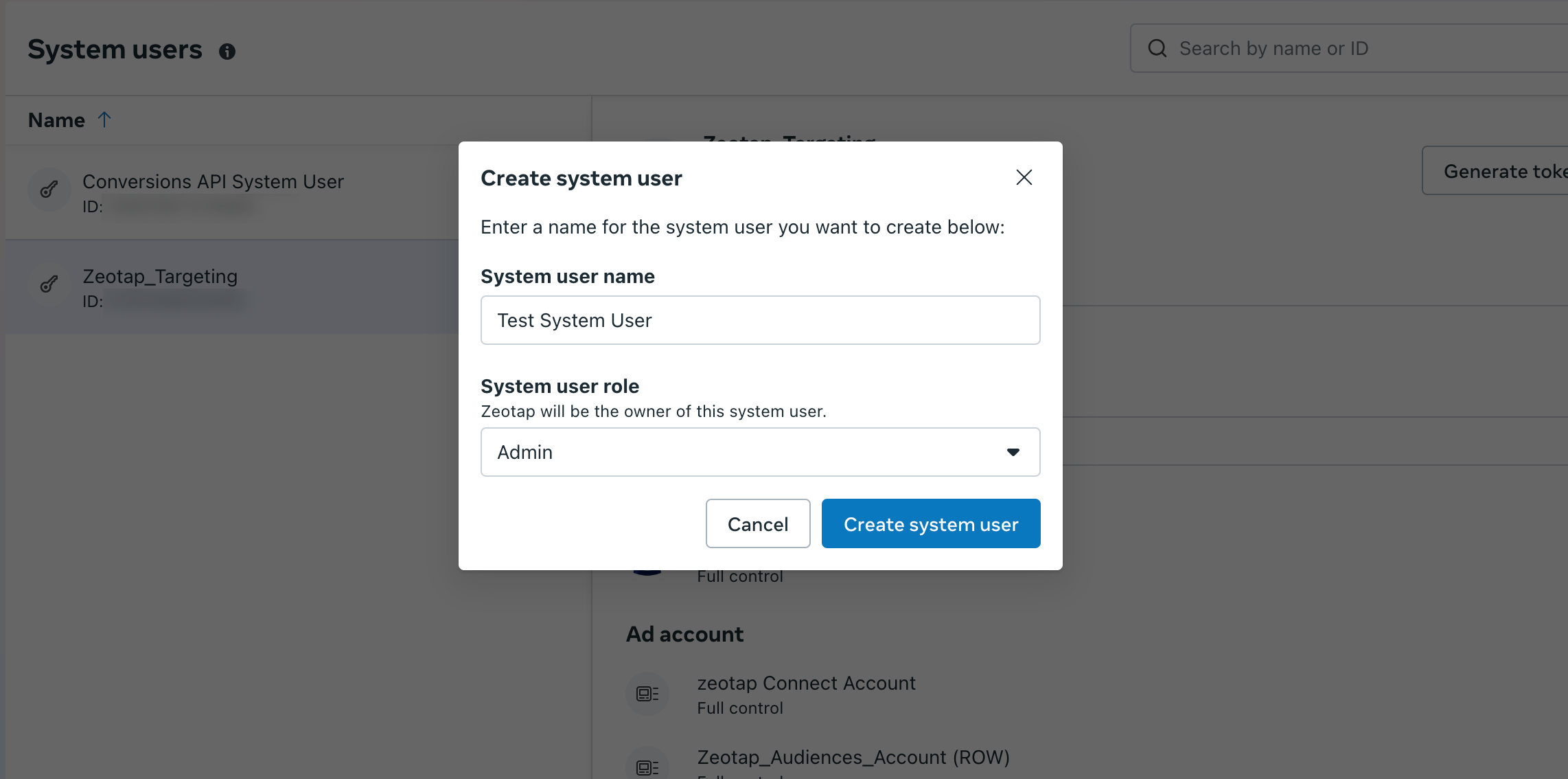
This business has reached the maximum number of system users. The maximum number of system users allowed is 1.
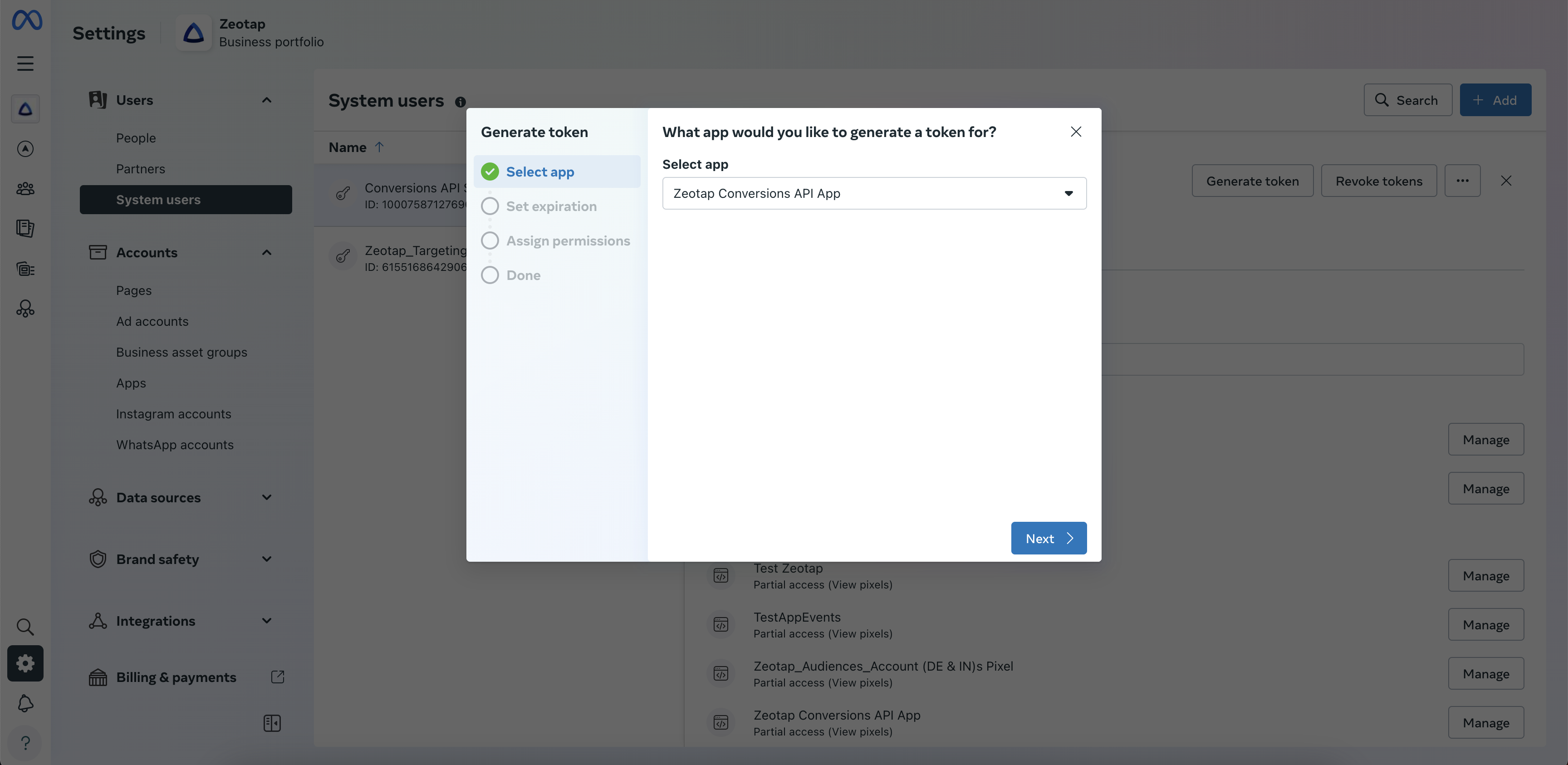
Under Select app, choose your app from the drop-down and click Next.
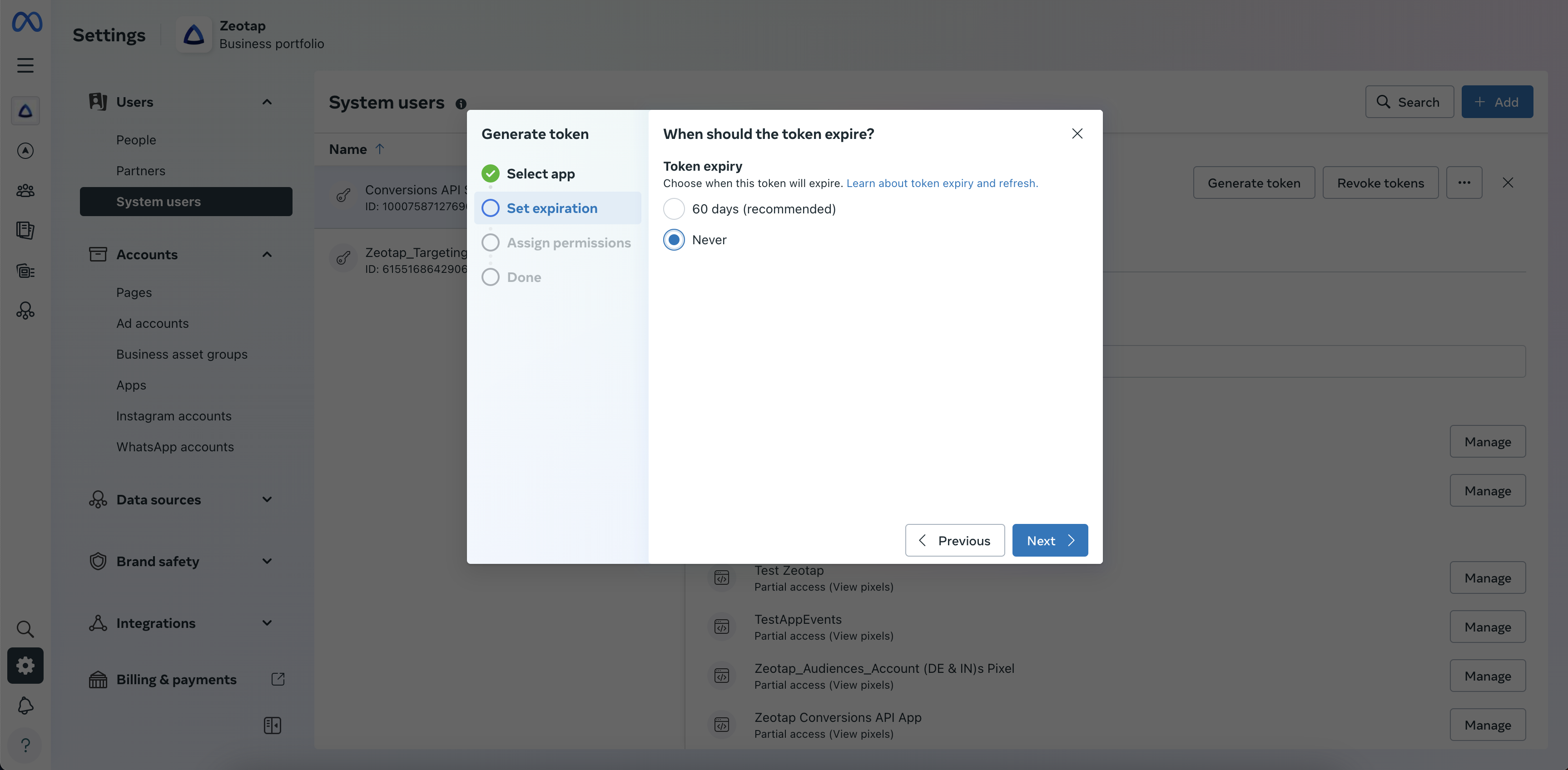
ads_readads_managementpages_manage_adspages_show_list
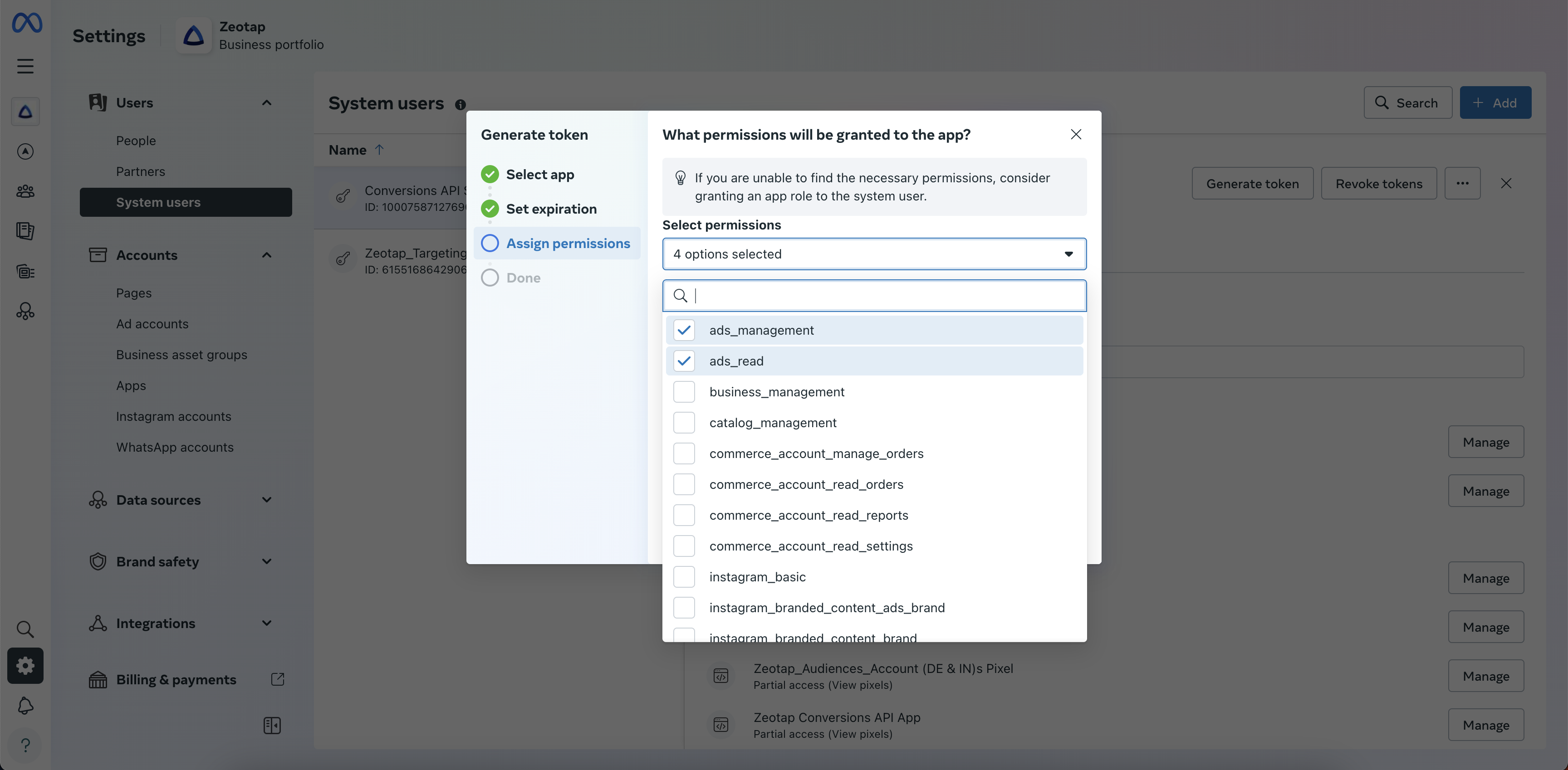
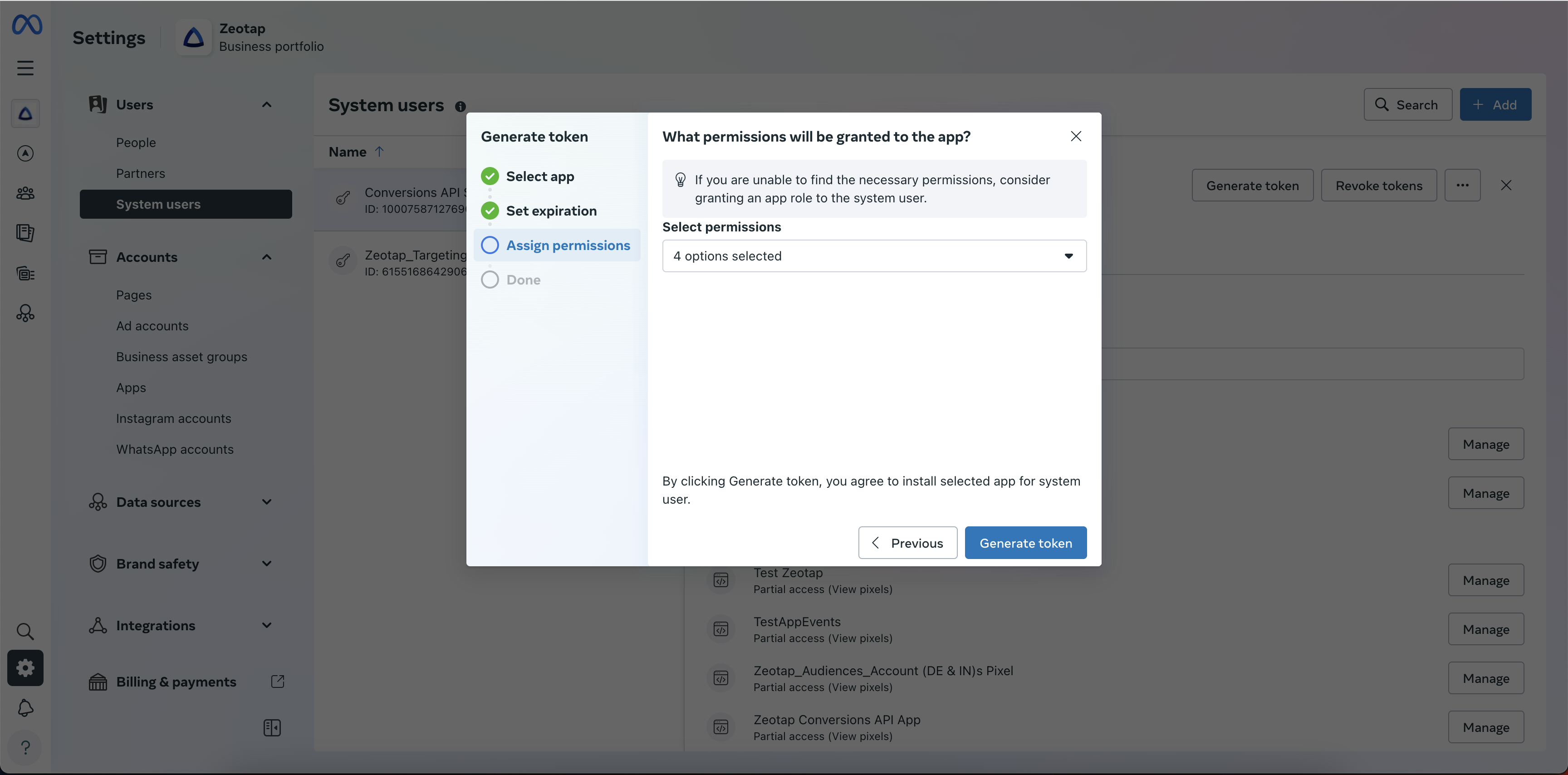
Whenever you change the access granted to the system user, generate a new access token and update the destination in Zeotap CDP.
Generate a Page Access Token
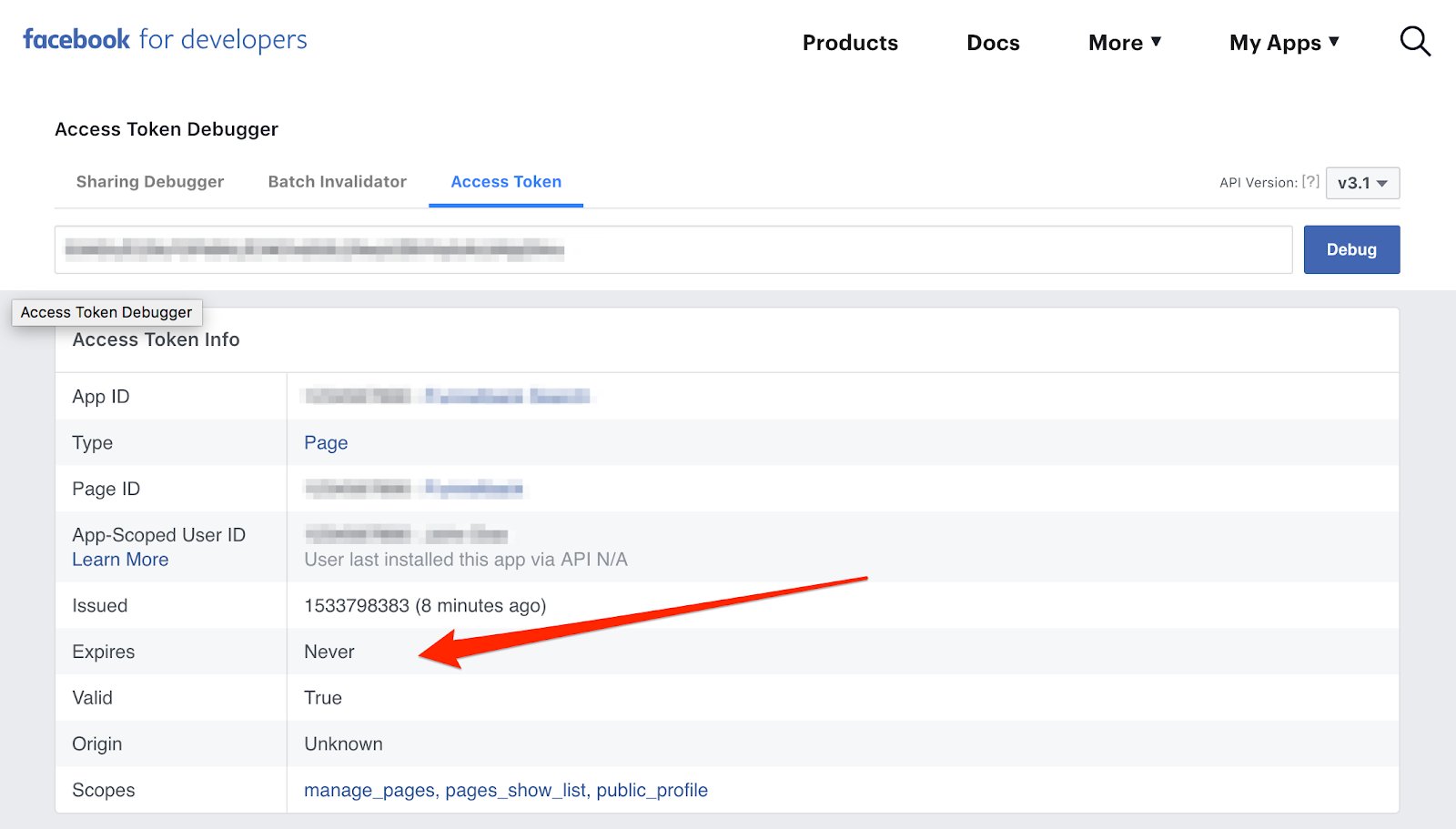
A Page admin must grant your app the required Page permission. With that granted, retrieve the never-expiring Page Access Token from a long-lived user access token. Open the Facebook Graph API Explorer, select your app from the Application drop-down, then select Get user access token from the next drop-down.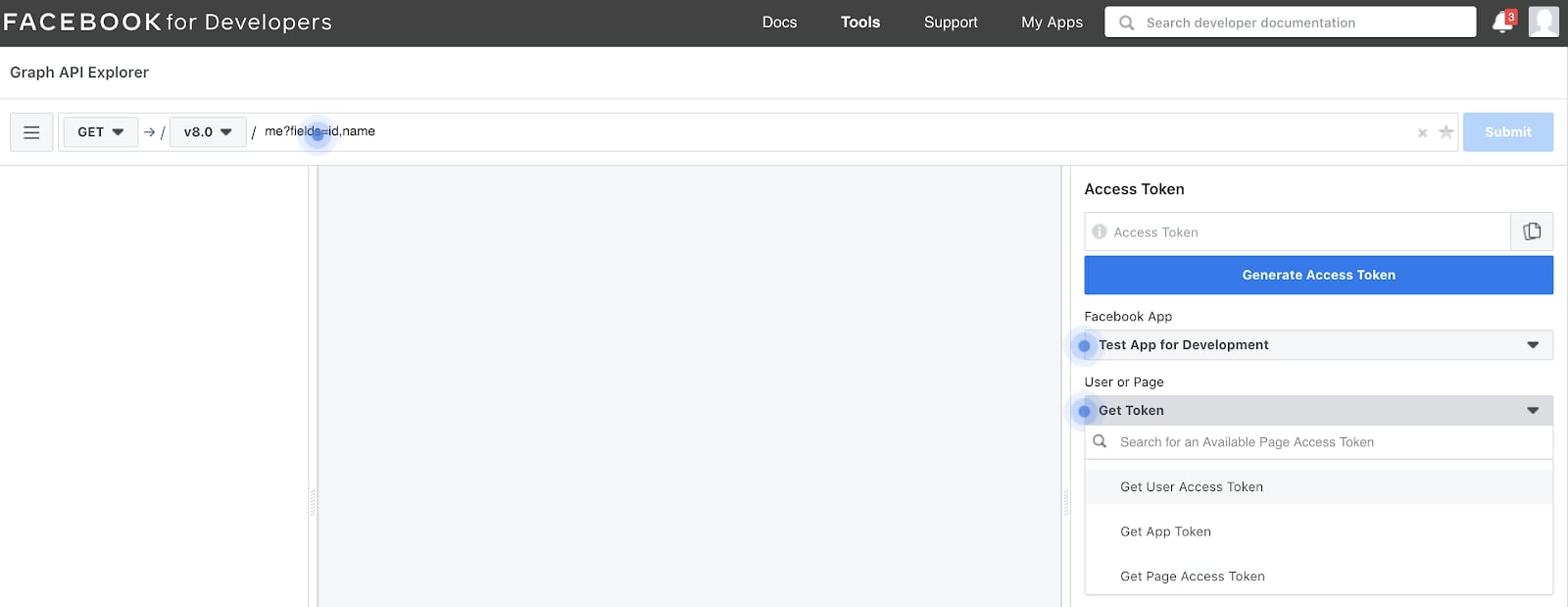
ads_readads_managementpages_manage_ads
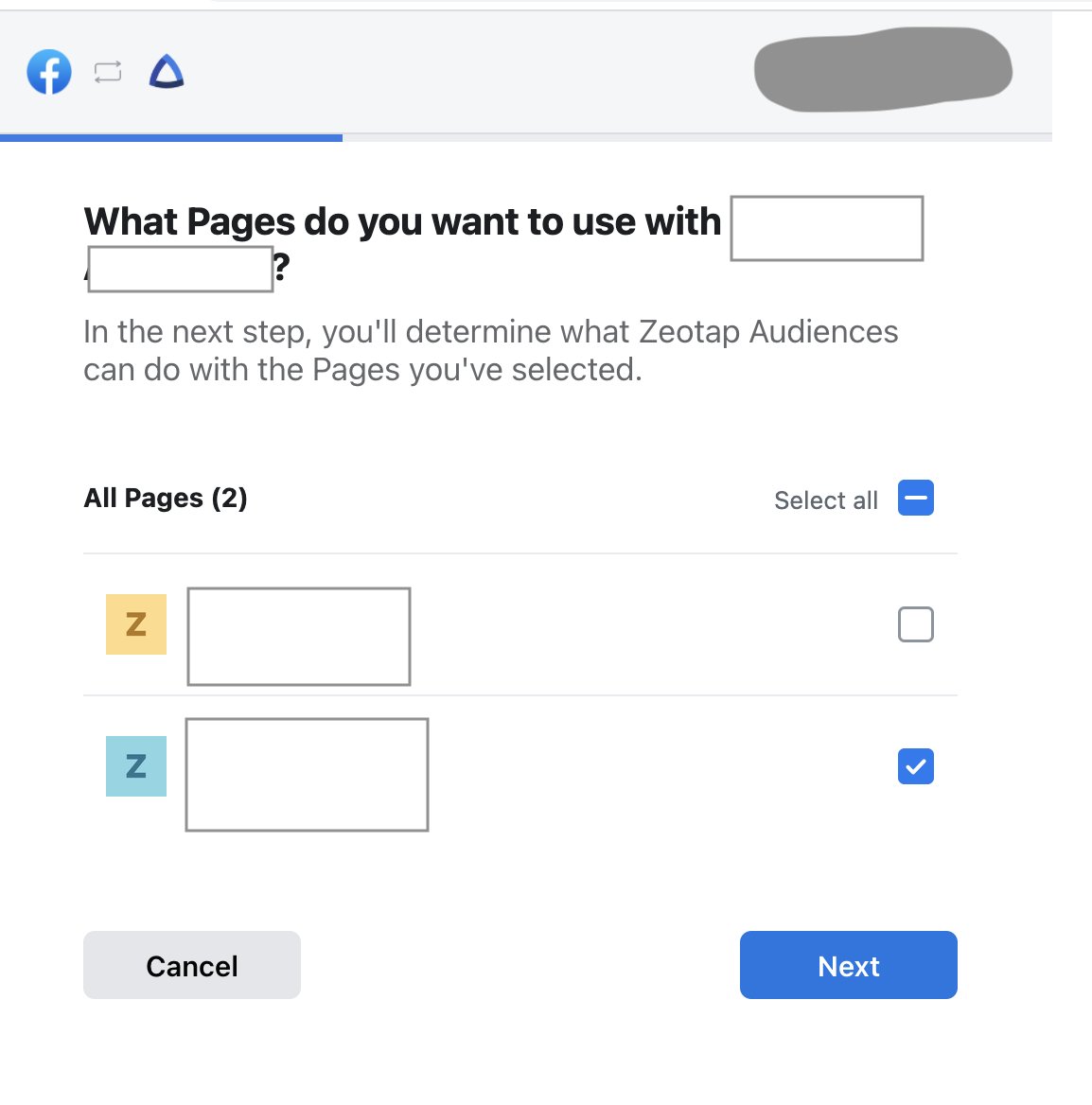
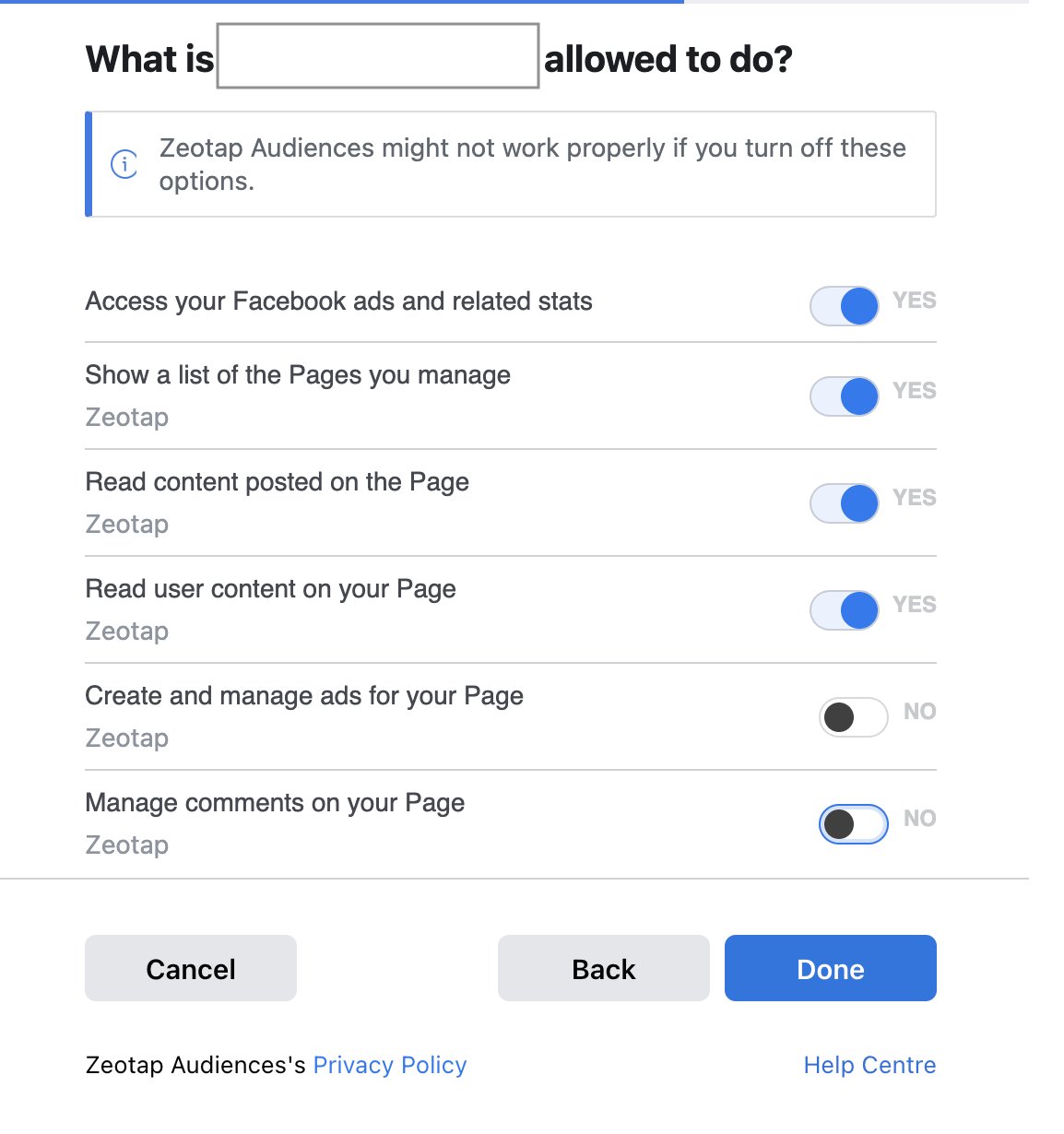
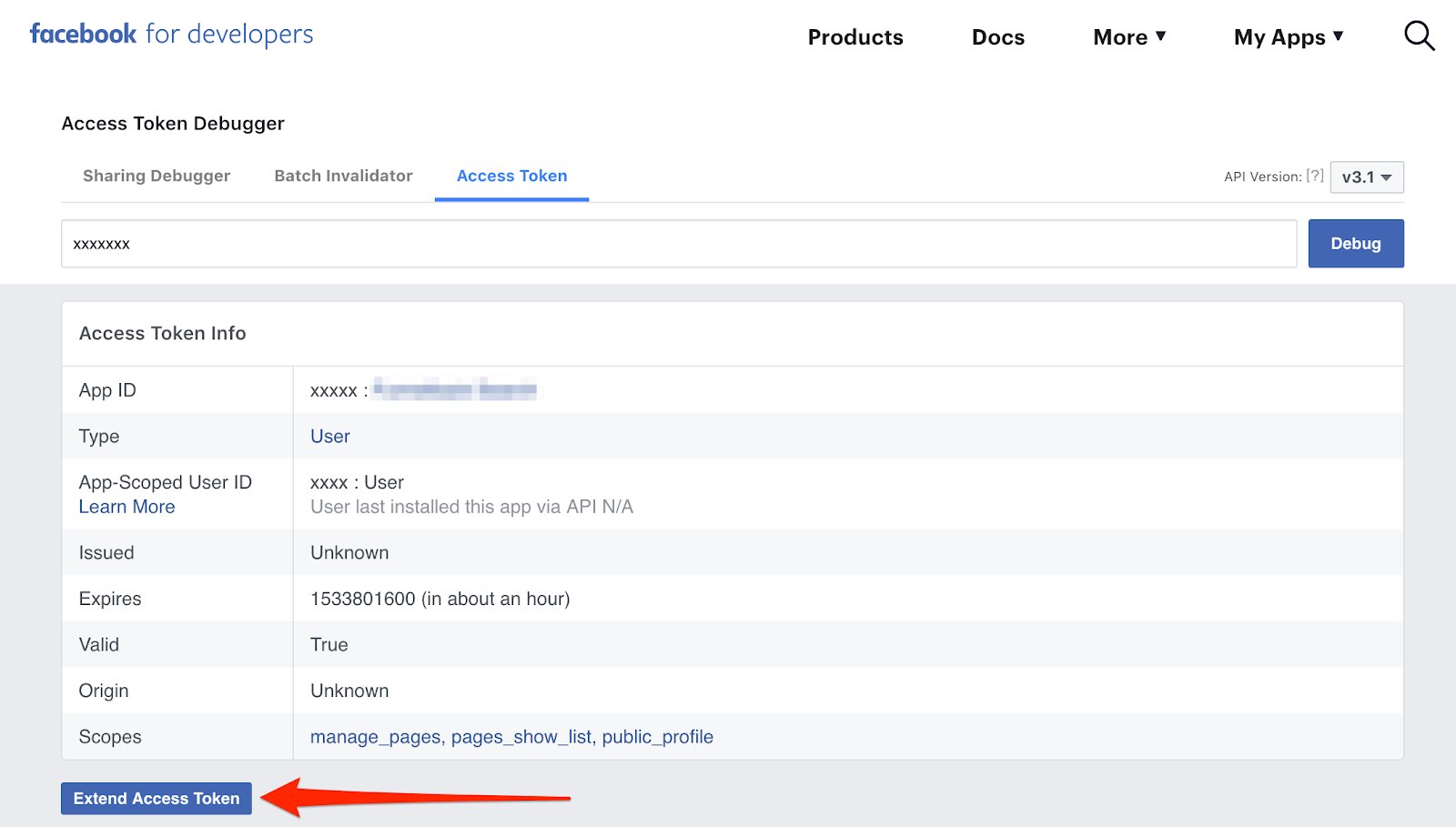
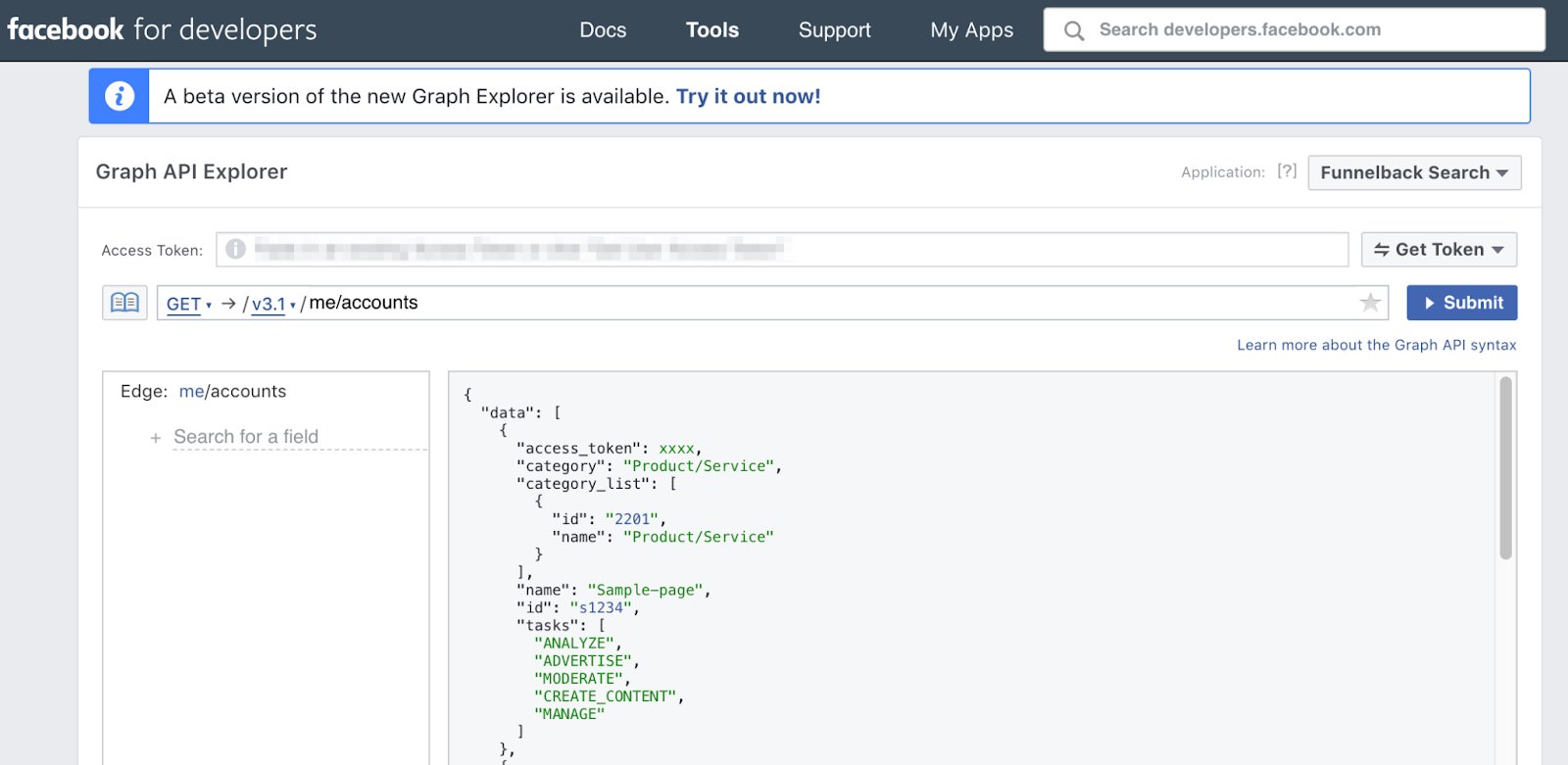
/me/accounts, and click Submit. The response lists each Page and its page access token (the never-expiring token). Copy the access token of the relevant Page and note the API version used in the request — both are required when you configure the destination in Zeotap CDP.
{your-user-id} with the App-Scoped User ID and {long-lived-access-token} with the long-lived token you generated.
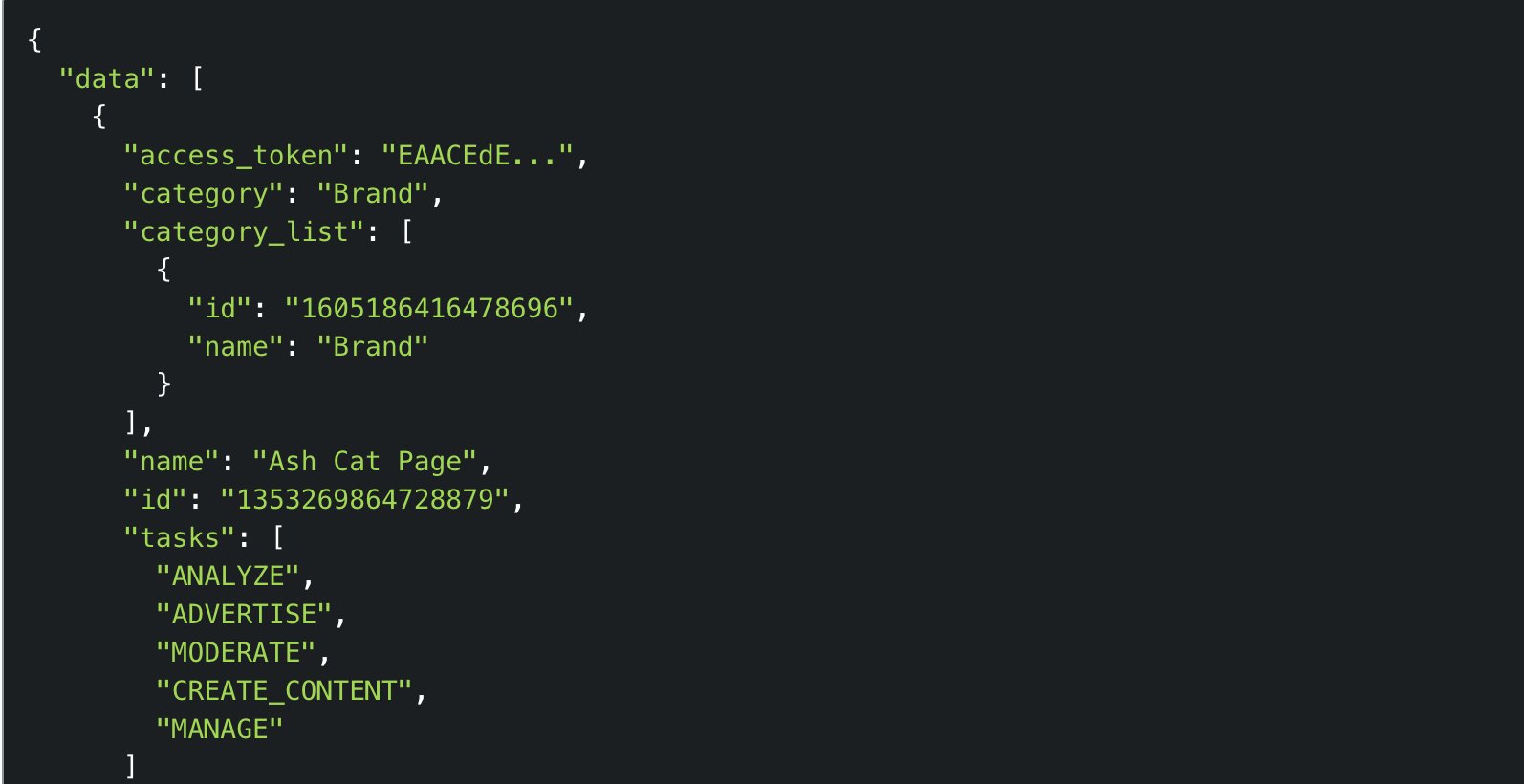
Obtain your Facebook Graph API version
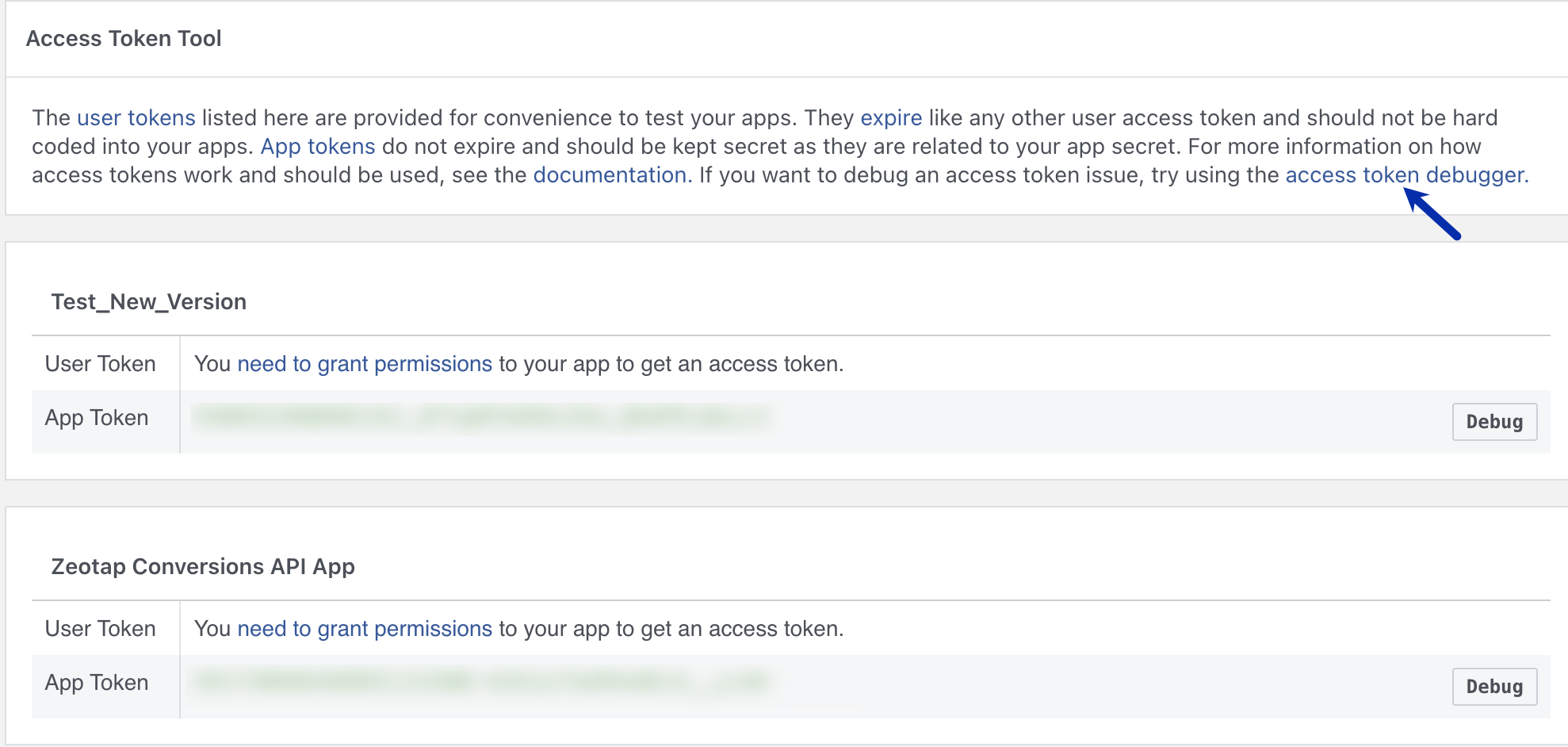
Read the Graph API version from the left-hand side of the Access Token Tool while generating the token. When configuring the destination in Zeotap CDP, enter only the numerical part — forv17.0, enter 17.0.
Create the Facebook 1P destination in Zeotap CDP
In Zeotap CDP, open the Destinations application and start a new destination by clicking + Create Destination.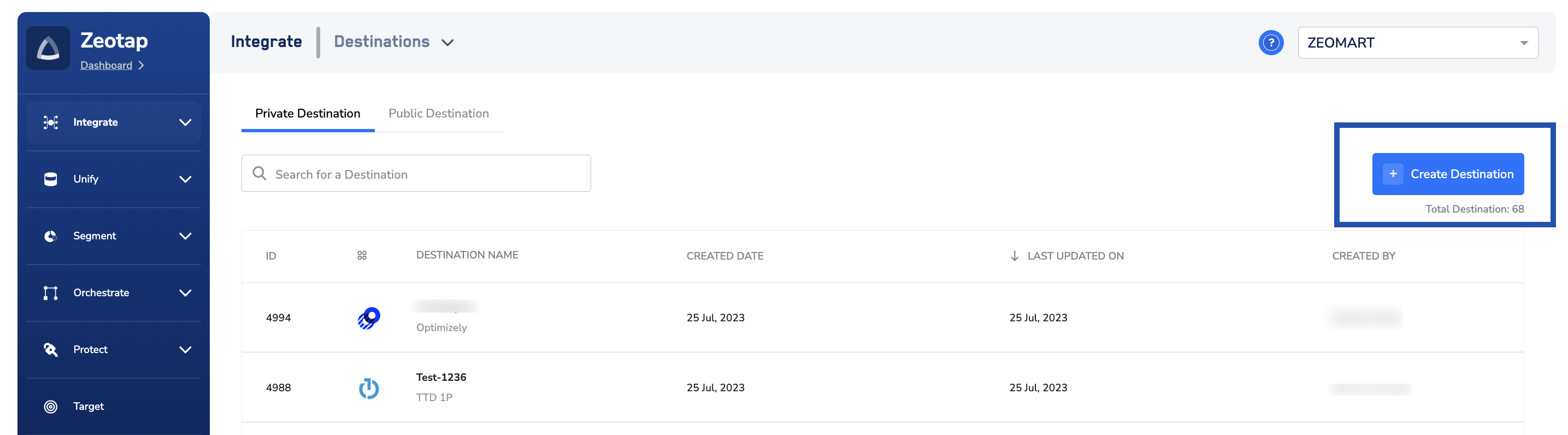
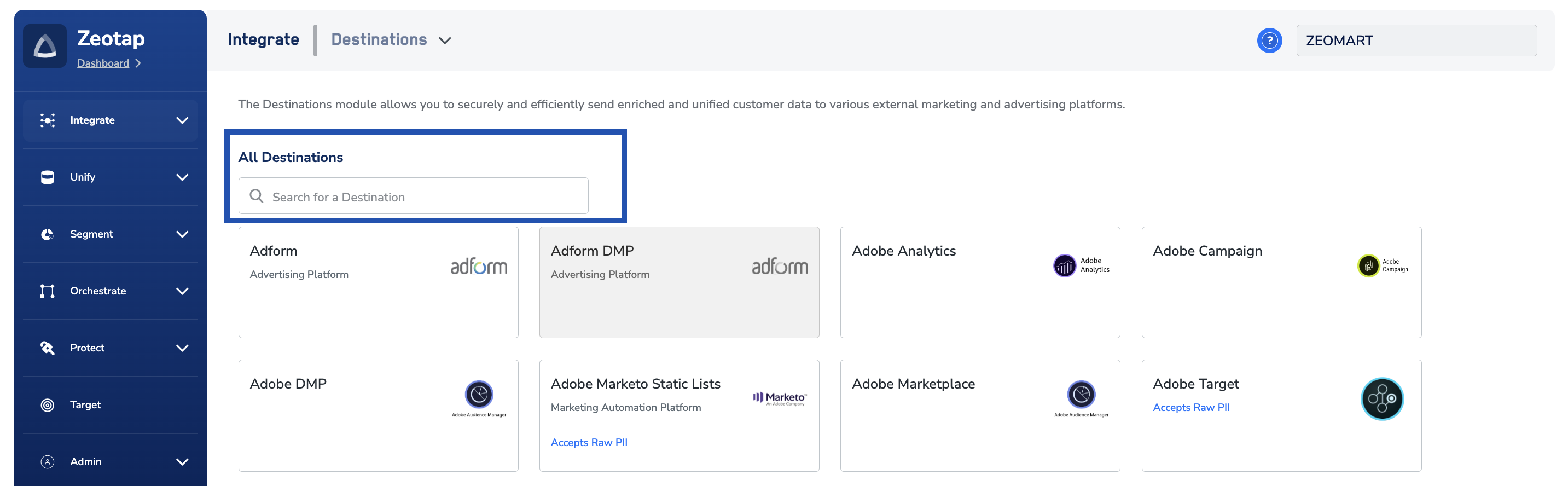
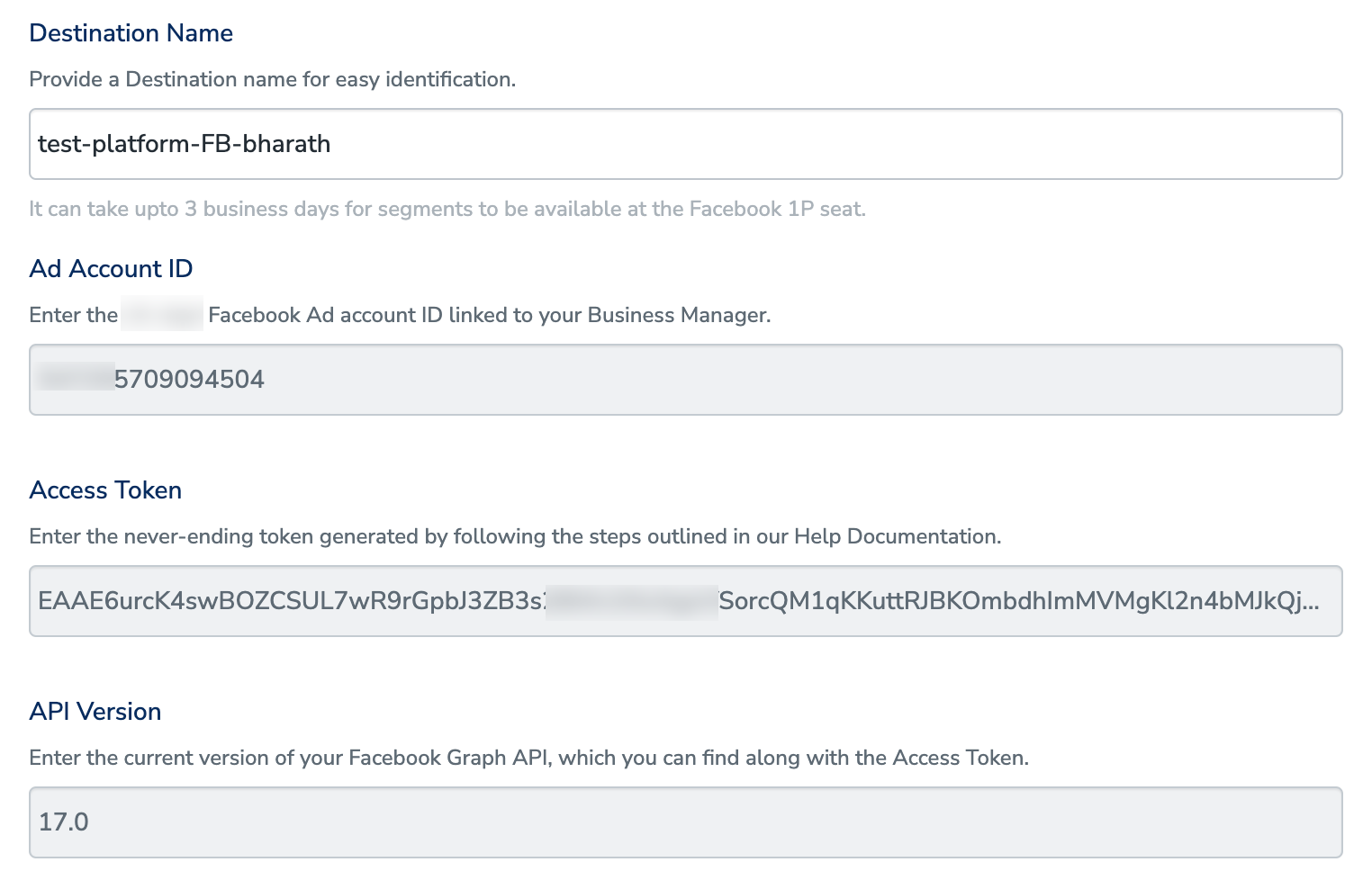
- A name for the destination
- The Ad Account ID (the 16-digit ID associated with Facebook Business Manager)
- The Access Token you obtained above
- The API Version (numerical part only — for
v17.0, enter17.0)
Choose the action and map identifiers
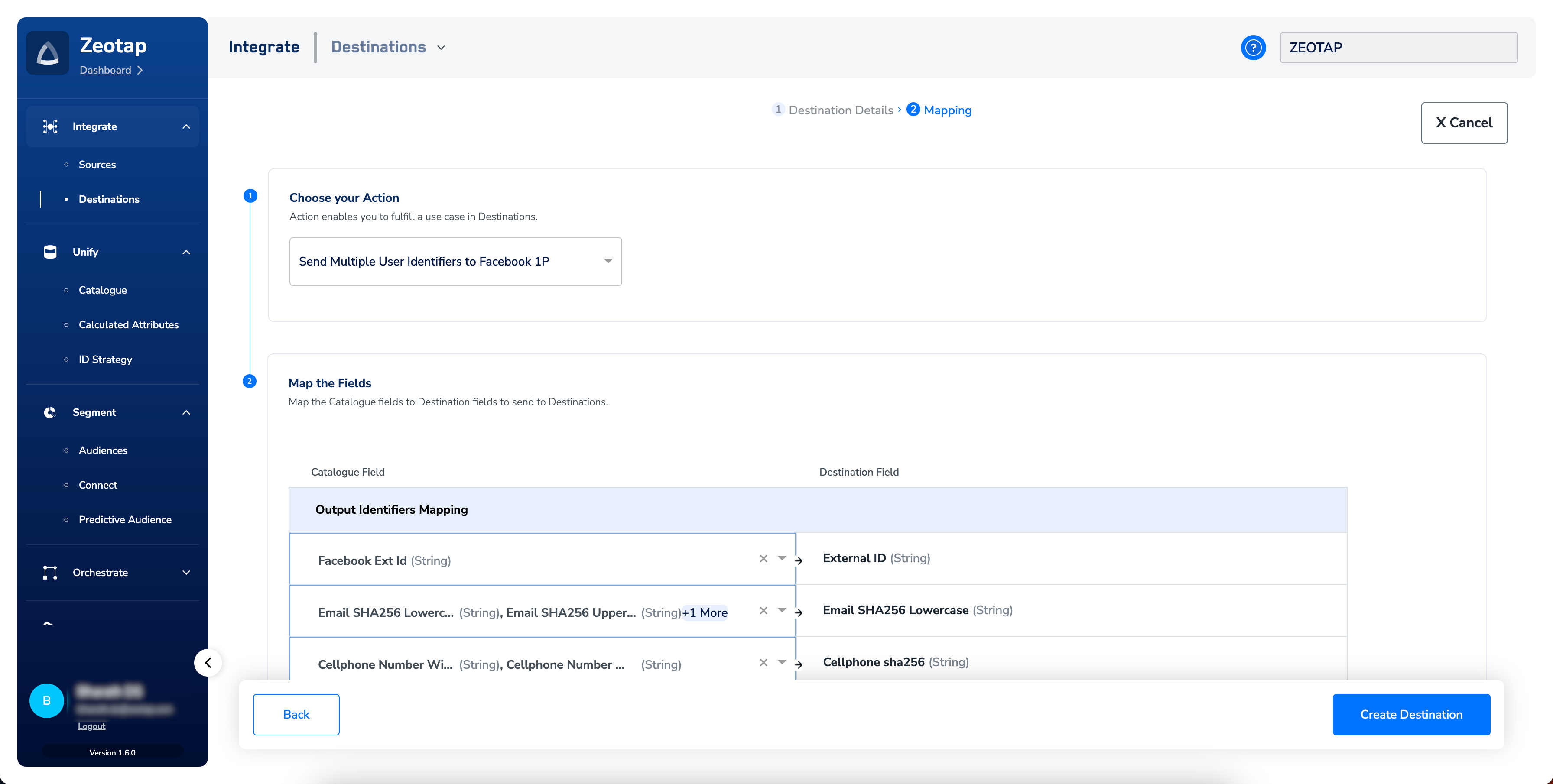
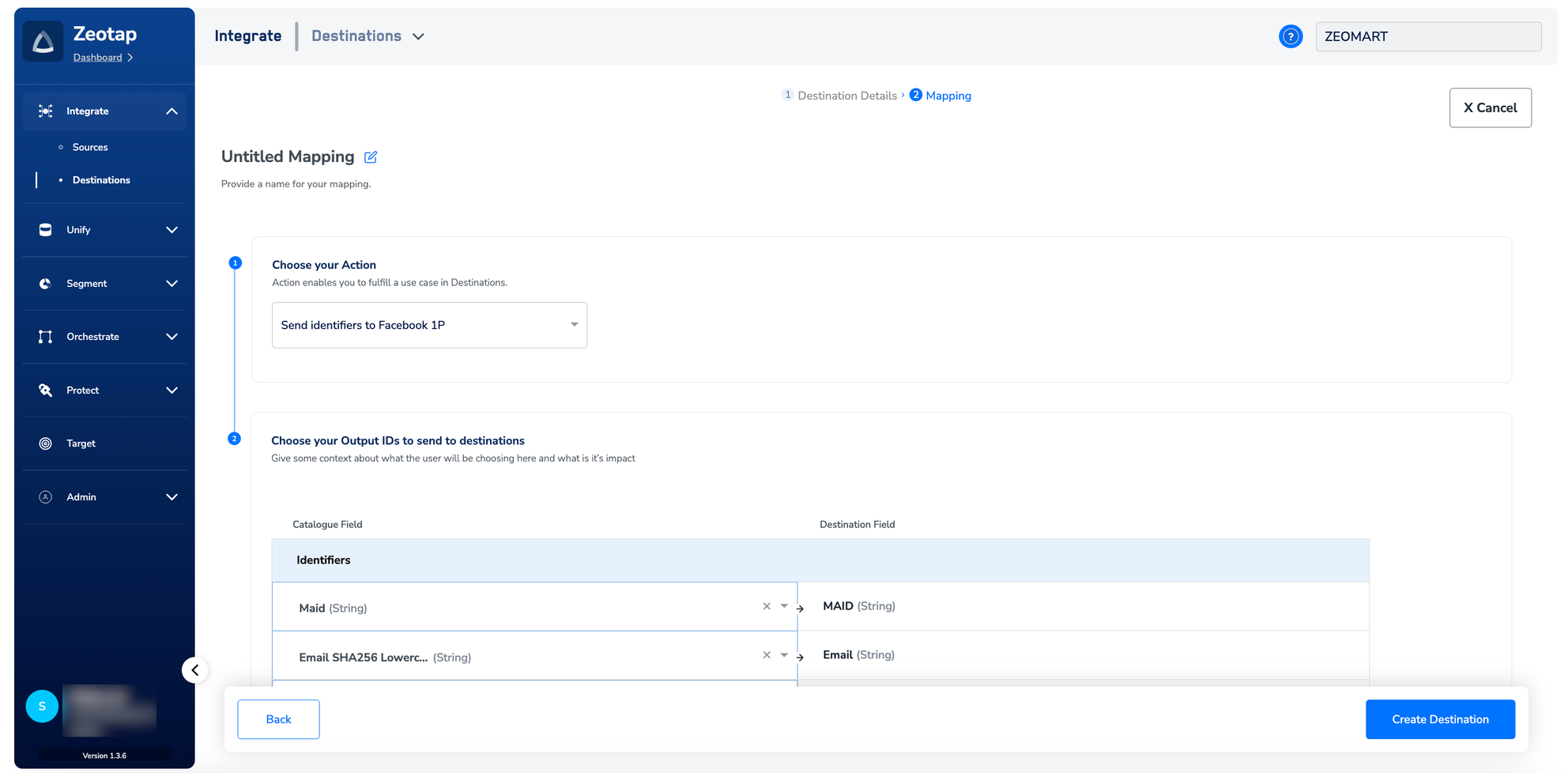
Under Choose your Action, pick one:- Send Identifiers to Facebook 1P — populates MAIDs, email addresses, cellphone numbers, and Facebook External ID. Each identifier is sent as an individual user profile.

- Send Multiple User Identifiers to Facebook 1P — populates Facebook External ID, email addresses, MAIDs, cellphone numbers, gender, date of birth, first/last name, city, state, ZIP, and country. All identifiers selected in the mapping screen are sent as a single user profile, which raises the match rate.
How Zeotap formats each attribute for Facebook
Facebook requires specific formatting and hashing for each attribute. Zeotap CDP performs the transformations listed below, so you only need to ingest the source attribute into your Zeotap Catalogue.
After reviewing the mapping, click Create Destination. The destination appears in the Audiences application, ready to be linked.
Link an audience to the destination
In the Audiences application, link the audience or segment to the Facebook 1P destination. The terms audience and segment are used interchangeably for a customer cohort — for example, customers over 18 who performed anaddToCart event in the last 30 days. For the linking procedure, see Link an Audience to the Destination.
- Create segments directly in the client’s Facebook account so they do not appear under Zeotap’s Ad accounts (unlike a third-party setup).
- The Facebook Custom Audience limit of 500 applies per Ad Account that the client uses — it does not apply to Zeotap’s account.
- Facebook compares the data Zeotap uploads against the segment using their encrypted user data; matched IDs are added to the Custom Audience and ads are delivered to those users.
- The audience SLA on Meta’s side is documented in Meta’s Custom Audiences guide.
Verify the audience reached Facebook
Allow up to 24 hours (one business day) after linking for a Zeotap CDP audience to sync to Facebook. To confirm:- Sign in to Facebook Ads Manager and select the business portfolio that owns the ad account configured in the destination.
- Open Audiences from the left navigation.
- Confirm the Custom Audience appears in the Audience list with a non-zero size. The audience name matches the one configured in Zeotap CDP.
0 or Below minimum, the sync completed but matching produced fewer records than Facebook’s minimum threshold — review the identifiers being sent (see How Zeotap formats each attribute for Facebook) and confirm the source identifiers are populated for the audience members.
This integration supports user disqualification. When a user no longer meets the audience criteria, the consent requirements, or other audience conditions, Zeotap CDP issues a user deletion request to Facebook on the next refresh cycle. Disqualified users are excluded from the audience on the configured refresh frequency. No manual action is required — the process runs automatically.
Troubleshooting
Common errors
If the 400 BAD_REQUEST error persists
If the 400 error continues after the Audiences ToS has been accepted, allow time for the Facebook permissions to propagate before retrying. If the error still appears after several days, regenerate the access token, confirm it has the four required permissions (ads_read, ads_management, pages_manage_ads, pages_show_list), and update the destination credentials in Zeotap CDP.
How External IDs flow between a brand and Facebook
When you target Facebook users by a brand-side identifier (loyalty ID, internal user ID, cookie), the flow is:-
The brand places the Facebook pixel on its website and configures the tag to pass the Facebook cookie (or any custom identifier) as
extern_idto Facebook. See Meta’s Pixel implementation guide. The pixel push pattern: -
Facebook builds an internal mapping between the
extern_idand its own user ID. -
The brand also passes the Facebook cookie to Zeotap as
id_mid_62, using Google Tag Manager, JavaScript, or another tag implementation. - The brand builds an audience in the Audiences application using the Facebook cookies.
- Zeotap uploads the Facebook cookie as an External ID to Facebook. Facebook uses its internal mapping to resolve the External ID to the corresponding user on its platform.
Accepting the Custom Audiences Terms of Service (mandatory since September 2021) is required for this flow.
FAQ
Which action should I pick — Send Identifiers or Send Multiple User Identifiers?
Which action should I pick — Send Identifiers or Send Multiple User Identifiers?
Pick Send Multiple User Identifiers to Facebook 1P when you have more than one identifier per profile. All identifiers map to a single user record on Facebook’s side, which raises the match rate. Pick Send Identifiers to Facebook 1P only when each identifier needs to be sent as its own user profile.
Do I need to hash identifiers before ingesting them into Zeotap?
Do I need to hash identifiers before ingesting them into Zeotap?
For email, phone, name, gender, date of birth, address fields, and country code, Zeotap CDP performs the hashing and formatting Facebook requires — you ingest the source value into the matching Catalogue field. For Mobile Advertising IDs and External IDs, no hashing is required and Zeotap sends them as-is. See the attribute table for the per-attribute Catalogue mapping.
How long until my audience appears in Facebook Ads Manager?
How long until my audience appears in Facebook Ads Manager?
Allow up to 24 hours (one business day) after linking for a Zeotap CDP audience to fully sync with Facebook. If it has not appeared after that window, validate the access token in Meta’s Access Token Debugger and confirm the audience link is active in Zeotap CDP.
What happens if I update the system user's permissions?
What happens if I update the system user's permissions?
Generate a new access token whenever you change the access granted to the system user, then update the Access Token on the destination in Zeotap CDP. The previously issued token does not pick up the new permissions.
Next steps
- Explore the Meta Custom Audience destination → for the OAuth-authenticated variant of this destination, which replaces the access token with a Connect flow
- Explore Facebook Conversions API →
- Explore Facebook Enhanced Conversions API for offline data →
- Explore linking an audience to a destination →
- Explore Audience Insights to measure match rate and reach →