

What this is
MoEngage’s Cohort Sync API supports direct server-to-server sync of cohort and audience data into MoEngage. This destination uses that API so you can:- Create custom segments (audiences) in MoEngage for campaigns.
- Add users to those segments in real time.
- Keep the segments updated, so campaign targeting stays fresh.
Two limits apply to this integration:
- No new users are created. The sync only matches users who already exist in MoEngage, using their
uid. Audience members with no matching MoEngage user are not added. - User dissociation is not supported as of now. Removing a user from the Zeotap CDP audience does not remove them from the MoEngage segment.
Supported identifiers
The destination maps one identifier: User ID. On the mapping screen you pick the Zeotap CDP catalogue attribute that carries the user’s MoEngageuid and map it to the User ID destination field, which is a required string.
Prerequisites
Before you create the destination, gather the following:- MoEngage account — an active MoEngage account.
- API keys — your Workspace ID (formerly DATA API ID) and a Data API Key. Both are generated from the MoEngage dashboard under Settings → Account → APIs → Data API Settings.
- Data centre number — the
0Xin your account’s MoEngage API endpointhttps://api-0X.moengage.com, replaced with your own data centre number (for example01,02or03).
How the credentials are used
MoEngage’s API uses HTTP Basic authentication, with your Workspace ID as the username and your Data API Key as the password. You supply both values once when you create the destination; you do not construct the API request yourself.Create the MoEngage destination
1
Log in to the Zeotap CDP App and go to the Destinations application under Integrate.
2
Click + Create Destination.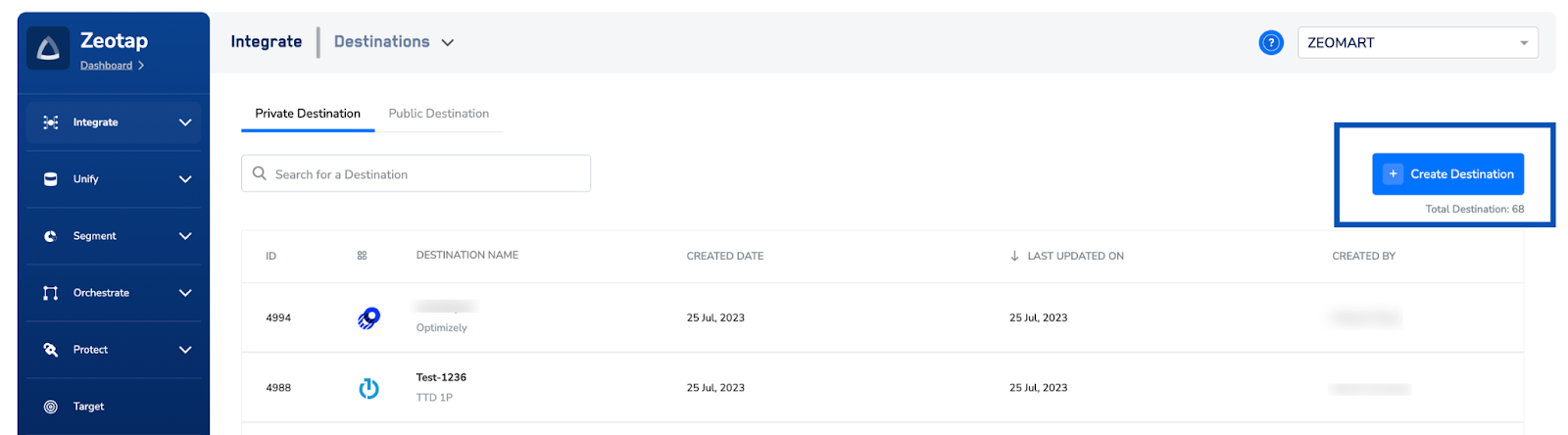
3
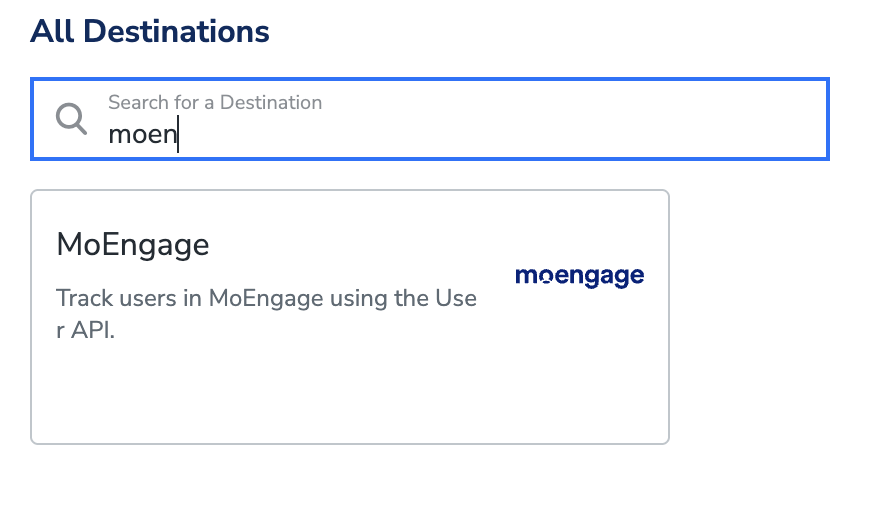
Under the All Destinations section, search for MoEngage.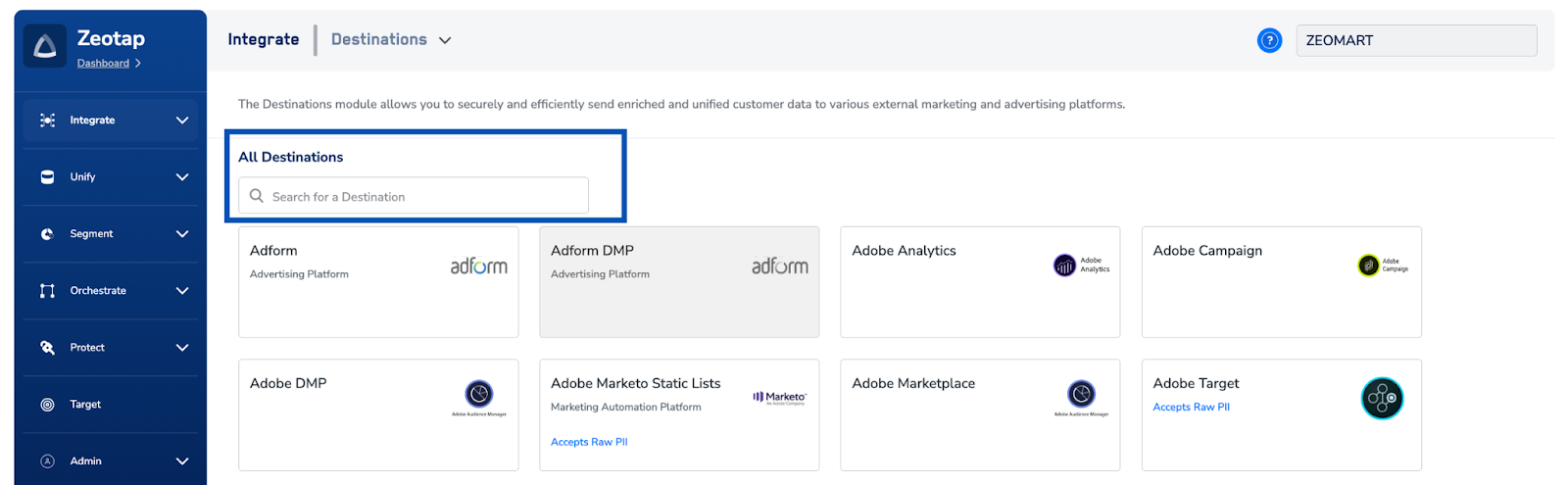
4
Click MoEngage. The left of the screen describes the destination; the right lists the fields the integration needs. Provide them as follows:a. Enter a name for the destination.b. Enter the API Key, Workspace ID and Data Center (01, 02, 03 and so on) for your MoEngage instance. See Prerequisites for where these values come from in MoEngage.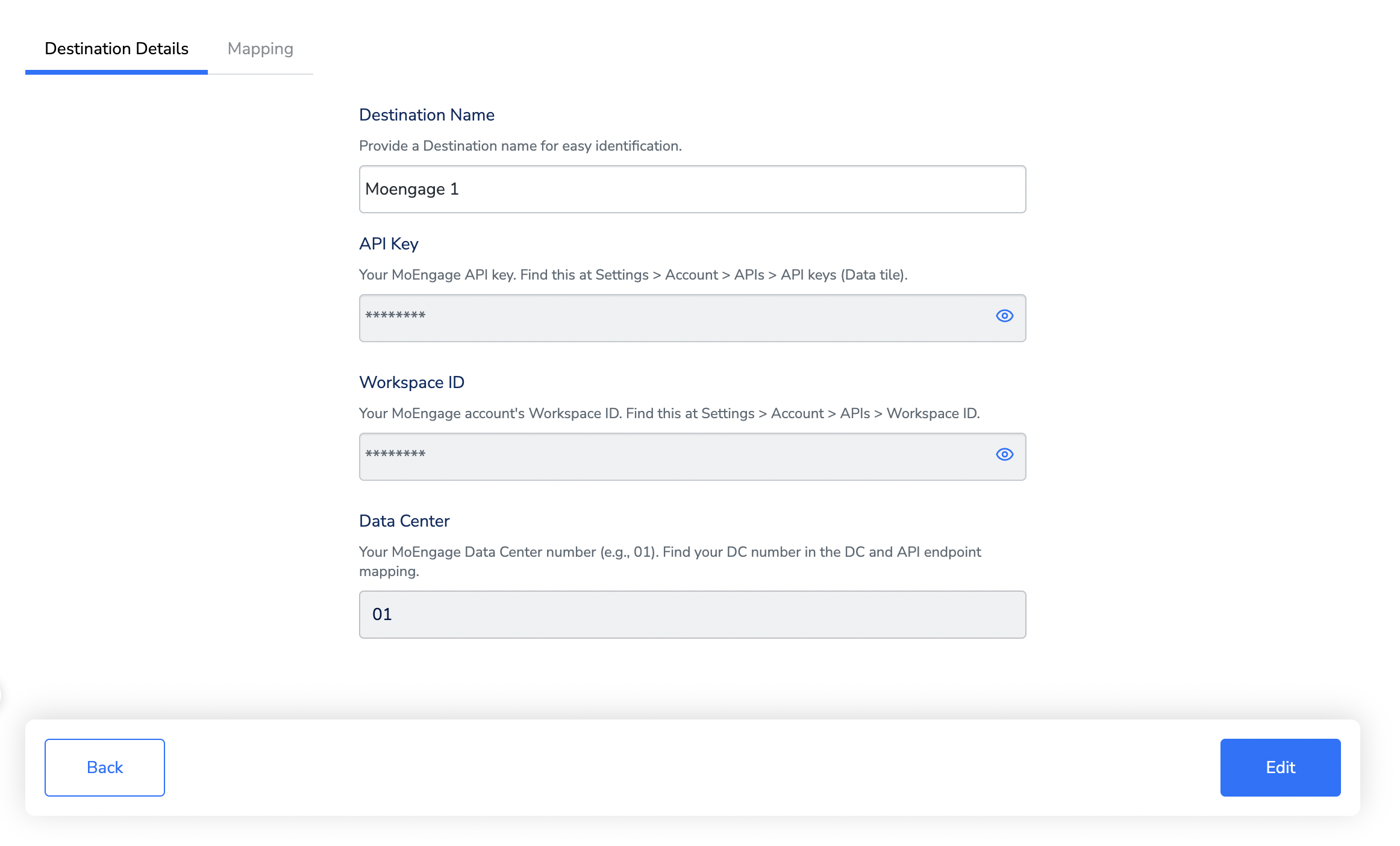
5
On the screen that appears, choose the appropriate action and mapping. Under Choose your Action, choose Sync User/Send Events as the action.Under Map the Fields, map the catalogue attribute holding the user’s MoEngage 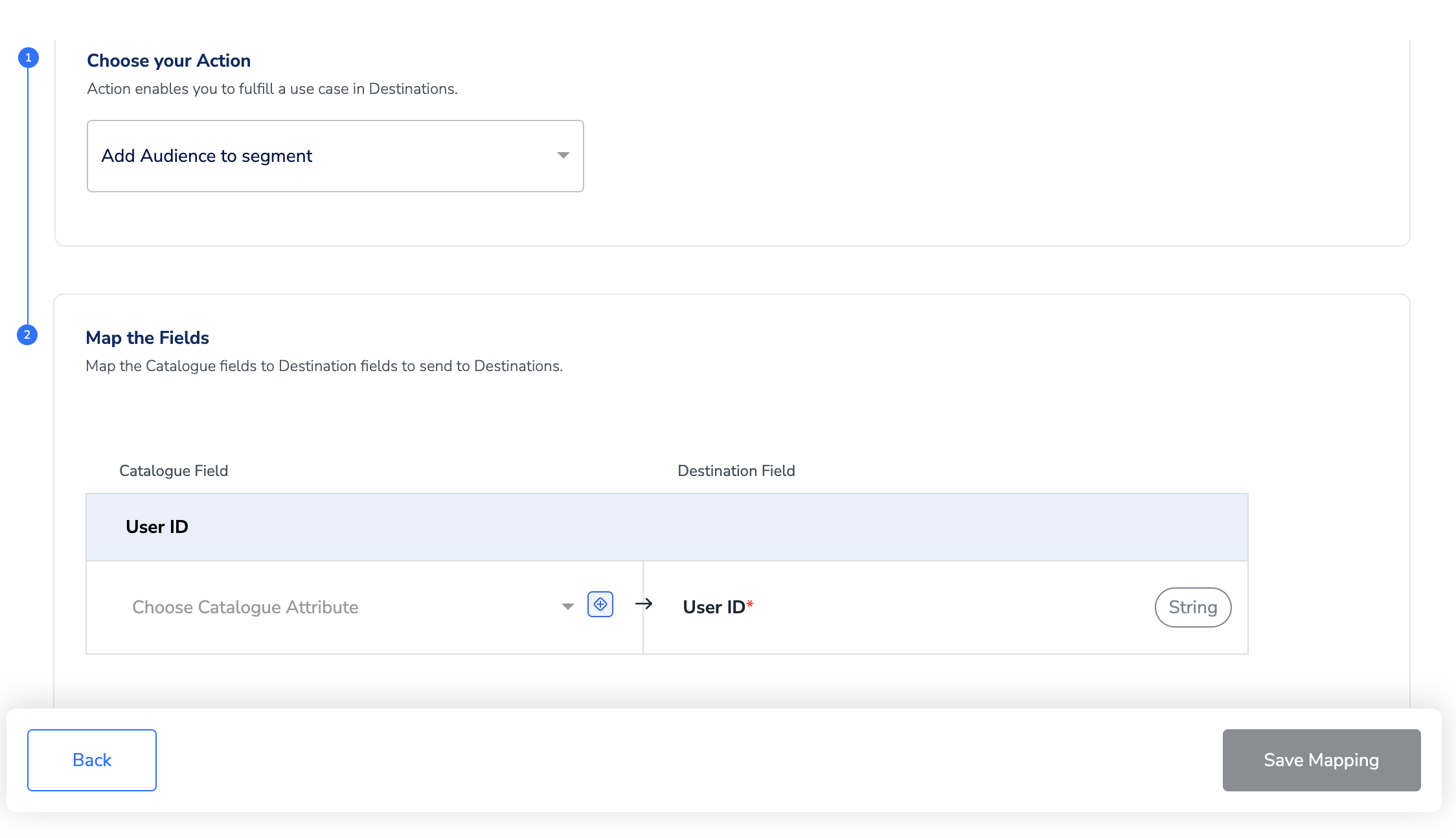
uid to the User ID destination field.6
Click Create Destination. The destination is then listed in the Audiences application and can be linked to any audience.
Link an audience to the destination
1
In the Audiences application, find the audience you want to send, click its Audience Activation icon and choose Link to Destination.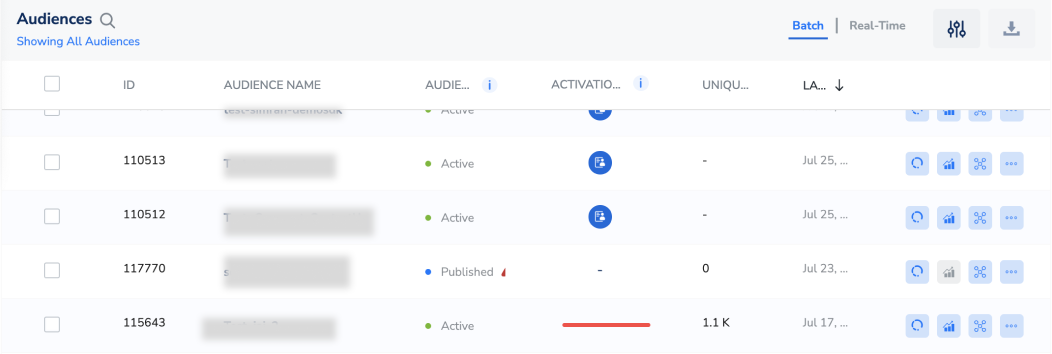
2
In the Select Destination panel, search for the MoEngage destination you created and drag it onto the canvas.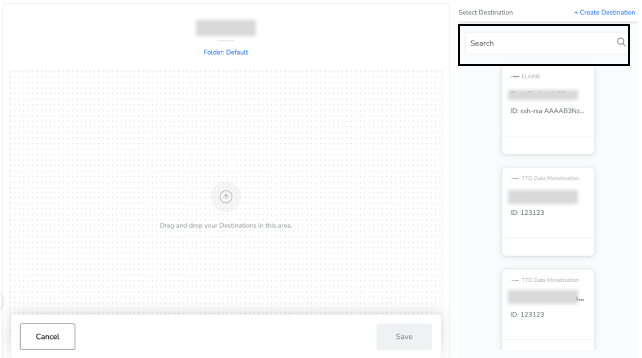
3
On the Destination Details tab, the Workspace ID, API Key and Data Center fields are populated automatically from the values you entered when you created the destination.
4
Click Save Destination. The MoEngage destination is attached to the audience.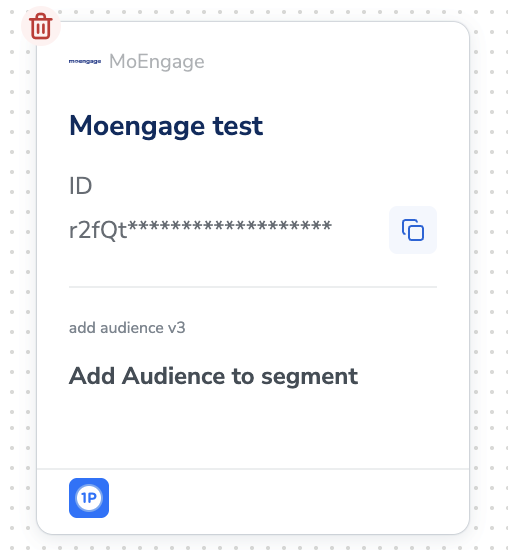
Note:The terms Audiences and Segments are used interchangeably to refer to customer cohorts belonging to a specific category. For example, an Audience or a segment could be a specific group of customers who are over 18 years of age and who have performed an
addToCart event within the last 30 days.Verify the destination is set up correctly
After you save the destination, confirm the following:- The MoEngage destination appears in the Audiences application and is selectable when you link an audience.
- Once linked, the MoEngage card is shown attached to the audience, carrying the destination name and the action you configured.
- The Workspace ID, API Key and Data Center shown on the Destination Details tab of the linked destination match the MoEngage instance you intended to send to.
Troubleshoot the MoEngage sync
For delivery problems that are not specific to MoEngage, see Why deliveries fail.