

What this is
Microsoft Ads Customer Match is a Microsoft Advertising feature that re-engages known customers across the Microsoft Search Network and Audience Network using hashed email addresses collected with consent. The Zeotap CDP destination for Microsoft Ads Customer Match forwards audiences (segments) from Zeotap CDP into your Microsoft Advertising account as customer match lists, which you then attach to campaigns for targeting or exclusion. This page walks through the credentials the integration requires, how to create the destination in Zeotap CDP, how to authenticate through Microsoft’s OAuth flow, how to verify segments on the Microsoft Advertising side, and how to resolve the failure modes that surface at each step.Supported identifiers and actions
This integration supports hashed email addresses only (SHA-256). The following table lists the action types available for this destination and the features each supports:Prerequisites
Before you create the destination in Zeotap CDP, collect the following from your Microsoft Advertising account:
- Account ID and Customer ID — see Locate your Account ID and Customer ID.
- Developer Token — issued by Microsoft Advertising with valid Super Admin credentials. Follow Microsoft’s Get a Developer token guide.
- Super Admin permission on the Microsoft Advertising account you will authenticate with. The OAuth step in Zeotap CDP will fail without this permission level.
- Accepted Customer Match terms on the Microsoft Advertising side. To accept them, create one customer match segment in Microsoft Advertising (a blank file is acceptable) under Tools → Audiences → Create → Customer Match. If the terms are not accepted, the OAuth authentication in Zeotap CDP will fail.
Locate your Account ID and Customer ID
Sign in to the Microsoft Advertising web application and open the Campaigns tab. The page URL contains two query-string parameters:cid, which identifies your Customer ID, and aid, which identifies your Account ID. Copy both values from your own URL.
For a broader reference on identifiers in Microsoft Advertising, see Microsoft’s Get started guide.
Create the destination in Zeotap CDP
1
Open the Destinations application in Zeotap CDP and start a new destination with + Create Destination.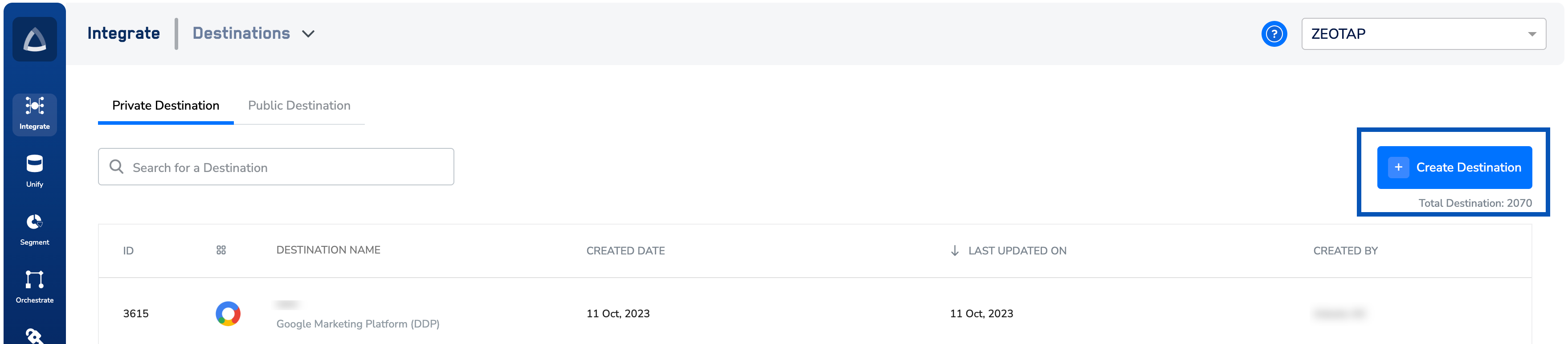
2
Under All Destinations, search for Microsoft Ads Customer Match and select it.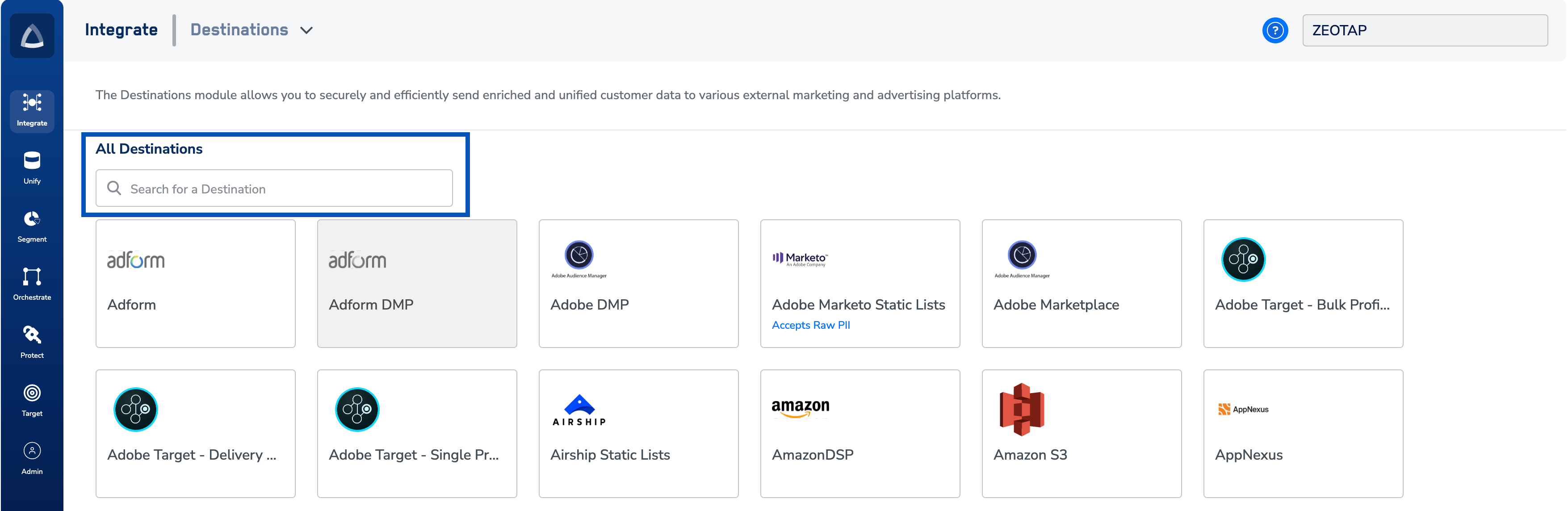
3
On the right-hand configuration panel, enter:a. A name for the destination.b. The Account ID you copied above.c. The Customer ID you copied above.d. The Developer Token issued by Microsoft Advertising.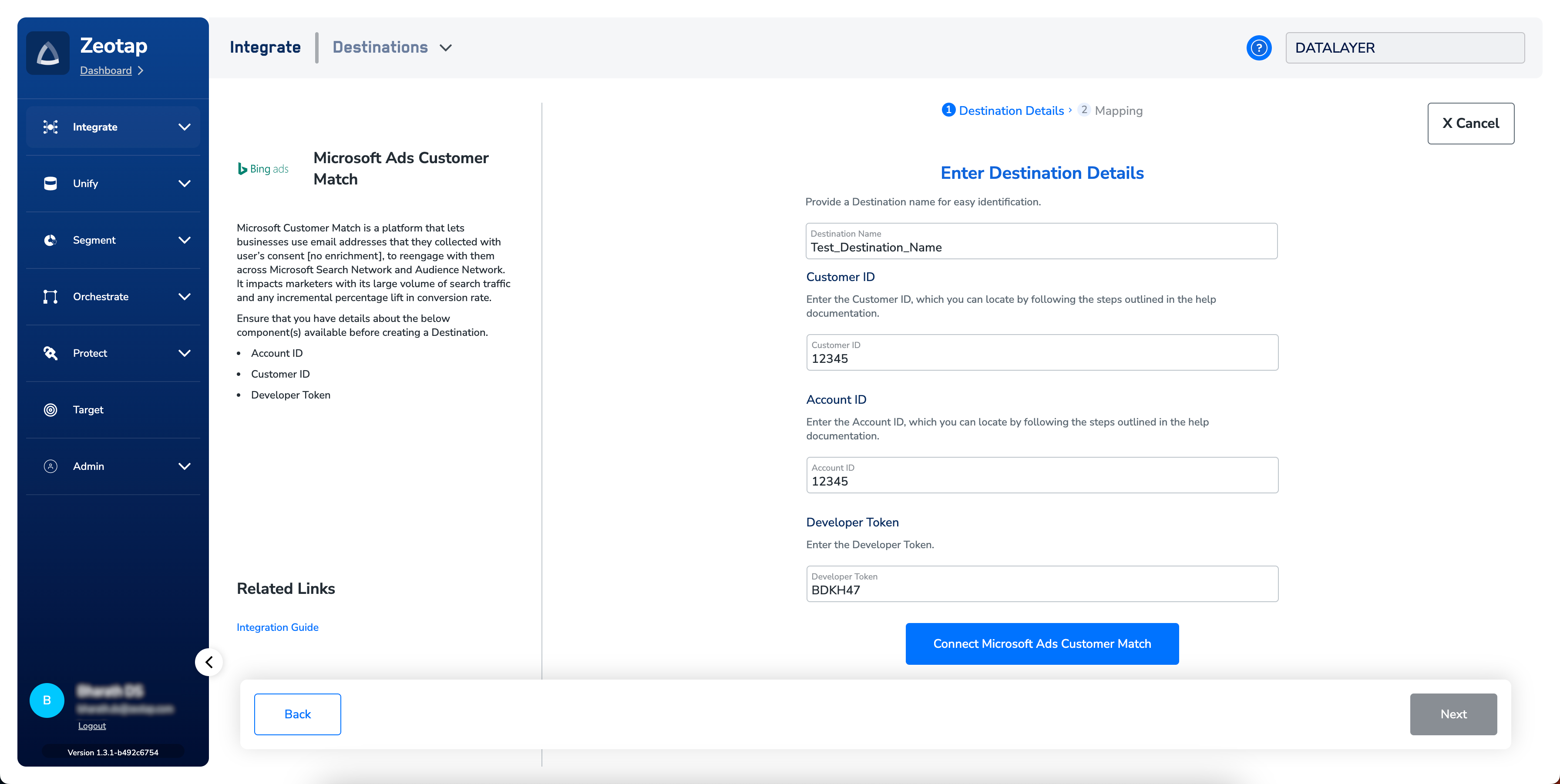
4
Click Connect Microsoft Ads Customer Match and complete the Microsoft OAuth flow in the pop-up. Sign in with the Microsoft account that has Super Admin access to the Microsoft Advertising instance where you want to activate segments, and grant the requested permissions.
5
On success, Zeotap CDP populates the Access Token, Refresh Token, and their expiry periods on the destination screen. The short-lived Access Token is regenerated automatically from the Refresh Token (valid up to 90 days). If the Refresh Token expires or is revoked, Microsoft returns an
invalid_grant error and you must create a new destination to re-authenticate.6
Click Next to proceed to mapping.
7
Under Choose your Action, select Send identifiers to Microsoft Ads Customer Match, then map the catalog fields to the destination fields under Map the Fields. Default output identifiers are pre-populated; edit, add, or remove identifiers as needed. See Choose the output identifiers for details.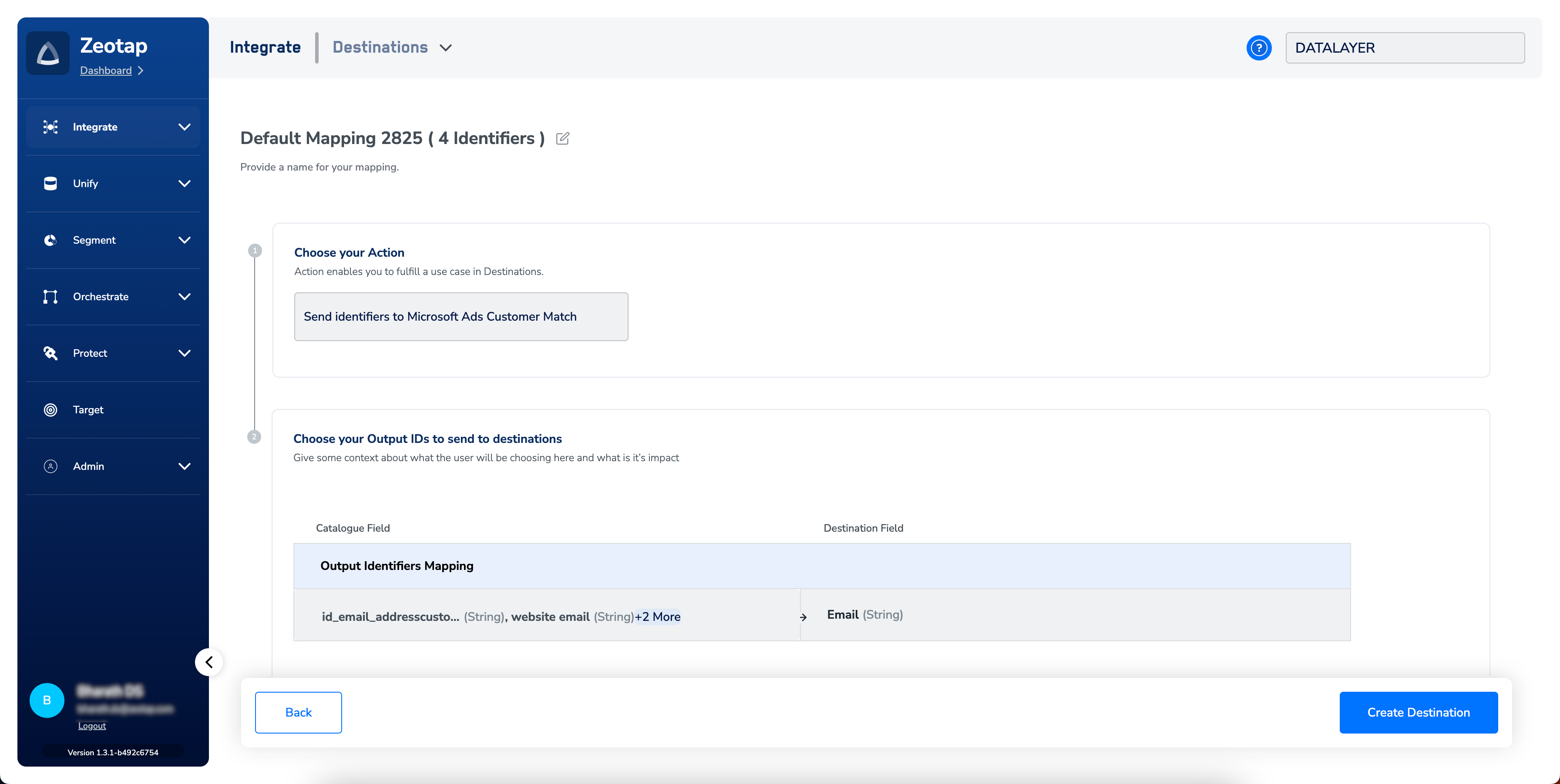
8
Click Create Destination. The destination is listed in the Audiences application and can be linked to an audience or segment.
One active destination per Microsoft Advertising account is sufficient — do not create duplicates with the same credentials. Because destination creation requires signing into the client’s Microsoft Advertising account, the client should create the destination themselves; a Zeotap TAM or CSM can do so only when the client has explicitly provided access to their Microsoft Advertising credentials.
Link an audience to the destination
For step-by-step instructions on linking an audience or segment to the destination in the Audiences application, see Link an audience to the destination. Segments take up to three business days to appear at the Microsoft Ads Customer Match seat after linking.The terms Audiences and Segments are used interchangeably to refer to customer cohorts belonging to a specific category. For example, an audience can be a group of customers who are over 18 and have performed an
addToCart event within the last 30 days.Verify the segment reached Microsoft Advertising
To confirm segments pushed by Zeotap CDP are landing correctly on the Microsoft Advertising side:1
Sign in to Microsoft Advertising.
2
Open Tools → Audiences. Your Zeotap-pushed segments appear in the list; search by the audience name to locate a specific segment.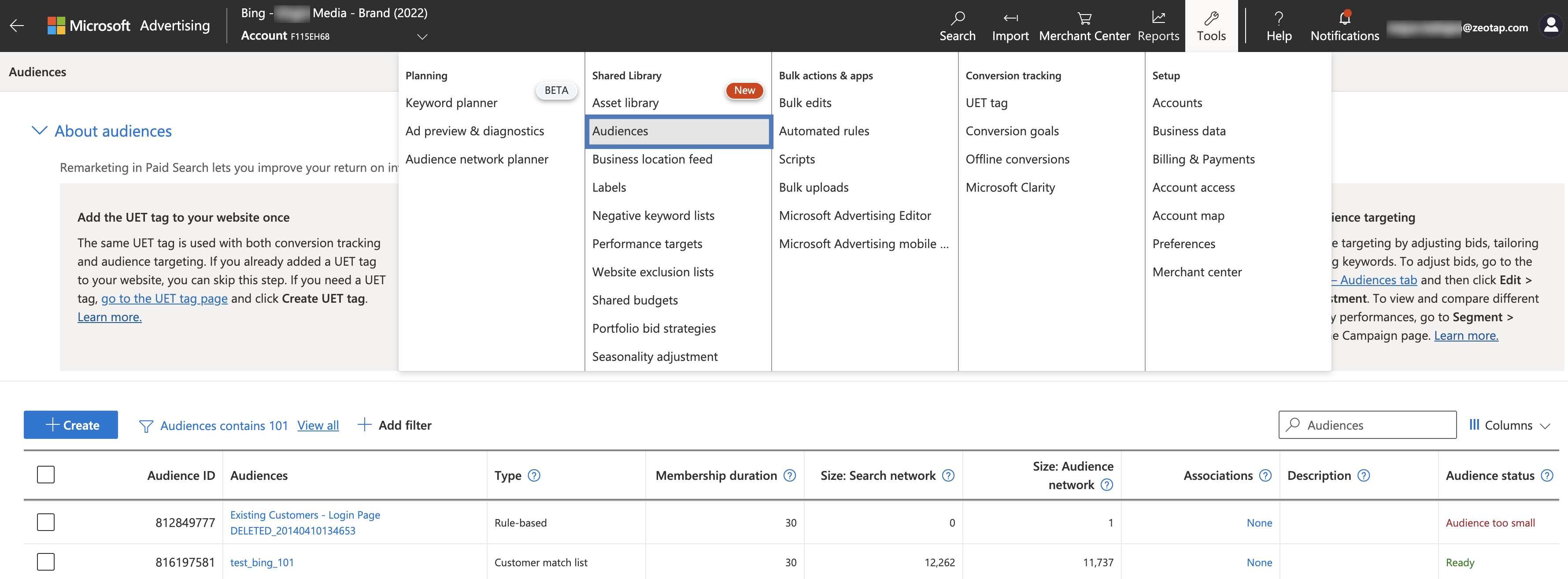
Attach a segment to a Microsoft Ads campaign
Once a segment is visible under Audiences in Microsoft Advertising, attach it to a campaign:1
Select the campaign you want to edit, then click Edit → Associate with audiences.
2
Under Campaign targeting or Campaign exclusion (depending on whether you want to include or exclude the audience), select Customer match lists from the drop-down.
3
Search for and select the audience list you want to include or exclude.
4
Click Save.
Troubleshooting
The table below lists the errors and failure modes that surface for this destination, what each one means, and where to look to resolve it.
For the broader Microsoft Advertising error catalog, see Microsoft’s Handle service errors and exceptions guide.
When to contact support
Escalate to Zeotap support when:- The
AADSTS650052error persists after your Azure AD Admin has been enabled as a work account in Microsoft Advertising. - A newly created destination completes OAuth without error, but no segment appears at the Microsoft Ads Customer Match seat five business days after the audience refresh has run.
- You see an error string not listed in the table above.
- Destination name and creation date.
- Audience ID and the timestamp of its last refresh in Zeotap CDP.
- The full error string from Zeotap CDP or from Microsoft Advertising, including any Trace ID and Correlation ID.
- The Microsoft Advertising Account ID (
aid) and Customer ID (cid).
User disqualification from audiences
This integration supports user disqualification from audiences. A user can be disqualified from an audience (segment) for reasons such as no longer meeting audience criteria, consent withdrawal, or other conditions set on that audience.- When a user is disqualified, Zeotap CDP initiates a user-deletion request in the next refresh cycle. Requests are sent to the audiences linked to this destination.
- Disqualified users are excluded from the audience based on the configured refresh frequency.
- Disqualification runs automatically — no manual action is required.
FAQ
How long after linking an audience does it appear in Microsoft Advertising?
How long after linking an audience does it appear in Microsoft Advertising?
Segments take up to three business days to appear at the Microsoft Ads Customer Match seat after the audience is linked to the destination and its refresh cycle has run in Zeotap CDP.
What identifiers can I send to Microsoft Ads Customer Match?
What identifiers can I send to Microsoft Ads Customer Match?
Hashed email addresses only (SHA-256). Other identifier types are not accepted by this integration.
Why did my Refresh Token stop working?
Why did my Refresh Token stop working?
Microsoft Refresh Tokens are valid for up to 90 days and are invalidated when revoked. Once the token expires or is revoked, Microsoft returns an
invalid_grant error and Zeotap CDP can no longer regenerate an Access Token — delete the destination and create a new one to re-authenticate.Can a Zeotap TAM or CSM create the destination on my behalf?
Can a Zeotap TAM or CSM create the destination on my behalf?
Because destination creation requires signing into your Microsoft Advertising account, you should create the destination yourself. A Zeotap TAM or CSM can do so only when you have explicitly provided credentials with Super Admin access to your Microsoft Advertising instance.