

What this is
The LinkedIn destination activates Zeotap audiences as Matched Audiences inside your LinkedIn Campaign Manager Ad Account. You authorise Zeotap against a LinkedIn user with Ad Account access, map your output identifiers (SHA256-hashed emails or MAIDs / Google AID), and link audiences to push contact-targeting lists into LinkedIn ads. This page covers destination creation, audience linking, verification in Campaign Manager, campaign attachment, and ongoing token maintenance.Prerequisites
Before you start, confirm you have:
- Access to the Destinations application in your Zeotap CDP workspace.
- A LinkedIn login with access to the LinkedIn Campaign Manager Ad Account where audiences will be activated. If your Customer Success Manager (CSM) administers the Ad Account on your behalf, the CSM can complete the OAuth step as the destination owner.
- Source identifiers that resolve to one of the supported identifier types below.
Supported identifiers and actions
This integration supports SHA256-hashed emails and MAIDs (Google AID).
If your source data carries raw email addresses, hash them with SHA256 over the lowercased, trimmed value so they align with LinkedIn member matching:
Create the LinkedIn destination
- Sign in to the Zeotap CDP App and open the Destinations application.
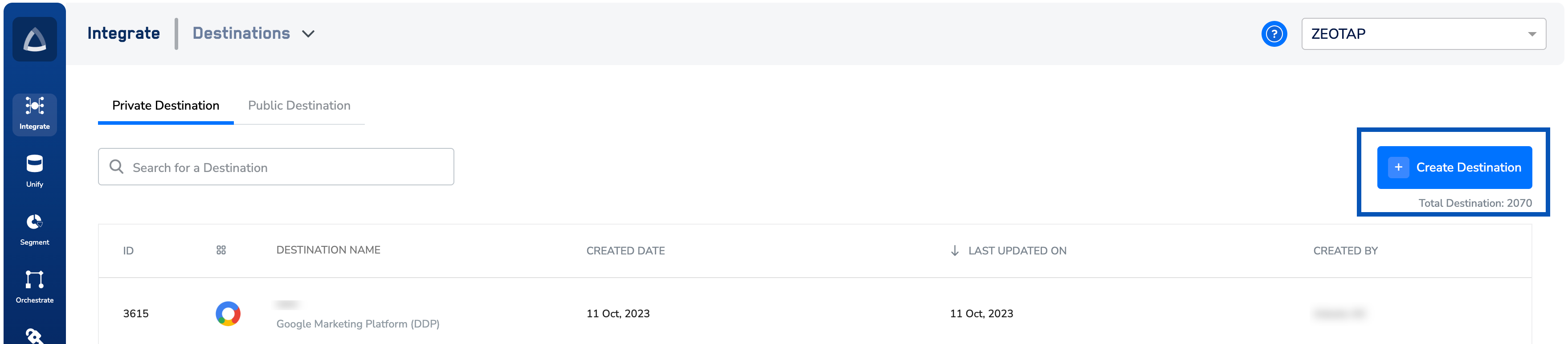
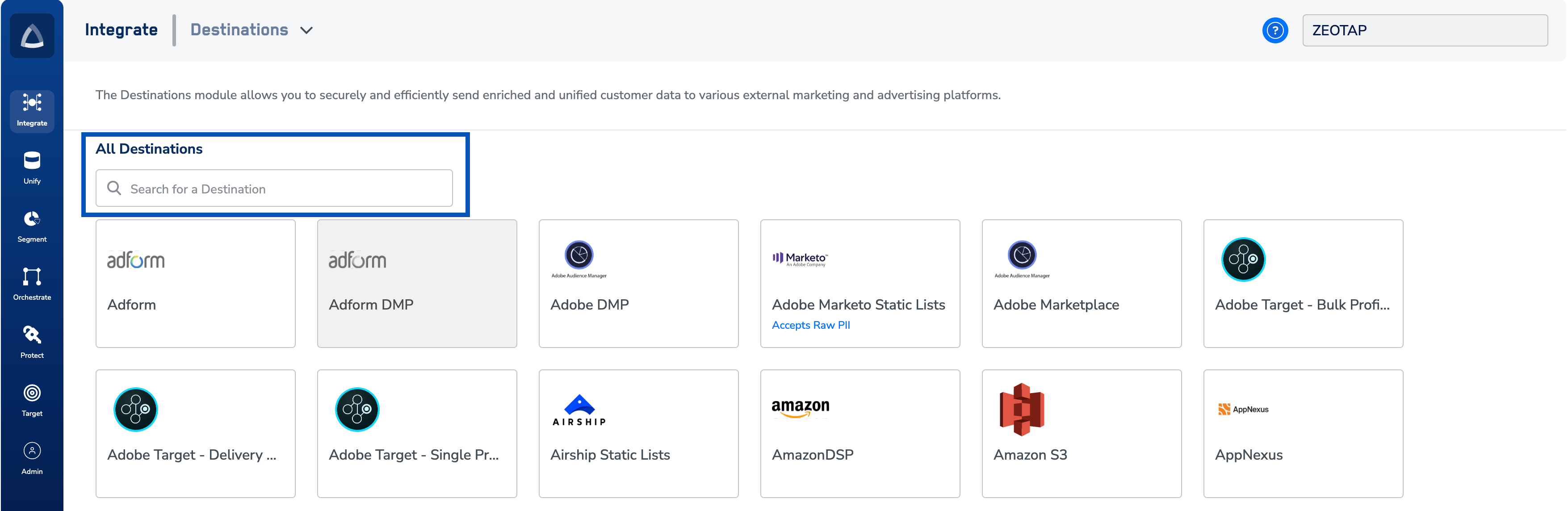
- Click + Create Destination, then under All Channels search for LinkedIn and select it.
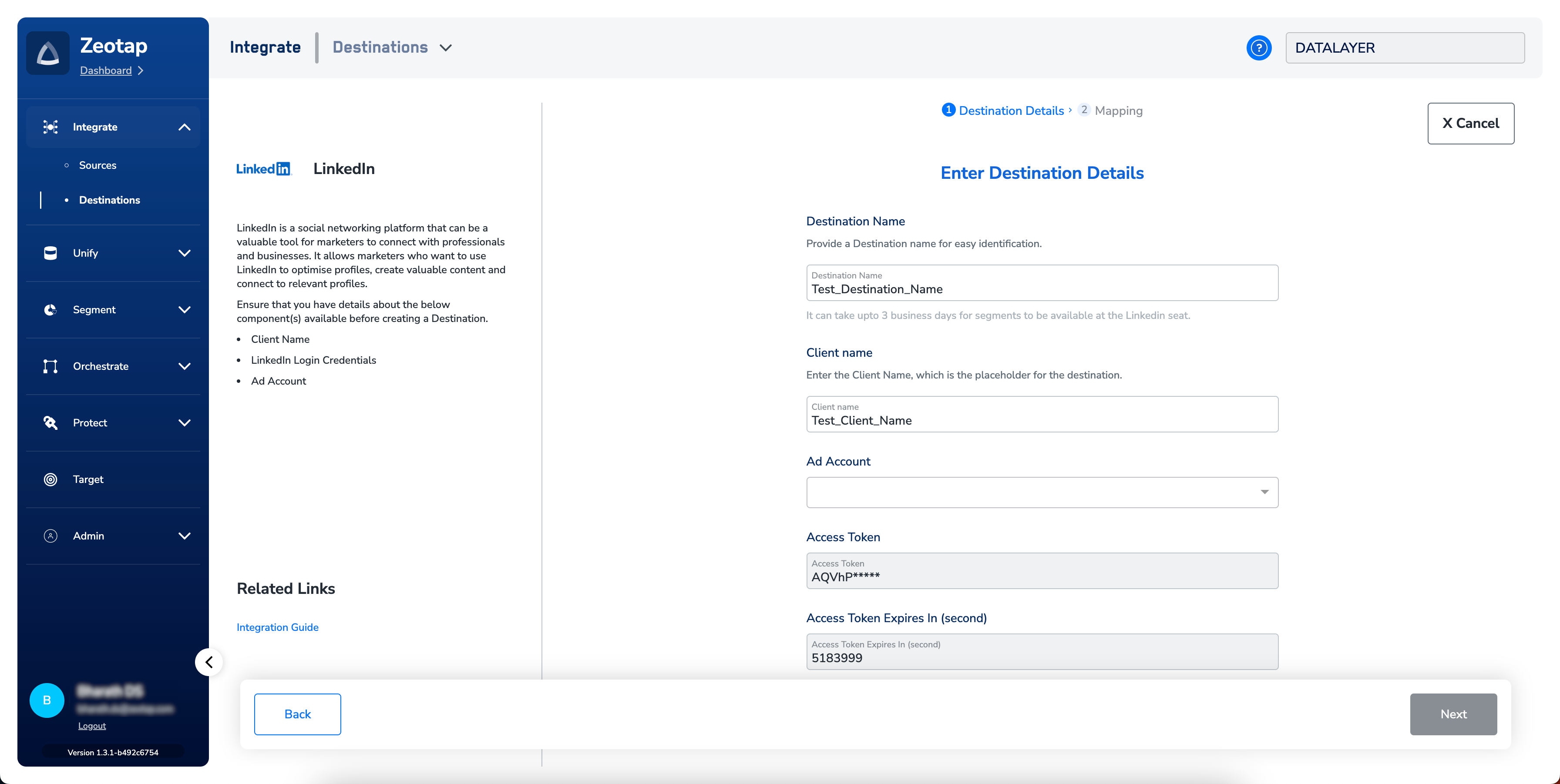
- Configure the destination details:
- Enter a name for the destination.
- Enter the Client name — a placeholder label your team will recognise when listing destinations.
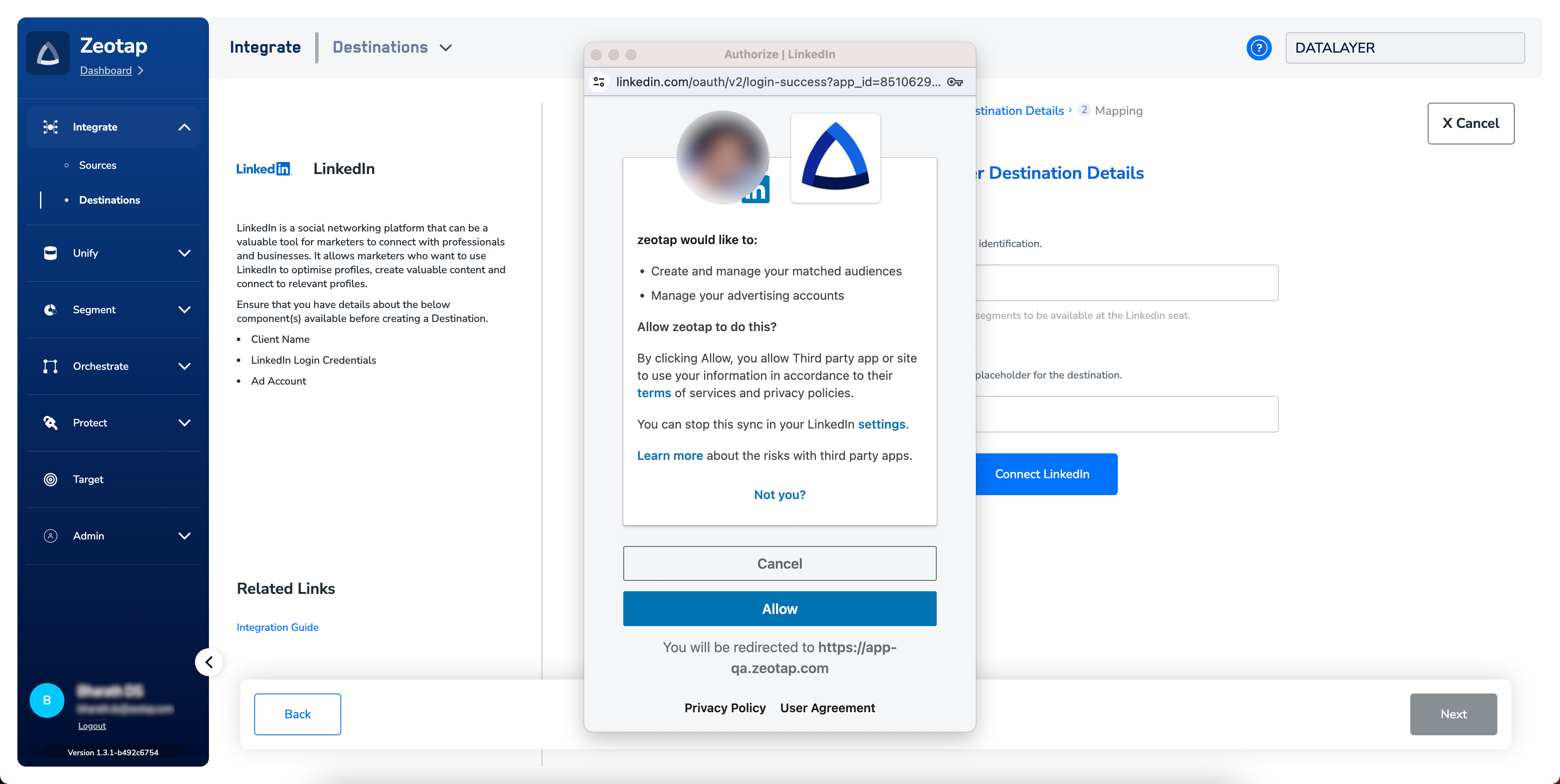
- Click Connect LinkedIn.

-
You are redirected to LinkedIn. Sign in with the account that has access to the target Ad Account and accept the requested permissions.
- Choose the Ad Account to bind this destination to. The Access Token and Refresh Token populate automatically along with each token’s expiry date.
- Click Next to proceed to mapping.
- Under Choose your Action, select Send identifiers to LinkedIn. Under Map the Fields, select the identifiers to send (SHA256 emails, MAIDs, or both). The default list shows the output identifiers accepted by the platform; edit, add, or remove entries as needed. See Destinations → Mappings for mapping rules.
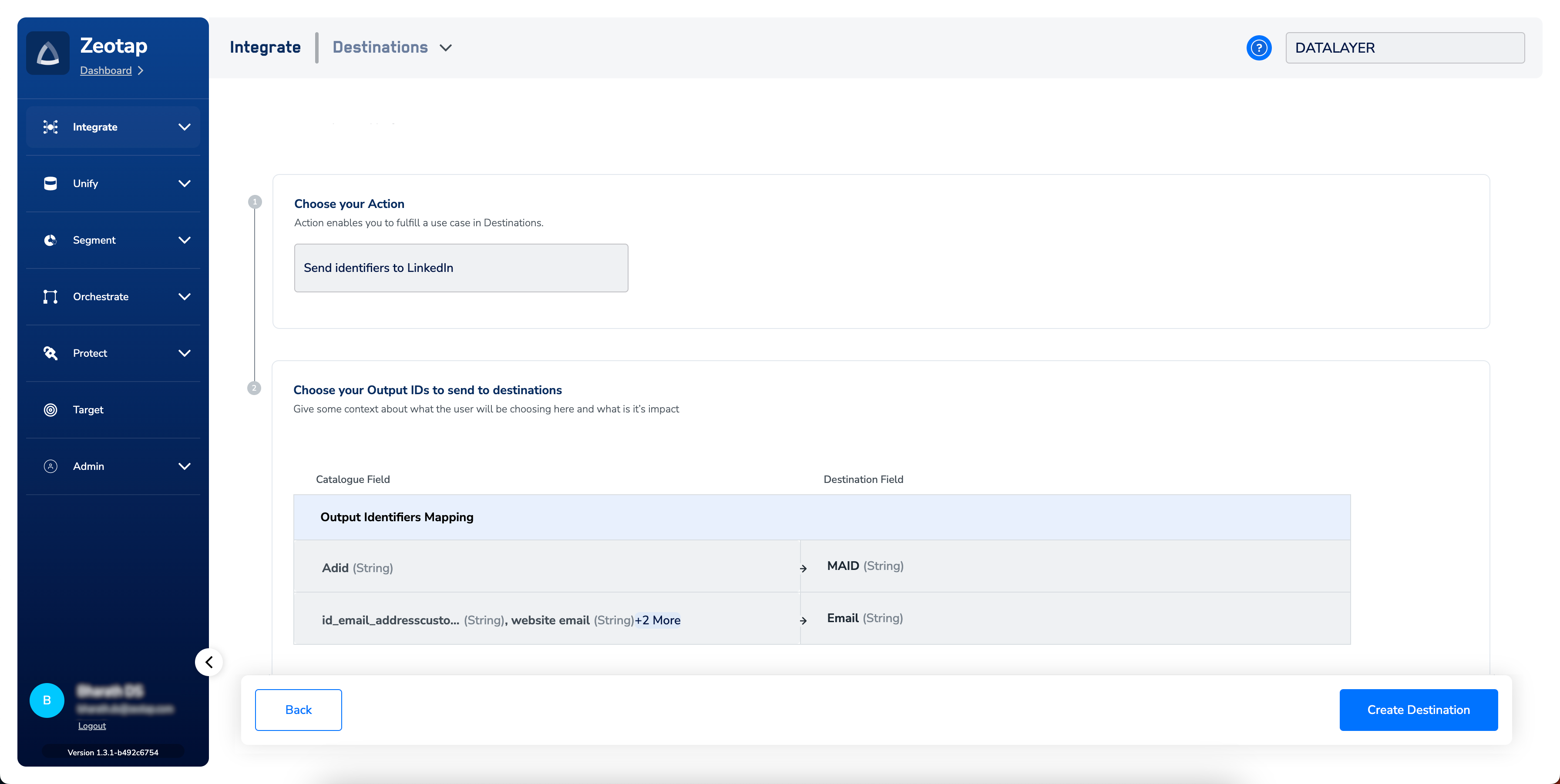
- Click Create Destination. The new destination is listed in the Audiences application, ready to be linked to an audience or segment.
Link an audience to the destination
Follow Link an audience to the destination to attach a Zeotap audience to your LinkedIn destination. Once linked, the audience’s refresh schedule controls when records are pushed.A few things to know about pushing segments to LinkedIn:
- Segments take up to two days to appear at the LinkedIn seat after activation.
- Audiences and Segments describe the same object — a customer cohort matching a defined criterion (for example, customers over 18 who triggered
addToCartin the last 30 days). - Apply the Zeotap Graph extension to derive activatable online identifiers from your first-party offline identifiers (email, phone, cookies, device IDs), increasing the addressable LinkedIn reach.
Verify the audience reached LinkedIn
The destination is working when your Zeotap audience appears in LinkedIn Campaign Manager with a non-zero Match rate.-
Sign in to LinkedIn Campaign Manager and open Audiences.
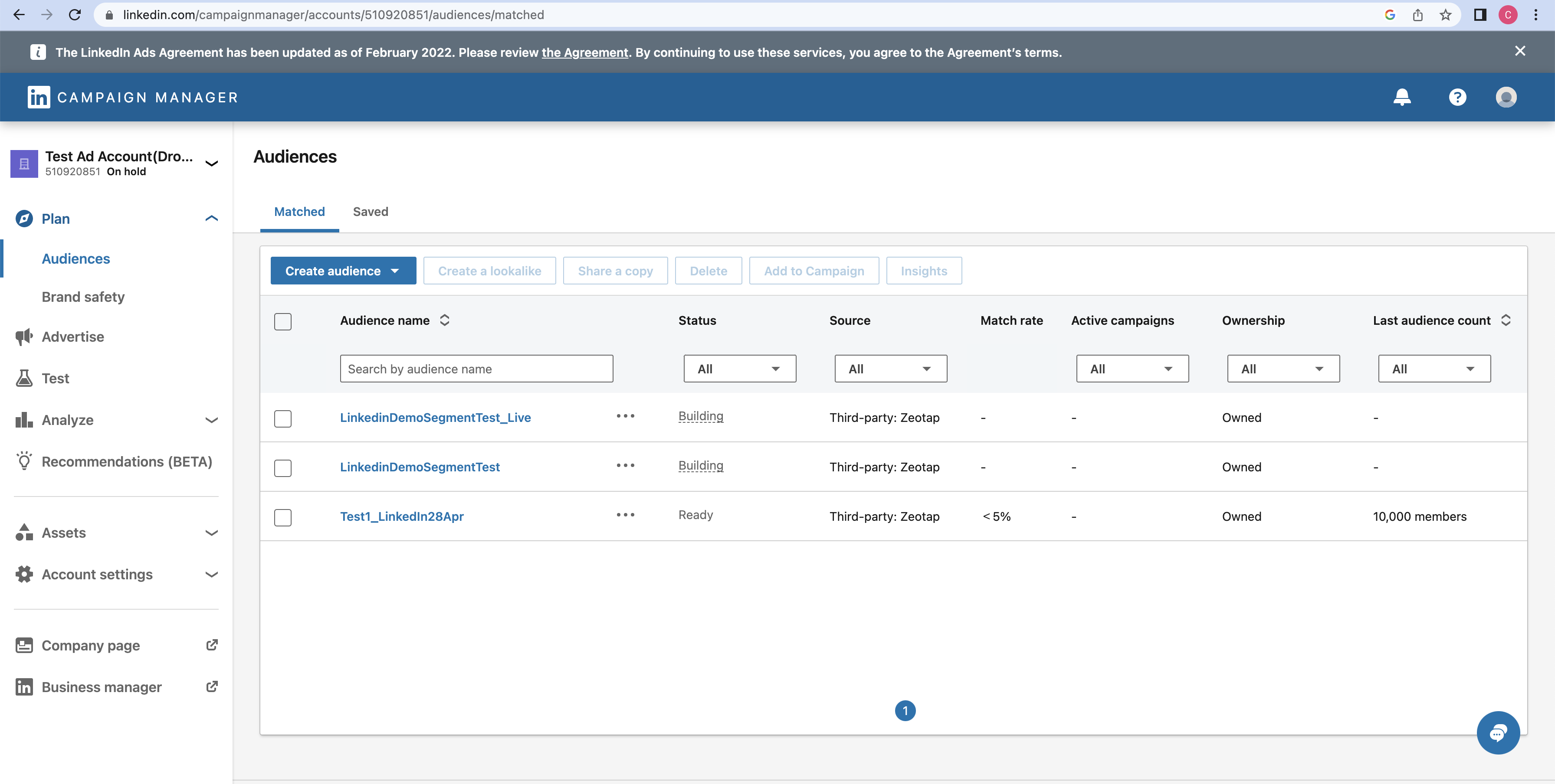
- Locate the audience by the name you gave it in Zeotap and check three fields:
- Match rate — the percentage of your uploaded list that matched LinkedIn members for contact targeting. See LinkedIn’s Match rate documentation.
- Status — indicates whether the audience is ready to be used or needs attention. An audience must reach the ready-to-use state before you can attach it to a campaign.
- Last modified — timestamp of the last update from Zeotap. A value within your audience refresh window confirms the latest sync landed.
Attach the audience to a campaign
-
In LinkedIn Campaign Manager, open Advertise → Campaigns.
- Under the Campaigns tab, click Create → Campaign.
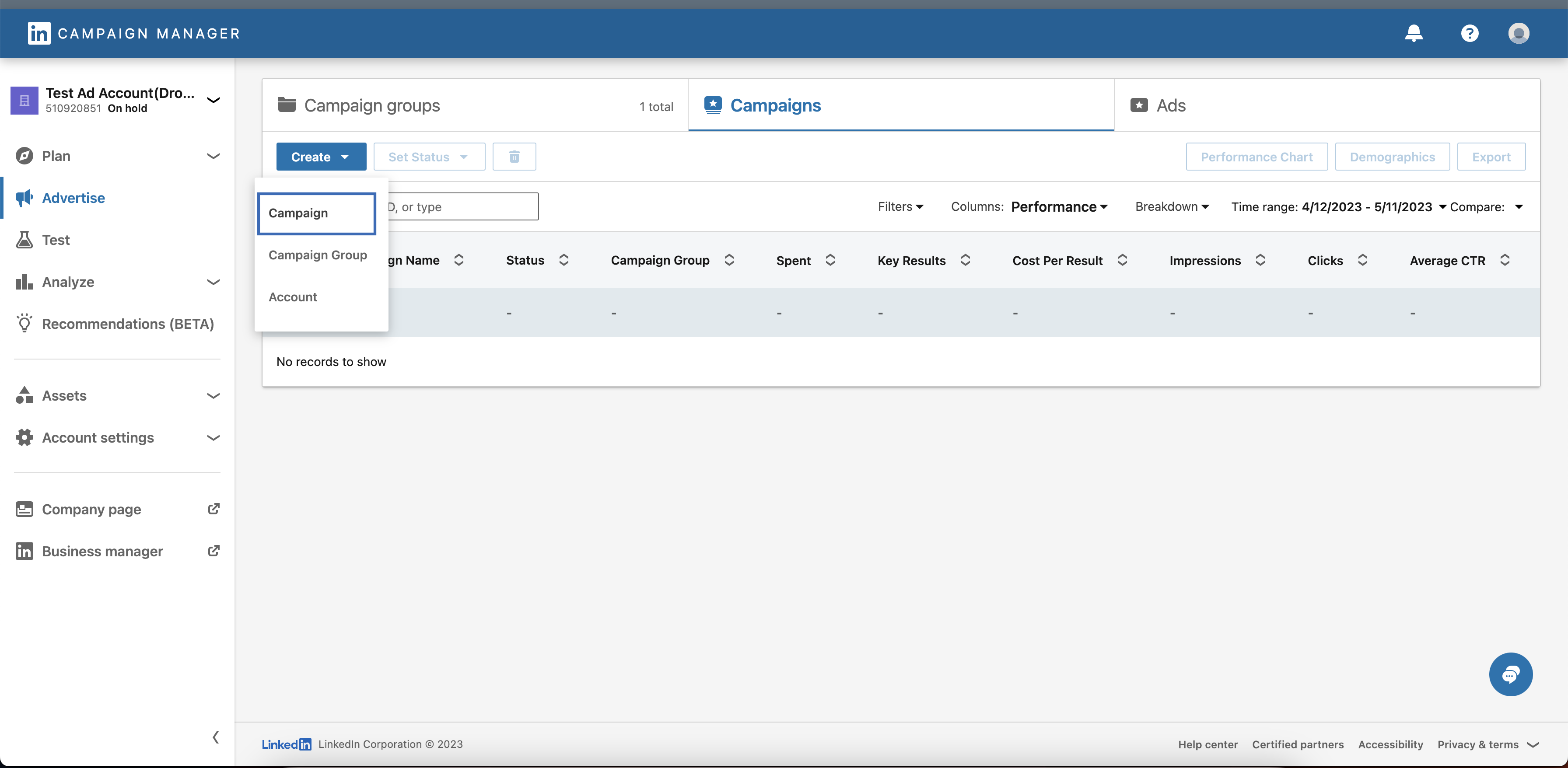
- Confirm the pre-filled Campaign Group settings and click Next.
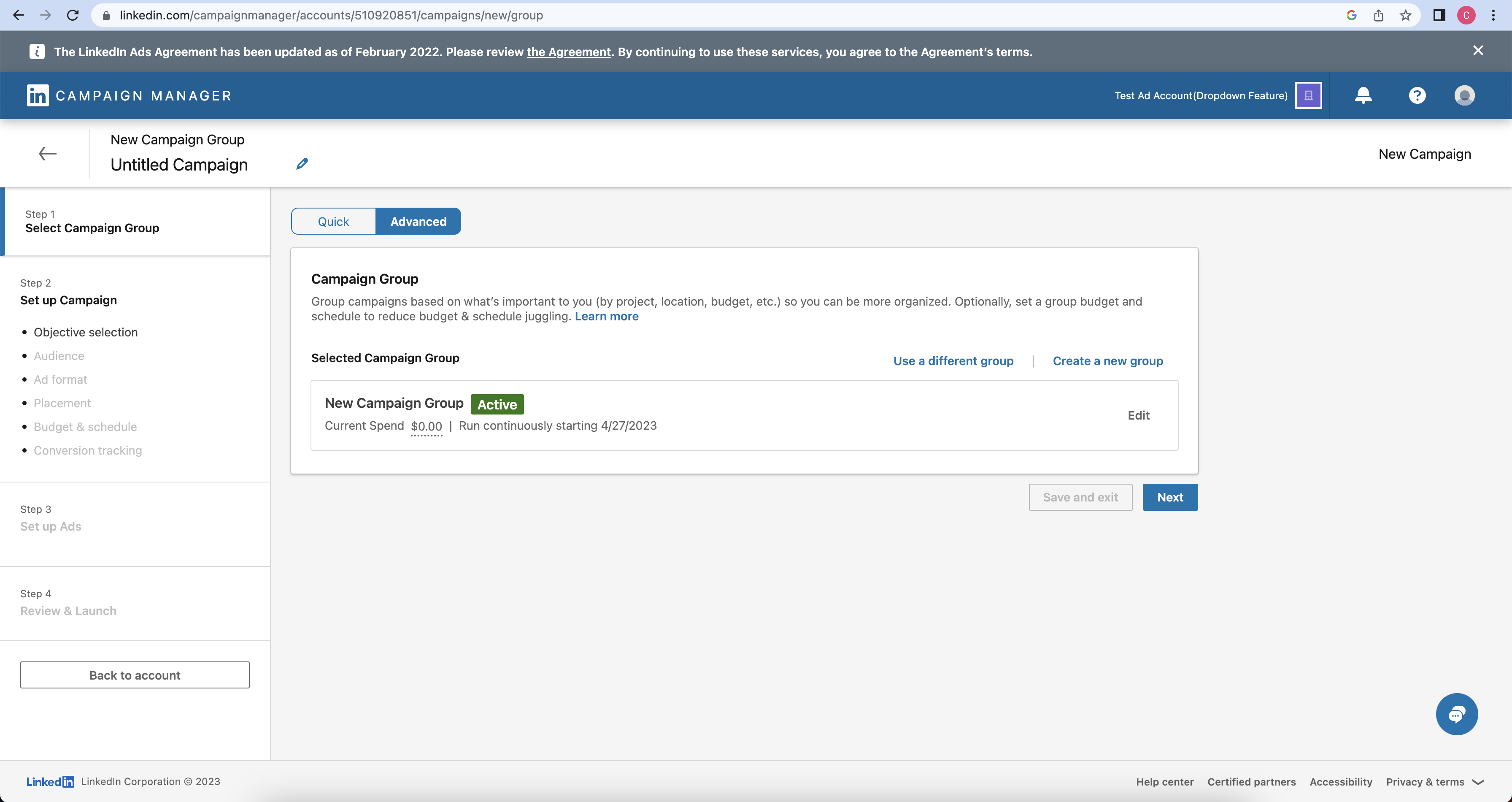
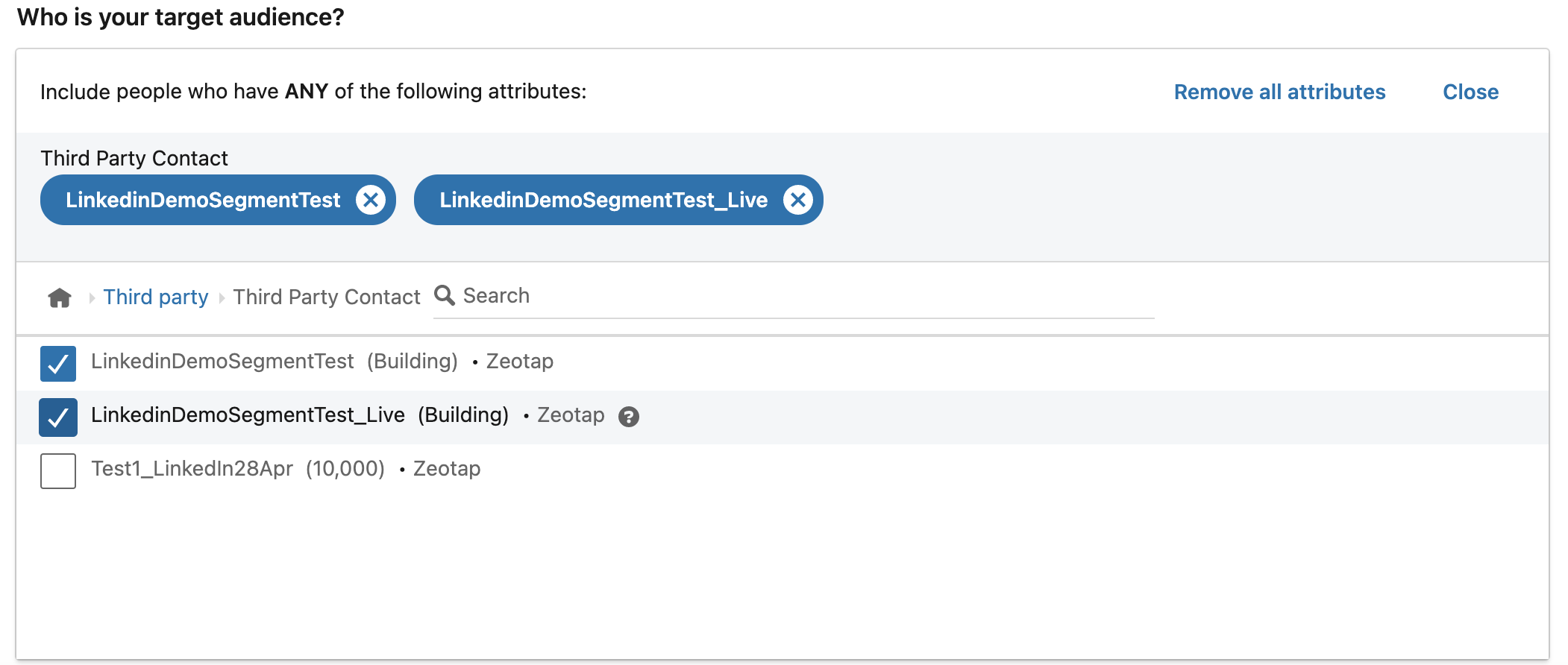
- Under Who is your target audience?, click Audiences → Third party → Third Party Contact.

- Select the Zeotap segment and continue with the rest of the campaign setup.
Maintain access and refresh tokens
LinkedIn issues two OAuth tokens when you connect the destination:- Access Token — valid for 60 days. Zeotap renews it automatically using the Refresh Token.
- Refresh Token — valid for 1 year. When the Refresh Token expires, the destination owner must reauthorise the destination.
How user disqualification works
When a user no longer matches an audience’s criteria (criteria change, consent withdrawal, or other audience conditions), Zeotap CDP issues a user-deletion request to LinkedIn in the next refresh cycle. Disqualified users are excluded from the LinkedIn audience on the refresh frequency configured for that audience. This runs automatically — no manual trigger is required.Troubleshoot connection and token issues
Why this happens
Audience activation to LinkedIn fails for one of a small set of reasons — almost always token expiry, token revocation, lost Ad Account access, or an identifier-format mismatch on LinkedIn’s side.Resolve token expiry or revocation
- In Zeotap, open the Destinations application and select the affected LinkedIn destination.
- Recreate the destination by running the OAuth flow from Create the LinkedIn destination again. The new token pair replaces the expired or revoked pair.
- Reattach the destination to the affected audiences if the original destination was removed.
Resolve a low or zero match rate
- Confirm your source identifiers are SHA256-hashed emails or MAIDs (Google AID). LinkedIn rejects unhashed email values for this integration.
- Re-hash emails over the lowercased, trimmed value (see the snippet in Prerequisites).
- Trigger an audience refresh and recheck the Match rate in LinkedIn Campaign Manager 48 hours later.
When to contact support
Open a support ticket when:- You completed the OAuth flow but the destination remains in an error state after one full refresh cycle.
- The audience appears in LinkedIn Campaign Manager but the Match rate stays at 0% after a second refresh with correctly-hashed identifiers.
- You see a destination behaviour not described on this page.
- The destination name and the LinkedIn Ad Account ID.
- The audience name and ID.
- Timestamp of the last successful refresh (from the Audiences listing).
- The current token expiry date shown in the destination configuration.
- A screenshot of the Match rate, Status, and Last modified columns from LinkedIn Campaign Manager → Audiences.
FAQ
How long after activation does the audience appear in LinkedIn?
How long after activation does the audience appear in LinkedIn?
Segments take up to two days to appear at the LinkedIn seat after the first activation. Subsequent refreshes push delta records on the audience’s configured refresh frequency.
Do I need to hash emails before sending them to Zeotap?
Do I need to hash emails before sending them to Zeotap?
The LinkedIn integration requires SHA256-hashed emails. Hash over the lowercased, trimmed value — see the snippet in Prerequisites. MAIDs (Google AID) are sent unhashed.
What happens when a user no longer qualifies for the audience?
What happens when a user no longer qualifies for the audience?
Zeotap issues a user-deletion request to LinkedIn in the next refresh cycle. Disqualified users are excluded from the LinkedIn Matched Audience automatically; no manual action is required.
Can I reuse one OAuth connection for multiple destinations against the same Ad Account?
Can I reuse one OAuth connection for multiple destinations against the same Ad Account?
No. Create one destination per Ad Account, and do not duplicate destinations for the same Ad Account. If a working destination already exists, link your audience to it rather than creating a second one.
Next steps
- Explore audience linking → Link an audience to the destination
- Explore identifier coverage → Extend your audience with ID Extension
- Explore output identifier choices → Choose the output identifiers
- Explore delta and delete behaviour → Delta upload and delete functions
- Explore the full destination catalog → Integrations master list