Overview
Snapchat is a popular messaging application that lets users exchange pictures and videos (called snaps) that are meant to disappear after they’re viewed. Integrated with Zeotap it allows marketers to reach a younger demographic and create engaging and interactive campaigns.Supported Identifiers
This channel supports email-SHA256, Mobile-SHA256 and MAIDs.Available Actions and Supported Features
The following table lists the available action types for the integration and the supported features for each action type:Components of Snapchat
Ensure that you have details about the Ad Account Id available before creating a Destination.- Ad Account Id : This is the 16 digit Snapchat Ad Account ID. The ID number appears next to your Ad Account’s name under Ad Account ID.
Benefits of Snapchat oAuth 2.0 vs Snapchat
The Snapchat OAuth 2.0 integration simplifies connecting your Snapchat Ads account to Zeotap. Previously, clients had to complete a manual whitelisting process — inviting Zeotap to their Business Manager and granting Ad Account access. With OAuth 2.0, this is replaced by a quick, secure authorization flow, allowing you to connect your account in just a few clicks.Create a Destination for Snapchat
Perform the following steps to create a Destination for Snapchat:1
Log into the Zeotap CDP App and go to the DESTINATIONS application.
2
Click + Create Destination.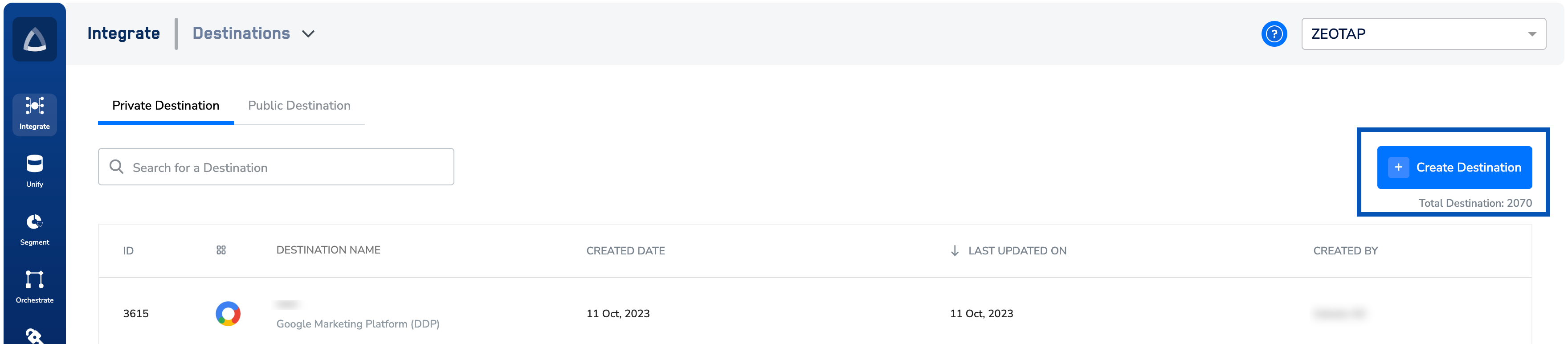
3
Under All Destinations, search for Snapchat.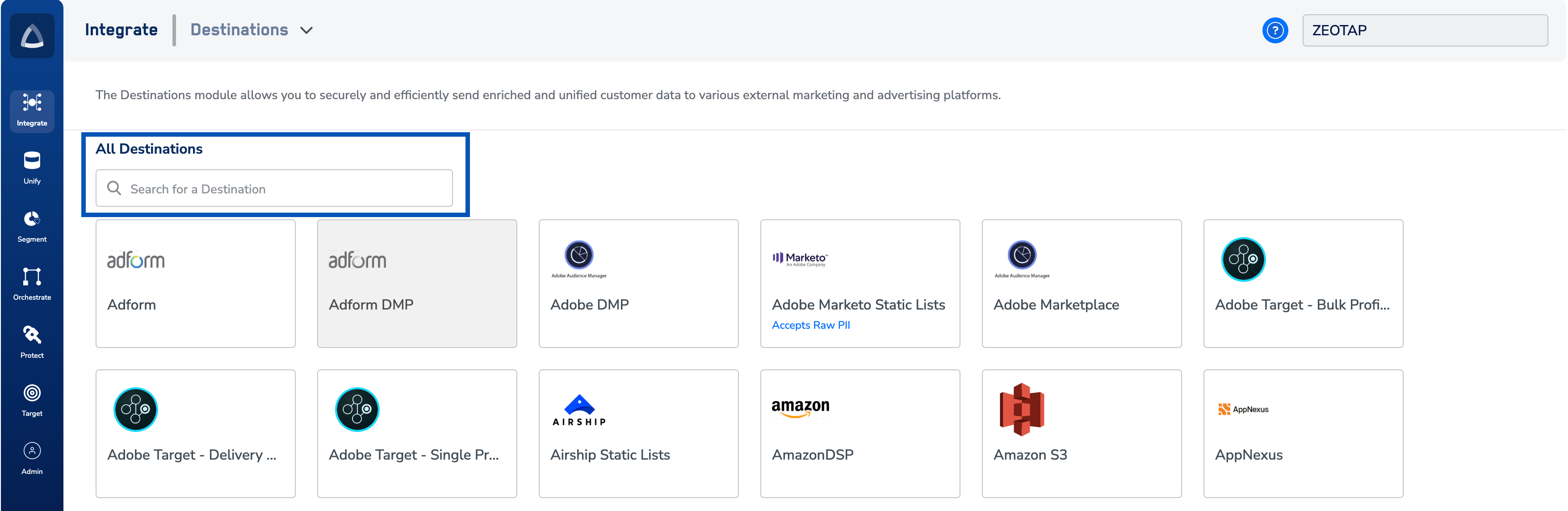
4
Click Snapchat and enter the following details in the window that appears:a. Enter a name for the Destination.b. Enter the Ad Account Id number on which the client has requested the Segment.c. Click Connect Snapchat. Make sure you’re signed in with a Snapchat account that has access to Ads Manager so you can activate the segment.i. This redirects you to the Snapchat login page, enter your credentials and clickii. Sign in. Follow the instructions on the screen to allow the permissions.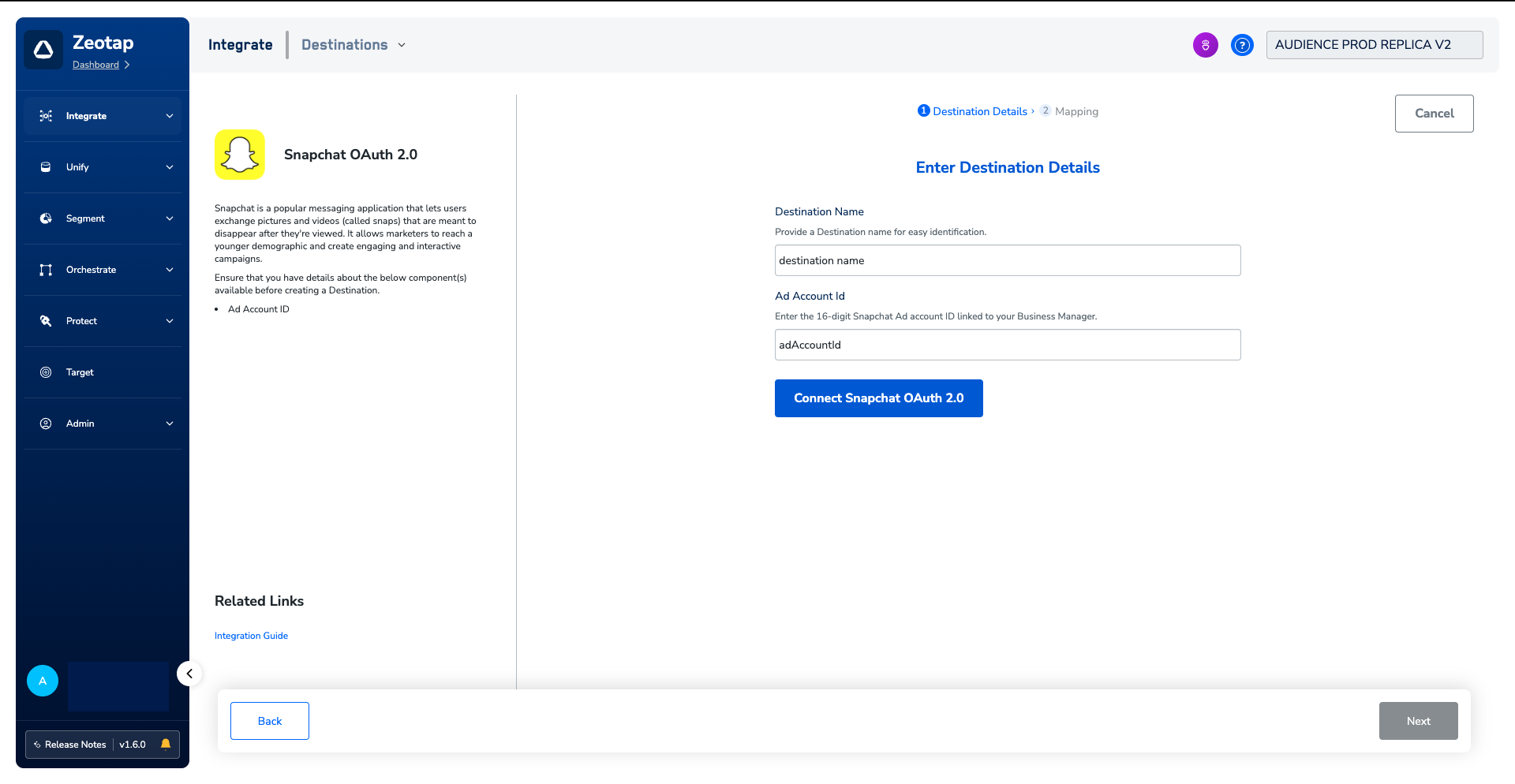
5
In the new screen that appears, choose the appropriate Action and mapping as explained below.a. Choose the desired action under Choose your Action and then choose the corresponding identifiers under Map the Fields. By default, the Output Identifiers that are accepted by the platform such as, MAIDs, Cookies, Email are displayed. However, you can edit, add or remove an identifier from the list. To do so, refer here.b. Click Create Destination. The created Destination gets listed in the Target and Audiences applications, which can be linked to an Audience/segment.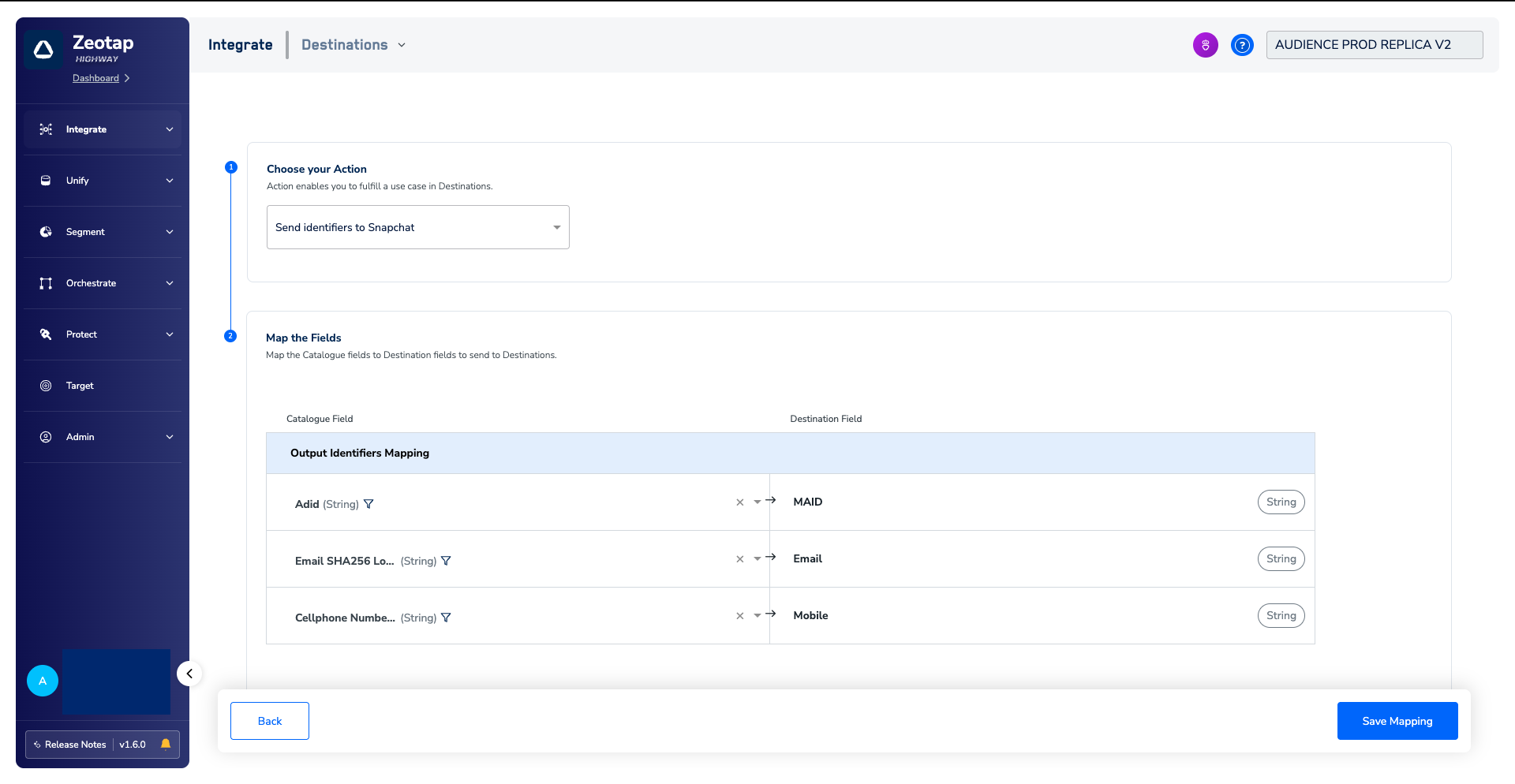
Link an Audience to the Snapchat Destination
For information about how to link an Audience or segment to the created Destination in Audiences and Target applications, refer here. Note that it can take up to 24 hours for the segment to be available at the Snapchat seat.Note:The terms Audiences and Segments are used interchangeably to refer to customer cohorts belonging to a specific category. For example, an Audience or a segment can be a specific group of customers who are over 18 years of age and have performed an
addToCart event within the last 30 days.View Audiences on Snapchat
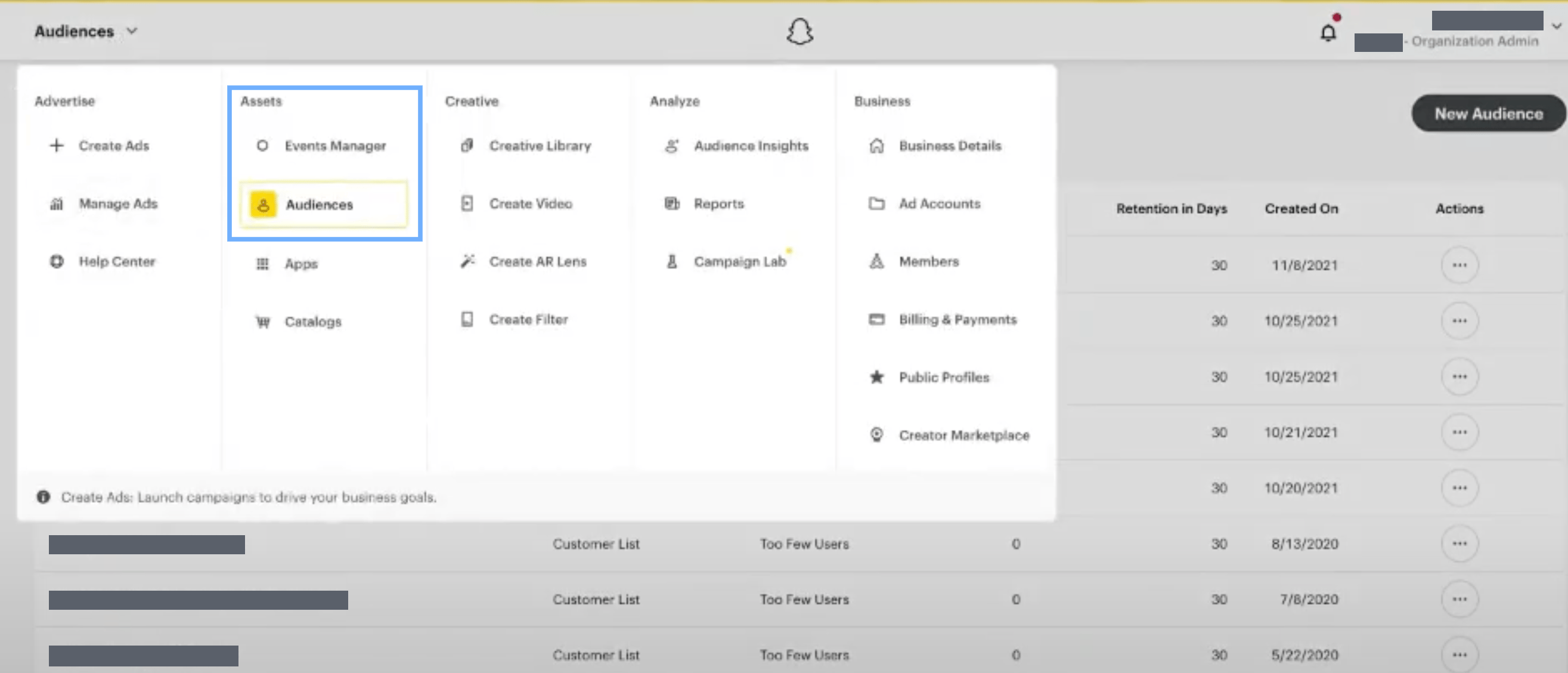
In the Snapchat Business Manager console, you can find the pushed segments under Assets → Audiences.