Overview
WhatsApp Business API is a leading messaging platform that enables businesses to communicate with customers at scale through the world’s most popular messaging app. It allows companies to send automated notifications, provide customer support, and run marketing campaigns without coding, triggering personalized messages, interactive buttons, and rich media content in real-time based on customer behavior. Integrating seamlessly with existing business systems via robust APIs, WhatsApp Business API helps drive customer engagement, support efficiency, and conversational commerce across global markets. It provides end-to-end encryption, template messaging, and analytics to optimize communication strategies while maintaining WhatsApp’s trusted user experience and achieving improved customer satisfaction and conversion rates. This integration with Zeotap enables you to send messages through WhatsApp.Pre requisites
- You must have a verified WhatsApp Business Account.
- You must have a verified Facebook Business Manager Account.
- You’ll need a phone number to associate with your WhatsApp Business Account. This number will be used for sending and receiving messages through the API.
- You must register your phone number using the WhatsApp Cloud API to receive its unique Phone Number ID. This is done by making a POST request to the /<PHONE_NUMBER_ID>/register endpoint.
Bash (Unix Shell)
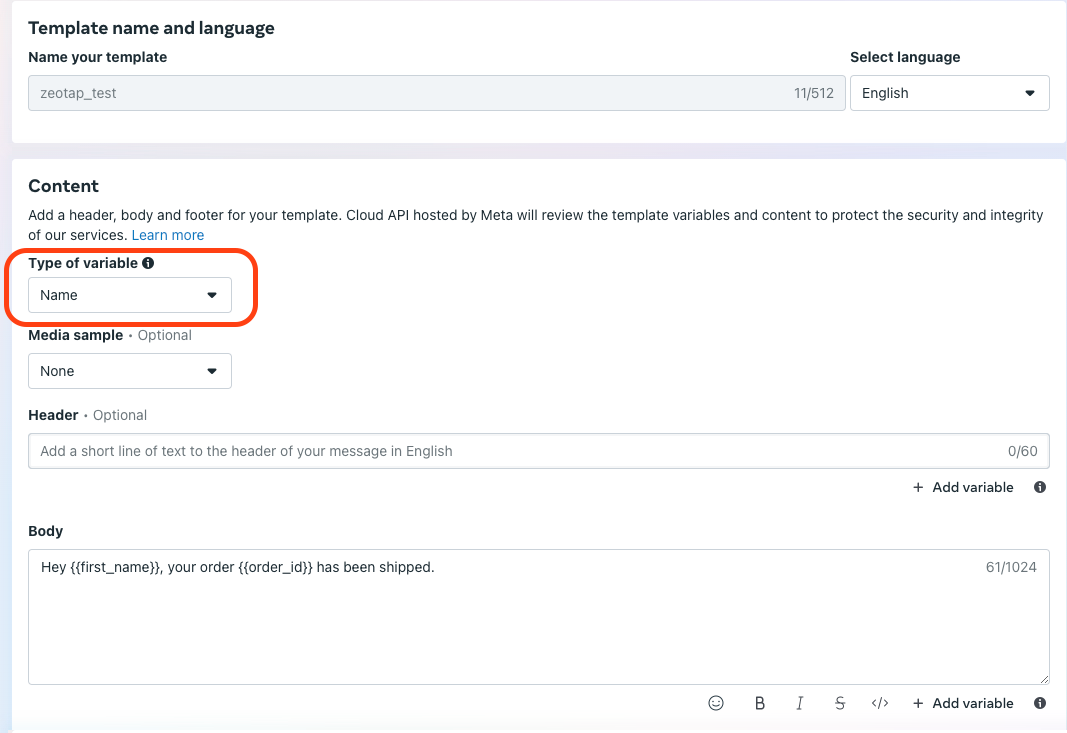
- Template Creation and Approval: All message templates must be created in the WhatsApp Manager and approved by Meta. It’s best practice to use named variables (like ) instead of numbered ones for clarity and easier management.
- You must generate a System User access token with the correct permissions (whatsapp_business_management, whatsapp_business_messaging, whatsapp_business_manage_events) and configure a webhook to receive message status updates and replies.
Templates with mediaA template can carry an image or a video in its header. Add the media header when you create the template in WhatsApp Manager and get it approved before you map it in Zeotap — the header on the approved template is what decides whether you send an image or a video.
Creating a Destination
1
Log into the Zeotap CDP App and go to the DESTINATIONS application.
2
Click + Create Destination.
3
Under All Destinations, search for WhatsApp.
4
Click on WhatsApp. A screen appears displaying details about the particular destination towards the left. On the right-hand side of the screen find a list of fields that are required for the integration to be established. Enter the required details as mentioned in the following steps:a. Enter a name for the Destination.
b. Enter the Access Token.
c. Enter the Phone Number ID.
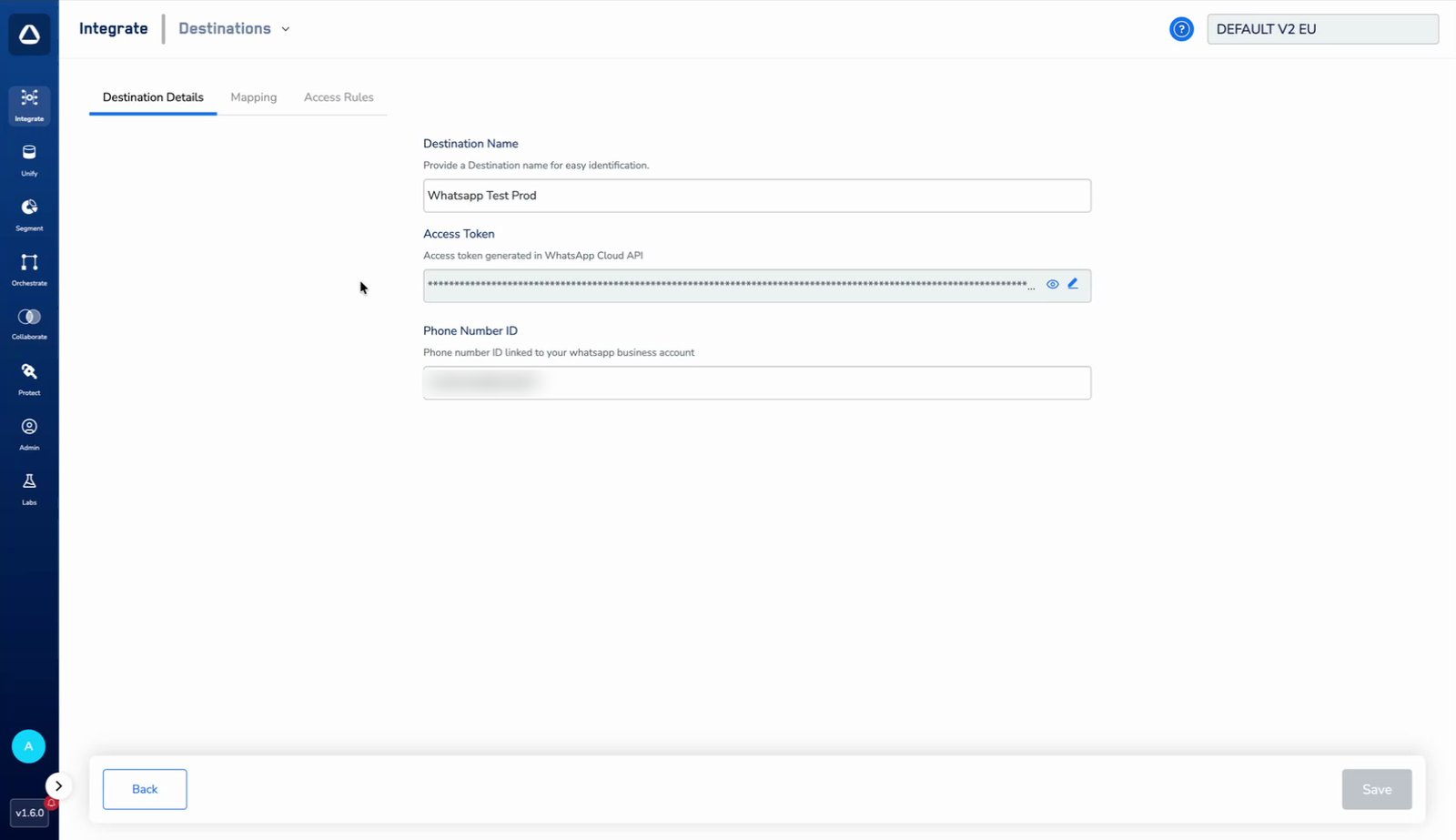
b. Enter the Access Token.
c. Enter the Phone Number ID.
Template Name and Language are no longer entered here. They now sit under Additional Settings on the Mapping screen, so a single destination can serve as many templates as you need — one mapping per template.
5
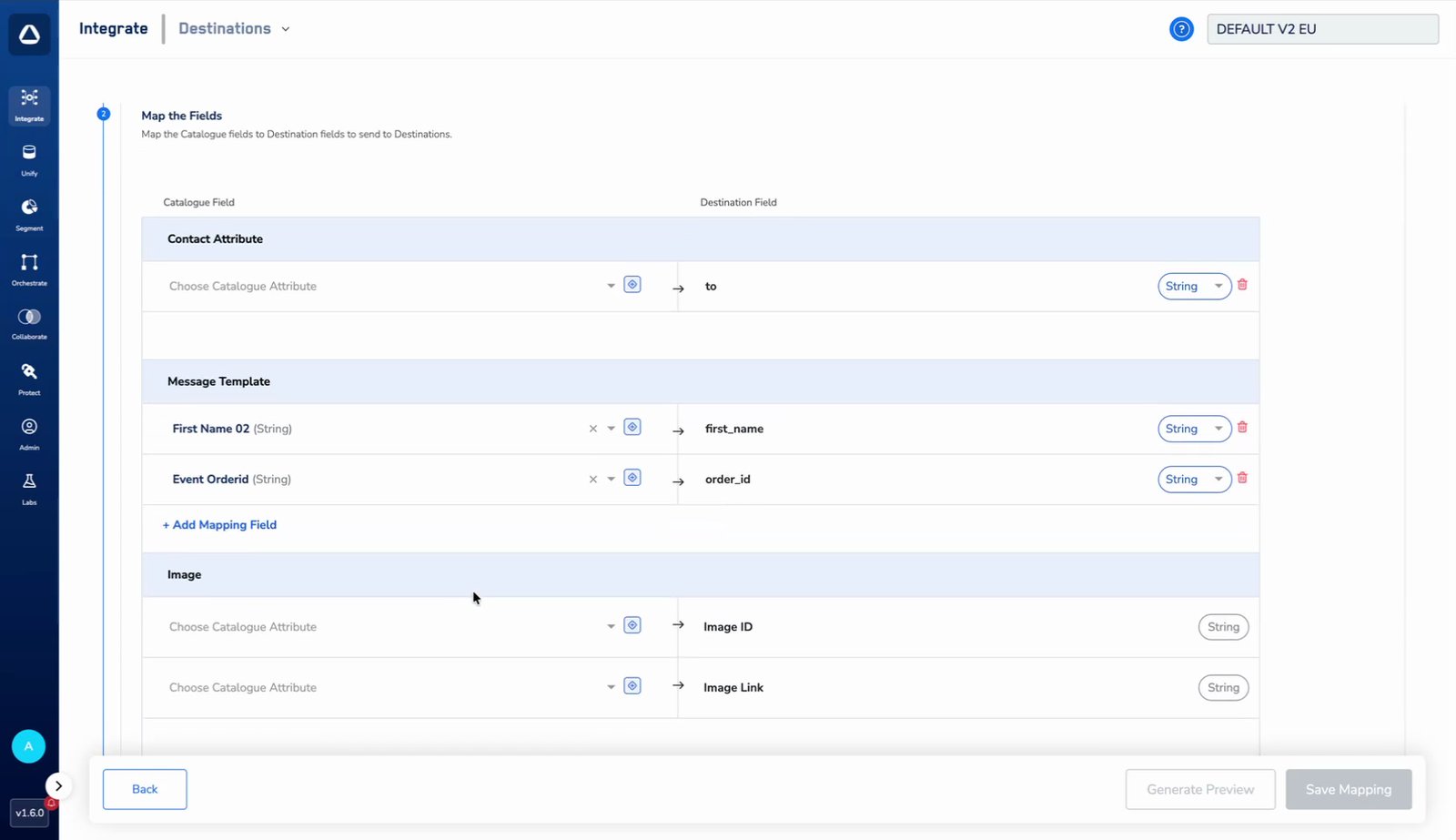
In the new screen that appears, choose the Action and complete the mapping.a. Under Choose your Action, select Send data to message template.
b. Under Map the Fields, map the recipient’s phone number to to in the Contact Attribute section. This field is mandatory.
c. In the Message Template section, click +Add Mapping Field and add one row for each variable in your approved template, entering your exact template variable name in the field on the right — for example
e. Under Additional Settings, enter the Template Name — the name of the approved WhatsApp message template, such as
f. Click Save Mapping.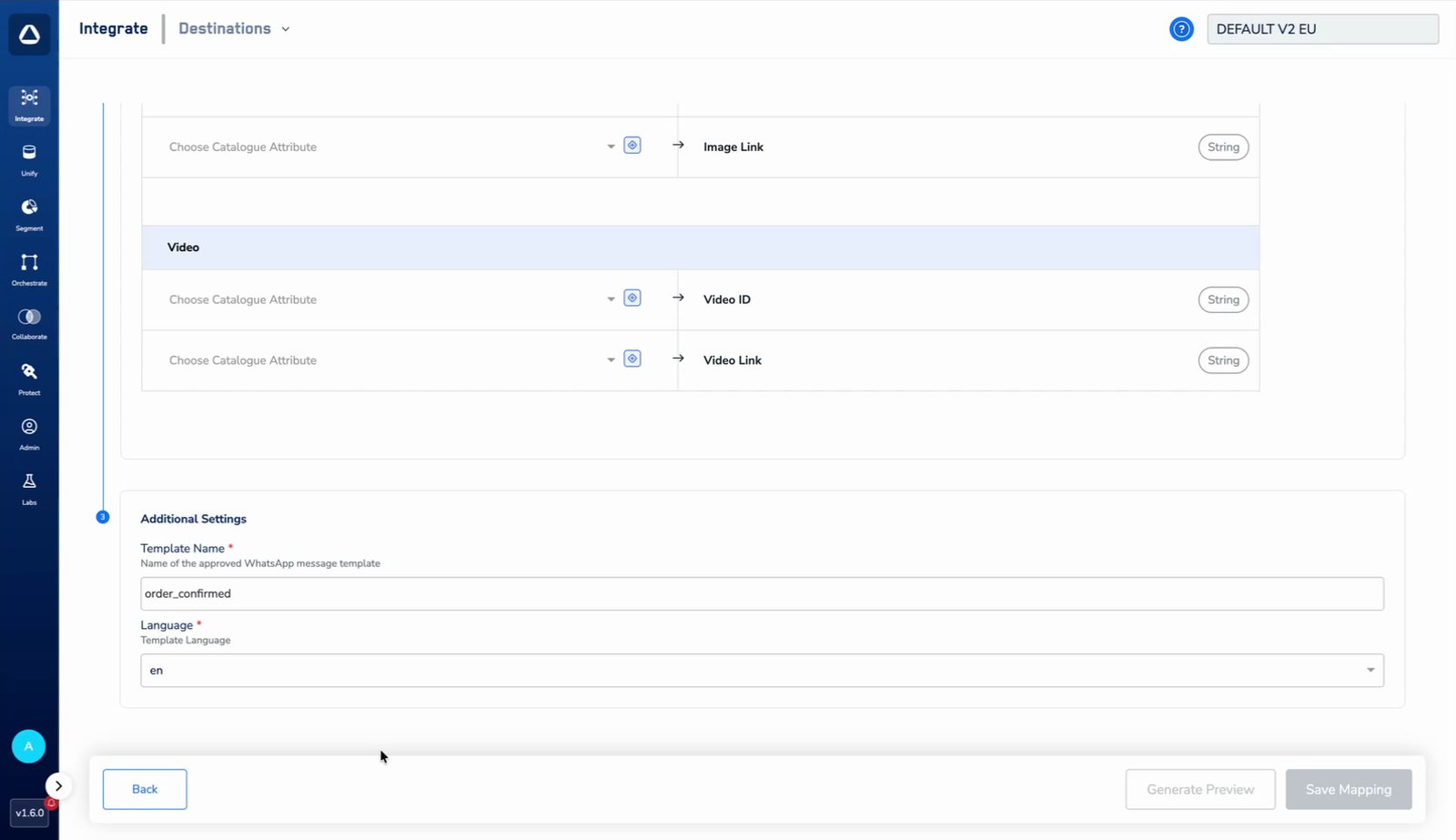
b. Under Map the Fields, map the recipient’s phone number to to in the Contact Attribute section. This field is mandatory.
c. In the Message Template section, click +Add Mapping Field and add one row for each variable in your approved template, entering your exact template variable name in the field on the right — for example
first_name and order_id. e. Under Additional Settings, enter the Template Name — the name of the approved WhatsApp message template, such as
order_confirmed — and select the Language. Both are required. Refer to the WhatsApp Supported Languages documentation to identify the correct language code corresponding to the language selected when creating your template. f. Click Save Mapping.
Using hosted image or video links
A Media ID points at a file you have already uploaded to Meta. A link points at a file hosted on your own infrastructure, which Meta fetches at send time. Both work, but they fail in different ways. Your message will not send unless the link meets all of these:- Reachable — the URL is publicly accessible over HTTPS, with no authentication, login wall, redirect or bot protection. Meta’s media fetcher has to reach the file directly.
- Supported file — a supported format (JPEG or PNG for images), 8-bit RGB or RGBA, and within Meta’s size limits (5 MB or less for images).
- Correct headers — the server returns the right
Content-Typefor the file.
- Reliability — Meta re-fetches the media on every send. If your host is slow, unavailable or rate-limiting, the message fails to deliver. This is the main reason Meta recommends Media IDs.
- URL stability — moving, renaming or deleting the file breaks every send after that point.
- Security — do not put any PII in the URL. It travels in plaintext and can end up in logs.
- Debuggability — a failed link usually surfaces as a generic fetch error, whereas Media ID failures come back with a clear reason.
Activate the Destination on Journeys
After creating a destination, next, you need to link it in the Send to Destination node within the workflow, as explained below.1
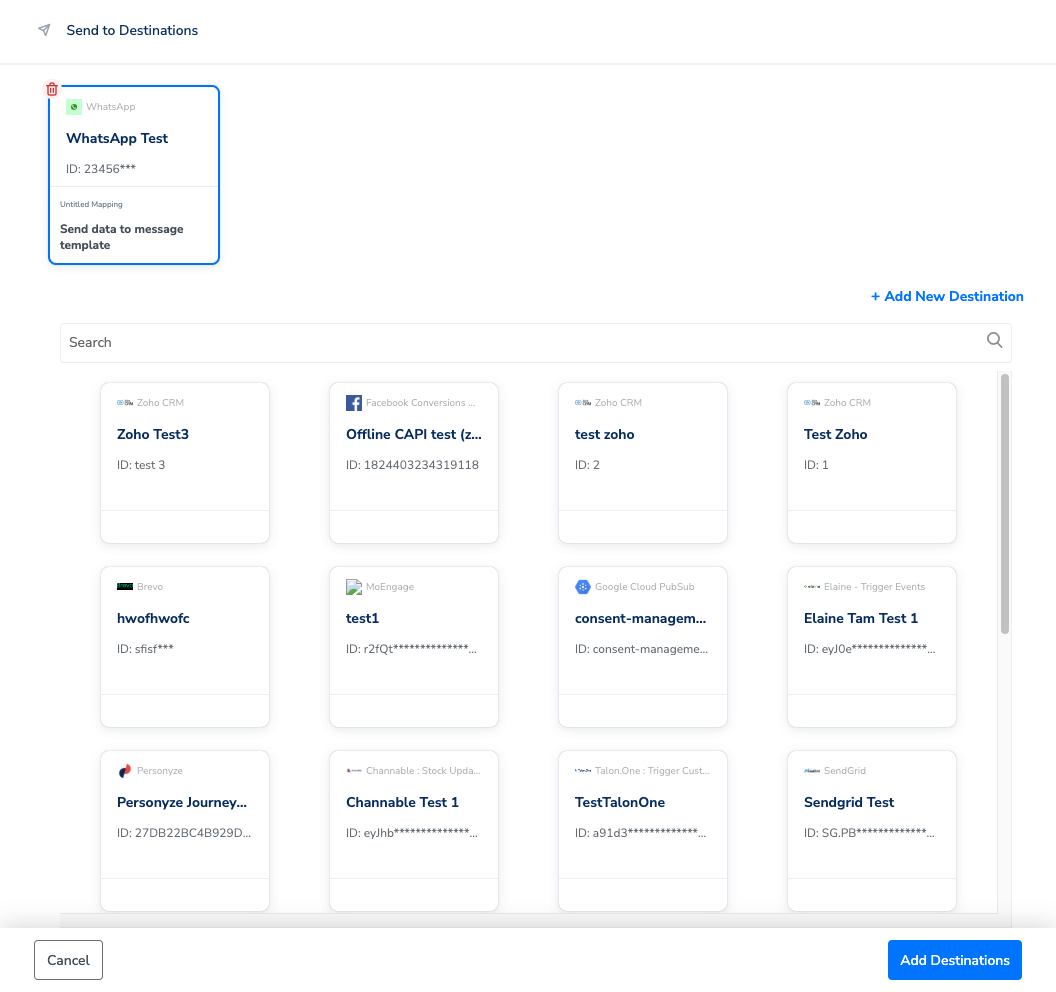
In the workflow, click + and choose Send to Destinations.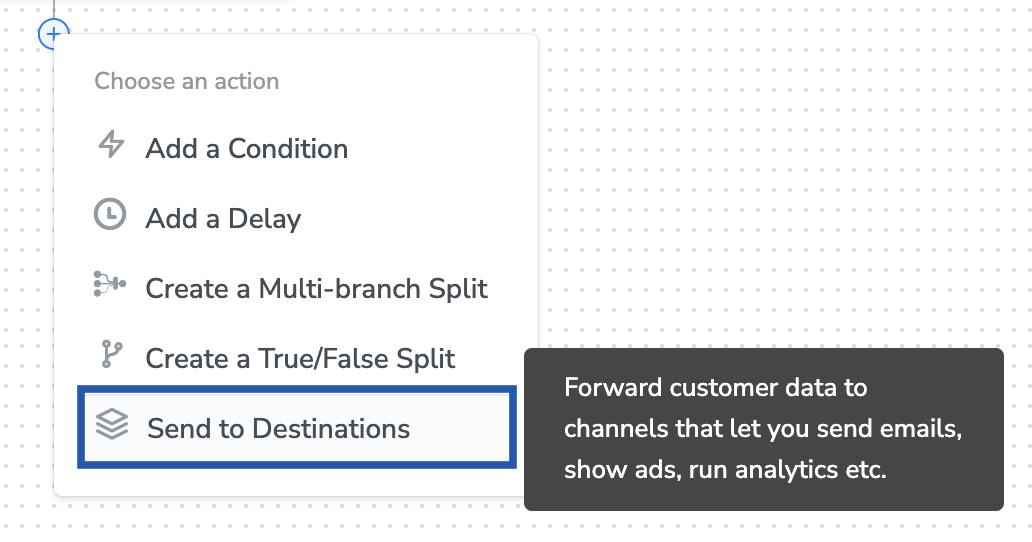
2
Choose the destination from the list of available destinations by using the search feature.
3
Under the Destination Details tab, the Access Token and Phone Number ID fields are automatically populated based on the value that you have entered while creating the destination.
4
Under the Destination Settings tab, choose the Action and mapping as per your requirement.
5
Upon clicking Save Destination. The destination is attached as shown in the image below.