

What this is
The Personyze real-time integration sends data out of Zeotap CDP to Personyze: as a customer moves through a Journeys workflow, Zeotap CDP sends that customer’s event data — or their profile fields — to your Personyze account as it happens. Personyze is a personalisation platform that tailors the experience each visitor gets on a website or app. It tracks behaviour such as clicks, page views and purchases in real time to work out individual interest and intent, combines that live signal with other information such as CRM profiles, and uses the result to decide which content, product recommendations and offers to show. Sending events and profiles from Zeotap CDP as they happen means Personyze can act on them while the customer is still in the moment.Sending audiences instead?To push audiences (segments) to Personyze from the Audiences application, so they can be used in Targeting and Personalisation on the Personyze side, see the Personyze destination. Both pages move data out of Zeotap CDP to Personyze — they differ in what is sent and when.
Supported identifiers and actions
User Identifier Key sets the type of identifier Personyze matches on. You can choose User ID, Email or Internal ID, and you map the corresponding value to the User Identifier Value destination field in the mapping table. By default the output identifiers the platform accepts — user ID (CUID), email and internal ID — are shown under Map the Fields. You can edit, add or remove an identifier in that list. Under Choose your Action on the destination form you can pick:Prerequisites
Before you configure anything in Zeotap CDP, you need:- An active Personyze account.
- Your Personyze Private API Key. This is the secret that authorises Zeotap CDP to send data to your Personyze account. Generate it in your Personyze dashboard under Settings > Integrations, from the Full-featured API tile. For the step-by-step, see the Personyze destination page.
- A populated Personyze Product Catalog.
- A workflow in Journeys to send the data from. See Create a workflow.
Create the Personyze destination
1
Log into the Zeotap CDP App and go to the DESTINATIONS application.
2
Click + Create Destination.
3
Under All Destinations, search for Personyze and click it. A screen appears with details about the destination on the left and, on the right, the fields required to establish the integration.
4
On the Enter Destination Details step, fill in: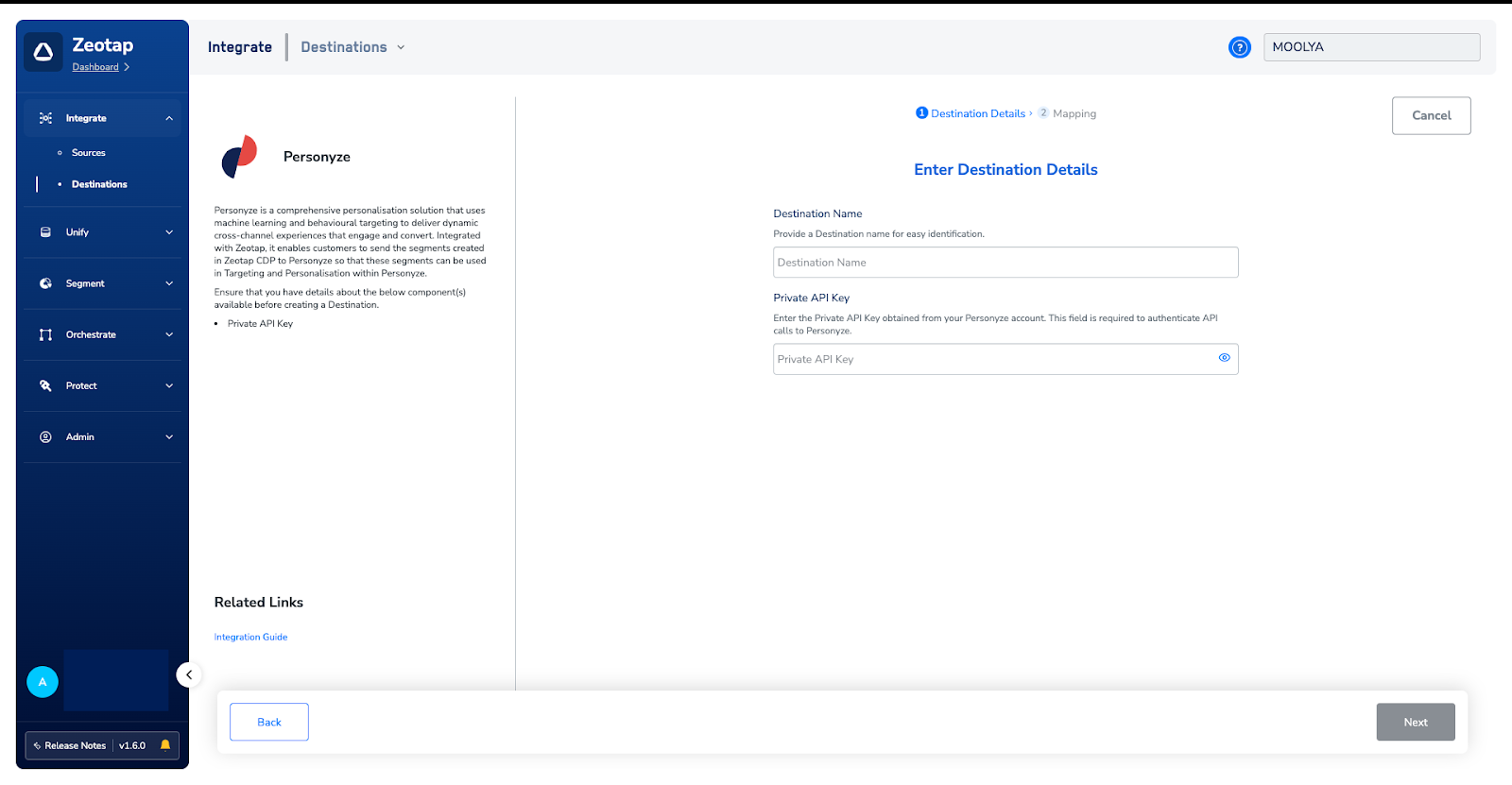
- Destination Name — a name for the destination.
- Private API Key — the key from your Personyze account.
5
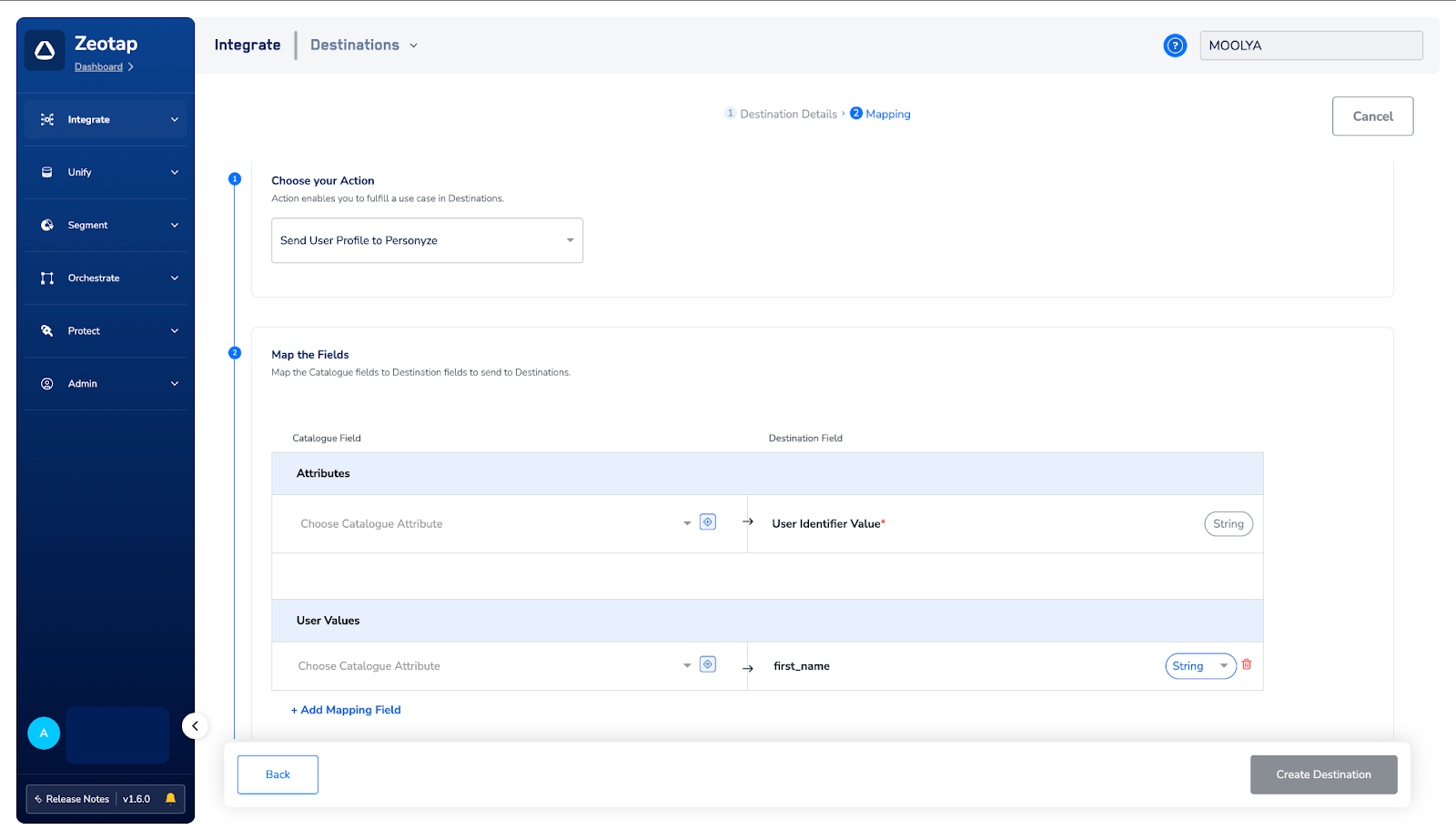
On the Mapping step, choose one action under Choose your Action and map the fields beneath it.Send Events to PersonyzeUnder Map the Fields, pair each Catalogue attribute on the left with the destination field on the right. Event Attribute and User Identifier Value are the mandatory fields for this action.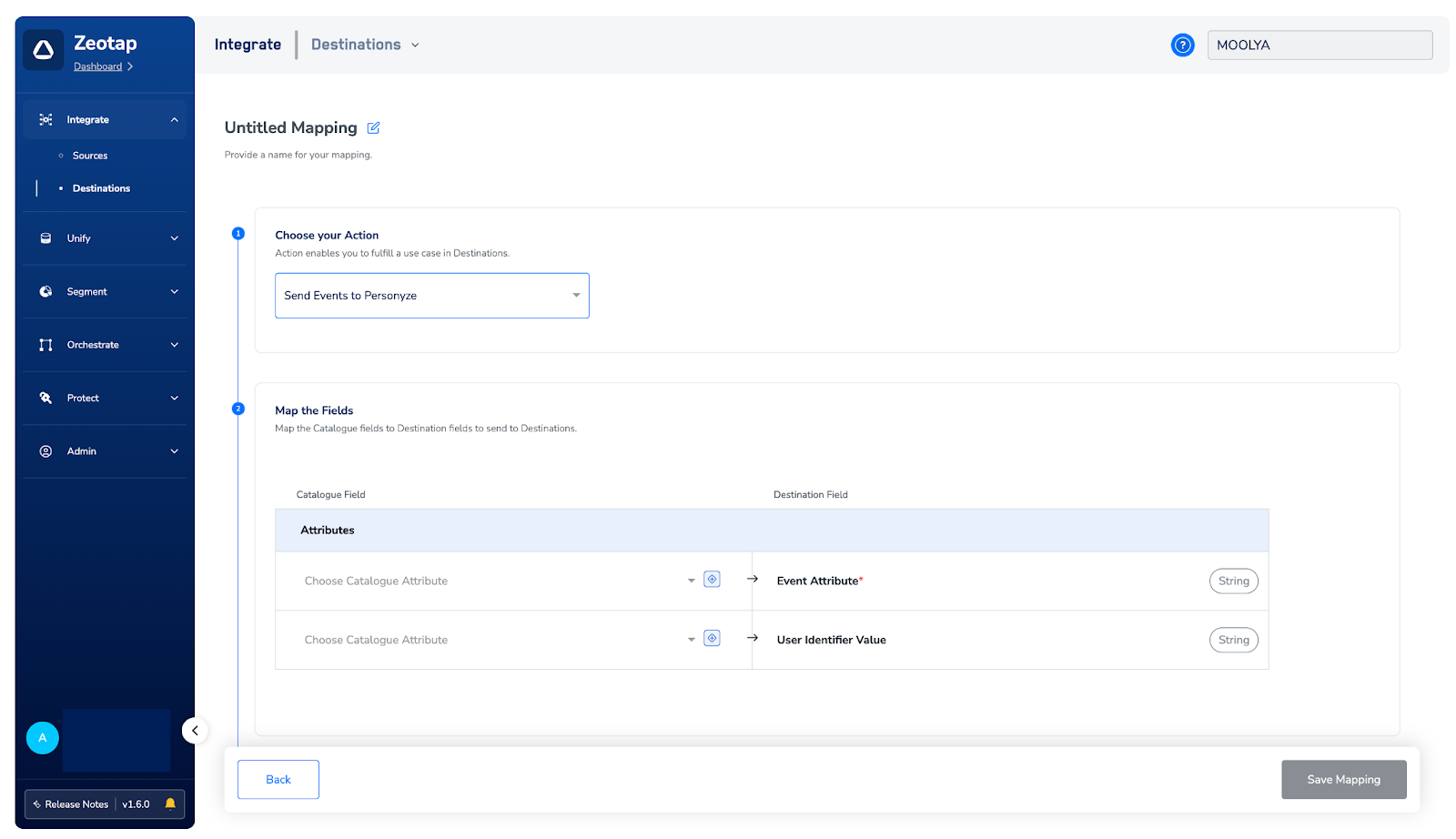
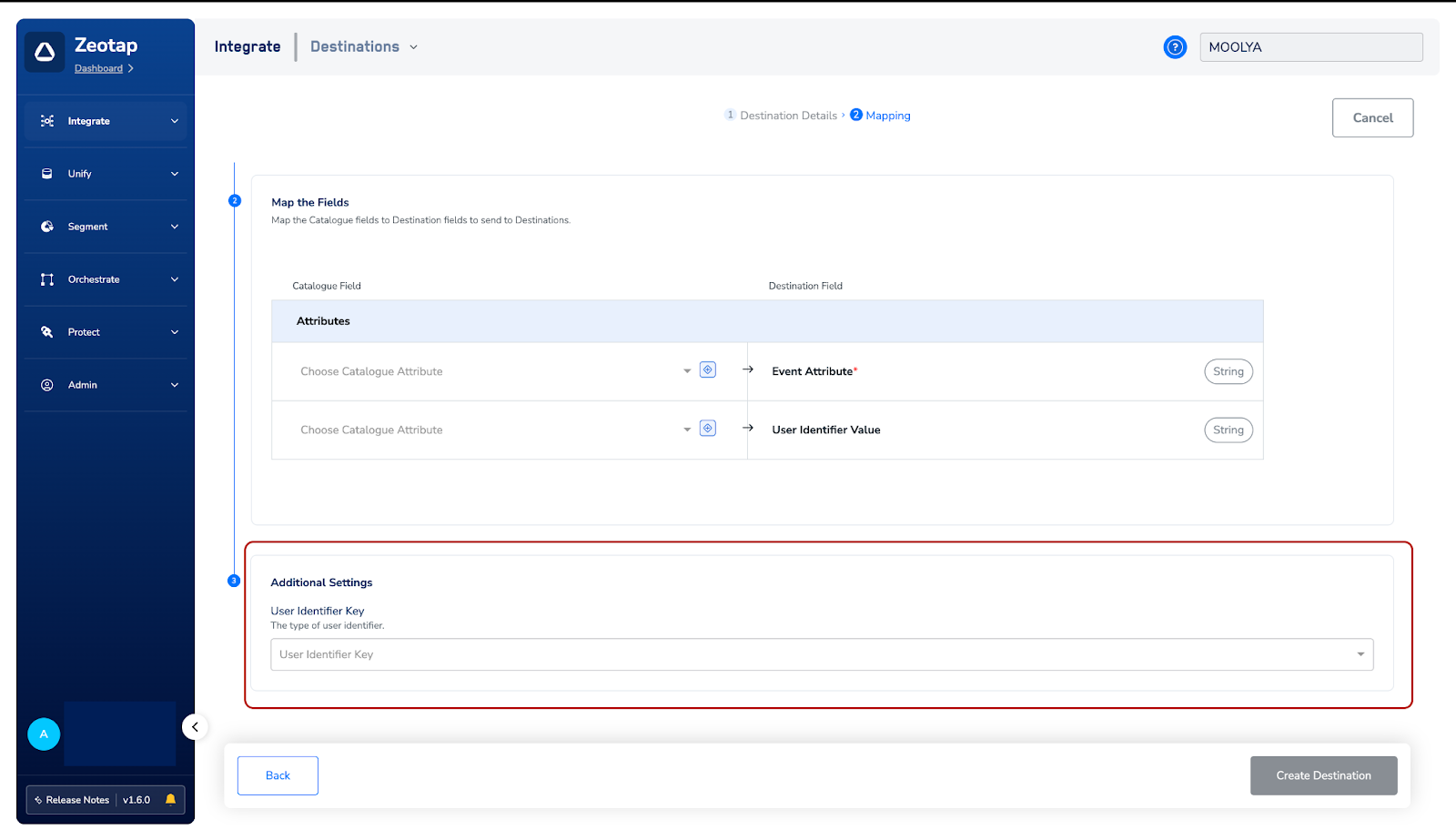
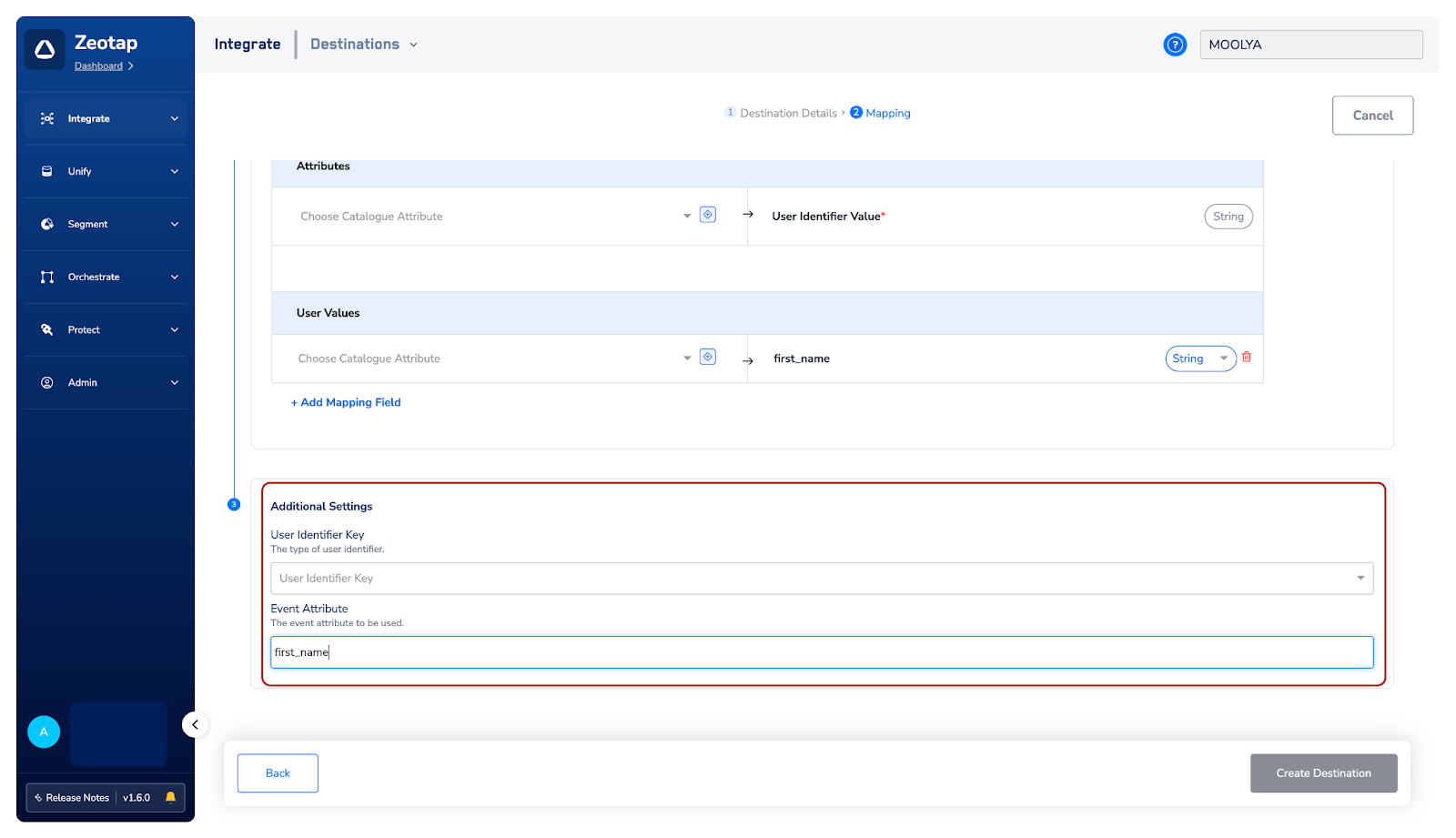
- User Identifier Key — the type of user identifier, either User ID, Email or Internal ID.
- Event Attribute — the user profile value you want to send, in snake_case. The supported values are
first_name,last_nameandemail.
6
Click Save Mapping, then Create Destination. The destination is created and becomes available for activation in Journeys.
Link the destination to a workflow
Once the destination exists, attach it to the Send to Destinations node in your workflow.1
In the workflow, click + and choose Send to Destinations.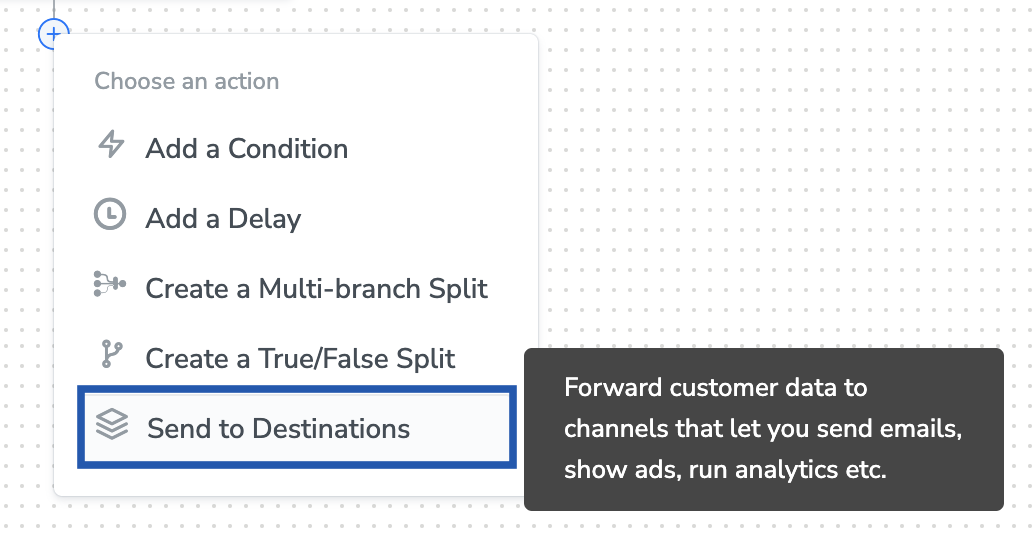
2
Find your destination in the list of available destinations using the search box.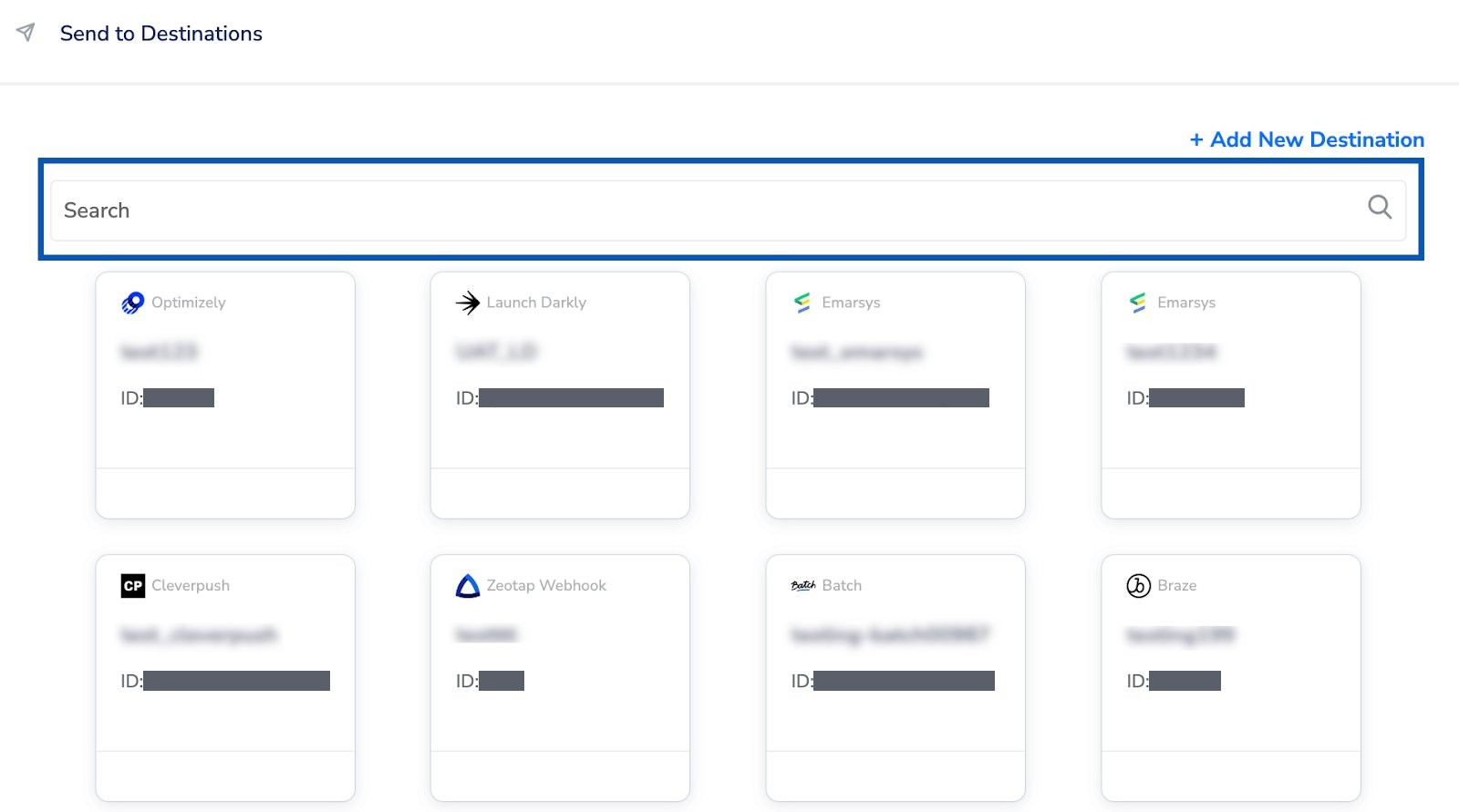
3
On the Destination Details tab, the Private API Key field is already filled in from the value you entered when you created the destination.
4
On the Destination Settings tab, choose the action and mapping you want this node to use.
5
Click Save Destination. The destination is attached to the node.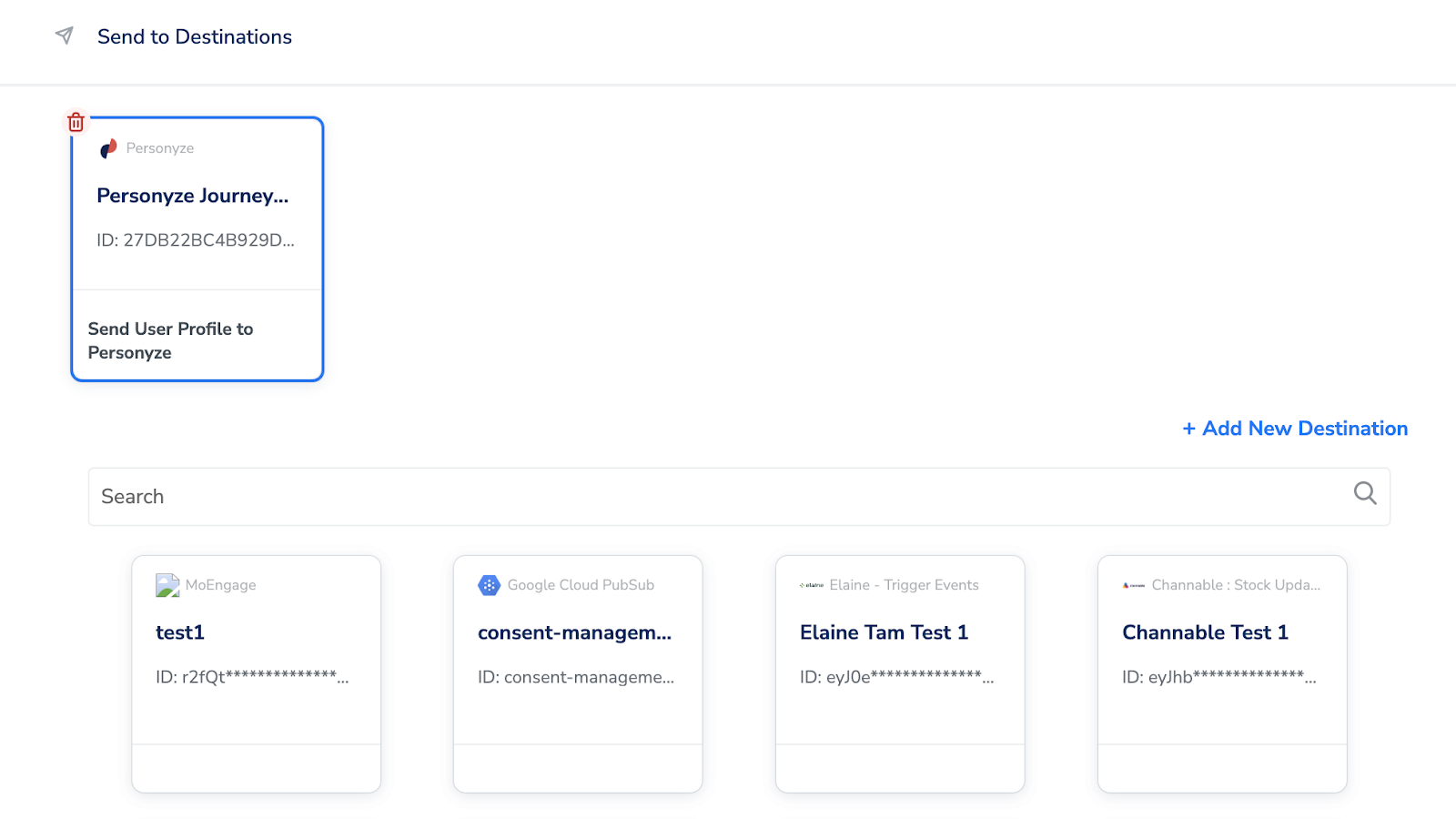
Verify the integration
- Check the node metrics. Metrics are available for every published workflow and show how many users passed through each node over the last 7 days, so you can confirm traffic is reaching the Send to Destinations node. See Understand metrics. For the total number of users the workflow sent out, use the ACTIVATED USERS column on the listing screen.
- Trace a single customer. Journey Traces shows the output event sent to each destination node for an individual user, which is the quickest way to confirm what Personyze received. See Journey traces.
Troubleshoot the integration
- A profile value never appears in Personyze. The value you type in Event Attribute under Additional Settings must match the field name on the User Values mapping row exactly, and both must be in snake_case — for example
first_namein both places. - A profile field is not accepted. The supported user profile values are
first_name,last_nameandemail. - Nothing is matched on the Personyze side. The identifier type you choose under User Identifier Key must be the one whose value you map to User Identifier Value. Pick User ID, Email or Internal ID, then map the matching Catalogue attribute.
- The Private API Key is blank on the workflow node. The node inherits the key from the destination you created — check the key on the destination itself.
- The workflow reports execution errors. Start from the failed node — see Identify journey errors, Journey error codes and Troubleshooting workflows.