

Create a Package
For this integration, a new role has to be created. Perform the following steps to create the new package:1
Navigate to Settings > Setup > Apps > Installed Packages. The existing list of packages is displayed.
2
Click New.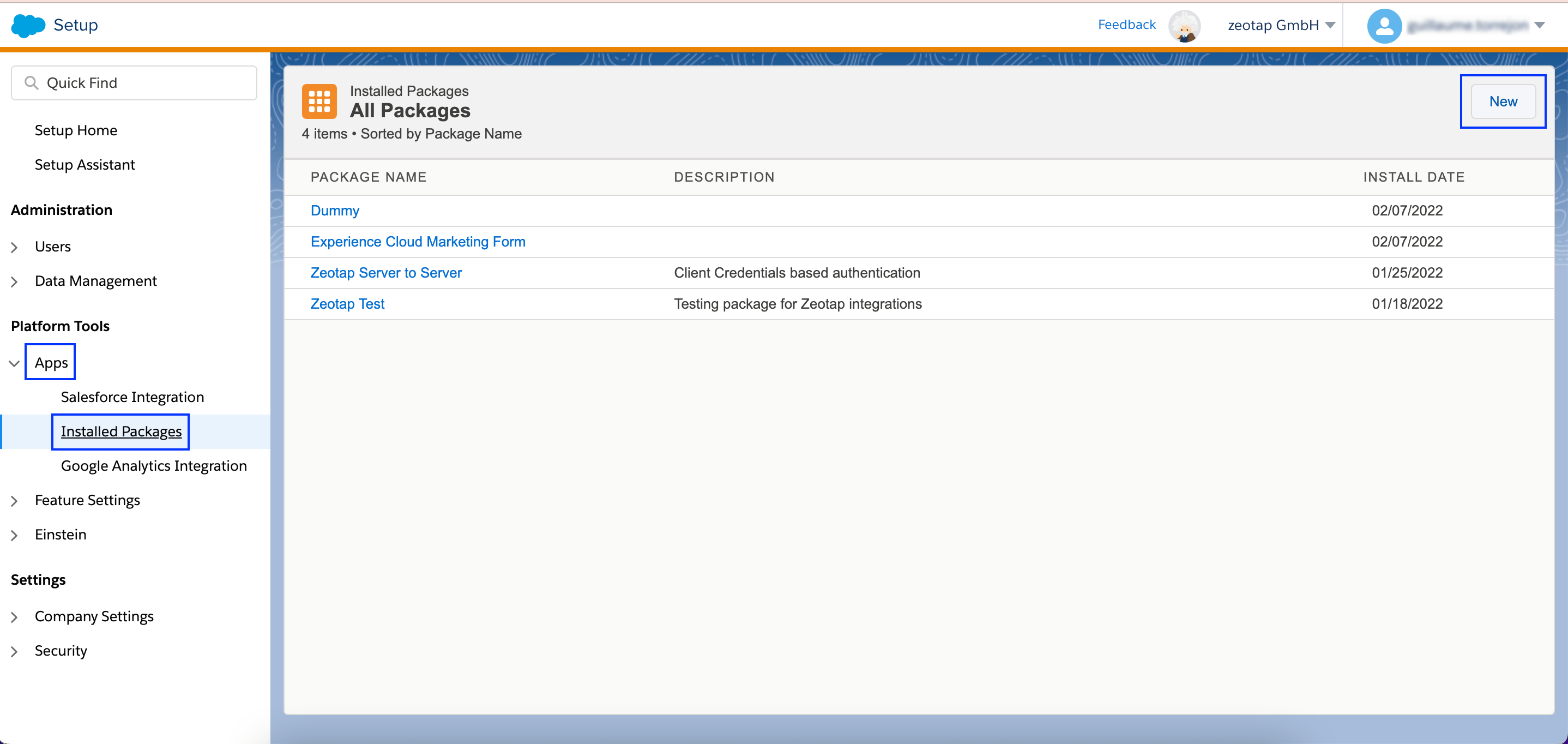
3
Enter a name for the package and save the changes. We recommend to include the word Zeotap in the package name for easy identification.
4
Click the package you created, and navigate to Add Component.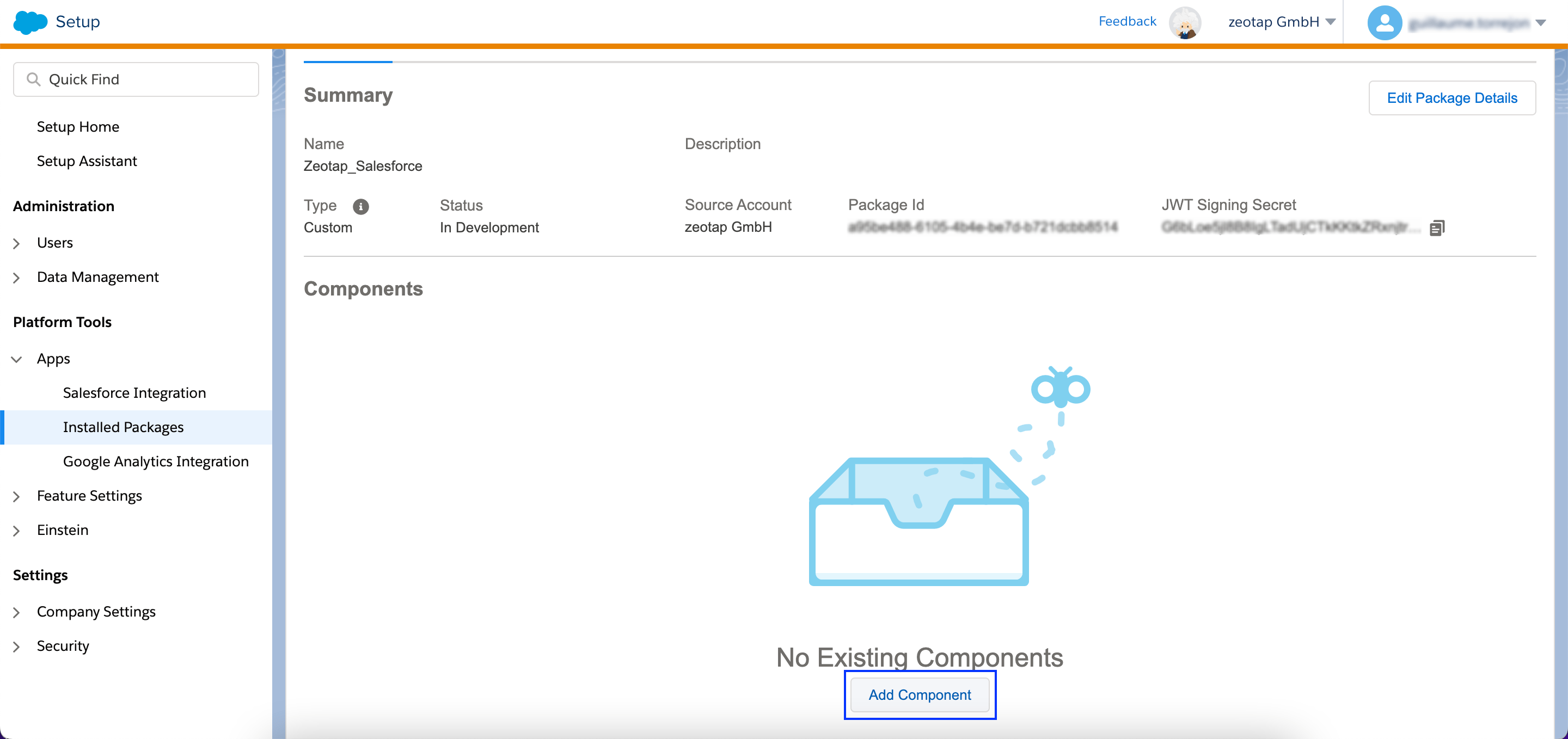
5
Choose API Integration as the Component Type.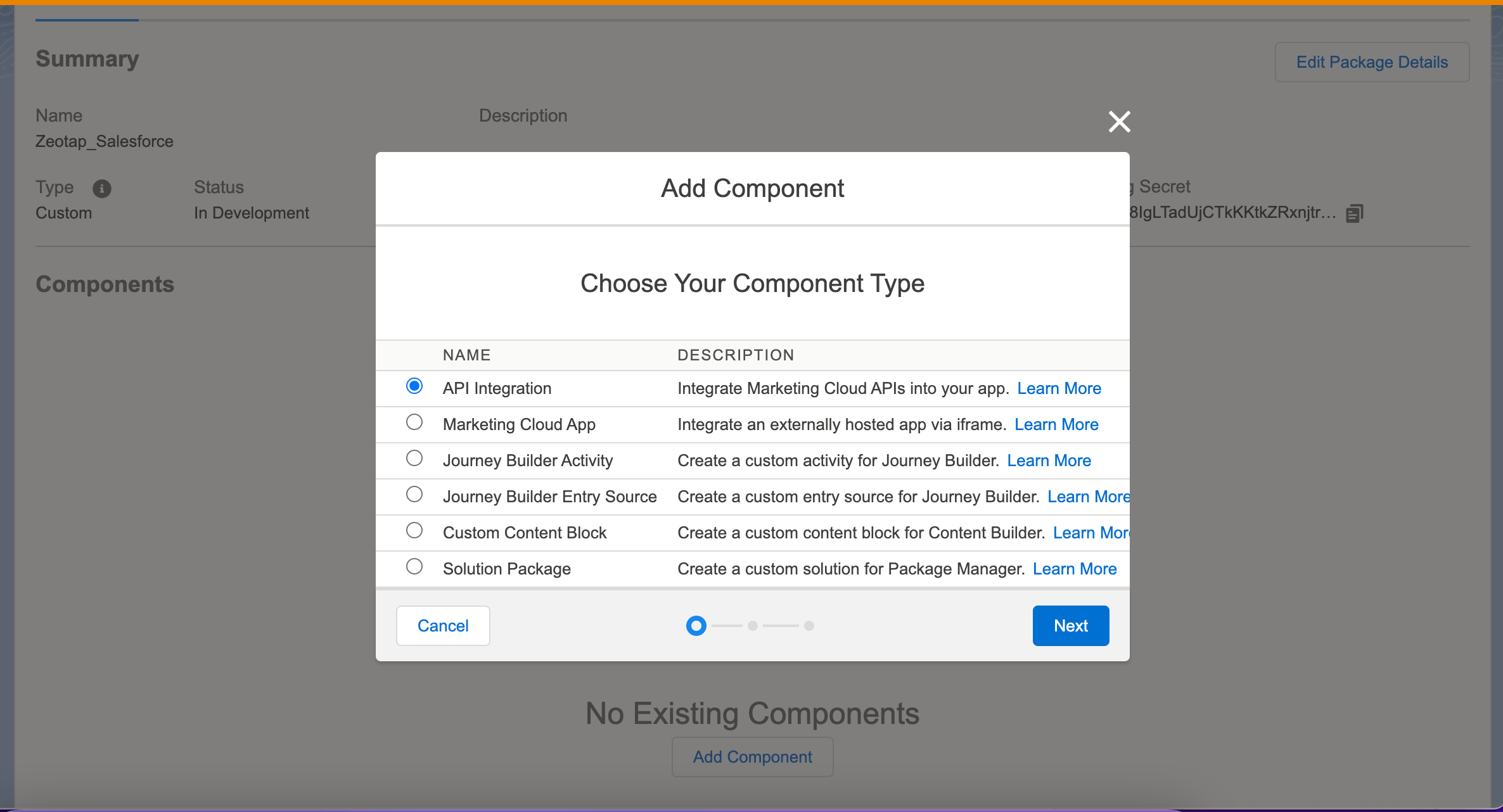
6
Click Next.
7
Choose Server-to-Server as the Integration Type.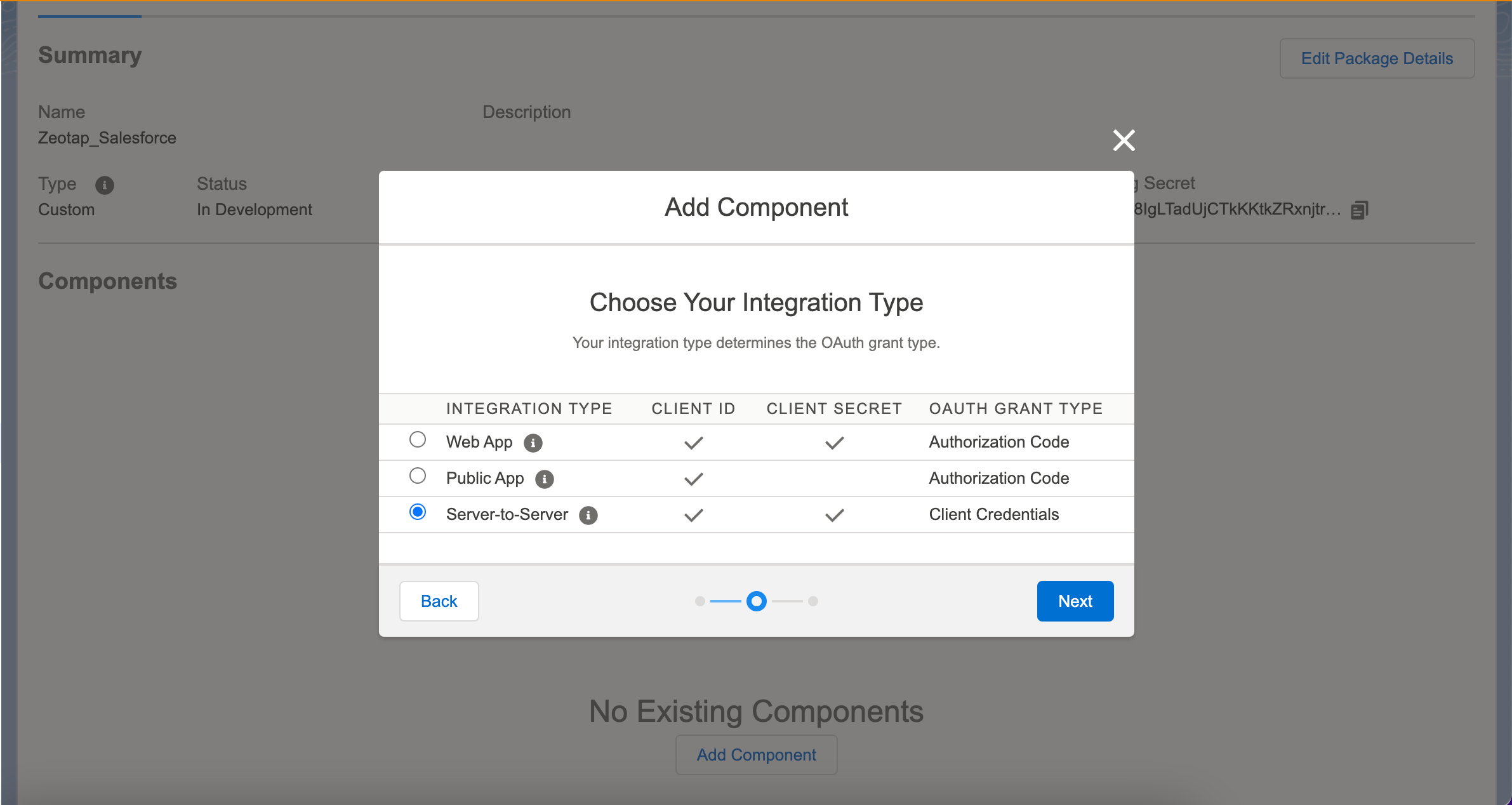
8
Click Next.
9
In the new window that appears, select the following permissions:a. Check “READ” under Contacts > List and Subscribers section.
b. Check “READ” under Automations > Journey builder section.
b. Check “READ” under Automations > Journey builder section.
Note:Note that failing to add these permissions, may lead SFMC to send an
Insufficient Privileges error.10
Click Save. The API Integration details are visible under the package summary.
Create a Data Extension Table
To send data to the Data Extension table of Salesforce Marketing Cloud, start by creating a data extension table. To do so, perform the following steps:1
Navigate to Audience Builder > Contact Builder > Data Extensions in the Salesforce Marketing Cloud console.
2
Click Create.
3
Under Properties section, enter the following details:
a. Use the drop-down menu to choose Create from New for Creation Method.
b. Provide a suitable Name for the table and relevant Description in the respective fields.
c. For External Key, use the system-generated key if the external key is not provided.
d. Currently, only Standard is supported as the Type (Data Extension).
e. Select the Is Sendable? checkbox to enable sending messages to this data extension.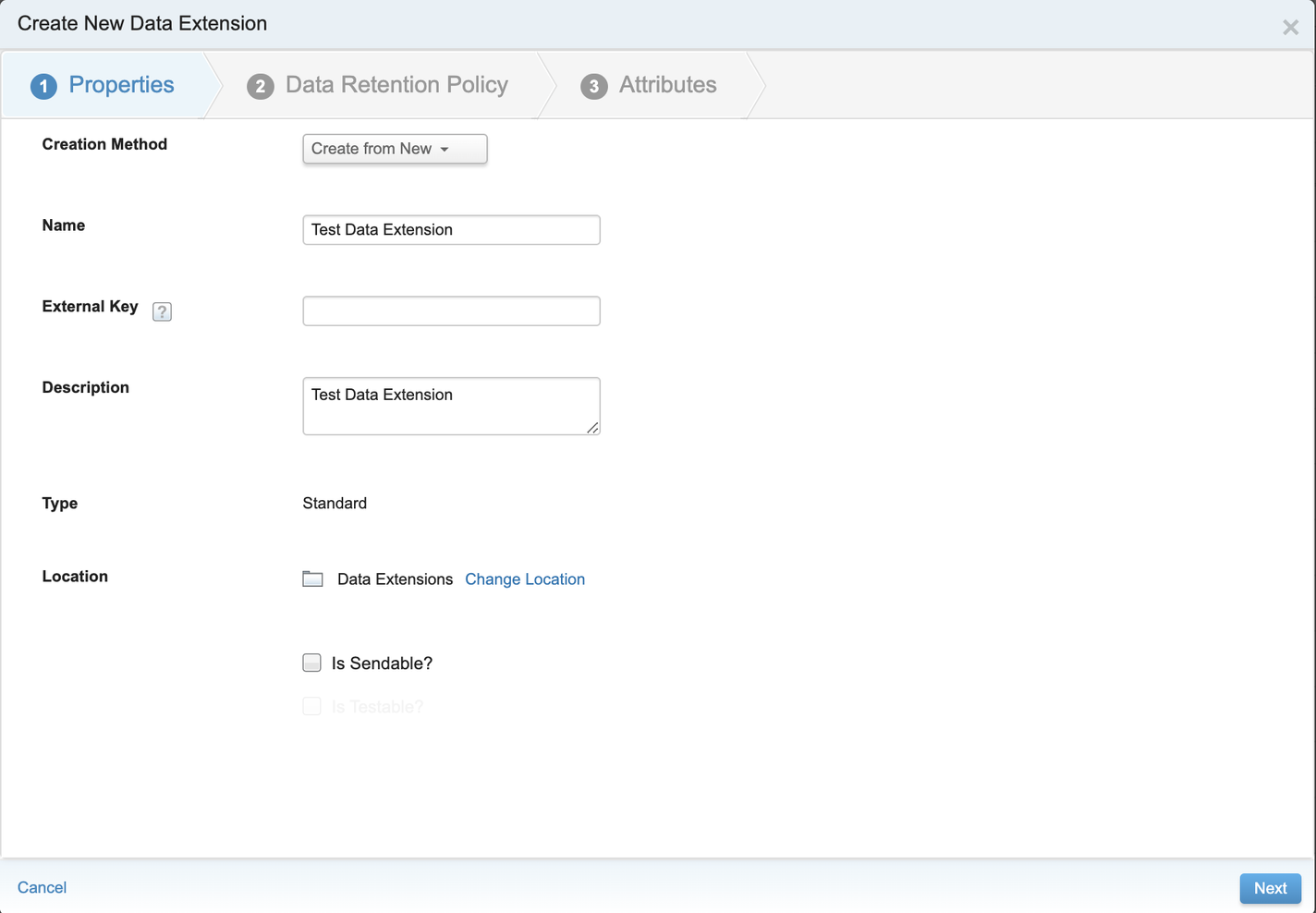
a. Use the drop-down menu to choose Create from New for Creation Method.
b. Provide a suitable Name for the table and relevant Description in the respective fields.
c. For External Key, use the system-generated key if the external key is not provided.
d. Currently, only Standard is supported as the Type (Data Extension).
e. Select the Is Sendable? checkbox to enable sending messages to this data extension.
4
Under Data Retention Policy, enter the required Data Extension details.
5
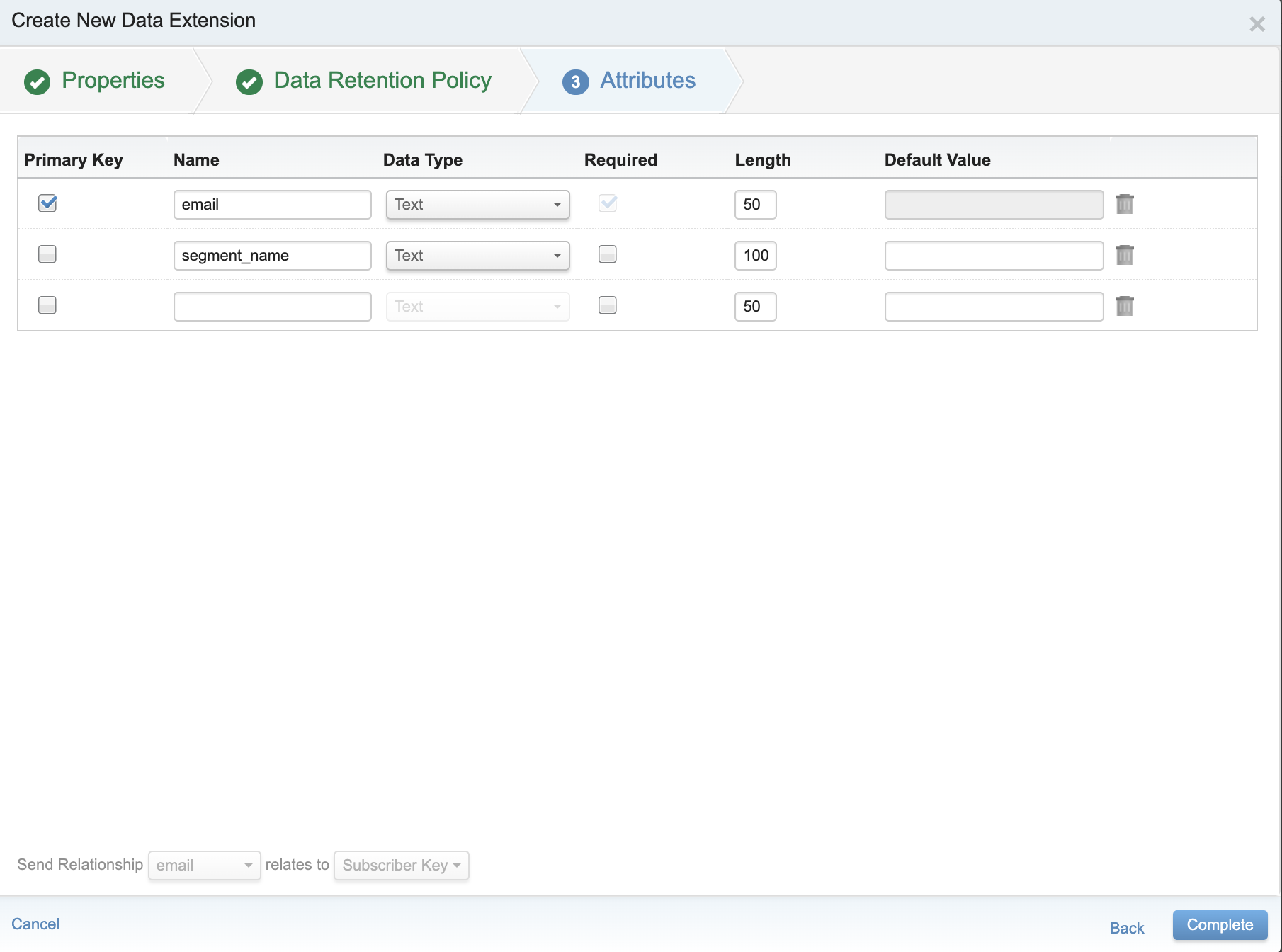
Under Attributes, depending on the downstream system that you wish to use for activating your audience, configure as below.a. If you wish to use the CONNECT module for activating your audience (segment), then perform the following steps:
i. Zeotap supports data syncing to only two columns - email and segment_name. Ensure that you add these two columns in the table.
ii. Configure email as the Primary Key using the check box provided.
iii. Enter the Length details based on the size of the emails and segment_name that the customer sends.
iv. Review all the fields and Click Complete.
i. Zeotap supports data syncing to only two columns - email and segment_name. Ensure that you add these two columns in the table.
ii. Configure email as the Primary Key using the check box provided.
iii. Enter the Length details based on the size of the emails and segment_name that the customer sends.
iv. Review all the fields and Click Complete.
6
Review the fields and click Complete.
Note:Ensure that the Name of all the attributes provided while creating the data extension table should be exactly same as the Destination field name under Map the fields when creating the Destination. For example, if you create email as a column in the data extension, then make sure you add the Destination field as email for which you would like to send the email data from Zeotap CDP.