

What this is
The Brevo destination sends contact data out of Zeotap CDP and into a Brevo contact list in real time. Each time a customer reaches a Send to Destinations node in a journey, Zeotap appends that customer to the Brevo list you nominated, so an email or SMS audience in Brevo stays in step with journey activity without any file export. Zeotap CDP ships two separate Brevo destinations, and the destination catalogue lists both:- Brevo — this page. Real time, attached to a journey, appends contacts to one Brevo list.
- Sendinblue (Brevo) — batch, attached to an audience, pushes a list (segment) into a Brevo folder.
Supported identifiers and actions
Prerequisites
In Zeotap CDP:- An active account with permission to create and edit destinations. For the wider destination model, see Destinations.
- A journey you can edit, so the destination has somewhere to be attached. See Create a workflow.
- The customer data or events you intend to send, available in the Catalogue.
- An active Brevo account with API access.
- Permission to generate API keys in that account.
- At least one contact list created, and its list ID to hand.
Get your Brevo API key and list ID
Both values come from the Brevo console, before you touch Zeotap CDP.Zeotap Integration), and click Generate.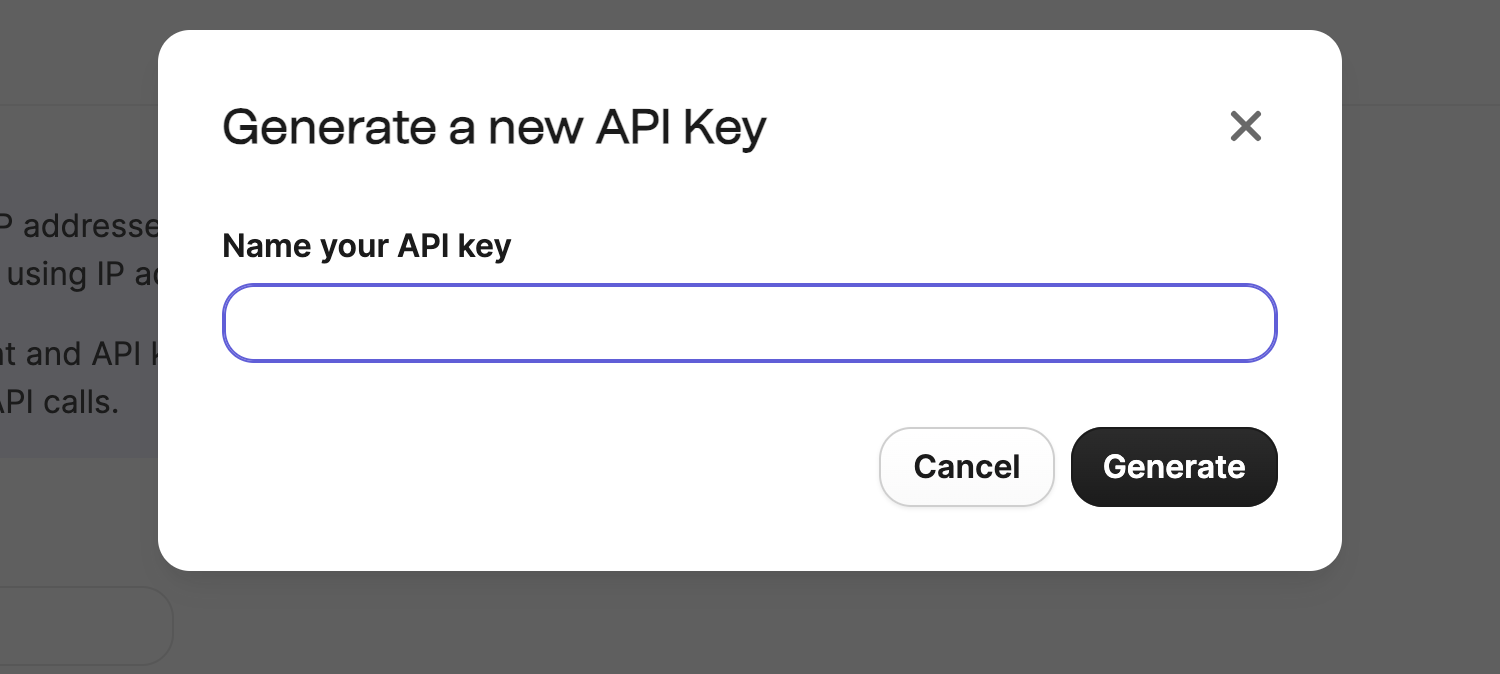
Brevo's Generate a new API Key dialogue, with a name field and Cancel and Generate buttons
Brevo's confirmation dialogue, which states that the key cannot be shown again and offers a copy control

Brevo's Lists table, showing the ID column alongside folder, contact count and creation date
Create the Brevo destination
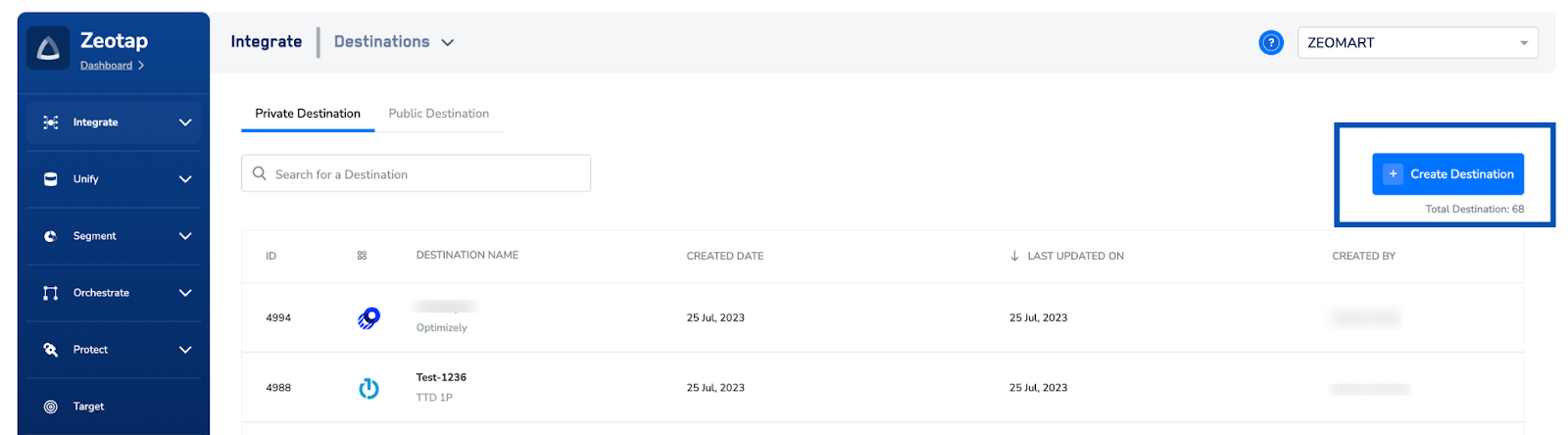
The Zeotap CDP Destinations screen, with the Create Destination button highlighted
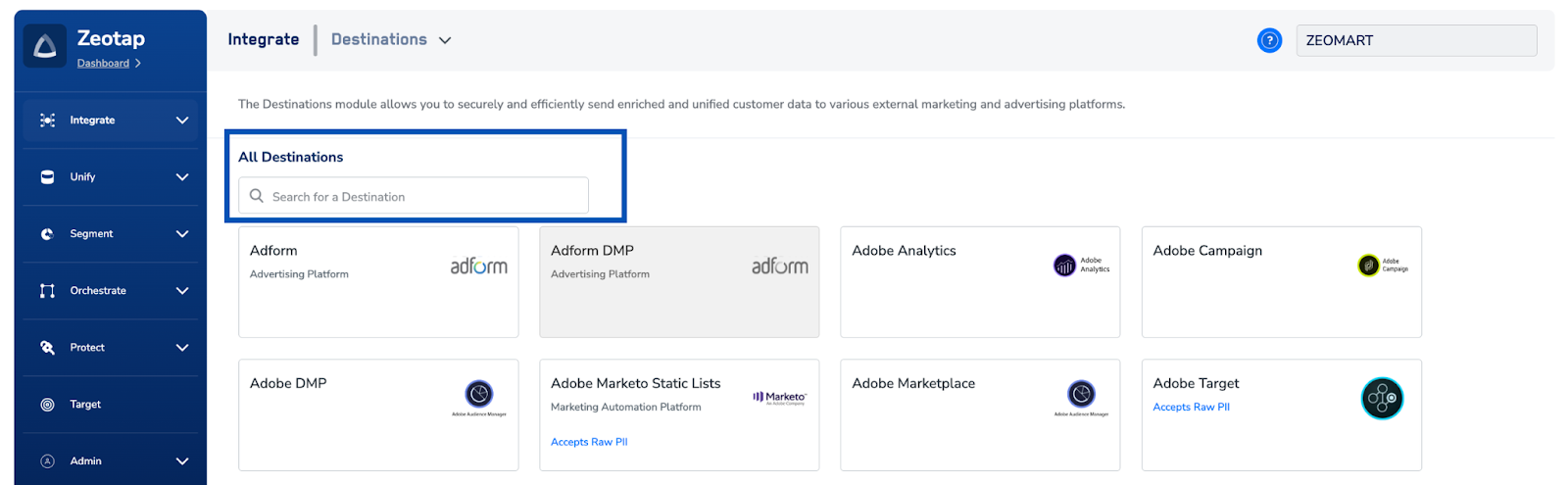
The All Destinations catalogue with its search box highlighted
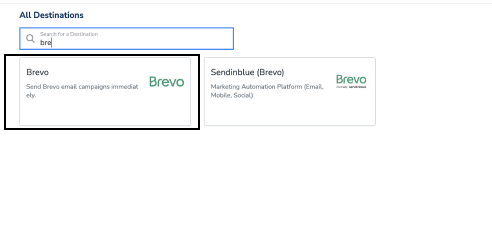
Search results showing two separate tiles for this vendor, Brevo and Sendinblue (Brevo), with the Brevo tile highlighted
- Destination Name — a name that identifies this destination later, when you pick it from a journey.
- Brevo API Key — the key you generated above.
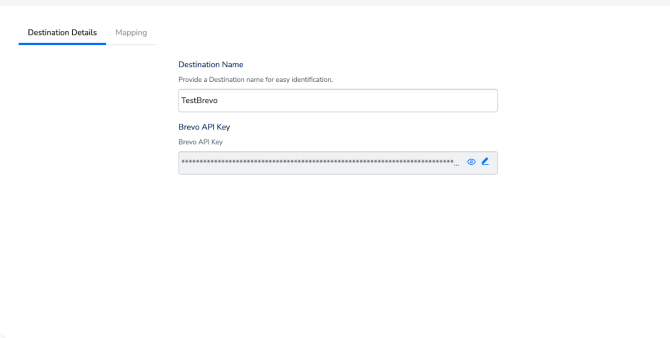
The Destination Details tab, with the Destination Name and Brevo API Key fields
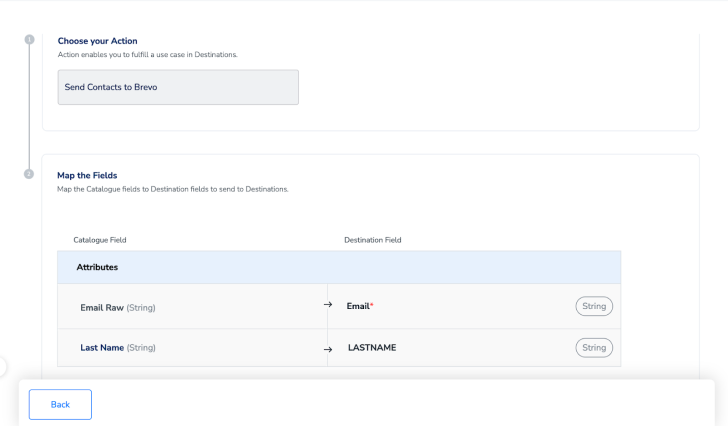
The Choose your Action and Map the Fields screen, mapping Catalogue fields to Brevo contact attributes
Attach the destination to a journey
Creating the destination stores the credentials; it does not send anything on its own. Data starts flowing once you attach the destination to a Send to Destinations node.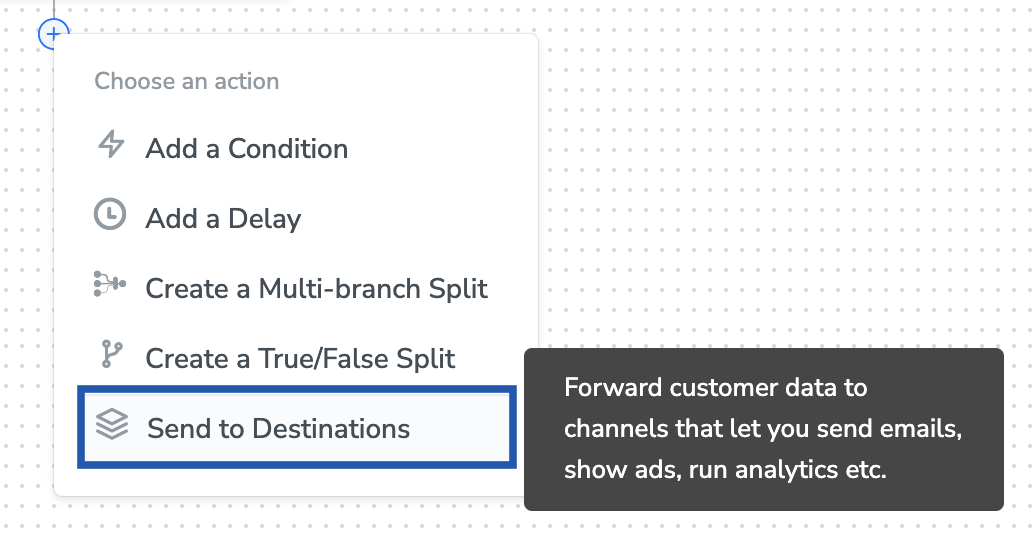
The Choose an action menu on the journey canvas, with Send to Destinations highlighted
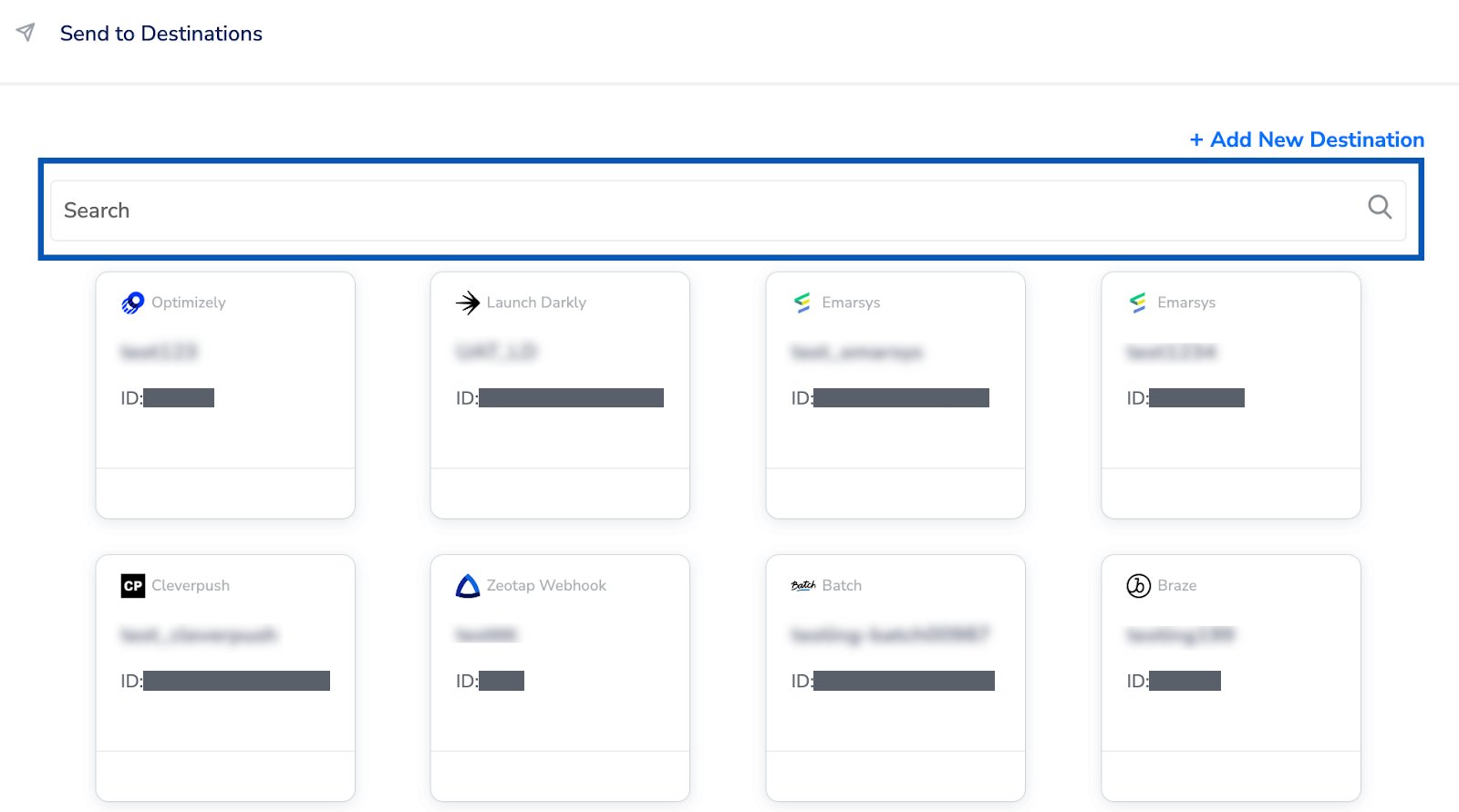
The Send to Destinations panel, with its search box highlighted above the available destination cards
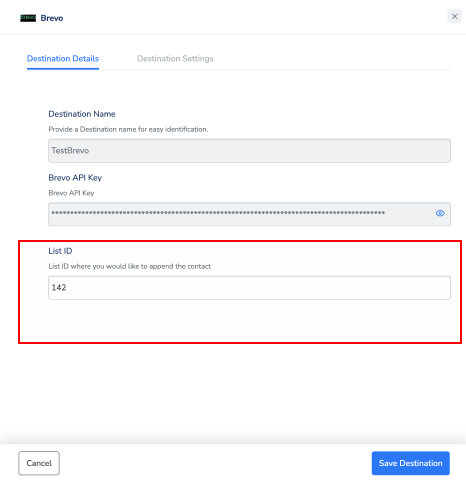
The journey-level Destination Details tab, where the pre-filled destination fields sit above the List ID field
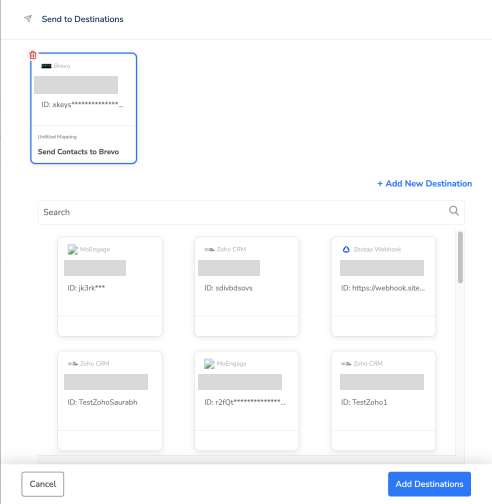
The Send to Destinations panel after saving, with the Brevo destination attached to the node
Verify contacts reach Brevo
Check both sides once the journey has run.- In Zeotap CDP — open the journey and read the counts on the Send to Destinations node. Successful deliveries and failures are counted separately at node level, so a node with a non-zero success count is delivering. For a per-customer view of what was sent, see Journey traces.
- In Brevo — go to Contacts → Lists, open the list whose ID you entered on the journey node, and confirm the expected contacts are present.
Troubleshoot delivery failures
When a delivery fails, Zeotap CDP records a failure status code on the node rather than a Brevo-specific message. Start with the journey trace logs, which carry the raw response from Brevo alongside the code. The codes most likely to appear on this destination are:AUTHENTICATION_ERROR— the Brevo API key on the destination is no longer valid, or it lacks the permissions the integration needs. Generate a fresh key in Brevo and update the destination.BAD_REQUEST— a required field was missing or empty in the payload. Check that the email identifier is mapped and never null before investigating anything else.EVENT_PARSING_FAILED— the mapping and the Brevo attribute disagree. Confirm the attribute exists in Brevo and that its type matches the Catalogue field you mapped to it.
FAQ
Why are there two Brevo entries in the destination catalogue?
Why are there two Brevo entries in the destination catalogue?
Where do I enter the list ID — on the destination or on the journey?
Where do I enter the list ID — on the destination or on the journey?
Does this replace the contacts already in the Brevo list?
Does this replace the contacts already in the Brevo list?