Overview
Pinterest is a visual discovery engine where people find inspiration for their lives, from planning a meal to redecorating a home. The Pinterest Conversions API helps businesses by creating a direct, reliable connection between your server and Pinterest. This server-to-server method tracks customer actions more accurately than browser-based tools, bypassing issues like ad blockers. The Pinterest CAPI integration with Zeotap enables sending this complete and trustworthy data to your Pinterest instance enabling you to better measure your campaign’s true impact, improve ad targeting, and achieve a higher return on your ad spend.Supported Identifiers
This integration supports SHA 256 Email, SHA 256 MAID’s and SHA 256 Phone NumbersPre requisites
Please ensure the following steps are completed in Pinterest before configuring the destination in Zeotap.- Set up a business account
-
Generate Token
- Go to Ads Manager, and select Ad Account Overview > Conversions > Conversions API > Set up API.


- Select Conversion access token, and click Generate new token.
- Copy your newly generated token, which is displayed with your ad account ID.

Creating a Destination
1
Log into the Zeotap CDP App and go to the DESTINATIONS application.
2
Click + Create Destination.
3
Under All Destinations, search for Pinterest CAPI.
4
Click on Pinterest CAPI . A screen appears displaying details about the particular destination towards the left. On the right-hand side of the screen find a list of fields that are required for the integration to be established. Enter the required details as mentioned in the following steps:a. Enter a N ame for the Destination.b. Enter the Access Token.c. Enter the Ad Account ID.d. Enter the Destination Instance Name.e. Click Next to proceed to mapping.
5
In the new screen that appears, choose the appropriate Action and mapping as explained below.a. Choose the desired action under Choose your Action and then choose the corresponding identifiers under Map the Fields. By default, the output Identifiers that are accepted by the platform, such as hashed email IDs list and hashed phone numbers, etc are displayed.b. The following are the mandatory fields that needs to be mapped :i. Event IDii. Event Timeiii. Please note that you must send either a hashed email, hashed phone number, or hashed IP address, along with the Event ID and Event Time fields.c. Click Save Mapping.
Activate the Destination on Journeys
After creating a destination, next, you need to link it in the Send to Destination node within the workflow, as explained below.1
In the workflow, click + and choose Send to Destinations.
2
Choose the destination from the list of available destinations by using the search feature.
3
Under the Destination Details tab, the Access Token and Ad Account ID fields are automatically populated based on the value that you have entered while creating the destination.
4
Under the Event Name, choose the appropriate option based on your requirement.
- Add to Cart
- Checkout
- Custom
- Lead
- Page Visit
- Search
- Sign Up
- View Category
- Watch Video
5
Under Action Source, choose the source using the drop-down menu.
- Android
- iOS
- Web
- Offline
6
Under the Destination Settings tab, choose the Action and mapping as per your requirement.
7
Upon clicking Save Destination. The destination is attached as shown in the image below.
Viewing Your Conversion Data in Pinterest Ads Manager
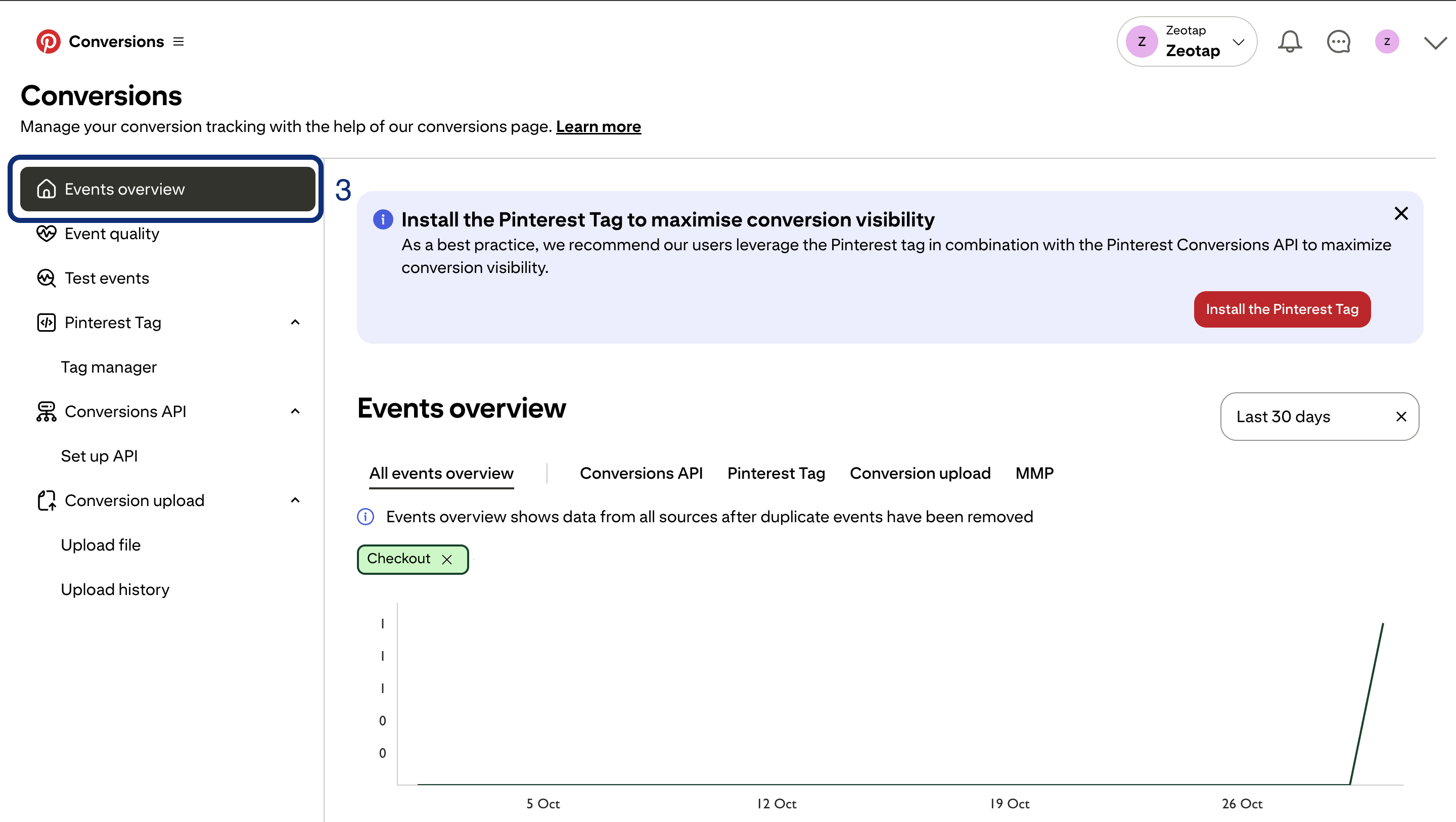
- Go to Ads Manager, and select Ad Account Overview > Conversions > Conversions API > Events Overview.