Overview
Salesforce Marketing Cloud (SFMC) Personalization, formerly Interaction Studio, allows you to visualise, track and manage customer experiences through real-time interaction management. Using this, you can drive engagement at the right moment, tailored to your audience’s preferences, using customer experiences. Currently, by Integrating with Zeotap CDP, you can send User Profile objects that qualify for a workflow in Journeys to your SFMC Personalization instance, enabling personalised targeting.Supported Identifiers/Attributes
This integration allows you to send any identifiers and attributes of your choice. Ensure to map an identifier under User Attribute and mandatorily map the Profile Object ID.Note:For more information about the limits and capabilities in Marketing Cloud Personalization, including user attribute limits per dataset, user profile object limits, and account profile attribute limits, refer here.
Prerequisites
Ensure that you have addressed the following prerequisites before starting the integration:- Create a Dataset - In your SFMC Personalization instance, create a dataset with related catalog objects and attributes before mapping them in Zeotap CDP. This enables easy transfer of corresponding data from Zeotap CDP.
-
Obtain the following details from your SFMC instance:
- Account Name (String, Required) - This is your Personalization account name. You can find it by accessing Gears in the Personalization UI and reviewing the URL. For example, if the Gears URL is
https://testaccount.us-1.evergage.com/, the account name is'testaccount'. - API instance (String, Required) - This is your Personalization instance identifier. You can find the instance by accessing Gears in the Personalization UI and reviewing the URL. For example, if the Gears URL is
https://testaccount.us-1.evergage.com/, the instance identifier is'us-1'. - Dataset (String, Required) - The name or identifier of the Personalization dataset to which you’re sending data.
- Account Name (String, Required) - This is your Personalization account name. You can find it by accessing Gears in the Personalization UI and reviewing the URL. For example, if the Gears URL is
-
Create API Token in SFMC
- You need an API token to authenticate requests on SFMC. The API token must be a strict Base64 encoding of your API Key ID and API Secret Key, separated by a colon.
- You can use an existing API token with the required permissions or ask an administrator to create one in the Personalization UI under Security > API Tokens > Create Token.
- Once the API token is created, use the API Key ID as the API Username and the API Secret Key as the API Password when creating a destination in Zeotap CDP.
Destination Setup
Once you have taken care of the prerequisites mentioned above, you can proceed to creating workflow in Journeys (Zeotap CDP). After you have applied filters or added conditions for your users in Journeys as mentioned in Create a Workflow, you can activate them in SFMC Personalization (Journeys) in the Send to Destinations node as shown below.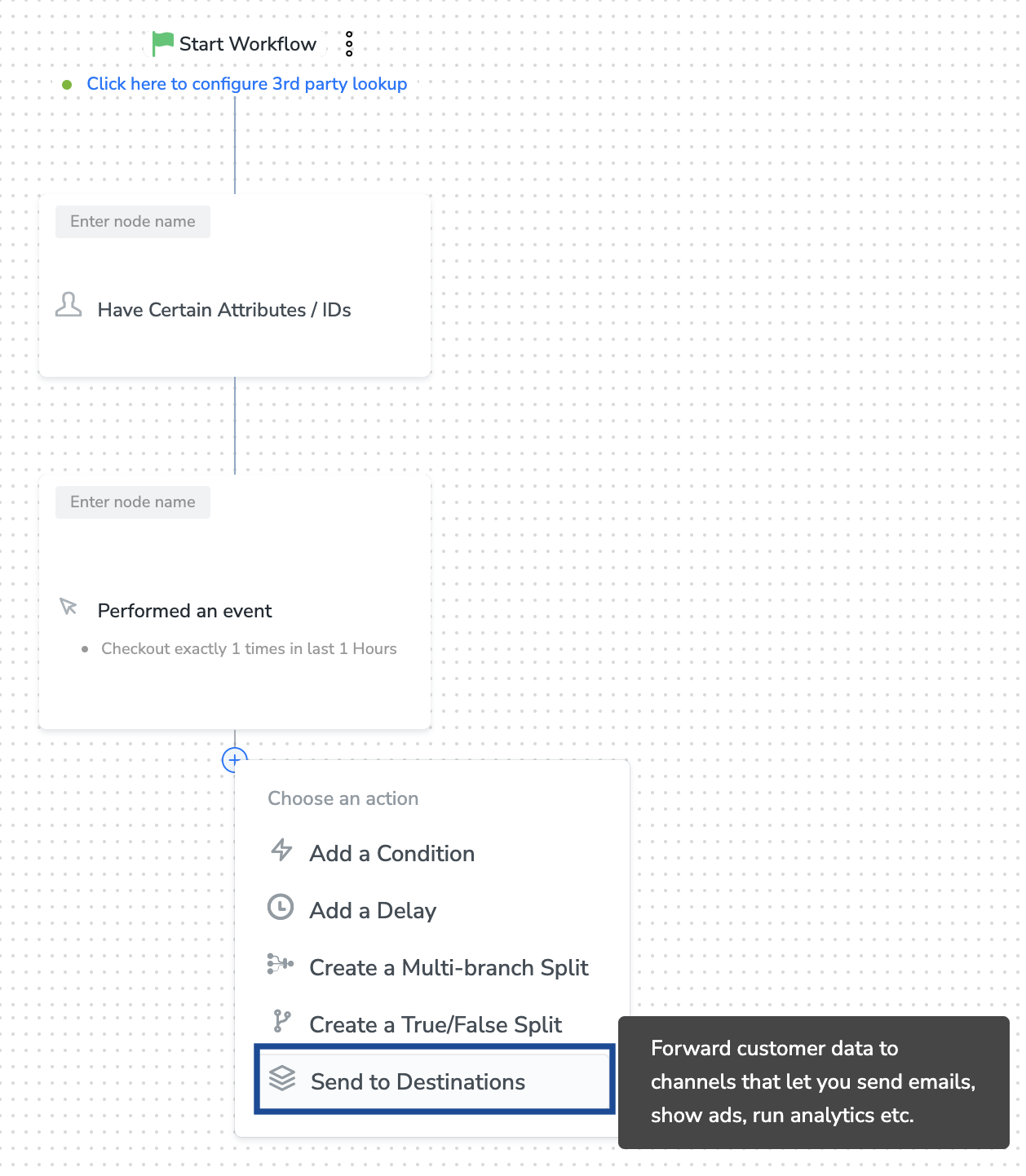
Note:To use an existing destination for activation in Journeys, click here.
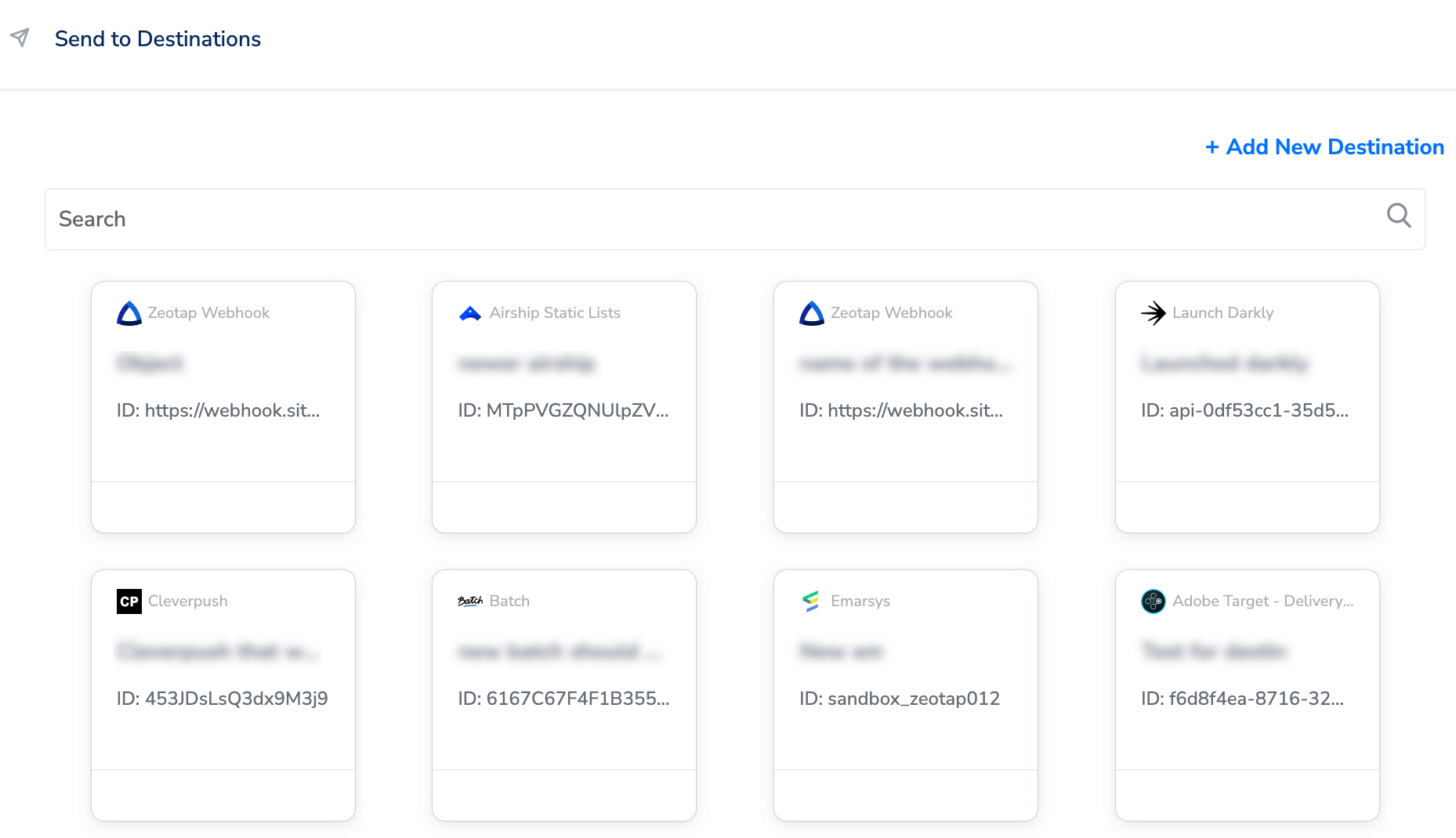
Add New Destination
Perform the following steps to add a new destination:1
Click + Add New Destination as shown below.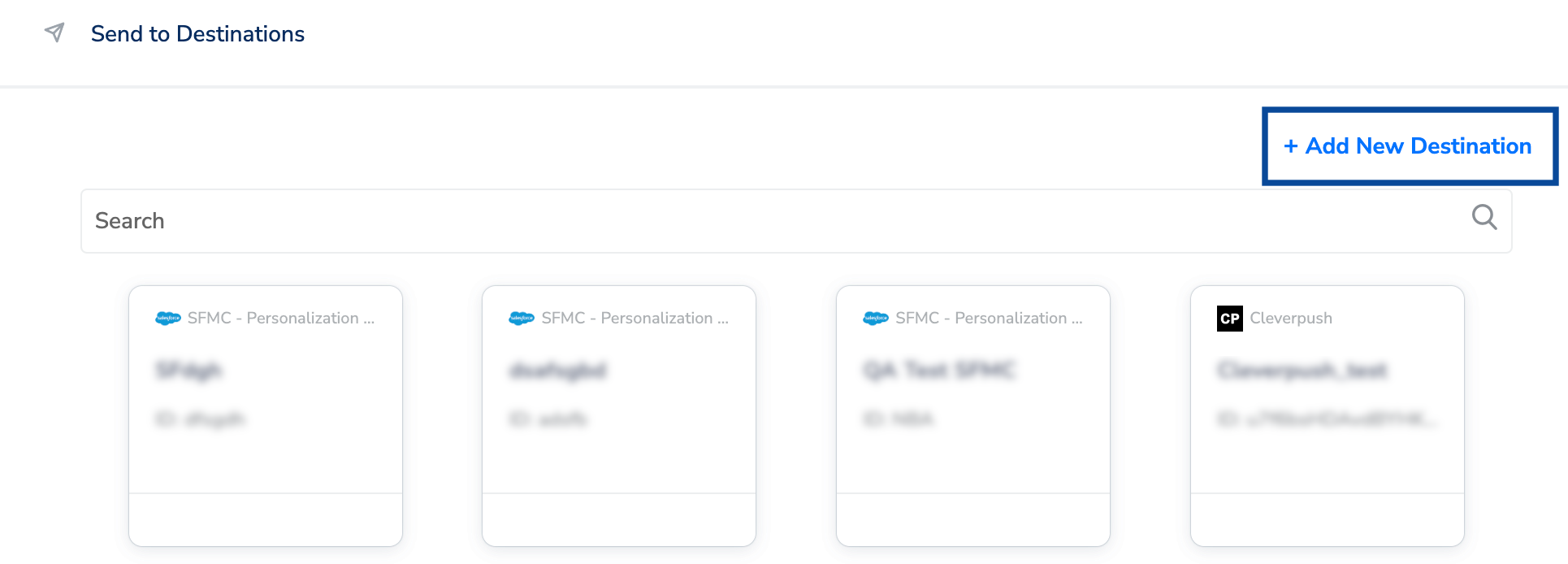
2
Search for SFMC Personalization (Journeys).
3
Click SFMC Personalization (Journeys) and enter a name for the Destination.
4
Enter the Account Name, API Instance and Dataset Name obtained your SFMC instance. Learn more
5
Provide the API Username and API Password for authenticating the API requests on SFMC. Learn more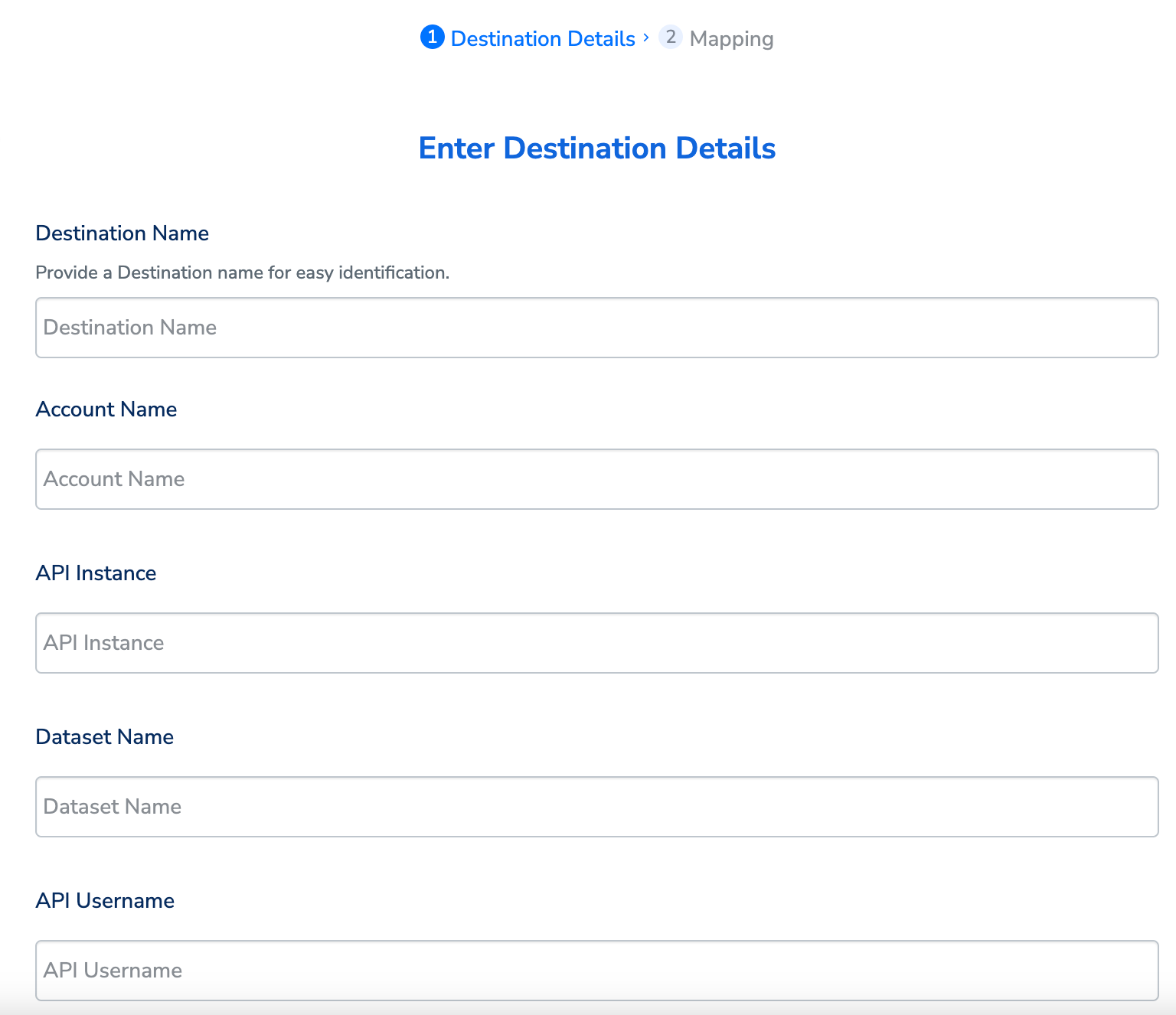
6
Review the fields entered above and click Next.
7
In the mapping screen that appears, under Choose your Action, select Send attributes to SFMC Personalization as the action for sending data from the workflow created in Journeys. Under Map the Fields, use + Add Mapping Field to add any number of identifiers and attributes you wish to send to SFMC Personalization (Journeys). Note that you need to map an identifier under the User Attributes and mandatorily map the Profile Object ID. Otherwise, you cannot proceed.Profile Object ID represents your User Profile Object type in SFMC. For example, Lease, Mortgage and so on.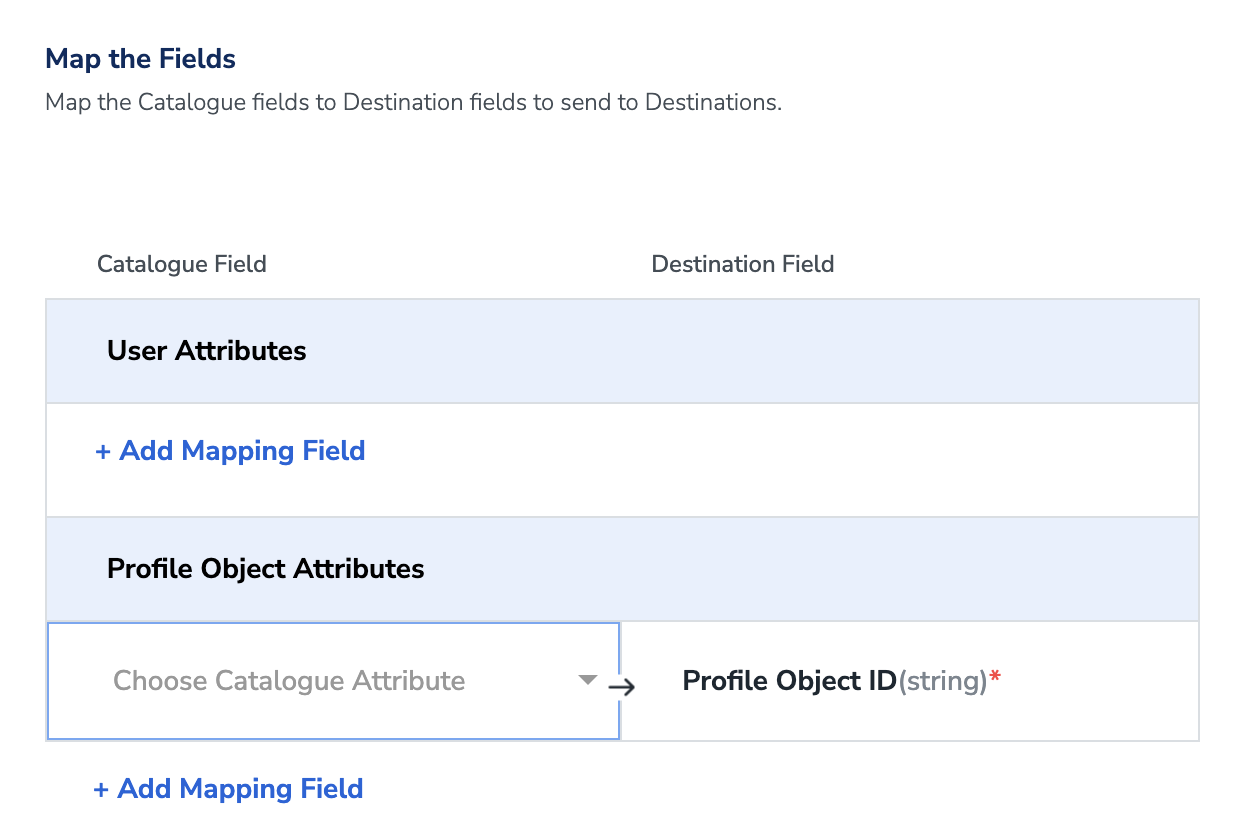
8
Once the mapping is complete, click Create Destination. The destination is created and made available for activation on Journeys as shown below.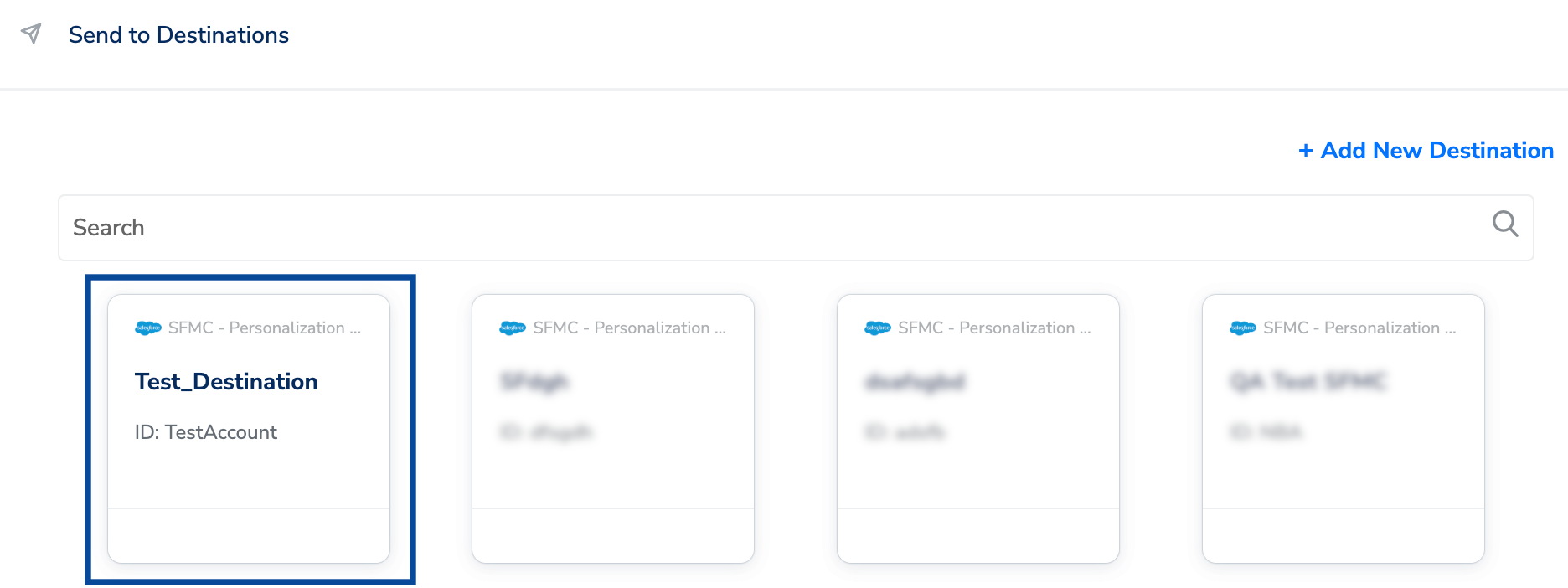
Activate the Destination on Journeys
After creating a destination, you can link it in the Send to Destination node within the workflow, as explained below.1
Click the destination you created from the list of available destinations.
2
Under the Destination Details tab, the Account Name, API Instance, Dataset Name, API Username and API Password fields are automatically populated based on the value that you had entered while creating the destination. However, you need to enter the Action Name and Profile Object Name to save the Destination.Action Name is the name of the action associated with the event. This is the Object name associated with the event.
3
Under the Destination Settings tab, choose the Action and mapping as per your requirement.
4
Upon clicking Save Destination. The destination is attached as shown in the image below.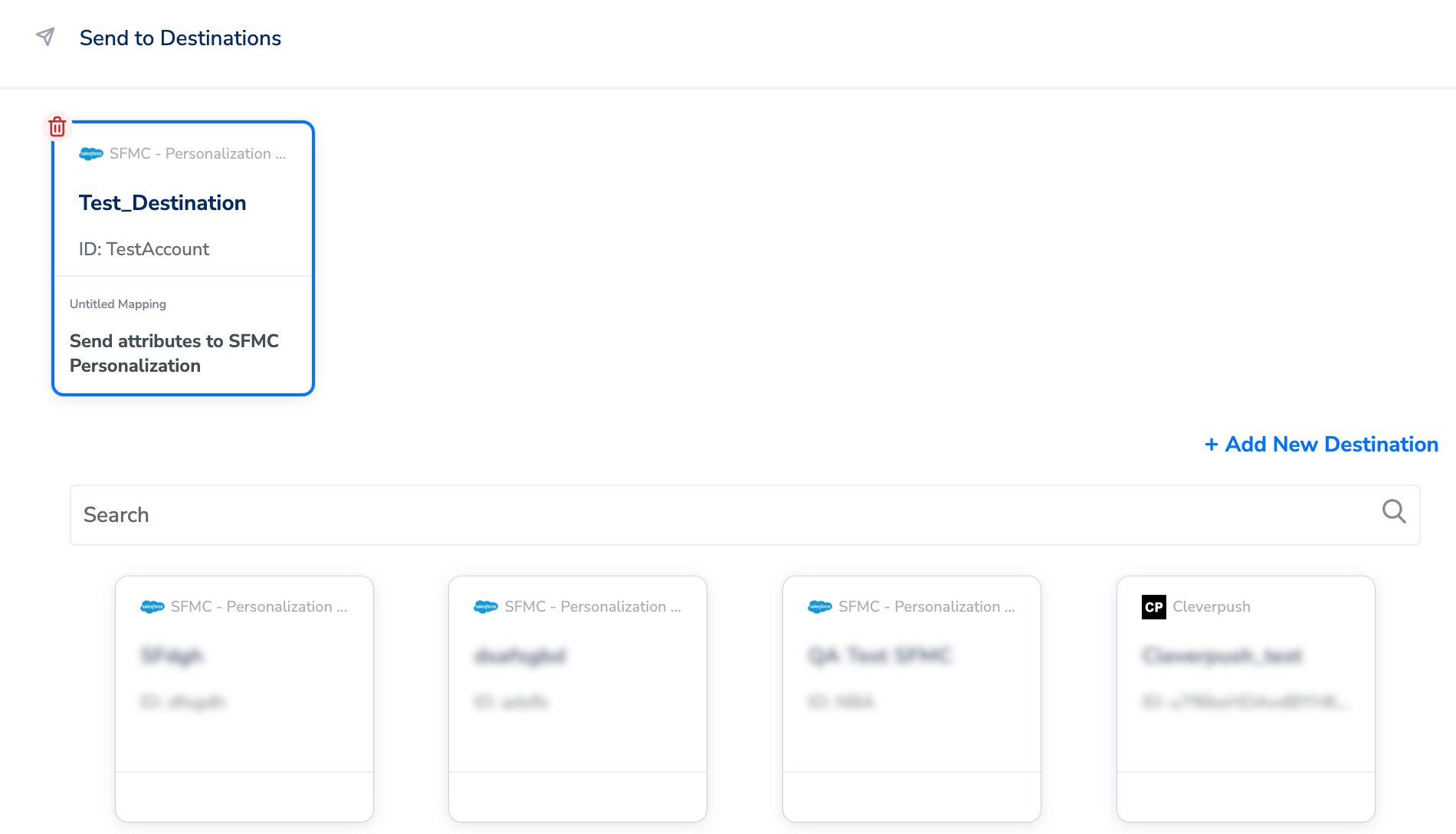
5
Click Add Destinations. You can also add multiple destinations at this step if needed.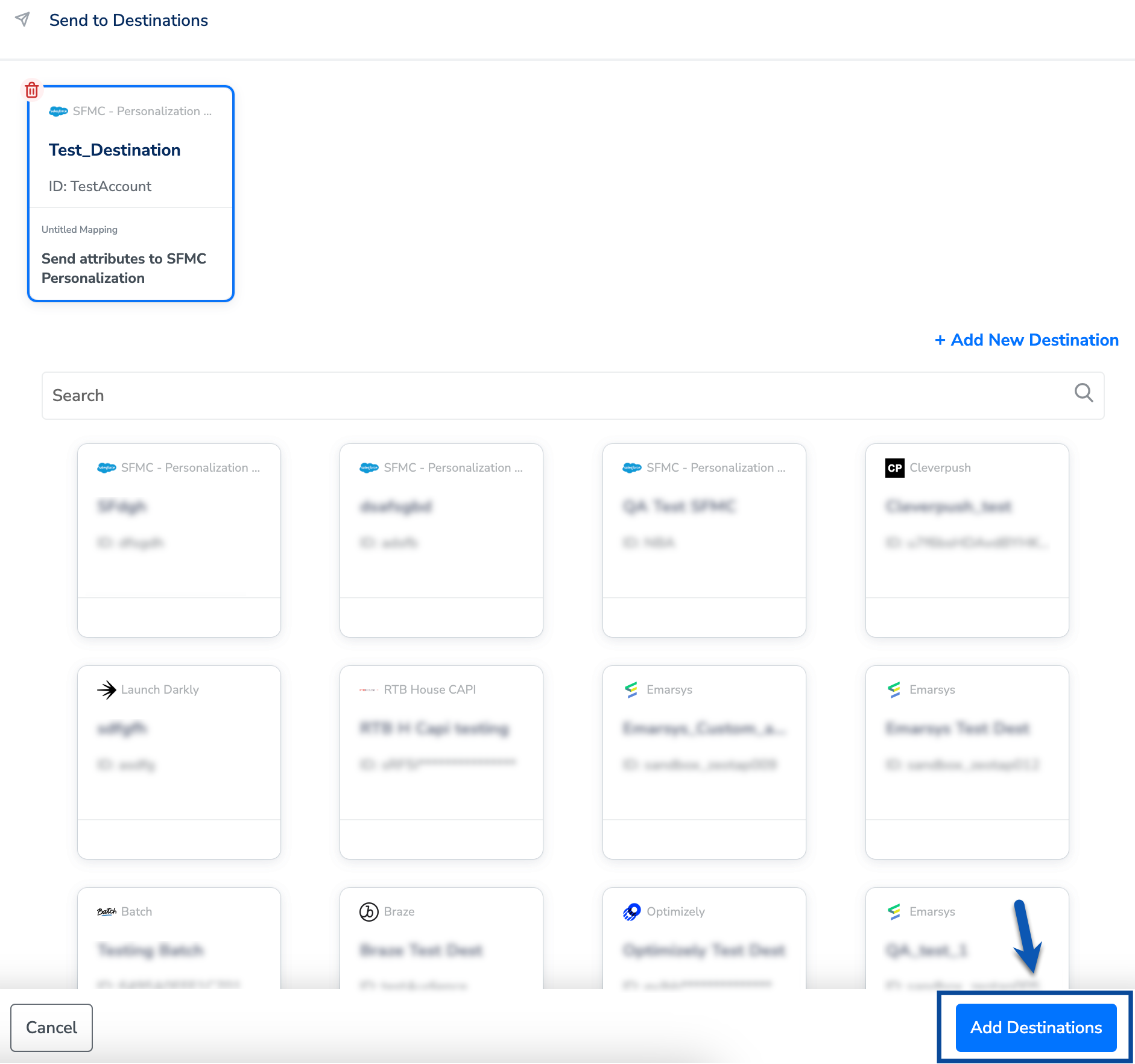
6
The linked Destinations appear in the Send to Destinations node within the workflow as shown below. Further, you can then build and customise your workflow as needed by clicking ’+’ . Note that you must enter a name for your workflow in the provided text box to save it.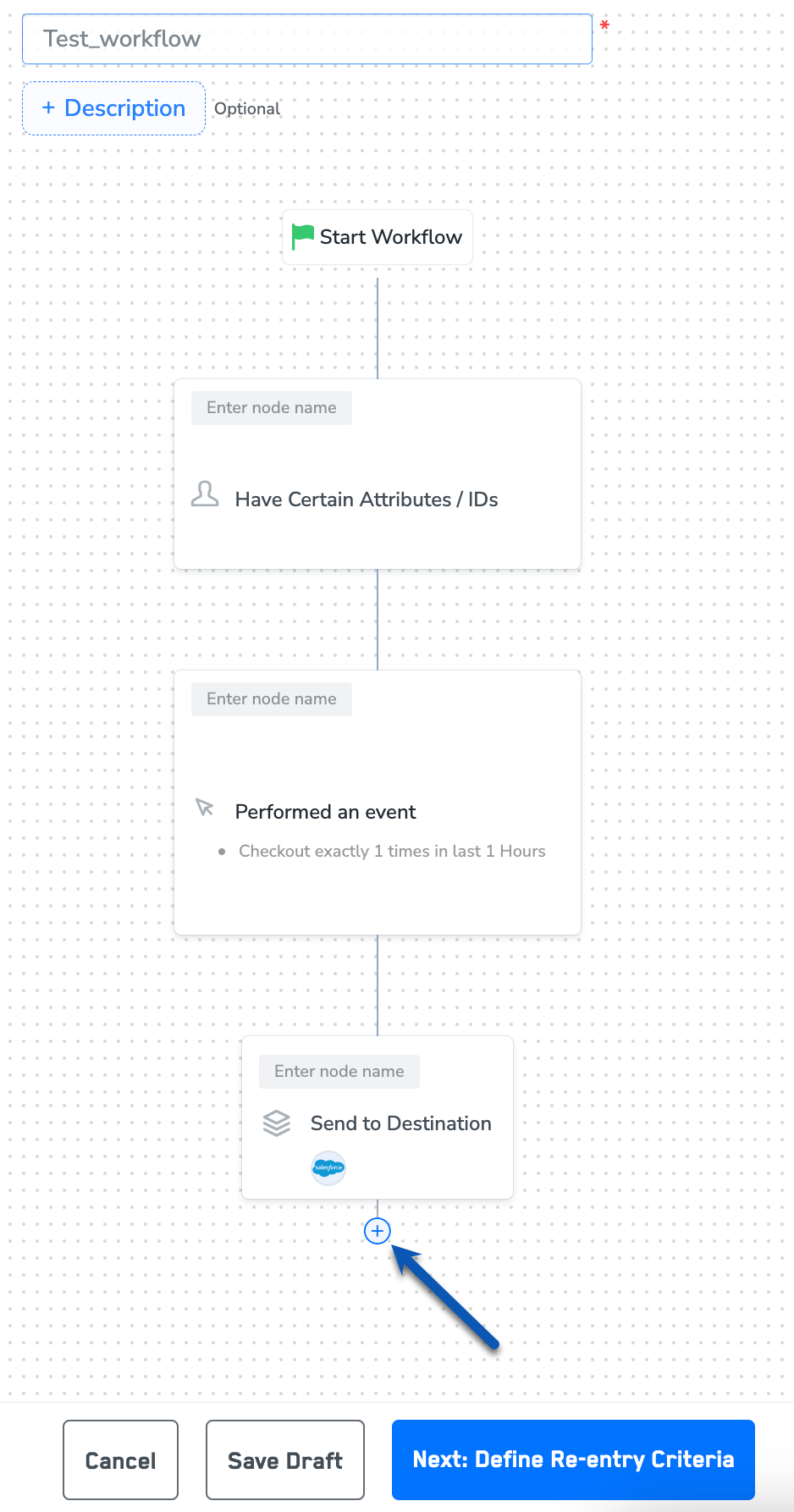
7
After adding conditions and filters for users, choose one of the following options:
- Save Draft: Enables you to revisit and edit the workflow before publishing.
- Next: Re-entry Condition: Determines whether a user can re-enter the same workflow.
8
After defining the re-entry criteria, click Publish Workflow. The workflow appears in the Workflow listing screen with a Published status.