

Note:You cannot save the catalogue with custom fields, without applying an enricher. Once you have added this enricher, you can edit it for further changes.
1
Map the source field to the corresponding Zeotap Catalogue field.
2
Click ADD A CUSTOM FIELD for which you want to add the Derived Field enricher. You can add multiple custom fields as per your requirement.
3
Map the input and output fields for the custom field and then click +ADD ENRICHER to configure the Derived Field enricher.
4
Select Derived Field Enricher as the enrichment type.
5
Under the Define Conditions section add one or more conditions. Currently, only the
Is operator is applied to build the condition. Ensure that the expected input value(s) exactly matches the value received in the source data.6
For values that do not match the input values that you have entered above, enter the default value under the Default value section. Note that for Consent/Preference mapping, it is mandatory to enter the default value.
7
Save the changes.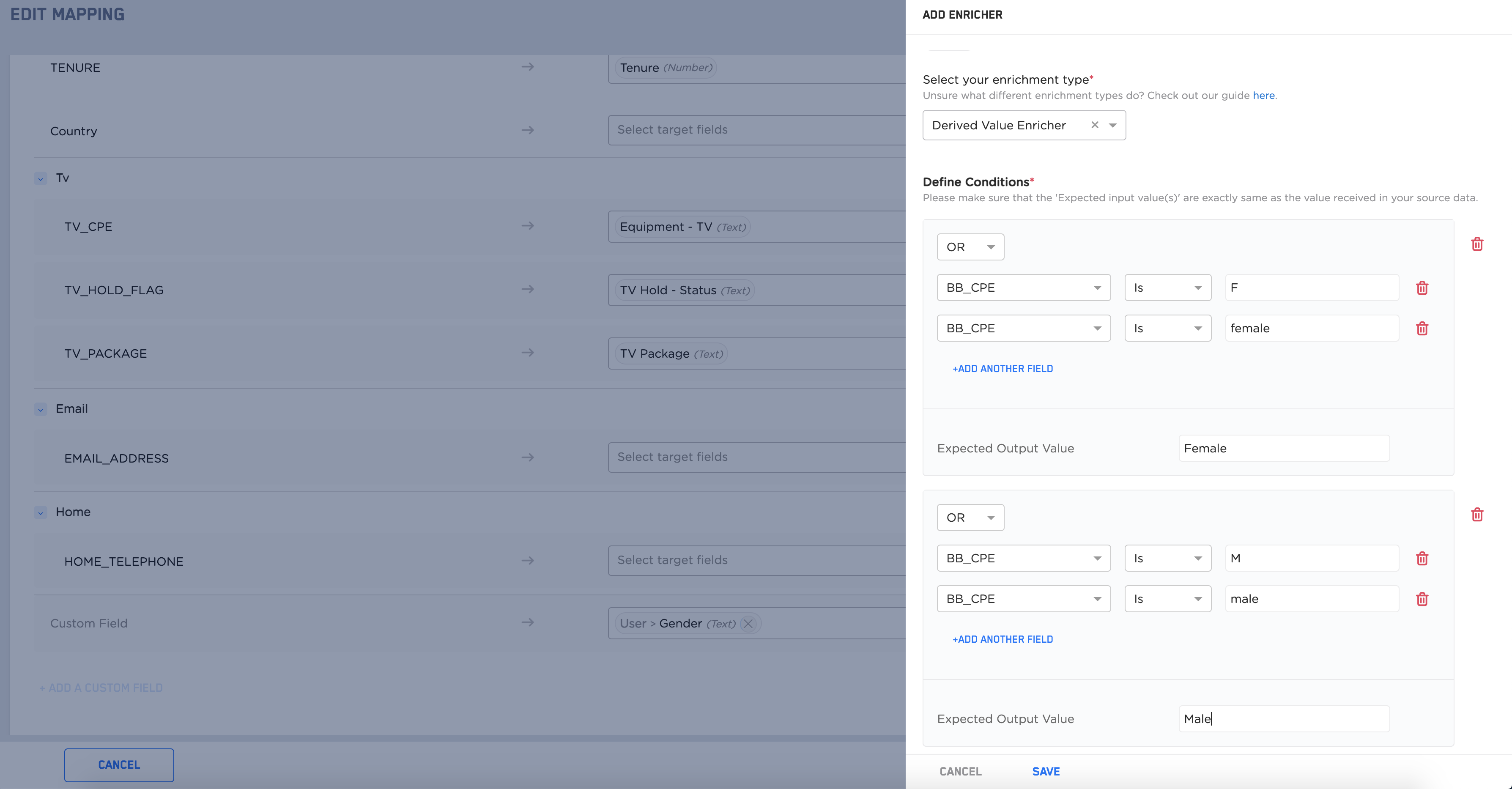
Note:For a custom field when applying a Derived Field Enricher, we recommend that you apply the same set of criteriato avoid conflicting scenarios while resolving the expected output values.
Gender. The incoming values F and female are mapped to the expected output value Female. Similarly, the incoming values M and male are mapped to the expected output value Male.