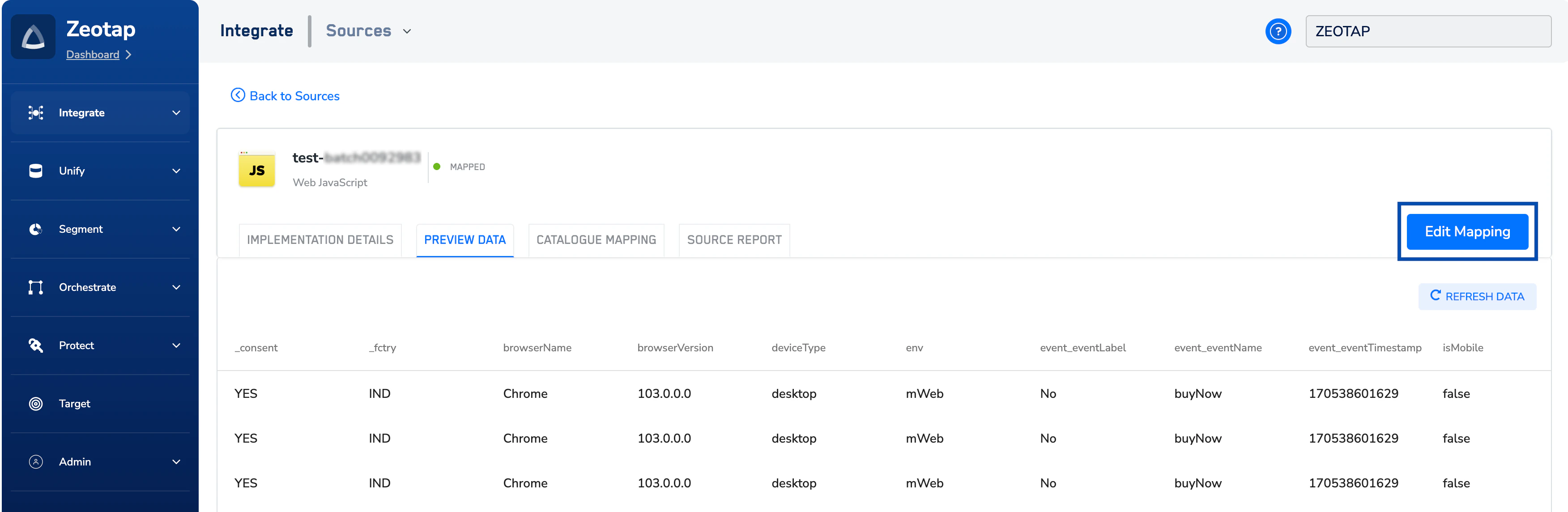
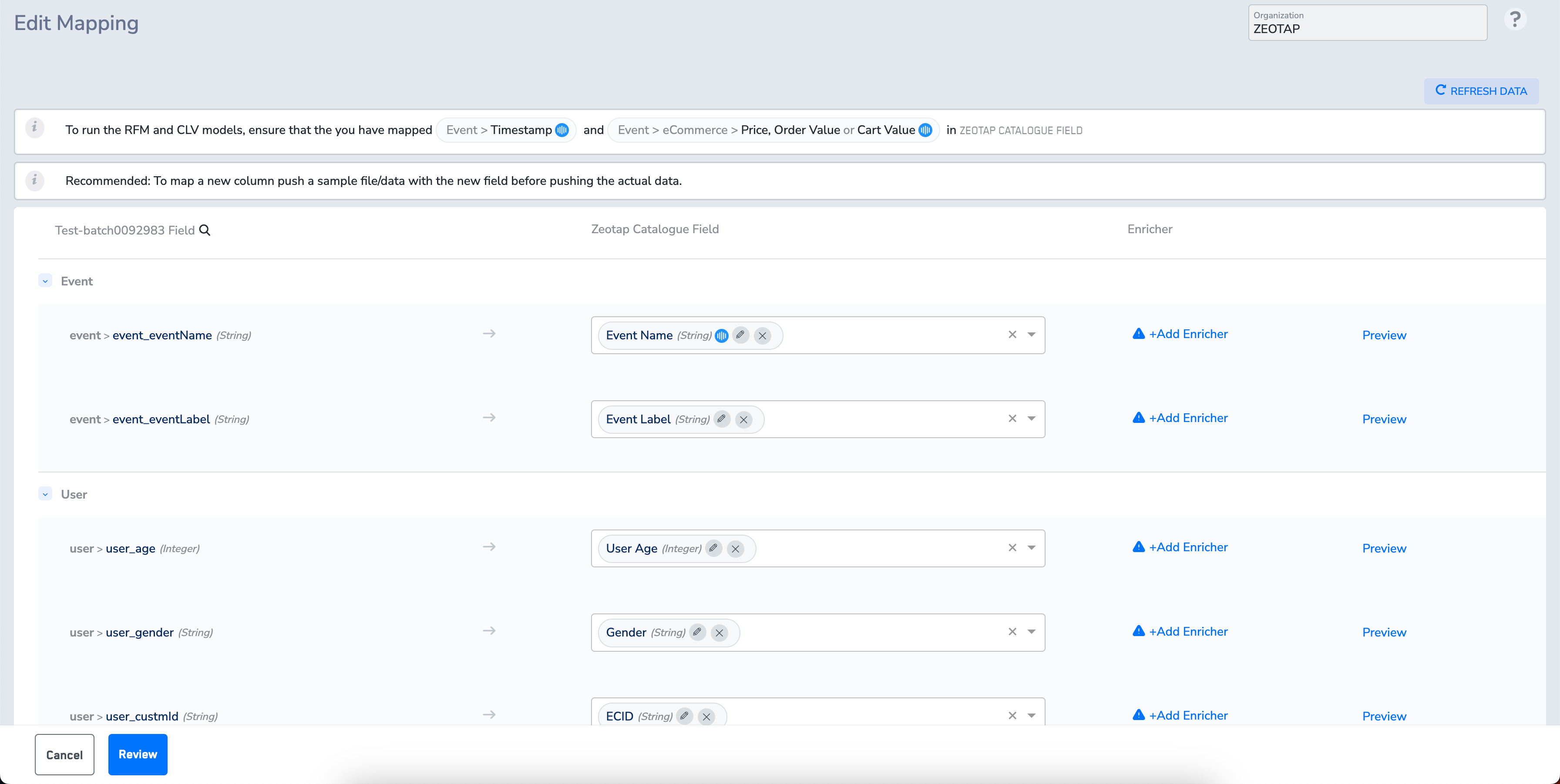
Click the Edit Mapping option in either PREVIEW DATA or CATALOGUE MAPPING to modify the mapping of an existing source. You can use this option particularly for addressing issues like mapping the wrong field or incorrectly mapping a field with the wrong data type, which can lead to ingestion failures.
In the Edit Mapping screen that appears, you can edit/remove/add a catalogue field on the already mapped fields. In addition, you can also add/edit the Consent Purpose, Marketing Preference and Enrichers configured.
Note that the data ingested before editing the mapping is unaffected. However, once you save the new mapping, the data ingestion occurs as per the new mapping.
Edit Display Name for Catalogue Fields
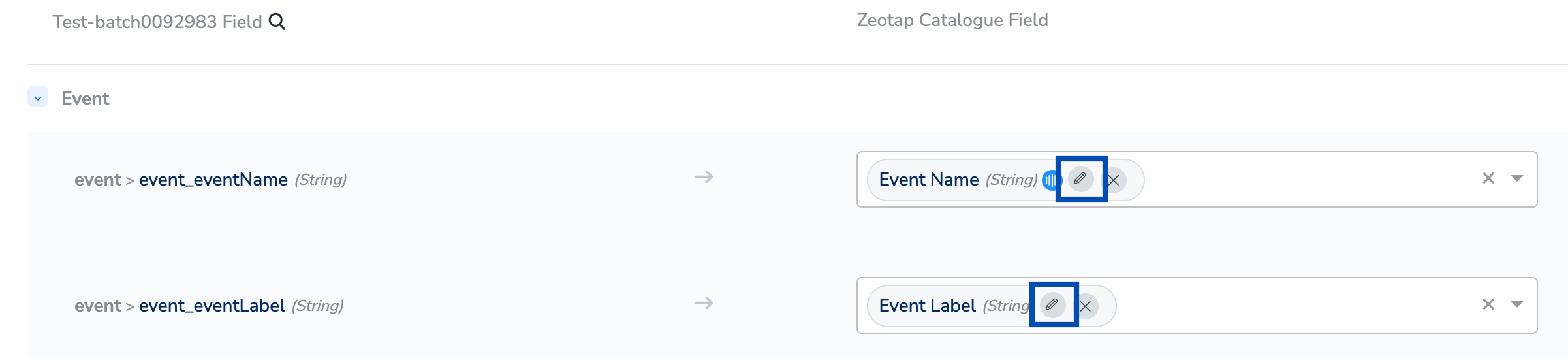
You can edit the display names of the Catalogue fields by using the edit icon against the particular Catalogue field as shown in the image below.
In the Edit Catalogue Field window that appears, enter the new display name for the Catalogue field and save. Note that this action does not modify the database name in the system. Use the edit function to align the attribute name with your business attribute. For example, you can edit and rename the Catalogue field from email to Primary Customer Email to enhance clarity and align with your business attributes. In addition, you can use the modified attribute for activation across the downstream modules. Last modified on February 26, 2026