

3 months purchase value”. You are creating this attribute to capture the total cart checkout value for the “last 3 months”. In the process, you are going to do a “summation” to aggregate the revenue associated with the “Order_Completed” event name. You can further build the condition for the “Order_Completed” event name using the values from its mapped Zeotap Catalogue Field. These values can be associated with a product category like brand = Puma.
Now that you have a fair understanding of the sample scenario, perform the following steps to create a calculated attribute:
1
Navigate to Calculated Attributes under Unify.
2
Under the Batch Attributes tab,
click + Create Attribute.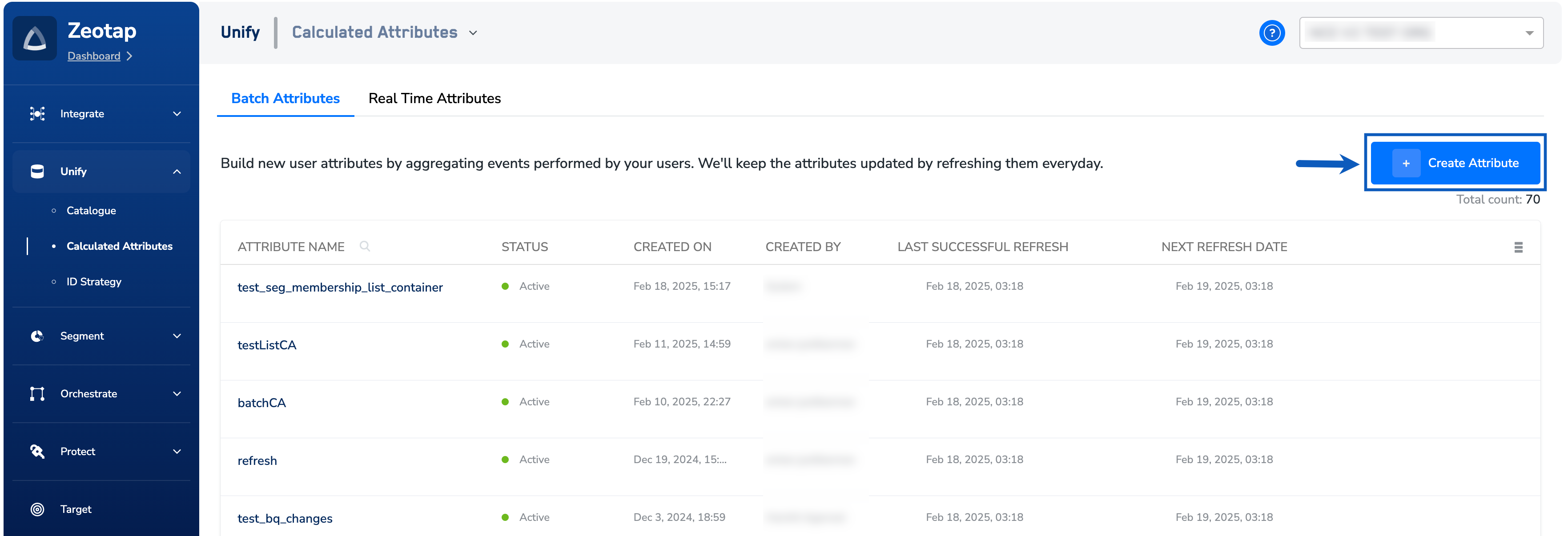
3
In the Attribute name field, enter a descriptive name to refer to the calculated attribute.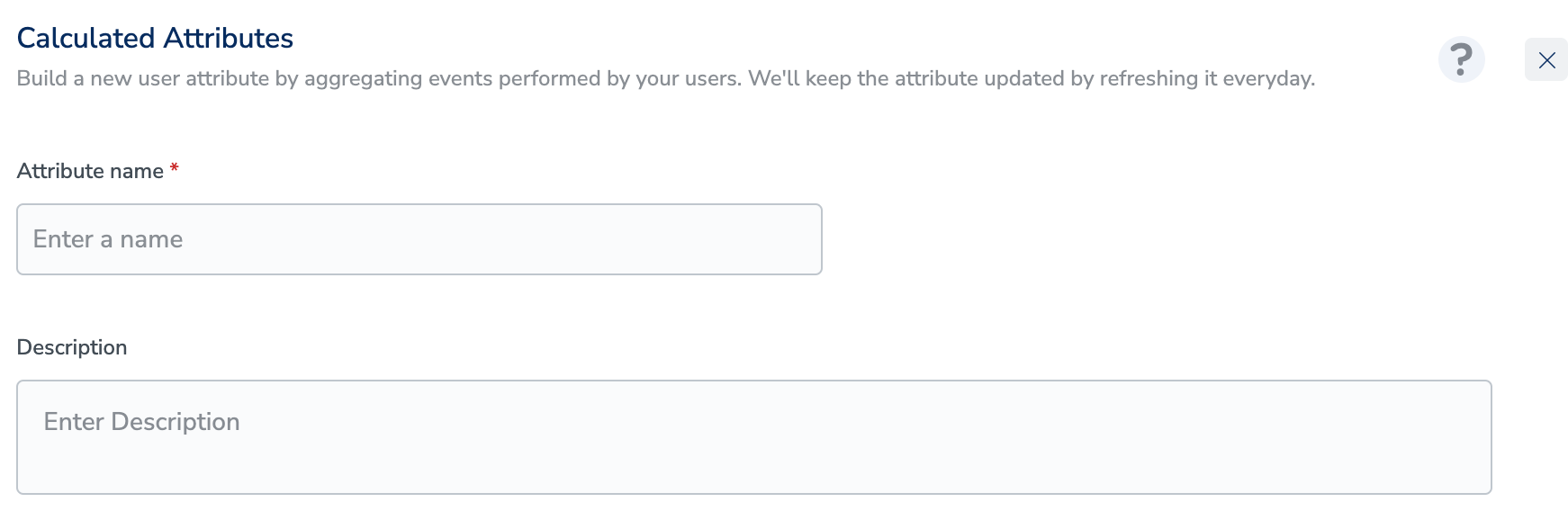
4
In the Description field, enter a description to remember details about the attribute.
5
The dropdown offers 12 aggregation operators. For the full list and per-operator data type constraints, see Calculated Attributes: Guardrails & Limits.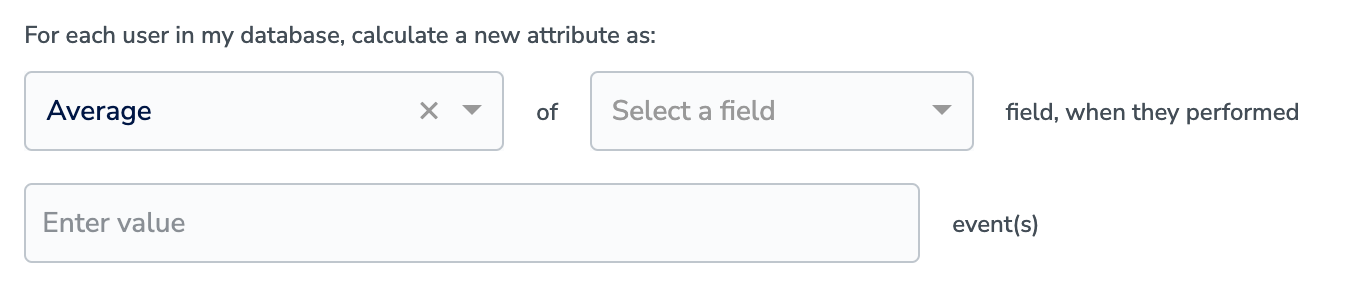
6
In Select a field, choose the attribute on which the calculation works based on the chosen aggregation type. Note that the fields available for Aggregation depends on the type of Aggregation chosen in the first step.
7
In event(s) field, provide the event names as shown in the image below(Non-mandatory step).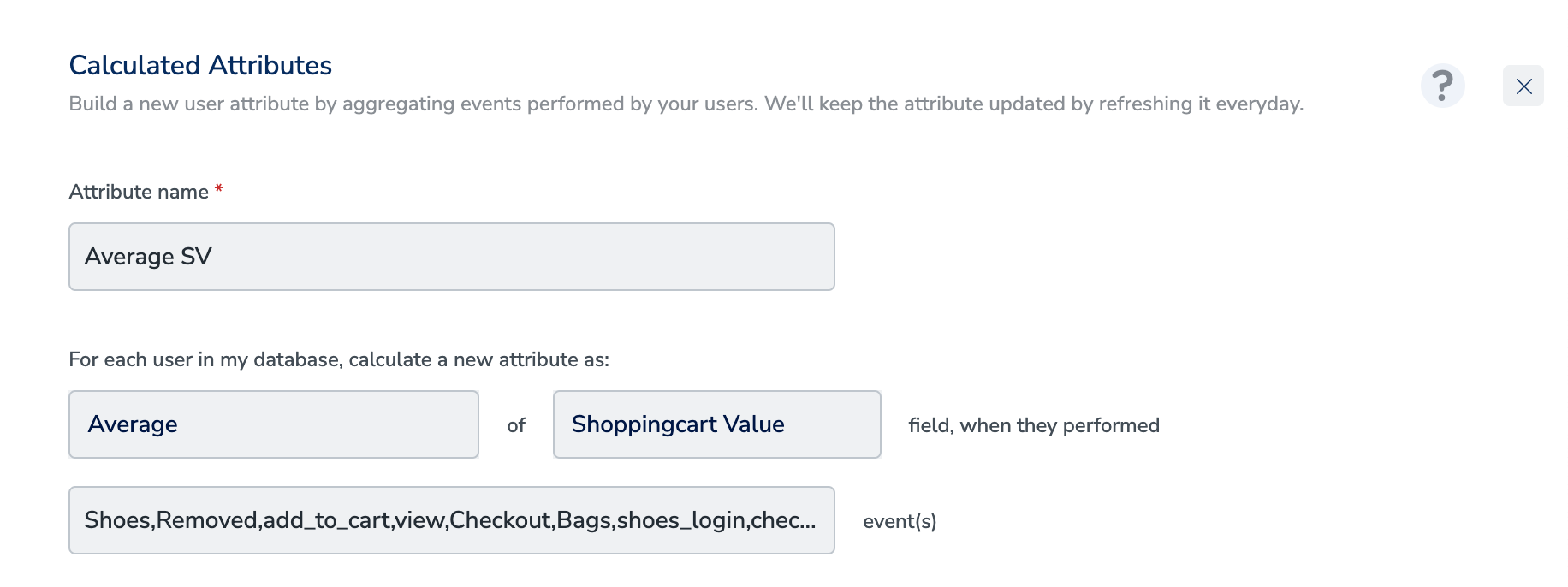
8
You can further specify conditions for your Calculated Attributes by clicking Add Condition. Note that you can also include Non-customer entity data in the conditions based on your requirement. 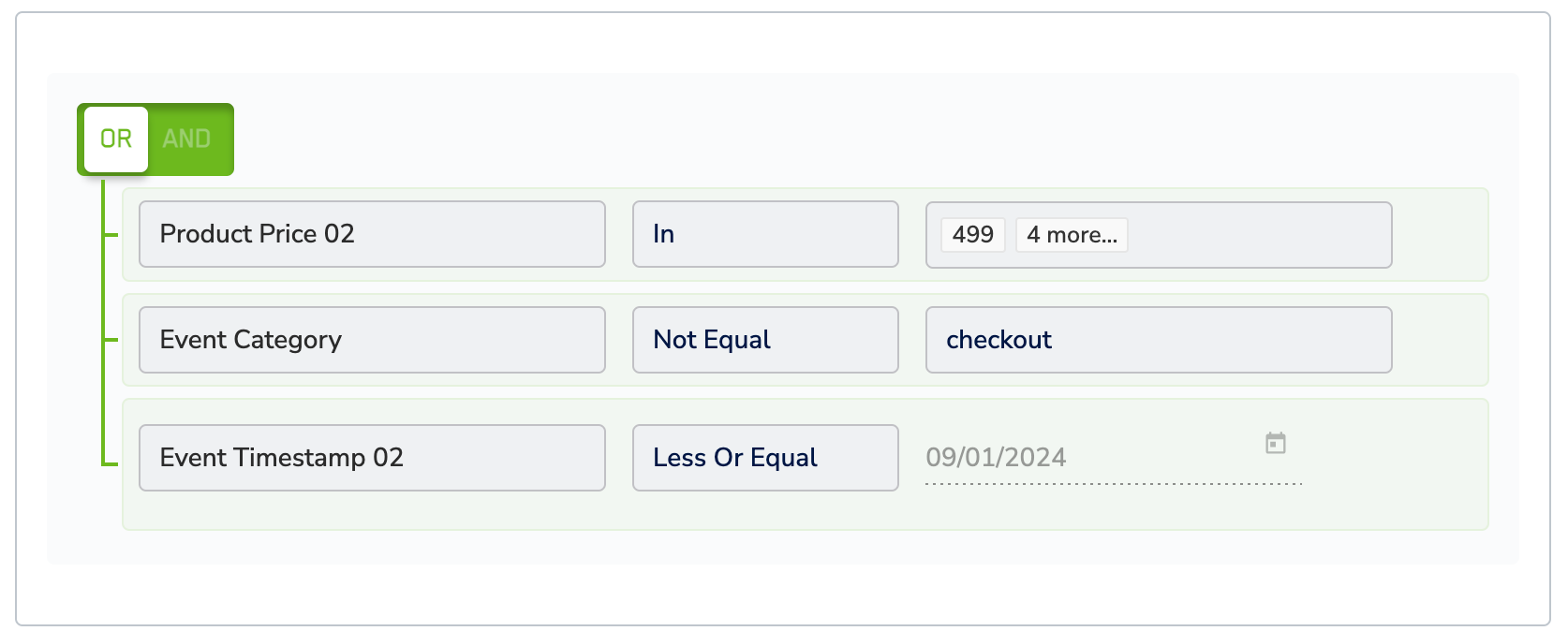
9
In the Run Computation section, choose the time period for the calculation.
10
In the Group by field, select one or more attributes (up to 3) to define how the aggregated values should be grouped. Group by helps you break down one calculated attribute into multiple values.Example: Instead of calculating a single “3 months purchase value”, you can group it by Product Category to get the total purchase value separately for each category per user.Only attributes that are at the same level as the selected aggregation field are shown for Group by.
For example, if the aggregation is performed on a property inside an object, then only the other properties of that same object (and any joined Non-Customer Entity attributes linked to it) will be available for Group by. Attributes from unrelated objects or levels will not be available.
11
Click Save to create the Calculated Attribute.
Create a Calculated Attribute Using the SQL CA Editor
The SQL CA Editor is an alternative to the form-based builder. It lets you write the aggregation logic as a SQL query directly, which is useful when the calculation cannot be expressed through the standard form (for example, when you need to filter across different attribute types, combine subqueries, or reference NCE tables). It is available for batch calculated attributes only.
1
Open the create attribute screen
Navigate to Calculated Attributes under Unify, switch to the Batch Attributes tab, and click + Create Attribute.
2
Enter the basic details
Fill in the Attribute name and Description as you would for the form-based flow.
3
Switch the definition type to SQL
On the attribute definition screen, switch the Definition Type toggle from Standard to SQL. The form-based builder is replaced by a SQL query editor.
4
Write the query
Author the aggregation in the editor. The query must follow the validation rules listed in the Help Guide (see the next step). You can reference Zeotap macro tables such as 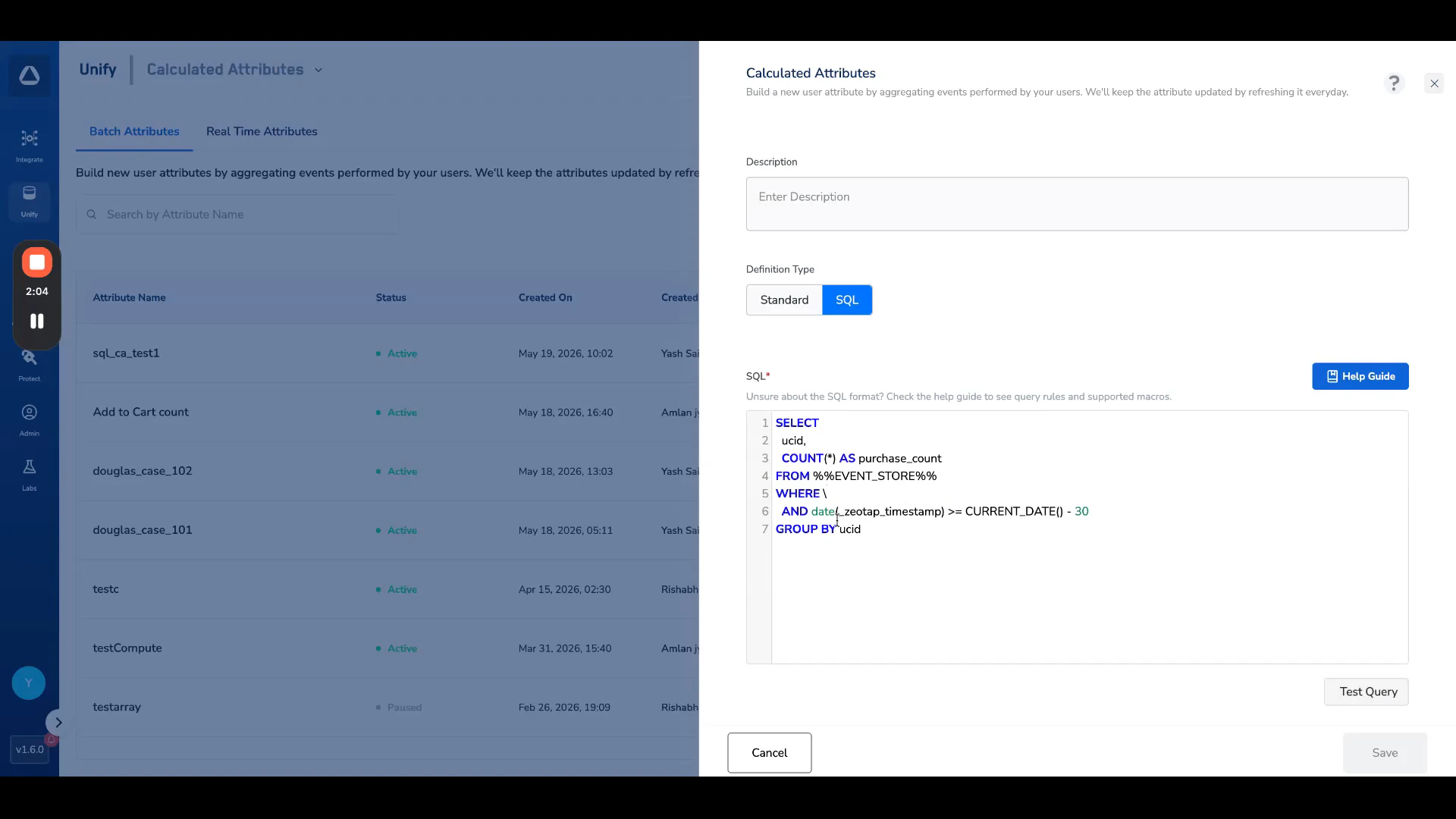
%%EVENT_STORE%%, %%PROFILE_STORE%%, and others using the %%MACRO_NAME%% syntax — Zeotap resolves these to the correct underlying tables for your workspace at runtime.5
Review the validation rules and supported macro tables
Click Help Guide to open the SQL Editor reference panel. It documents the validation rules your query must satisfy and the macro tables you can reference.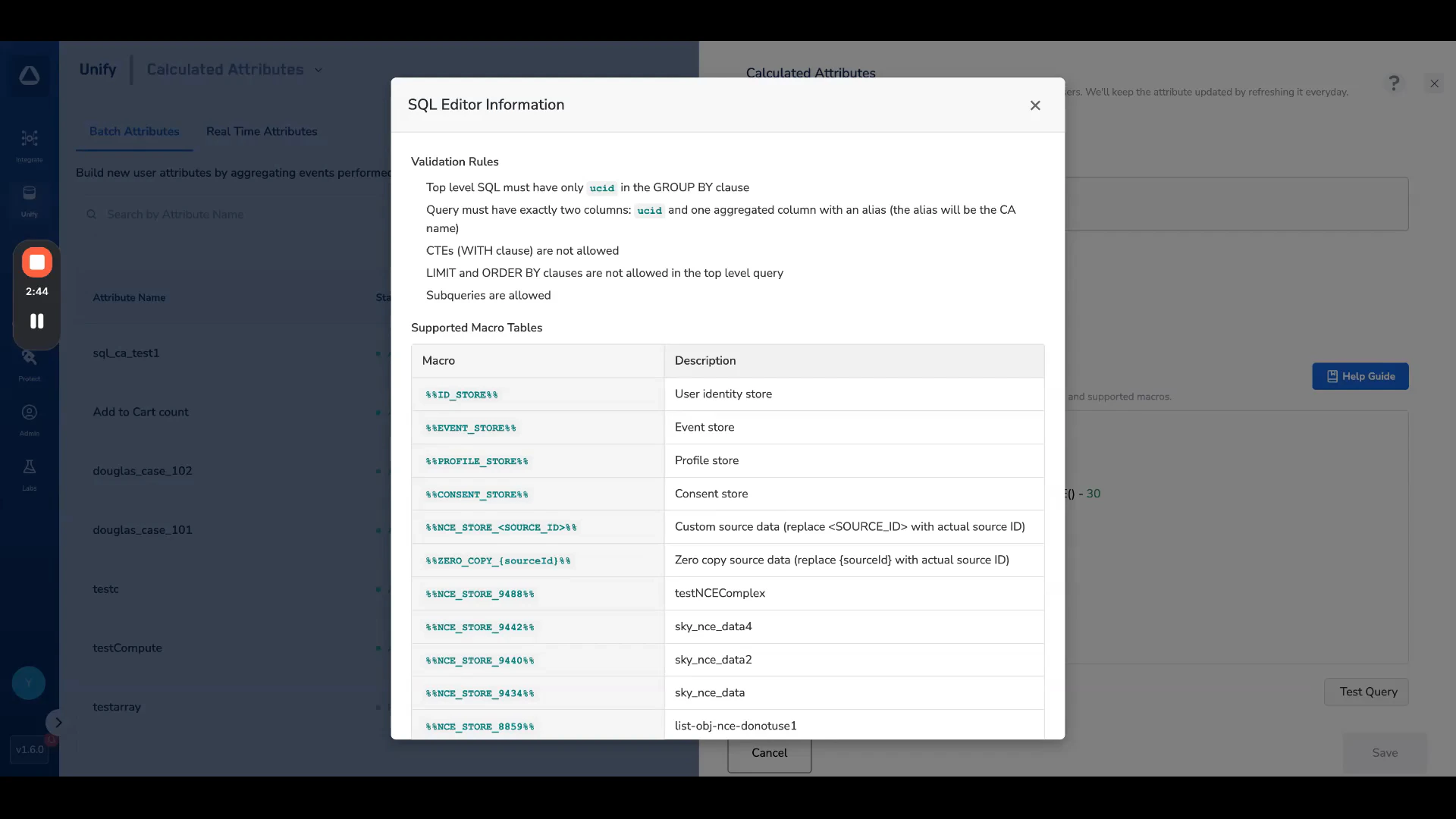
- The top-level
SELECTmust return exactly two columns:ucidand one aggregated value (with an alias). ucidis the only column allowed in the top-levelGROUP BY.- Top-level
LIMITandORDER BYare not allowed. - CTEs (
WITHclauses) are not allowed. - Subqueries are allowed inside the top-level query.
6
Test the query
Click Test Query to run the query against a sample of your workspace data. The SQL Test Results modal shows the first set of rows returned, along with the total result count, so you can confirm the output before saving.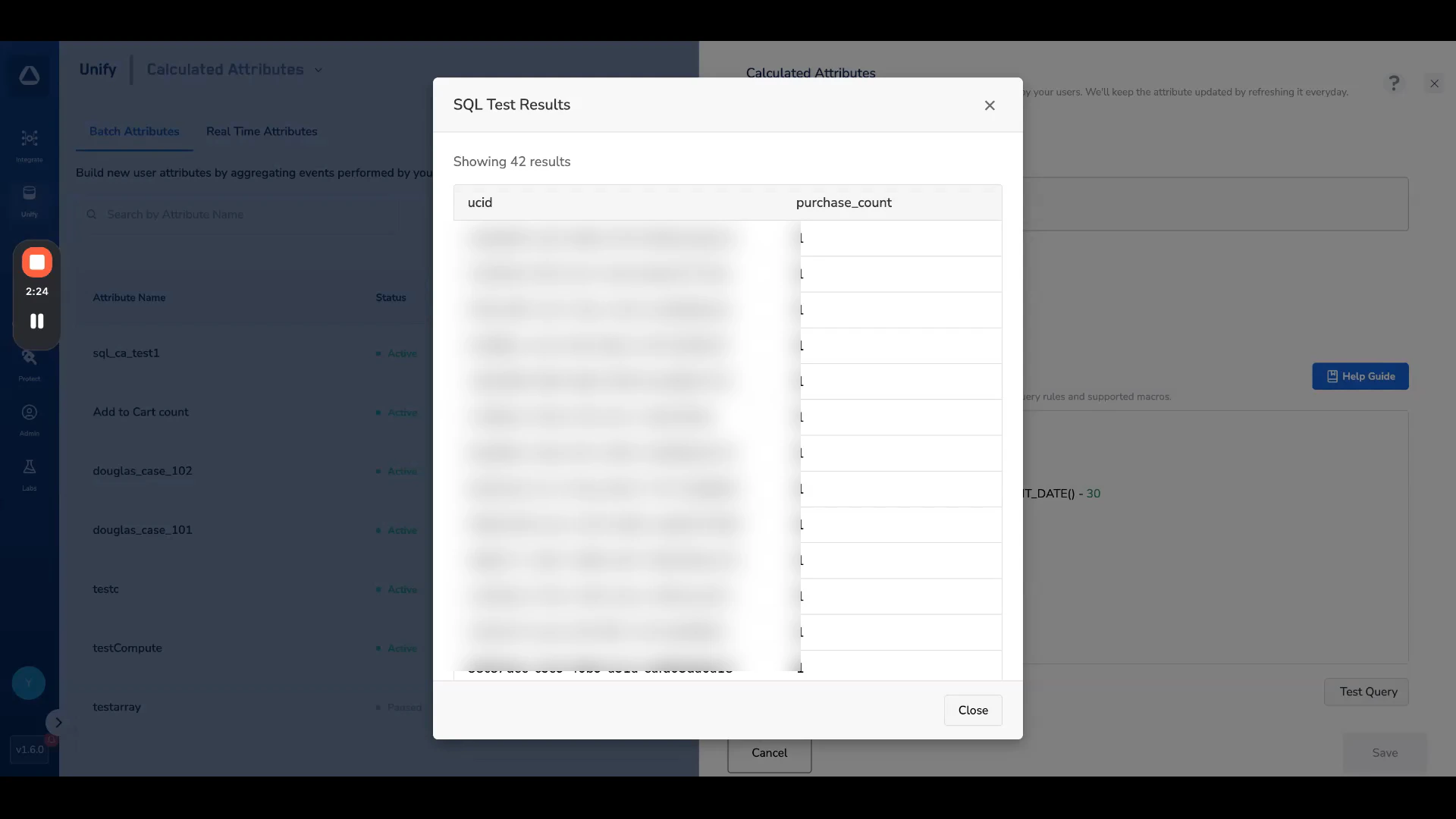
If the query violates a validation rule (for example, more than two top-level columns or a column other than
ucid in GROUP BY), the test will fail with an error pointing at the offending part of the query.7
Save the calculated attribute
Once the test query returns the expected results, click Save to create the calculated attribute. From this point on it behaves exactly like a form-based batch calculated attribute — it appears on the Batch Attributes tab and is available for use in segments and audiences.
The SQL CA Editor is currently in Beta and is enabled per account on request. Contact your Zeotap POC or raise a support request to enable it for your account.