

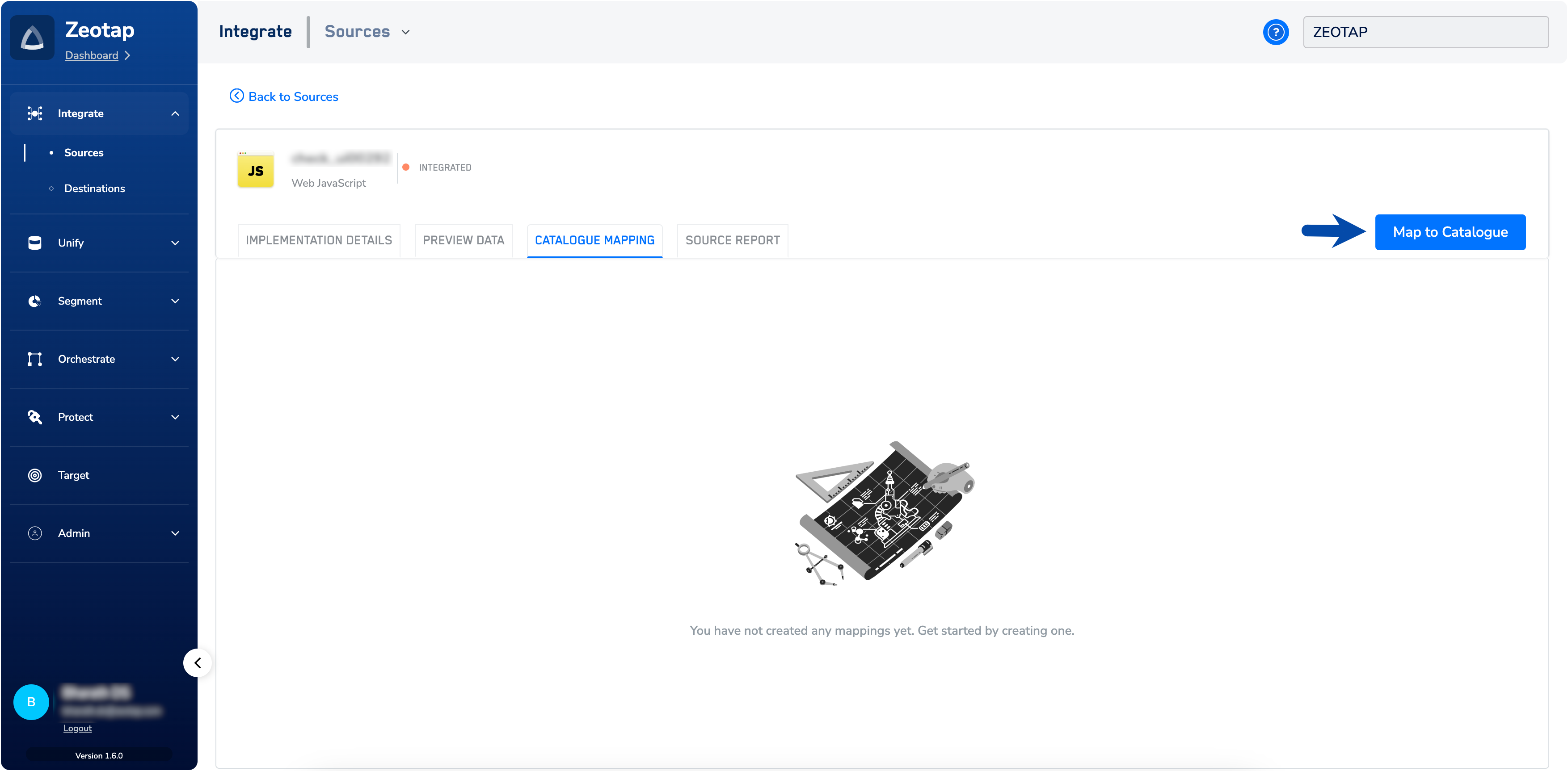
- Mapping Customer and Non-Customer Entity Data: You can map both Customer Data and Non-Customer Entity Data in the Catalogue. For more information about the how to map the Catalogue for Customer data and Non-Customer Entity Data, refer here.
- Knowing Zeotap Standard Fields – Zeotap provides a set of standard fields in your catalogue. If you do not find these standard fields in your organisation’s catalogue, you can create custom fields. The process of creating the custom fields happens in an interactive interface wherein you can define your data points, bring them into Zeotap and manage them independently. Using this interface, you can easily edit the existing catalogue field or create a new field. For more information about the standard fields, refer to the relevant below links.
Zeotap Standard Fields
Reserved Catalogue Fields
- Add a Catalogue field– While adding a new Catalogue field, search for the desired field you wish to add. If the field is already present in the system, you are prompted to use the existing field and can access the details page. However, if the field does not exist in the system, you have to create a new field as explained in the Add a Catalogue field topic.
- Configure Enrichers– After adding the fields, you have to configure the required Enrichers. Enrichers are quick functions available for you to perform data transformations. Zeotap enrichers can be broadly classified as Data Transformation Enrichers and Custom Enrichers.
- Map the Consent Purposes - Once you have mapped all the Identifiers, on the same screen, click + ADD MAPPING. If a source has consent data, then select the incoming consent field and map it to the relevant Zeotap consent field. For more information about mapping the consent purposes, refer here.
- Map the Marketing Preferences - Capture marketing preferences along with consent to add clarity and assurance to the marketing team while designing the campaign for the right audience. For more information about mapping the Marketing Preferences, refer here.
- Review Mapping – In the REVIEW MAPPINGscreen that appears, you can find warnings along with error logs that provide a description of the issue for incorrectly mapped fields. Once you have corrected these fields, the system automatically refreshes, allowing the warning to disappear. For more information about reviewing the mapping, refer here.
- Save Mapping– When you have reviewed all the fields, click CONFIRM AND SAVE.
Once the mapping is successfully done, then the source transitions to Mapped state.