

Note:You can create conditional blocks using the AND/OR/NOT Operators based on your use case. For more information about the operators
available in Audience, refer here.
Understanding the Attributes
This section provides an overview of each attribute type offered in the system to help you define your audience. The following are the Attributes available in Audience:Profile Attributes
Calculated Attributes
Events
Marketing Preference
Identifiers
Consent
NCE Attributes
Objects/List of Objects
Profile Attributes
Profile Attributes describe the customer and remain constant over time. Note that all the Product Traits such as brand, product category, size, colour, price and User Traits such as gender, age, location, budget are considered as Profile Attributes. It stores only one value per attribute. Hence, a new value always overrides the existing value after ID resolution.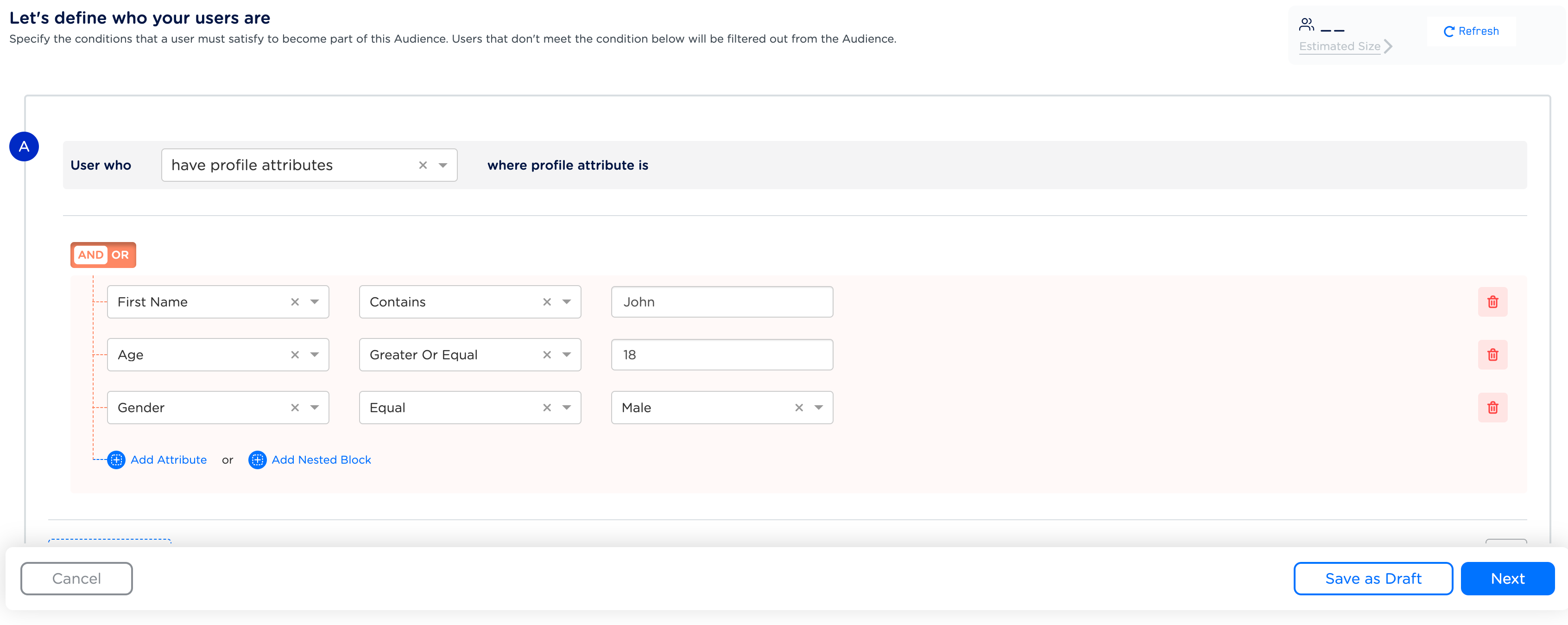
Calculated Attributes
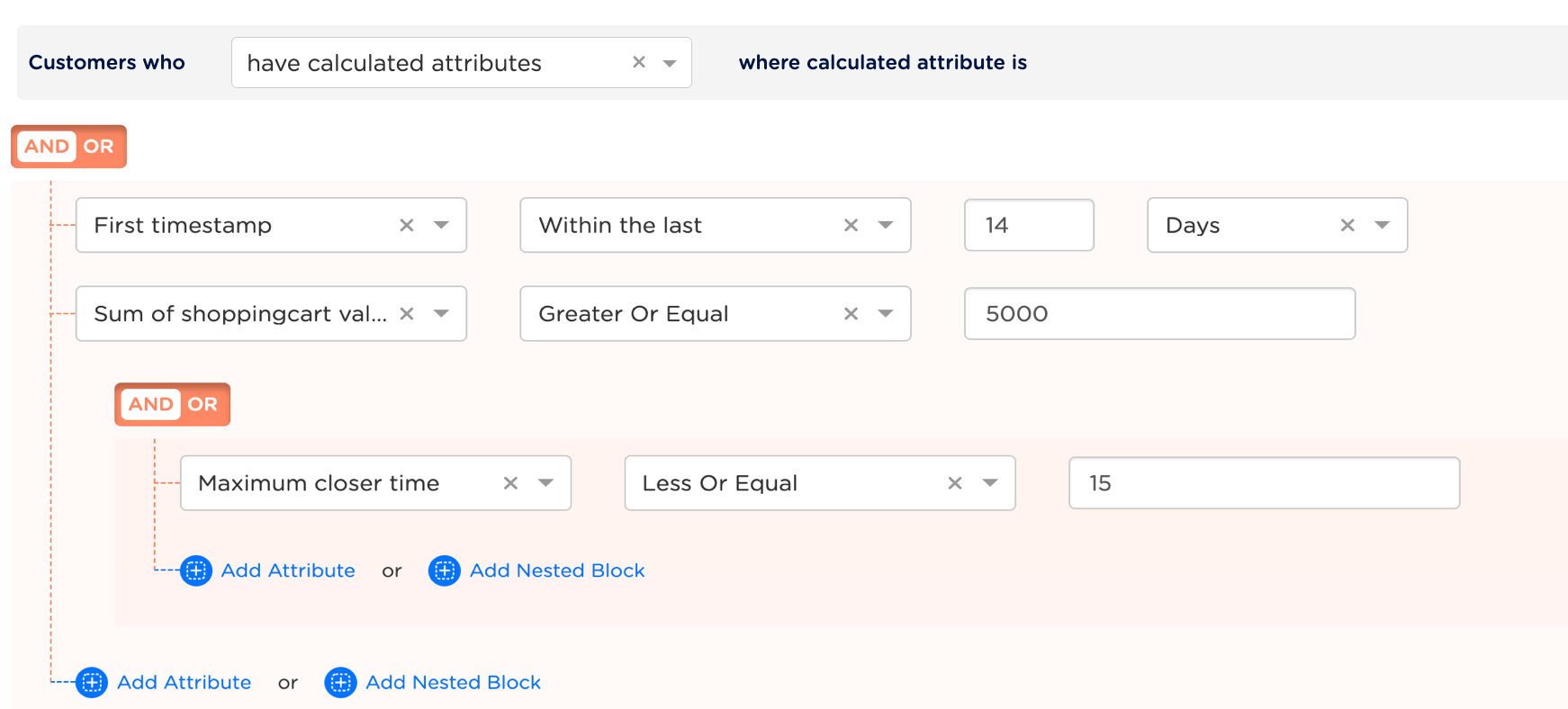
Calculated Attributes allow you to derive user-level insights by aggregating your customers’ isolated actions. You can then use this data to create powerful cohort of customers/Audience. Create new attributes for a user by aggregating their event data over a specific time period. Example Let’s say you wish to create an Audience whosefirst _timestamp falls within the previous 14 days, whose sum_of_shopping_cart_value exceeds 5000 Euros and their maximum_closer_time for all transactions is less than 15 minutes. To achieve this, use the Calculated attribute to set the criteria and add the properties as shown in the image below.
Note:To know more about calculated attributes, refer to Working with Calculate Attributes.
Events
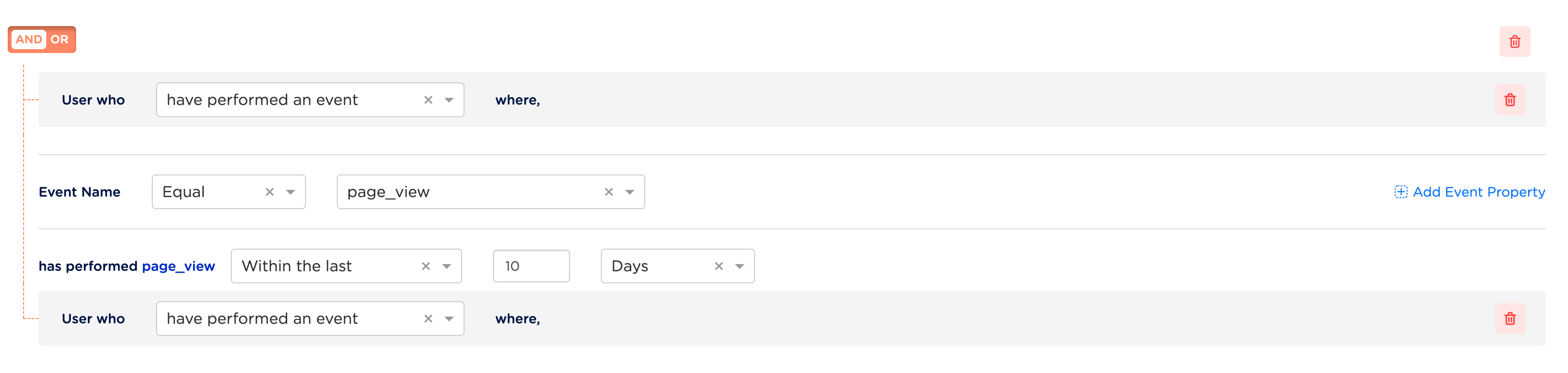
The Events attribute allows you to capture the event types based on event_name and event_timestamp that are mapped in the catalogue while ingesting the source. Note that the event_name is filtered first, followed by the event_timestamp as shown in the conditional block below. The events can include the user action information such as addToCart, pageView and so on. This attribute stores time series information. Hence, the information is only appended against a user profile after ID resolution. Example Let’s say you wish to create an audience that comprises of customers who have recently viewed a product and added it to their cart. To achieve this, use the Events attribute to set the criteria and add the events properties as shown in the image below.- A customer who performed a page_view event within the last 10 days, indicating an active interest in the product.
- A customer who performed an addToCart event in the last two days, indicating a higher likelihood of purchase intent.
- The Product Price is greater than 100 euros, ensuring the audience is likely to be of higher value.

Marketing Preference
The Marketing Preference attribute allows you to capture and store user preferences related to marketing communications. It stores only one value per attribute. Hence, a new value always overrides the existing value after ID resolution. Example As a marketer, you want to target customers who have given explicit consent to receive your marketing communications, indicating a higher likelihood of engagement. However, their social preferences are unknown. In addition, you want to ensure that the audience is open to receiving ads displayed on your website. In this scenario, you can use the Marketing Preferences attribute to create this audience as shown in the image below. In this way, you can group your audience more accurately, leading to more effective marketing campaigns.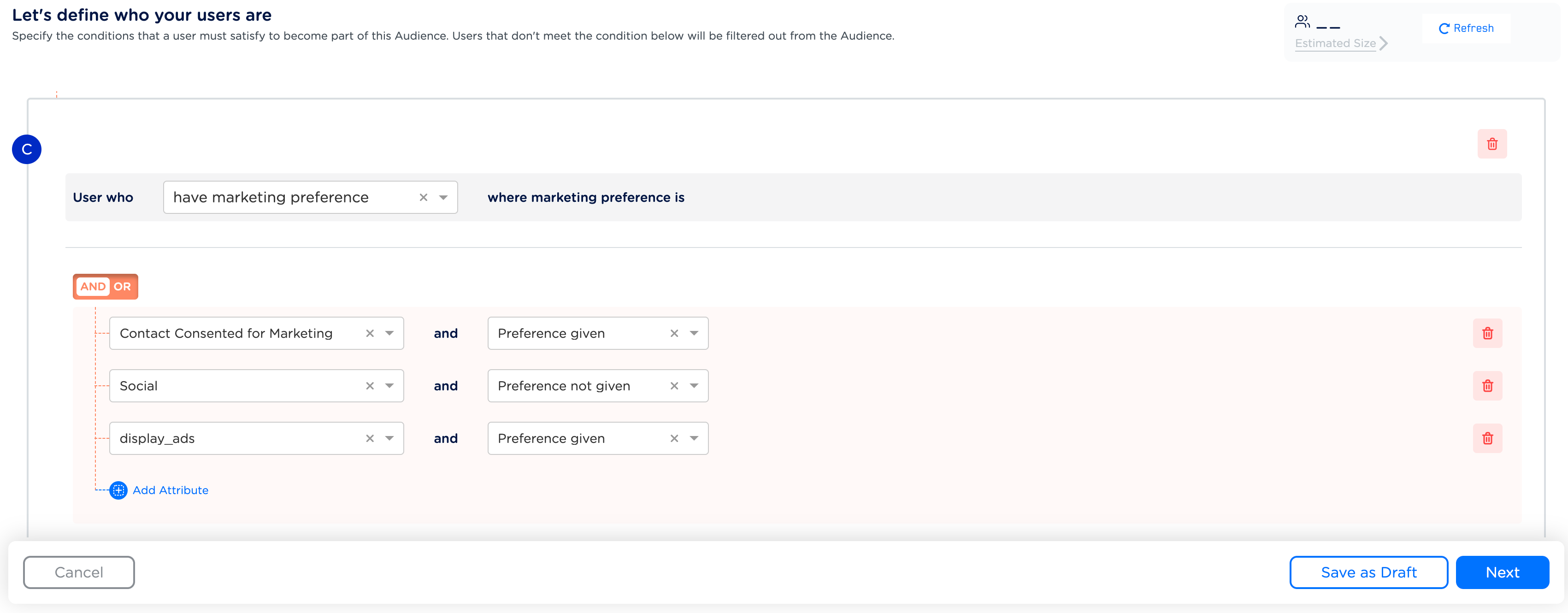
Identifiers
You can select identifiers such as email addresses, cellphone numbers, MAIDs, cookies and more. You can specify whether these identifiers exist or do not exist for the audience that you are creating. This allows you to accurately group your audience based on the availability of specific identifiers. It stores only one value per ID. Hence, a new value always overrides the existing value after ID resolution. However, there is an exception in the case of the No. of IDs feature where more than one value is maintained.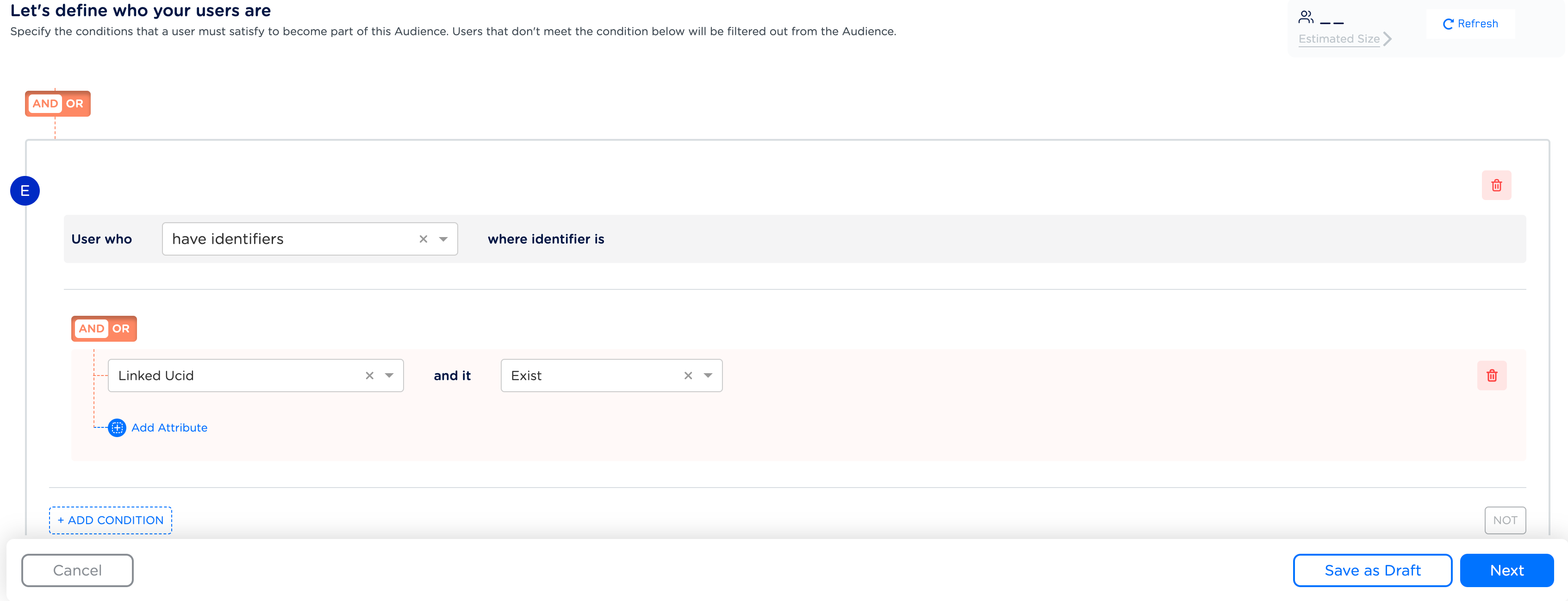
Consent
The Consent Attribute enables you to select the user preferences regarding consent for data processing activities in compliance with GDPR, CCPA and other regulations. It stores only one value per attribute. Hence, a new value always overrides the existing value after ID resolution. Example You can build a group of customers who have explicitly given consent for their data to be used for personalised advertising in accordance with GDPR. This ensures that you target only those customers who have willingly provided their consent for data processing activities. In addition, it complies with relevant data protection regulations.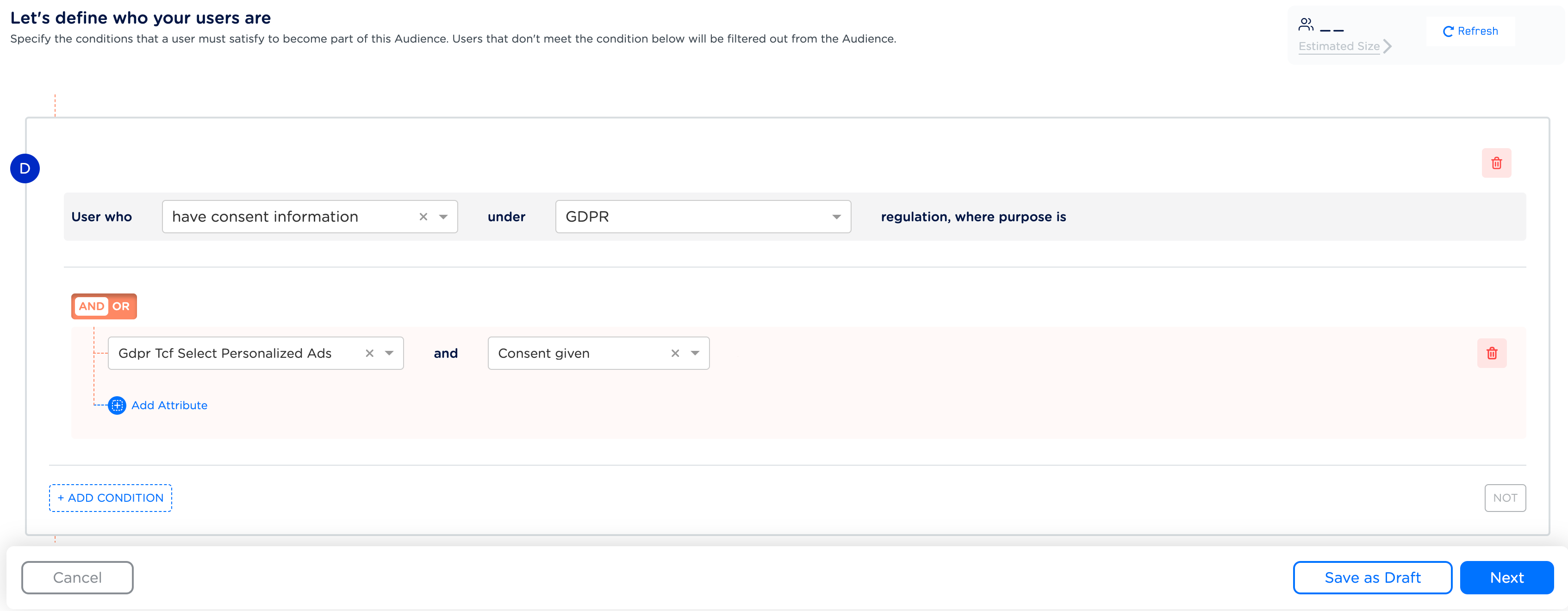
Objects and List/Array of Objects
Objects and List(Array) of Objects are attribute types within the Zeotap Catalogue that can hold a JSON object or array of JSON objects that contains one or more key-value pairs, also called properties. To better understand the attributes, Objects and Lists of Objects with use cases, refer here.
Note:You can choose Objects and List of Objects for ”* Profile Attribute s” and ” Event Attributes” only.
Objects
Let’s say, you wish to use your customers’ bank details to define the criteria for your Audience. In this case, you can define the bank details as anObject attribute with properties, Bank code, Bank Name and Area code as shown below.
Code
Object attribute in Audiences, perform the following steps:
1
While defining the criteria for your Audience, choose profile attributes using the drop-down menu.
2
Under the Select Attribute field, find the 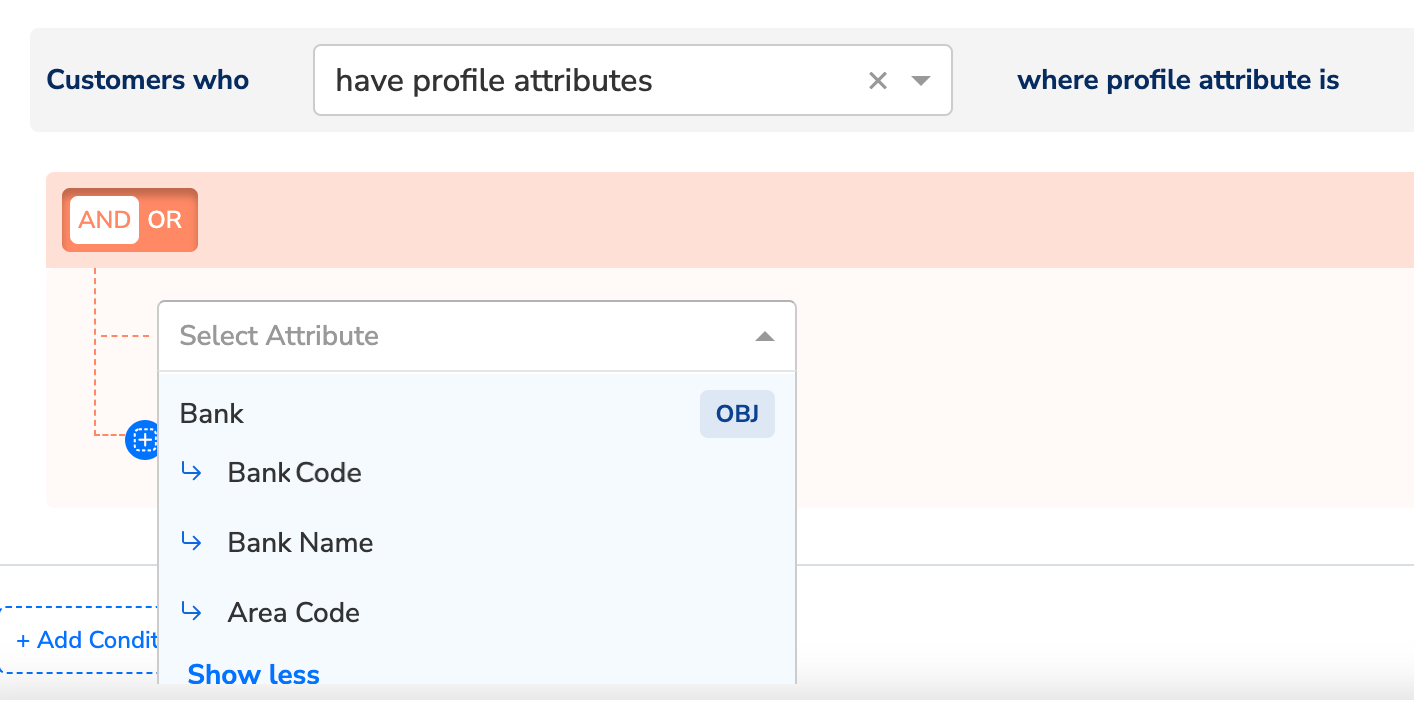
Object attribute, Bank along with its properties, Bank Code, Bank Name and Area Code represented as shown in the image below. Note that the Object attribute is identified with the tag OBJ next to the attribute name.3
Upon selecting the 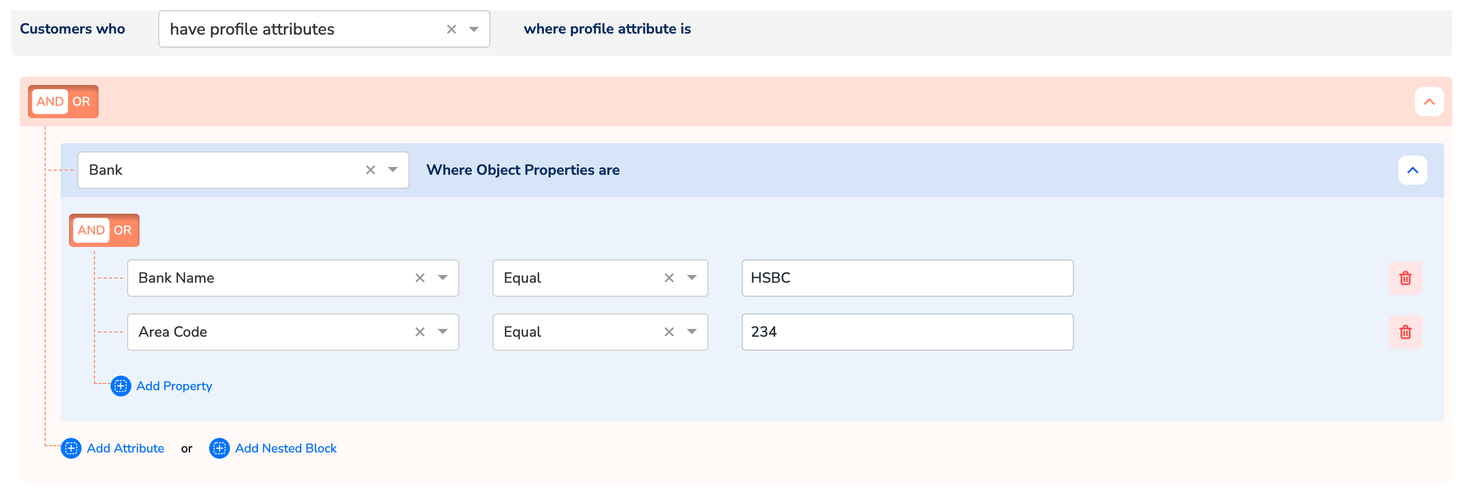
Object attribute, configure the required properties from the available list. All customers who meet this criteria will be included in this Audience.Note:For more information about how the operators work, refer here.
List of Objects
List of Objects can contain multiple objects, with the same properties. Let’s say you wish to use the brand details of your customers to define the criteria for our Audience. In this case, as brand details can be an array of items, you can define Brand Details as a List of Objects attribute with properties, Brand Name, price , Category and so on as shown below.
Code
1
While defining the criteria for your Audience, choose profile attributes using the drop-down menu.
2
Under the Select Attribute field, find the 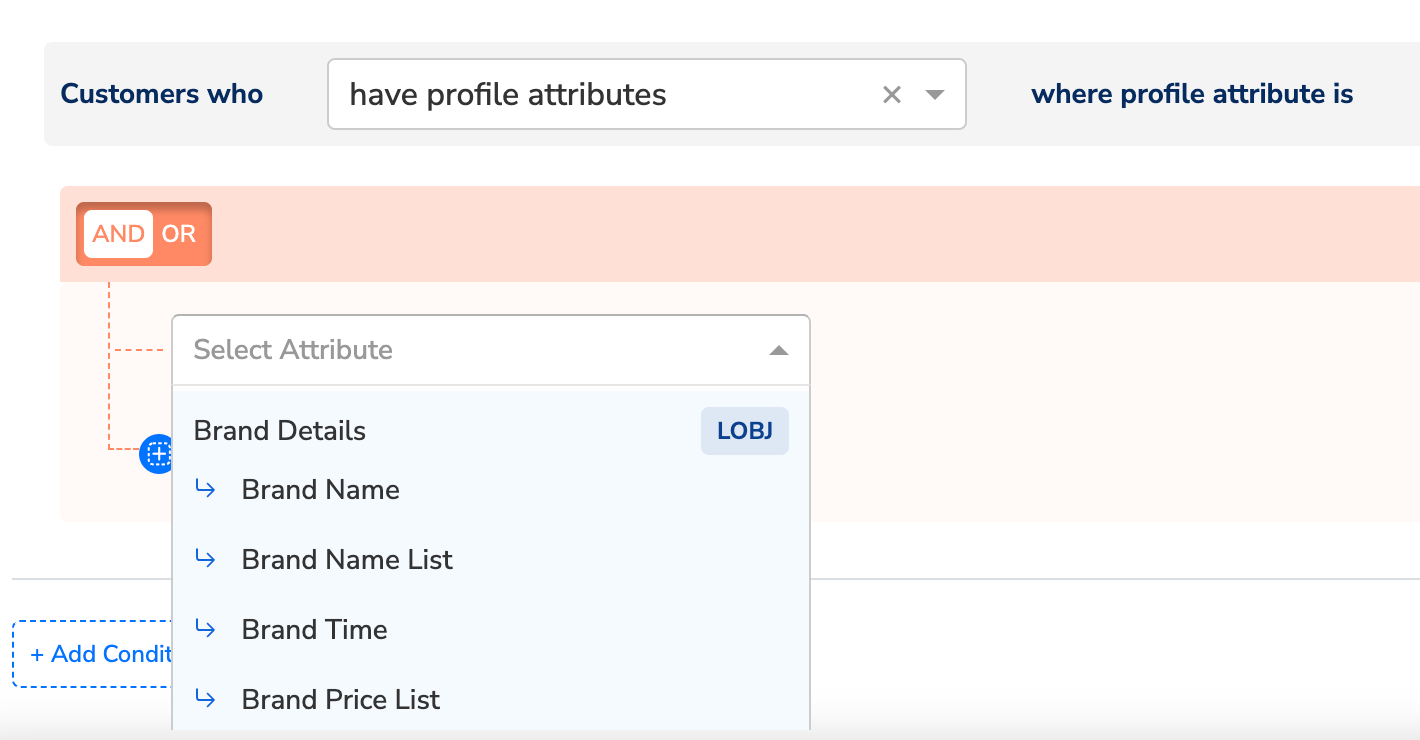
List of Objects attribute, Brand Details along with properties, Brand Name, Brand Name List , Brand Time and Brand Price List as shown the image below. Note that the List of Objects attribute is identified with the tag LOBJ next to the attribute name.3
Upon selecting the 
List of Objects attribute, choose either ANY or ALL as the operator based on requirement.- ANY qualifies customers for your Audience if at least one of the Objects in the list meet the specified conditions.
- ALL qualifies customers for your Audience only if all the Objects in the list meet the specified conditions.
Understand how to use ANY/ALL with an use case
Let’s consider the below example. Assume that there are two profiles, UCID 1 and UCID 2, with the following purchase history: Purchase history of UCID 1Code
Code
Note:In addition to the List of Objects datatype catalogues, the Any/All operator selection will also be available when choosing a Non-Customer Entity (NCE) catalogue that is joined with a list-type customer catalogue.
Non-Customer Entity (NCE) Data Attributes
You can choose Non-Customer Entity data (NCE) for Profile Attributes, Events and Identifiers. The NCE attributes are displayed under theJoin Key of the customer attribute as shown in the image below. Here, the Demo NCE Source is the NCE source name, Books is the Join Key and Book_price is the NCE attribute name. The NCE tag appears on the attributes for easy identification as shown below. For more information about how to create an NCE attribute and map it to catalogue, refer here.
