Steps
Perform the following steps to add an Event category:1
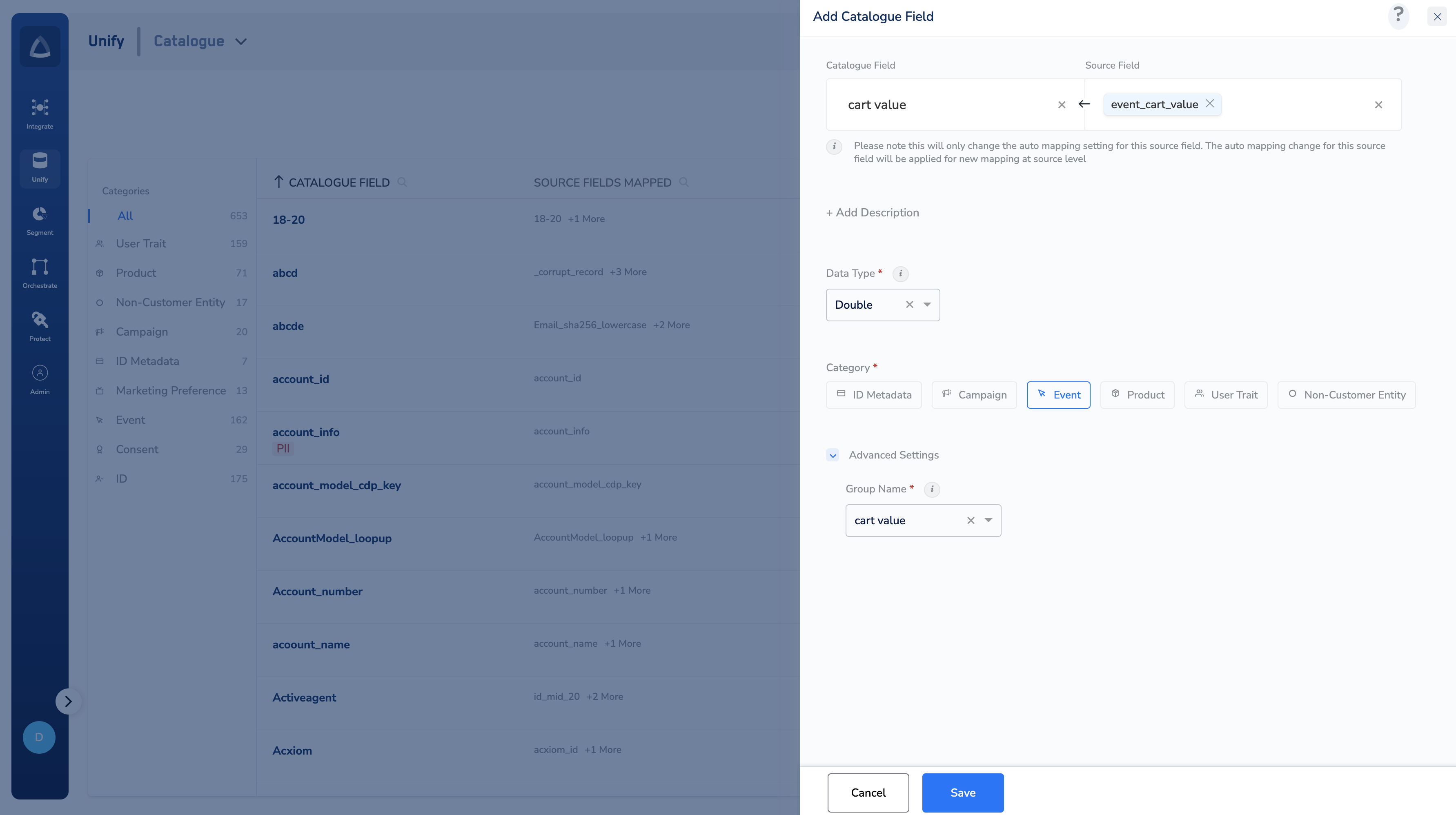
Enter a Catalogue Field. As you type, suggestions based on the existing Catalogue Fields appear. You can choose a suggested Catalogue Field or click +Add Catalogue Field to add a new field.
2
Map the Catalogue Field to its corresponding Source Field. Same as the above behaviour, you can choose a suggested Source Field or click +Add a new Source Field to add a new field.
3
Enter a description for easy identification.
4
Choose one of the following as the Data Type:
- String
- Integer
- Double
- Timestamp
- List of String/Integer/Double
- Object
- List of Objects
NoteEnsure that you consider the following points while selecting the
List Data Type:- You can only map a source field of the data type
Listto a catalogue field of the data typeList. For example, if the source field is of typeList of String, then you can map it to onlyListtype attributes in the Catalogue field drop-down of the source mapping screen. - When sharing source data containing
Listtype information, ensure that you use the correct format and avoid null values. Otherwise, it might lead to mapping issues or data being dropped during the data ingestion process. - When mapping Event attributes, you can map a single value source field to a single value catalogue field and a
Listof source fields toListof Event attributes only. The Event attributes are always stored as new records in the system without appending to the existing information. This is because events are timestamp-based information. - For how the
ObjectandList of Objectsdata types behave and their limits, see Data Types in Catalogue.
5
Choose Event Category as the Category.
6
Under advanced settings, define the following options:
- A Group Name appears by default. You can choose a value from the drop-down menu or click +Add a new group to add a new group name.
- Optionally, use Restrict on Channels to select the channels — and, within them, destinations — on which this field must not be activated. See Understand the Advance Fields.
- If Is this PII data? is not offered for the data type you chose, a Mask the data toggle appears instead — enable it to hide the field’s values in the interface.
7
Save the changes.