

Note:Refer to Pub/Sub Batch Source to know more about this Source.
Prerequisites
Ensure that the following prerequisites are obtained before starting this integration:Topic ID
A Topic ID in Google Pub/Sub represents the unique identifier for the topic. Topics enable the categorisation or grouping of messages according to specific subjects or themes. It allows consumers to selectively subscribe to and receive messages based on their interest in specific topics. To obtain the Topic ID, navigate to the Pub/Sub catalog on the Google cloud, locate the desired topic and click on its name to view its details, where you can find the Topic ID. Note that while creating a source in Zeotap CDP, you need to furnish the fully qualified Topic ID in the format:project/folder/topic/topic_id.
Note:We recommend using different Topic IDs for Pub/Sub batch and stream sources. If you use the same Topic ID for both sources, you will receive the same data in both sources.
Service Account
In Pub/Sub, a service account is a type of identity that is used to authenticate and authorise communication between Zeotap CDP and Pub/Sub account. You can find the service account details while creating a source for Pub/Sub Batch in Zeotap CDP. In addition, note that you need to provide the following permission to this service account in your PubSub instance:Attach a subscription to a topic: pubsub.topics.attachSubscription
Data Format
When sending data from the PubSub Batch source to Zeotap CDP, ensure that you adhere to the following format:Note:Ensure that the JSON data is in minified/compact form as shown below.
Code
Step-by-Step Process
Perform the following steps to create a Pub/Sub Streaming Source:1
Log into the Zeotap CDP App and navigate to the Sources application under Integrate.
2
Click CREATE SOURCE.
3
Choose Message Queue as the Category.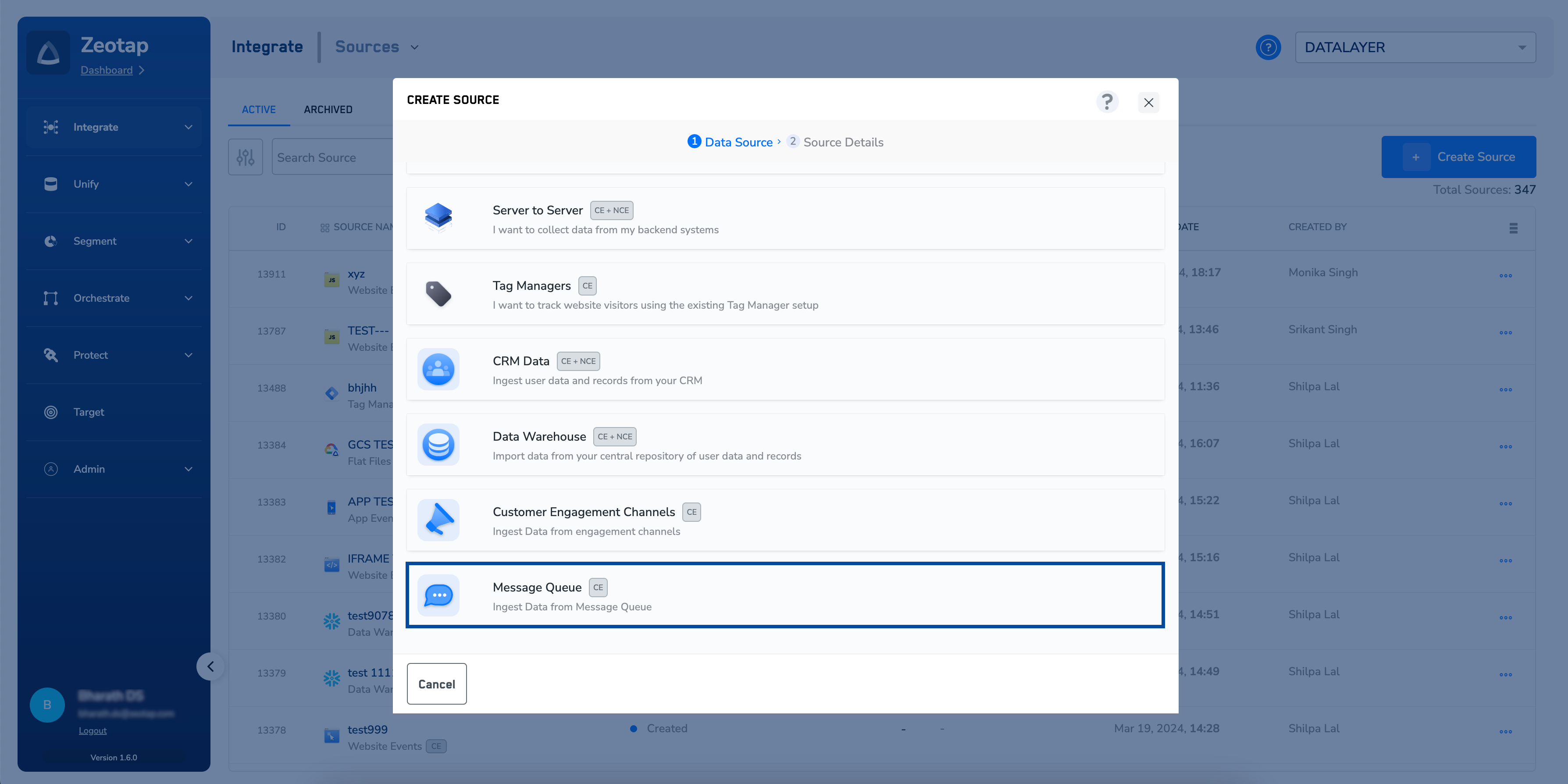
4
Click Pub/Sub - Batch as the Data Source.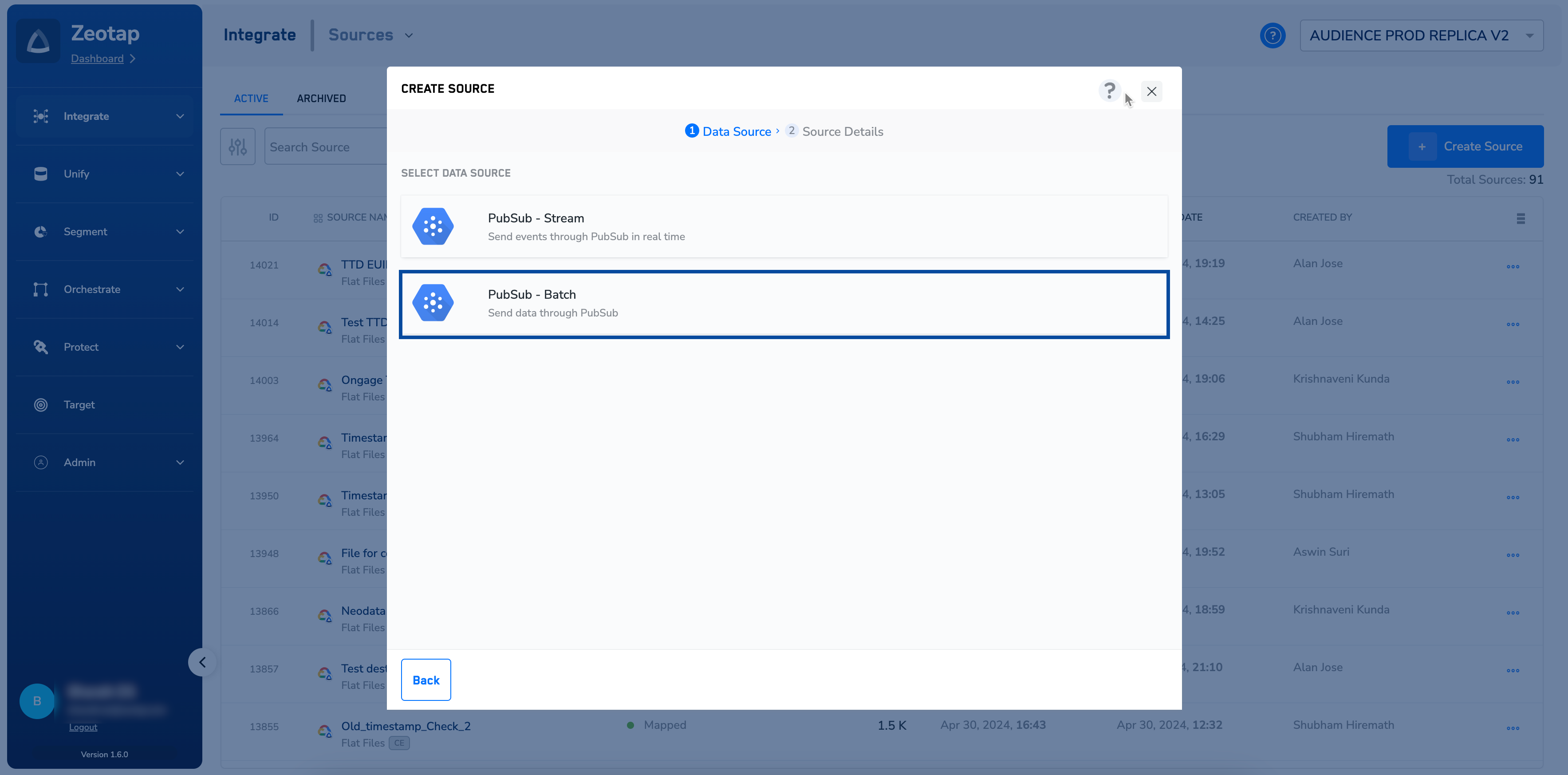
5
Enter a short and descriptive name for the source.
6
By default, the region is chosen as Europe (EU).
7
Under Data Entity, depending on the type of data that you want to ingest, choose either Customer Data or Non Customer Data and proceed with the source creation. To know more about Customer Data and Non Customer Data, refer here.
8
Enter the Topic ID obtained from your Pub/Sub account as mentioned in the prerequisites section.
9
Under Service Account, the Zeotap service account will be displayed as shown in the image below. Ensure that you provide access to that service account on the Google cloud. This will allow Zeotap CDP to fetch source from Pub/Sub.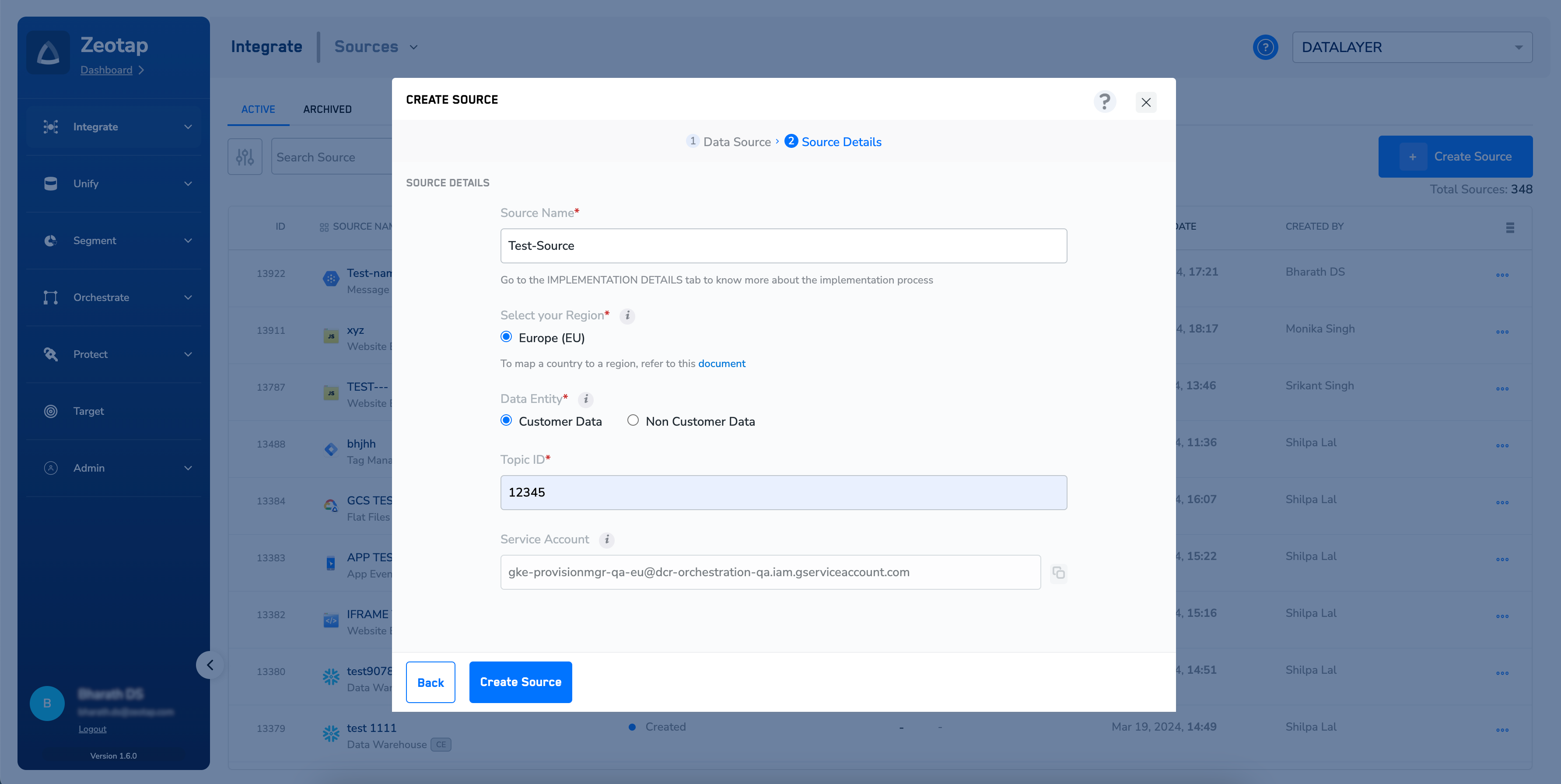
10
Click CREATE SOURCE. Upon successful creation, the Topic ID and Service Account used for the integration are displayed under the IMPLEMENTATION DETAILS tab along with all the important information related to the integration, as shown in the image below.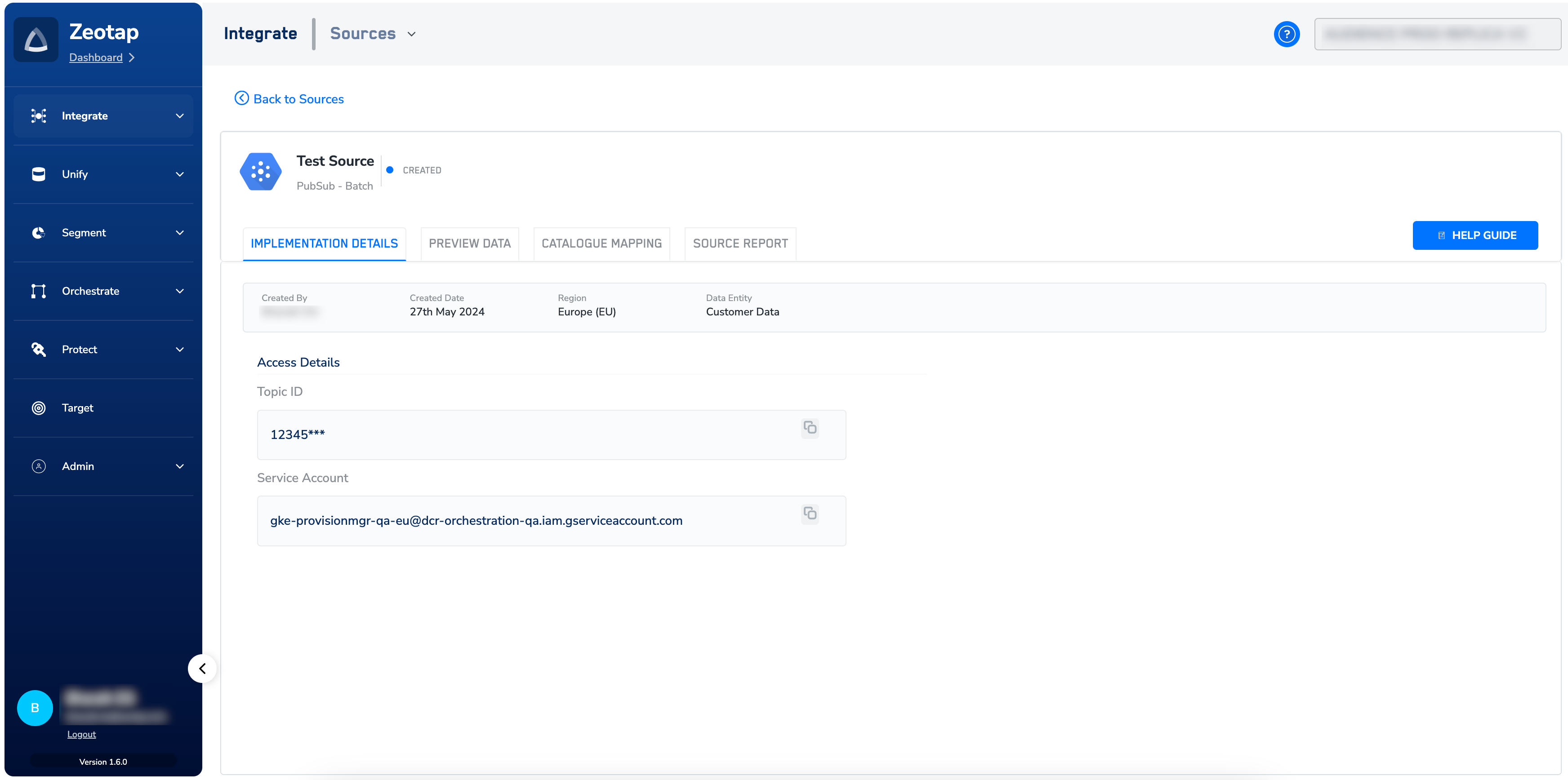
Note:Your Pub/Sub service account will not have the necessary permissions to access the storage bucket. Consequently, Batch Pub/Sub subscriptions will be unable to push files to cloud storage.To resolve this, please reach out to your Zeotap POC before setting up the Pub/Sub Batch source to ensure that the required access permissions are granted.