

What this is
Sources bring data into Zeotap CDP, and source access rules govern where that inbound data may then be used: they let an org admin block a source — or only specific attributes within it — from individual audience and journey folders. This is useful when a source holds a mix of safe and sensitive data. Rather than making the whole source off-limits, you can leave it broadly available and block only the sensitive fields in the folders where they should not be used. For the outbound direction — restricting which destinations a folder is allowed to activate to — see Destination Access Rules. For the governance model both sit inside, including how access rules relate to Folder Access Control and Mandatory Templates, see Access Rules.What you can restrict
A single rule on a source is always a blocklist — anything you do not block stays available.Prerequisites
- A role that can edit access rules. The built-in CDP Admin, CDP Manager, Integrations Admin and Integrations Manager roles can; alternatively, grant the view/edit access rules permissions to a custom role.
- A source that already exists and has its attributes mapped — a rule is built from the source’s mapped attributes. See creating a source.
- The audience and journey folders you want to restrict. Access rules cannot be applied to Archive folders.
When to use source access rules
Block sensitive attributes from specific teams. Your CRM source contains email, transaction history, loyalty tier, and national ID. Your marketing teams need email and transactions to build campaign audiences. They do not need national ID. You can block the national ID attribute from the marketing folders while keeping the rest of the source fully accessible. Restrict an entire source to specific contexts. You have a source containing medical or financial data that should only be accessible to a compliance-approved folder. You can block the entire source from all other folders, ensuring it only appears in the right context. Enforce data minimisation. Different teams should work with the minimum data necessary for their use case. A growth marketing team running acquisition campaigns doesn’t need loyalty or retention attributes. Blocking those attributes from the acquisition folder keeps the data environment clean and reduces the risk of misuse. Meet regional data requirements. Certain attributes may be permissible in one market but restricted in another. You can apply different rules to region-specific folders — for example, blocking a sensitive field from your Germany marketing folder while keeping it accessible in other markets.How source access rules work
Default state
By default, every source — both new and existing — is available across all folders. No restrictions apply unless an admin explicitly configures them.Attribute-level control
Admins can either select all attributes from the source or select specific attributes within it.- Only the explicitly selected attributes are blocked in the targeted folders.
- All other attributes from that source remain fully accessible in those folders.
- For any new folder created after the rule is set, the source is fully accessible — including the otherwise blocked attributes. The new folder must be explicitly added to the rule for attribute restrictions to apply.
- Any new attribute mapping added to the source after the rule is set is accessible in all folders by default. It is not automatically blocked unless explicitly added to the rule.
Subfolder inheritance
A rule applied to a folder extends to all of that folder’s current and future subfolders, so you do not have to repeat the configuration down a folder tree.Create a source access rule
Open the source
Open the Access Rule tab
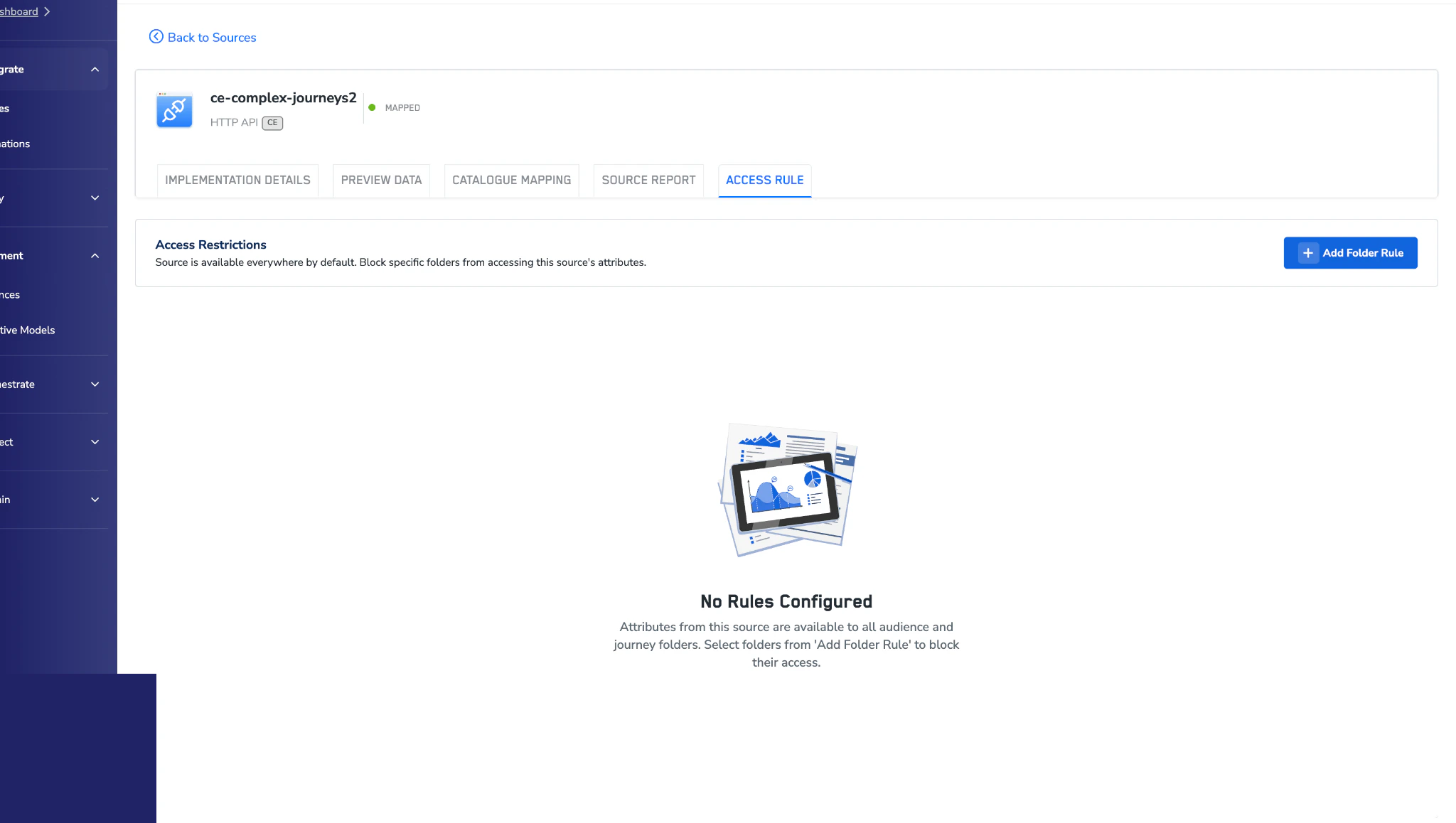
Figure 1 — Access Rule tab on a source with no rules configured yet.
Choose the folders
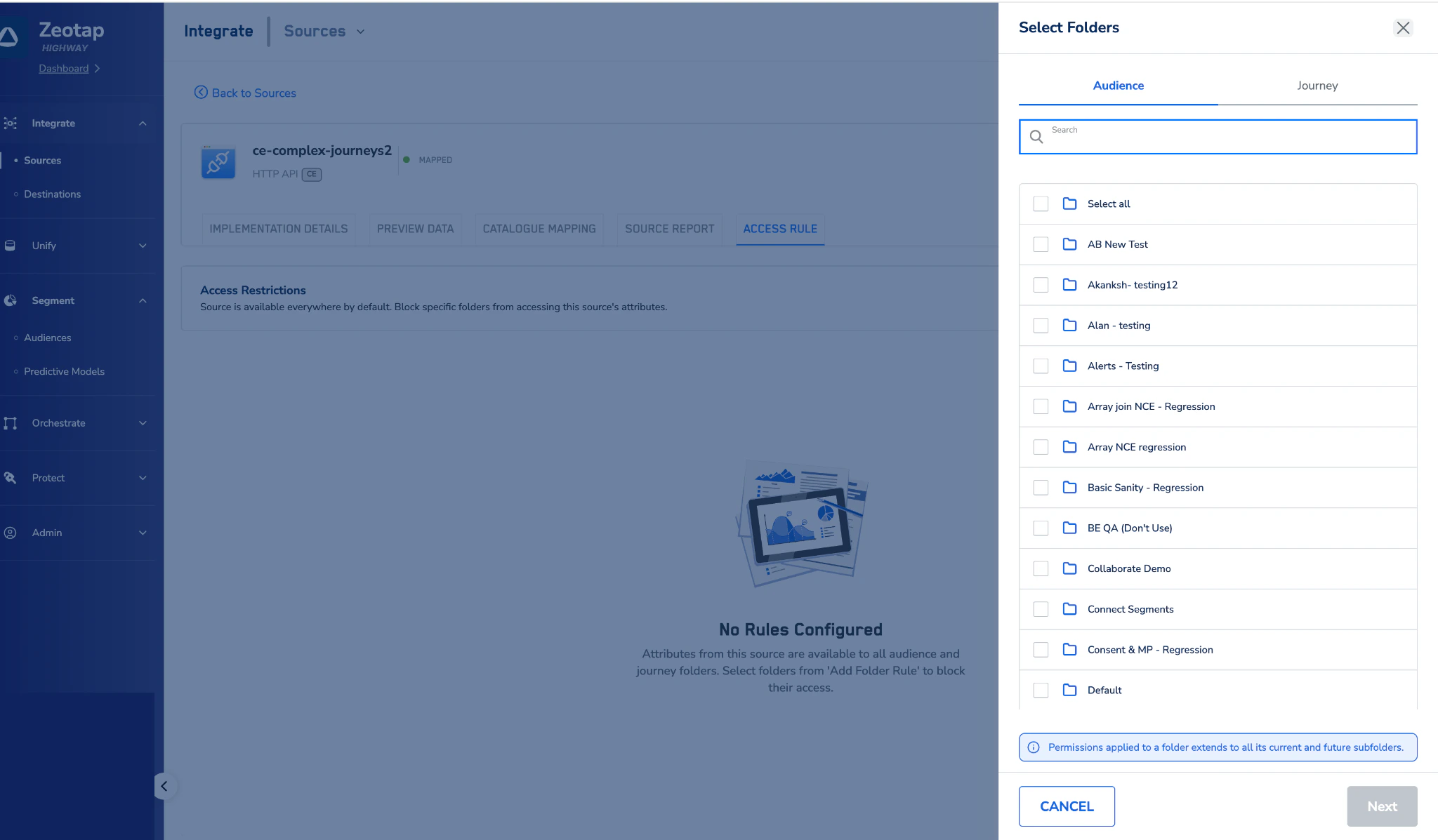
Figure 2 — Select Folders panel, with separate Audience and Journey tabs.
Choose the attributes to block
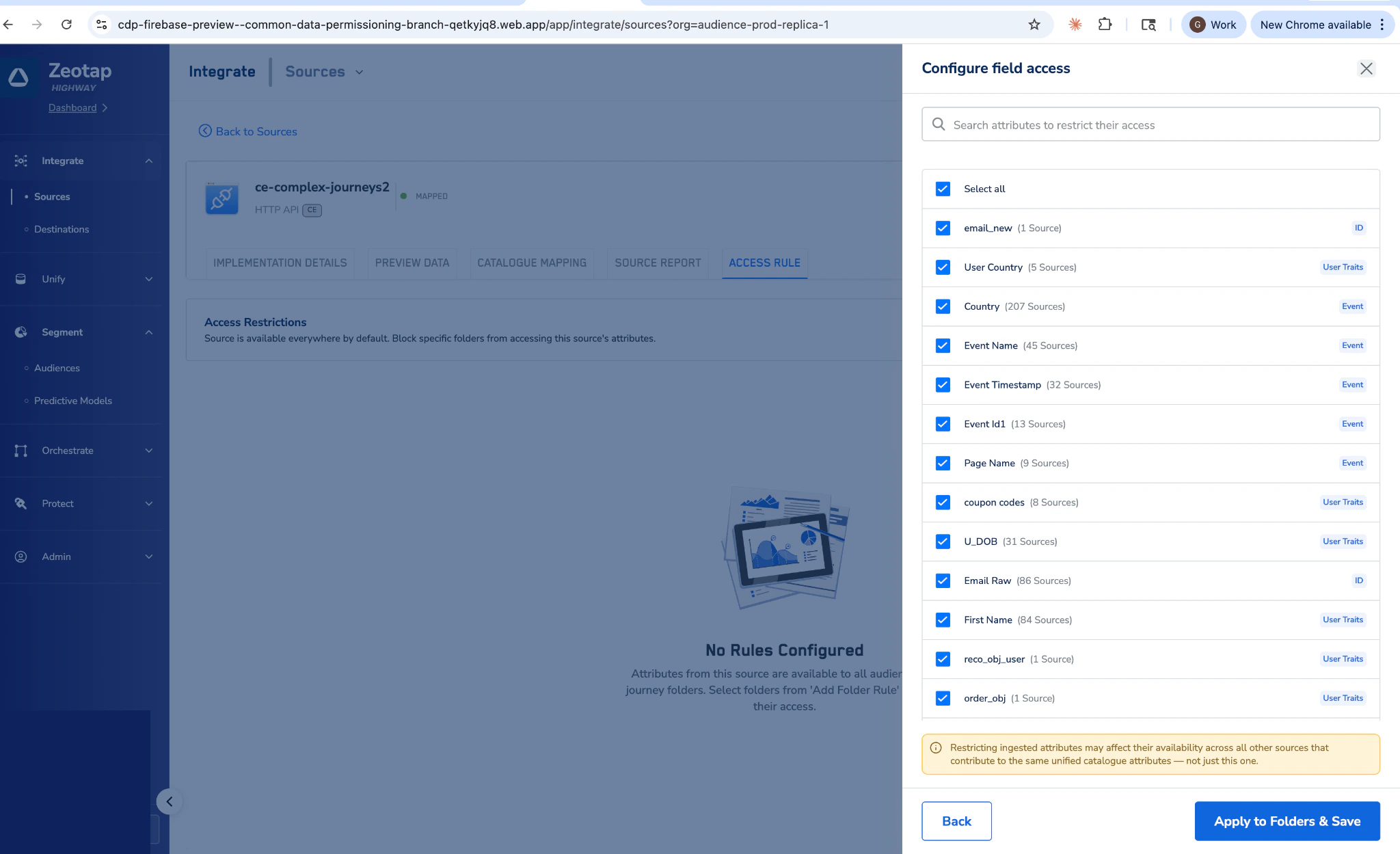
Figure 3 — Configure field access. Choose Select all, or only the specific attributes to block in the selected folders.
Review the folders and counts
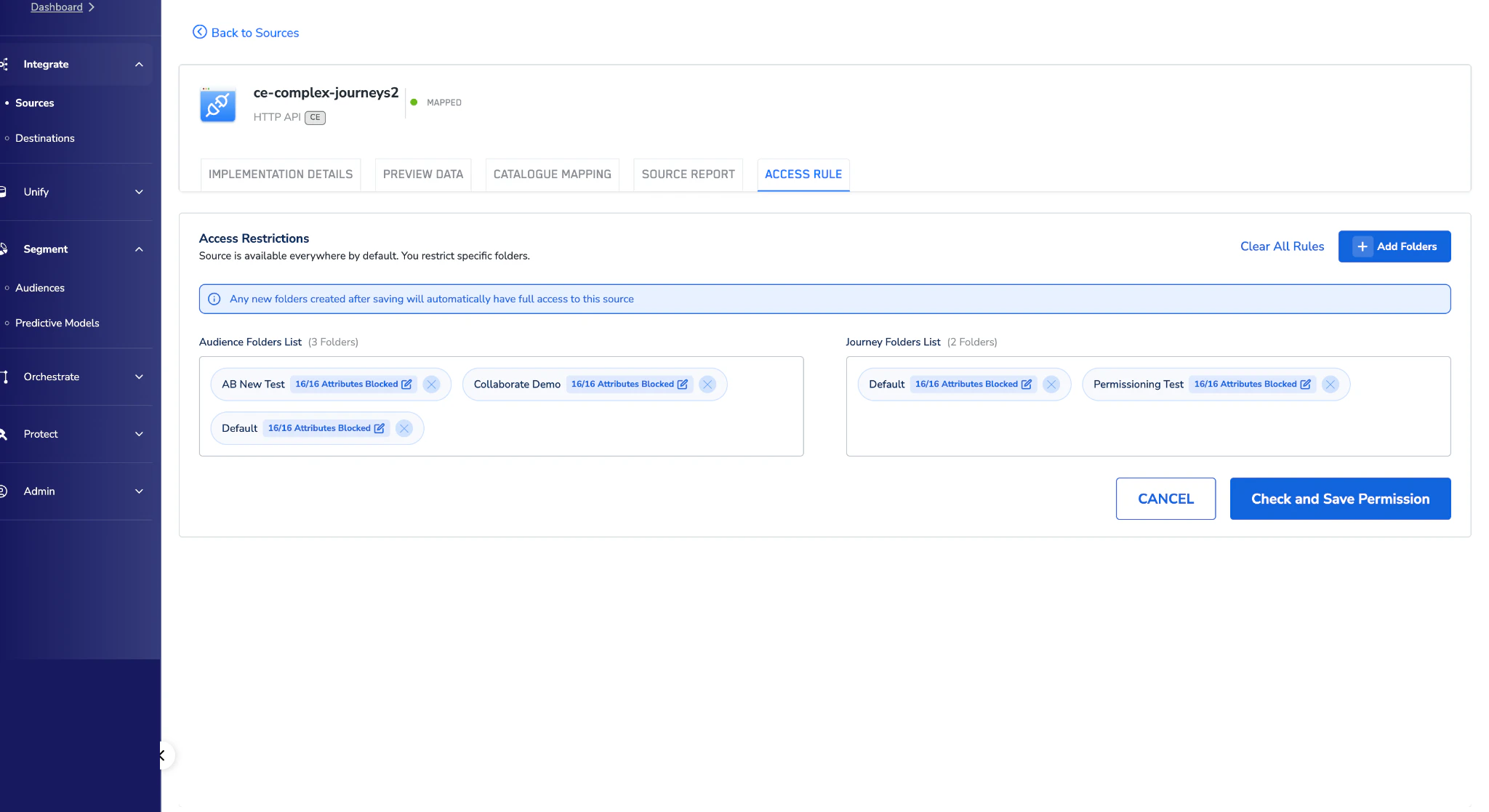
Figure 4 — The configured rule, listing each folder with its blocked-attribute count, before saving.
Confirm the save
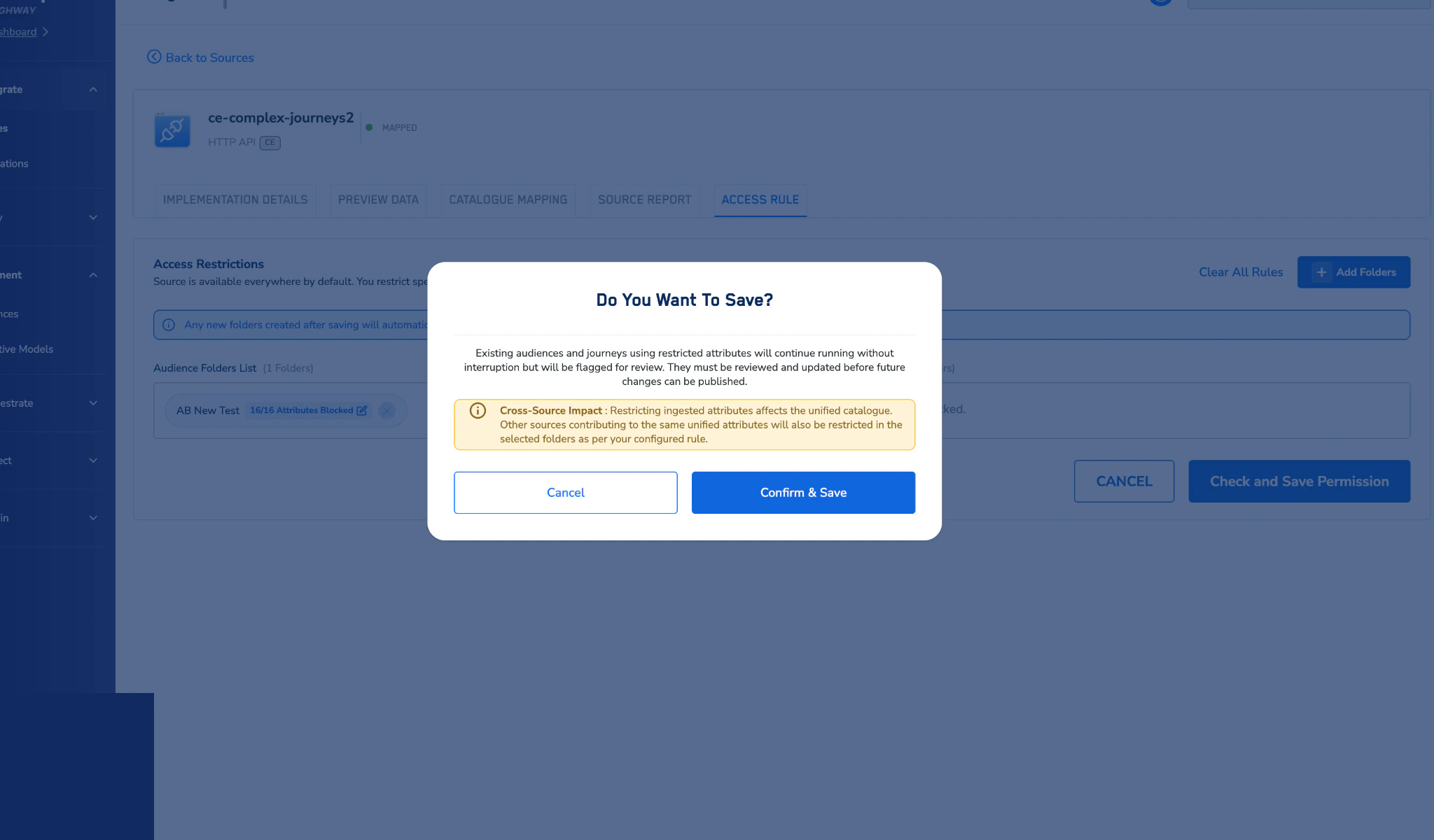
Figure 5 — Save confirmation with the cross-source impact warning.
Edit or remove a source access rule
Open the source, select the Access Rule tab, then:- Change which attributes are blocked for one folder — click the edit icon on that folder’s blocked-attribute tag.
- Remove one folder from the rule — click the cross icon on that folder’s tag.
- Add more folders — click + Add Folders. (On a source with no rules yet, the same button reads + Add Folder Rule.)
- Remove every folder rule on the source — click Clear All Rules.
What users see when a source is restricted
In the Audience Builder
Blocked attributes are not available for selection — even if the source itself is otherwise accessible. Templates that use restricted attributes cannot be used either. Users also cannot send the restricted attributes to any destinations within the folder. Existing audiences affected by a new rule: Existing audiences continue running without interruption. However, any audience using a now-restricted attribute is flagged with a warning status on both the folder and the audience definition page.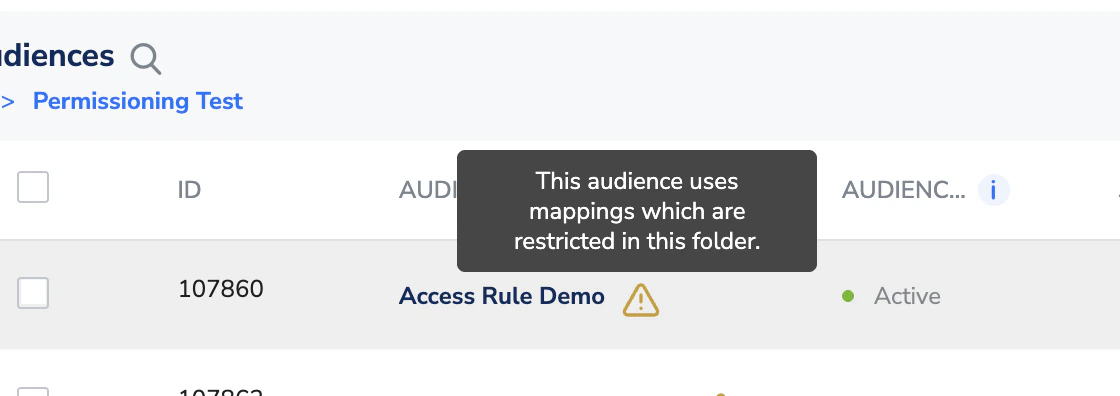
Figure 6 — Audiences listing, with a hover tooltip warning that the audience uses mappings restricted in this folder.
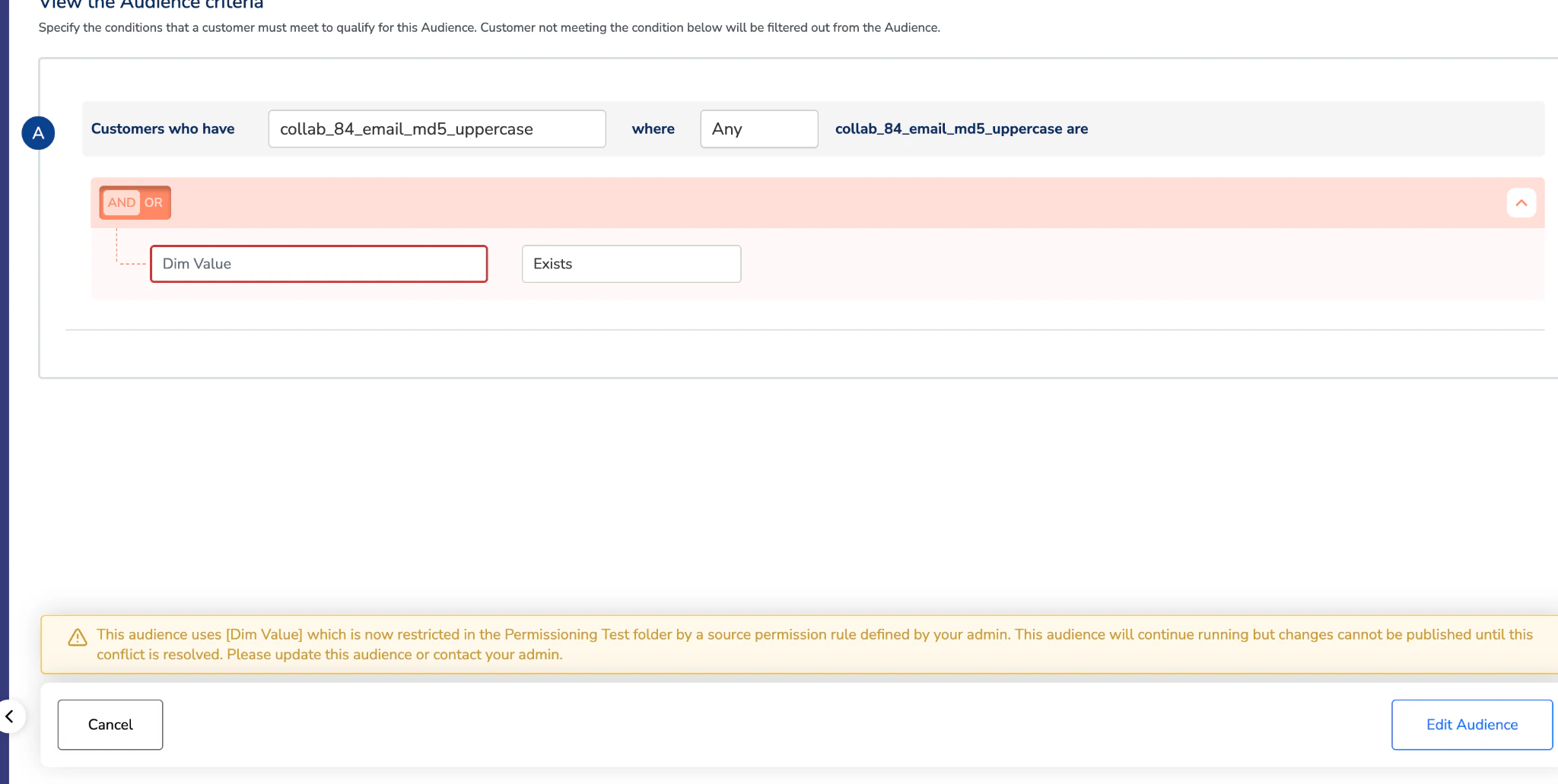
Figure 7 — Audience criteria view, with the inline banner naming the restricted attribute and the action required.
In the Journey Builder
Blocked attributes are not available for selection — even if the source itself is otherwise accessible. Templates that use restricted attributes cannot be used either. Users also cannot send the restricted attributes to any destinations within the folder. Existing journeys affected by a new rule: Existing journeys continue running without interruption. However, any journey using a now-restricted attribute is flagged with a warning status on both the folder and the journey definition page. As with audiences, users cannot publish changes to a flagged journey until the conflict is resolved.Verify the rule applied
- On the source’s Access Rule tab, each folder in the rule is listed with its blocked-attribute count.
- In a restricted folder, open the Audience Builder or Journey Builder — the blocked attributes are no longer offered for selection.
- Any audience or journey in that folder that already used a blocked attribute now carries a warning icon in the listing, and an inline banner on its definition page.
Troubleshoot source access rules
An attribute disappeared from a folder even though a different source still supplies it. Zeotap unifies attributes across sources, so blocking one contributing source removes the unified attribute in that folder. Narrow the rule to the attributes you actually need to block, or exclude that folder. A user cannot publish changes to an audience or journey. It uses an attribute that is now restricted in its folder. Either remove that attribute from the definition, or ask your org admin to update the rule. The item keeps running in the meantime. A newly created folder is not restricted. New folders get full access by design. Add the folder to the rule explicitly. A newly mapped attribute is not blocked. New attribute mappings are accessible by default. Add the attribute to the rule explicitly. The Join Key cannot be blocked. On sources tagged as Customer Parent Model, the Join Key cannot be restricted in any folder, because profile unification depends on it. A rule cannot be applied to an Archive folder. Access rules are not supported on Archive folders. A calculated attribute still exposes blocked data. Calculated attributes — and real-time calculated attributes in journeys — that reference a blocked attribute remain usable in a restricted folder. Review them separately.Next steps
- Access Rules — the three-layer governance model these rules belong to.
- Destination Access Rules — restrict the outbound direction: which destinations a folder can activate to.
- My Roles — folder access control, and the custom-role permissions that allow editing access rules.