-
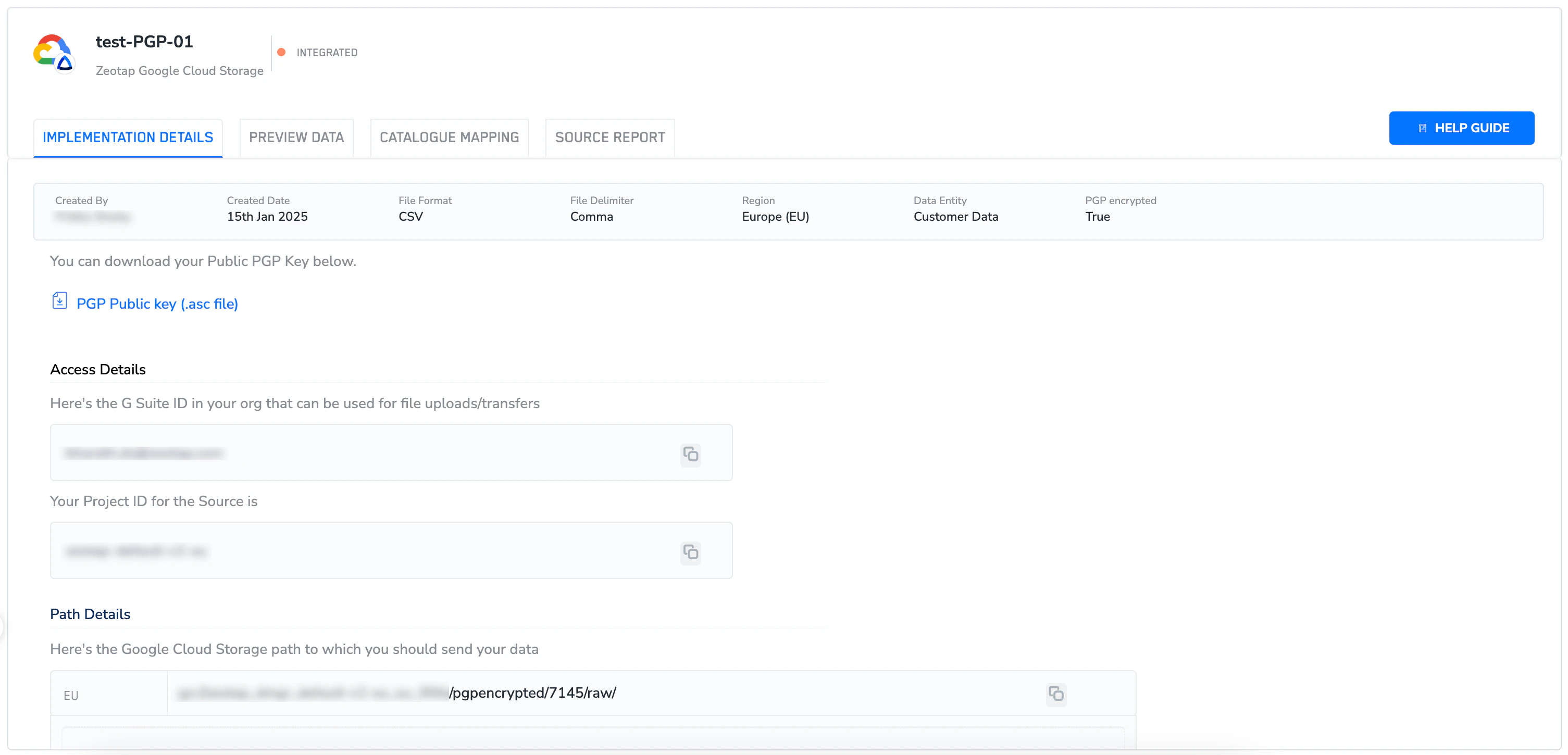
If you have selected PGP encrypted as true while creating the source, then you will see a downloadable Public PGP Key as shown in the image below.
-
In the Access Details section, you can find-
- G Suite ID in your organisation that can be used for file uploads/transfers
- Your Project ID for the Source
-
In the Path Details section, you can find-
-
Google Cloud Storage path to which you can send the data.
Note:For PGP-encrypted sources, upload files only in the .pgp format. |
-
The + ADD FILES option to upload files directly from your local machines to the designated path.
Users with the Editor role only, have access to this feature. Users with the Viewer role must reach out to the Admins to upload files.
Last modified on February 26, 2026