

Note:Refer to Zeotap Google Cloud Storage to know more about this source.
1
Navigate to the Sources application under Integrate, in the Zeotap CDP App.
2
Click + Create Source.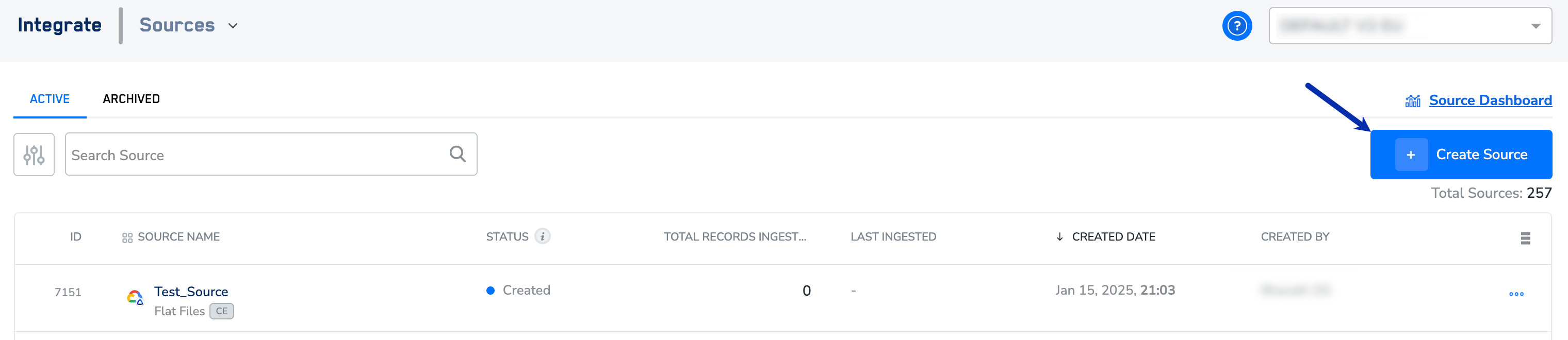
3
Choose Flat Files as the Category.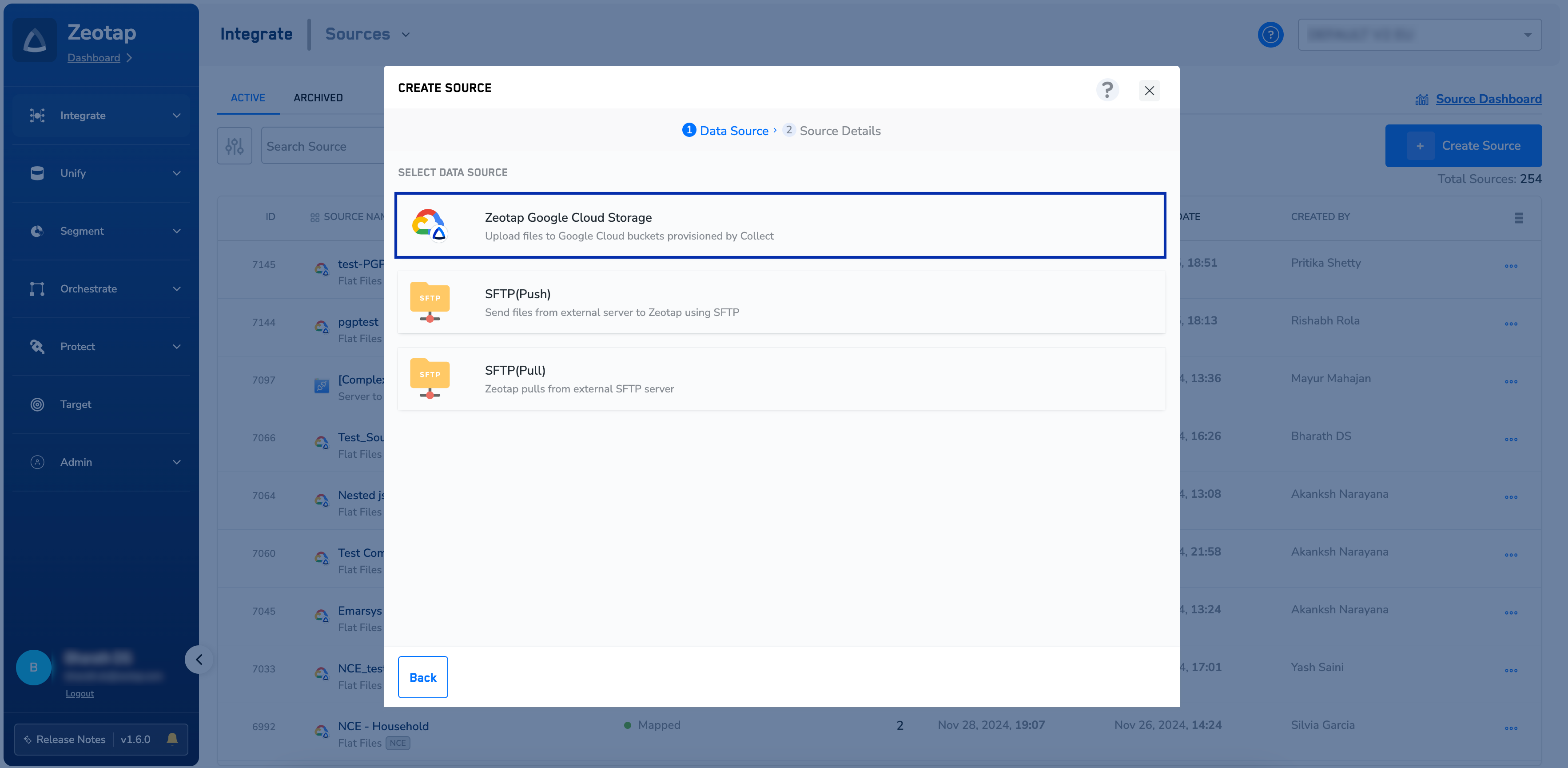
4
Click Zeotap Google Cloud Storage at the Data Source.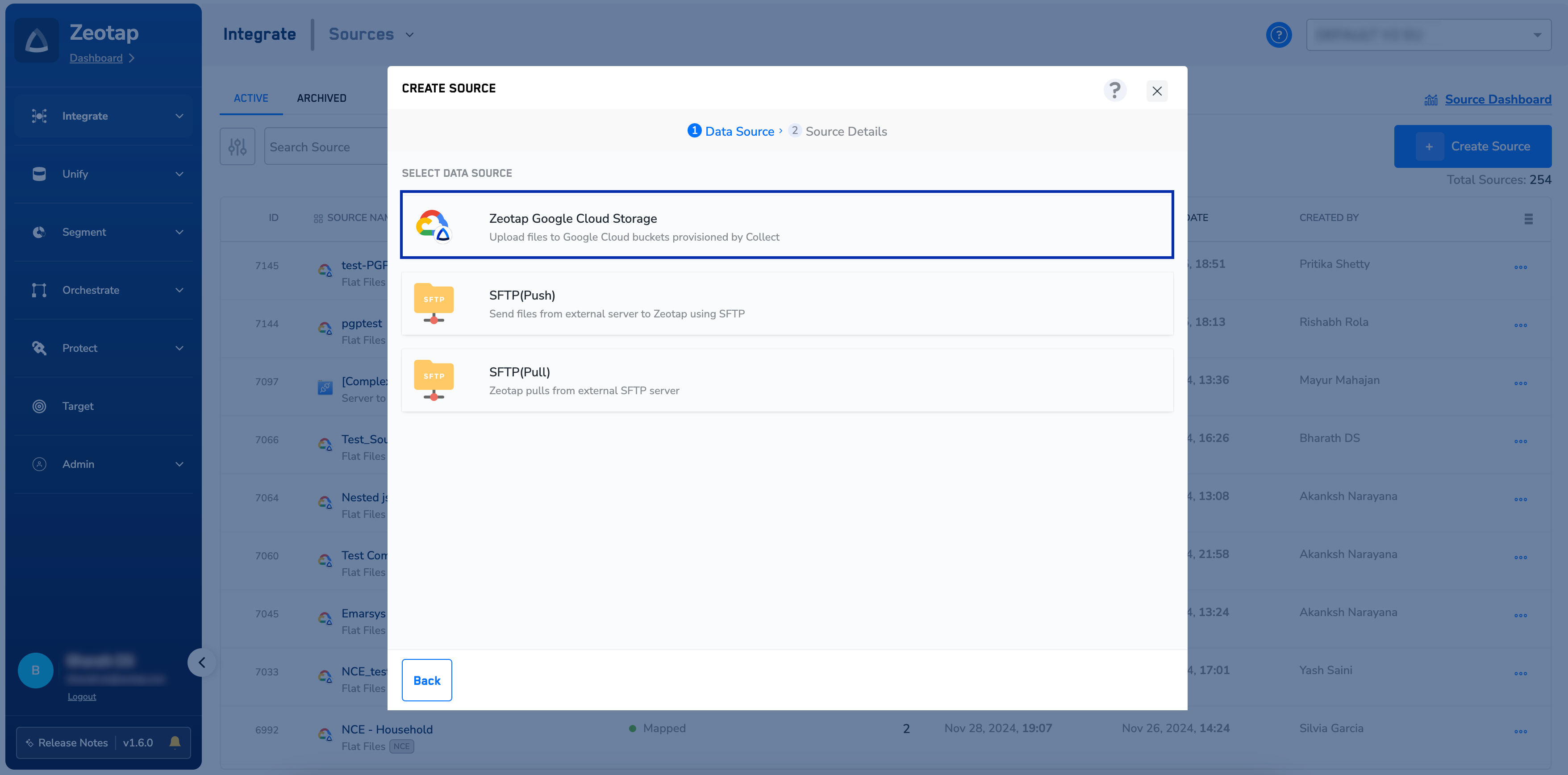
5
In the new window that appears, provide the following details:a. Enter a short and descriptive name for the source.b. Choose the file format from the drop-down menu.c. Choose the delimiter and region of upload.d. Under Data Entity, depending on the type of data that you want to ingest, choose either Customer Data or Non Customer Data and proceed with the source creation. To know more about Customer Data and Non Customer Data, refer here.e. Under PGP Encrypted, select True or False, depending on whether you want to encrypt your data before sending it to Zeotap CDP. If you select True, then you can download the PGP Public key from the Implementation Details tab after source creation. To learn more about PGP encryption, refer here.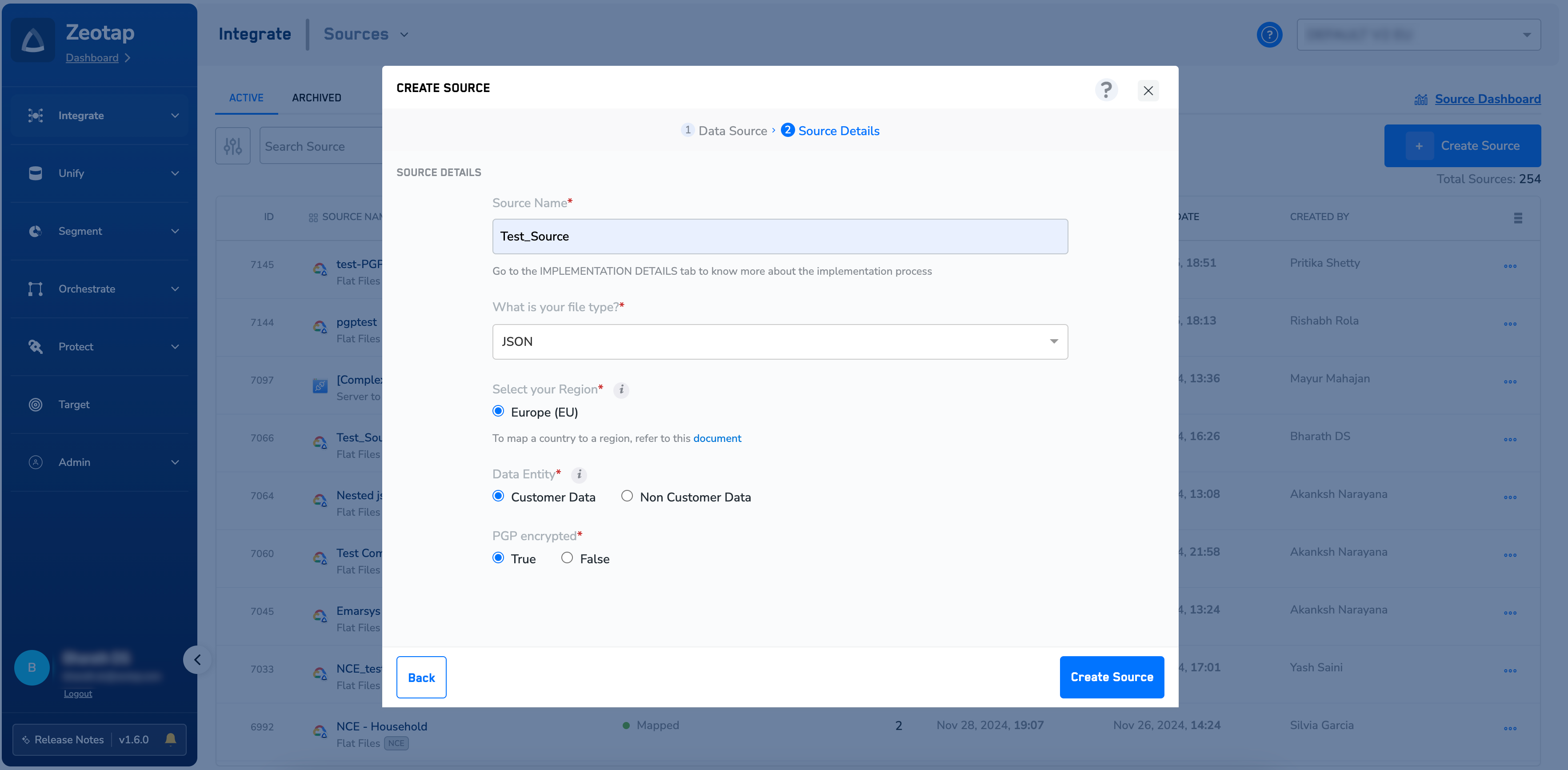
6
Once you have provided all the necessary inputs, click Create Source. The created source appears on the sources listing page as shown below.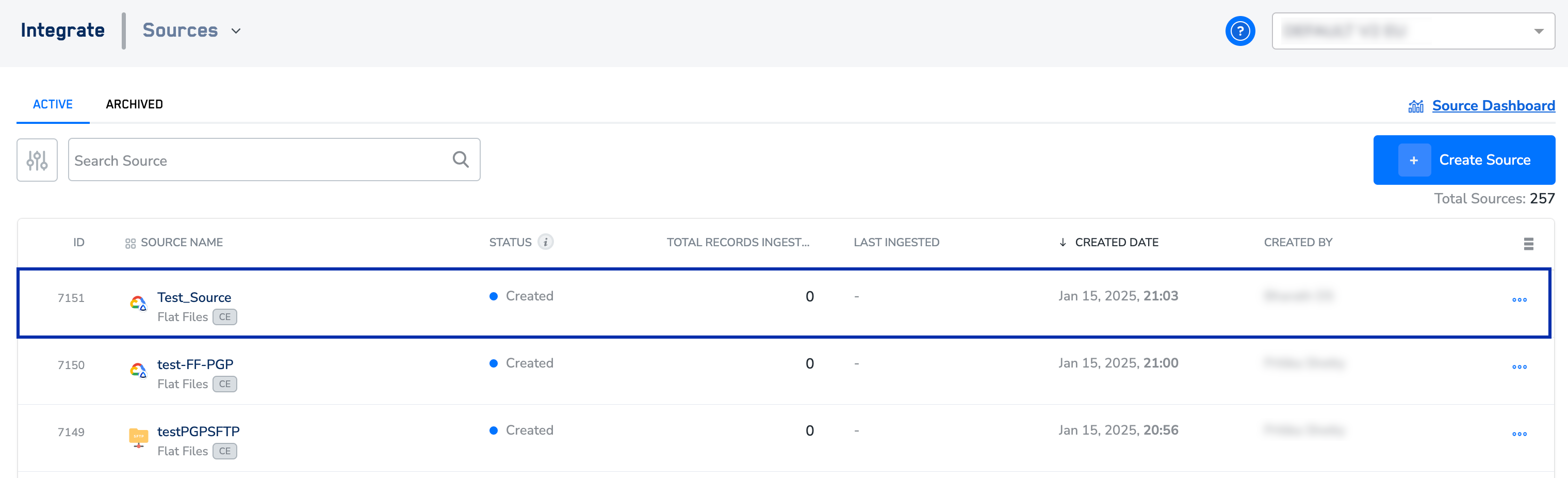
7
Click the created source and go to the Implementation Details tab. Here, you can find important information related to the source such as created date, create by, file format, region and so on, along with some critical details for uploading your files.
Note:After you upload the files to the source, you can view the incoming data in the PREVIEW tab.In case of NCE sources, note that you can only create a maximum of five sources in an account. This default limit applies to both archived and active NCE sources within an organisation.
Upload Methods
The following file upload methods are supported:Zeotap Google Cloud Storage
GCloud Console
gsutil Tool
Cyberduck
Upload Specifications
While uploading the files, ensure that the specifications mentioned below are taken care of.Supported Regions
Currently, we support the uploading of files in the following three regions:- EU – All EU countries’ data can be uploaded to the bucket provisioned for you in the EU
- US – All NORAM and LATAM countries’ data can be uploaded to the bucket provisioned for you in the US
- IN – All Indian data can be uploaded to the bucket provisioned for you in IN
Supported Formats
Currently, you can upload files of the following formats:- Text files with field delimiters such as comma, tab or semicolon
- Record delimiter like newline
- Text files with JSON records
.csv.txt.txt.gz
Supported Size
When uploading files from the Collect UI, ensure that every file is lesser than 100 MB in size. Currently, there is no size restriction for files that are uploaded directly to the bucket using any of the methods mentioned above.Supported Schema
There is no restriction on the schema of the files that you upload. While creating the corresponding collection(s), the columns can be mapped to the standard catalogue. For CSV files, we treat the first row as column headers. Therefore, the first row of the file must always be the column name with the proper casing. Ensure that all the headers are present. Also, note that except space and (_) underscore, no other special characters are allowed. Any mismatch with the above requirement can lead to an ingestion failure. We can support files with multiple schemas if they logically belong to the same source (for example, user and event data from a campaign source) as long as the file format and delimiter remain the same. Refer to the Zeotap Catalogue topic and name your fields accordingly. You can also use it to define the data type of your source data fields.Supported PII
Zeotap CDP accepts both hashed and Raw PII (Personally Identifiable Information) into your Zeotap account. For hashed emails and cell phone numbers, adhere to these hashing guidelines. You can also use our hashing tool to convert your IDs to the right hashes before uploading them to Collect. For raw personal identifiers (PII), we mask the PII information across the UI for all roles once you classify them in your organisation’s catalogue. Flagging the raw PII fields in your organisation’s catalogue is a critical step and is the responsibility of the org. The encrypted data is only available to the downstream systems for activation purpose.Note:We use the RSA Encryption Algorithm.
Related Topics
- For information about how to map the Catalogue for Customer Data (CE), refer here.
- For information about how to map the Catalogue for Non-Customer Entity (NCE) data, refer here.
- For information about how to add a Non-Customer Entity (NCE) attribute in the Catalogue, refer here.
- For information about Join Key Enricher and how to configure it, refer here.