

NoteHaving a field in your catalogue list does not mean that there is data available for those attributes. Unless you map those fields to an incoming source field and save the mapping
in your individual sources, no data is ingested against those fields in your Zeotap account.
Columns
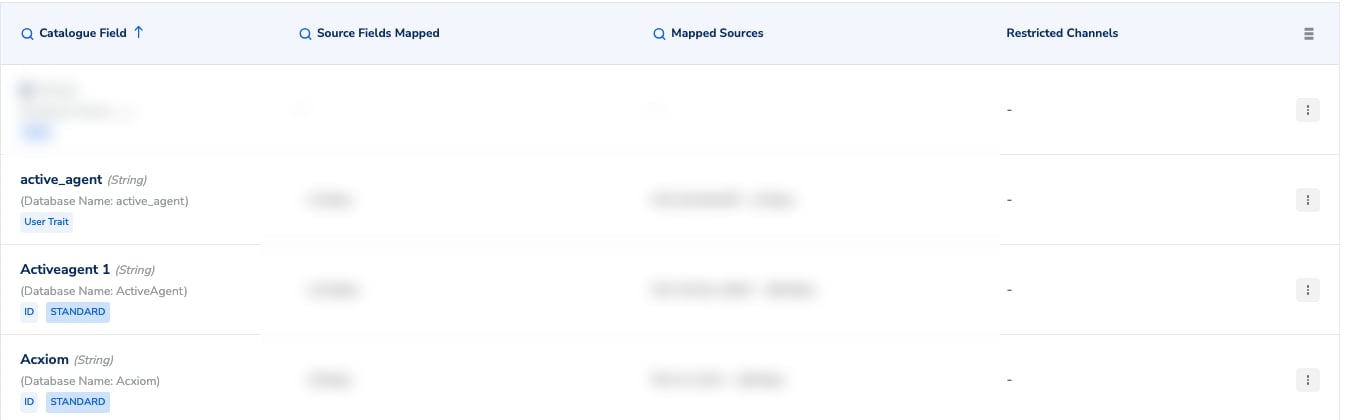
The listing with the optional Restricted Channels column switched on.
Actions
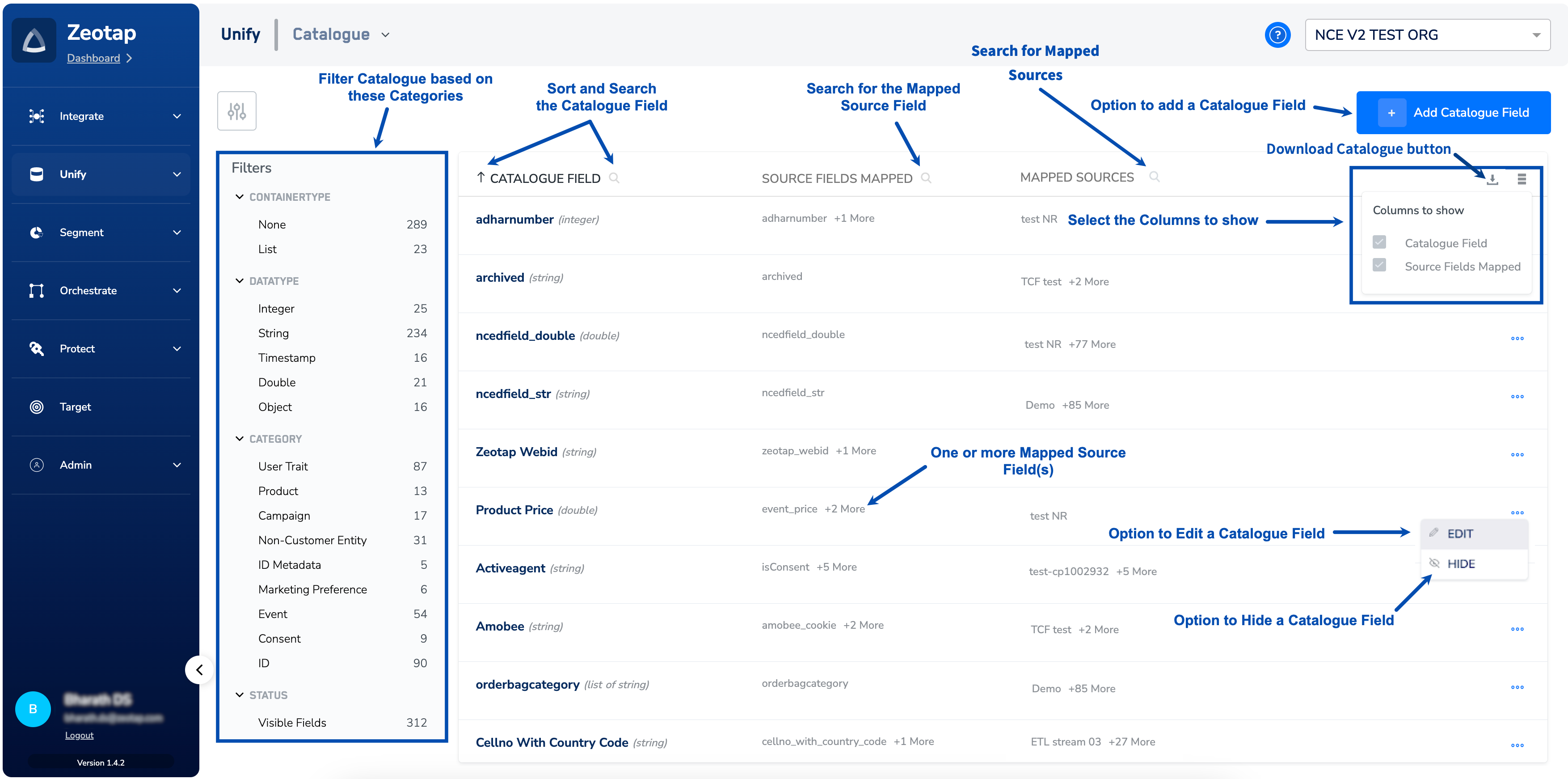
You can perform the following actions on this page:- Filter – Above the list, click the filter icon (to the left of the download icon) to open the Filters panel and narrow the list. You can filter by attribute source type, category, data type and status (visible or hidden fields). Each value shows a count of the catalogue fields it matches, and you can clear one group with CLEAR or reset everything with CLEAR ALL. To know more about the categories you can filter on, refer to Categories for adding Catalogue fields.
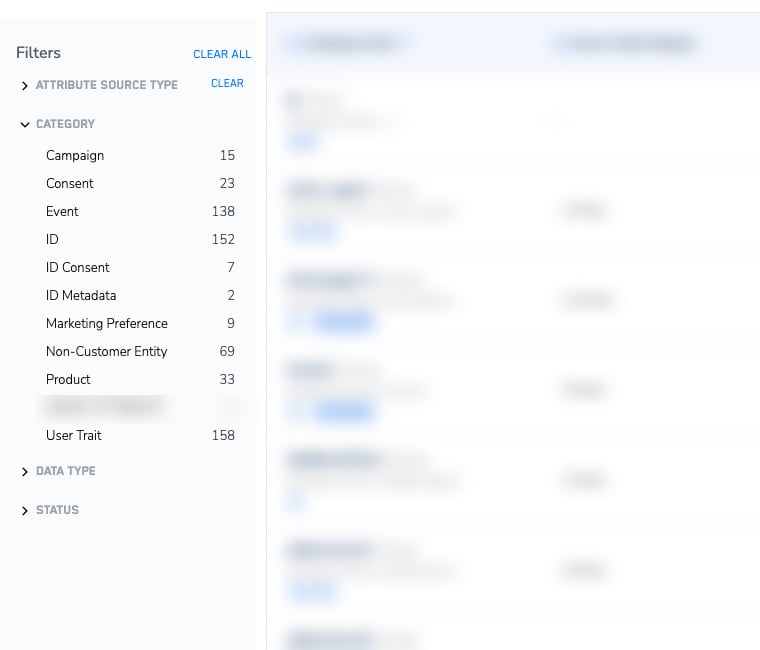
The Filters panel, with the category group expanded to show the count per category.
- Lookup – Click the search icon in a column header to look up entries in that column. Lookup is available on Catalogue Field, Source Fields Mapped and Mapped Sources.
- Sort – Click the Catalogue Field header to sort the list by field name.
- Columns to Show – Towards the right, choose the columns that you want to show. You cannot remove the default selections for Catalogue Field, Source Fields Mapped and Mapped Sources; Restricted Channels is optional and off by default.
- Download Catalogue – This option allows you to download the organisation’s catalogue in CSV format for your reference. The export includes each field’s channel restrictions.
- Add Catalogue Field – Click ADD CATALOGUE FIELD to add a new Catalogue Field. To know more about the process, refer to Add a Catalogue Field.
- Edit – Click the three dots next to a Catalogue Field entry and click EDIT to modify it.
- Hide – Click the three dots next to a Catalogue Field entry and click HIDE to hide it. This action hides the Catalogue field from the interface and all activation modules.
NoteEnsure that you consider the following points while hiding an attribute in the Catalogue: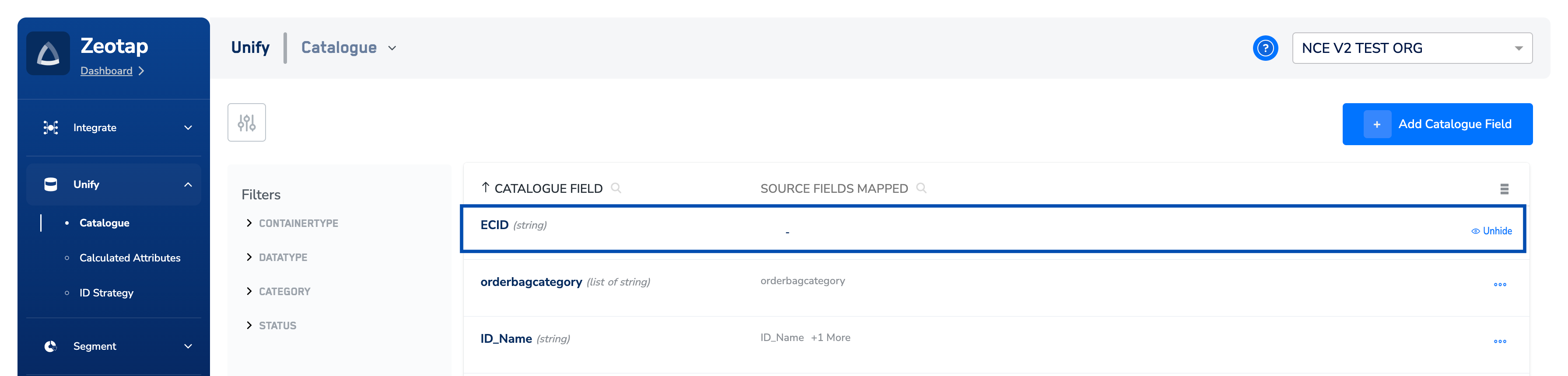
- Hiding an attribute from the Zeotap Catalogue affects its visibility in the downstream modules like Audience, Journeys,Source Mapping and Destinations for new creations. However, it continues to exist in the backend database schema.
- If an attribute is already in use in any of the downstream modules mentioned above, then it continues to function withoutinterruptions. However, the system prompts appropriate actions based on the application/module for any edits. For example,if you choose a hidden attribute while editing a source, then the system prompts you to remove that attribute before savingthe changes. Alternatively, you can also unhide the attribute in the Catalogue application.
- When you hide an attribute in the Catalogue, any saved mappings or (auto) mappings are removed. For example, if you hide the
ECIDattribute in the Catalogue, then the saved mappings,ecidandECIDare removed and are not shown for new sourcemappings. However, only for standard catalogue fields with predefined internal mappings, such as theid_mid_10field mapped toTheTradDesk, these mappings can be restored upon unhiding the hidden attribute.