

Overview
Microsoft Fabric is an all-in-one analytics platform that unifies data engineering, data integration, data warehousing, data science, real-time analytics, and business intelligence under a single SaaS offering. It combines technologies like Power BI, Azure Synapse, and Data Factory into a seamless experience powered by OneLake, a centralized data lake for the entire organization. Designed for both technical and business users, it streamlines the entire data lifecycle from ingestion to visualization. The Microsoft Fabric source in Zeotap enables the customer to seamlessly bring data from their Microsoft Fabric instance into Zeotap.Pre-requisites
Make sure you have the following information handy before creating a Microsoft Fabric source in Zeotap.- Service Principle : Steps to create Service principle is outlined in the authentication section.
-
Host: The hostname or IP address of your Microsoft Fabric instance. If using the hostname, make sure to only insert the hostname and not the full URL (remove the leading
http://and the final/). - Port: The port number of your Microsoft Fabric instance. The default is 1433.
- Database: The name of the database in Microsoft Fabric.
-
Table :
The name of the table in Microsoft Fable from which you want to fetch data. It should follow the format:
warehouseName.schemaName.TableName. You can find more details in this section. You may also use views by replacingTableNamewithViewName. - Tenant ID (or Directory ID) : The Tenant ID of the service principal.
- Client ID (or Application ID) : The Client ID of the service principal.
- Client Secret : The Client Secret associated with the service principal.
Authentication
Service principal creation
First, we need to create a service principal. These are the credentials Zeotap will use to access your Microsoft Fabric resources.1
Sign in to the https://entra.microsoft.com/.
2
On the sidebar, select Identity > Applications > App registrations.
3
Select New registration.
4
Pick a name for your application and select Accounts in this organizational directory only as the supported account type.
5
Click Register.
6
Note your newly created Application (client) ID and Directory (tenant) ID.
7
Click Add a certificate or secret.
Client secret
1
Select the Client secrets tab.
2
Click New client secret.
3
Name your client secret and select its expiration date. To maintain access to Fabric, make sure to refresh your client secret prior to its expiration.
4
Note your client secret Value now as it cannot be retrieved later. It will be used to connect Zeotap to Microsoft Fabric.
Fabric configuration
By default, Microsoft Fabric may not be accessible via service principal. To connect, you’ll need to take the following steps.1
Log in to Microsoft Fabric.
2
Click Synapse Data Engineering.
3
In the top right of the window, select Settings > Governance and insights > Admin portal.
4
On the sidebar, select Tenant settings.
5
Scroll down to Developer settings and select Service principals can use Fabric APIs. Make sure the toggle is set to Enabled.
6
Next go to OneLake settings and select Users can access data stored in OneLake with apps external to Fabric. This toggle should be Enabled as well.
Attaching your service principal to your Fabric warehouse
1
Log in to Microsoft Fabric.
2
Select the workspace that contains your warehouse.
3
Hover over your warehouse and select the three dots menu (⋯).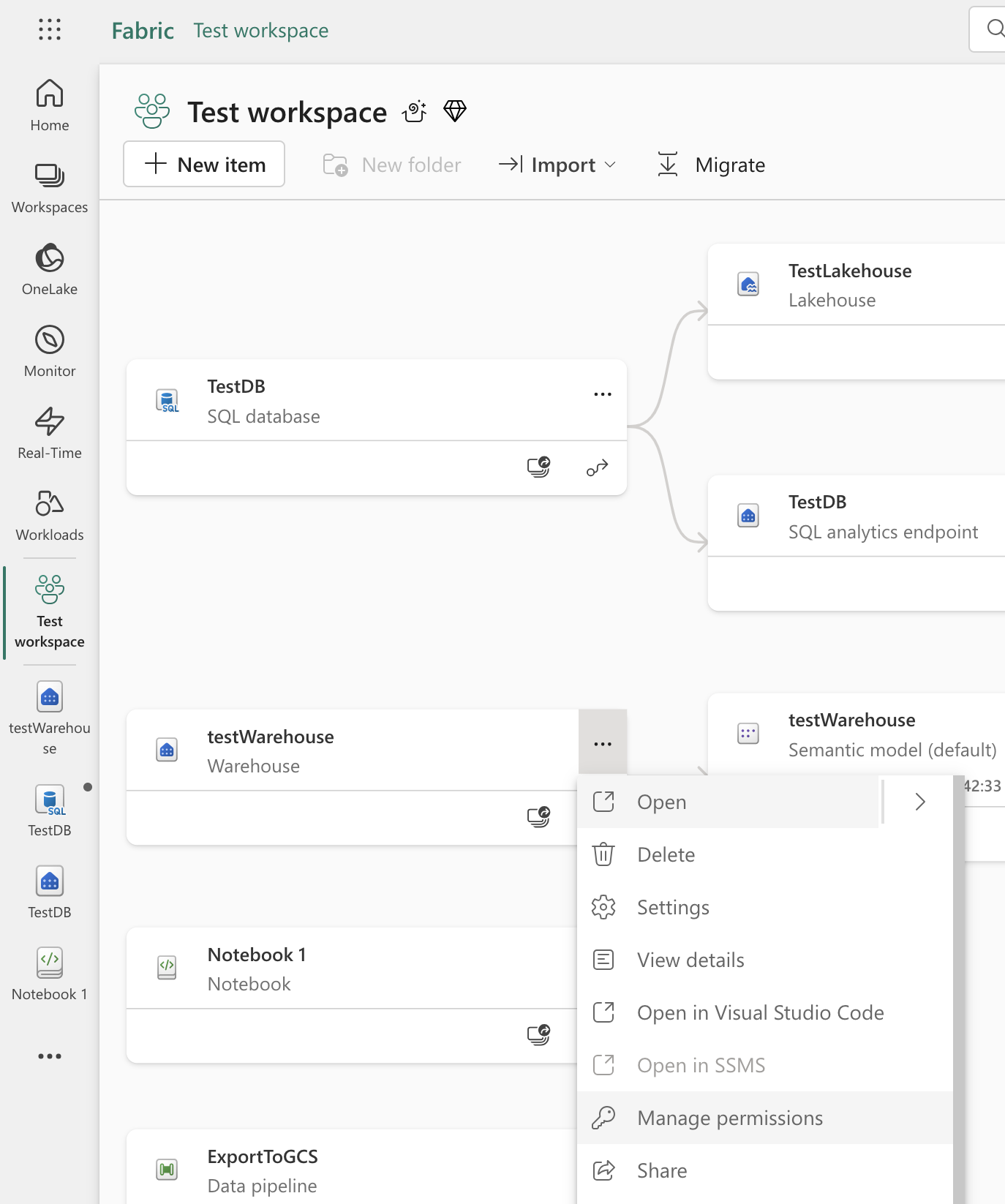
4
Choose Manage permissions from the menu.
5
On the next page, select Add user.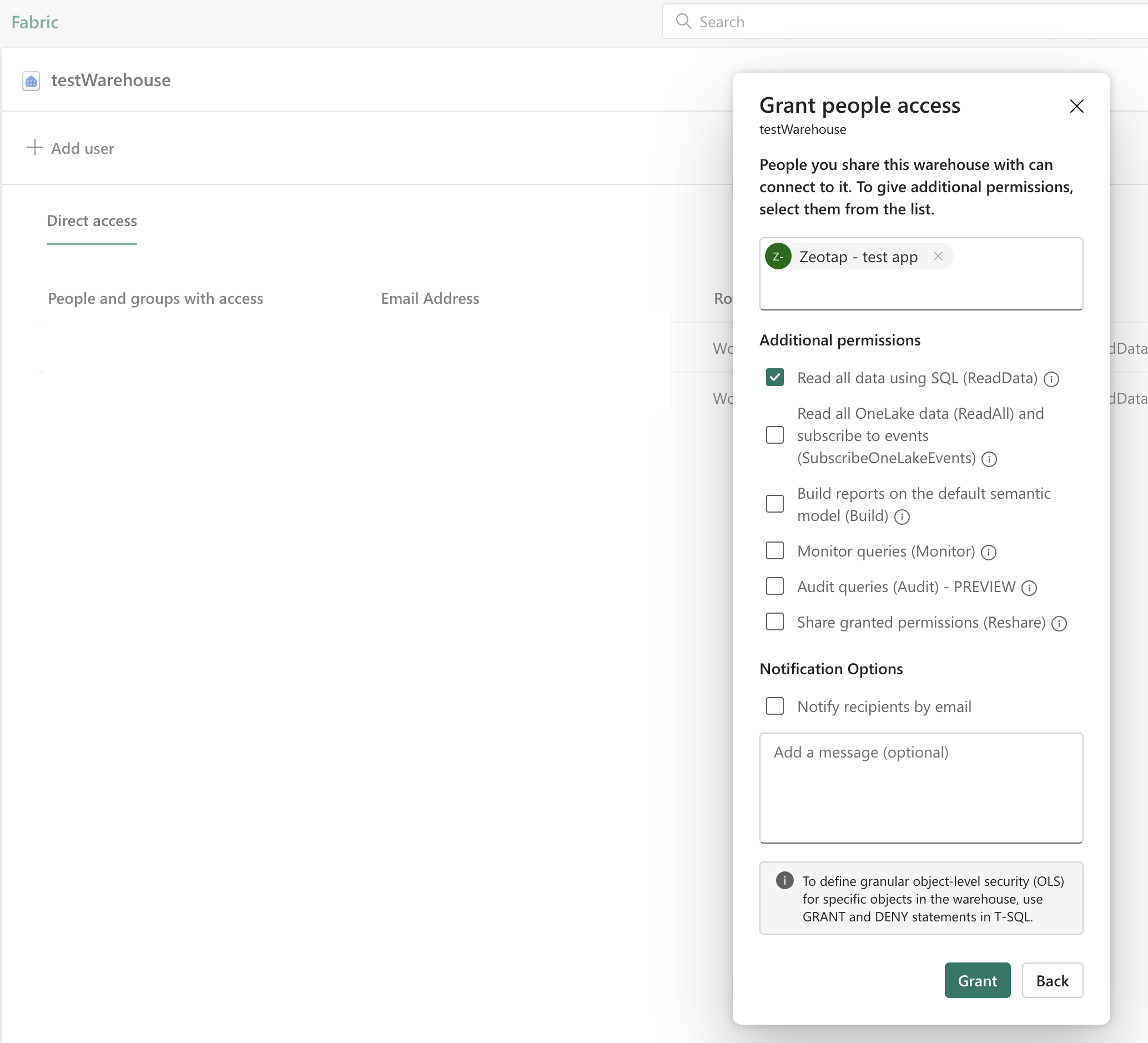
6
Type in the clientId’s display name from Azure AD (App registration name)
7
It will show up as a Service Principal and check the box for Read all data using SQL (ReadData).
8
Select Grant.
Retrieve the SQL connection string
To retrieve the connection string, follow these steps:1
Navigate to your workspace, select the Warehouse.
2
Select the Copy button in the SQL connection string box to copy the connection string to your clipboard.
1
Select the Warehouse, and select the
... ellipses for More options.2
Select Copy SQL connection string to copy the connection string to your clipboard.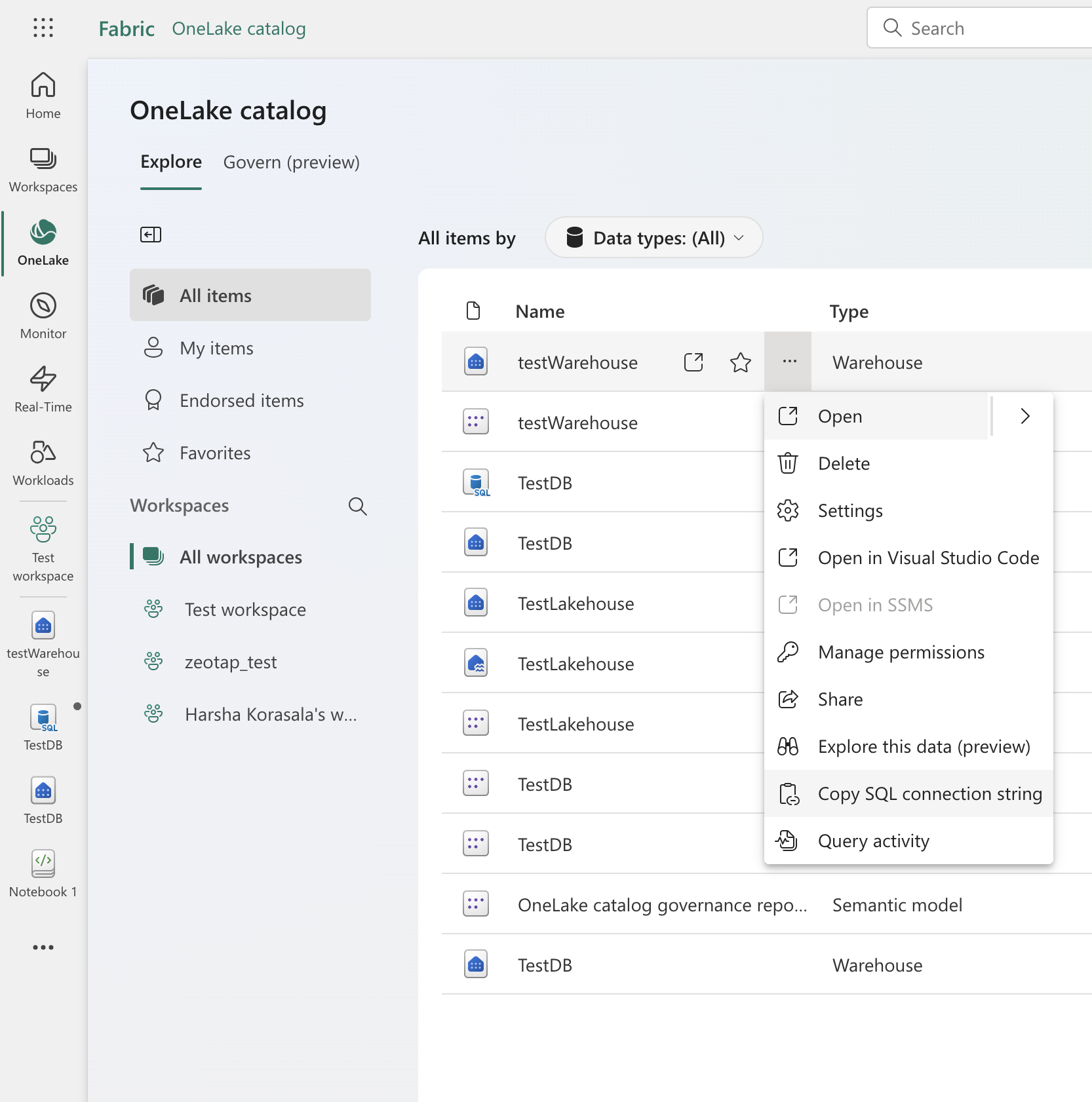
3
The port number for SQL Warehouse connections is always: Port: 1433.
4
Warehouse name is the Database name. In below case “testWarehouse”.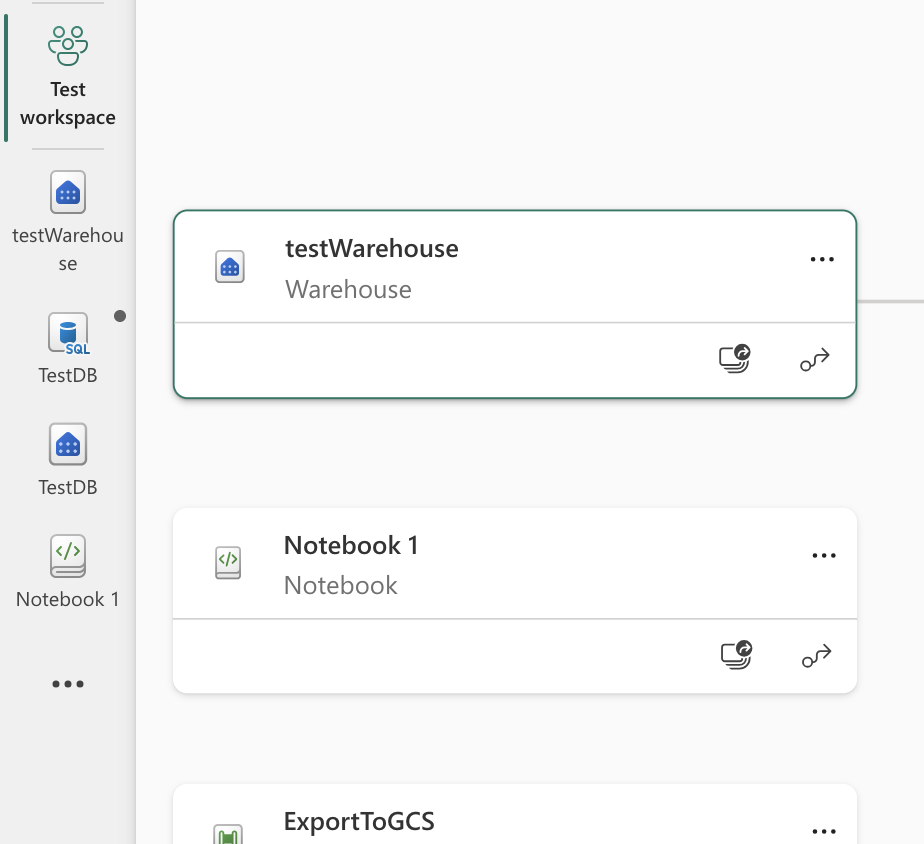
5
Table name: warehouseName.schemaName.TableName. In below case, [testWarehouse]. [ dbo].[Date]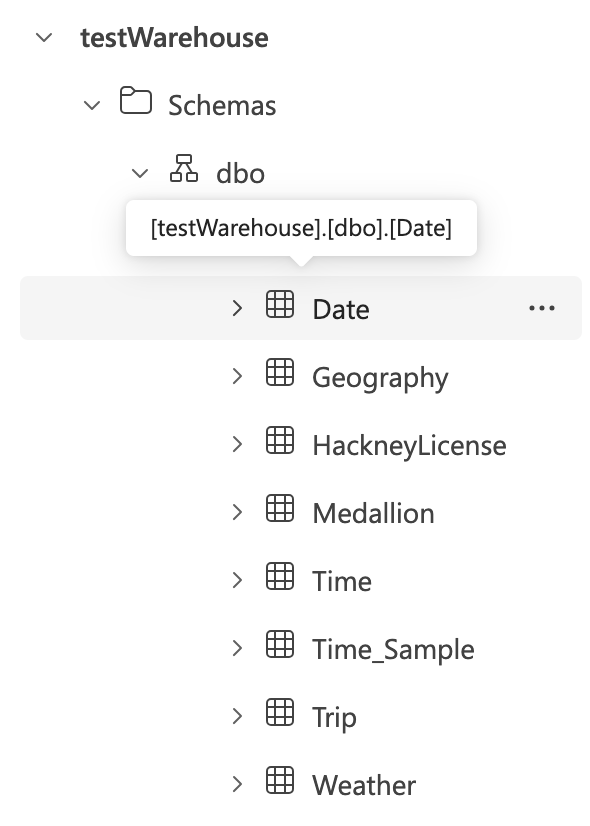
Create a Microsoft Fabric Source
Once you have obtained the above details from your Microsoft Fabric account, perform the following steps to create a Microsoft Fabric Source in the Zeotap CDP App:1
Navigate to the Sources application under Integrate, in the Zeotap CDP App.
2
Click CREATE SOURCE.
3
Choose Data Warehouse as the Category..png?fit=max&auto=format&n=ROPrHg77hrORMuiL&q=85&s=146e94f6110f76970d52baf2ab1e964b)
4
Click Microsoft Fabric at the Data Source.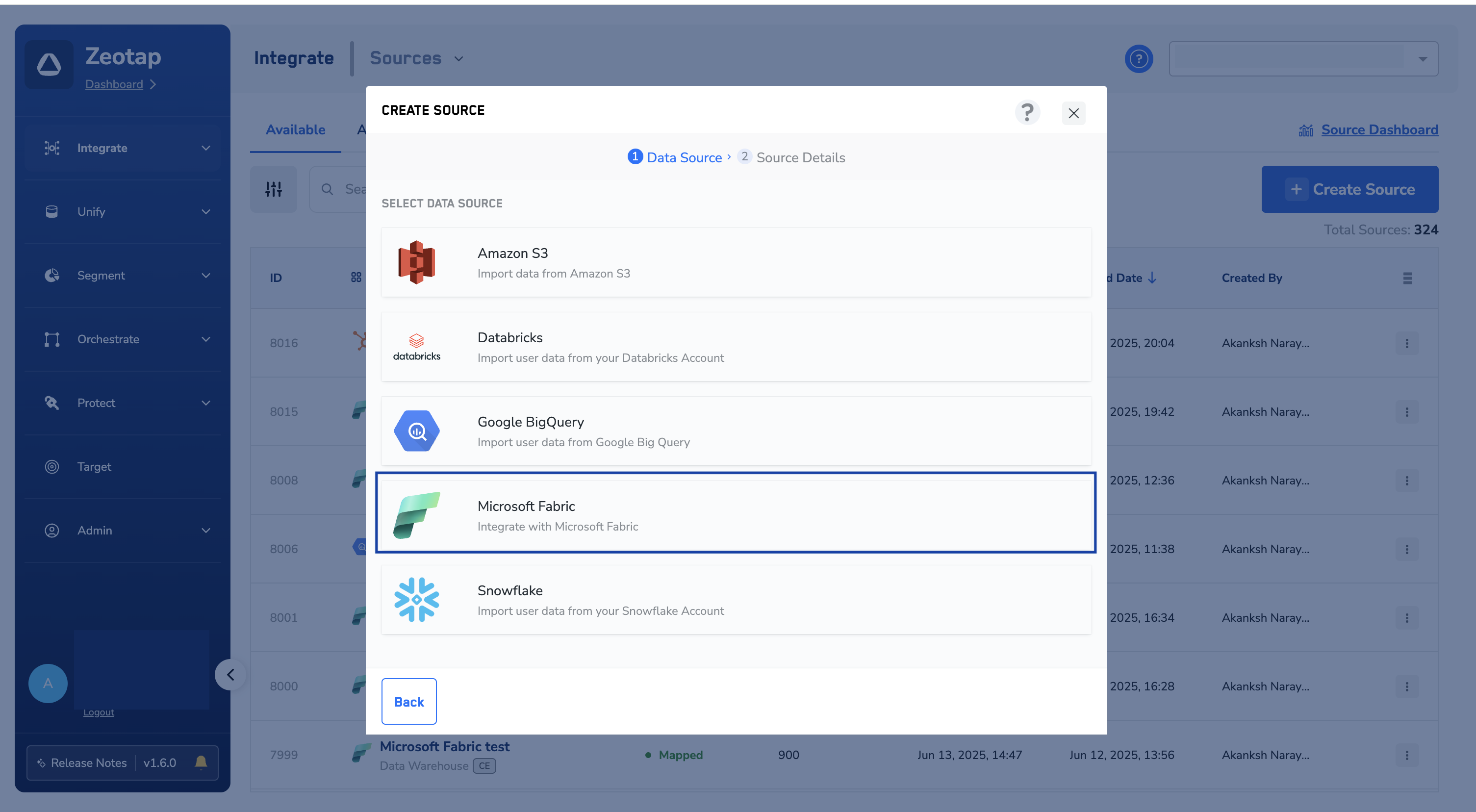
5
Enter a short and descriptive name for the Source.
6
Choose the Region of upload.
7
Enter the Microsoft Fabric Host Name in the Microsoft Fabric Host field.
8
Enter Port Number. The default value is 1433.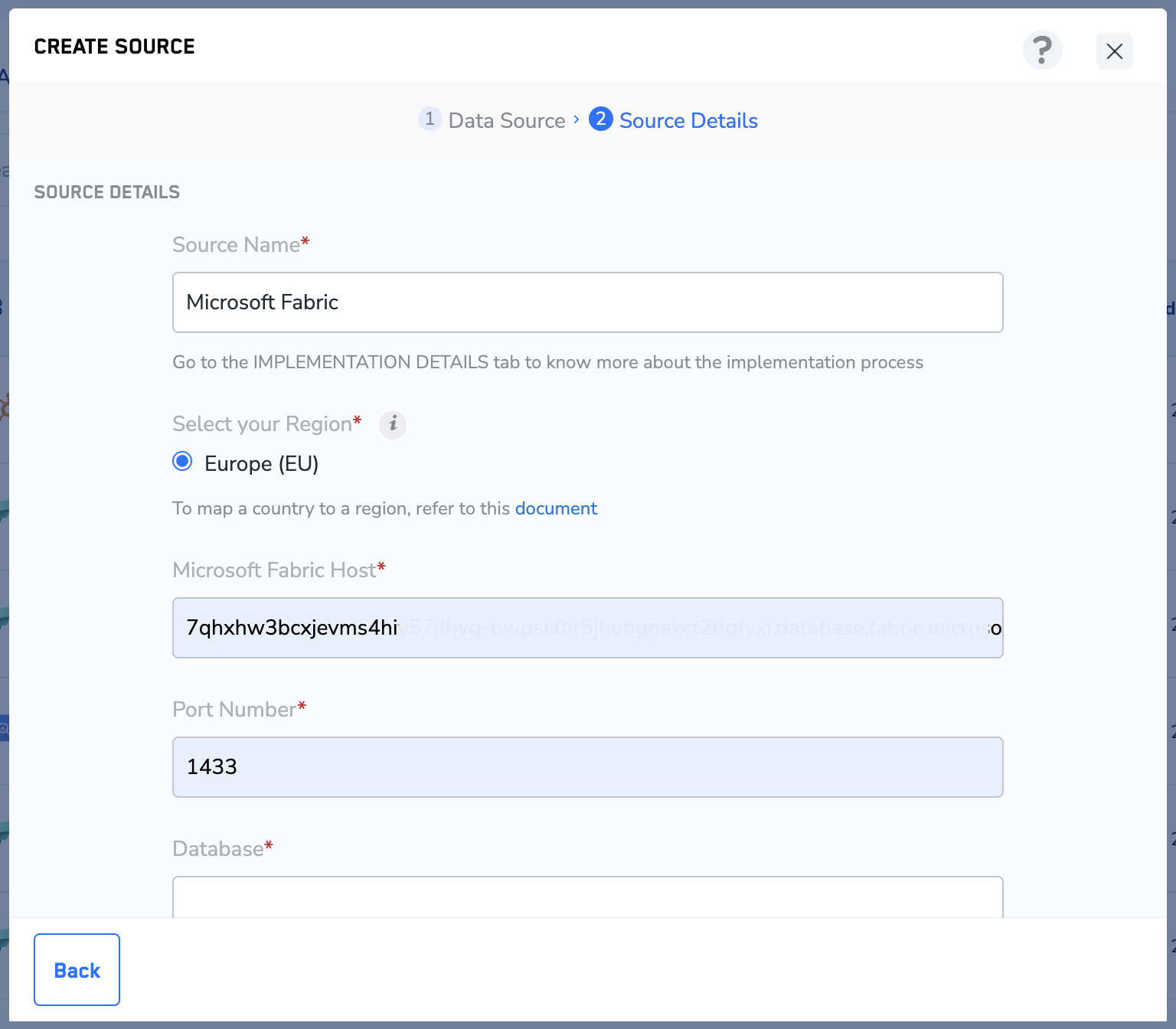
9
Provide the Database Name, Table Name, Tenant ID, Client ID and Client Secret obtained in the Pre-requisites section.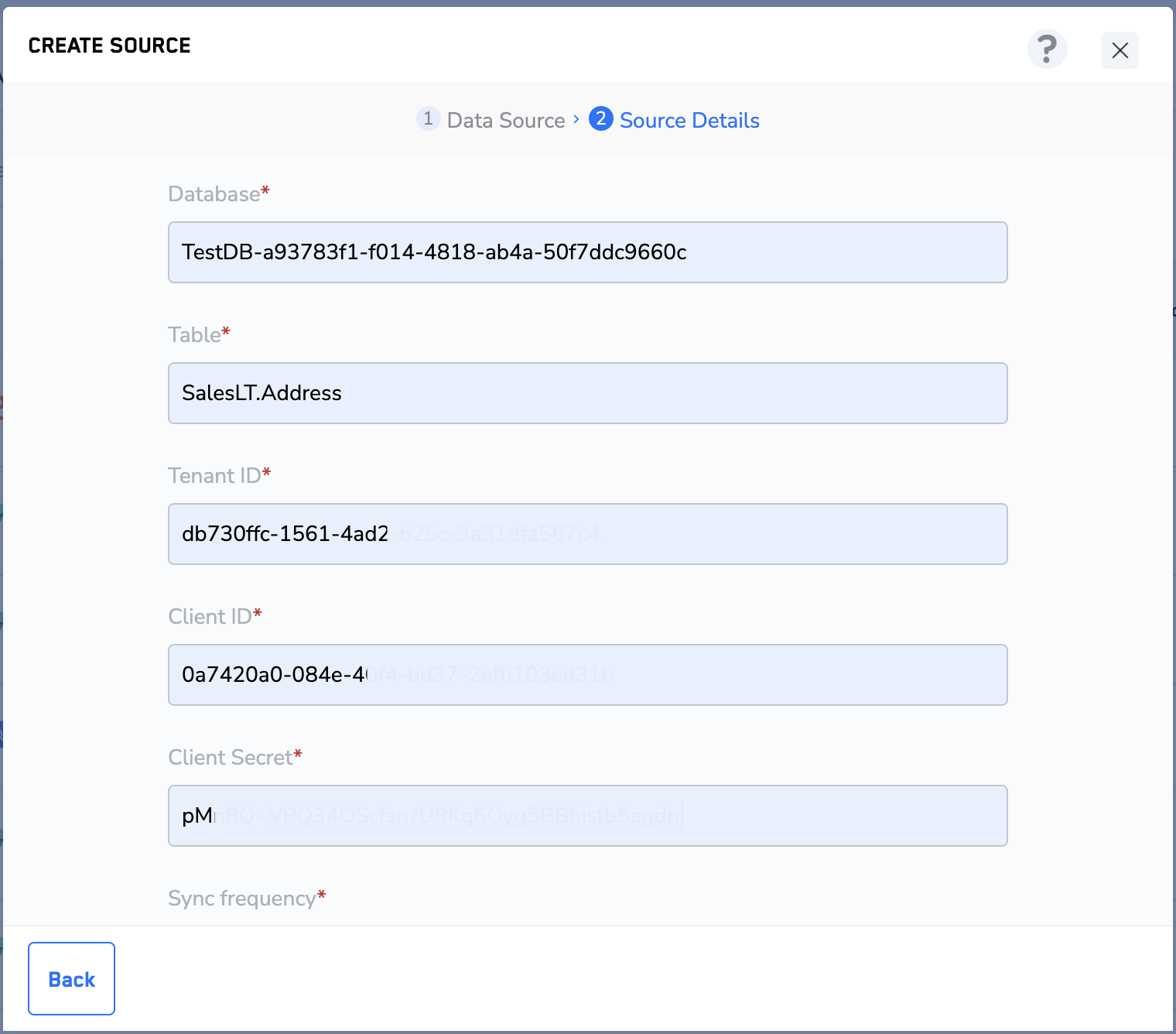
10
Choose the Refresh Frequency from the drop-down menu. The first data sync takes place once you create the source. However, the subsequent syncs take place based on the refresh frequency that you select. Currently, we support the following sync frequencies:
- Daily
- Weekly
- Monthly
11
Under Data Entity, depending on the type of data you want to ingest, choose either Customer Data or Non Customer Data and proceed with the Source creation. To know more about Customer Data and Non Customer Data, refer here.
12
Click CREATE SOURCE. Upon successfully creating the source, you can view all the relevant information about the created source under the IMPLEMENTATION DETAILS tab.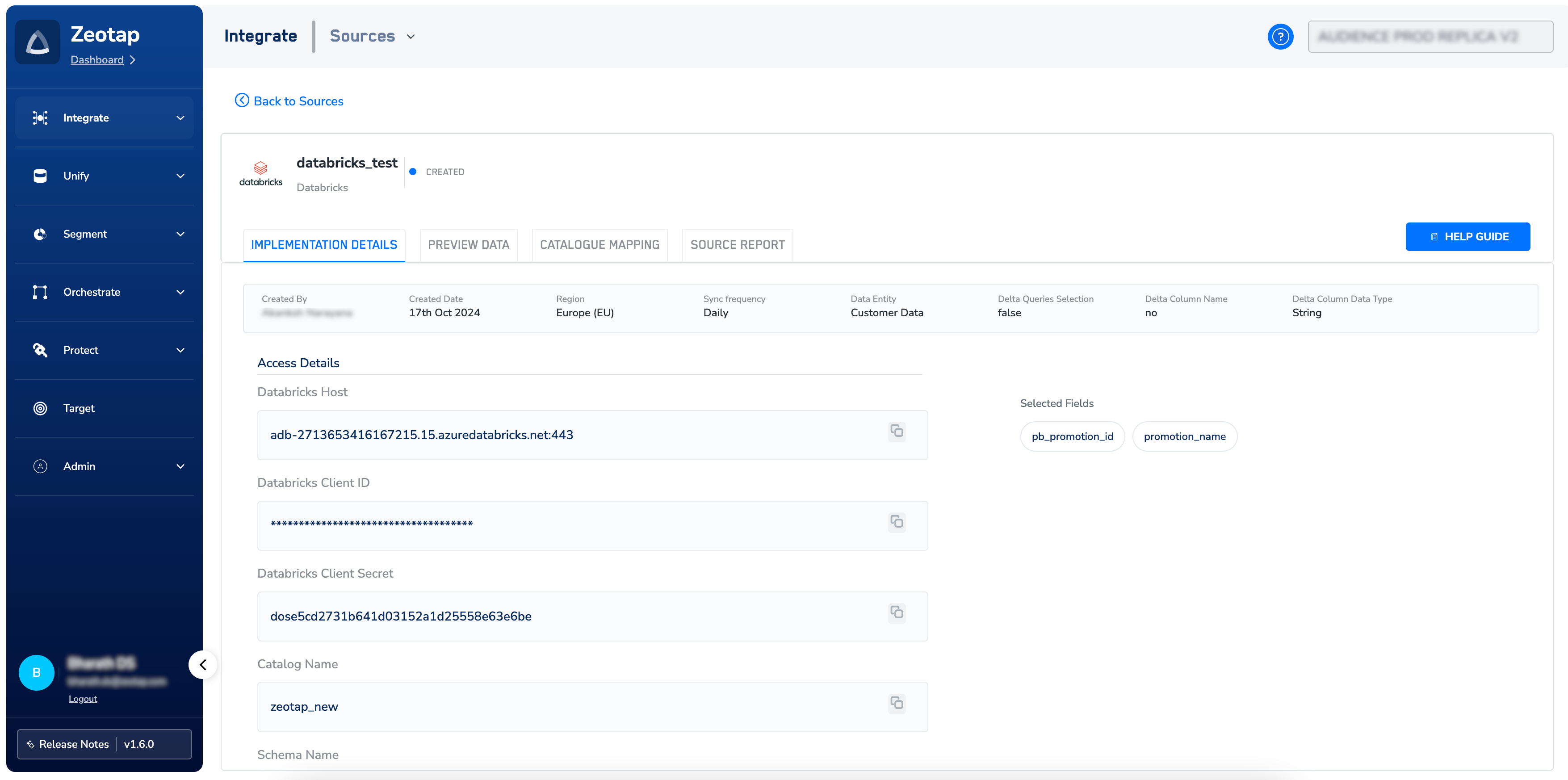
Note:The initial data transfer from Microsoft Fabric source to Zeotap CDP may take time, depending on the data volume. For assistance with Microsoft Fabric source setup or other questions, reach out to the Zeotap support team at [email protected].