

What this is
The Server-to-Server (S2S) source lets your backend send customer events, user profiles, and non-customer entity data directly to Zeotap CDP over HTTP. You create the source in the Sources application, receive a write key and API URL, and then POST JSON payloads from your server — either one event at a time (Real Time API) or bundled together (Batch API). Use this source when you own the emitting system and want an authenticated, JSON-first ingestion path without an intermediary file drop or SDK.Prerequisites
Before you begin, confirm the following:
- You have access to the Sources application in the Zeotap CDP App with permission to create a source.
- You know which region your data must be stored in (for example, EU) and which Data Entity applies — Customer Data or Non Customer Data. See Supported data entities.
- Your server can make authenticated HTTPS
POSTrequests and build a Base64-encodedAuthorizationheader. - Every event your server sends will include at least one user identifier and the user’s country — Zeotap cannot infer cookies, MAIDs, or IP-derived country in server-to-server calls.
Create the Server-to-Server source
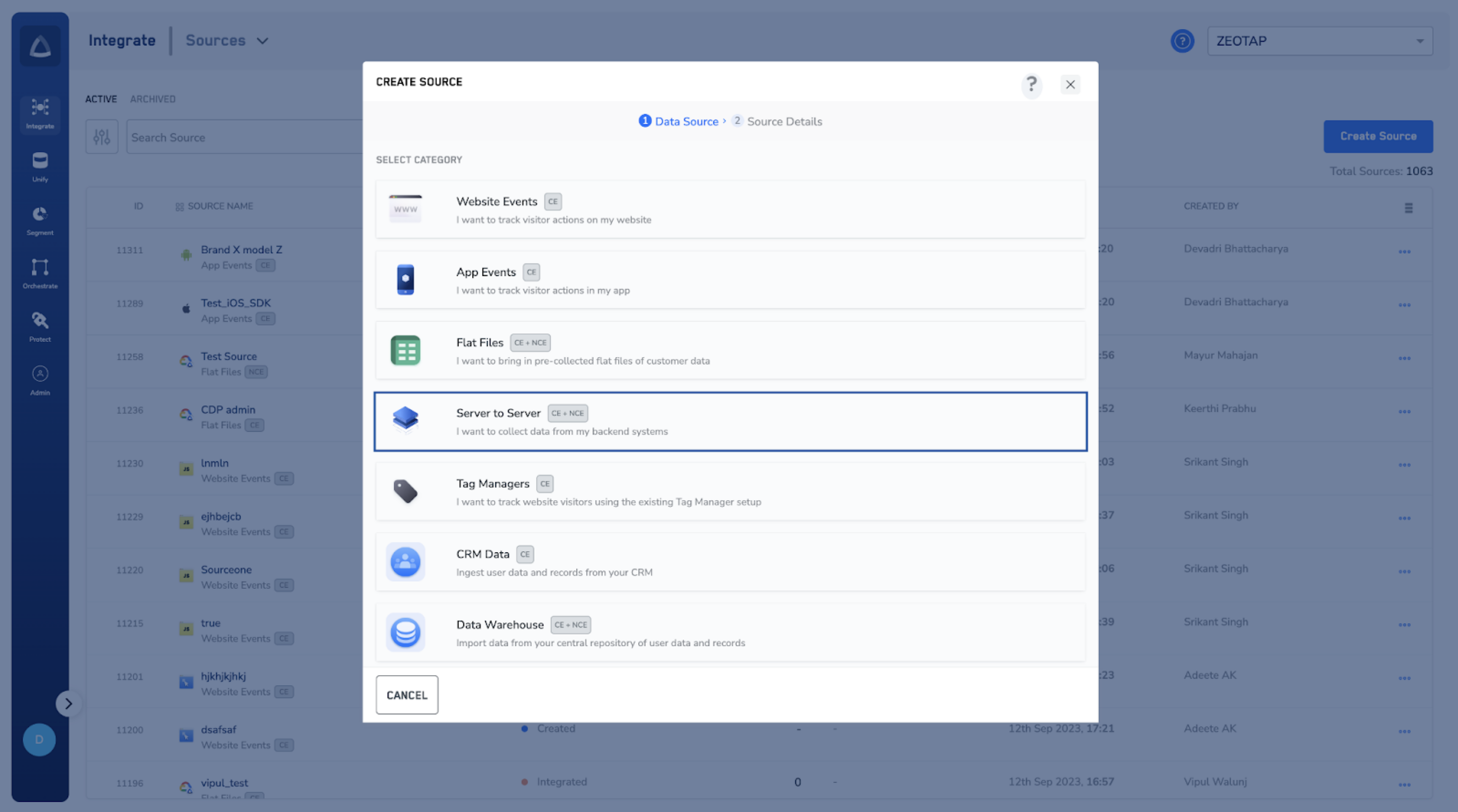
Perform these steps in the Zeotap CDP App:- Open the Sources application and click CREATE SOURCE.
-
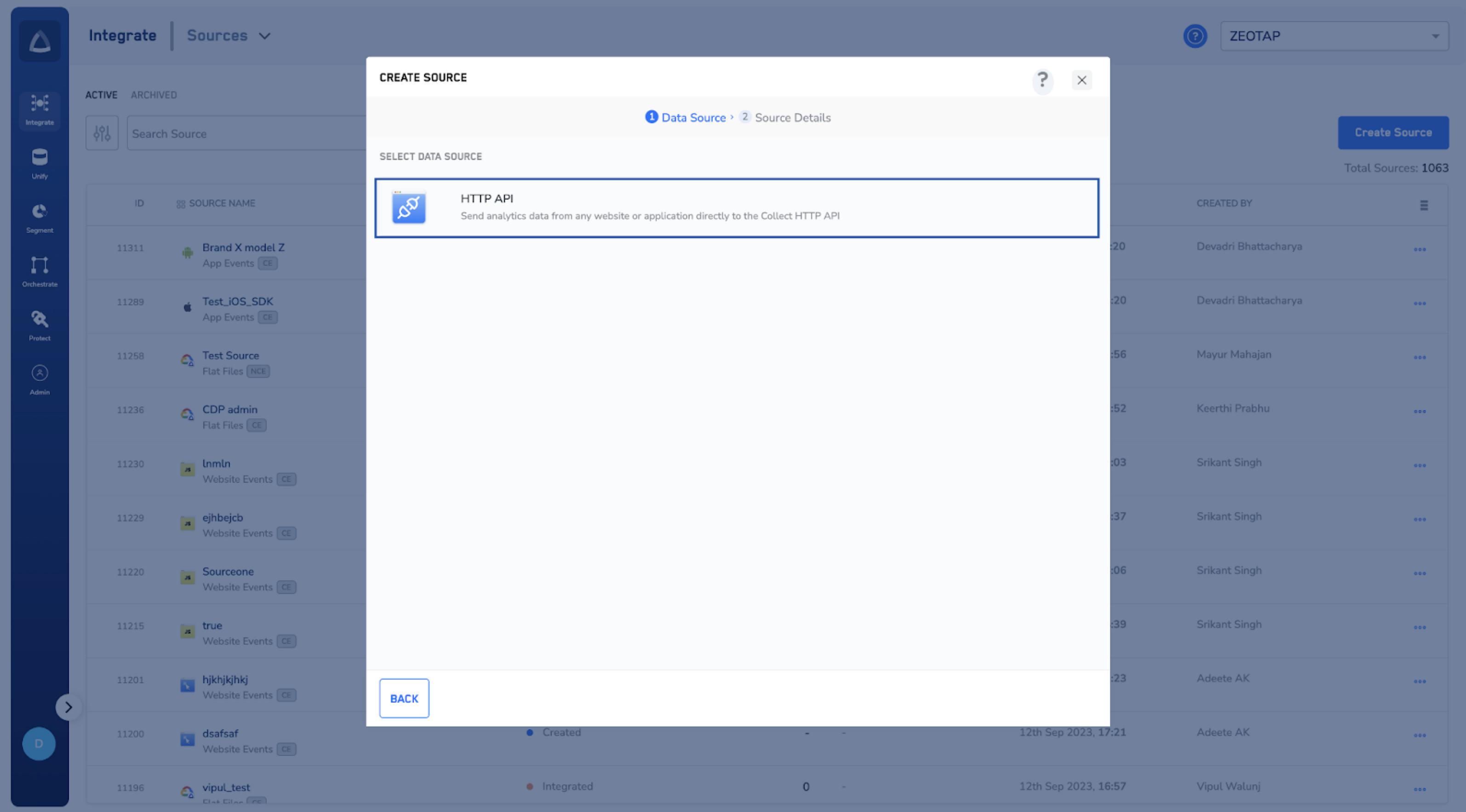
Choose Server to Server as the Category, then click HTTP API as the Data Source.
-
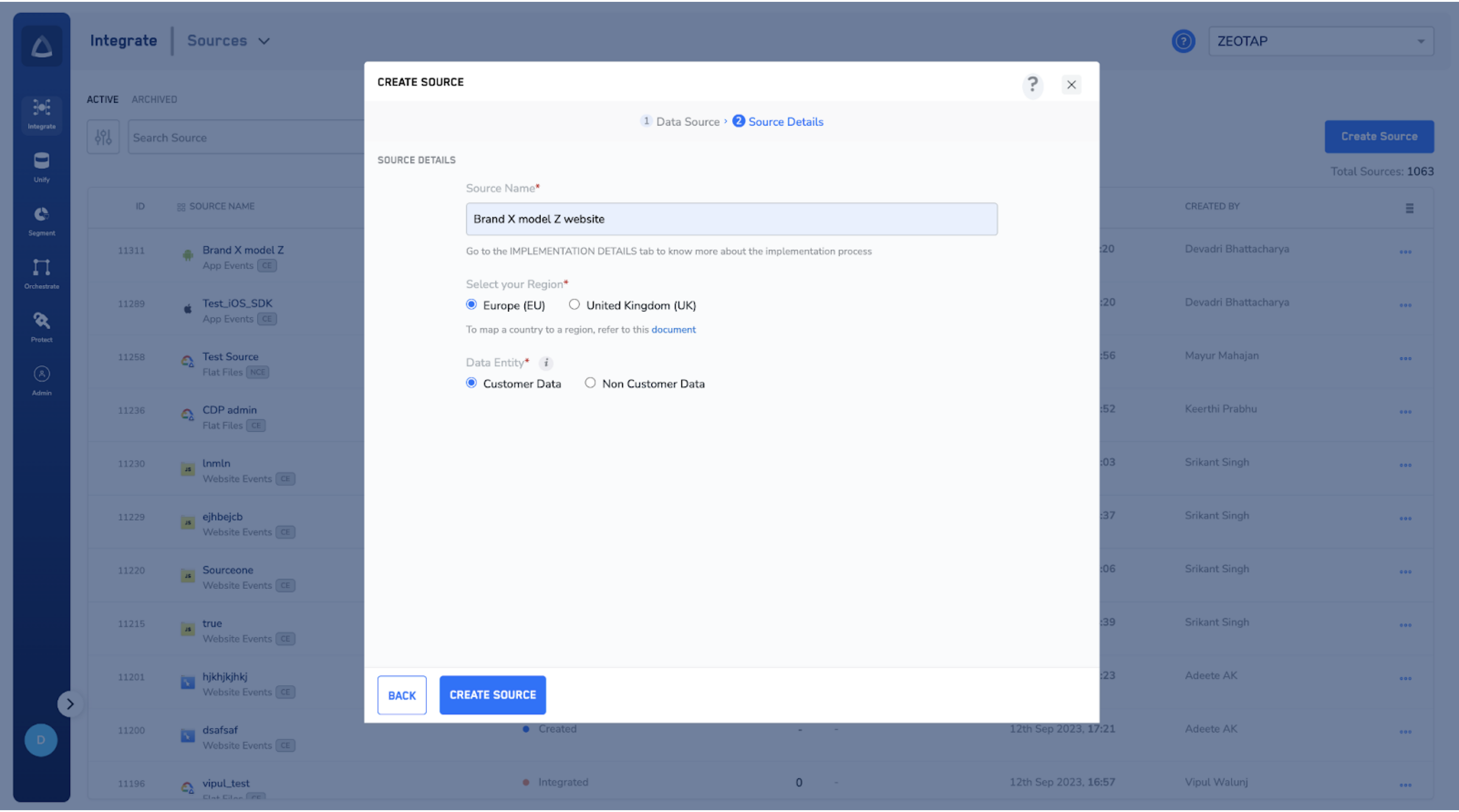
In the source creation window, enter:
- A short, descriptive name for the source.
- The region of upload where the data will be stored. See Region of storage for guidance.
- Under Data Entity, choose Customer Data or Non Customer Data depending on the payload you plan to send.
-
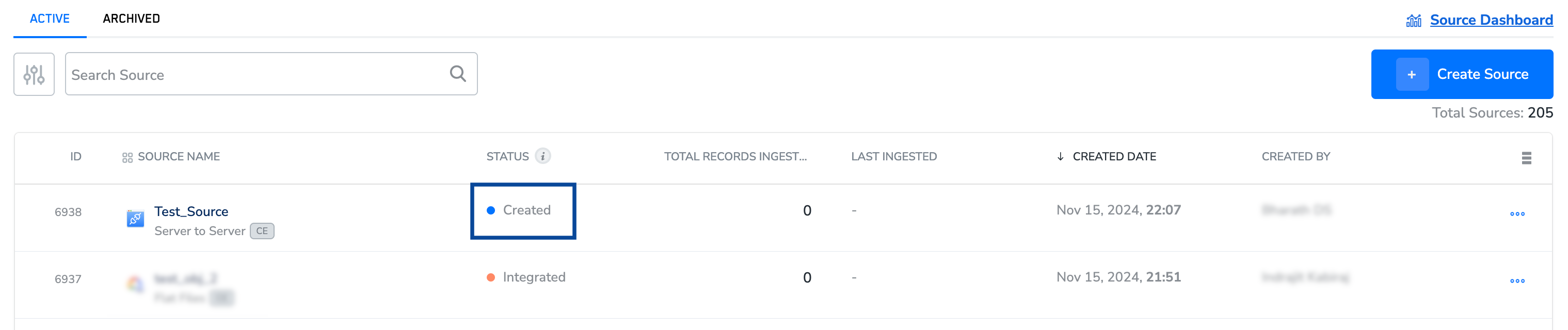
Click + Create Source. The new source appears on the source listing page with the Created status.
-
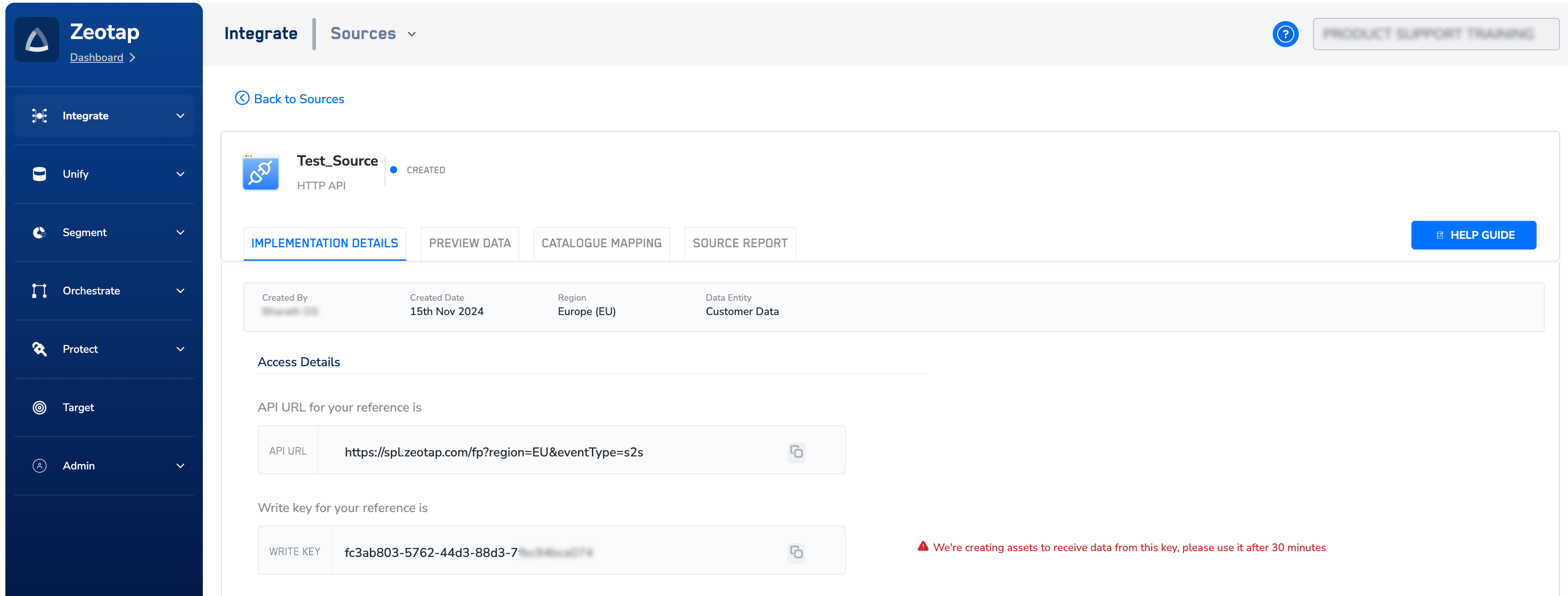
Open the IMPLEMENTATION DETAILS tab. Copy the write key and API URL — these are the credentials your server uses to authenticate and the endpoint it will call.
Send data with the HTTP API
After the write key is active, your server can send data through the Real Time API (one event per call) or the Batch API (an array of events per call). The endpoint, authentication, and headers are identical for both — the difference is the payload shape.Build the request
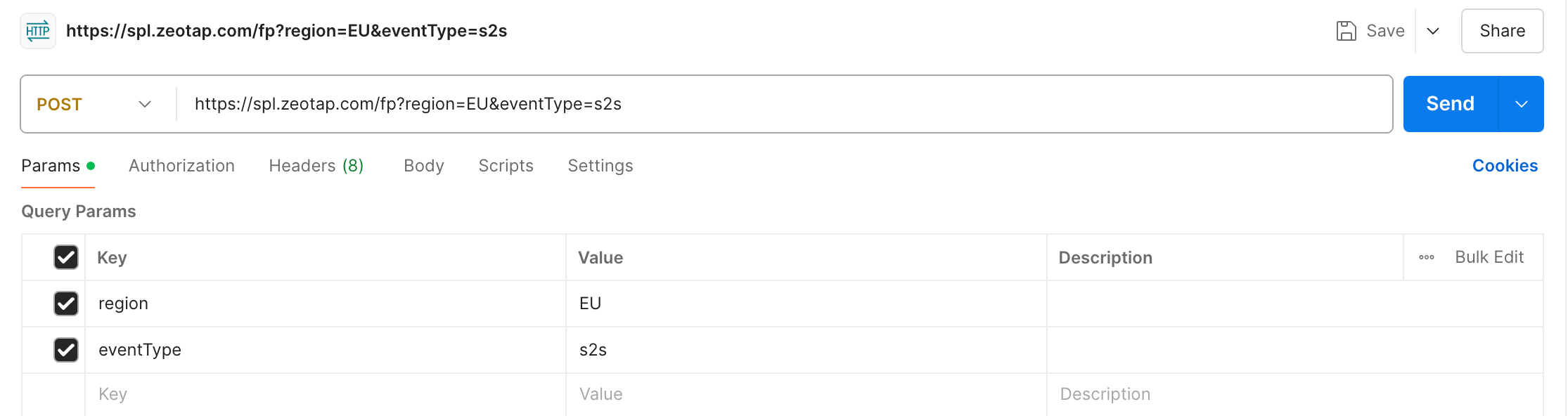
- Use the API URL from the IMPLEMENTATION DETAILS tab as the endpoint URL.
-
Add the following query parameters to the URL:
region— the region code matching the source (for example,EU).eventType— set tos2s.
-
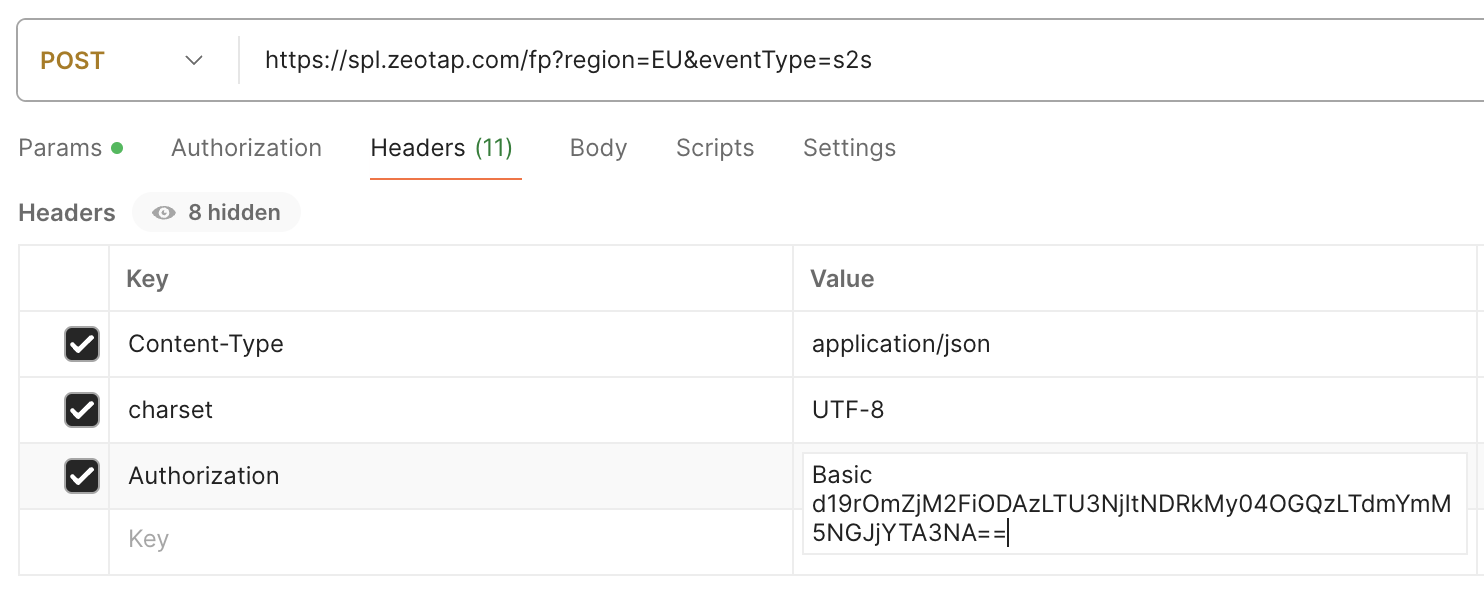
Set the request headers:
Content-Type: application/json; charset=UTF-8Authorization: Basic base64(w_k:<your_write_key>)
Authorization header value, prefix your write key with w_k: (no spaces), Base64-encode the result, and prepend Basic (with a trailing space). For example, if your write key is fc3ab803-5762-44d3-88d3-7fbc94bca074:
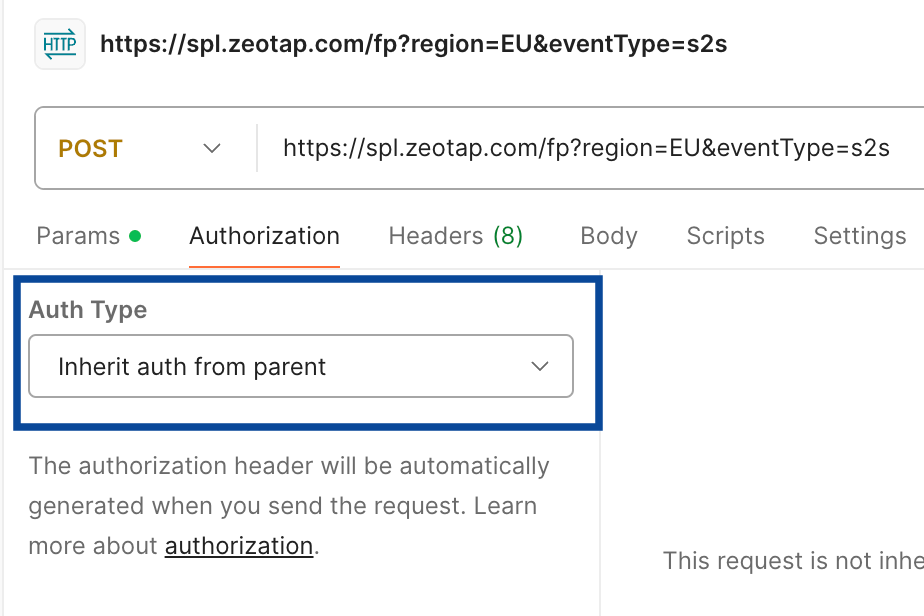
Authorization header you defined above is used as-is.
Send a Real Time API request
The Real Time API accepts a single event per request. Skeletal payload:Send a Batch API request
The Batch API wraps an array of events under a top-levelevents key. Setup and authentication are identical to Real Time — only the body shape changes:
Verify the integration
Send a test request from your server (or from an API tool such as Postman). You have integrated the source correctly when all three of the following are true:- The API returns HTTP
204 No Content. - On the source listing page, the source transitions from Created to INTEGRATED.
- The PREVIEW tab of the source shows the incoming records.
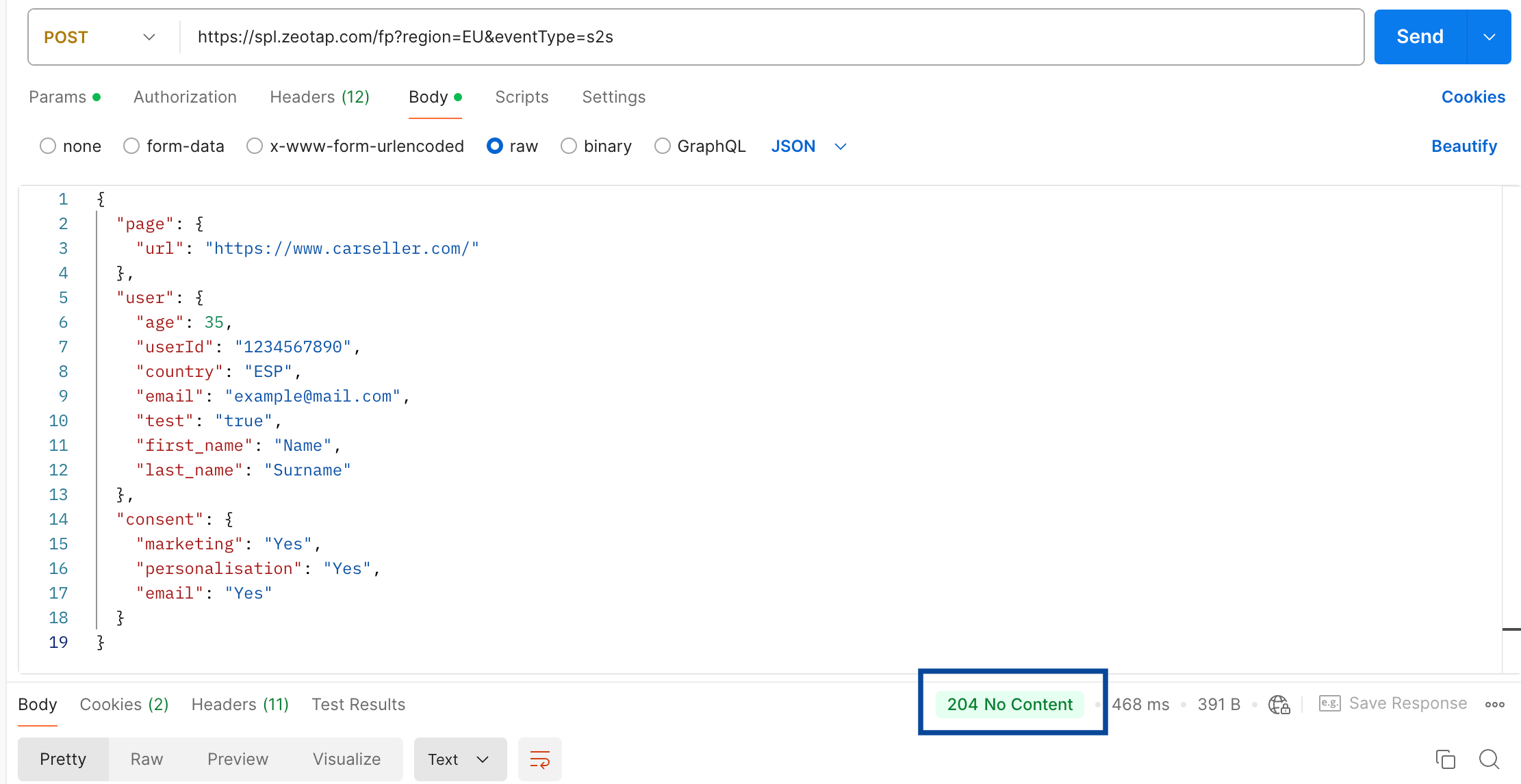
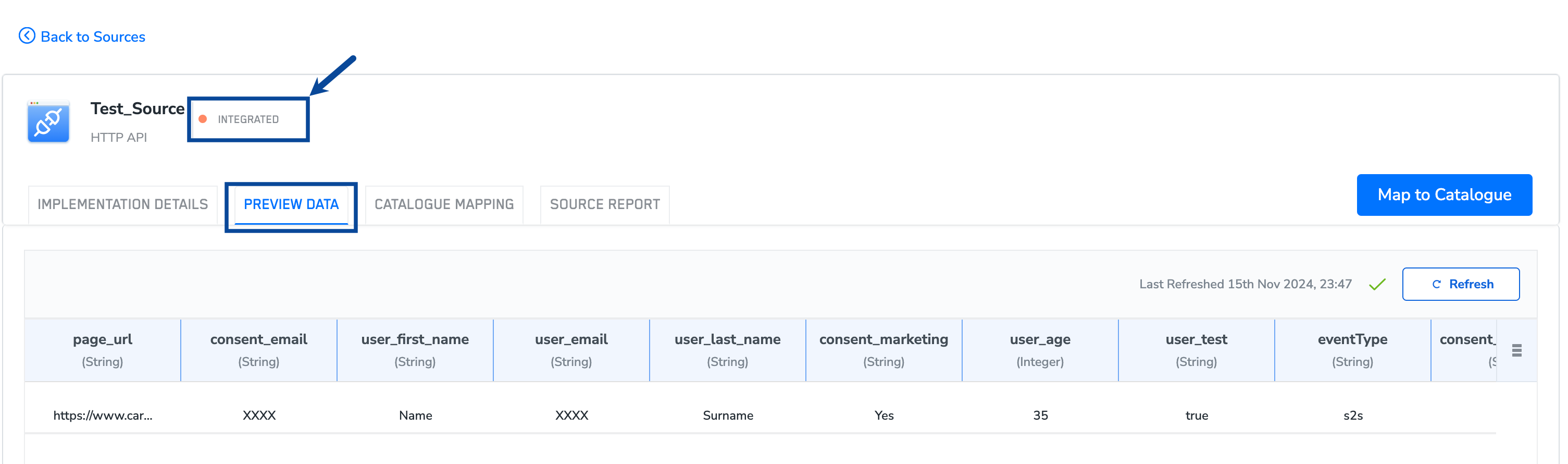
204, work through the troubleshooting section below.
Troubleshoot request failures
Zeotap returns these HTTP responses for S2S requests:
When you receive
400 Bad Request, work through these checks in order:
- Query parameters — confirm
regionis set to a valid region code (for example,EU) andeventTypeis set tos2s. - Endpoint and headers — confirm the request was POSTed to the API URL from the IMPLEMENTATION DETAILS tab, and that the
Authorizationheader follows theBasic base64(w_k:<your_write_key>)format shown in Build the request. - Request body — validate the JSON payload against a JSON linter, and confirm each event includes a user identifier and the user’s country.
- Debug detail — read the value of the
x-zeo-debugresponse header. It contains the specific error string the API returned for this request; use it as the starting point for the next fix.
x-zeo-debug response header, an anonymized copy of the request body, and the timestamp of the failing request.
JSON payload structuring guidelines
Structure the payload body around the type of data you are sending:- Event data — send event information in the
eventobject.eventNameandeventTimestampare the primary fields. Additional event attributes (for example,"discountSelected": "SPL25"or"cartVal": 100) belong inside the sameeventobject. - Page data — send page metadata such as URL, referrer, category, domain, and path in the
pageobject. - User data — send user identifiers and profile fields in the
userobject. To attach profile information to an ID without a separate business event, seteventNametosetUserProperties. - Consent data — send per-purpose consent values, together with the applicable regulation, in the
consentobject. - Device data — send OS, browser, device model, and similar attributes in the
deviceobject. - User identification — Zeotap does not fetch cookies or MAIDs automatically in server-to-server calls, so every payload must carry at least one user ID. For known users, attach hashed email, loginID, or phone number along with any device-based IDs. For anonymous users, attach device-based IDs such as first-party cookies, third-party cookies, or MAIDs.
- Country identification — Zeotap does not infer country from IP in server-to-server calls. Every payload must include a country value; when country is absent from the source data, hard-code it in the mapping and ingestion configuration for the source.
Zeotap supports flexible, configurable mapping of JSON structures from external systems. Ensure your data includes:
- User information — user identifier(s).
- Personal information — the personal fields you want ingested.
- Event data — event name and timestamp. Use either a UNIX timestamp or a fully time-zone-qualified ISO 8601 value (for example,
2024-09-05T11:02:44Z,2024-09-04T23:02:44−12:00, or2024-09-05T11:02:44+00:00).
Sample payloads
Real Time API payload
Batch API payload
NCE Batch API payload
Non-Customer Entity (NCE) payloads carry only theevent object per event — user, consent, and page are not required.
Performance
Query per second
The ingestion cluster auto-scales, so it supports high query-per-second (QPS) volumes. Contact your Zeotap point of contact ahead of time to enable active monitoring if you expect sustained QPS above 200.Batch size
Keep each Batch API payload at or below 20 MB.FAQ
Why does the write key not work immediately after I create the source?
Why does the write key not work immediately after I create the source?
Newly issued write keys need 30 minutes to propagate before Zeotap accepts them for authentication. Wait 30 minutes after clicking + Create Source, then retry the request.
How do I know the request reached Zeotap?
How do I know the request reached Zeotap?
A successful call returns HTTP
204 No Content, the source transitions from Created to INTEGRATED on the source listing page, and the records appear in the source’s PREVIEW tab.What identifiers must every event include?
What identifiers must every event include?
Every payload must carry at least one user identifier and a country value. For known users, attach hashed email, loginID, or phone number alongside any device-based IDs. For anonymous users, attach a device-based ID such as a first-party cookie, third-party cookie, or MAID.
Do batched events use a different endpoint or authentication?
Do batched events use a different endpoint or authentication?
No. The Batch API uses the same endpoint,
Authorization header, and Content-Type as the Real Time API. The only difference is the body shape — batched events are wrapped in a top-level events array.