

-
A source can be a website or an app and all the events happening on site. Assume that pixels are fired on all pages on the sample
website X. - A source can be a specific landing page(s) that you want to collect information from. This landing page can be a subset of a website or an app due to seasonality or security concerns. Assume that pixels are fired in the Level 10 event page, where in-App purchases are made.
- A source can be a campaign and all the events relating to that campaign. For example, the launch of the Redmi Note 4 on technological blog websites.
-
A source can be a set of campaigns that are logically grouped together or all the campaigns and their corresponding events. For example, the launch of Redmi Note 4 launch as one source consisting of data from each of the following campaigns:
- Campaign A consisting of celebrity banners
- Campaign B consisting of technical specifications
- Campaign C is key-word based
Create Global Properties and Pixels
Global properties are parameters attached to all pixels created under a source and are mandatory for the pixel to function properly. These properties areopt-in related parameters and macros as follows:
- IAB’s TCF-based macros for GDPR countries or simple
optin-yes/nomacros - Macros for MAID in the case of mobile app pixel
optin=yes/no or gdpr={euconsent}information in order to process the data.
In the case of a mobile app, pixels and MAID are mandatory for user identification. A mobile advertising identifier or MAID, is a unique pseudo-anonymous identifier tied to a mobile phone.
In the case of TCF-based consent signals, we decrypt the data to check for Publisher consent as the pixel is placed on your website or app properties.
Once you have created the source, the next steps are explained in the topics below.
Create Global Properties
After creating a source, the next step is to create the individual pixels within the source. Start by adding the global properties. The global properties are applied to all the pixels that you create for that source. To add the global properties, perform the following steps:1
Go to the IMPLEMENTATION DETAILS tab of the source.
2
Click ADD GLOBAL PROPERTIES and add the global properties.
3
Specify if you have
GDPR or TCF-based macros to define the user consent.- If you have a
GDPRorTCF-based macro, then enter theGDPRmacro and theConsent Stringmacro. - b. If you do not have a
GDPRorTCF-based macro, then enter theOpt-Inmacro.
4
Click ADD PROPERTIES. The CREATE PIXEL button is activated once the global properties are added.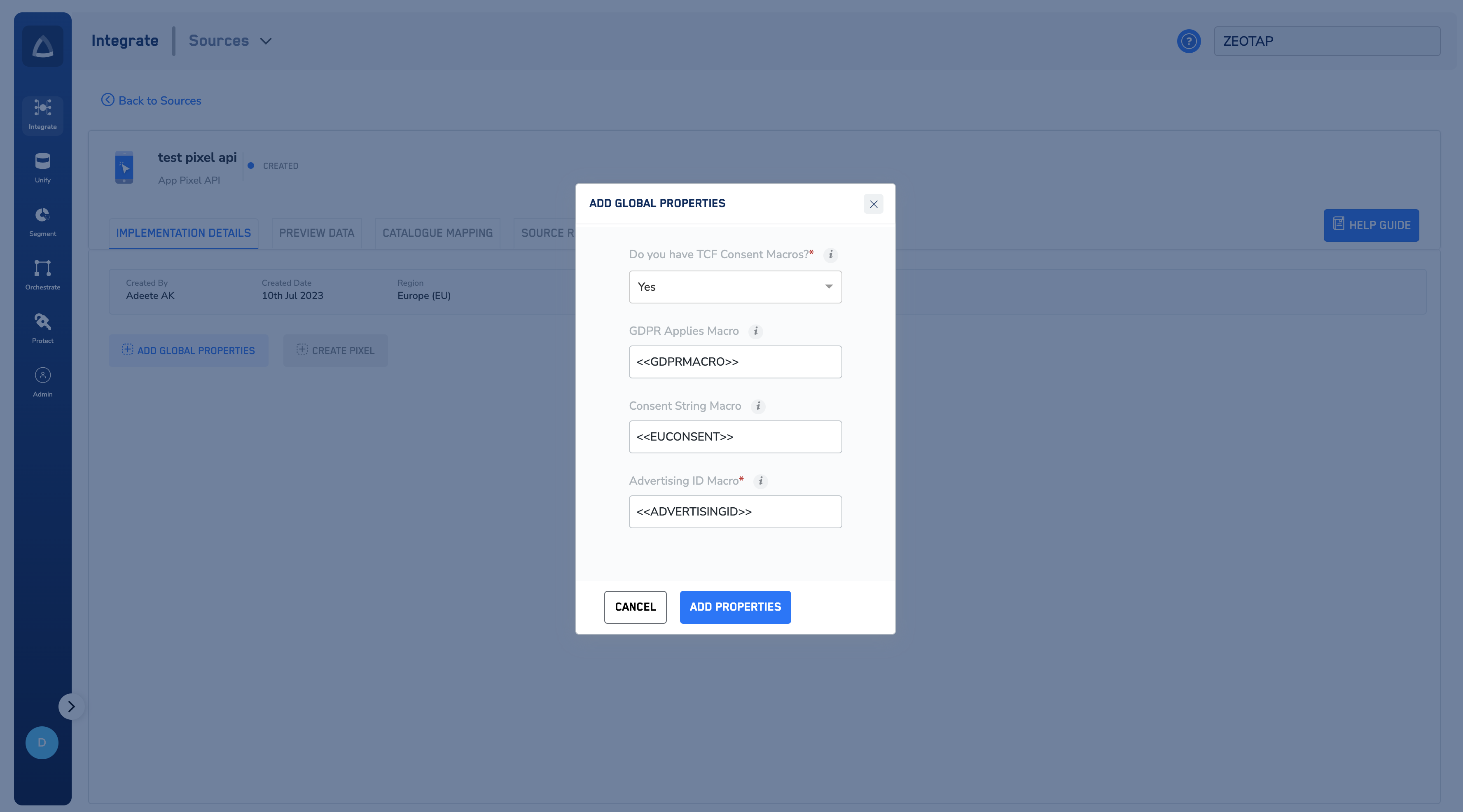
Create New Pixel per Event
After you have added the global properties, next you have to create pixels for the events. The pixel that you create contains the following details:- The
write_keyfor your source - The environment whether it is mobile App or mobile Web
- The global properties and their values
- The
eventTypeadded in the pixel
1
Go to the IMPLEMENTATION DETAILS tab of the source.
2
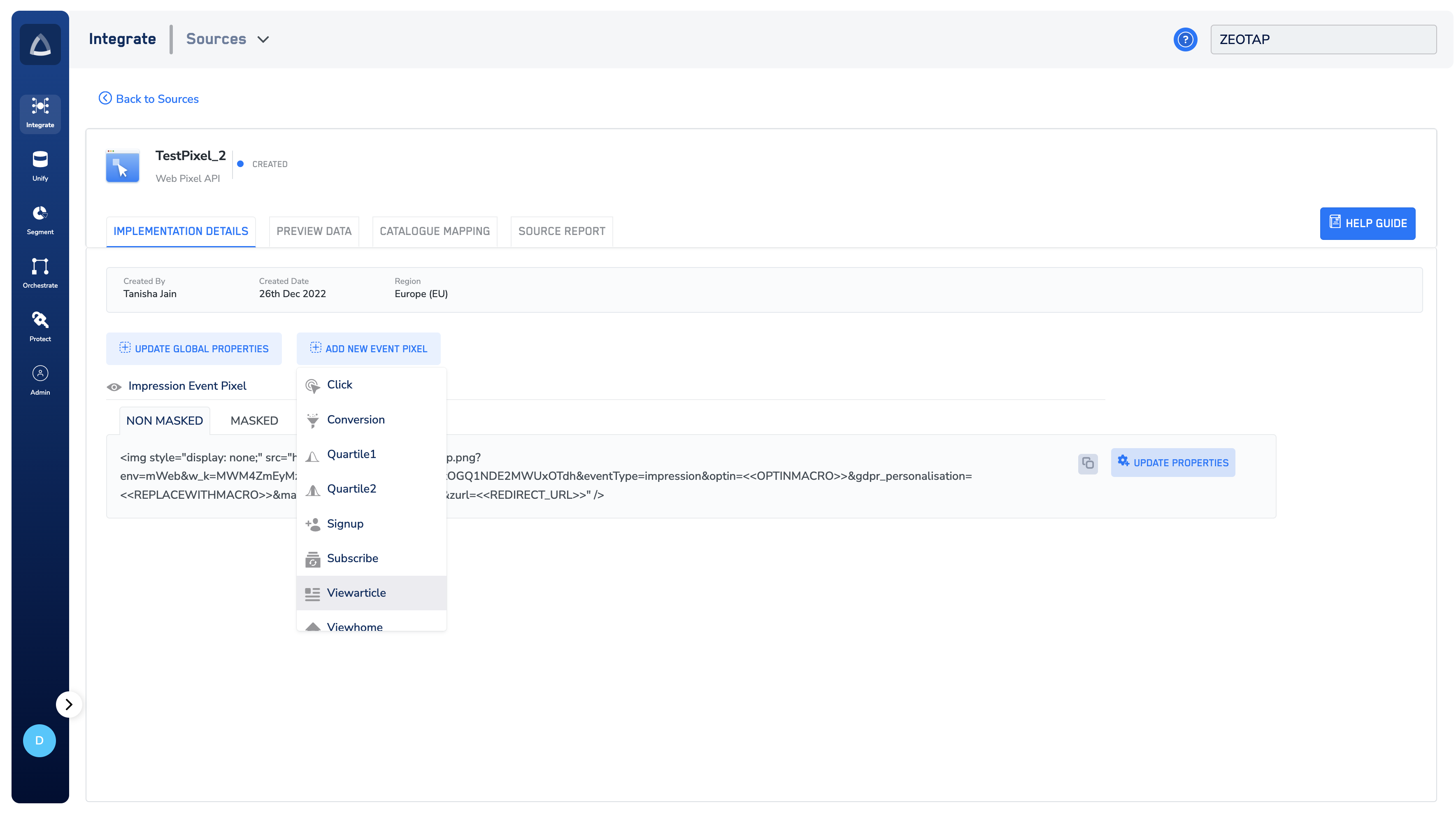
Click ADD NEW EVENT PIXEL to add the event pixel.
3
A list of events supported by the Zeotap catalogue appears. You can either select the event that is applicable for you or an event that is closest to the event that you want to capture.
4
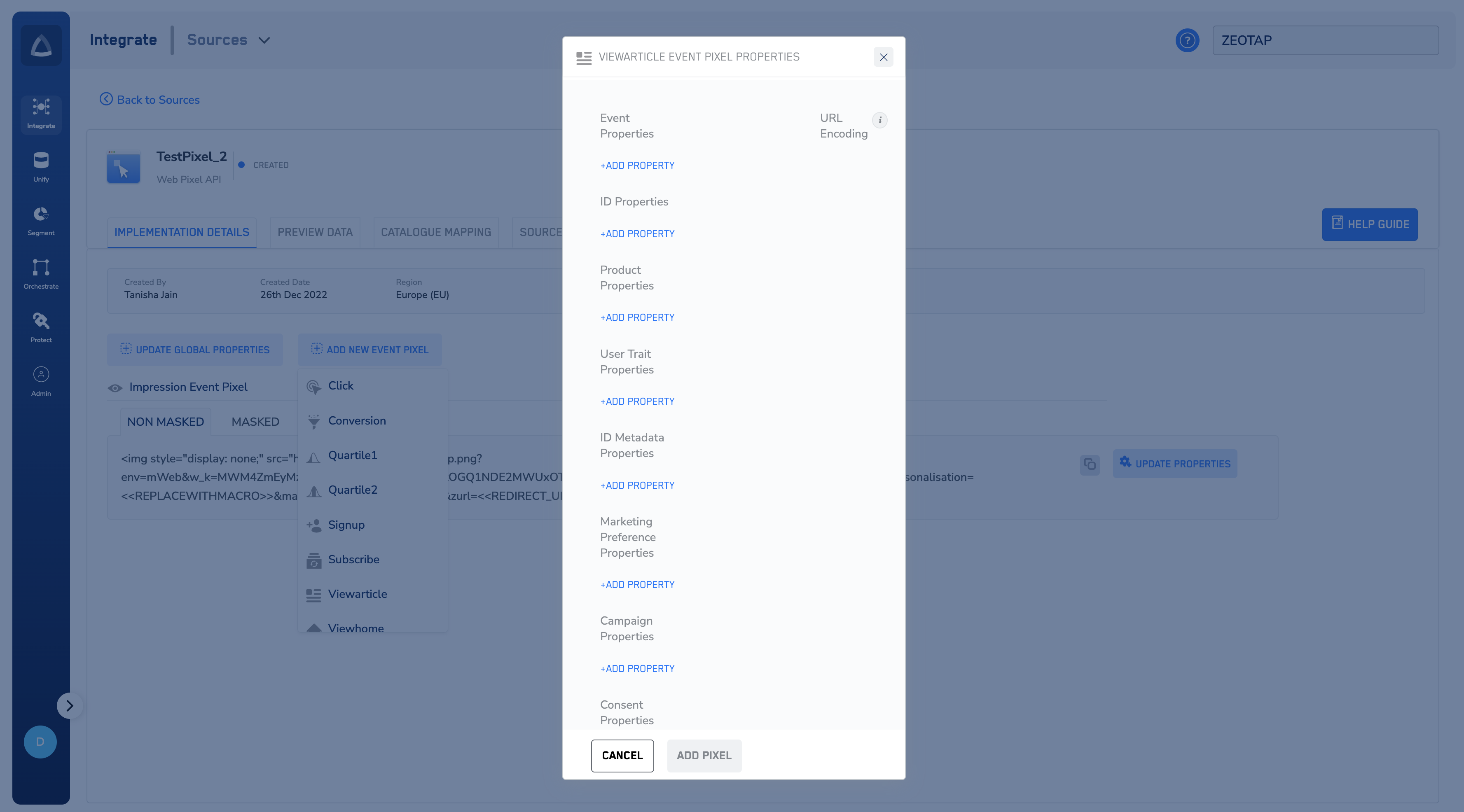
Once you have chosen an event, add the properties that you want to attach to the pixel. For the pixel that is created, you can attach more properties to be tracked using the add/update properties section. The properties are grouped as follows:
- ID Properties
- User Properties
- Page Properties
- Campaign Properties
- Events General Properties
- Events Automotive Properties
- Events eCommerce Properties
5
You can set the country of the user by selecting property - country under user group and sending standard alpha iso 3 country codes as values. If this is not sent, by default we will consider the IPAddress of the request for resolving country > Region.
Note:The Click event pixel works in a different manner as no cookie syncing is performed. Assume that you do not want toland the clicker on a campaign page and do not want to cause any delays that may happen due to redirection to any cookie syncing and the final landing page. Therefore, for the Click event, only the Zeotap cookie is captured in the pixel. To capture other cookies, configure other pixels in the same source. So that other pixels can be used to capture cookie sync through other events.
Create a Generic Pixel
Assume that you have created a source to capture all the events on a website. In that case, you can create a generic pixel for an event rather than creating one pixel per event.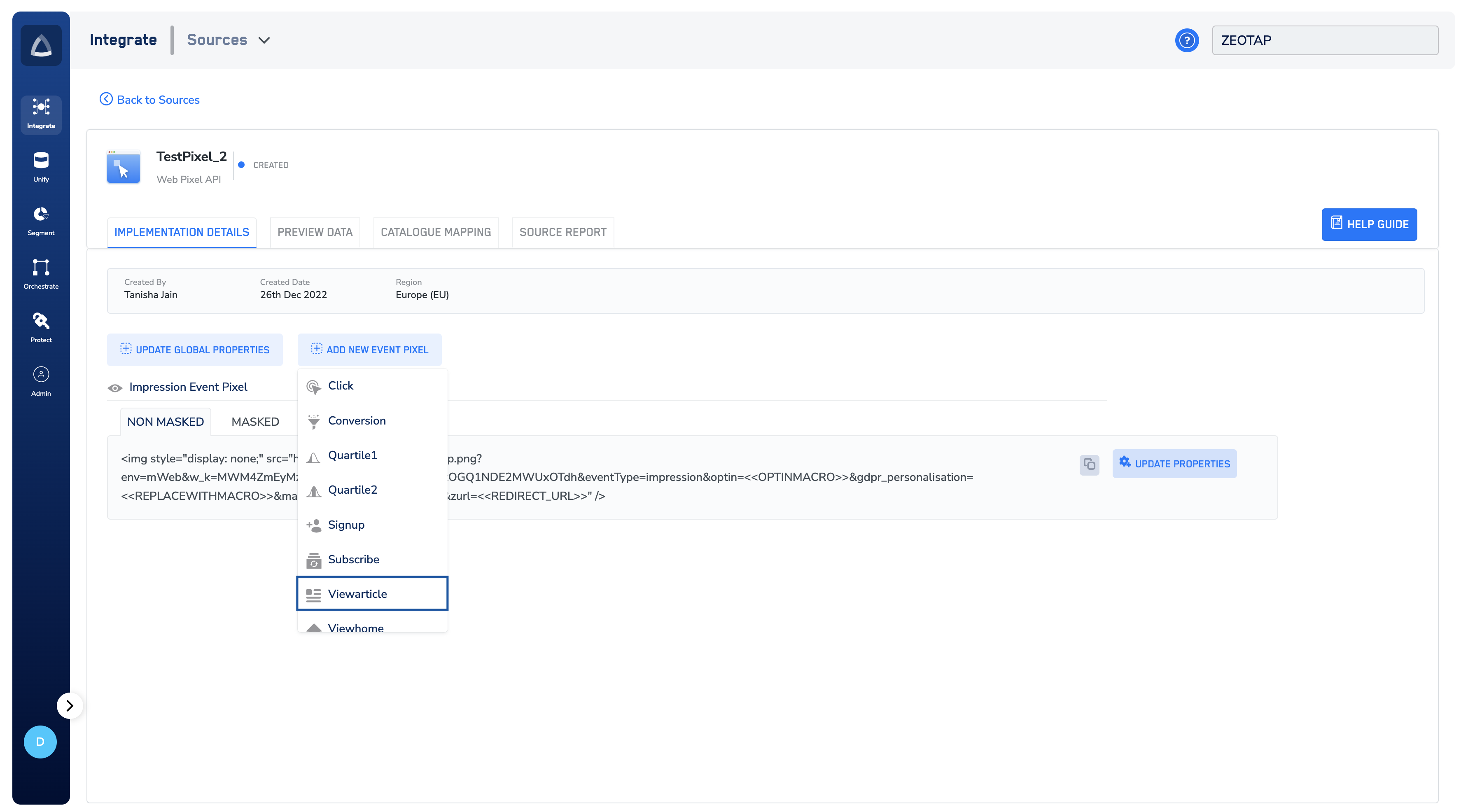
Note:We recommend that you check the pixel across pages to ensure no data loss as across the different browsers mightrestrict the different event names.
Create Masked Pixels
In the pixels that are created per event, the more you add properties, the longer the pixel becomes. This could potentially be a problem with browsers that accept smaller lengths of URLs. To counter this, you can create a pixel where all the data is sent inbase64 encoded format. This data can be in the form of a JSON payload with the campaign, event, page, user and id objects, which gets built-in real-time and then must be base64 encoded and attached as value to the parameter ‘&payload=’.
Switch to the MASKED tab for each pixel to copy the base pixel to which this base64 encoded payload must be attached. This section also has a base64 encoder that you can try for static payloads typically for campaigns or campaign landing pages. The static payloads encode and generate the pixel that you can use.
A sample payload (static or in real-time with actual values) looks as follows:
Code
1
On the page or event being triggered, create a JSON payload as shown below.
Code
2
Encode it in base64 as mentioned below.
3
Add this to the pixel (whether iframe or image).
4
Below is the final tag that is fired.
Copy or Email Pixels
Once the pixels are created, you can directly copy them from the Collect UI or send an email to the Implementation Team directly from the UI, with the pixels and the Implementation Guide.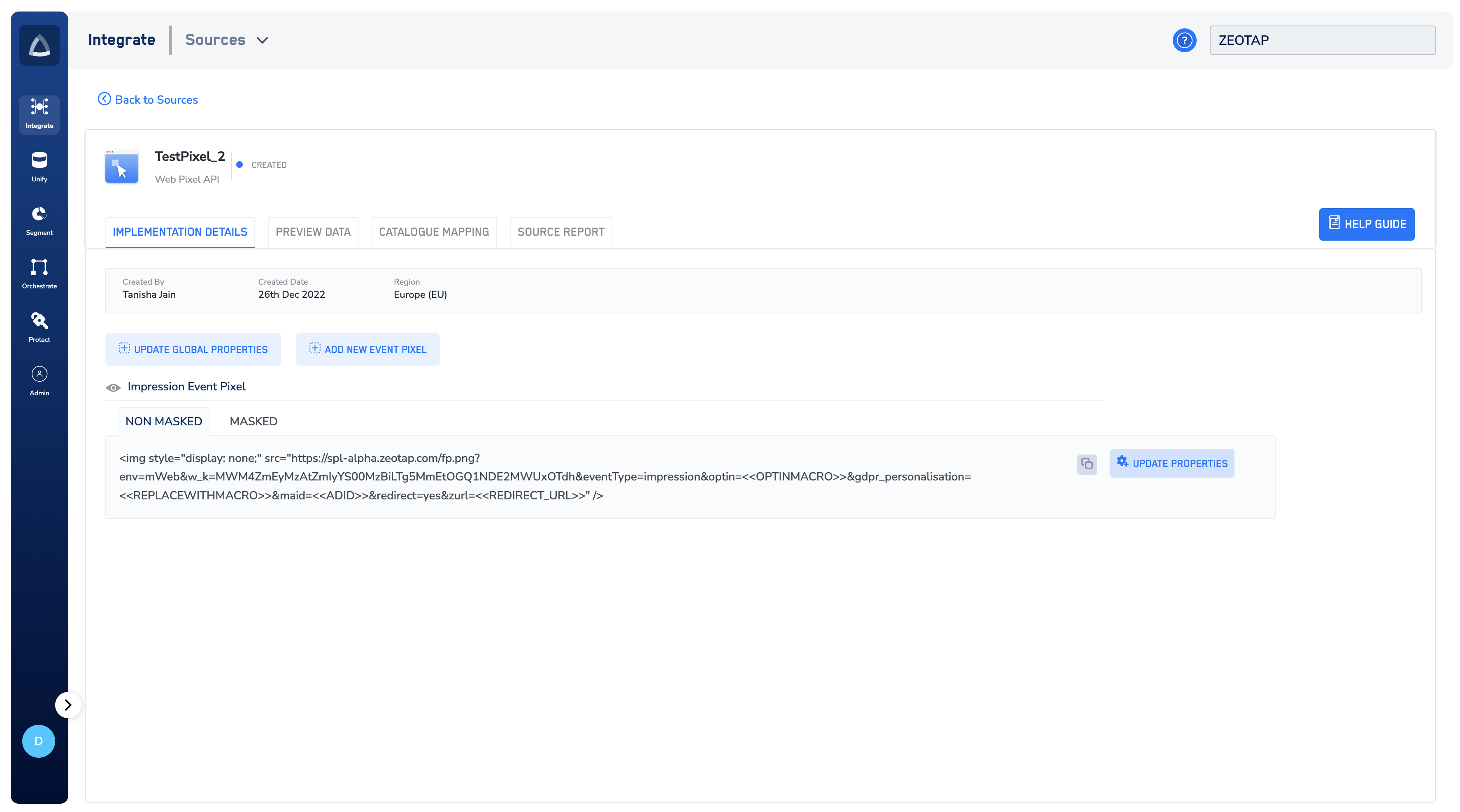
Note:The records for the
country and city columns are blacklisted for ingestion because SPL uses the user’s IP address to find out the country and city automatically. For the complete list of blacklisted fields, click here.