

Note:Refer to Web Pixel/Web iFrame/App Pixel Source to know more about this source.
1
Navigate to the Sources application under Integrate, in the Zeotap CDP App.
2
Click CREATE SOURCE.
3
Choose Website Events or App Events as the Category.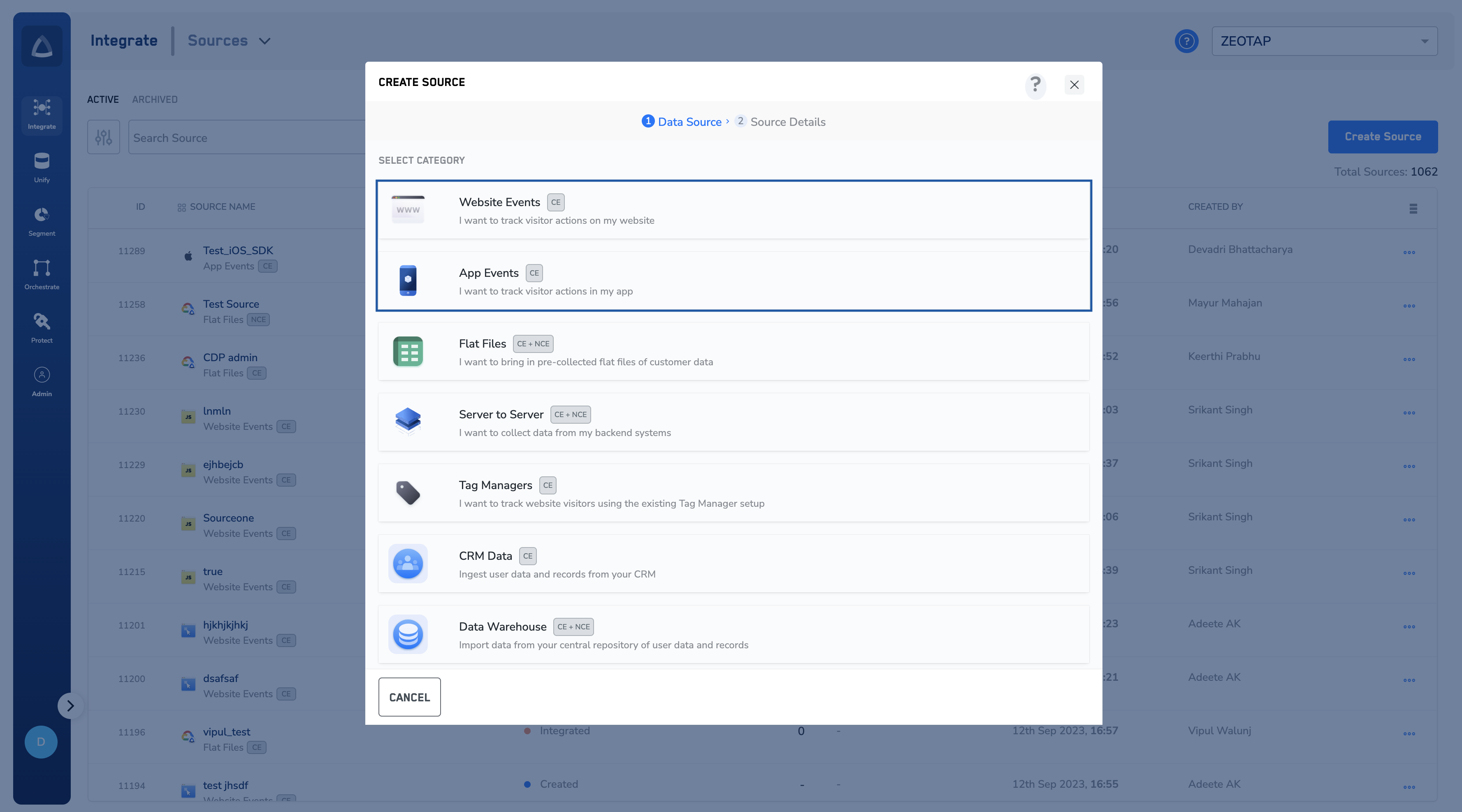
4
If you have chosen Website Events, then choose Web Pixel API or IFrame as the Data Source.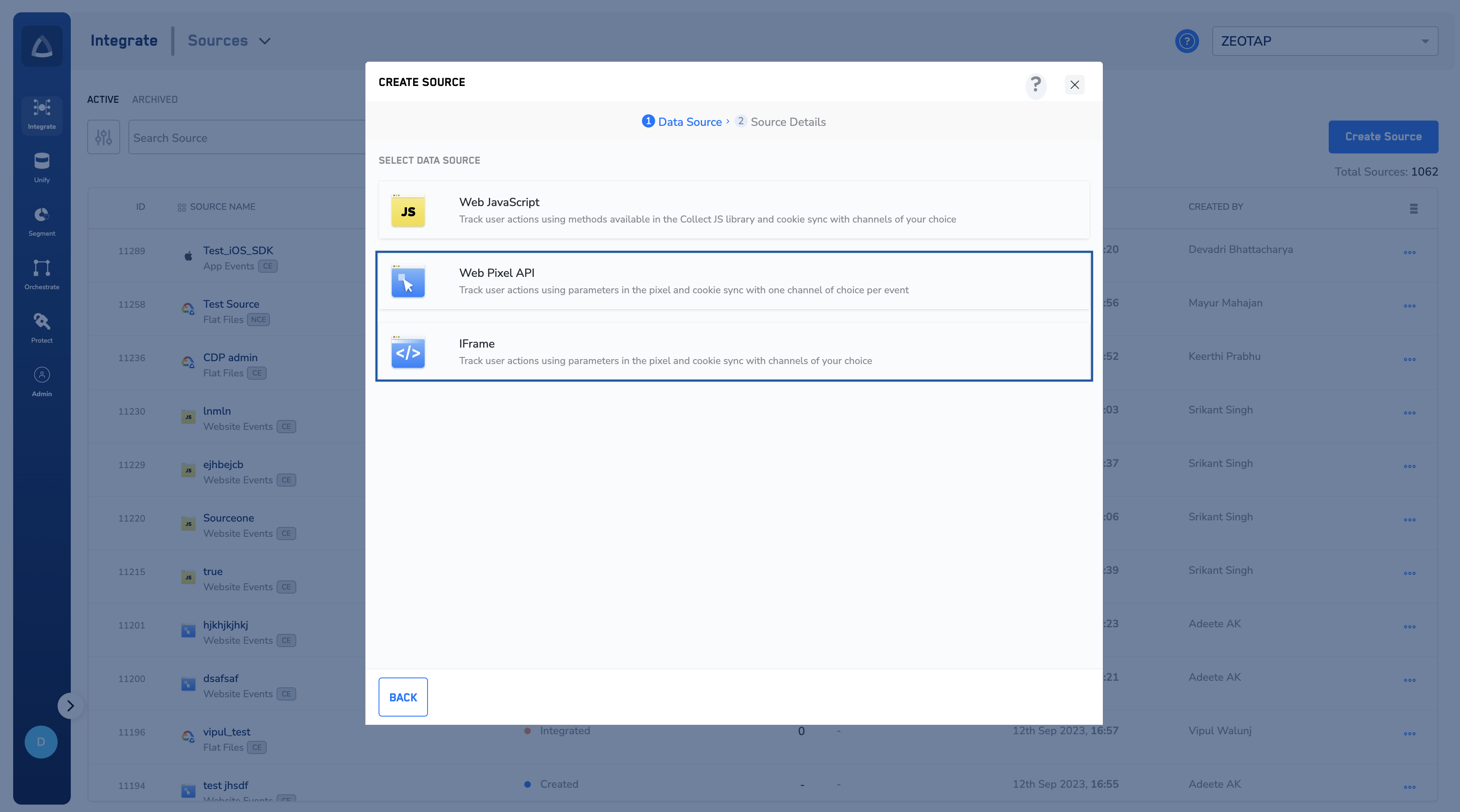
5
If you have chosen App Events, then choose App Pixel API as the Data Source.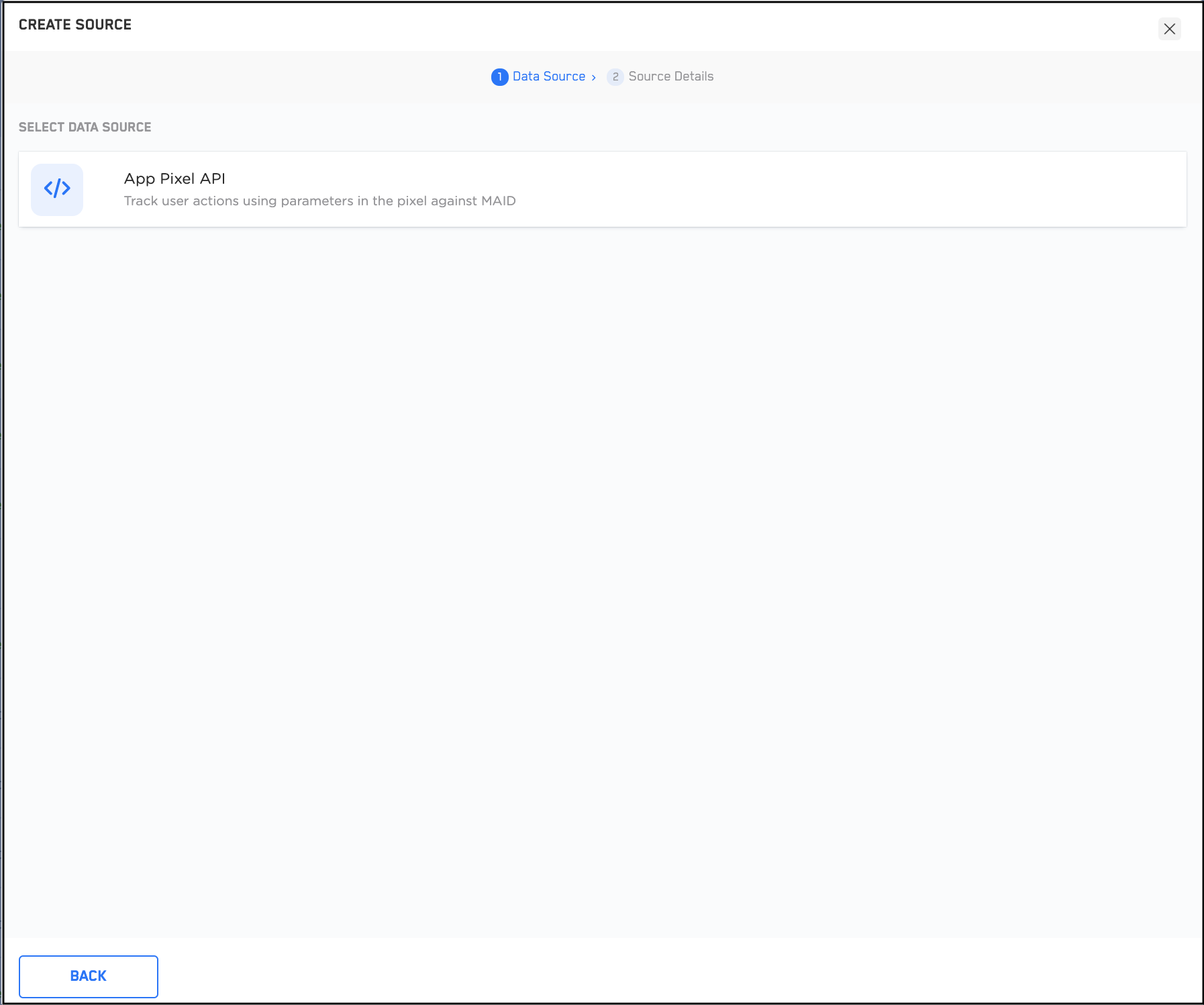
6
Enter a short and descriptive name for the Source.
7
Choose the region of upload and proceed with the Source creation.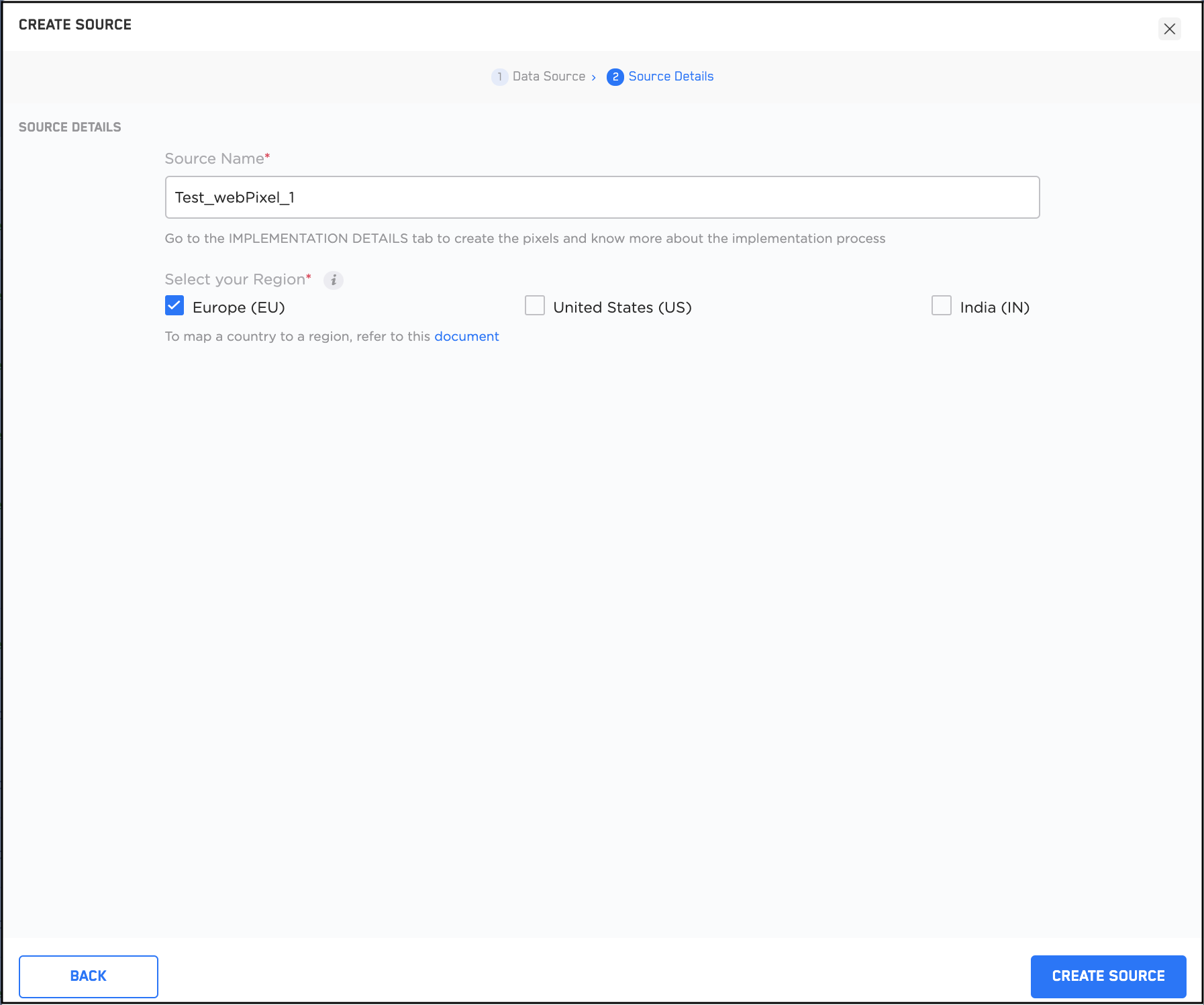
8
Click CREATE SOURCE. The created Source appears on the SOURCES listing page. Click on a particular Source to view the details regarding the snippet code and authorisation key.
Note:Once the Source has been taken live based on the implementation steps available, you can use the PREVIEW tab tosee incoming data. To know more about how to implement a Pixel or IFrame Source, refer to Pixel Implementation.