Note:Refer to Source - Salesforce CRM to know more about this source.
Prerequisites
To proceed with Salesforce CRM creation, ensure that you adhere to the following points:1
Create an account inSalesforce. If you already have a paid Salesforce account, then you can use your account.
2
If you do not have a paid account, then go to the Salesforce Developer Edition and create a new developer account. Do not create a free trial account as sometimes you cannot enable the API for your Salesforce account using a free trial account.
3
After logging into your account, create a Connected App. Refer to the later sections to know more about how to create a connected app, obtain the authorisation code and refresh token.
4
Also, ensure that you have the following information available with you:a. Consumer Key and Consumer Secret – Refer to Connected Apps to know more.b. Refresh Token – Refer to Refresh Token to know more.c. Domain – This is the URL using which you log into your Salesforce account. That is -
https://zeotap--devops.my.salesforce.com/. In the URL, the part before .my.salesforce.com/(zeotap--devops), is your Domain.d. Callback URL – The Callback URL is https://login.salesforce.com. Refer to Connected Apps to know more.How to Create a Connected App
Perform the following steps to create a Connected App:1
Log in to Salesforce as an Administrator.
2
From the account drop-down list appearing in the top-right corner, click Setup.
3
In the left-hand pane, go to Apps > App Manage r.
4
Click New Connected App in the top-right corner.
5
On the New Connected App page, enter the following required fields under Basic Information:
a. Connected App Nameb. API Namec. Contact Email
6
Go to API (Enable OAuth Settings) and select Enable OAuth Settings.a. In the Callback URL field, enter https://login.salesforce.com/.b. In the Selected OAuth Scopes field, select the following options:i. A ccess and manage your data (api)ii. Perform requests on your behalf at any time (refresh_token, offline_access)iii. Provide access to your data via the Web (web)c. Click Add.
7
Click Save to save the changes for the new Connected App.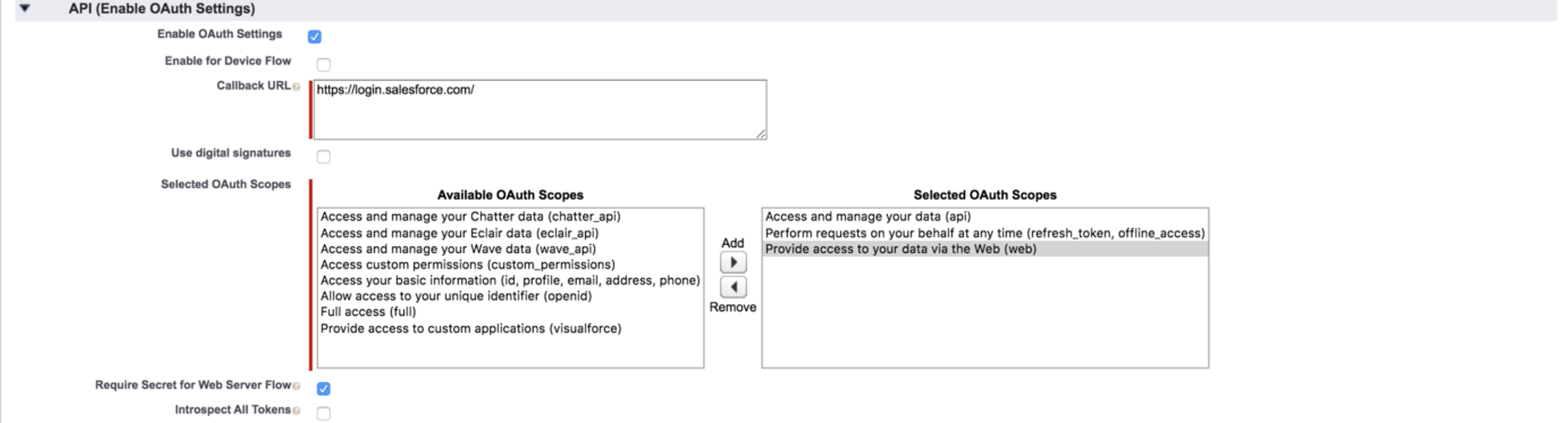
How to Manage a Connected App
In the Connected Apps (Apps > App Manager) list, perform the following steps to manage the App:1
Find the App that you just created and then click Manag e.
2
On the page that opens, click Edit.
3
Under OAuth Policies, make the following selections:a. In the Permitted Users drop-down list, select All users may self-authorize.b. For Refresh Token Polic y, select the Refresh Token is valid until revoked option.
4
Save the changes..png?fit=max&auto=format&n=5K-Zf-MYwWXwJWp5&q=85&s=f8be21a1c0bc2e7e106d8504e08baec4)
5
Go back to the Connected Apps (Apps > App Manager) list.
6
Click the App that you just created and then click View.
7
Go to the API (Enable OAuth Settings) section and note down the Consumer Key and Consumer Secret. These two details are required while creating the Salesforce CRM source in the Zeotap CDP App..png?fit=max&auto=format&n=5K-Zf-MYwWXwJWp5&q=85&s=bda20d6544ade053745818d215b483a0)
How to Obtain the Authorisation Code
Perform the following steps to obtain the authorisation code from Salesforce:1
Log in to Salesforce as an Administrator.
2
Enter the request URL mentioned below in a new tab to get the code.i. Replace
CONSUMER_KEY> with the Consumer Key that you obtained from the above section.ii. Replace YOUR_DOMAIN> with your domain name.Code
3
Allow access to alert pop-ups if any. Your browser is redirected to a URL as this -
Code
4
Obtain the authorisation code from the query string -.png?fit=max&auto=format&n=5K-Zf-MYwWXwJWp5&q=85&s=f53e32fb0de2f18563c1733d1ce2cbec)
aPrxYXyxzkuBzbDGdwv67qekAQredtrsWqty38LsdhfREyTRbvdjvTqdbvxPVC__4Cb9xGKDGErtOw%3D%3DHow to Obtain Refresh Token
Perform the following steps to obtain the refresh token:1
Hit the curl request mentioned below to obtain the refresh token. You can use the Postman client to import the below curl and hit the request.a. Replace
<YOUR_DOMAIN> with your domain.b. Replace <AUTHORISATION_CODE> with the authorisation code that you obtained from the above section.c. Replace <CONSUMER_KEY> and <CONSUMER_SECRET<> with the keys that you obtained while creating the Connected App.Code
2
You can obtain the
refresh_token from the response mentioned below.Code
Troubleshooting Errors
While sending a request to the Salesforce API using the above credentials, you may encounter a few errors. This section provides a brief explanation of these errors and a resolution for them.Error
‘REST API is not enabled for this Organization’ Issue
Description
The error denotes that the rest API is not enabled for this organization.Resolution
Perform the following steps to resolve this error:1
Click Setup on the top-right corner..png?fit=max&auto=format&n=xGzkHY-dcQy5tLit&q=85&s=df8d8d2fdd407674df5c307cceef3231)
2
Navigate to ADMINISTRATION > Manage Users and click Profiles..png?fit=max&auto=format&n=xGzkHY-dcQy5tLit&q=85&s=8c857af23e0c1d09d7b5cfa74264eb02)
3
Click Edit for the specific profile that you want to update.
4
Under the Administrative Permissions section, select the API Enabled checkbox..png?fit=max&auto=format&n=xGzkHY-dcQy5tLit&q=85&s=eeae13d3e8dbdf6b6f3a99d850b2748d)
5
Scroll to the bottom of the page and click Save to save your changes.
Create a Salesforce CRM Source
Perform the following steps to create a Salesforce CRM Source in the Zeotap CDP App:1
Navigate to the Sources application in the Zeotap CDP App.
2
Click CREATE SOURCE.
3
Choose CRM Data as the Category..png?fit=max&auto=format&n=5K-Zf-MYwWXwJWp5&q=85&s=388421943bae89eaef3119eecbb90159)
4
Click Salesforce CRM at the Data Source.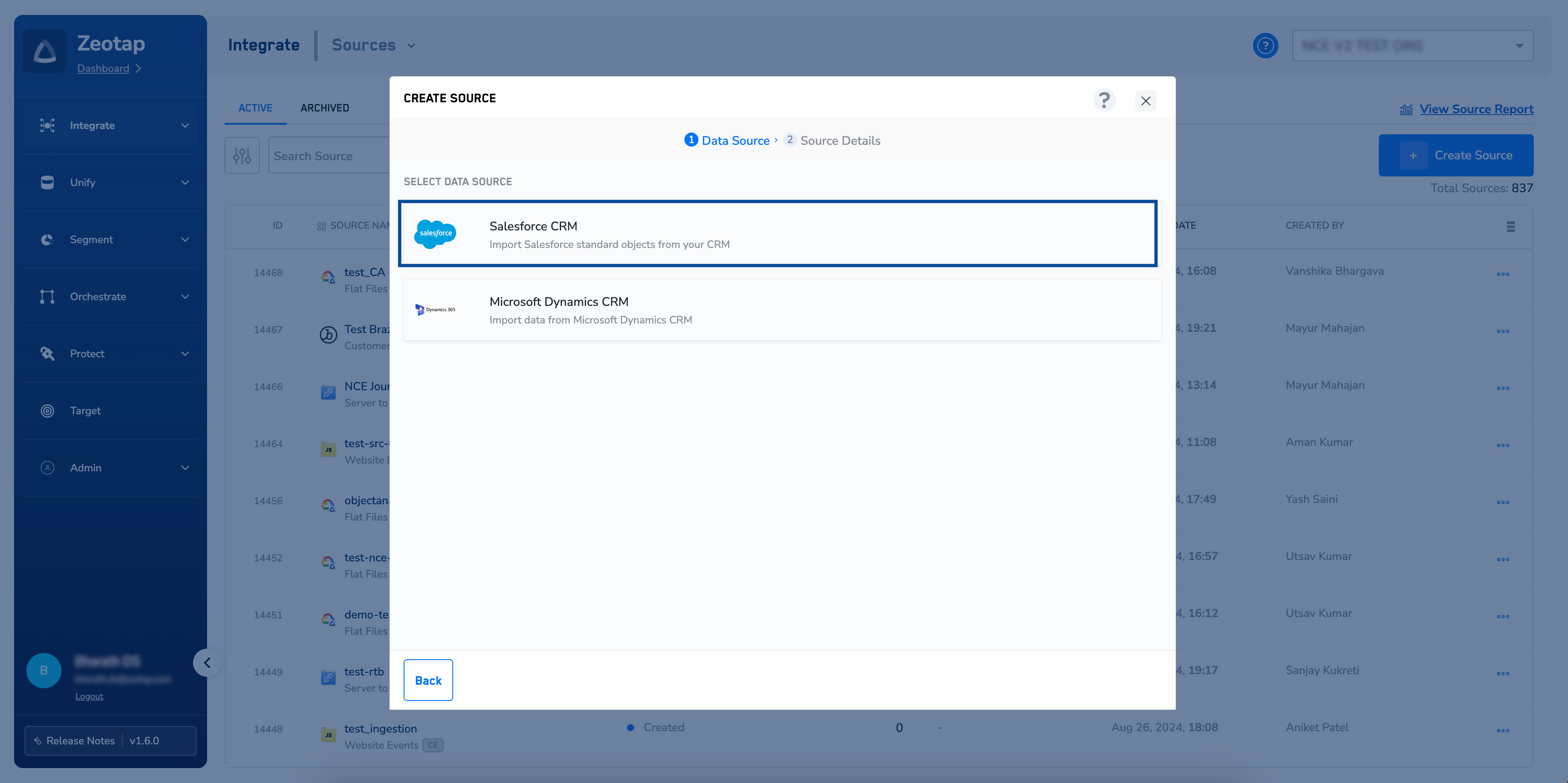
5
Enter a short and descriptive name for the Source.
6
Select the Region of upload.
7
Choose the desired Sync Frequency from the drop-down list. The first sync takes place once you create the source. However, the subsequent syncs take place based on the sysc frequency you selected. Currently, we support the following sync frequenciesa. Sync onceb. Every hourc. Every 3 hoursd. Every 6 hourse. Every 12 hours,f. Dailyg. Weeklyh. Monthlyi. Sync Time- When you choose Daily, Weekly, or Monthly as the sync frequency, you can specify the exact time for the sync to occur.ii. Sync Period- Indicates whether the selected Sync Time is in the AM or PM.iii. Monthly Sync date- If Monthly sync is selected, you can specify the day of the month on which the sync should run.
8
Enter the Client ID. This is the Consumer Key mentioned under Create a Connected App.
9
Enter the Client Secret. This is the Consumer Secret mentioned under Create a Connected App.
10
Enter the Refresh Token as mentioned under Obtain the Refresh Token.
11
Enter the Domain.
12
Under Data Entity, depending on the type of data you want to ingest, choose either Customer Data or Non Customer Data and proceed with the Source creation. To know more about Customer Data and Non Customer Data, refer here.
13
Under Fetch Mode, select either Full or Deltabased on the requirement.a. Full - Receives all available data during the initial fetch and thereafter consistently fetches data as per the sync frequency configured.b. Delta - Receives all available data during the initial fetch and thereafter exclusively gathers incremental updates (deltas) as per the sync frequency configures.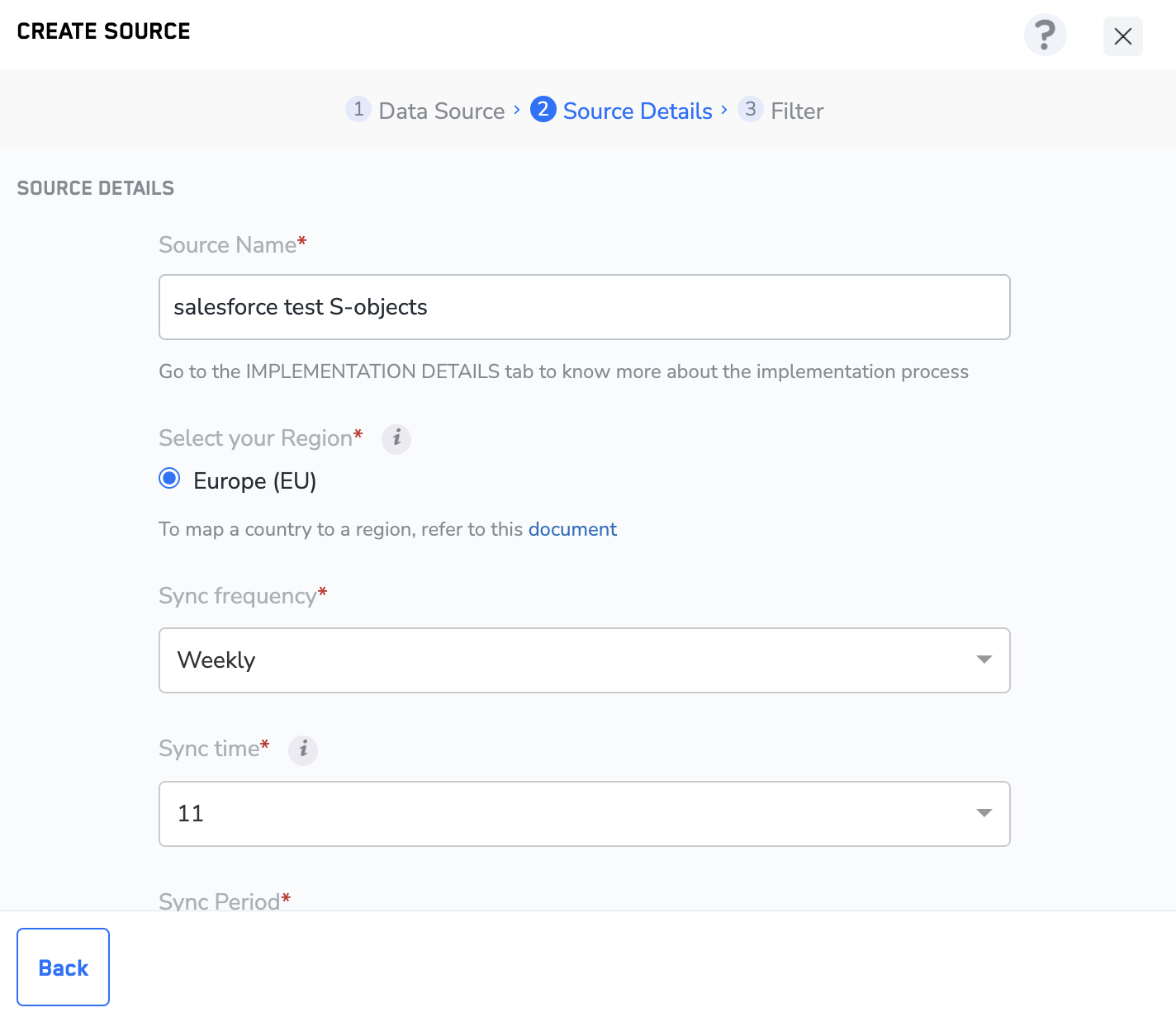
14
Choose from the dropdown what Record Type you want to ingest:a. Active Records — All non-deleted records.b. Deleted Records — All deleted records.c. All Records — All records.
15
If you want to add custom Relationship fields, set the Custom Fields checkbox to true and enter the Relationship fields you want to ingest in the text box that appears.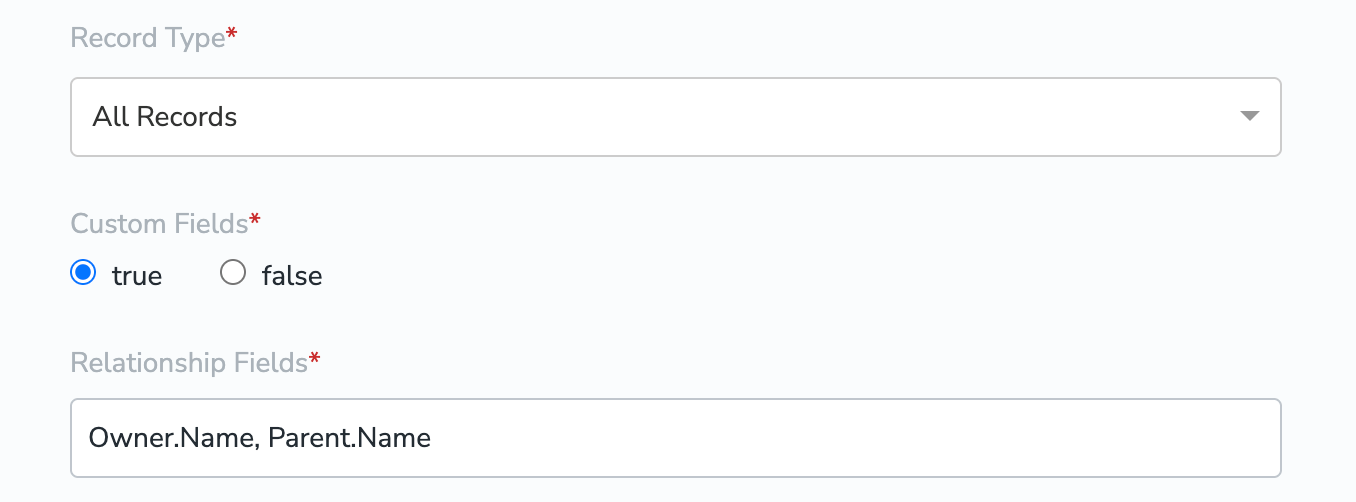
Note:The relationship fields must be related to the object you are ingesting — otherwise the query will not work.The relationship fields must be added in the same format as they are used in a query. For example:
Owner.Name, Parent.Name for the Account object.16
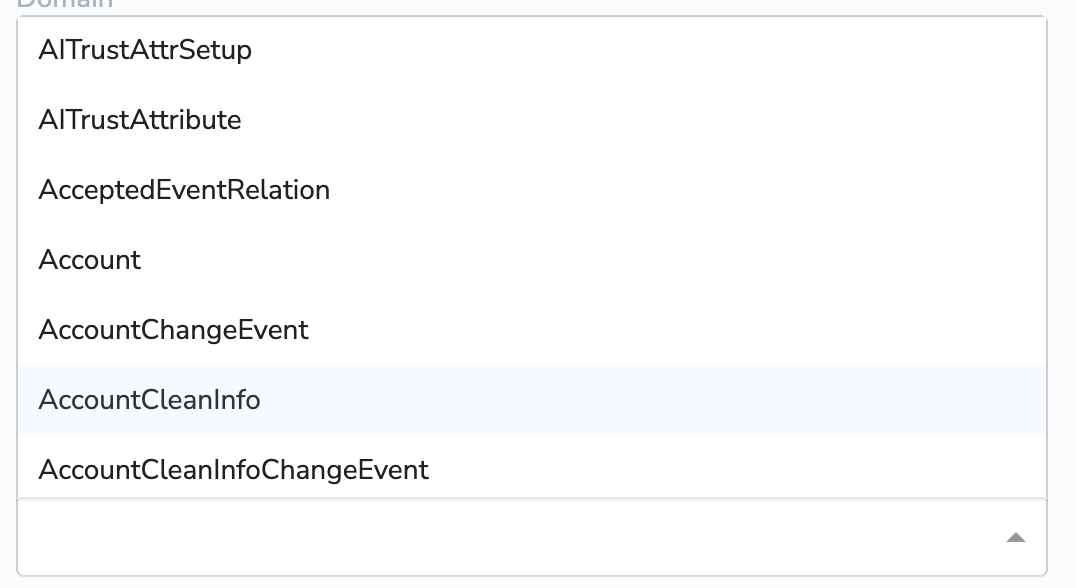
Choose the appropriate Salesforce Object. We automatically fetch all the standard and custom salesforce objects created in your Salesforce account.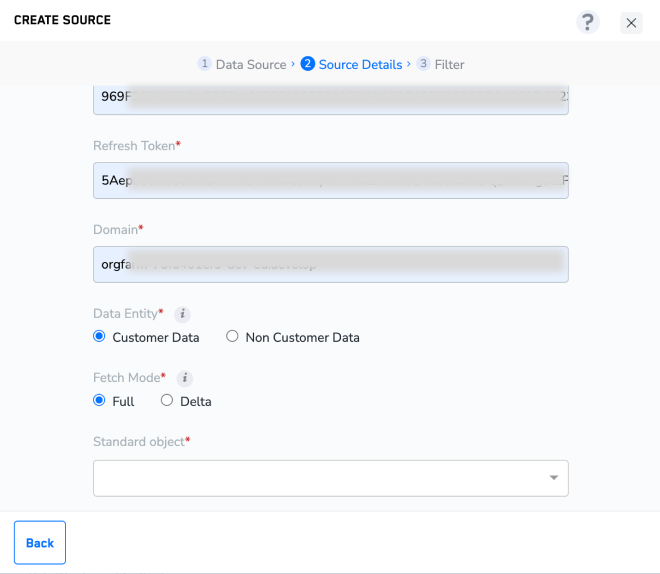
17
Click Next to proceed to fields selection.
18
In the window that appears, based on the Object selected in the previous step, a list of fields are displayed. You can select the desired fields using the check boxes. Use Select Allto select all the fields available for that Object in your Salesforce account. If you know the field names, you can select them after searching in the search box.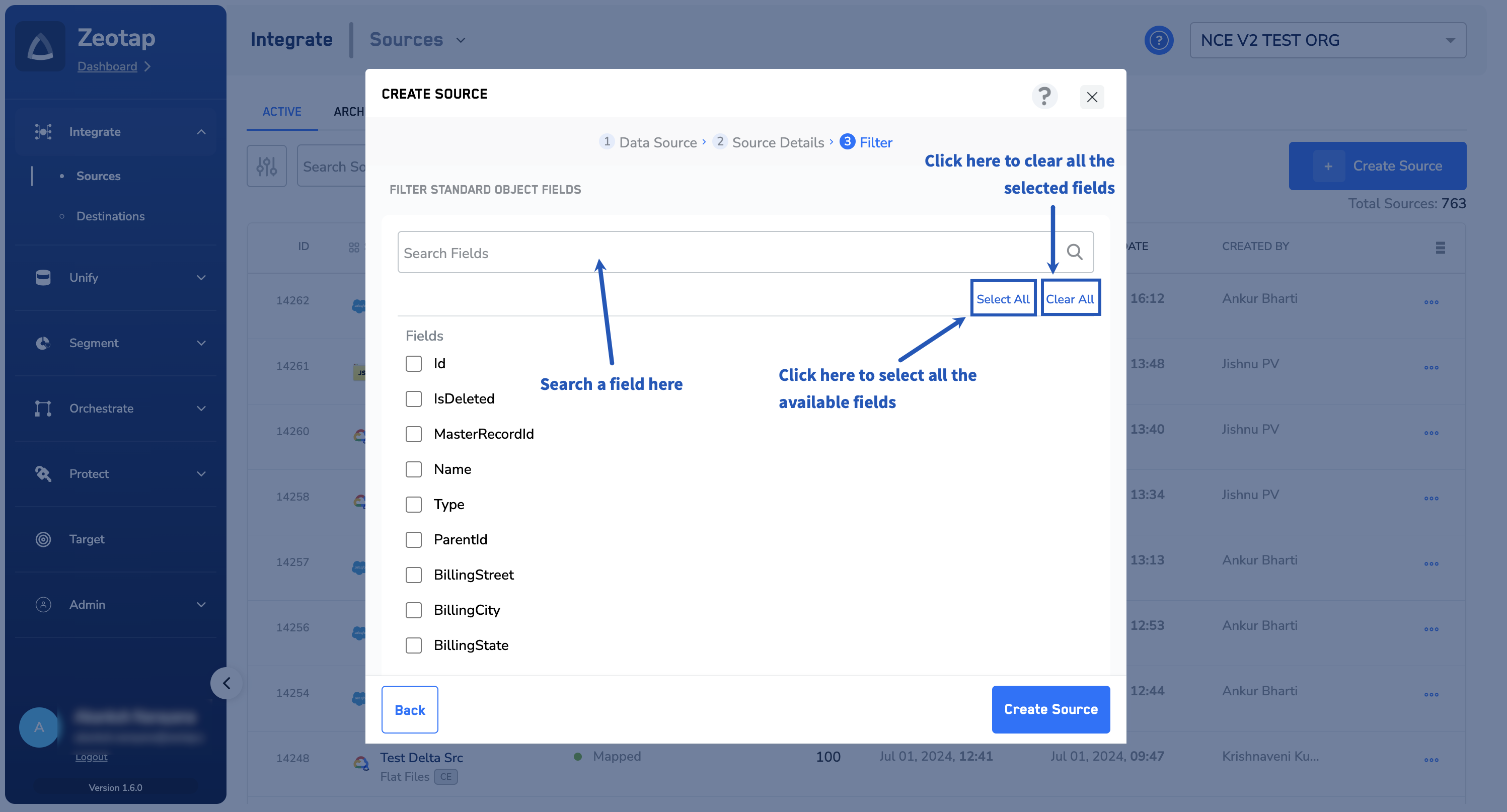
Note:Ensure that you consider the following points while choosing the fields in the above step:
- Currently, editing the field selection after source creation is not allowed. If you wish to do so, then you need to create a new source in Zeotap CDP.
- Zeotap CDP does not support the following compound fields (nested objects) and choosing them during source creation might cause ingestion failure:
PersonMailingAddressPersonOtherAddressShippingAddressBillingAddressAddressMailingAddressOtherAddressSubjectDescriptionComments
19
Review the selected fields and click CREATE SOURCE. The created Salesforce CRM source is listed on the source listing page as shown below.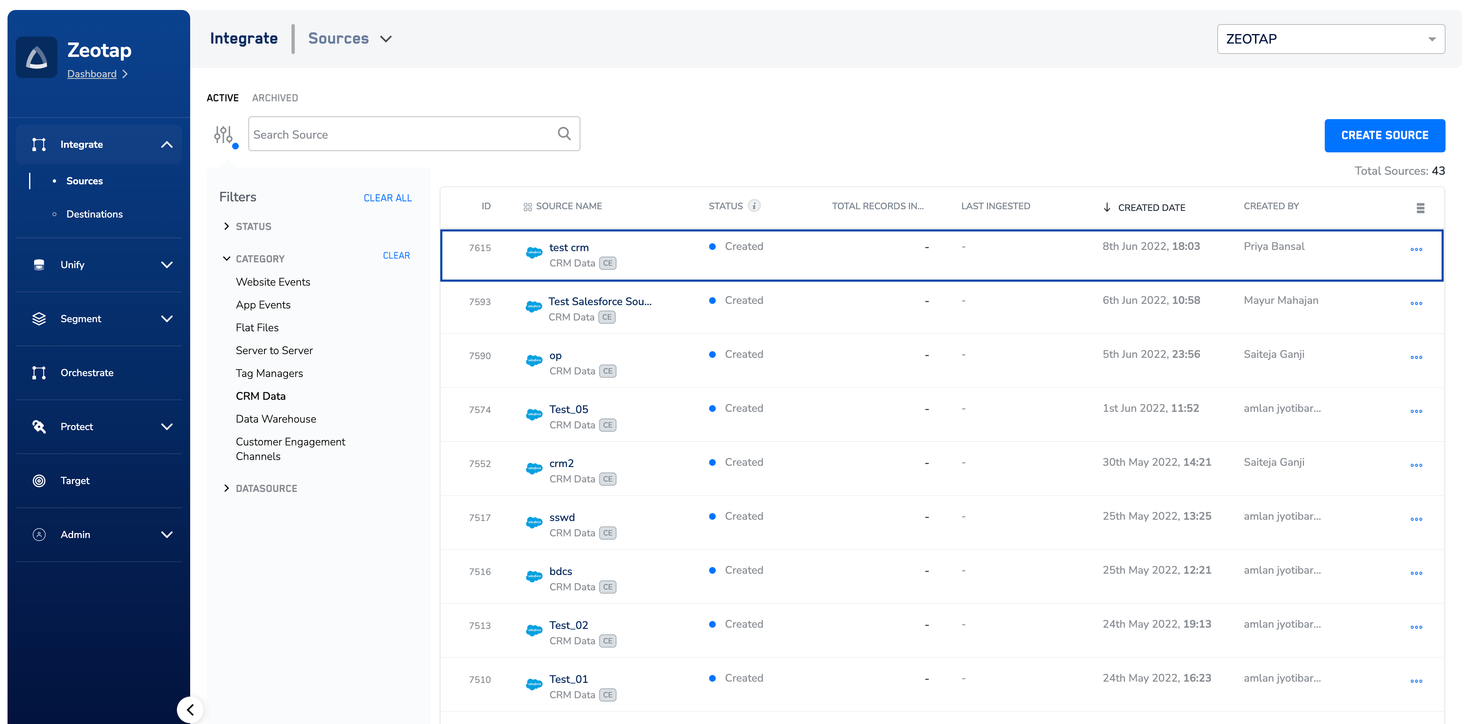
20
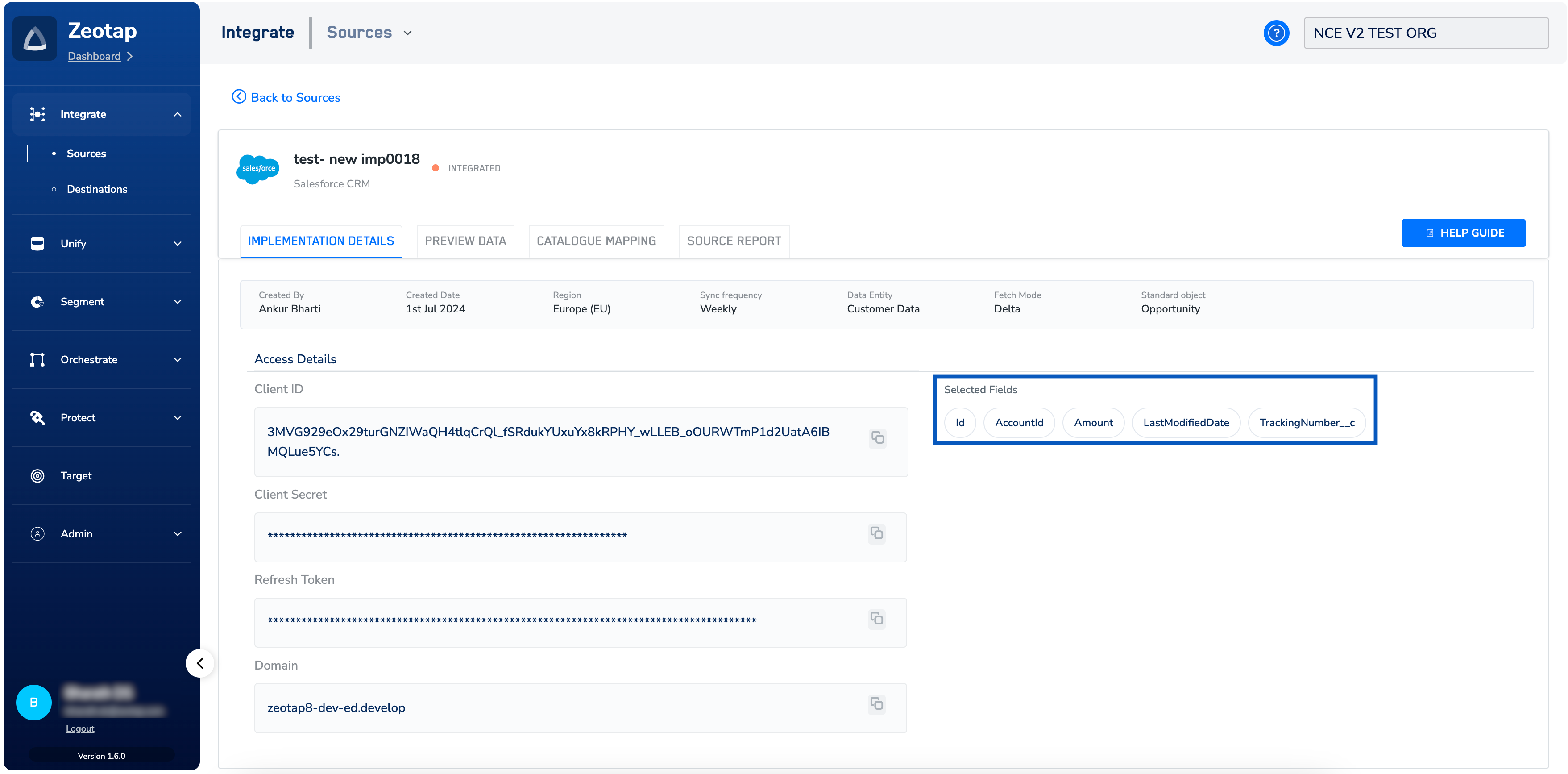
In the IMPLEMENTATION DETAILS tab of the source, you can find details about the source and the selected fields for the Object.