

Note:Refer to SFTP Source to know more about this source.
1
In the Zeotap CDP App, navigate to the Sources application under Integrate.
2
Click Create Source.
3
Choose Flat Files as the Category.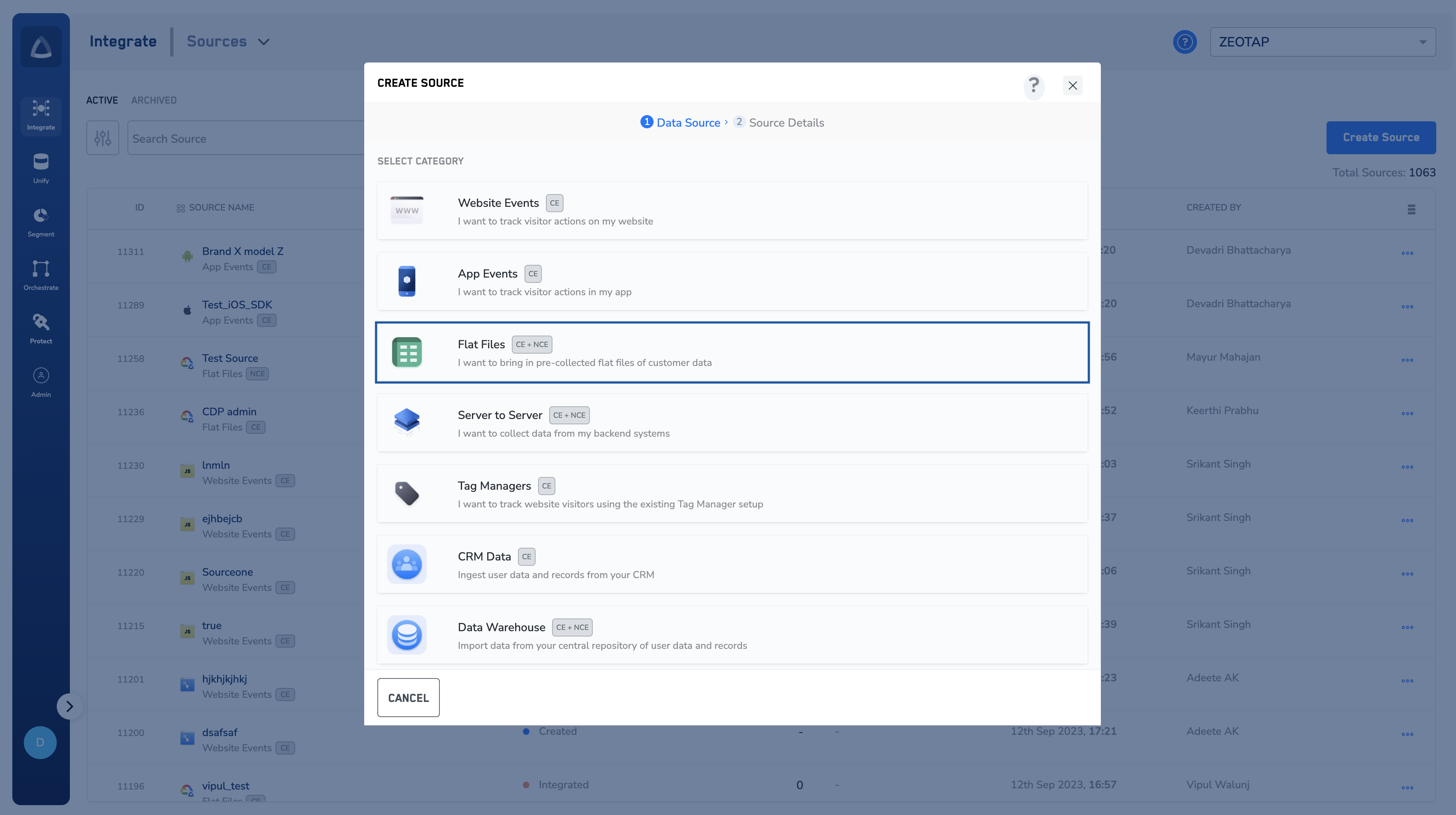
4
Click SFTP(Pull) as the Data Source.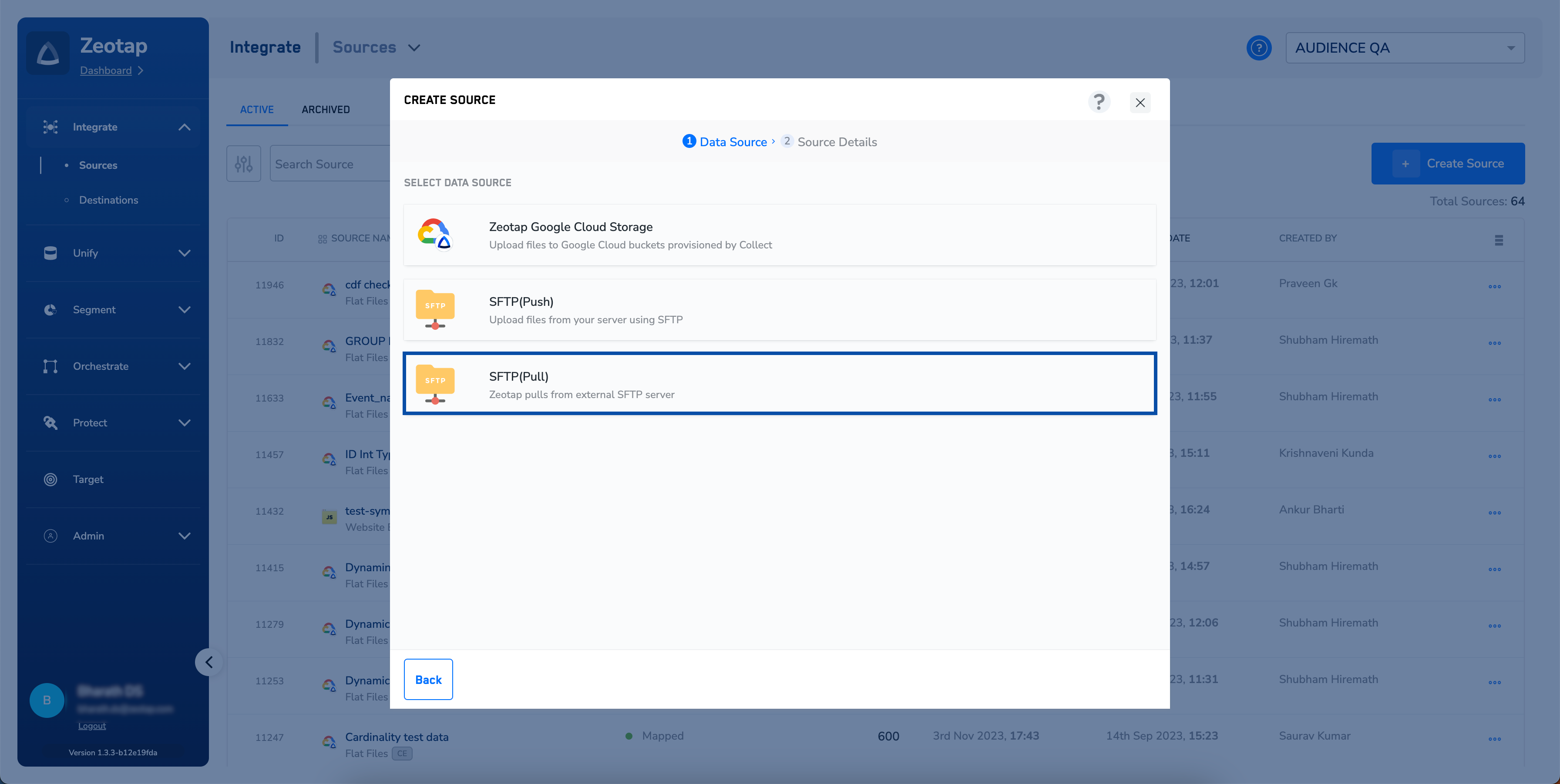
5
In the new window that appears, provide the following details:a. Enter a short and descriptive name for the source.b. Choose the file format in which you will store data using the drop-down menu.c. Enter the User Id, Host and Port details of your SFTP source.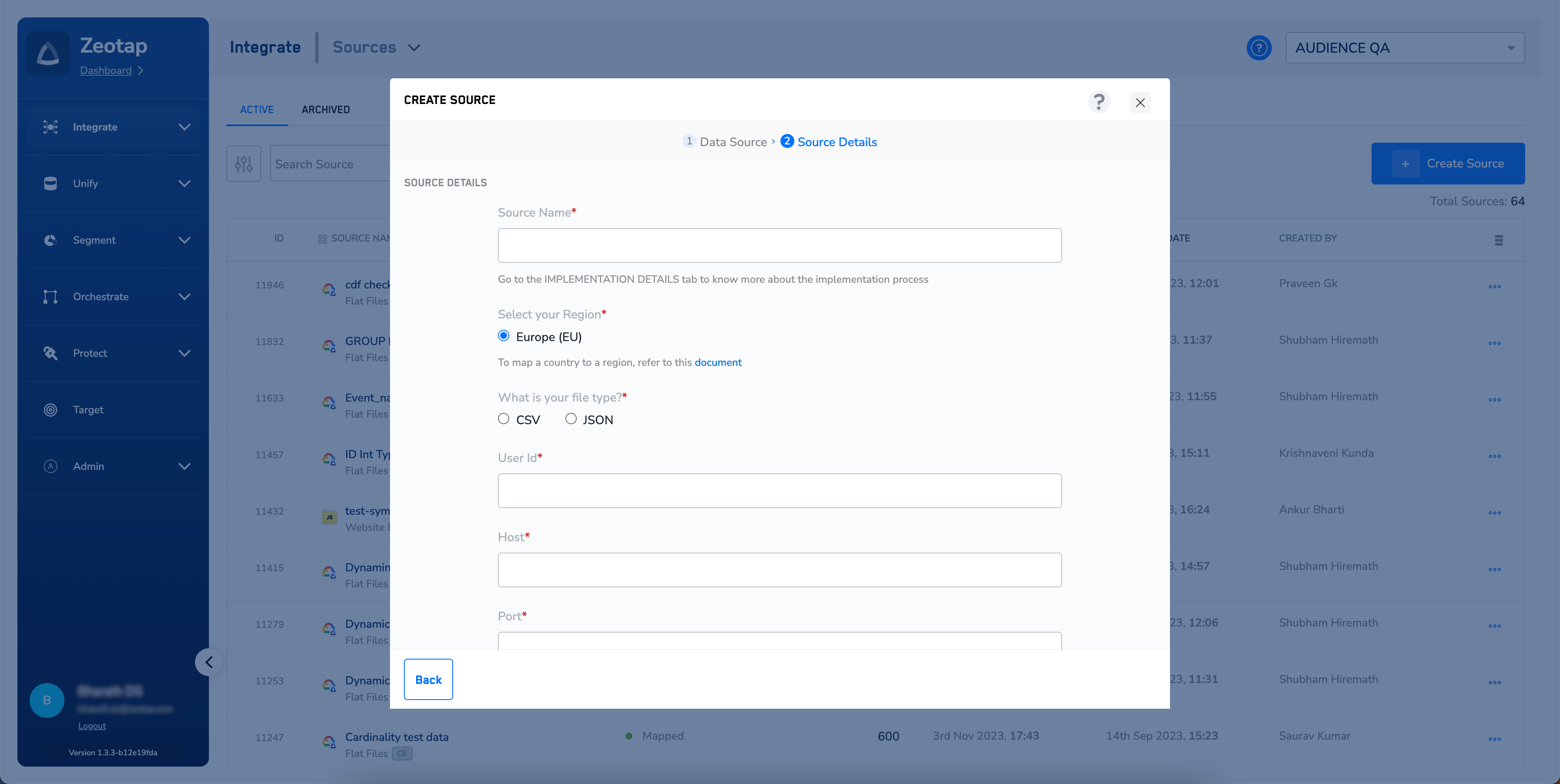
- User Id is a credential that Zeotap CDP can use to authenticate and authorise access to your SFTP server.
- Host represents the server or the computer where the SFTP service is running. It is typically an IP address or a domain name.
- Port is a specific communication endpoint on the host that the SFTP service uses.
../data/.e. Choose the Sync Frequency for pulling data using the drop-down menu.f. Set Delta Query Selection to either true or false based on your requirement.i. If you select false, then Zeotap CDP pulls all files in the configured folder during each run.ii. If you select true, then Zeotap CDP pulls only the files created after the previous pull.g. Under Data Entity, depending on the type of data that you want to ingest, choose either Customer Data or Non Customer Data and proceed with the source creation. To know more about Customer Data and Non Customer Data, refer here.6
Click CREATE SOURCE.
Note:Follow these guidelines for successful source implementation:
- After you have created an SFTP source, ensure to raise a ticket with Zeotap’s Support Team to complete the source creation process. To know more about how to implement an SFTP Source, refer to Implementing SFTP Source.
- Note that you can create a maximum of five NCE sources in an account. This default limit applies to both archivedand active NCE sources within an organisation.
Related Topics
- For information about how to map the Catalogue for Customer Data (CE), refer here.
- For information about how to map the Catalogue for Non-Customer Entity (NCE) data, refer here.
- For information about how to add a Non-Customer Entity (NCE) attribute in the Catalogue, refer here.
- For information about Join Key Enricher and how to configure it, refer here.