

Before you Begin
Before you create a Snowflake source in the Sources module, ensure that you have an account with Snowflake and the data available that needs to be imported to Zeotap CDP in that account.Note:
- The sandbox environment does not support deltas, but they are available in production.
- The sandbox supports only a daily refresh, which occurs once every 24 hours. It does not support intraday refresh.
Username
This is username used to log into your Snowflake account.Password
This is the password for the above user. You need this only if you select Password as the Authentication Type while creating the source.Key Pair
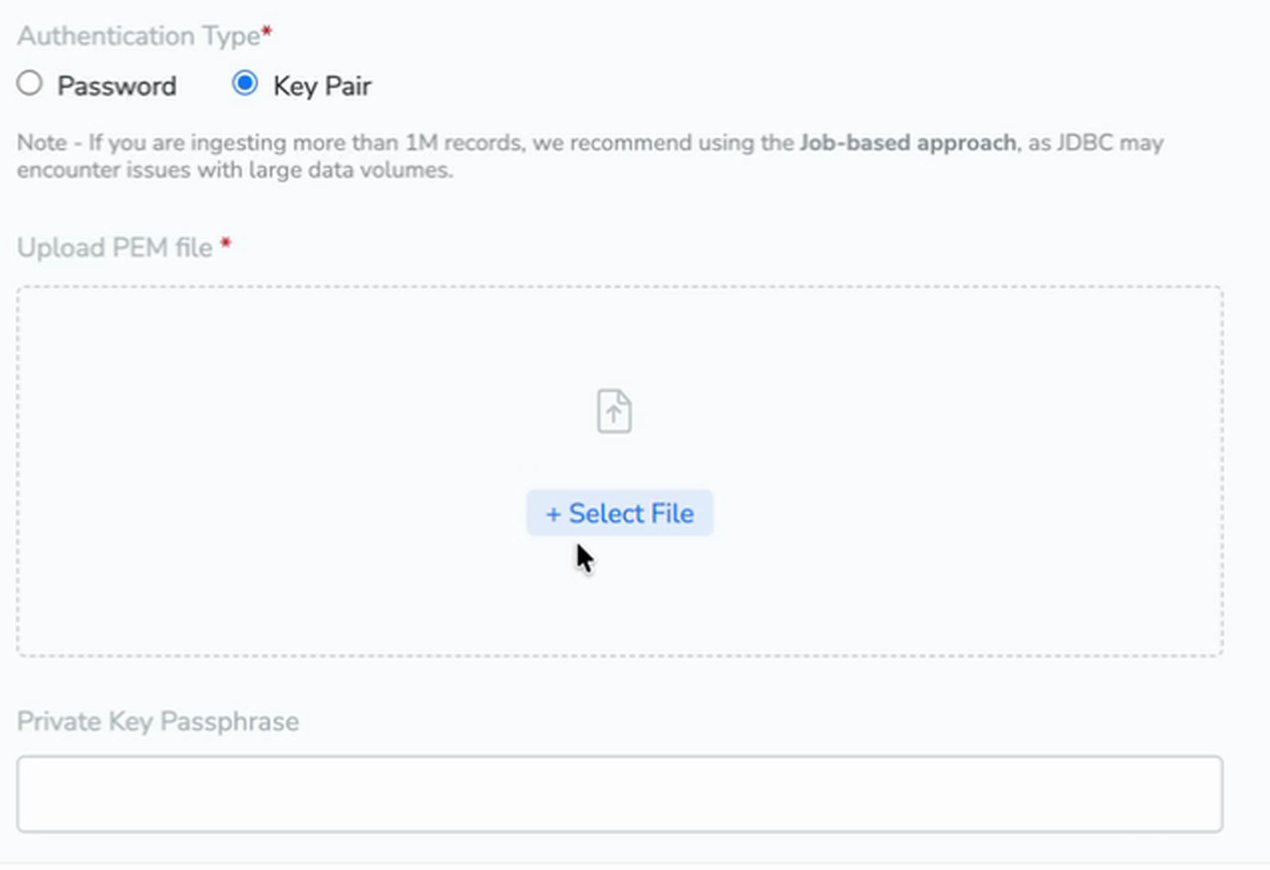
Instead of a password, you can authenticate using an RSA key pair. You need this only if you select Key Pair as the Authentication Type while creating the source. Snowflake requires a minimum of a 2048-bit RSA key pair in the Privacy Enhanced Mail (PEM) format, generated using the PKCS#8 standard. Perform the following steps to generate the key pair and register it against your Snowflake user:1
Generate a private key.To generate an encrypted private key (recommended), run the following command. You are prompted for a passphrase, which you later enter in the Private Key Passphrase field in Zeotap CDP.To generate an unencrypted private key, run the following command instead. In this case, leave the Private Key Passphrase field empty in Zeotap CDP.
2
Generate the public key from the private key that you created above.
3
Assign the public key to your Snowflake user by running the following command in a Snowflake worksheet. Replace
example_user with your Snowflake username, my_key with a name of your choice for the key pair, and the value of PUBLIC_KEY with the contents of rsa_key.pub.4
Verify that the public key registered in Snowflake matches your local key by comparing their fingerprints.Run the following in Snowflake:Then run the following locally and confirm that both values match:
The two halves of the key pair go to different places:
- The private key file (
rsa_key.p8) is the file that you upload to Zeotap CDP under Upload PEM file. - The public key (
rsa_key.pub) is the one that you register against your Snowflake user.
Account Name
This is the account ID of your cluster, which is a combination of your Organization name and Account name on Snowflake. Perform the following steps to obtain it:1
Select your profile in the lower-left corner of the Snowflake screen. Navigate to Account, and then click View Account Details under your account.
2
Copy the Account Identifier displayed under the Account tab, which is your Account Name in Zeotap CDP.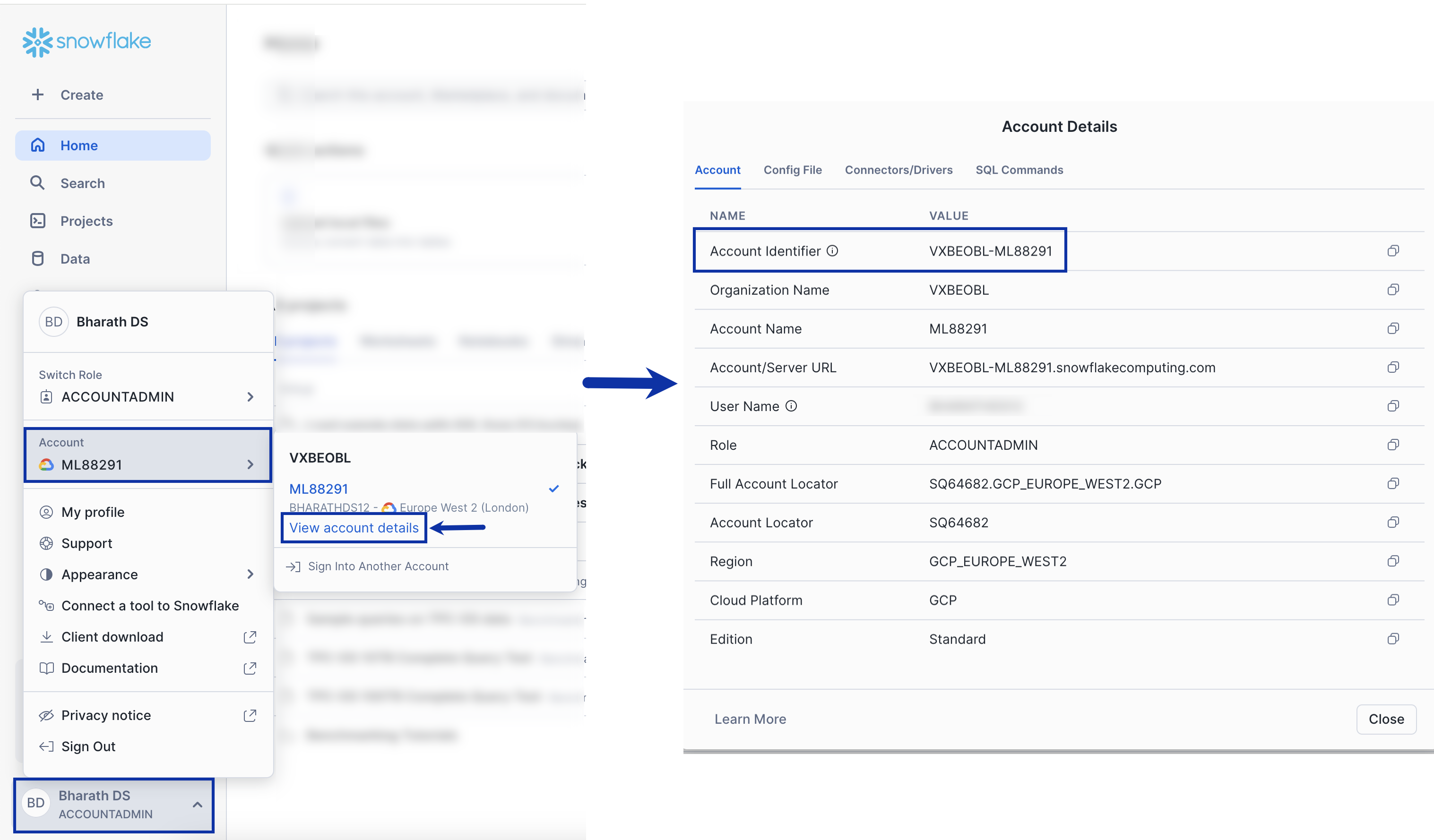
Warehouse
A virtual warehouse, often referred to simply as a “warehouse,” is a cluster of compute resources in Snowflake. Ensure that the warehouse you use is in Started (Active) status when integrating with Zeotap CDP. To obtain the warehouse details, perform the following steps:1
Navigate to Admin > Warehouses.
2
Copy the Warehouse Name as shown in the image below.
To create a new warehouse, click + Warehouse in the top-right corner of the screen.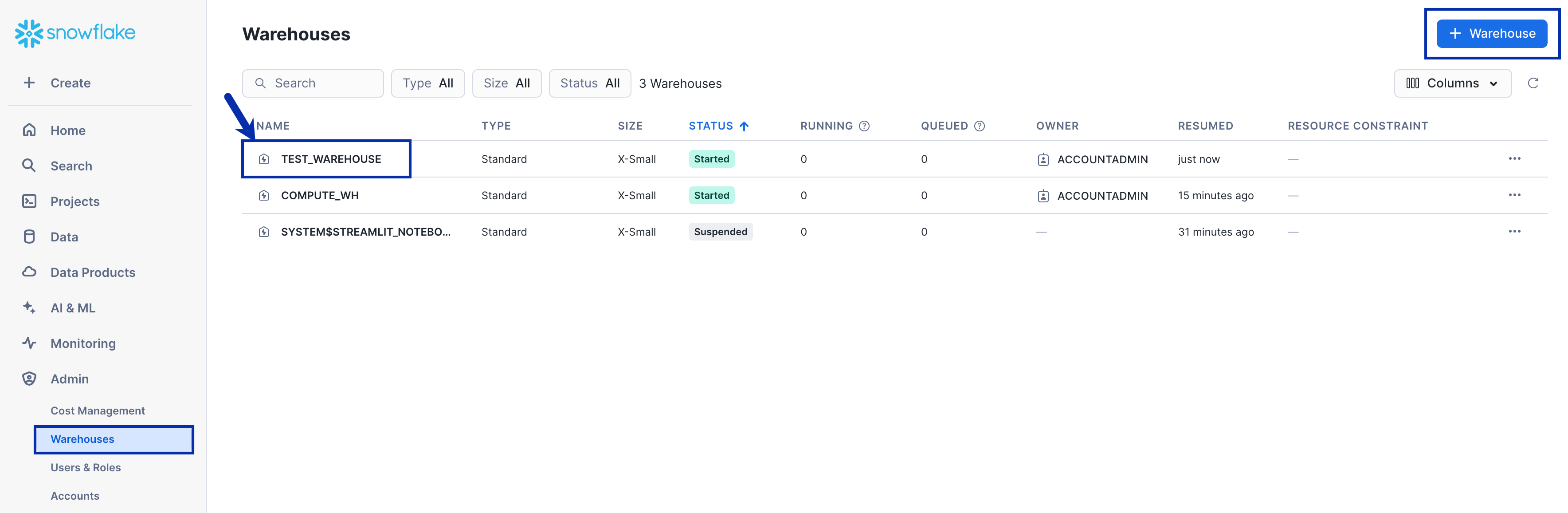
Note:You can resume a suspended (that is, inactive) warehouse by using the following the steps provided in the Snowflake documentation.
Database
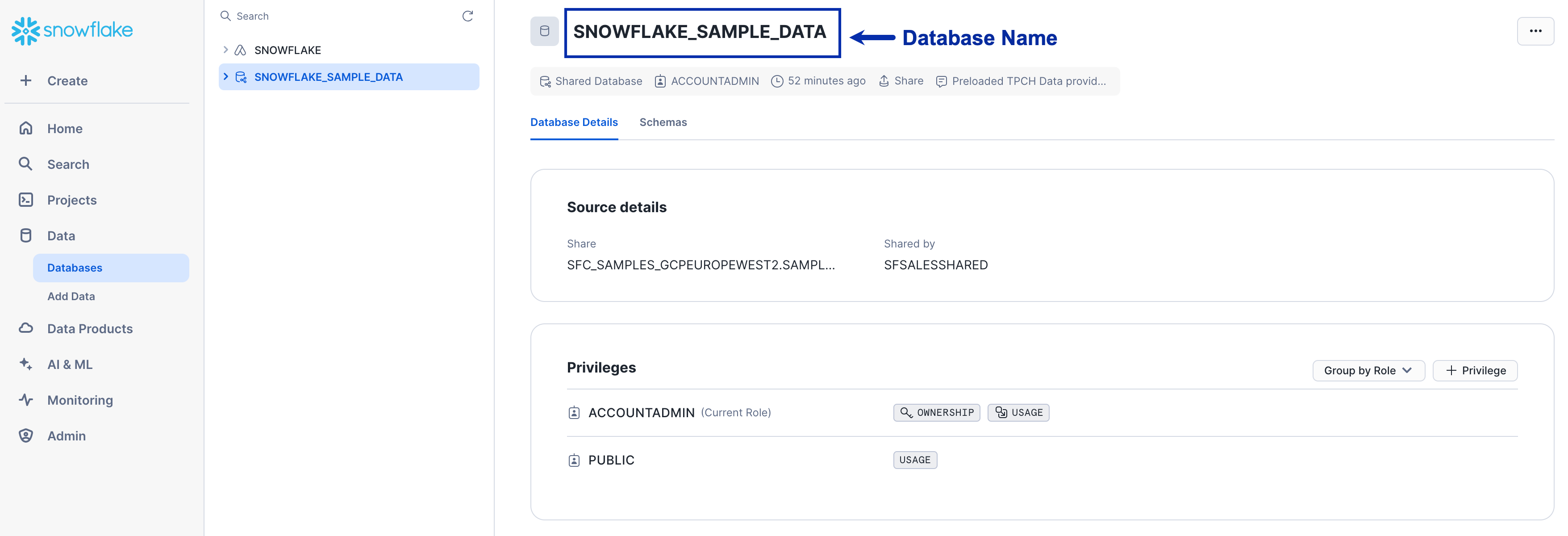
All data in Snowflake is maintained in databases. Each database consists of one or more schemas, which are logical groupings of database objects, such as tables and views. To obtain the Database details from Snowflake, navigate to Databases under Data > Click the desired Database and copy the Database Name as shown in the image below.Note that each source creates its own schemas and tables, so we recommend to create a new database for this purpose to avoid name conflicts with existing data. To learn how to create a new database, refer here.
Schema
Schema is a container for all objects such as tables, views and stored procedures in the same logical namespace. To obtain the schema details from Snowflake, navigate to Databases under Data > under the desired Database > click the Schemas tab and copy the Schema Name as shown in the image below.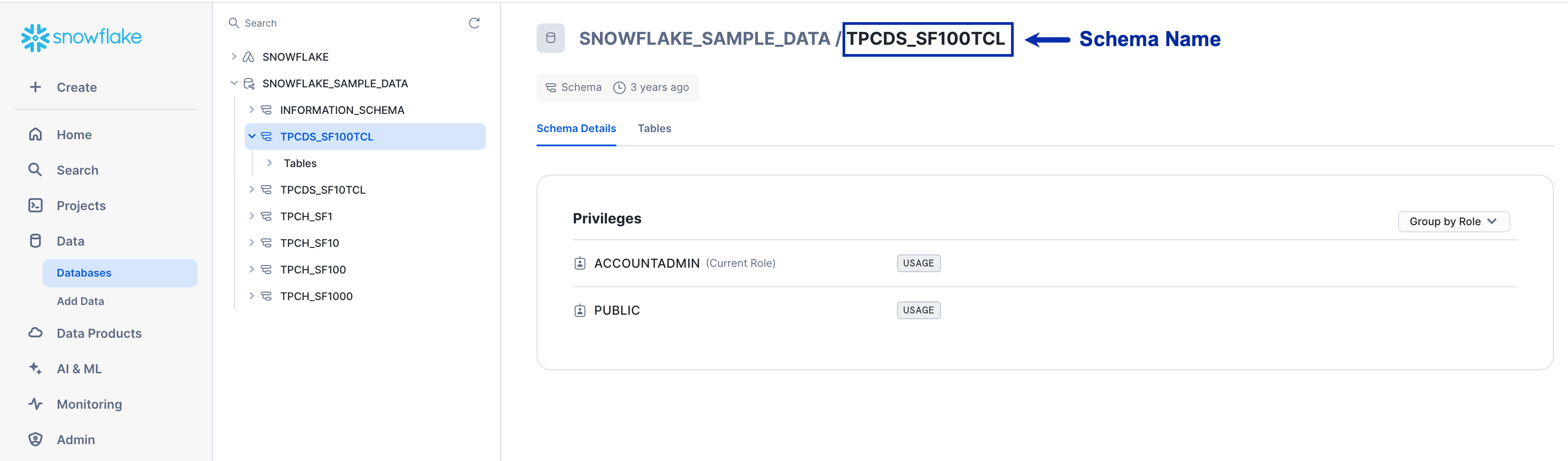
Table
A table is a container for rows of data organised and described by columns, which can be used for data storage, analysis and querying. To obtain the Table details from Snowflake, navigate to Databases under Data > under the desired Database > click the desired Schema > click Tables and copy the desired Table Name as shown in the image below.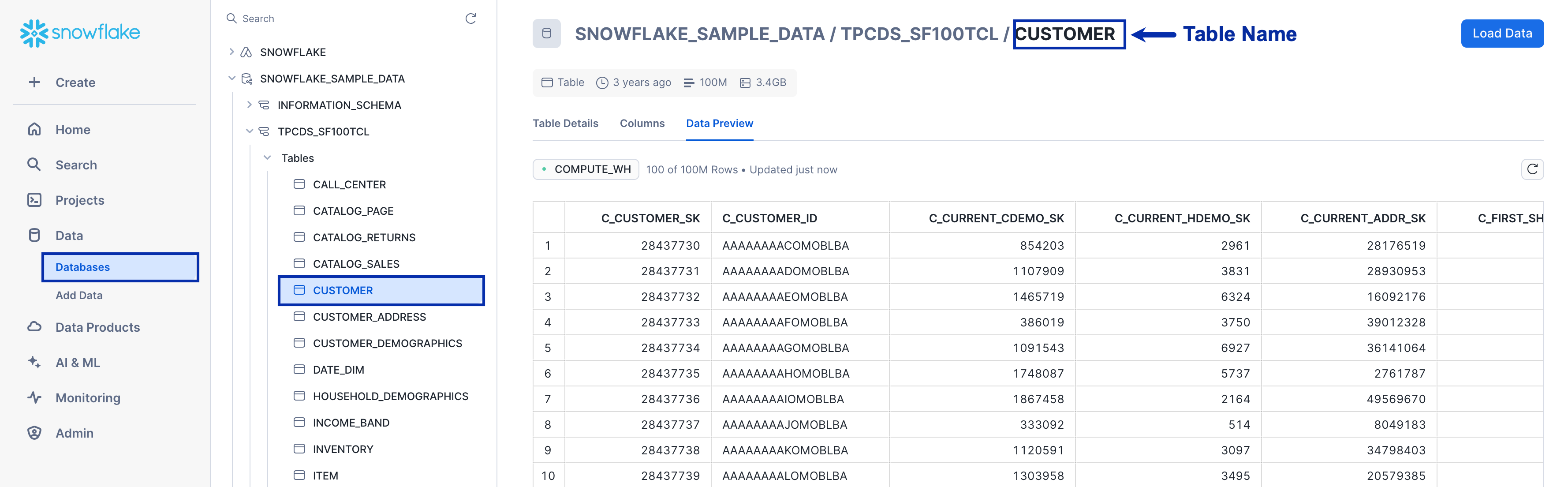
Create a Snowflake Source
Once you have obtained the above details from Snowflake, perform the following steps to create a Snowflake Source in the Zeotap CDP App:1
In the Zeotap CDP App, navigate to Integrate > Sources.
2
Click CREATE SOURCE.
3
Choose Data Warehouse as the Category.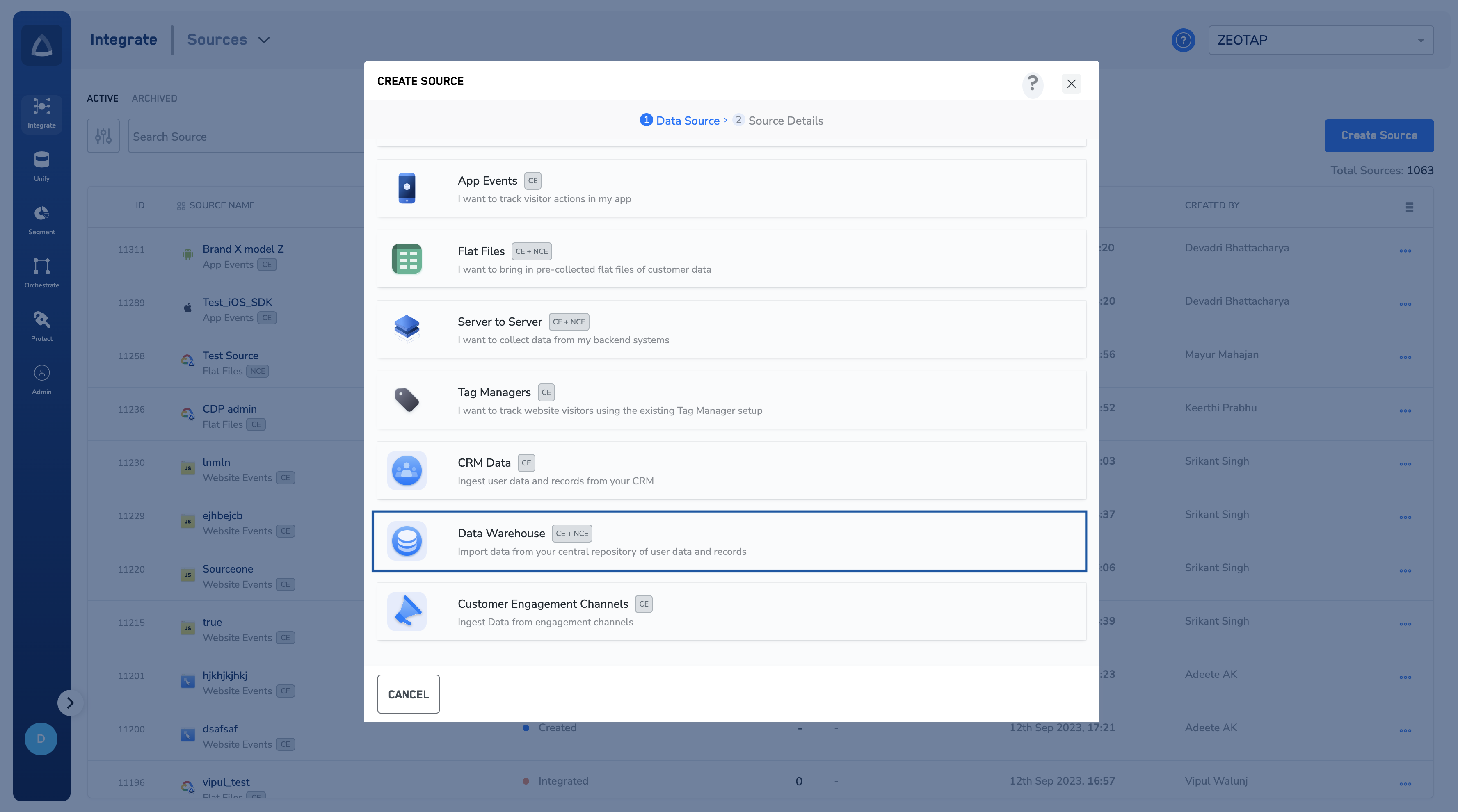
4
Click Snowflake as the Data Source.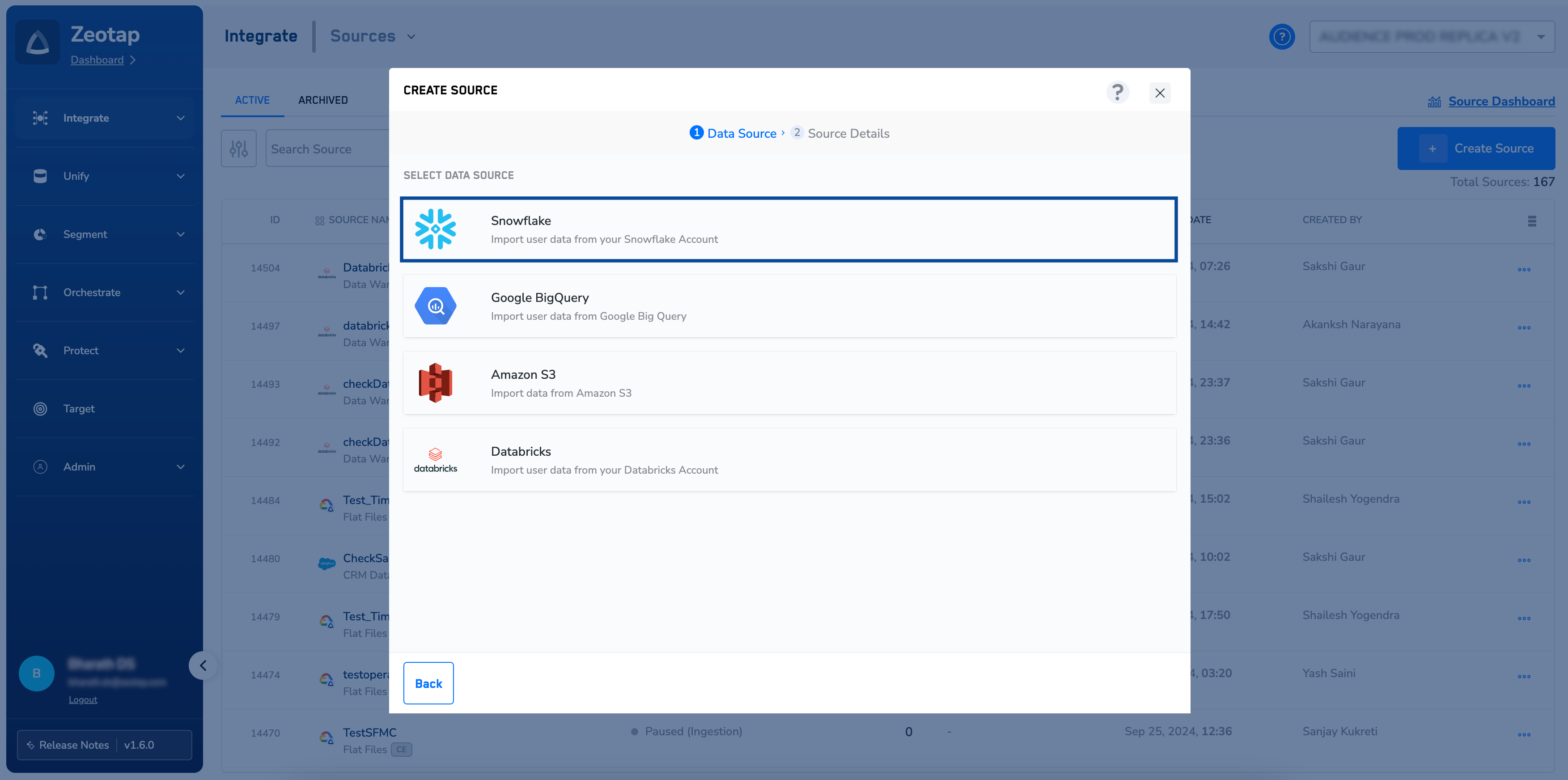
5
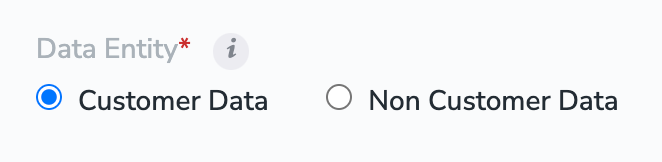
Enter the below information based on your Snowflake account. For more information about how to obtain these from Snowflake, refer to the Before you Begin section.a. Under Source name, enter a descriptive name for your Source.b. Select the region of upload as per your requirement.c. Choose the desired Sync Frequency using the drop-down. The first data sync takes place once you create the source. However, the subsequent syncs occur based on the sync frequency that you chose. Currently, we support the following sync frequencies: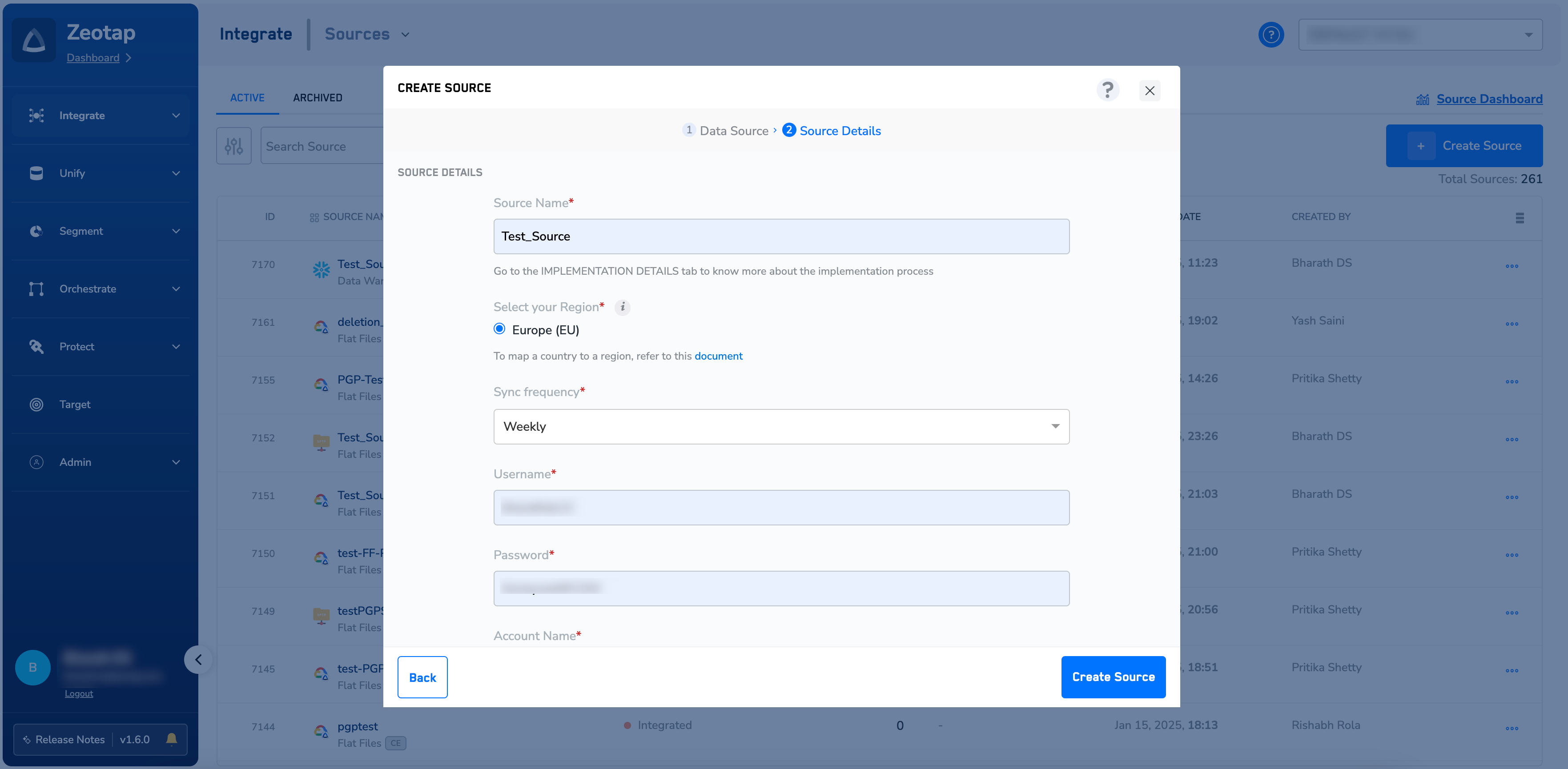
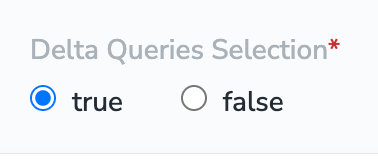
ii. If you select false, then Zeotap CDP retrieves and transfers the entire dataset during each subsequent synchronisation, regardless of any changes made. This process ensures the full dataset is updated at each sync frequency.g. Under Authentication Type, choose how Zeotap CDP authenticates with your Snowflake account.i. Choose Password to authenticate using the Snowflake user’s password, and enter it under Password.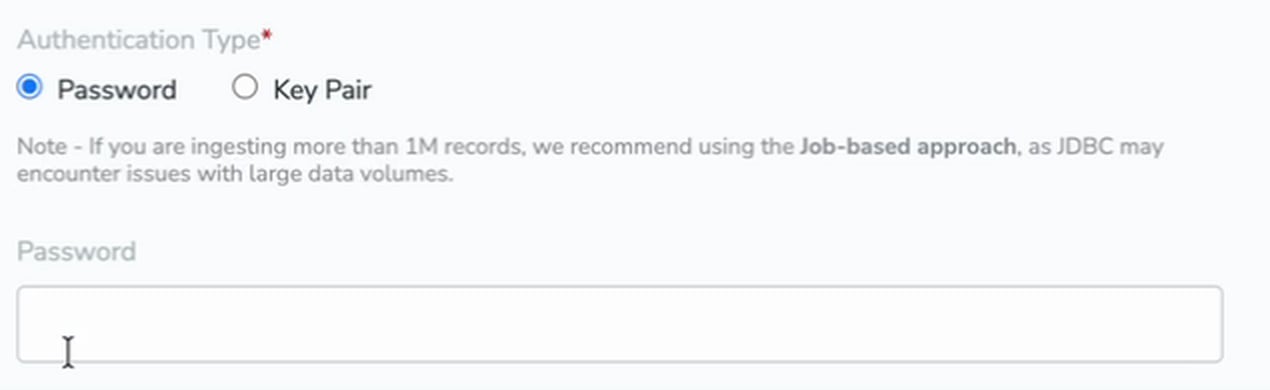
- Daily
- Weekly
- Monthly
- Hourly
- Thirty Minutes
- Fifteen Minutes
ii. If you select false, then Zeotap CDP retrieves and transfers the entire dataset during each subsequent synchronisation, regardless of any changes made. This process ensures the full dataset is updated at each sync frequency.
Note:If you wish to use the Delta Query Selection, then ensure that before creating the Snowflake source, you perform the steps mentioned here.
rsa_key.p8) that you generated. If the private key is encrypted, enter its passphrase under Private Key Passphrase; if it is unencrypted, leave the field empty. For more information about how to generate the key pair, refer to the Key Pair section.6
Review all the fields entered and click Create Source. The newly created source will be listed on the Source Listing page. You can verify the details of the created source in the Implementation Details tab, as shown below.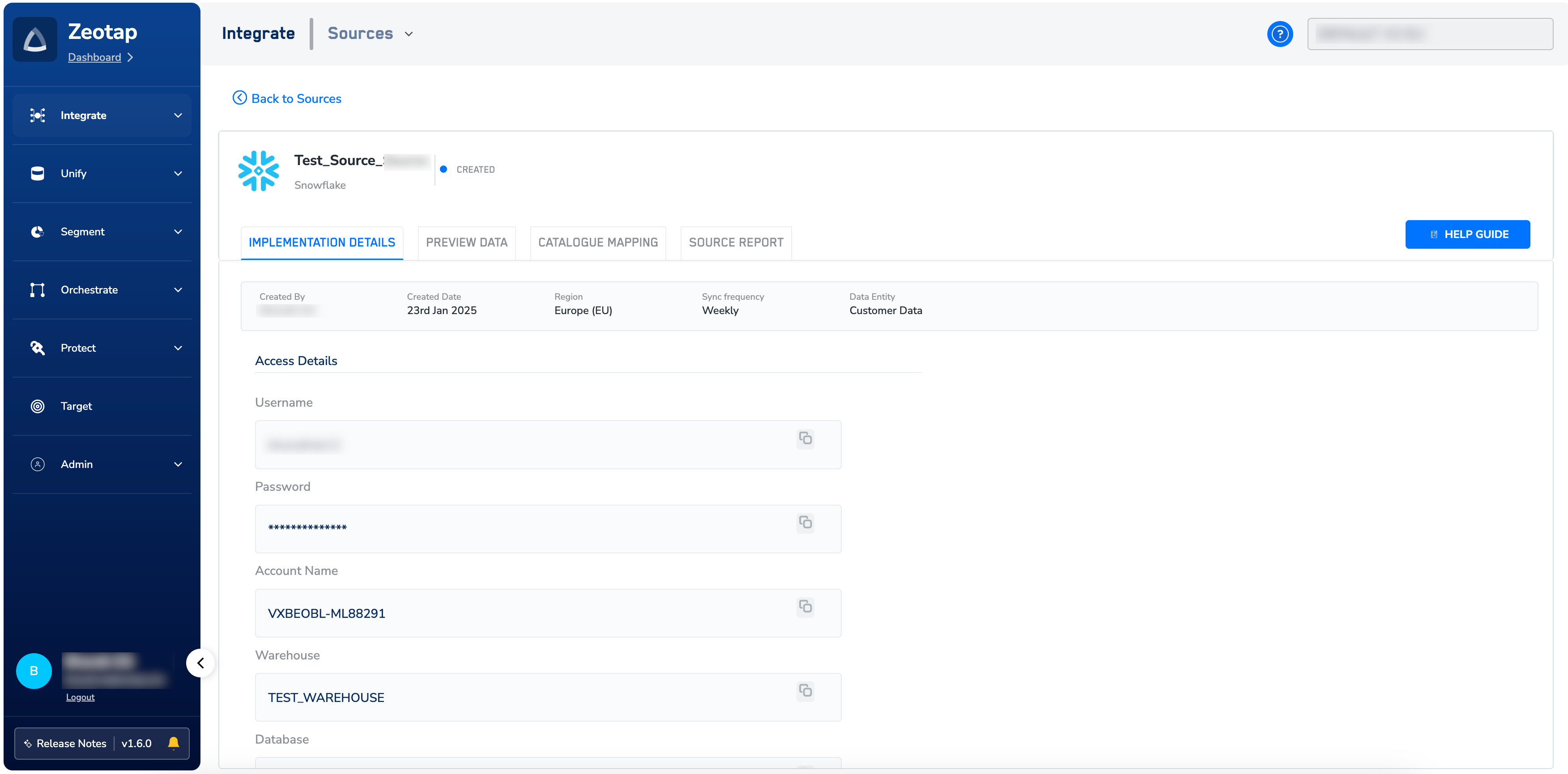
Note:You can create a maximum of five Non-Customer Entity Data (NCE) sources in an account. This default limit applies to both archived and active NCE sources within an organisation. To increase the limit, reach out to your Zeotap POC.
Data Loading on Snowflake
After successfully creating a Snowflake source in Zeotap CDP by providing details such as User name, authentication details, Warehouse, Database, Schema, Table and more, you can start loading the data from your Snowflake account to Zeotap CDP. To do so, perform the following steps:1
Log into your Snowflake account.
2
Ensure that the Warehouse name matches the Warehouse name provided while the source in Zeotap CDP by navigating to your account details.
3
In the left navigation panel, click Databases under Data. A list of databases appears.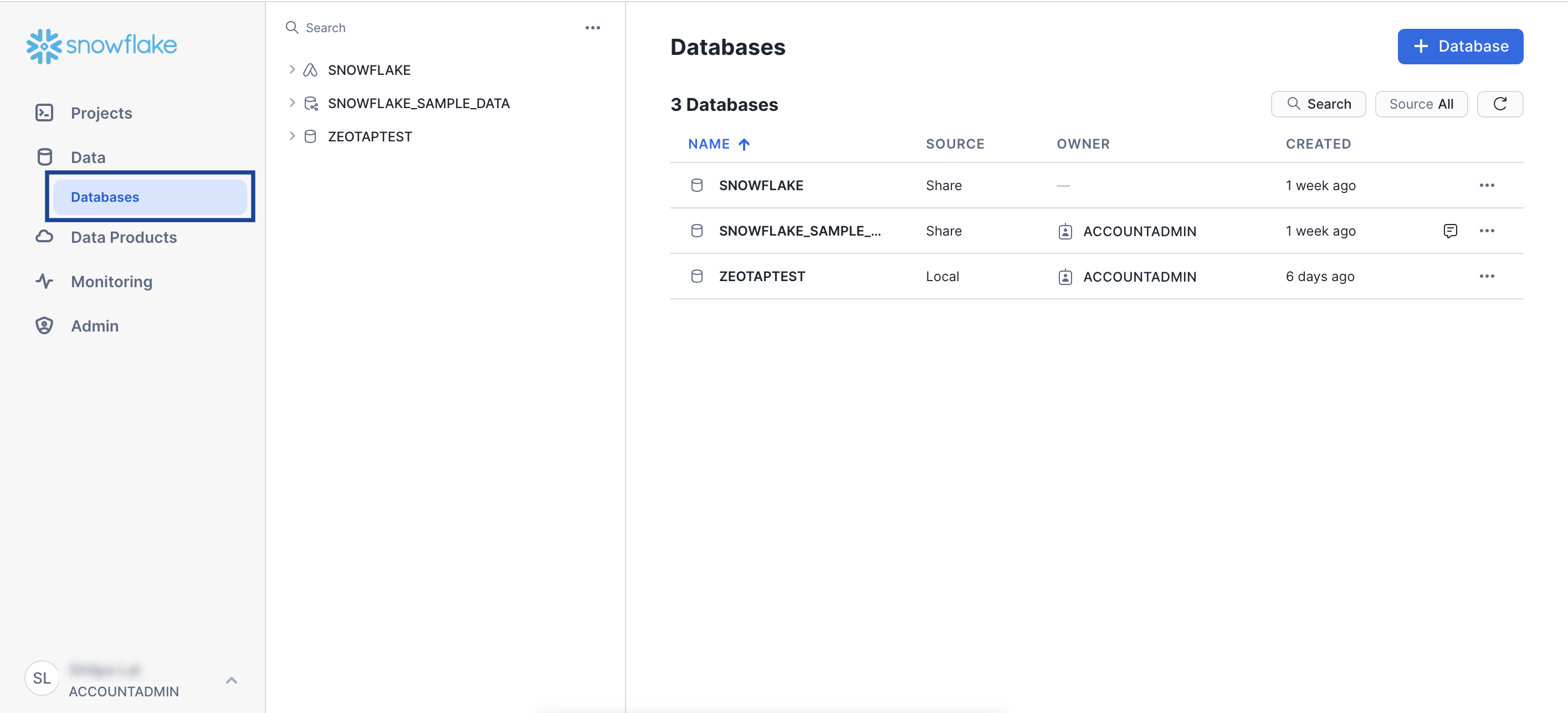
4
Click the Database that you have provided while creating the source in Zeotap CDP.
5
Under the chosen Database, click Schemas.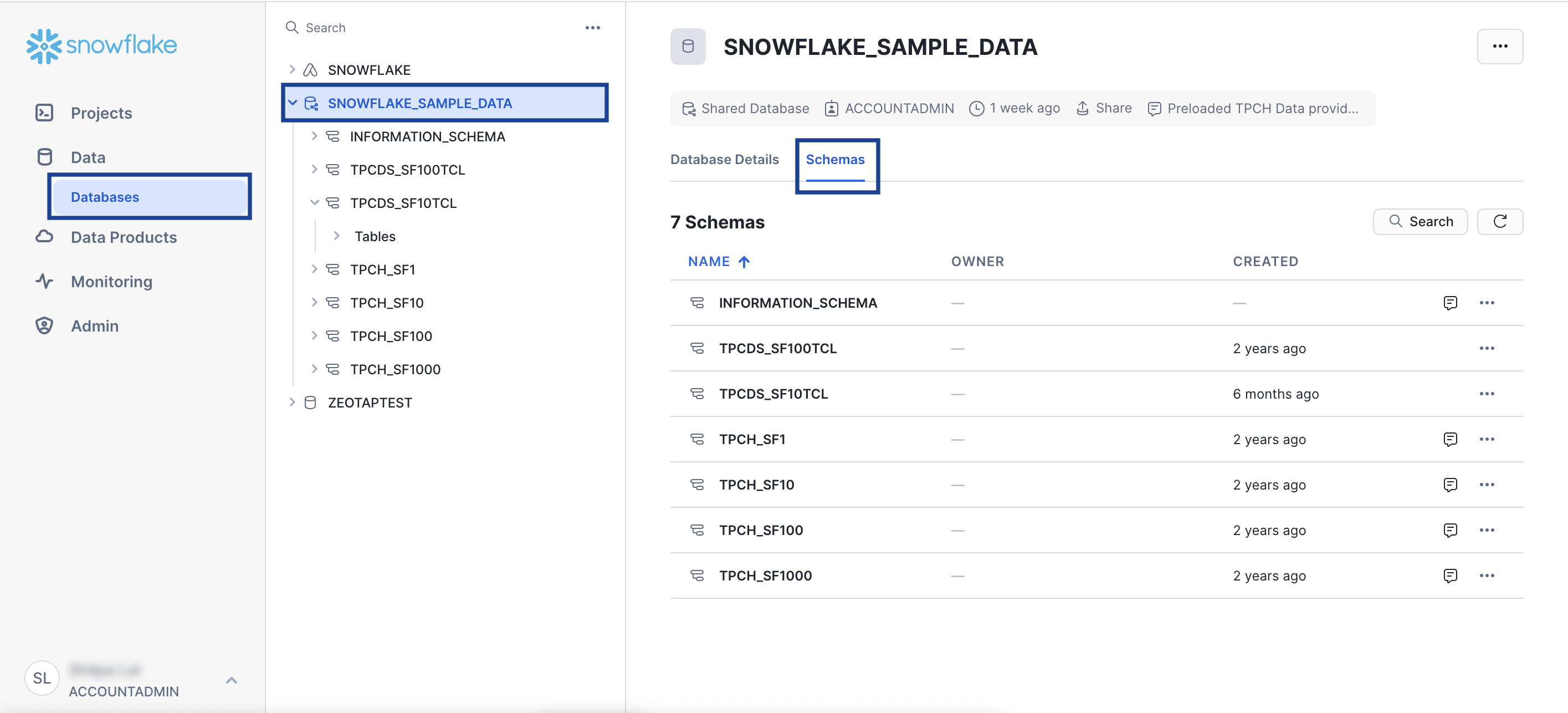
6
In the list of Schemas that appears, click the Schema provided while creating the source in Zeotap CDP and go to the Tables tab.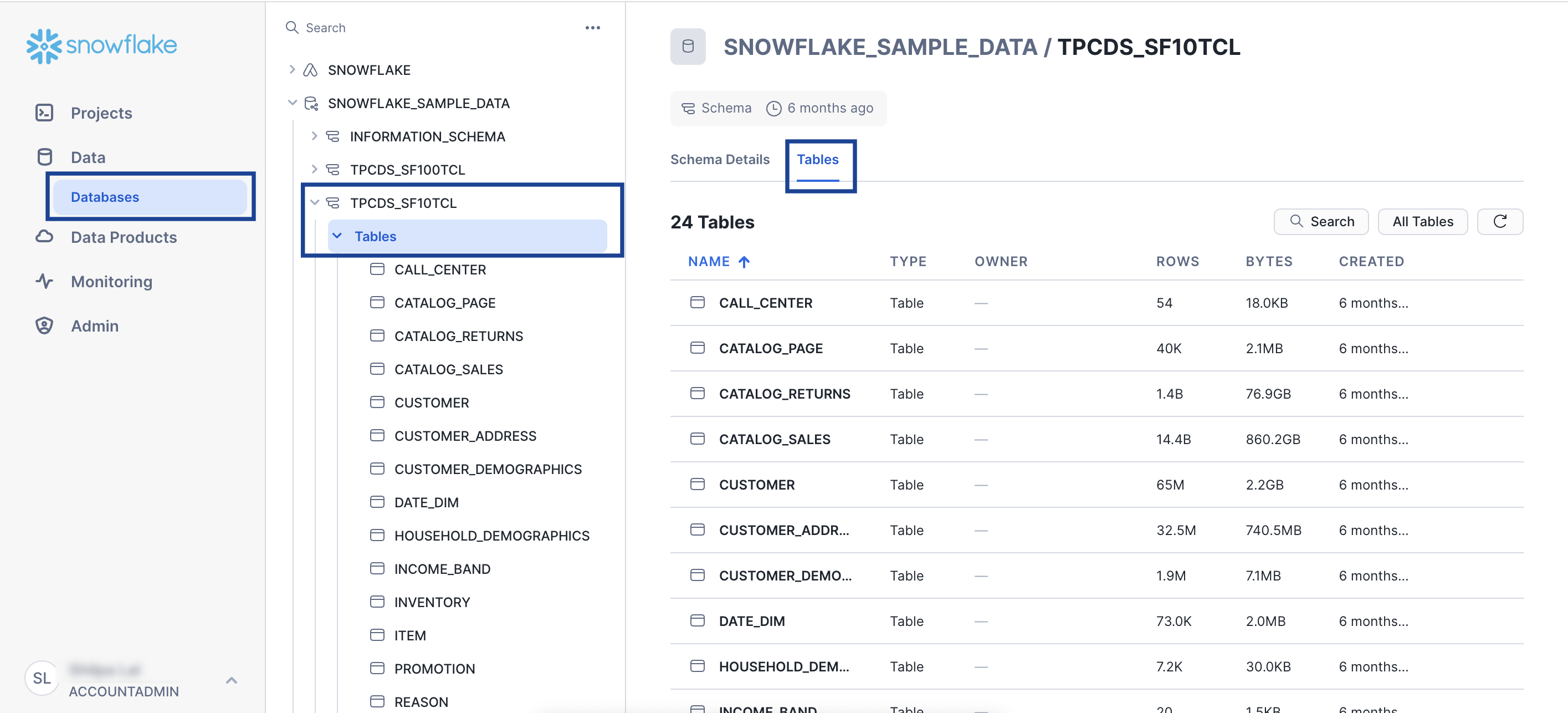
7
In the list of tables, click the table that you have provided while creating the source in Zeotap CDP and click Load Data. If you encounter a privileges error, click here to learn more about the required privileges and contact your Snowflake account administrator.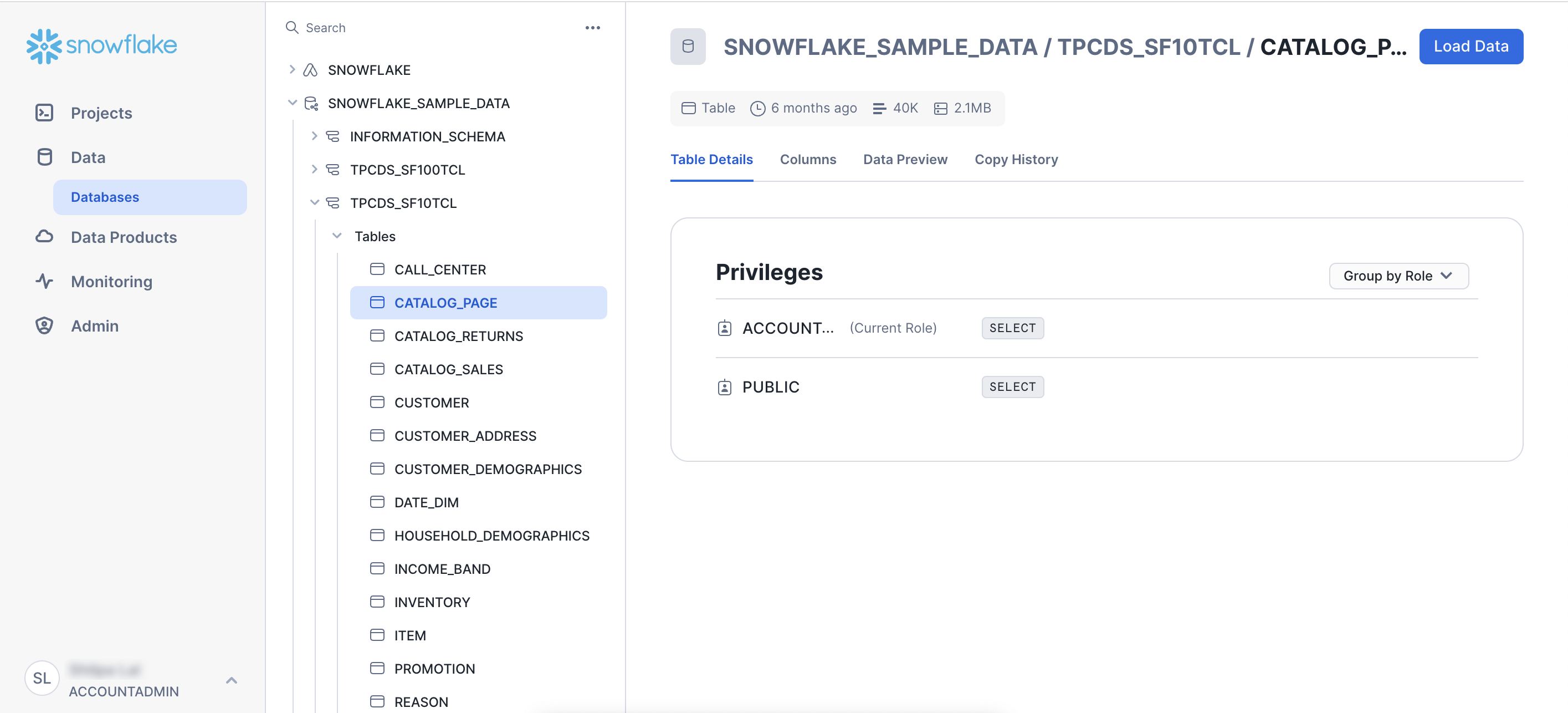
8
Use the Load Data into Table window that appears to load the data files in one of the following formats:
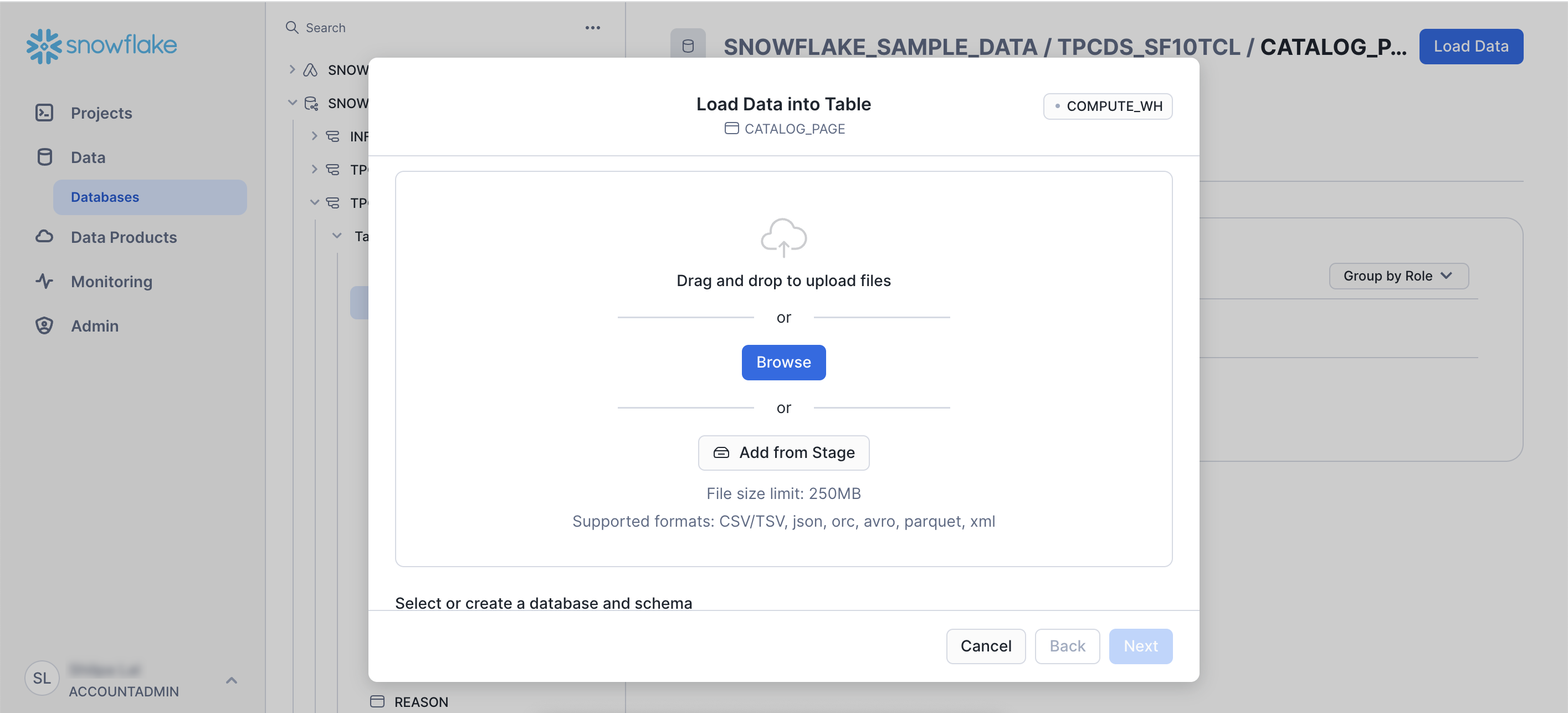
CSV/TSV, JSON, ORC, AVRO, PARQUET, or XML.9
Upon completing this process, you can verify the data flowing into your Snowflake source in Zeotap CDP under the Preview Data tab. At this stage, the status of the source changes from CREATED to INTEGRATED.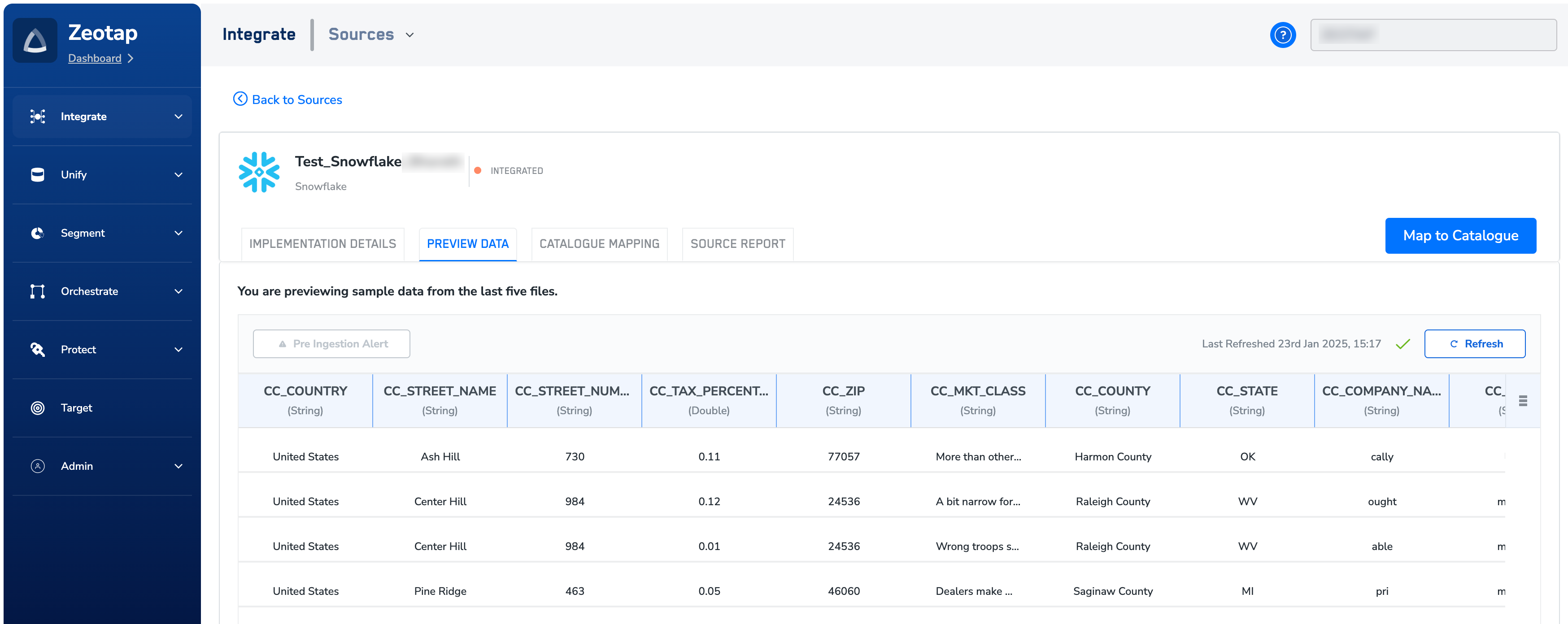
Note:On the Preview tab, if you see the message “No data has been received. Ensure to implement the source correctly and check again later”, then reach out to our support team at [email protected].
Steps to Enable Delta Fetch in Snowflake
To enable delta fetch on the desired table, perform the following steps:1
In the Snowflake console, navigate to Projects > Worksheets.
2
Click create New SQL worksheet.
3
Choose the Database and Schema, where you want to sent the data to, as shown below.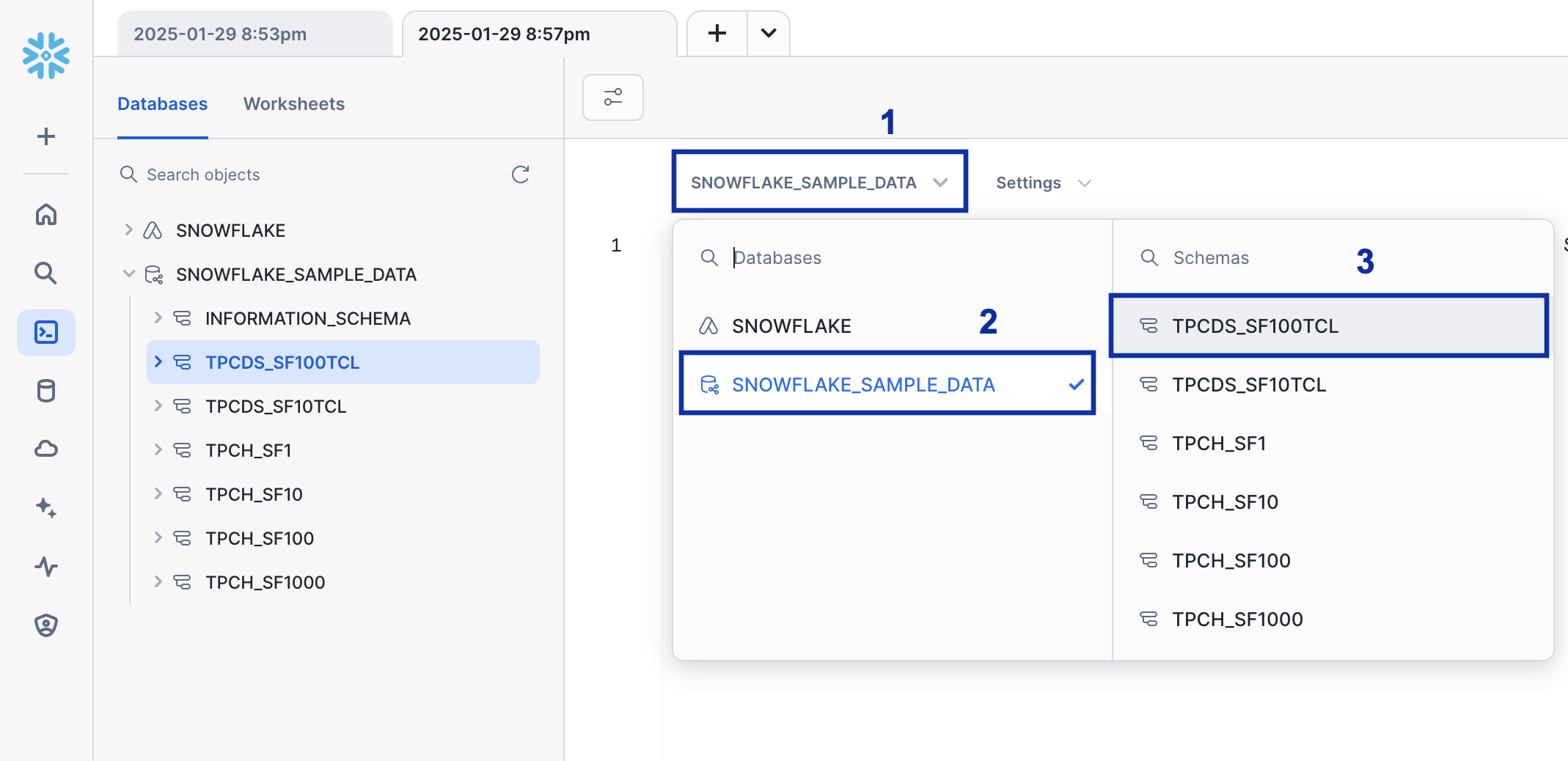
4
Enter the command
ALTER TABLE ${TABLE_NAME} SET CHANGE_TRACKING = TRUE; in the right hand side of the screen.5
Replace 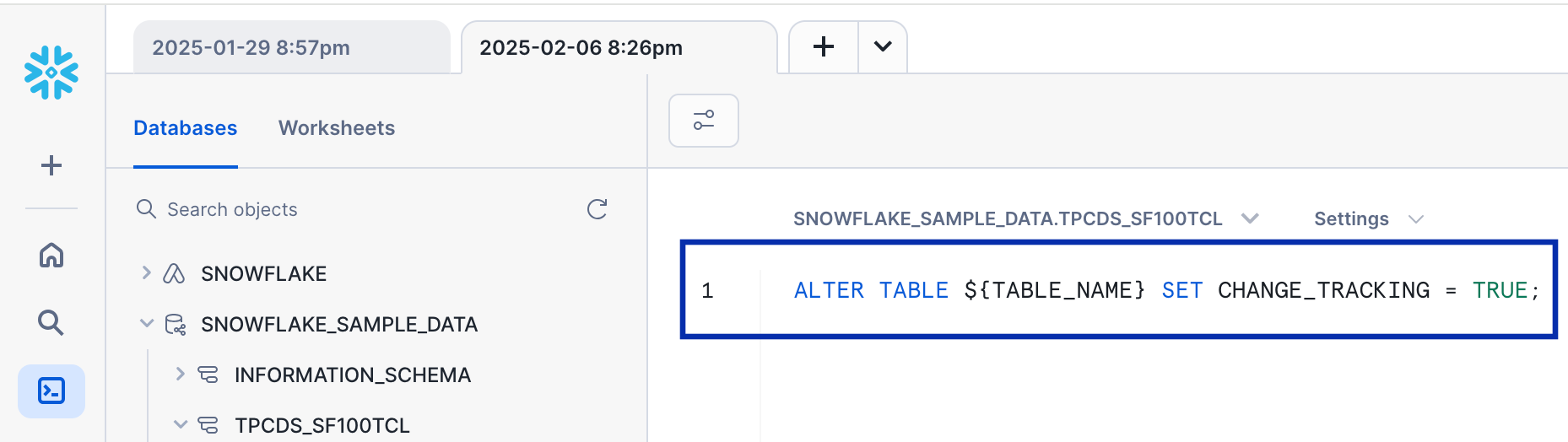
${TABLE_NAME} with the actual table name and click the Run button.6
Once this process is complete, the selected table will be configured to support delta fetches.