

1
Navigate to Data Lifecycle under the Protect module.
2
Go to the Customer Data Lifecycle tab and click Create Deletion Rule.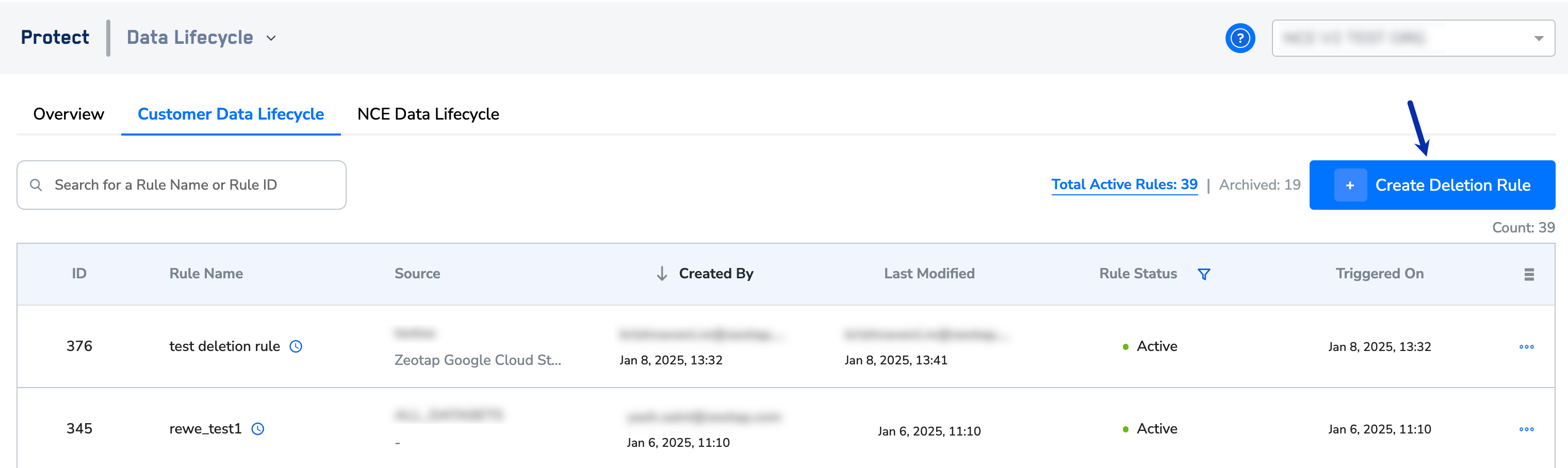
3
In the new window that appears, provide the following details:a. Provide a unique name for each deletion rule and enter an appropriate description in the respective fields.
b. Use the Frequency option to configure how often the deletion occurs. In addition, you can set the start and end date for the deletion rule. Currently, we support the following frequencies:
b. Use the Frequency option to configure how often the deletion occurs. In addition, you can set the start and end date for the deletion rule. Currently, we support the following frequencies:
- One-time
- Daily
- Weekly
- Monthly
NoteBelow are some important points regarding the number of rules you can create:
- You can configure only one recurring rule if you select a single source for deleting records.
- If you select All Sources, you can create multiple recurring rules.
- You can create up to 10 one-time rules as needed.
- You can reuse an active rule by modifying the deletion criteria.
4
Here, set the criteria for qualifying records from the chosen source for deletion by performing the following steps:a. Under Select Source, use the drop-down to choose the source of data ingestion to delete records. Set this to All Sources to delete records from all sources in your organization.b. Under Set Deletion Criteria, define the period for data deletion. Choose this period based on either the ingestion timestamp or event timestamp, as required. This is a mandatory input for setting up the deletion rule. Note that apart from these two timestamps, you can add a custom timestamp as well as the deletion criteria. To do so, reach out to your Zeotap POC.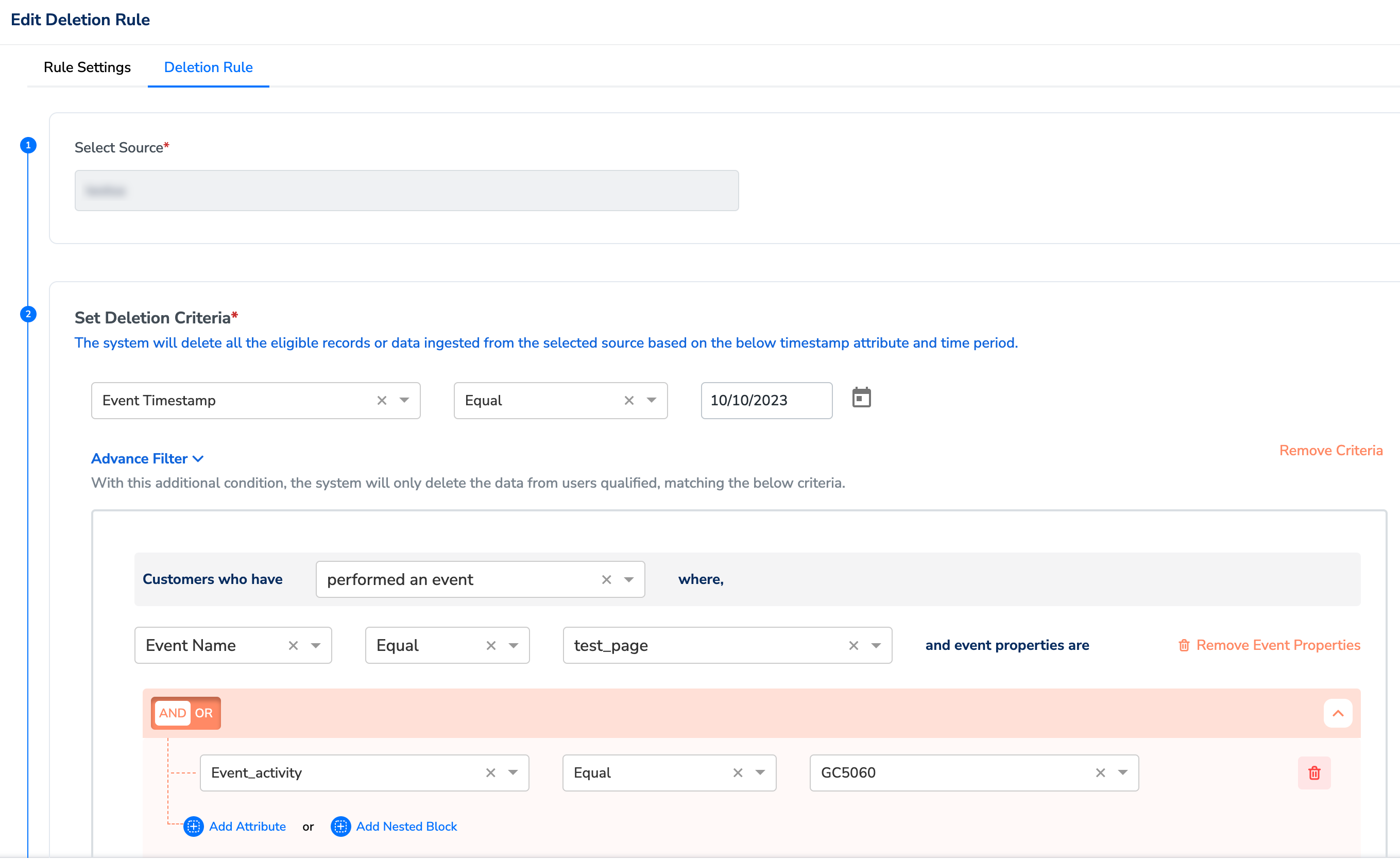
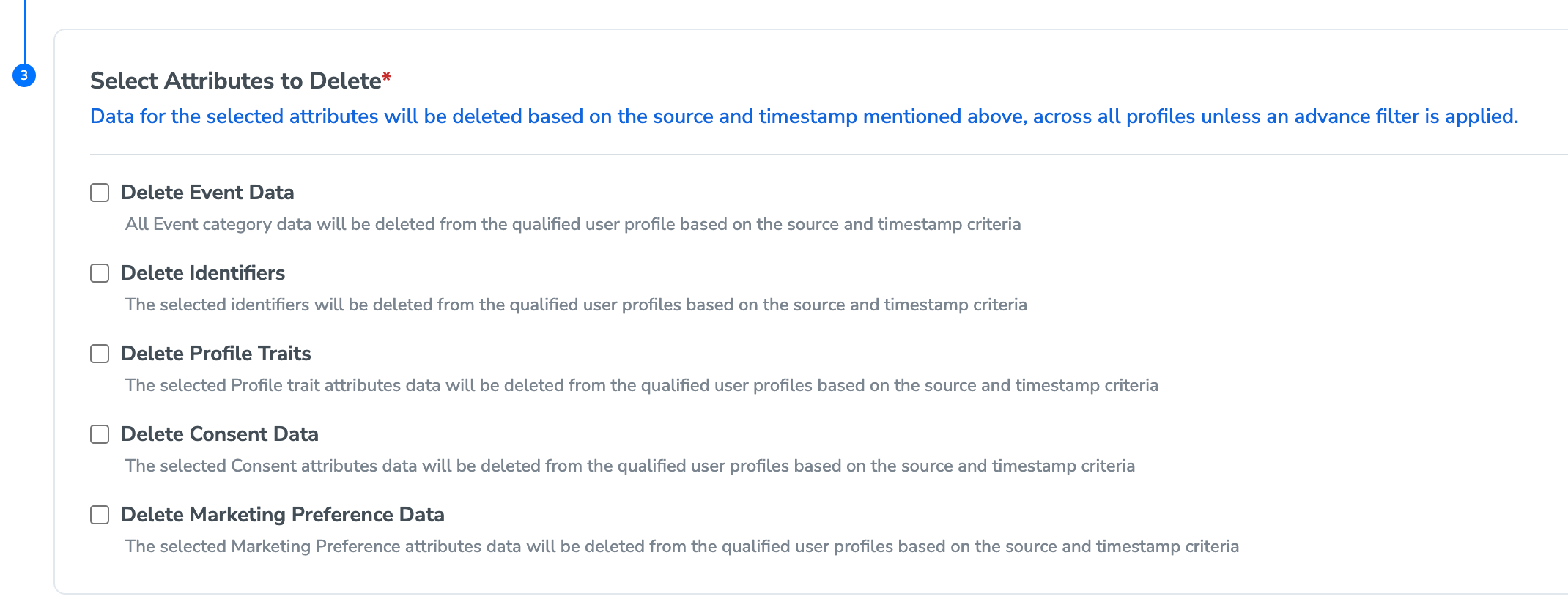
Note:Currently, if you select a particular source in the deletion rule, only event data is deleted. Identifiers, profile attributes, marketing preferences, and consent data remain in the system, as the system cannot determine whether the selected attributes for deletion were updated or ingested by the chosen source.If you select All Sources, you can delete all attribute types.
- Advanced Filter: Use conditional blocks to apply additional filters for record deletion. For example, if 1,000 records qualify for deletion based on the selected source and timestamp, you can filter to delete only those profile attributes where the gender is Male. This might reduce the deletion count to 500 out of 1,000 records. These filters allow you to scrutinise the records before deletion.
- Delete Event Data - Select this option to delete event data for qualified users based on the source and timestamp criteria. If you select “All Sources” under the “Select Source” field, then you will not be allowed to set up the deletion rule as this rule will delete your complete event store. Only after adding an advance filter, you can execute with the deletion rule.
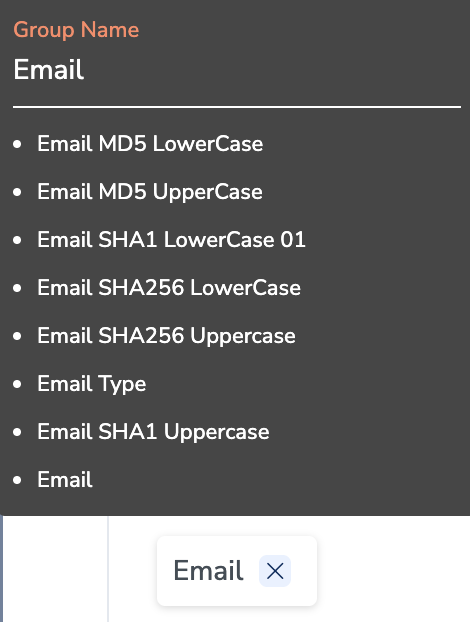
- Delete Identifiers - Select this option to delete specific identifiers for qualified users based on the source and timestamp criteria. Enter the identifier in the provided textbox. The qualified identifiers will be removed and will no longer be available for activation. For any selected identifier, all attributes within its group will also be selected for deletion, as shown in the image below. Hover over the selected Identifier group for the expanded view. Note that identifiers will only be deleted if you select ” All Sources” under the “Select Source” field. Learn more
- Profile Traits - Select this option to delete profile trait attribute data for qualified users based on the source and timestamp criteria. Enter the trait attribute in the provided textbox. The qualified traits will be removed and will no longer be available for activation. For any selected trait, all attributes within its group will also be selected for deletion. Hover over the selected Profile Trait group for the expanded view. Note that profile traits will only be deleted if you select ” All Sources” under the “Select Source” field. Learn more
- Consent Data - Select this option to delete consent data for qualified users based on the source and timestamp criteria. Enter the consent attribute in the provided textbox. The qualified consent data will be removed and will no longer be available for activation. For any selected data, all attributes within its group will also be selected for deletion. Hover over the selected Consent data group for the expanded view. Note that the consent data will only be deleted if you select ” All Sources” under the “Select Source” field. Learn more
- Delete Marketing Preference Data - Select this option to delete marketing preference data for qualified users based on the source and timestamp criteria. Enter the marketing preference attribute in the provided textbox. The qualified marketing preferences data will be removed and will no longer be available for activation. For any selected data, all attributes within its group will also be selected for deletion. Hover over the selected marketing preference data group for the expanded view. Note that the marketing preference data will only be deleted if you select ” All Sources” under the “Select Source” field. Learn more
5
Click Save and confirm to create the deletion rule when prompted. This will permanently delete the qualified records/data from the system. Note that the deletion may take one hour to 10 days, depending on the volume of qualified data and the pipeline sequence.
Note:The deletion process is irreversible. Ensure all necessary precautions are taken before triggering the deletion rule.