

1
Enter a descriptive title to refer to the workflow.
2
In the Description field, enter a description to remember details about the workflow.
3
Click Add Entry Condition.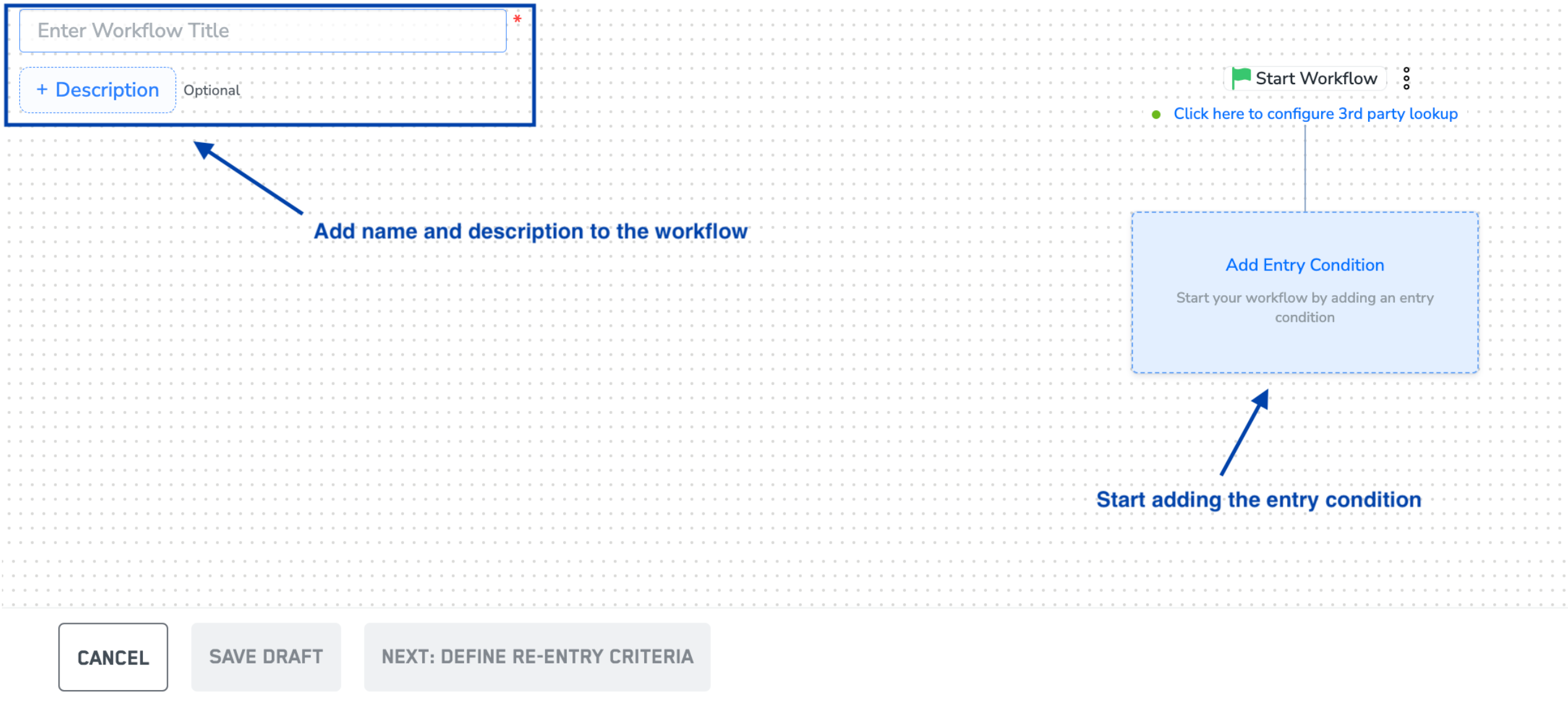
4
Workflows work by filtering users coming in from real-time streaming sources. Select the real-time streaming source you want to work with from the drop-down menu. For a user journey across all your sources, select the ‘All Sources’ option.
5
From the Performed an event drop-down menu, choose the event name and attributes with which you want to define the entry condition.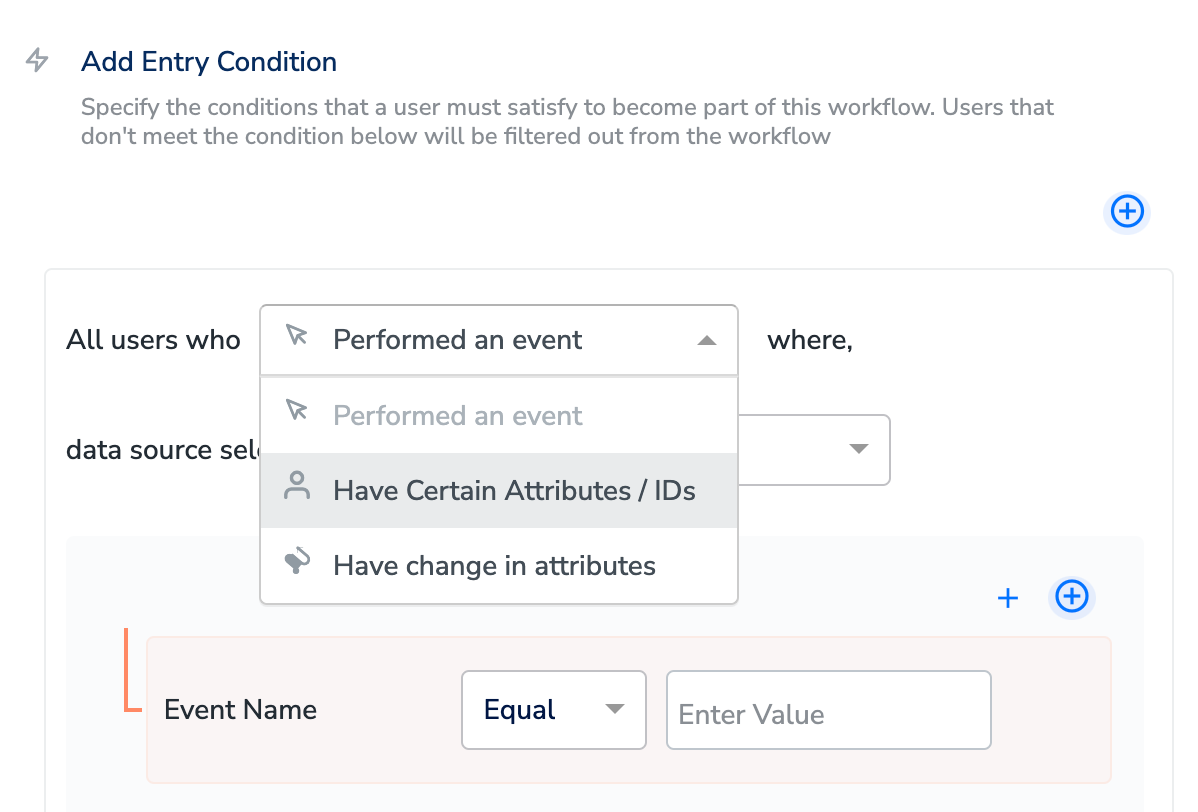
NoteYou can add a maximum of ten event attribute filters. Note that it is compulsory to select the event name first. Within each attribute filter, you can add one condition or more than one condition block.
6
Filter users based on the following options: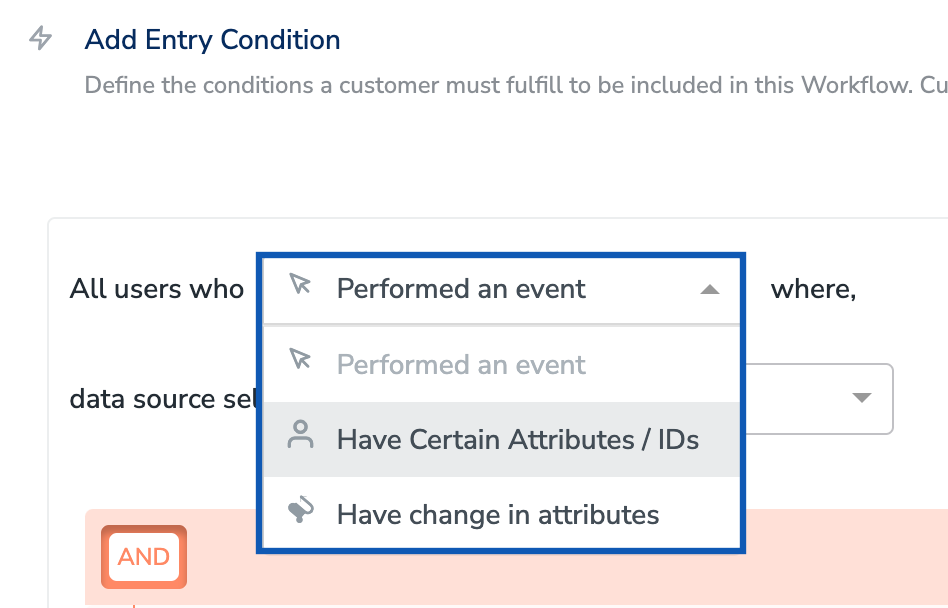
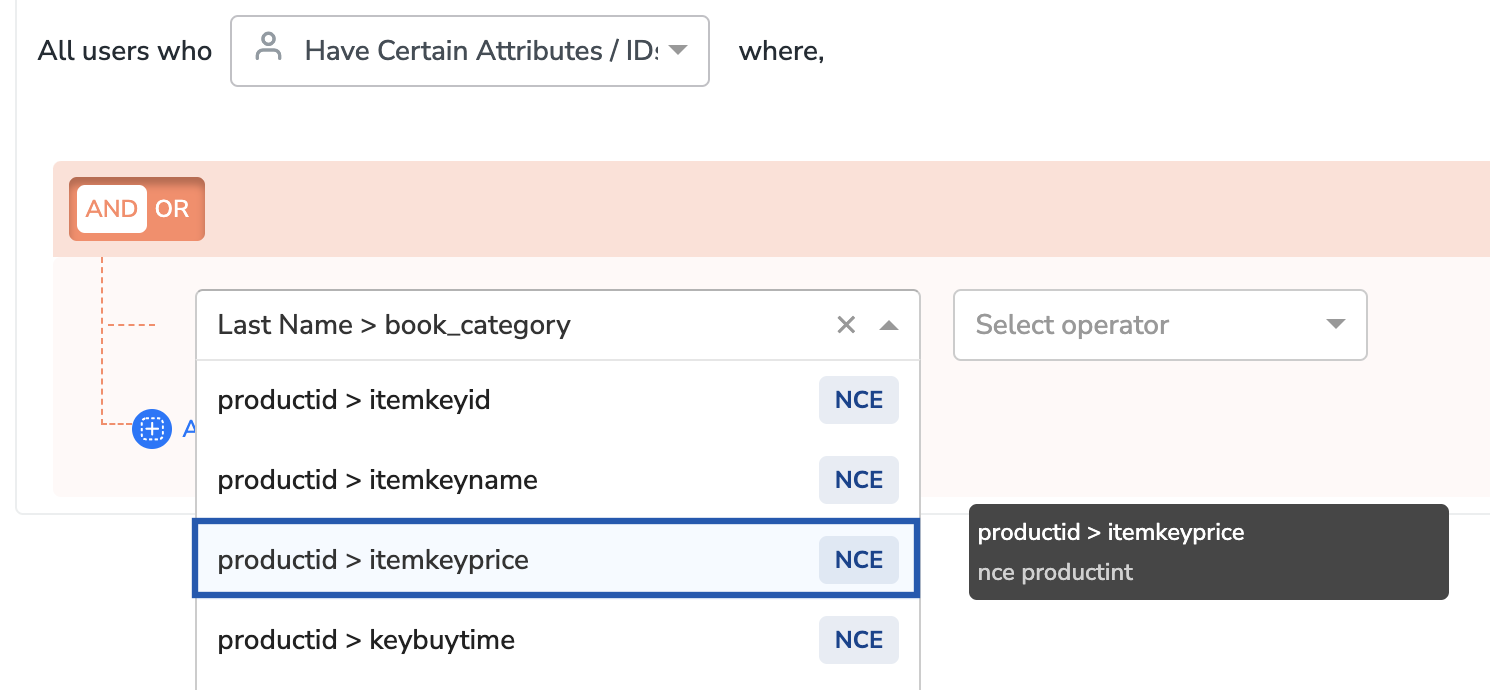
- Performed an event - Use this option to add an event name and attributes to be filtered. While defining a Performed an eventcondition, ensure that you specify the following items:
- The recent duration within which that event must have been performed.
- The number of times that event must have been performed. For example, performed
add_to_cartevent more than 2 times in last 4 hours.
- Have Certain Attributes / IDs- Use this option to specify the identifiers or attributes in a condition. Under Have Certain Attributes / IDs, apart from the standard identifiers and attributes, you can also choose from the data types, Non-Customer Entity data (NCE), Objects and List of Objects.
- The NCE attribute is displayed in the format:
Join Key > Attribute nameas shown in the image below. Here, thence productintis the source field,productidis the Join Key anditemkeypriceis the attribute name. The NCE tag appears on the attributes for easy identification as shown below. For more information about how to create an NCE attribute and map it to catalogue, refer here.
- The NCE attribute is displayed in the format:
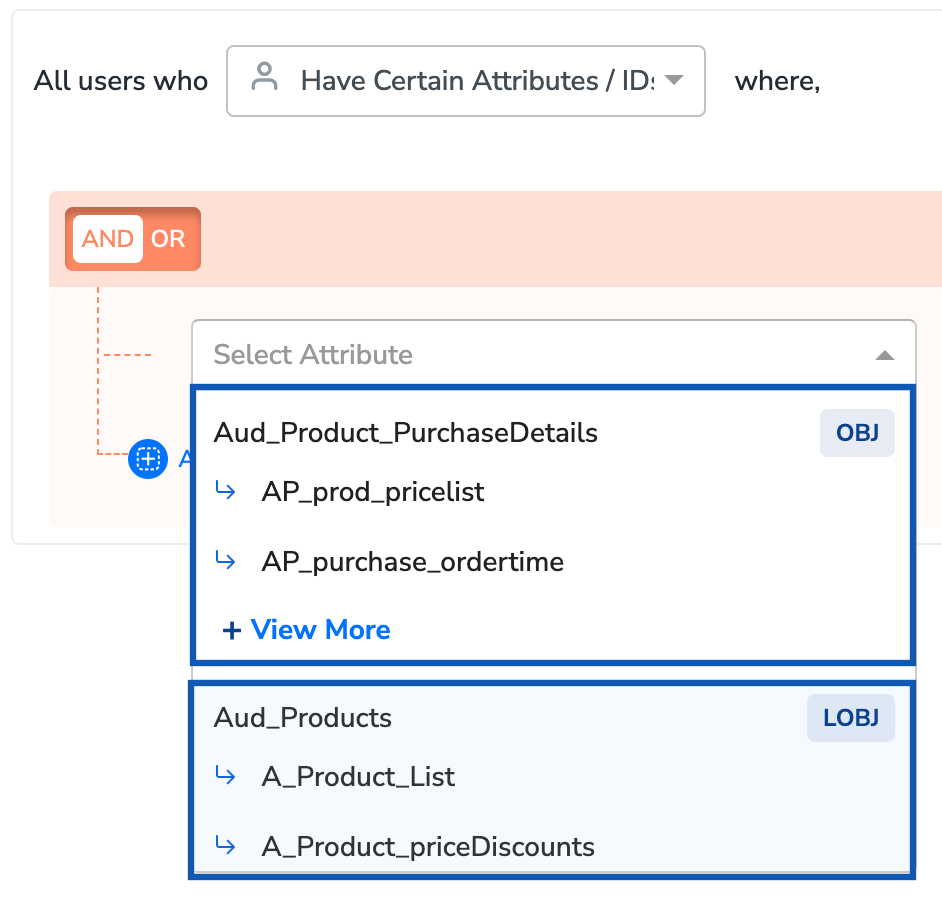
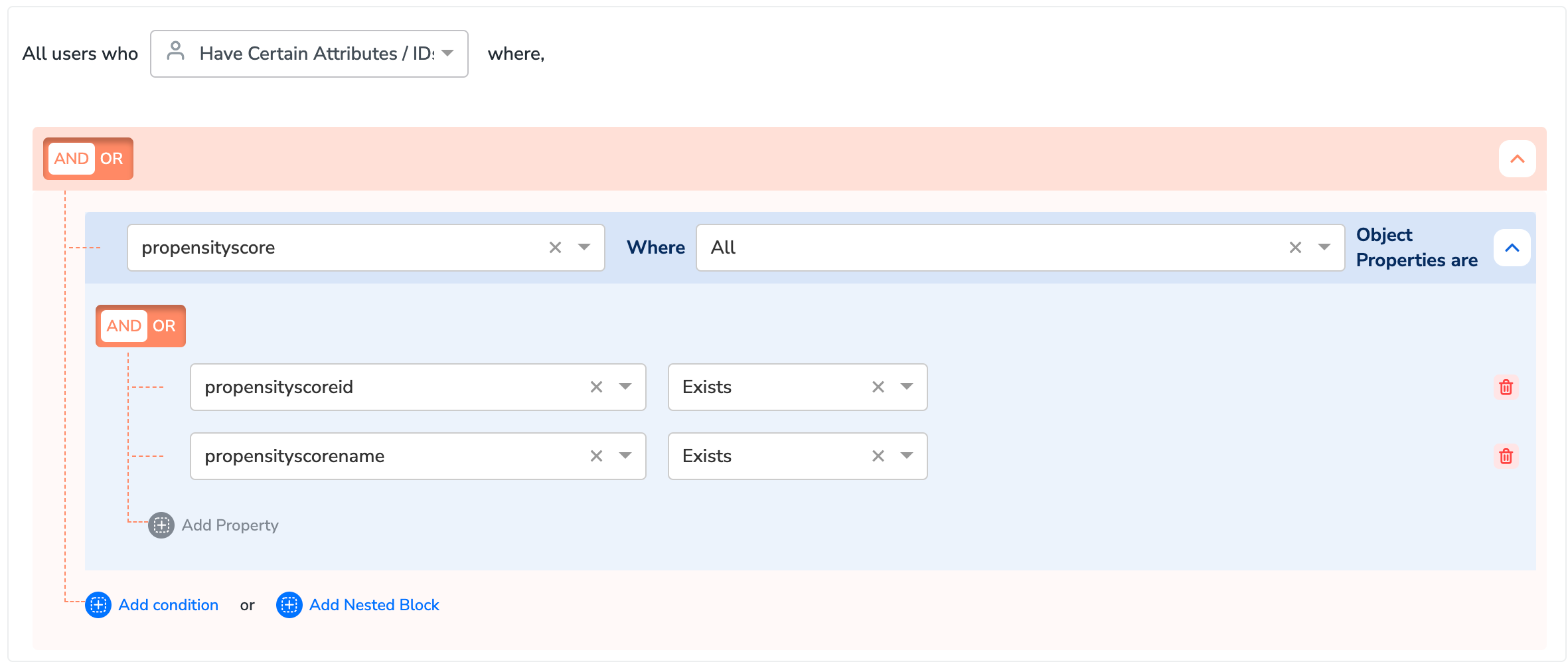
ObjectsandList (Array) of Objectsare attribute types within the Zeotap Catalogue that can hold a JSON object or array of JSON objects that contains one or more key-value pairs, also called properties. You can identify anObjectattribute andList of Objects, along with its properties with theOBJandLOBJtags respectively next to the attribute names as shown in the image below. To learn more about Objects and List of Objects along with use cases, refer here.
-
Note that upon selecting the
ObjectsorList of Objectsattribute, you need to choose either ANY or ALL as the operator based on requirement. -
ANY qualifies customers for your workflow if at least one of the
ObjectsorList of Objectsin the list meet the specified conditions. -
ALL qualifies customers for your workflow only if all the the
ObjectsorList of Objectsin the list meet the specified conditions.
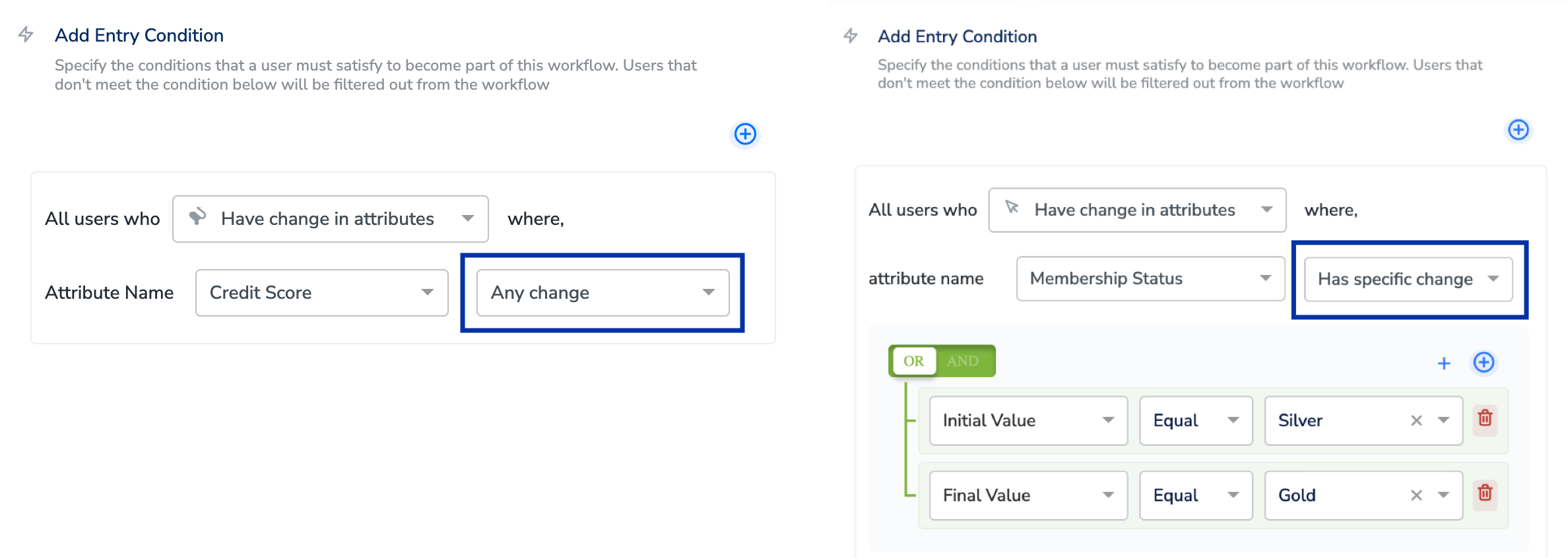
- Have change in attributes - Use this option to track an attribute for any/specific change in its status. By choosing the Attribute Name and Any Change from the drop-down menu, you specify the attribute for which you want to track the change in its status. For example, suppose you want to keep a track on the credit score of a customer based on which you can create promotions. In this case, you can choose the Attribute Nameas Credit Scoreand choose Any change from the drop-down menu beside it. For more precise tracking, you can choose Has specific change instead of Any change, and establish the required conditions according to your needs.
Note:You can add a total of ten user attributes or calculated attributes filters. You can define an entry condition using just the attributes filter. Since Journeys works by processing events, in this case, all the events performed by the user are considered for the workflow.
7
Click Add Condition to complete the first stage of workflow creation.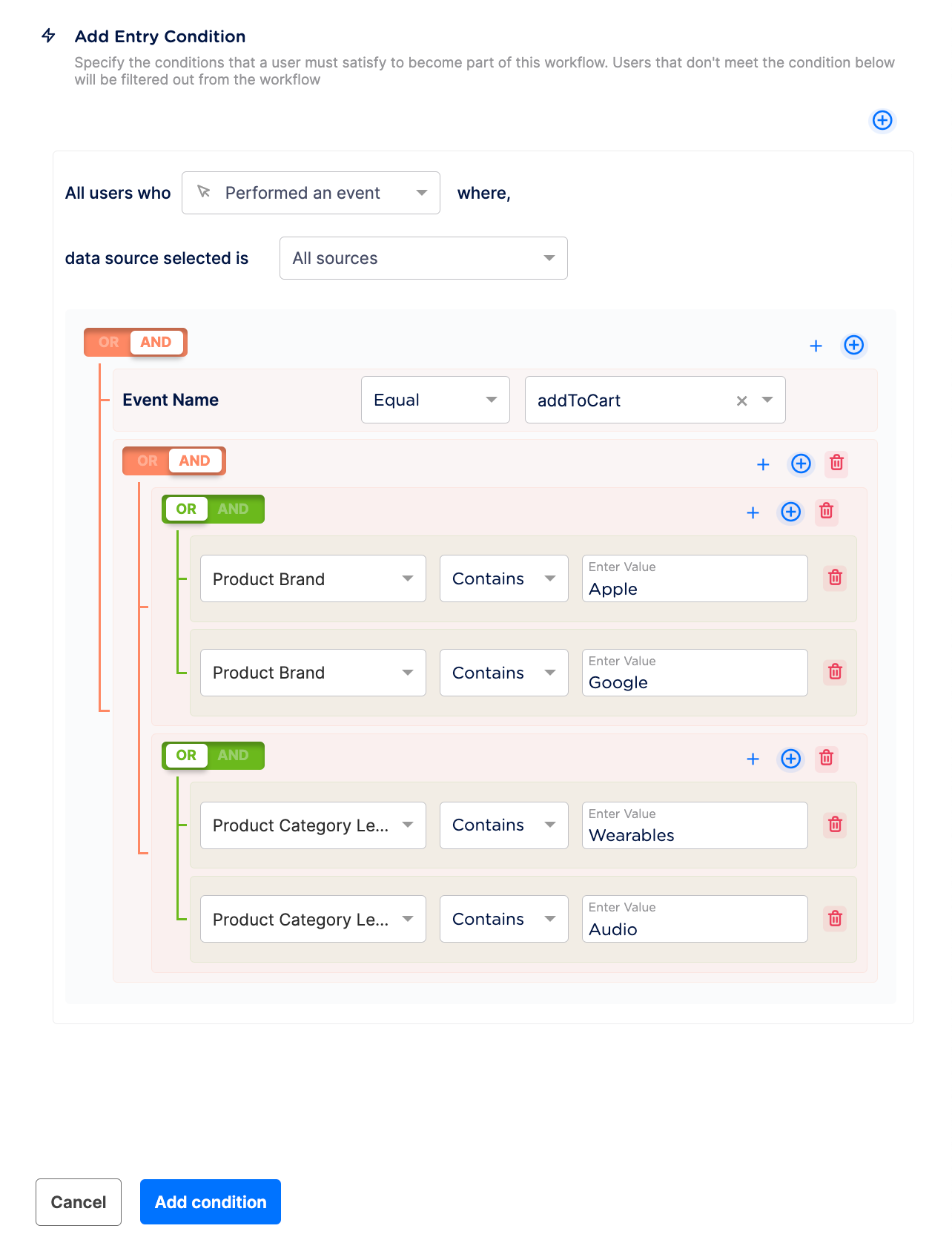
Operator Supports
List Operators
Integer Data Types
String Data Types
Timestamps Data Types
Note:After adding the entry criteria, you can apply conditional checks, delays or splits at any node in the workflow. You can also send the users to a Destination channel to activate them.