

Latest Version
2.2.8Overview
This document provides all the information that you as a client require to create and implement the Android SDK source.Integrate Zeotap Android SDK
You can integrate the Android SDK into your project in the following ways:- By an automated process using the Dependency Manager
- By a manual process, which involves adding the dependencies yourself
Integrate Using Dependency Manager
To integrate theZeotapCollect Android SDK using the Dependency Manager, perform the following steps:
Note:The Android SDK version and the Gradle tool version mentioned in the integration steps is for reference purposes only. Ensure to use the latest version during the integration process.
In the project level of the
build.gradle file or settings.gradle file
(Project root > build.gradle or Project root > settings.gradle), add the Maven URL given below in the repositories block.Code
In the app level
build.gradle file (Project root > app > build.gradle), add the below in the dependencies block. Note that you need to replace X.X.X with the correct version.Code
If you have obtained the b. For applications targeting Android versions lower than 13, the SDK automatically retrieves the
AdID yourself, then you can use the setAdID method to apply it. However, if you prefer the SDK to retrieve the AdID, then perform the following steps:a. For applications targeting Android version 13 or higher, include the following dependency in the app-level dependency block:Code
AdID on its own.Ensure that you add following dependency in app level dependency block, if you are not using json dependency in your project.
Code
Integrate by Manual Process
Note:To download the Android SDK for manual installation, click here.
Move the AAR file downloaded from the mentioned link to the following location:Project libs folder > Project Root > app > libs.
Note:Create the libs folder if it does not already exist.
In the app level
build.gradle file (Project root > app > build.gradle) add the following before the dependencies block.Code
Note:
flatDir is not supported in the latest version of Android studio Bumblebee or higher. Also, if dependencies are added through dependencyResolutionManagement, then adding the libs folder by flatDir is not supported. Therefore, follow the below code to add the libs folder. Add the sourceSets block inside the Android block as mentioned below and add 'lib-dependencies.gradle' before the dependencies block.Code
In the app level
build.gradle file (same path as mentioned above) add the following to the dependencies block and replace X.X.X with the actual version of the SDK:Code
Initialise SDK
Upon starting your app, you are required to initialise the Collect SDK. To initialise, perform the following steps:In the
MainApplication.java file, import the CollectOptions and Collect classes from the Zeotap collect library.Configure your SDK utilizing the
CollectOptions object by setting the write_key. Note that the remaining configurations can take the default settings.After configuring all these options, you can pass the option object to the Ensure that the
init() function of the Collect class. Refer to the example below.Code
MainApplication inside AndroidManifest.xml is declared as mentioned below.Inside your application wherever you want to send events to the collect SDK, add the below code.
Code
If you do not want the SDK to read some events after integrating, then use
pauseCollection() and resume the events firing with resumeCollection() as mentioned below.Code
Options to Configure SDK
Once the SDK is integrated, perform the following steps to configure the SDK:Import
CollectOptions to pass the configurations to the SDK as mentioned below. com.zeotap.collect.CollectOptions;To configure the options, create a Builder object by passing the application context to
CollectOptions.builder. (We recommend that you initialise the SDK in MainApplication.java.) This provides the Builder object and some functions that could help you to set up the SDK options.| MODIFIER AND TYPE | INPUT TYPE | METHODS | DESCRIPTION | |
|---|---|---|---|---|
CollectOptions.Builder | String | credential(<write_key>) | The write key is provided to the SDK by you. | |
CollectOptions.Builder | Boolean | enablelogging(enable) | ||
CollectOptions.Builder | Boolean | optOut(value) | If set to true, then no events are posted to the SPL. The default value is false. This option is a fallback when consent is not used. | |
CollectOptions.Builder | Number/Integer | batchSize(size) | The maximum number of events allowed to remain in the unsent queue when scheduling an event. If the event exceeds this threshold, then the next batch is dispatched immediately. The default value is 30. The minimum batch size value supported is 10 and the maximum value can be 50. | |
CollectOptions.Builder | Number/Integer | maxCacheSize(size) | The maximum number of events allowed to be stored in the local memory in case of network issue or delayed consent. Default value is 100, and the maximum value can be 200. | |
CollectOptions.Builder | Number | serviceUploadInterval(interval) | If the size of the queue is less than the threshold, then the request to post events is scheduled after serviceUploadInterval(sec).The default value is 90s. | |
CollectOptions.Builder | Boolean | useConsent(consent) | If set to true, then the SDK waits to receive a consent signal and uses that consent to manage actions. | |
CollectOptions.Builder | Boolean | checkForCMP(is_CMP_available) | If both useConsent and checkForCMP are set to true, then the SDK looks for CMP data that is stored by other CMPs. Based on the CMP data, you can then manage the consents. | |
CollectOptions.Builder | Boolean | checkZeotapVendorConsent(boolean) | For CMP case, If set to true, then the SDK checks for Zeotap Vendor consent, while resolving GDPR consent to send the data. If set to false, then the SDK ignores Zeotap Vendor consent. | |
CollectOptions.Builder | RoleForConsent | roleForConsent(consent_role) | This is the option to set the role for the consent. Note that you can set this option by passing, RoleForConsent.PUBLISHERor RoleForConsent.VENDOR. | |
CollectOptions.Builder | PublisherConsentCategory | tcfPublisherConsentCategory (publisher_category) | This is the option to set the TCF Publisher consent category. Note that you can set this option by passing PublisherConsentCategory.CONSENTSor PublisherConsentCategory.LEGITIMATEINTERESTS. | |
CollectOptions.Builder | List<Number> | purposesForTracking(tracking_ids) | This option is used to pass a list of purpose IDs, based on which you can manage the consent for tracking. Note: To know more about the purposes for tracking and the associated IDs, refer to the “Appendix A: Purposes and Features Definitions” section of this topic. | |
CollectOptions.Builder | List<Number> | purposesForIdentifying (identification_ids) | This option is used to pass a list of purpose IDs, based on which you can manage the consent for identification. Note: To know more about the purposes for identification and the associated IDs, refer to the “Appendix A: Purposes and Features Definitions” section of this topic. | |
CollectOptions.Builder | String | userCountry(country_code) | This option must be set in alpha-iso3 codes, which can then be sent with every request as user.user_country. The API defaults the IP to determine the country if the user country is missing. This determines the region where the data is stored. | |
CollectOptions.Builder | Boolean | areIdentitiesHashed(isHashed) | This option indicates whether the identities shared in setUserIdentities are hashed or not. By default, isHashed is set to false.Note: This option is applicable only for PIIs and not for Custom Identities. | |
CollectOptions.Builder | Boolean | hashIdentities(hash) | This option indicates whether or not hashing of the raw identities is required. By default, the hashing is set to false. Note: This option is applicable only for PIIs and not for Custom Identities. | |
CollectOptions | - | build() | This option builds this Builder into a CollectOptions object, which can start the SDK. |
Methods Available in Zeotap CDP
The following methods are available in the Zeotap CDP instance:| METHODS | DESCRIPTION |
|---|---|
static void init | init(CollectOptions options)This method initializes the SDK with the context, write key and additional configuration. |
static Collect getInstance | getInstance()This method returns the Collect object that contains the SDK functions. |
void setEventProperties | Collect.getInstance().setEventProperties(String eventName, Map<String, ?> eventProperties, SDKCallback cb)@param eventName (required)@param eventProperties (Optional) @param cb (Optional)This method sends an event with the specified event name and can be called with event properties, callback options, or either one. |
void setInstantEventProperties | Collect.getInstance().setInstantEventProperties(String eventName, Map<String, ?> eventProperties, SDKCallback cb)@param eventName (required)@param eventProperties (Optional) @param cb (Optional)This method sends an event with the specified event name immediately, bypassing the batch queue. You can call it with eventProperties to attach event properties and a callback to handle the response. |
void setUserProperties() | Collect.getInstance().setUserProperties(<String, ?> userProperties, SDKCallback cb)@param userProperties (required)@param cb (Optional)This method sends an event with the specified user properties along with the default user properties. Use setUserProperties to override existing user properties. You can also call it with a callback function to handle the response in the application. |
void setPageProperties | Collect.getInstance().setPageProperties(Map<String, ?> pageProperties, SDKCallback cb)Collect.getInstance().setPageProperties(Map<String, ?> pageProperties, SDKCallback cb)@param pageProperties (required)@param cb (Optional)This method sends an event with the specified page properties. All subsequent events will include a page node with these page properties. Use setPageProperties to override the existing page properties. |
void setUserIdentities | Collect.getInstance().setUserIdentities(Map<String, String> userIdentities, SDKCallback cb)@param userIdentities (required)@param cb (Optional)This method sends an event with the specified user identities. All subsequent events will include these user identities. |
void unSetUserIdentities | Collect.getInstance().unSetUserIdentities()This method is used to remove user identities that are set by the setUserIdentities method. |
void pauseCollection | Collect.getInstance().pauseCollection()This method is used to pass the SDK from the Collect events for the user’s actions. |
void resumeCollection | Collect.getInstance().resumeCollection()This method resumes the SDK to collect the events if the SDK was paused to collect by the pauseCollection() method. |
void setConsent | Collect.getInstance().listenToAskForConsent(Action callback)This method sets consent in the non-TCF consent management system included in the SDK. It also accepts brand consent, which is stored along with the user’s primary consent. |
void listenToAskForConsent | Collect.getInstance().listenToAskForConsent(Action callback)This method listens to the ask_consent event that is triggered when the SDK wants you to ask the user for consent. |
void setAdId | Collect.getInstance().setAdID(String adID)This method is used to pass the advertising ID manually. Note that if the AdID is not passed through this method, then the SDK tries to retrieve AdID from the device if the necessary permissions are given by the user. |
Verify Connection
Upon successful integration, send some events through your app to verify the connection. Once the connection is established and tested, log in to the Zeotap CDP App and navigate to the particular Android source to view the data in the PREVIEW tab.Track Page Views
After integrating the SDK, you can log the users’ page view events by callingsetPageProperties(properties) and sending all page-related information as key=value properties on the page load event. All further user events on the same page are then attached with these page properties.
| PARAMETER | TYPE | DESCRIPTION |
|---|---|---|
properties | Object | This indicates the page-specific properties. |
Code
Note:If page properties are not defined, then by default, no page property is available on an event payload.
Track User Actions
After tracking the page views, you can start tracking the events. Use thesetEventProperties method to track different user actions on the Application (for example, the selectVariant event with colour as a property) and properties relating to the event (for example, a ViewProduct event with productName, color as a property).
| PARAMETER | TYPE | DESCRIPTION |
|---|---|---|
eventName | String | This is the name of the event. |
eventProperties | Object | This is the object containing any properties for a particular event. |
- System Events
- Custom Events
Note:This granular level of tracking has been enabled since May 14, 2024. Any system event tracked before this date is tagged with the common name
SystemEnrichmentEvent which could have been triggered by any of the scenarios listed below.| Event Name (Tags) | Scenarios |
|---|---|
| Set consent | Triggers the first time a user lands on the app and sets consent |
| Update consent | Triggers when a user changes their consent |
| Set identities | Triggers when a user logs in |
| Update identities | Triggers when a user changes already set identities |
| Event Name (Tags) | Scenarios |
|---|---|
| Add to cart | Triggers when a user adds an item to their shopping cart |
| Remove from cart | Triggers when a user removes an item from their shopping cart |
| Complete purchase | Triggers when a user completes a transaction |
ViewProduct event.
Code
Code
Identify Default Users
The SDK creates an ID calledzi for user identification. This ID is attached to all the event calls from the SDK, such as page views and user events. This ID is unique per the application.
SharedPreference is utilised for storing these IDs with an encrypted key that is derived from the <write\_key>.
The zi ID is unique to each instance of the SDK that is write key based.
The table below explains certain features available in the SDK with respect to the zi ID.
| FEATURE | DESCRIPTION |
|---|---|
Collect.getInstance().getZI() ⇒ string // | This is the method to get the zi value. |
Collect.getInstance().resetZI() | This is the method to reset the zi value for a user. You can use this method in case you want to differentiate users based on user login and so on. |
Collect.getInstance().setZI(value) | This is the method to set a custom zi value that overrides the value generated by the SDK. You can use hashed userid or loginid for this purpose if required. |
Capturing User Properties
Use thesetUserProperties method to attach user information for a known user who is using the Application. The user information is as follows:
- DB ID for the user (recommended)
- Any additional information about the user that you want to identify as a user attribute
Collect.getInstance().setUserProperties(properties) where properties is an object containing user identifiers and attributes that are sent as key=value properties to SDK events.
Below is an example showing how to add user attributes of the user visiting the app.
Code
Note:The records for the country and city columns are blacklistedfor ingestion because SPL uses the user’s IP address to find out the country and city automatically. For the complete list of blacklisted fields, click here.
Capturing User Identities
ThesetUserIdentities method identifies the object that can be set by the user and saved in user storage. The following are the keys that are accepted in user Identities:
| NAME | TYPE | DESCRIPTION |
|---|---|---|
[email] | string | The email address of the user. |
[loginid] | string | The login id. |
[cellno] | string | The cell number without the country code. |
[cellno_cc] | string | The cell number with the country code. |
Code
Raw User Identities
While capturing user identities in the raw form, you may or may not want Zeotap to hash them. Refer to the table below to understand the scenarios, the SDK options that are involved and a sample to invoke thesetUserIdentities method.
| SCENARIO | SDK OPTIONS | SET USER IDENTITIES |
|---|---|---|
| You send raw user identities, but do not want Zeotap to hash them | The following SDK options are involved in this scenario: • areIdentitiesHashed(false), • hashIdentities(false) | Map<String, ?> userIdentities = new HashMap<>();userIdentities.put(“email”, “[email protected]”);userIdentities.put(“cellno”, “45454545”);Collect.getInstance().setUserIdentities(userIdentities); |
| You send raw user identities and want Zeotap to hash them | The following SDK options are involved in this scenario: • areIdentitiesHashed(false),• hashIdentities(true) | Map<String, ?> userIdentities = new HashMap<>();userIdentities.put(“email”, “[email protected]”); <br/>userIdentities.put(“cellno”, “45454545”);<br/>Collect.getInstance().setUserIdentities(userIdentities);` |
| PARAMETER | TYPE | DESCRIPTION |
|---|---|---|
userIdentities | Map<String, ?> | This is the Map containing the user identities. |
[userIdentities.email] | String | This is the user’s raw email address. The SDK either captures as is or converts to sha256, sha1, md5 lowercase and uppercase hashed values, based on the SDK configurations. |
[userIdentities.cellno] | String | This is the user’s raw cell phone number. The SDK either captures as is or converts to sha256, sha1, md5 without the country code, based on the SDK configurations. |
[userIdentities.loginid] | String | This is the user’s login ID that is hashed and logged. |
[userIdentities.cellno_cc] | String | This is the user’s raw cell phone number. The SDK either captures as is or converts to sha256, sha1, md5 with the country code, based on the SDK configurations. |
- When
areIdentitiesHashed:false - When
CollectOptions.Builder.optOutis set to false
SHA1 and MD5. In this scenario, refer to the table below to understand the scenario, the SDK options that are involved and a sample for the setUserIdentities property.
| SCENARIO | SDK OPTIONS | SET USER IDENTITIES |
|---|---|---|
| You send hashed user identities only | The SDK option involved in this scenario is areIdentitiesHashed( true) | Map<String, ?> userIdentities = new HashMap<>();userIdentities.put(“email_sha256_lowercase”, “[email protected]”);userIdentities.put(“cellno_with_country_code_sha256”, “45454545”);Collect.getInstance().setUserIdentities(userIdentities); |
setUserIdentities property is configured with properties, as mentioned in the table below.
| PARAMETER | TYPE | DESCRIPTION |
|---|---|---|
| userIdentities | Map<String, ?> | This is the map containing the user identities. |
[userIdentities.email_sha256_lowercase] | String | This is the user’s email address hashed to sha256 after converting it to lowercase. |
[userIdentities.email_sha256_uppercase] | String | This is the user’s email address hashed to sha256 after converting it to uppercase. |
[userIdentities.email_md5_lowercase] | String | This is the user’s email address hashed to md5 after converting it to lowercase. |
[userIdentities.email_md5_uppercase] | String | This is the user’s email address hashed to md5 after converting to uppercase. |
[userIdentities.email_sha1_lowercase] | String | This is the user’s email address hashed to sha1 after converting to lowercase. |
[userIdentities.email_sha1_uppercase] | String | This is the user’s email address hashed to sha1 after converting to uppercase. |
[userIdentities.cellno_without_country_code_sha256] | String | This is the user’s cell phone number without the country code and hashed to sha256. |
[userIdentities.cellno_without_country_code_md5] | String | This is the user’s cell phone number without the country code and hashed to md5. |
[userIdentities.cellno_without_country_code_sha1] | String | This is the user’s cell phone number without the country code and hashed to sha1. |
[userIdentities.cellno_with_country_code_sha256] | String | This is the user’s cell phone number with the country code and hashed to sha256. |
[userIdentities.cellno_with_country_code_md5] | String | This is the user’s cell phone number with the country code and hashed to md5. |
[userIdentities.cellno_with_country_code_sha1] | String | This is the user’s cell phone number with the country code and hashed to sha1. |
[userIdentities.loginid_sha256_lowercase] | String | This is the user’s login ID that is logged. We hash the login ID to sha256 after converting to lowercase. |
[userIdentities.loginid_sha256_uppercase] | String | This is the user’s login ID that is logged. We hash the login ID to sha256 after converting to uppercase. |
[userIdentities.loginid_md5_lowercase] | String | This is the user’s login ID that is logged. We hash the login ID to md5 after converting to lowercase. |
[userIdentities.loginid_md5_uppercase] | String | This is the user’s login ID that is logged. We hash the login ID to md5 after converting to uppercase. |
[userIdentities.loginid_sha1_lowercase] | String | This is the user’s login ID that is logged. We hash the login ID to sha1 after converting to lowercase. |
[userIdentities.loginid_sha1_uppercase] | String | This is the user’s login ID that is logged. We hash the login ID to sha1 after converting to uppercase. |
Note:To know about the hashing guidelines for email and cell phone numbers, refer here.
Set Events With Callback Function
You can also set events with callback function as shown below. Theres parameter is a map object that contains status and message.
Code
Note:For more information about the
Callback function status codes and errors, refer here.Log Out Communication
If you no longer wish to attach these identities to the events (for example, when the user logs out) you can communicate this by using unsetUserIdentities and then remove identities. Call the method as follows:Collect.getInstance().unsetUserIdentities()
Send User Profile Information
If you have any other information you want to send about the user on the app, you can send the same usingsetUserProperties. This is sent to the API with the default user zi ID, along with any other identities set using setUserIdentities.
Below is an example showing how to pass the user profile information.
Code
Code
Track User Consent
The consent that you provide is used for the following two primary purposes:- User identification
- Tracking user data
Default Opt-in
In this scenario, you directly provide consent to Zeotap by setting theoptOut flag to true or false. For all these three purposes, if the optOut flag is set to true, then it indicates that you have not granted access to Zeotap. Here, Android SDK is not allowed to perform user identification or tracking of user data. However, if the optOut flag is set to false, then the SDK is allowed to perform all the above actions.
| FUNCTION | TYPE | VALUE | DESCRIPTION |
|---|---|---|---|
CollectOptions.Builder:: optOut | Boolean | false | This is an explicit consent signal that you set. When enabled, the SDK can perform user identification, cookie syncing and event capturing. |
GDPR TCF CMP
If you already have a TCF 2.0 Consent Management Platform (CMP) implemented on your app, then the SDK automatically checks for the same. To do this, both theuseConsent and checkForCMP flags are set to true. The SDK also queries the TCF consent string to fetch the Publisher’s consent before recording the events.
The below table describes the keys/parameters that need to be configured while using the GDPR consent module.
| FUNCTION | TYPE | VALUE | DESCRIPTION |
|---|---|---|---|
CollectOptions.Builder:: useConsent | Boolean | true | If this option is set to true, then the SDK waits to receive a consent signal and uses that consent to manage actions. This consentsignal is determined by CollectOptions.Builder::checkForCMP. |
CollectOptions.Builder:: checkForCMP | Boolean | true | If this option is set to true, then we check for the presence of the TCF 2.0 variables in the SharedPreferences.If the TCF 2.0 variables are present, then we query the CMP API and check for the publisher’s consent.If this option is set to false, then we use the set consent signal using the setConsent method. |
CollectOptions.Builder::checkZotapvendorConsent | Boolean | For CMP case, if set to true, then the SDK checks for the Zeotap Vendor consent, while resolving GDPR consent to send the data. If set to false, then the SDK ignores Zeotap Vendor consent. Note that the default value is false. | |
CollectOptions.Builder:: purposesForTracking | List<Number> | Arrays.asList(1, 3, 4) | This option is used to pass a list of purpose IDs, based on which you can manage the consent for tracking. Note: To know more about the purposes for tracking and the associated IDs, refer to the “Appendix A: Purposes and Features Definitions” section of this topic. |
CollectOptions.Builder:: purposesForIdentifying | List<Number> | Arrays.asList(1, 9) | This option is used to pass a list of purpose IDs, based on which you can manage the consent for identification. Note: To know more about the purposes for identifcation and the associated IDs, refer to the “Appendix A: Purposes and Features Definitions” section of this topic. |
- The
useConsentflag is set totrue - The
checkForCMPoption is set tofalse - The
setConsentmethod is used to resolve the user consent
SharedPreferences and used as the user’s consent status for the subsequent event log until a new status is set using the same.
The following are the keys that are accepted in user consent:
| NAME | TYPE | DESCRIPTION |
|---|---|---|
track | boolean | True if we want to track any user data |
identify | boolean | True if it is allowed to identify you and a user. |
track– This consent signal is used to track and record user activities. Any consent cookie created to store consents can use this permission, as it precedes all other data collection.identify– This consent signal is used for user matching and third-party enrichment(for example, zcookie and ID+ permissions).
Tracking but not for Identification. The consent is passed in the form of a Map value with the particular signal marked as true or false. Going by the above example, the Object would be set to true for Tracking and false for Identification.
Calling the Set Consent method
Call the setConsent method as mentioned below.Collect.getInstance().setConsent(value);
| PARAMETER | TYPE | DEFAULT | REQUIRED | DESCRIPTION |
|---|---|---|---|---|
| VALUE | MAP<STRING, ?> | YES | MAP– GRANULAR CONSENT ALLOWS PASSING VALUE AS A MAP OBJECT. |
JavaScript
JavaScript
Track Brand Consent
Use thesetConsent method to store brand-specific consent, such as zeotapVendorConsent or xyzVendorConsent, and ensure it persists across all events.
Example
JavaScript
Note:For consent types other than custom consent, the
track and identify flags are ignored because the consent configuration differs.Users
User information is available in the form of identifiers such as CRM IDs, person IDs or user attributes such as age, gender or customer classification. However, app event data is not considered user information. All this information helps tie the online behaviour of the user with the logged-in user ID and previously known user information. This user information is especially useful when you have users who visit the app from multiple devices, or who use your app. The CRM ID helps us to identify the user as the same user across the devices or app. The following are some of the user methods:- If you want to tie post-login behaviour to the actual logged-in user, then use
setUserIdentitiesorsetUserPropertiesdepending on your use case. - If you want to merge unknown and known user identities into one, then use
setUserPropertiesto update the information against the single user. - If you want to differentiate the two users, then use
setUserIdentitiesto attach the logged-in identities of the users to specific actions till it is unset.
- On user registration
- On user login
- On user profile update
- On user visit to post-login specific pages (like a wishList or a member-only Offers page)
List of Accepted Identifiers
The following are the list of accepted identifiers that are used only as intended and sent askey=value pairs:
-
email– This is the registered email address of the user. The email address is hashed tosha256,sha1and md5 after the SDK converts them to lower and upper cases before they reach the Zeotap servers. -
cellno– This is the registered cellular phone number of the user. The phone number is hashed tosha256,sha1and md5 by the SDK before it reaches the Zeotap servers. -
cellno_cc– The dialing country code (such as 33 for France, 44 for the UK, 1 for the USA, 34 for Spain and so on) can be sent here. The dialing country code is attached to the cellular phone number to create hashes with country codes before it reaches the Zeotap servers. -
loginid– This is the app-specific login ID. The login id is hashed tosha256,sha1and md5 by the SDK before they reach the Zeotap servers.
Note:
- To send any other identifiers apart from the identifiers mentioned above, reach out to your POM with details for the same.Zeotap updates the catalogue and sends you the correct key that is required to start sending the data.
- Only the main cellular phone number must be sent, without any country codes, prepended numbers (like 0),or symbols such as +, (, ) and so on.
Events
Events are actions performed by a user on your app. These could range from searching for a product, viewing an offer, subscribing to a newsletter and so on. Event properties are details describing the event, and could refer to user action specific to the event (such asevent: applyDiscount having property: discountCodeSelected) or property of the event itself (such as event: applyDiscount having property: newPrice). Tracking this helps understand user journey and behaviour on the app.
The Zeotap library supports custom events and properties for the automotive and ecommerce verticals. To track any new events you can add the event name and its property in the object and pass it to setEventProperties of Collect instance. Defining some sample events and the properties for it below.
The Zeotap library supports a standard list of events and properties for the automotive and ecommerce verticals. To track any new events apart from the standard list, reach out to your POM with details for the same and we can then update the catalogue and send you the correct keys and values to start sending the data.
Ensure the data types are as mentioned below.
Method: Collect.getInstance().setEventProperties(eventName,eventProperties)
| EVEN NAME | EVENT PROPERTIES (SENT AS KEY=VALUE) |
|---|---|
viewHome | |
viewCategories | categoryLevel1 (string), categoryLevel2 (string), categoryLevel3 (string) |
viewProductDetails | productID (string), productName (string) |
setConfigurations | productID (string),colour (string),model (string),subModel (string),engine (string),fuelType (string),transmission (string),trim (string),brand (string),ecolabel (string),vehicletype (string),emissionstandard (string),power (string),torque (string),fuelcapacity (double),seatingcapacity (string),luggagecapacity (string),tiresize (string),maxspeed (double),acceleration (double),fuelconsumption (string),weight (string) |
calculateFinance | productID (string),price (string),currency (string) |
makeAppointment | productID (string) |
requestTest | productID (string) |
login |
setConfigurations as eventType and selectColour, selectModel and so on as the actual eventNames.
Code
Pages
Setting the page properties is useful in tracking all events that occur within a page to a single page view. Therefore, ensure to set this first before calling the event method. Below is the list of page names that can be set against the property ‘name’.Code
Contextual Information
Zeotap records additional information relating to an event triggered or a page being loaded and then supplements details to the data point being captured. The following are the contextual information that Zeotap captured: device Id/Android id- IP, telco carrier, network type, os version
- DeviceManufacturer
- DeviceModel
- DeviceVersion
- ClientAppName and ClientAppVersion
Frequently Asked Questions about Android SDK
Where do we need to add the Maven URL when integrating the Android SDK, and what issues will arise if it's not added?
Where do we need to add the Maven URL when integrating the Android SDK, and what issues will arise if it's not added?
Location: The Maven URL must be included in 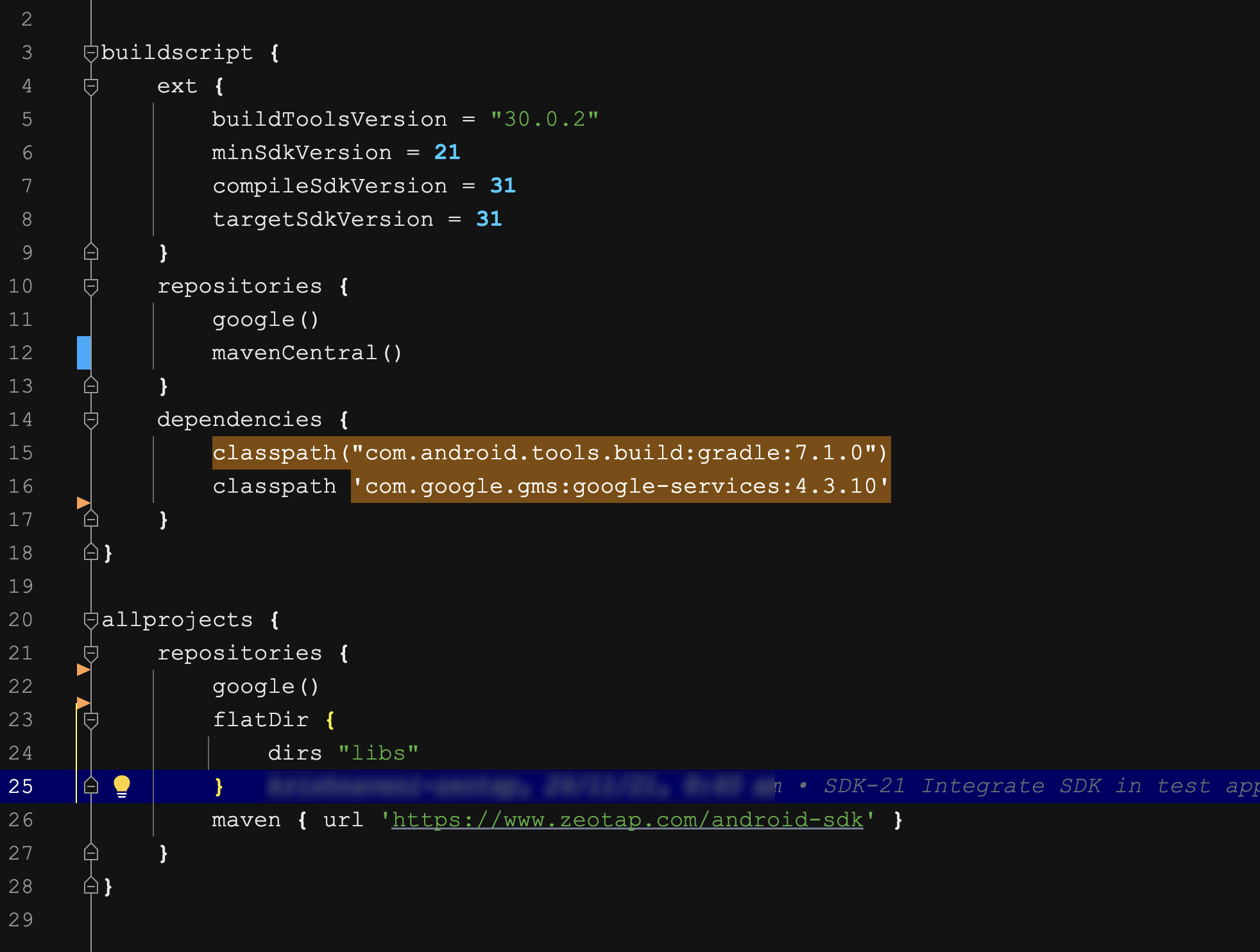
/build.gradleConsequence of Not Adding: Failure to include the Maven URL can lead to compatibility and dependency resolution issues.